Make product tutorial videos without showing your face
Six ways for support, onboarding and training teams to publish software tutorials without anyone on camera, compared side by side: a cleaned-up voice, AI voice-over, captions only, an AI that records your app, an AI presenter, or a video built from pages.
 Berkay Akpolat15 min read
To make a software tutorial without anyone on camera, record only your screen and choose where the narration comes from: your own voice with the retakes cut, an AI voice reading your script, or no voice and on-screen captions. If your product is a public web app, an AI can also click through and record it for you. For click-by-click steps, keep the recording and change only the voice.
This guide is for teams that publish product tutorials and training: support, onboarding, customer education and product marketing, where nobody wants to be filmed and no single person should be the face of every video. If you're training people on hardware or a physical process, the same idea works with hands-only or overhead shots; see Not a software tutorial?.
Updated 2026-11-04
In this guide
- Do you need to be on camera at all?
- Six ways to make a tutorial without your face
- How to make a faceless tutorial, step by step
- Which voice option sounds right?
- What the tools cost
- How Clevera does it
- Questions about faceless tutorial videos
Do you need to be on camera to make a good tutorial?
Not for a software tutorial. It is about the screen: customers and new hires want to see where to click, in what order, and what happens next. A face in the corner takes space from the UI and is optional for a click-by-click task. On a team it also ties the video to one person: when they change roles or the UI changes, the video has to be reshot with them.
What viewers do care about is that the video feels human and correct. TechSmith's 2024 Video Viewer Study (a vendor survey of 929 people in six countries) found that 87% of viewers prefer a real person over an animated character or AI avatar. The same study found 75% are receptive to video made with the help of AI, but 90% have concerns about it, and the top concern (45%) is accuracy.
TechSmith's own advice from the study is to show your face if you can. If you won't, its numbers argue against replacing your face with an AI presenter: a screen-led video with a clear voice and correct steps is the honest alternative. Only 19% of respondents had tried making an instructional video in the past year, and the report acknowledges that talking to a camera can be uncomfortable.
A face does help in a few cases: a founder's launch message, a customer webinar, or a sales video where trust in a person matters. A common pattern there is a 10-second on-camera intro, then a screen-only walkthrough. For click-by-click help-center, onboarding and training videos, skip the face.
Six ways to make a tutorial video without showing your face
Most guides push the one option their tool sells. Here are all six side by side. Costs are from the vendors' pricing pages as of 2026-11-04 (see What the tools cost).
| Option | Do you record? | Your voice? | Best for | Watch out for | Typical cost |
|---|---|---|---|---|---|
| Screen recording + your own voice, cleaned up | Yes | Yes | Short how-tos where your voice is fine but your takes are messy | You still have to speak; re-recording after a UI change | Free (OBS + an editor) to $16/mo (Descript, yearly) |
| Screen recording + AI voice-over | Yes | No | Help-center how-tos, onboarding, anything you'll translate | Script quality decides everything; pick one voice and keep it | Free TTS tiers; ElevenLabs Starter $6/mo |
| Screen recording + captions, no voice | Yes | No | Quick answers, in-app tips, sound-off viewing | Long tutorials get tiring to read | Free |
| An AI records the app for you | No | No | Web-app walkthroughs you'd rather describe than perform | Needs a public https:// app; use a test account (Clevera's Record with AI is one tool that does this) |
Credits for the AI's working time (Clevera, every plan) |
| AI presenter (avatar) | No | No | Announcements and marketing videos that need a "person" | Viewers prefer real people; feels off in a how-to | Synthesia from $14/mo yearly; Clevera Starter and up (Beta) |
| Video built from a web page, slides or a PDF | No | No | Explainers and overviews when you have no recording | Shows pages, not a live click path | Depends on the tool |
A quick way to choose a faceless tutorial format: if the video teaches a click path, keep the screen recording and change only the voice. If you can't or won't record, describe the steps and let an AI record them, or build the video from the pages you already have.
Not a software tutorial?
The face-free idea carries over to hardware setup, equipment and process training. Four formats work well:
- Hands-only or overhead filming: a phone above the desk or bench, showing only the hands and the device being set up.
- Voice-over on B-roll or stock footage: narration over clips of the process, for topics you can't film yourself.
- Whiteboard or animated explainers: drawings or simple animation for concepts rather than clicks.
- Slides with narration: a deck read aloud, for internal training, policies and overviews.
How to make a faceless tutorial video, step by step
This method works with any toolset, from OBS plus a text-to-speech service to an all-in-one product. For structure, length and scripting in general, see how to create a tutorial video.
Write a short script first
List the task in one sentence ("Invite a teammate as an editor") and the steps as numbered lines. One task per video. Write the voice line for each step the way you'd say it to a colleague: "Click Invite people in the top right." Don't read on-screen text aloud word for word; say what to do and why. This script becomes your narration, your captions and, if you want, a written help article.
Record the screen only
Record a browser window at 1280×720 or 1920×1080 so on-screen text stays readable when the video is scaled down. Close notifications, use a demo account with invented data, and move the cursor slowly. Don't talk if you plan to use an AI voice; a silent take is easier to edit. Free options include OBS Studio on Mac, Windows and Linux (see screen recorders for Linux). If your app is a public web app, you can skip this step and have an AI record it from your script (see Record a web app demo automatically with AI).
Choose the voice route
Your own voice sounds most personal but means speaking again after each change. An AI voice turns an update into a text edit and translates easily. Captions alone suit muted viewing and very short tasks.
Add captions
Turn captions on whichever route you chose. They serve viewers who watch with the sound off, and over 5% of the world's population, about 430 million people, need rehabilitation for disabling hearing loss, according to the WHO (2026). Check auto-captions against the script and fix button names and product terms. Offer a transcript or the matching help article as the text version; WCAG 2.2 asks for captions on prerecorded video. For a no-voice tutorial, captions carry the whole explanation, so keep each line short and on screen long enough to read.
Add zooms and trim the waits
Zoom in on the area you click, cut loading screens and dead air, and keep to one task per video, usually 1–3 minutes. A tutorial that looks finished without a face usually looks finished because of motion: zooms, a smooth cursor and quick cuts. Tools with auto-zoom screen recording add the zooms from your clicks.
Check it against the live product
Before you publish, have a colleague follow the video on the real UI and confirm every click and every button name. Accuracy is viewers' top concern about AI-made video (45% in the TechSmith study above). If an AI voice narrates training content, say so in the video's description.
Publish it where people get stuck
Put the video next to the matching help article, in the in-app help, or in onboarding emails. Use a player link or embed you can update, so a UI change means re-generating one video, not chasing down copies.
Which voice option sounds right?
| Your voice, cleaned up | AI voice-over | No voice, captions only | |
|---|---|---|---|
| Sounds like | You, minus the "um"s | A consistent narrator | Silence or music |
| Effort per update | Speak again (the same person has to be available) | Edit a line of text | Edit a line of text |
| Translation | Hard (you'd need to speak the language) | Easy: same script, another language | Easy: translate the captions |
| Best when | Customers know the voice, or the video needs a personal tone (founder update, customer webinar) | Your team publishes many videos or in many languages | Viewers watch muted, or the task is very short |
If you use your own voice:
- Use a USB or headset microphone rather than the laptop's built-in mic.
- Record in a small room with soft furnishings, which cut echo.
- Record a 30-second test and listen back before the full take.
- Read one step per take, so a retake is easy to cut.
AI voices are good enough for how-tos when the script is written for speech: short sentences, button names exactly as they appear, no reading of URLs. Because the script is text, you can also translate tutorial videos into other languages without re-recording. If you want your own voice without recording every line, some services let you clone it in your own account (ElevenLabs offers instant voice cloning on paid plans) and some editors can use that cloned voice.
For a deeper look at narration tools, see AI voice-over tools for tutorials.
What the tools cost
Prices from each vendor's public pricing page, as of 2026-11-04. They change often; check the linked page.
| Tool | Strongest at | Free plan | Paid from |
|---|---|---|---|
| OBS Studio + a TTS service | Free, local, full control; no account needed | Yes (OBS is free) | Depends on the TTS service |
| ElevenLabs | The widest voice control and your own voice clone; audio only | Yes | Starter $6/mo, with commercial license and instant voice cloning |
| Descript | Editing your own voice by editing the transcript; longer narrated videos | Yes: 60 media minutes/mo, watermark, 720p export | Hobbyist $16 per person/mo billed yearly ($24 monthly) |
| Guidde | Quick click-through how-tos captured with its browser extension | Yes, up to 25 how-to videos (per its Free plan card) | Pro $19 per creator/mo billed yearly ($29 monthly); Business $39 ($59 monthly); see Guidde pricing |
| Synthesia | A polished AI presenter for training and announcements | Yes, with watermark | Starter $14/mo billed yearly ($19 monthly); prices can vary by region |
| Clevera | One recording becomes a video, an article and a help-center page; AI can record public web apps | Yes: 100 credits/mo, videos up to 3 min, share by link or embed (no MP4 download) | Starter $29/mo billed yearly ($36 monthly) |
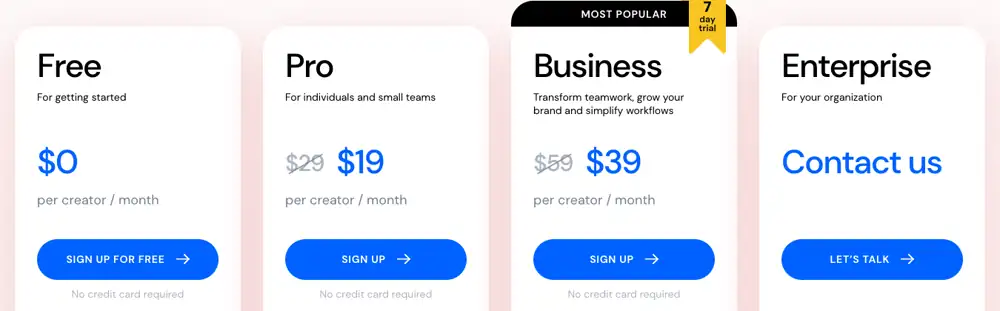
The DIY route costs least in money and most in time: every UI change means re-recording, re-exporting and re-uploading. All-in-one tools cost more per month but turn an update into an edit. Avatar tools are the right buy when you need a presenter for marketing, not for click-by-click help.
How Clevera makes tutorial videos without your face
Clevera is an AI platform that turns a screen recording into a narrated how-to video, a step-by-step help article and a page on your hosted help center, in 74 languages. Most of the face-free routes above map to a feature:
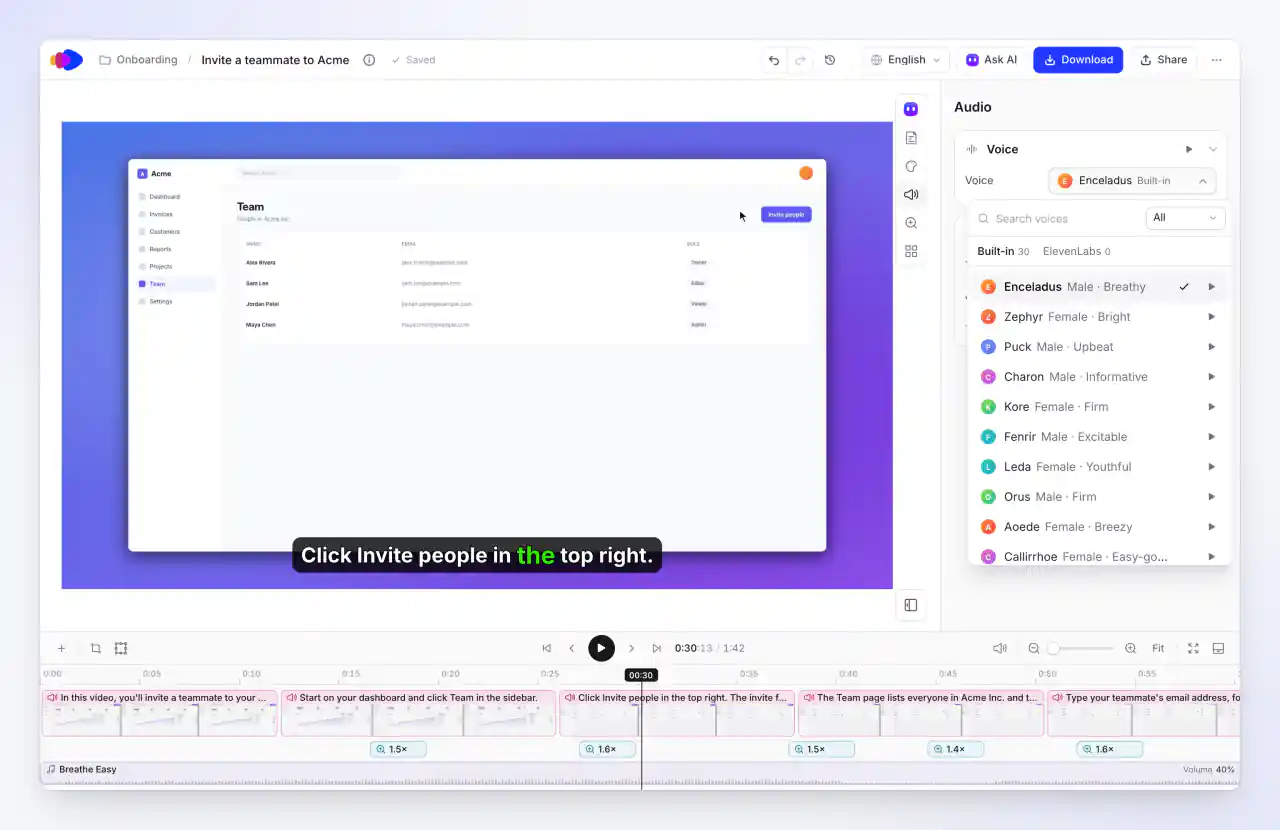
AI voice over your recording. Record your screen with the desktop app (Mac, Windows or Linux) or the Chrome extension, or upload a video, and pick How-to. The AI writes the script from what happens on screen, narrates it and zooms on your clicks (click zooms need the desktop app); it adds captions if your template has them on or you turn on Show captions. In the Audio tab, choose from 30 built-in voices, each of which speaks all 74 languages, or use voices from your own ElevenLabs account (including your clones there) with your own key. Clevera has no voice cloning of its own.
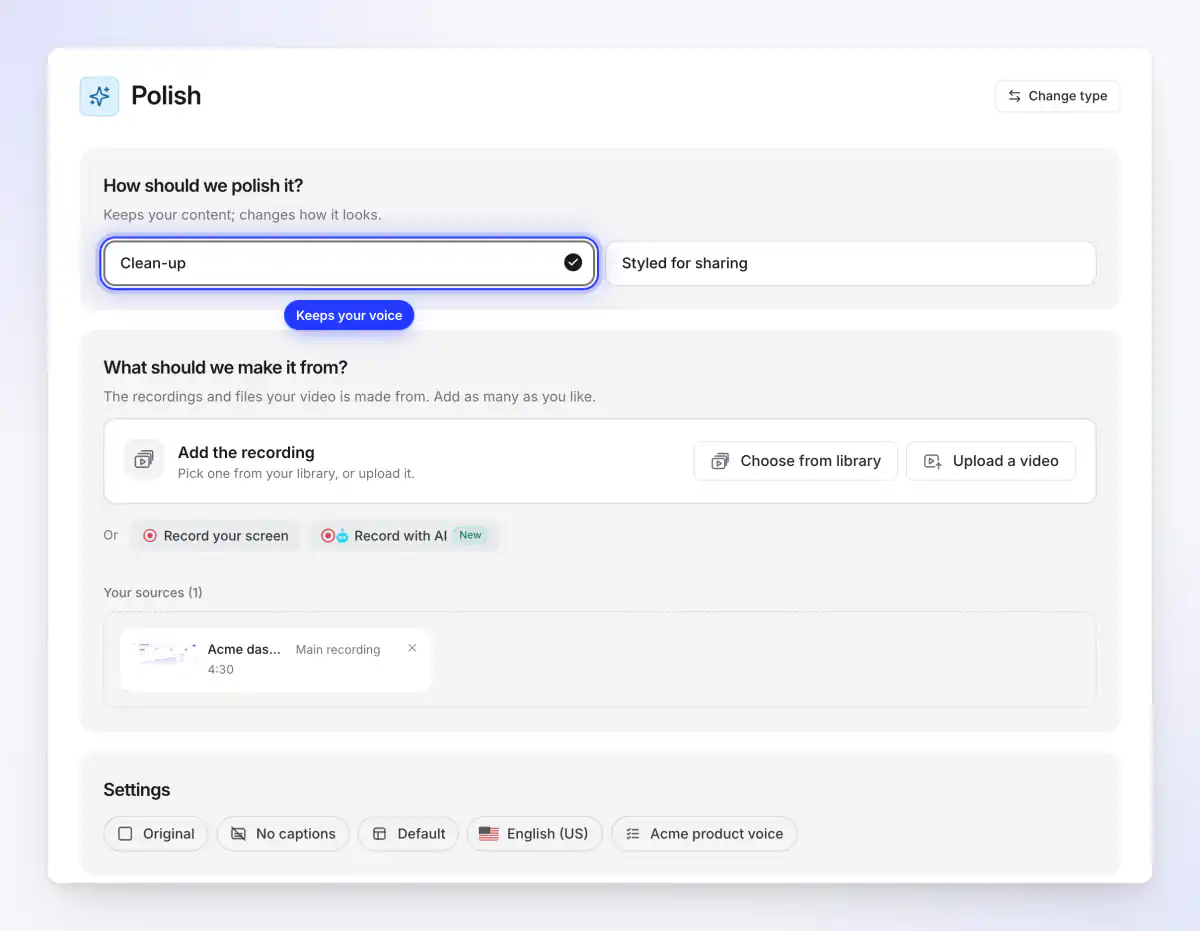
Your own voice, cleaned up. Pick Polish, then Clean-up. It cuts filler words, false starts, retakes and dead time, keeps your voice at normal speed, and adds no AI voice. Clean-up starts with captions off; turn on the Captions pill to caption your own voice. It usually costs 20–50 credits for up to 5 minutes of recording, and it also works on silent recordings. See Clean up or restyle a recording with Polish.
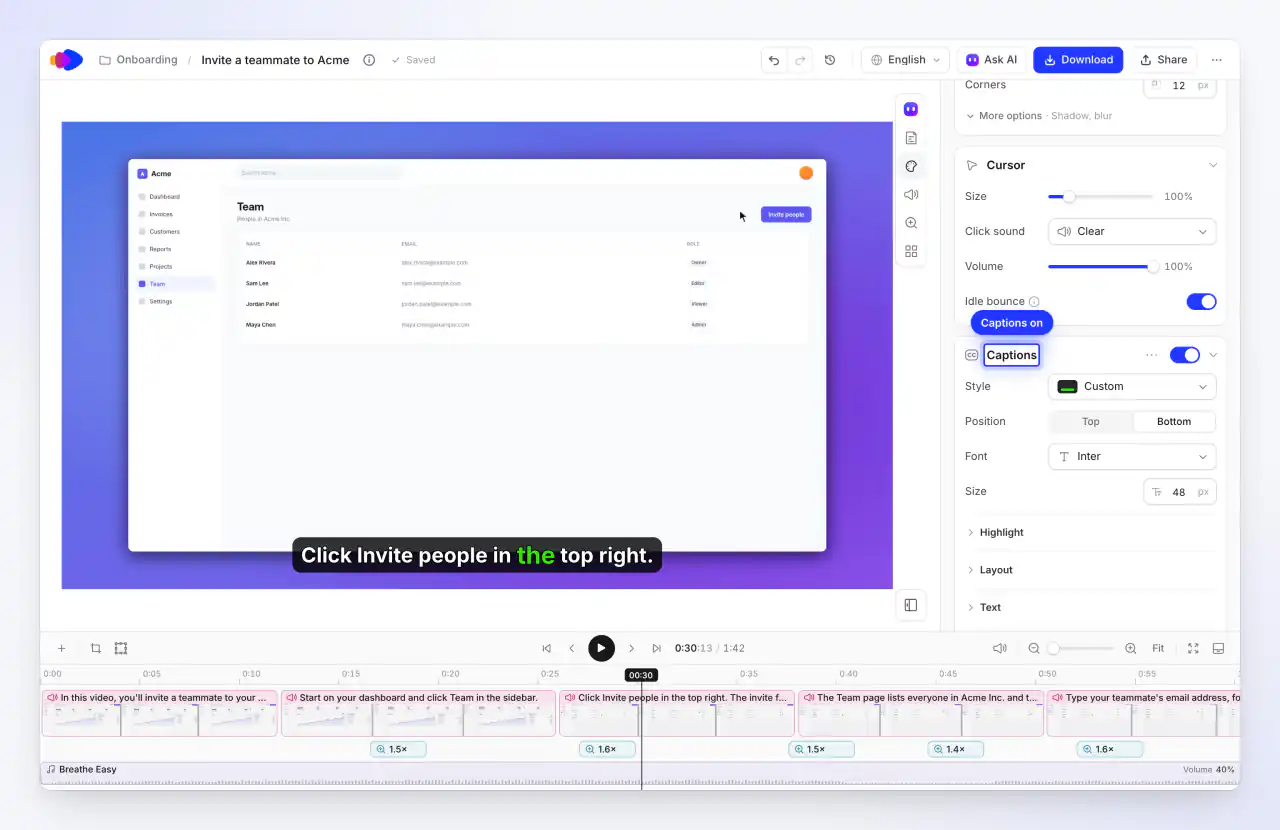
Captions on any voice. In the Style tab, open Captions and click Generate captions, then pick a style, position and font. Captions are transcribed from the voice-over (how-to and demo videos) or from your own voice (Polish videos), so a Clevera video needs a voice to caption. For a captions-only video with no voice, use the generic method in the step-by-step section.
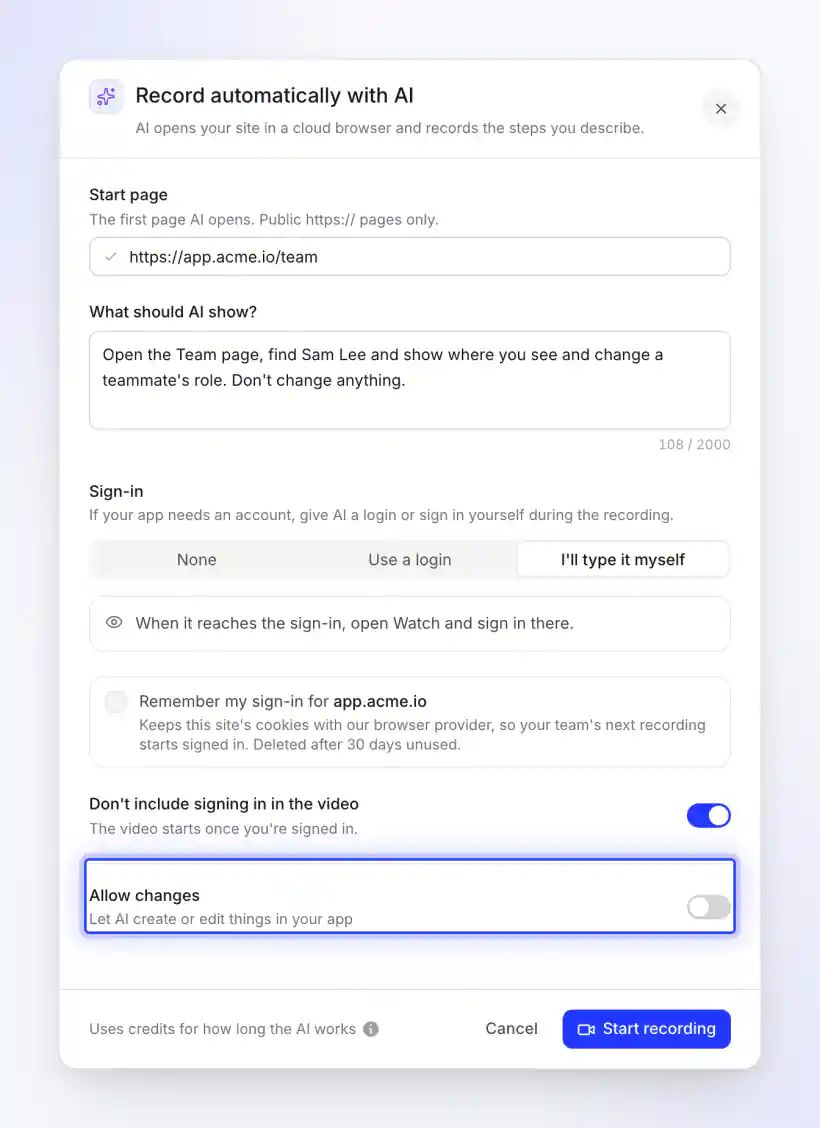
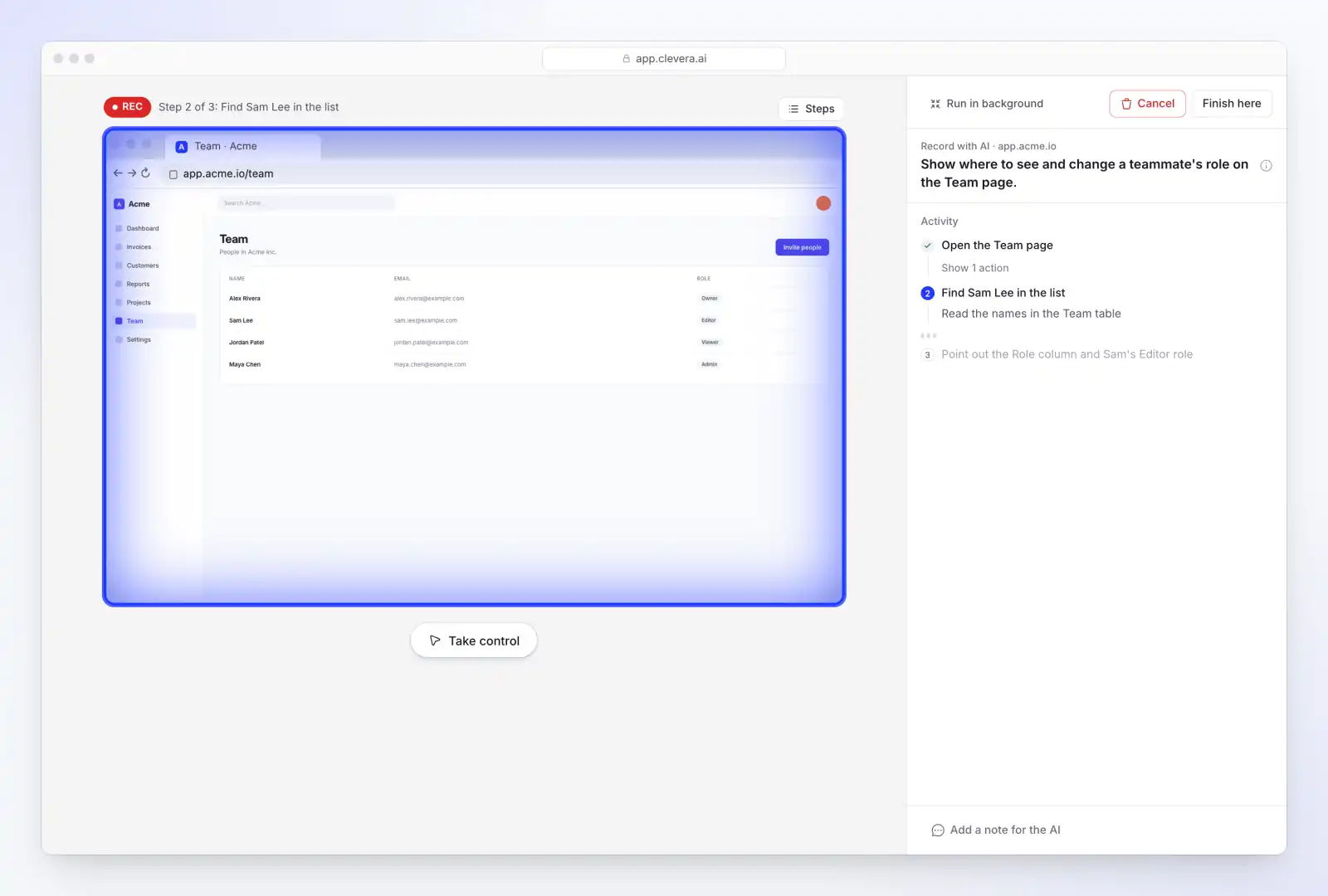
Let the AI record the app. Record with AI opens your site in a cloud browser and records the steps you describe. You can watch live, take control, or click Run in background and keep working. It needs a public https:// start page; desktop apps and intranet pages go through the desktop recorder instead. Use a demo or test account, and leave Allow changes off unless your steps create something. It's billed by how long the AI works: about 6 minutes per recording, more for a long list of steps, plus up to 15 minutes if you take over (for example, to sign in). The help article Let the AI record your product with Record with AI covers sign-in options and limits.
No recording at all. A how-to or product demo can be made from screenshots, slides or a PDF alone. Short social clips with an optional AI presenter are made from a link, pictures or a description; those are on Starter and up and in Beta. If a presenter is what you need, compare Synthesia alternatives for software videos.
Here is the output: a 2-minute how-to made from a screen recording, with an AI voice, captions and zooms on each click, and no presenter.
A narrated, captioned how-to Clevera made from a screen recording (Quillstack is an invented example brand).
Plans that matter here. The Free plan has 100 credits a month and videos up to 3 minutes, and you share by link or embed (no MP4 download). Starter ($36 a month, or $29 a month billed yearly) adds MP4 export up to 2K, a custom help-center domain, social clips and the AI presenter (both Beta; the presenter costs extra credits by time on screen). When you edit a video, every share link, embed and help-center page that shows it plays the new version; MP4s you downloaded stay as they were. See Turn a screen recording into a how-to video for the full feature.
Clevera isn't the cheapest route if you make one video a year: OBS and a free TTS tier will do. It fits when your team publishes many how-tos and training videos, translates them, and needs them to stay current as the product changes.
Questions about faceless tutorial videos
Can I make tutorial videos without showing my face or using my voice?
Yes. Record only your screen and use an AI voice-over or captions instead of your voice. For public web apps, an AI can also perform and record the steps from a written description, so you don't record at all.
Are AI voices good enough for tutorials?
For software how-tos, usually yes, if the script is written for speech and uses the exact button names. TechSmith's 2024 survey found 87% prefer a real person to an AI avatar; it didn't ask about AI voices, so test a voice with a few real users before standardising on it.
What equipment do I need?
A screen recorder, and a USB or headset microphone if you narrate yourself. Nothing else: no camera, no lights. With an AI voice or captions, a screen recorder alone is enough.
How long should a tutorial video be?
One task per video, usually 1–3 minutes. If the script runs longer, split the task into two videos and link them.
Should I use an AI avatar instead?
For click-by-click help, rarely. An avatar takes screen space from the UI, and most viewers prefer a real person to an avatar. Avatars make more sense in ads, announcements and short social clips.
How do I keep tutorials up to date when the UI changes?
Keep the script as text, so a changed step means editing a line rather than re-recording the voice. Re-record only the screens that changed, and share through links or embeds you can update in place. The guide How to turn a screen recording into a polished tutorial video covers editing.
Publish product tutorials without anyone on camera
Record your screen or describe the steps, and Clevera makes a narrated how-to video with optional captions, plus a help article your team can keep current.