Best Linux screen recorders in 2026, Wayland-ready
Which Linux screen recorder to use on GNOME, KDE Plasma, Linux Mint or Sway in 2026: OBS, Kooha, GPU Screen Recorder, VokoscreenNG, wf-recorder, auto-zoom recorders and the built-ins, with a Wayland and X11 table by desktop.
 Berkay Akpolat18 min read
The best Linux screen recorder is one that works on your session: Wayland on Ubuntu 26.04, Fedora and KDE Plasma 6.8, or X11 on Linux Mint. For streaming, use OBS Studio. For a quick clip, use GNOME's built-in recorder or KDE Spectacle. For gameplay replays, use GPU Screen Recorder; for simple Wayland recording with GIFs, Kooha. For a narrated tutorial and help article, use Clevera (our product).
Updated 2026-11-04
On this page
- Short answer: which recorder for which job
- Why Wayland changed screen recording on Linux
- Wayland and X11 support by desktop
- The built-in way: GNOME and KDE
- The best Linux screen recorders, tool by tool
- How to record your screen on Linux with audio
- Clevera for Linux: from recording to tutorial
- How we chose
- FAQ
Short answer: which recorder for which job
Most tools here are free and open source, so pick by the job; the real cost is setup time.
| Job | Best fit | Why |
|---|---|---|
| A 30-second clip of a bug, no sound | GNOME's built-in recorder or KDE Spectacle | Already installed; one shortcut |
| Narrated clip on KDE Plasma 6.8 | Spectacle | Records microphone and system audio since Plasma 6.8 |
| Live streaming, scenes, webcam overlay | OBS Studio | Scenes, plugins, streaming |
| Gameplay and "save the last 30 seconds" | GPU Screen Recorder | GPU encoding, instant replay |
| Simple recording on Wayland, with a GIF option | Kooha | One window, portal-based |
| Window or area recording with a camera, Qt desktop | VokoscreenNG | Camera, countdown, many audio sources |
| Sway or Hyprland, from a terminal | wf-recorder | Command line, wlr-screencopy |
| Linux Mint, Xfce or MATE on X11 | SimpleScreenRecorder | Mature and light, but X11 only |
| A demo with automatic cursor zooms | OpenScreen or Recordly | Open-source, Screen Studio-style |
| Cutting and titling the result | Kdenlive | A full editor, not a recorder |
| A software tutorial with AI voice-over, plus a written guide | Clevera | Records on GNOME or KDE, then writes, narrates and edits. Needs a free account; recordings upload to your workspace |
The one rule: on Ubuntu, Fedora or KDE Plasma 6.8 you are on Wayland, so pick a tool that records through the desktop portal and PipeWire. On Linux Mint (Cinnamon), Xfce or MATE you are usually still on X11, where classic recorders such as SimpleScreenRecorder work.
Who records on Linux? Linux had 5.63% of desktop OS traffic worldwide in October 2026, according to StatCounter. Among developers it's mainstream: asked which operating systems they work in (professional use, more than one answer allowed), 27.7% of the 2025 Stack Overflow Developer Survey respondents chose Ubuntu and 16.7% chose Linux outside WSL.
Why Wayland changed screen recording on Linux
On X11, any app could read the whole screen, which made recorders easy to write and every window readable by every program. On Wayland an app asks the desktop for permission through xdg-desktop-portal, you pick a screen or a window in a system dialog, and the frames arrive through PipeWire.
- Old X11 recorders show a black screen on Wayland. SimpleScreenRecorder's troubleshooting page says: "Since Wayland doesn't provide a standardized API for screen capturing, SSR can't support it (yet)" (maartenbaert.be). The same goes for Kazam, recordMyDesktop and Peek.
- The X11 session is going away on the big desktops, but not everywhere. Ubuntu's Desktop session "now runs only on the Wayland back end, because GNOME Shell can no longer run as an X.org session" (since 25.10, per the Ubuntu 26.04 release notes). KDE retired X11 sessions in Plasma 6.8, released on 14 October 2026. Linux Mint is the exception: Cinnamon still defaults to X11 (Wayland is experimental in 22.3), and Mint 23, due at the end of 2026, will fully support both (OMG! Ubuntu).
On COSMIC (Pop!_OS), a Wayland desktop with its own portal, try the portal-based tools.
Wayland and X11 support by desktop
"Portal" means the tool asks through xdg-desktop-portal and receives frames through PipeWire, so it works on any desktop whose portal supports screen casting.
| Tool | GNOME 46+ (Wayland) | KDE Plasma 6 (Wayland) | wlroots and Hyprland (Sway, Hyprland, river) | X11 session (Mint Cinnamon, Xfce, MATE, older GNOME/KDE) | Capture route |
|---|---|---|---|---|---|
| GNOME recorder | Yes, built in | No | No | Older GNOME versions only | GNOME Shell itself |
| KDE Spectacle | No | Yes, built in | No | No (recording works on Wayland only) | KWin itself |
| OBS Studio | Yes | Yes | Yes, with the compositor's portal (e.g. xdg-desktop-portal-wlr) | Yes | Portal on Wayland, direct on X11 |
| Kooha | Yes | Yes | Yes, with the compositor's portal | Not documented | Portal only |
| GPU Screen Recorder | Yes | Yes (its docs list a rotation issue) | Yes (its docs list low portal frame rates on COSMIC and wlroots) | Yes | Portal, or direct monitor capture (needs root/KMS access) |
| VokoscreenNG | Yes | Yes | Through a portal backend | Yes | Portal on Wayland, direct on X11 |
| wf-recorder | No | No | Yes | No | wlr-screencopy protocol |
| SimpleScreenRecorder | No (black screen) | No (black screen) | No | Yes | Direct X11 |
| Clevera | Yes | Yes (no click capture) | Not listed (GNOME 46+ or KDE Plasma 6 only) | GNOME 46+ or Plasma 6 on X11 only, no click capture (not Cinnamon, Xfce or MATE) | Portal on Wayland, direct on X11 |
Sources: each project's own page, linked below. Spectacle's Wayland-only recording: KDE bug 485791.
Features at a glance
| Tool | Audio (mic / system) | Webcam | Formats | GIF | License | Latest release | Install |
|---|---|---|---|---|---|---|---|
| OBS Studio | Both | Yes | MKV, MP4 and more | No | GPL-2.0+ | 33.0.1 (Oct 2026) | Flathub; PPA on Ubuntu 26.04+ |
| Kooha | Both | No | WebM, MP4, GIF, Matroska | Yes | GPL-3.0 | 2.3.2 (Jun 2026) | Flathub |
| GPU Screen Recorder | Audio devices and app audio | Yes (with limits) | MP4, MKV, MOV | No | GPL-3.0-only | 6.1.7 on Flathub (Nov 2026) | Flathub |
| VokoscreenNG | Several sources | Yes | MKV, MP4, GIF | Yes | GPL-2.0 | 4.11.1 on Flathub (Oct 2026) | Flathub |
| wf-recorder | With --audio |
No | Any FFmpeg format (MP4 by default) | No | MIT | 0.6.0 (Oct 2025) | Distro package |
| SimpleScreenRecorder | Yes | No | FFmpeg formats | No | GPL-3.0 | 0.4.4 (last commit Aug 2026) | Distro package |
| Clevera | Both | Camera bubble | Hosted video; MP4 download on Starter+ | No | Commercial, Free plan | Live since 1 Nov 2026 | AppImage |
Versions and release dates from each project's Flathub or GitHub page, retrieved 2026-11-04.
The built-in way: GNOME and KDE
GNOME: the screenshot UI records video too
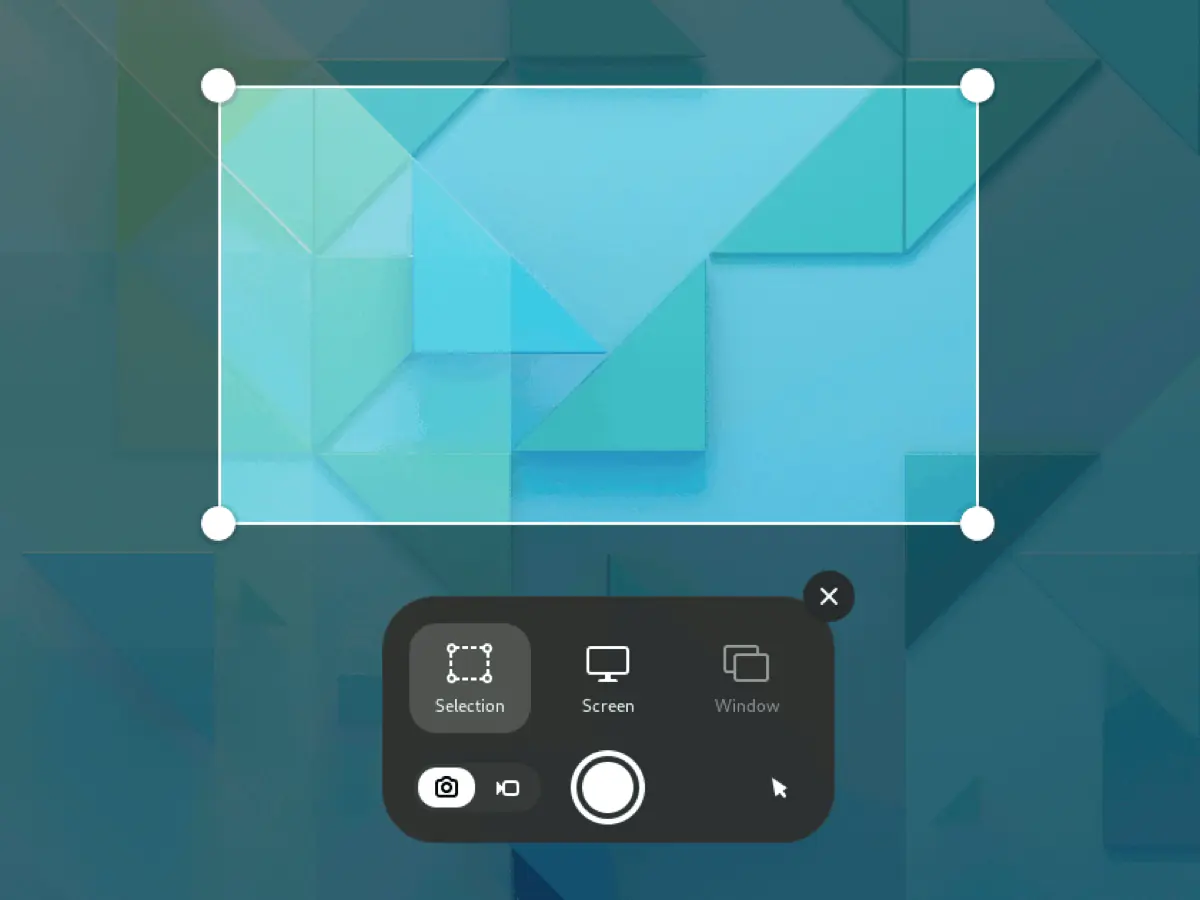
- Press Shift+Ctrl+Alt+R, or press Print and switch the overlay from the camera icon to the video icon.
- Choose Selection to drag an area, or Screen.
- Click the round record button. A red indicator in the top bar counts the seconds.
- Click the indicator to stop. The file lands in Videos/Screencasts.
That's the whole tool, per GNOME Help, which describes no audio setting, so plan on a silent clip. Ubuntu's notes add that since GNOME 47, "Screen recording can be hardware-accelerated."
KDE Plasma: Spectacle
Spectacle, Plasma's screenshot app, records video too, on Wayland only. Plasma 6 added shortcuts: Meta+R or Meta+Shift+R for a region, Meta+Alt+R for a screen and Meta+Ctrl+R for a window (KDE's Plasma 6 announcement). Since Plasma 6.8, Spectacle "can now optionally include both system audio and microphone input" in recordings.
When the built-in recorder is not enough: you need a webcam, scenes, streaming, instant replay or window capture on GNOME.
The best Linux screen recorders, tool by tool
All of these are free. Install lines use each app's Flathub ID or distro package name.
OBS Studio: streaming, scenes and everything else
Best for: streaming, multi-source recordings and full control.
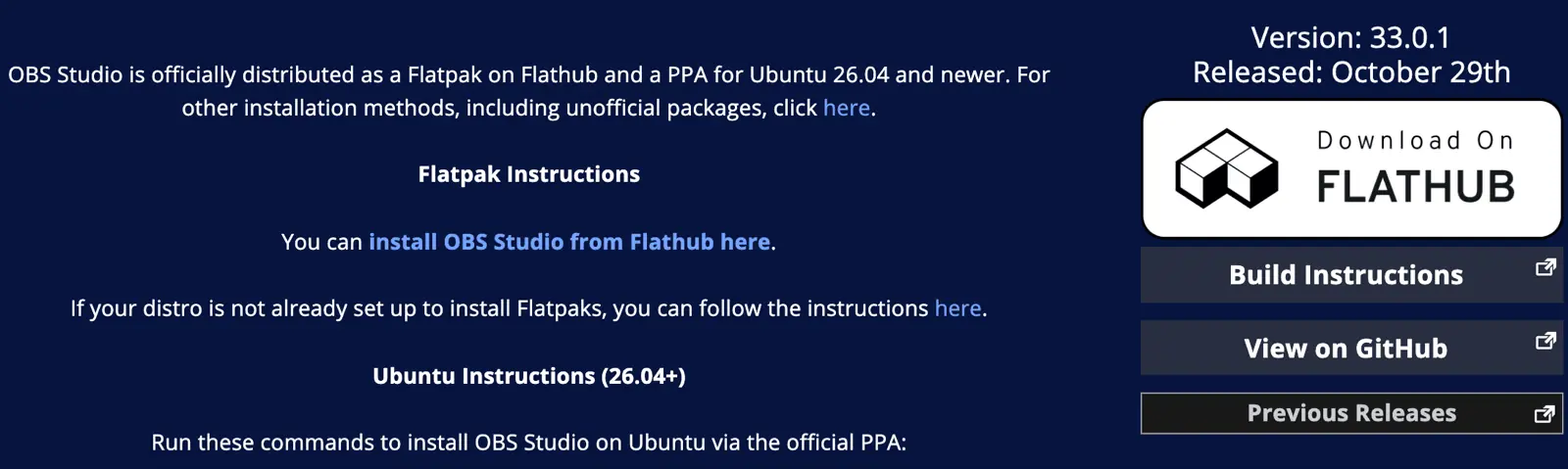
OBS is the standard answer and actively developed: version 33.0.1 shipped on October 29 (obsproject.com/download). On Wayland you add a PipeWire screen-capture source and pick a screen or window in the portal dialog.
Install: flatpak install flathub com.obsproject.Studio
Watch for on Ubuntu 24.04: OBS 33.0 "Removed support for Ubuntu 24.04" (release notes). The PPA now targets 26.04 and newer, so on 24.04 LTS install the Flatpak.
Trade-off: setup. For a two-minute tutorial, scenes, mic gain and encoder settings take longer than the recording.
Kooha: the simplest recorder for Wayland
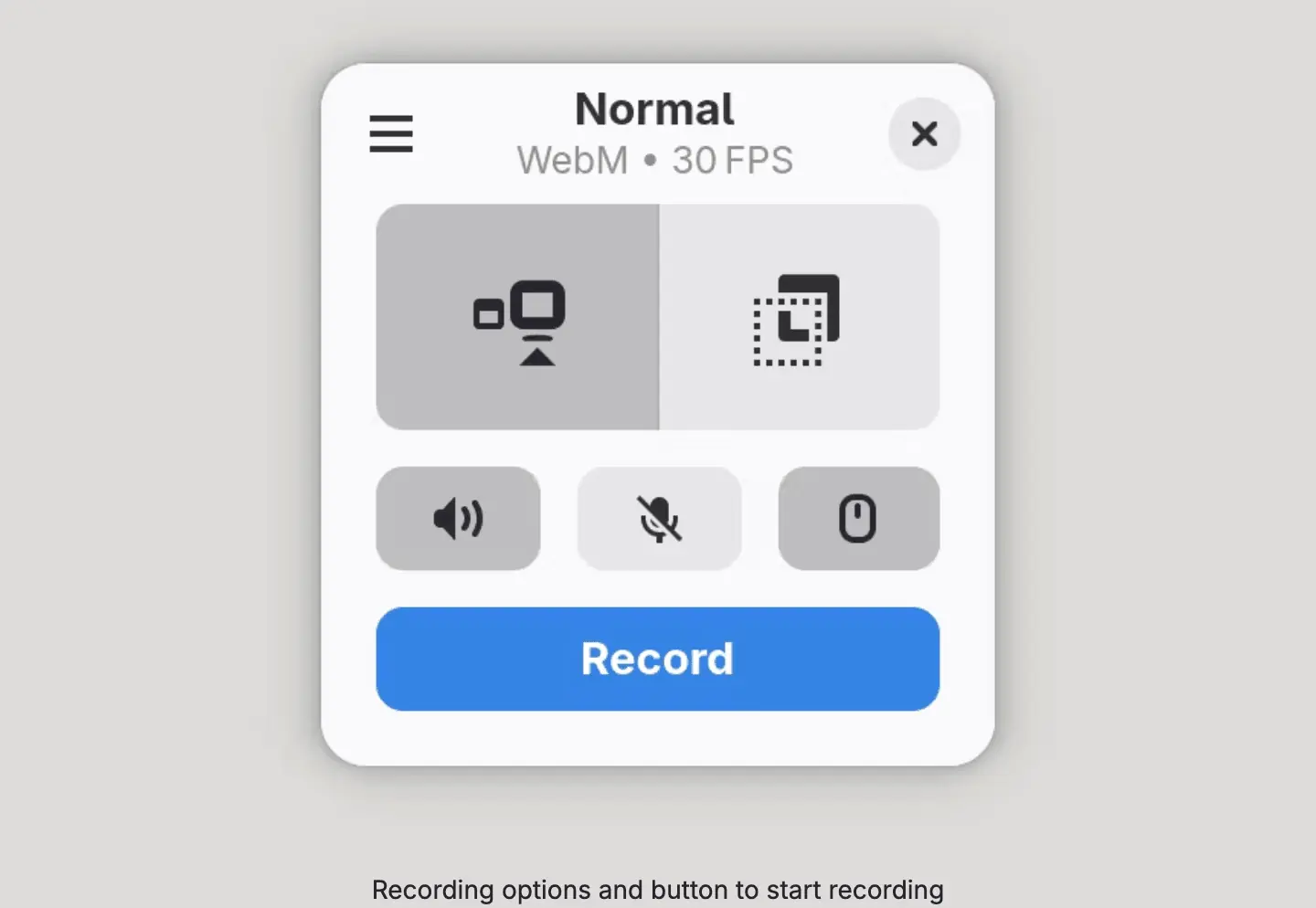
Best for: quick recordings and GIFs on any portal-capable desktop.
Kooha is one small window: pick a monitor or an area, toggle desktop audio, microphone and pointer, press Record. It saves WebM, MP4, GIF or Matroska, with a delay and frame-rate setting (Flathub). It runs on PipeWire and xdg-desktop-portal, with GTK, KDE or wlr portal backends (GitHub).
Install: flatpak install flathub io.github.seadve.Kooha
Trade-off: no webcam, no editing. Window recording is behind an experimental flag that its README warns may be unstable.
GPU Screen Recorder: gameplay and instant replay
Best for: gameplay and heavy 3D apps, with a ShadowPlay-style replay buffer.
It captures and encodes on the GPU, so it costs little performance. It works on X11 and Wayland with AMD, Intel and NVIDIA, encodes H.264, HEVC, AV1, VP8 or VP9, and supports instant replay and live streaming (Flathub; project page).
Install: flatpak install flathub com.dec05eba.gpu_screen_recorder
Trade-off: recording a whole monitor directly needs root permission (KMS access), so the Flatpak asks for your password once; window and portal capture don't. Its docs list compositor issues: rotation on KDE Plasma, and low portal frame rates on COSMIC and wlroots. It records; it doesn't edit.
VokoscreenNG: a full-featured Qt recorder
Best for: a camera window and countdown without OBS's complexity.
VokoscreenNG records the screen, an area or a window, from several audio sources, with a built-in camera and countdown (GitHub). On X11 it adds a magnifying glass and click highlighting; its Flathub page lists those for X11 only. It also runs on Windows.
Install: flatpak install flathub com.github.vkohaupt.vokoscreenNG
Trade-off: on Wayland it needs PipeWire 1.0 and xdg-desktop-portal 1.18.2 or newer, which older distros may lack. The interface is busier than Kooha's.
wf-recorder: for Sway, Hyprland and other wlroots-style compositors
Best for: tiling-window-manager users who live in a terminal.
wf-recorder is a command-line recorder for compositors that support the wlr-screencopy protocol. Add --audio for sound and pair it with slurp to select a region (GitHub). wl-screenrec is a GPU-encoded alternative for the same compositors.
Install: sudo apt install wf-recorder or sudo dnf install wf-recorder
Trade-off: it does nothing on GNOME or KDE, which don't implement that protocol.
SimpleScreenRecorder: X11 only
Best for: an X11 session: Linux Mint Cinnamon, Xfce, MATE, i3, or KDE on X11 with Plasma 6.7 or older (Ubuntu's release notes say those sessions can still start on X.org).
SimpleScreenRecorder is mature and light: hotkey pause, live statistics, a preview and OpenGL recording (maartenbaert.be). On Wayland it records a black screen.
Install: sudo apt install simplescreenrecorder
Auto-zoom recorders (Screen Studio-style)
These record the screen, then add zooms that follow your cursor, like Screen Studio on the Mac.
- OpenScreen (MIT) ships Linux AppImage, .deb, .rpm and .pacman builds; version 2.2.1 came out on 3 November 2026. Auto-zoom "follows your cursor as you work". On Linux it captures through xdg-desktop-portal and PipeWire. This is the maintained fork: the original repository is archived.
- Recordly (AGPL-3.0) began as an OpenScreen fork. Version 1.4.0 has a Linux x64 AppImage, suggests zooms from cursor activity, and opens the system picker on Wayland. Its README says cursor hiding isn't supported on Linux.
- Screenix is a paid, Linux-only recorder with automatic zooms, for X11 and supported Wayland desktops: a 7-day trial, then $39 a year or $59 lifetime (its site, as of 2026-11-04).
Trade-off: you still narrate yourself, and there's no written guide.
Kdenlive: the editor after the recorder
When you need cuts, titles, zooms or a voice-over track, Kdenlive is KDE's free editor; version 26.08.2 is available as an AppImage and on Flathub. Zooms, captions and voice-over are all manual: keyframes for each zoom, a subtitle track and a separate voice recording.
Tools on older lists that we left out
- Kazam, recordMyDesktop, Peek: X11-era tools. Peek's repository is archived. A Kazam 2 fork exists, but Mageia's August 2026 package update reports that recording in a Wayland session still doesn't work.
- Green Recorder: archived since 2019; Blue Recorder is based on it.
How to record your screen on Linux with audio
Your desktop's sound system matters more than the recorder. Current Ubuntu, Fedora and Debian use PipeWire, which exposes both your microphone and a monitor of your speakers.
- Decide which audio you need. Narration needs the microphone; app sounds need system audio. Wear headphones when you record both, or the mic picks up the speakers.
- Pick a tool that records both. OBS, Kooha, Spectacle on Plasma 6.8, GPU Screen Recorder and VokoscreenNG all can; GNOME's built-in recorder can't.
- Test for ten seconds first. Check the levels and that voice and screen stay in sync.
- Check the format. MP4 (H.264) is the safest for uploads and editors. If your recorder saved MKV or WebM, convert it with our free MKV to MP4 converter or video converter before uploading.
Rather not use your own voice? Record silently and add an AI voice-over later, as in our guide to making tutorial videos without being on camera.
Clevera for Linux: from recording to tutorial
Every tool above gives you a video file. If it's meant to become a customer how-to or a help-center page, the work starts after you stop: script, voice-over, zooms, captions, then a written version. That's Clevera's job.
Clevera is an AI platform that turns a screen recording into a narrated how-to video, a step-by-step help article and a page on your hosted help center, in 74 languages. Its Linux desktop app has been live on the download page since 1 November 2026 (release note).
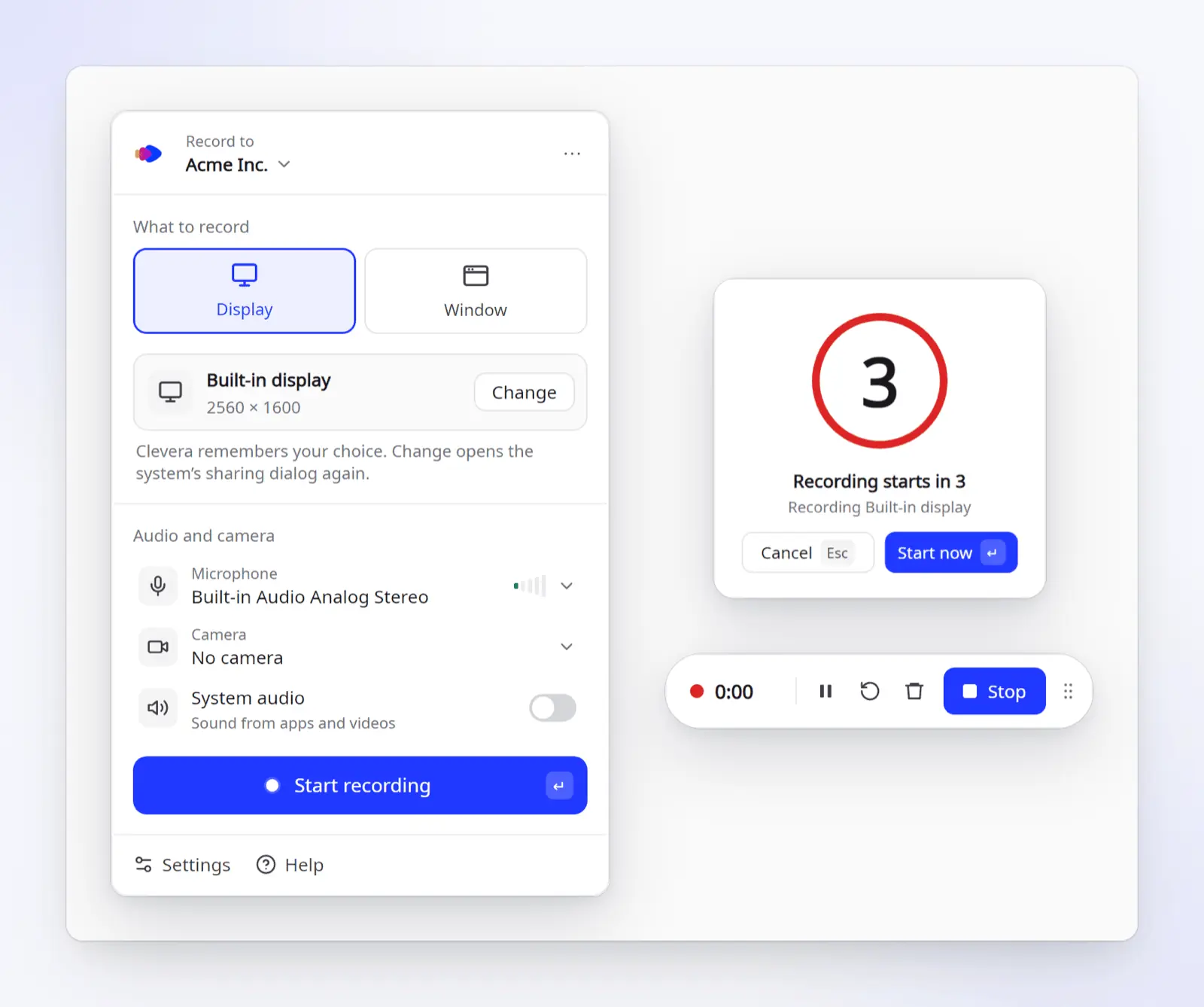
What the Linux app does (per the download page and the help article Install and use Clevera on Linux):
- Records a whole Display or one Window, with your microphone, a camera bubble and System audio (sound from apps).
- Runs on Ubuntu 24.04+, Fedora or Debian 13, with GNOME 46+ or KDE Plasma 6, on Wayland or X11.
- Ships as one AppImage for Intel/AMD (x86_64) or ARM64 (aarch64);
uname -mtells you which. No package manager or admin rights. - Needs a Clevera account. Each recording uploads to your Clevera workspace, and the local copy is kept only until the upload finishes. Unlike the other tools here, Clevera is a commercial cloud service, not open source.
- On GNOME with Wayland, a small extension, Clevera for GNOME, turns your clicks into steps and drives the automatic zooms. It loads after one log-out and log-in.
- Recordings stop at 60 minutes; uploads resume if your connection drops.
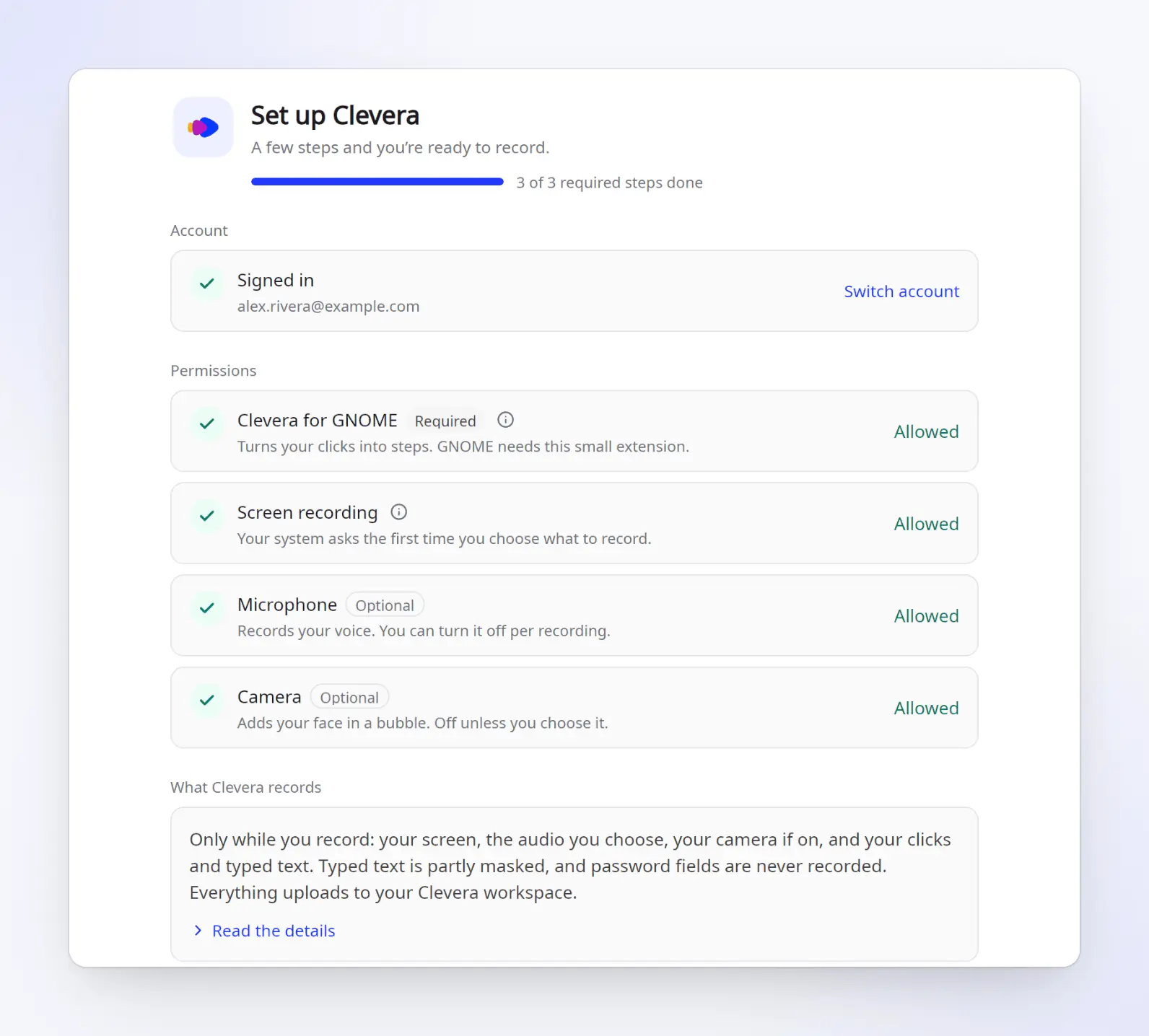
What it doesn't do on Linux: record a part of the screen (Area) or an iPhone; those are Mac-only. On KDE Plasma or an X11 session, Clevera records your screen, voice and pointer but not your clicks, so there are no click-by-click steps or click-following zooms there yet (release note). Clevera lists only GNOME 46+ and KDE Plasma 6, so Cinnamon, Xfce, MATE, COSMIC and Sway aren't on its supported list. It isn't a streaming tool.
What happens after you stop. You choose what to make from the recording:
- A how-to video or product demo. The AI writes a script from what happened on screen and voices it with one of 30 built-in AI voices (or your own ElevenLabs voice with your own key); on GNOME with Wayland it adds zooms that follow your clicks. Captions are off by default: open Style > Captions and click Generate captions, and they are made from the voice.
- An article. How-to, troubleshooting, SOP, blog post or product update, with screenshots picked and highlighted automatically.
- A help-center page. Every plan, Free included, gets a hosted help center.
Unlike the auto-zoom recorders above, Clevera also writes and voices the script and turns the same recording into an article and a help-center page.
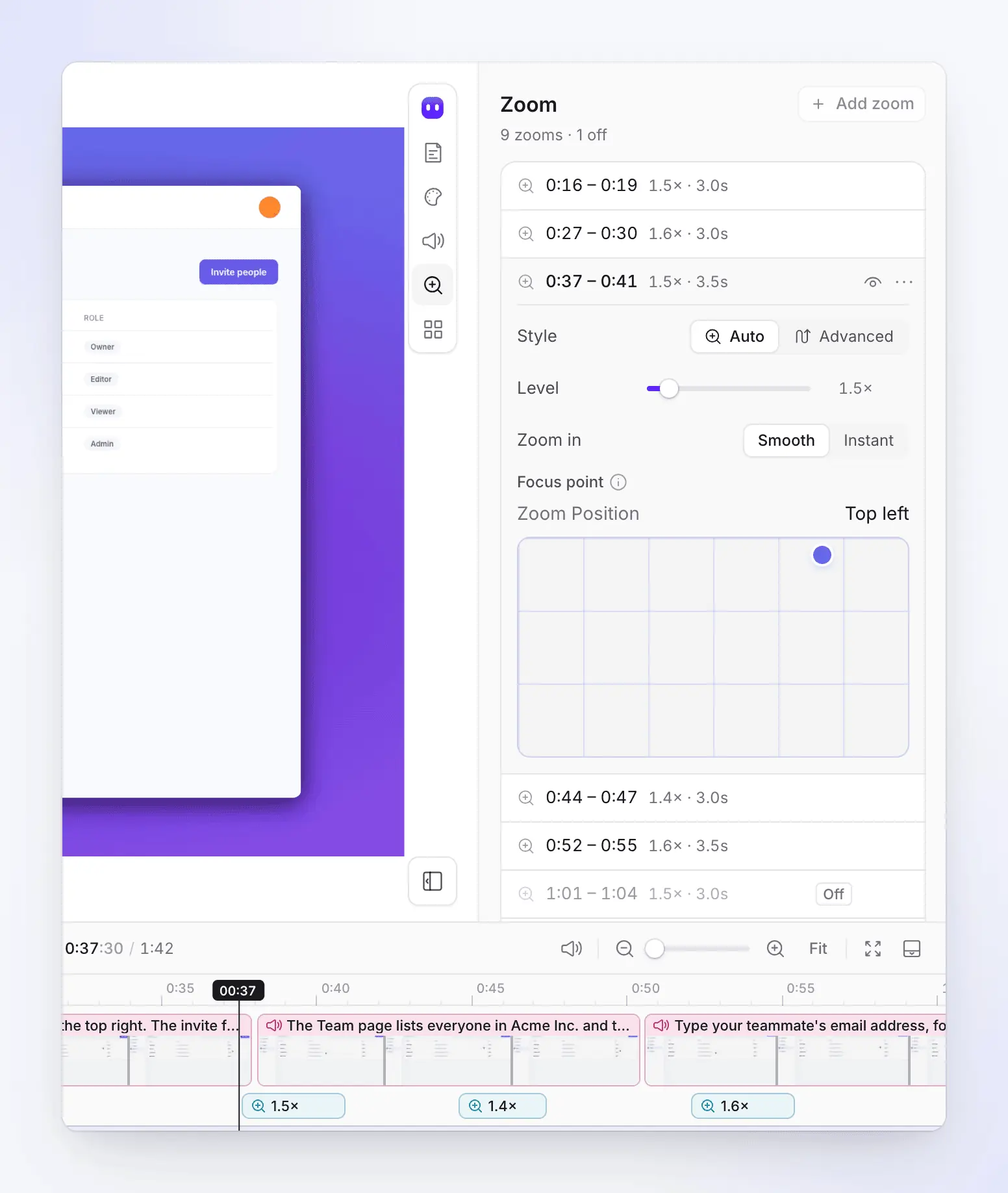
On the Zoom tab you can turn a zoom off, change its level from 1.1× to 4×, or add your own (help: automatic zooms and cursor). Our auto-zoom screen recording guide explains how click-following zooms work and when to turn them off.
Plans (pricing, as of 2026-11-04): Free is $0 with 100 credits a month and videos up to 3 minutes, shared by link or embed; Free has no MP4 download. Starter is $29 a month billed yearly ($36 monthly) with unlimited MP4 downloads up to 2K and a custom domain for your help center. Pro is $86.80 a month billed yearly ($124 monthly) for 2 creators, with 4K and publishing integrations.
Where the others are better: OBS for streaming, GPU Screen Recorder for gameplay, Kooha or the built-ins for a quick clip, OpenScreen for a free, local auto-zoom editor, and Kdenlive for frame-by-frame editing. Clevera fits when the recording is the start of a tutorial or help article.
How we chose
We judged Linux screen recorders on four questions: does it work on current desktops (GNOME 46+, KDE Plasma 6, wlroots, X11 sessions); is it maintained, with a recent release and a current install route; what audio and camera does it record; and what is it best at.
We did not install and test each tool. Every fact comes from the project's own page, documentation or release notes, linked in place. Clevera is our product. We describe its Linux app from its download page and help center, with its limits.
For tools beyond Linux, see our pillar guide to the best AI screen recording tools, our list of Camtasia alternatives, and Clevera's AI screen recorder, which records public web apps for you.
FAQ
Does Linux have a built-in screen recorder?
Yes, on the two main desktops. GNOME records from its screenshot UI (Shift+Ctrl+Alt+R) and saves to Videos/Screencasts; it has no audio setting, so expect a silent clip. KDE Plasma's Spectacle records a region, a screen or a window on Wayland, and since Plasma 6.8 it can include system audio and the microphone. Other desktops need an app such as OBS or SimpleScreenRecorder.
Why is my screen recording black on Wayland?
The recorder uses X11 capture, which can't see a Wayland desktop (SimpleScreenRecorder, Kazam, recordMyDesktop). Use a recorder that captures through xdg-desktop-portal and PipeWire (OBS, Kooha, GPU Screen Recorder, VokoscreenNG or your desktop's built-in recorder), or wf-recorder on a wlroots compositor.
What is the best screen recorder for Ubuntu?
With GNOME on Ubuntu 24.04 or 26.04, use the built-in recorder for silent clips, Kooha for clips with sound, and OBS from Flathub for streaming or webcam overlays. For tutorials with AI voice-over and a written guide, Clevera supports Ubuntu 24.04 and later. Fedora Workstation is GNOME on Wayland too, so the same picks apply.
What is the best screen recorder for Linux Mint?
Mint's Cinnamon edition still starts an X11 session by default, so classic X11 recorders work: SimpleScreenRecorder for light recording, VokoscreenNG for a camera and countdown, and OBS for streaming. Clevera doesn't list Cinnamon, Xfce or MATE as supported desktops.
Does OBS work on Wayland?
Yes. Add a PipeWire screen-capture source and choose the screen or window in your desktop's sharing dialog. It works on GNOME and KDE, and on wlroots compositors with xdg-desktop-portal-wlr installed.
What is a good OBS alternative on Linux?
Kooha or VokoscreenNG for simple recording, GPU Screen Recorder for gameplay and replays, OpenScreen for cursor-following zooms, and Clevera for narrated tutorials with a written guide. None replaces OBS for live streaming with scenes.
Turn your next Linux recording into a tutorial
Record a display or a window on GNOME or KDE, and Clevera writes, narrates and edits the how-to video and the help article (click-by-click steps on GNOME with Wayland). The Free plan needs no card.
Or read how to install Clevera on Linux first.