Camtasia alternatives: 12 tools compared (2026)
Twelve Camtasia alternatives by job: Descript, ScreenFlow, Filmora, ActivePresenter, ScreenPal and Loom for manual work, Clevera and Guidde when the AI does the edit, and OBS Studio, Kdenlive, Shotcut and DaVinci Resolve for free, with US prices and a Linux answer.
 Berkay Akpolat18 min read

Updated 2026-11-04
The best Camtasia alternatives depend on the job. For timeline editing: Descript, ScreenFlow (Mac) or Filmora. For quizzes and SCORM: ActivePresenter. For quick screen videos: ScreenPal or Loom. For AI-written narration and zooms: Clevera or Guidde. Free: OBS Studio to record plus Kdenlive, Shotcut or DaVinci Resolve to edit, all of which run on Linux, where Camtasia doesn't. Camtasia's watermark-free plan starts at $179.88 a year.
In this article
- Why people look for a Camtasia alternative
- What Camtasia costs now
- Camtasia alternatives compared
- Manual editing and quick recording
- AI does the edit: Clevera and Guidde
- Free Camtasia alternatives
- Is there Camtasia for Linux?
- When to stay on Camtasia
- How Clevera handles screen tutorials
- How we compared these tools
- FAQ
Why people look for a Camtasia alternative
Camtasia is TechSmith's screen recorder and video editor. It has long been the default for software tutorials and training videos.
The usual reasons to look for an alternative:
- Price model. Camtasia is sold as yearly subscriptions. The cheapest plan that exports from the editor without a watermark is $179.88 a year.
- Platform. It runs on Windows and macOS only. There is no Linux build.
- Time per video. A 3-minute tutorial still means cutting, scripting the narration and placing zooms and callouts by hand.
- Fit. Some teams only need a quick recorder; others need a written guide next to the video.
In TechSmith's own viewer study, 83% of people said they prefer to learn instructional or informational content by watching a video (TechSmith Video Viewer Study 2024, p. 5, nearly 1,000 participants; vendor study), and "easy to follow" was the top thing that keeps viewers watching, chosen by 57% (p. 19).
What Camtasia costs now
TechSmith sells four individual plans, all billed yearly (techsmith.com/store/camtasia, US prices, as of 2026-11-04):
| Plan | Price | What it adds |
|---|---|---|
| Starter | $39 / year | Snagit screen capture, AI redaction, step capture, 4K/60 fps recording. Camtasia Editor exports are watermarked. |
| Essentials | $179.88 / year | Watermark-free Camtasia Editor, Audiate, text-based editing, filler-word removal, captions, cursor effects, quizzes and SCORM |
| Create | $249 / year | AI scripts, AI voice-over with 200+ voices, multi-language support |
| Pro | $599 / year | AI avatars, script translation, audio dubbing, stock assets, unlimited sharing on Screencast |
Every individual plan lists macOS 14+ and Windows 10 and 11. For teams, the Business plan is $198 per user a year, billed yearly, for up to 99 users, with a discount from 10 users; Enterprise is a quoted site licence (Camtasia for teams). TechSmith also lets you download the Camtasia Editor for free, but its exports carry a watermark until you buy Essentials or higher, and Camtasia Online is a free browser recorder (techsmith.com/camtasia).
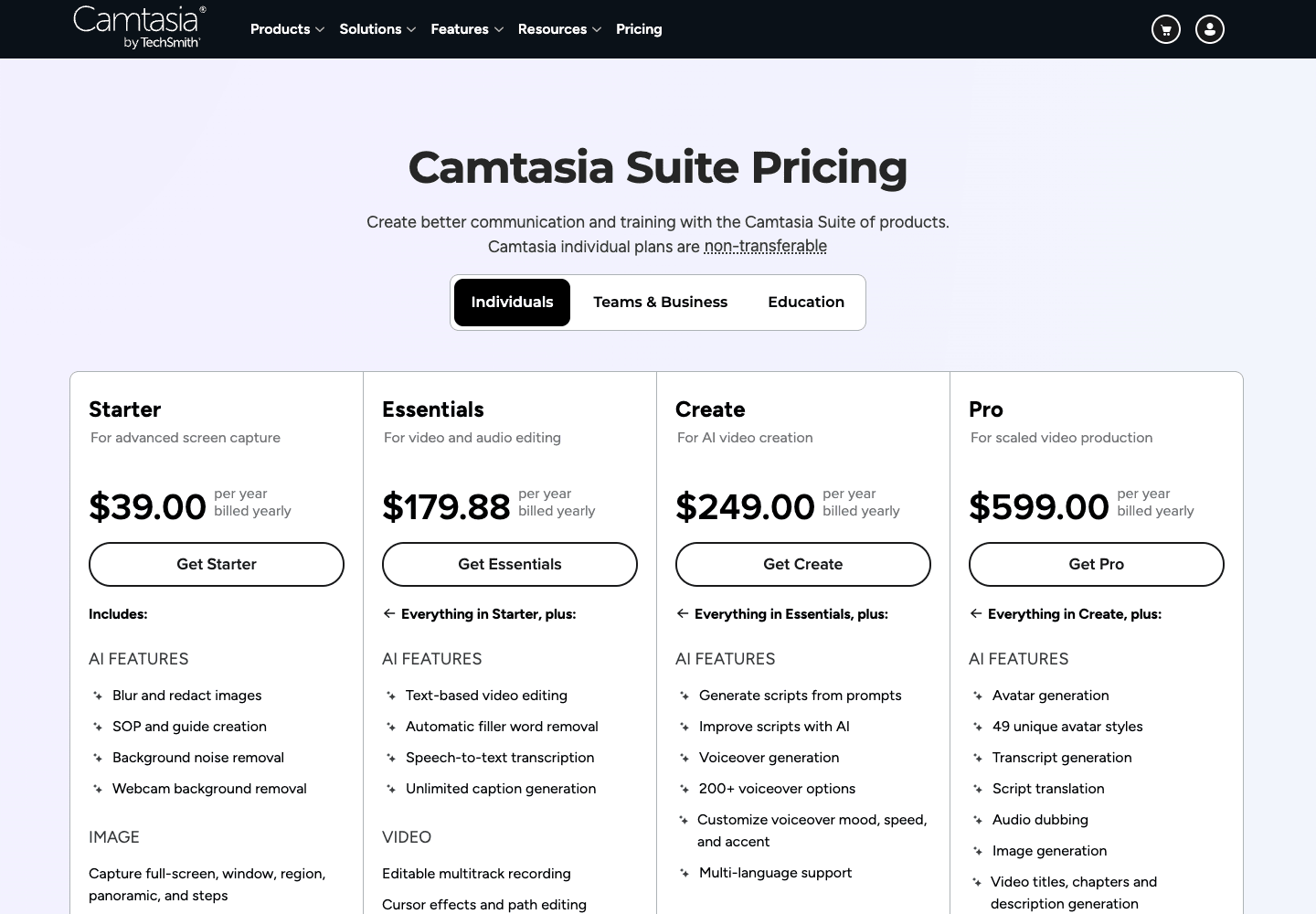
So Camtasia in practice means Essentials ($179.88 a year) or above, or $198 per seat for teams.
Camtasia alternatives compared
Pick by the job:
| If you need… | Look at |
|---|---|
| A full timeline and frame-level control | Descript, ScreenFlow (Mac), Filmora |
| Quizzes and SCORM for an LMS | ActivePresenter |
| Quick screen videos or async updates | ScreenPal, Loom |
| A narrated tutorial without editing it yourself | Clevera, Guidde |
| A written guide from the same recording | Clevera (article and help center), Guidde (step guides) |
| Free, or Linux | OBS Studio plus Kdenlive, Shotcut or DaVinci Resolve; Clevera's recorder also runs on Linux |
List prices on each vendor's own page, US view, as of 2026-11-04. "Per year" is the entry paid plan billed yearly, or the one-time price.
| Tool | Best for | Runs on | Free option | Entry plan, per year | SCORM / LMS | What you lose vs Camtasia |
|---|---|---|---|---|---|---|
| Camtasia Essentials | Reference | macOS 14+, Windows 10/11 | Editor with watermark | $179.88 | Quizzes, SCORM | |
| Descript | Talking-head and narrated screen videos edited as text | macOS 14+, Windows 11, web app | Yes: 60 media minutes/month, 720p, watermark | $192 (Hobbyist, $16/mo) | No | Quizzes and SCORM; no cursor or click effects listed on its pricing page |
| ScreenFlow | Mac users who want Camtasia-style editing without a subscription | macOS only | No | $199 one-time | No | Windows; quizzes and SCORM |
| Filmora | General editing with effects and templates on a budget | Windows, Mac (plus mobile apps) | Yes, with watermark | $49.99 (Basic); $79.99 one-time (Perpetual) | No | Cursor effects, quizzes and SCORM |
| ActivePresenter | E-learning with quizzes and LMS packages | Windows, macOS | Yes, non-commercial use only | $499 one-time (Pro; Standard $249 has no SCORM) | Pro: SCORM 1.2, 2004, xAPI, 14 question types | Snagit bundle; free edition is non-commercial only |
| ScreenPal | Fast, cheap screen recordings for teaching and support | Windows, Mac, Chromebook, iOS, Android | Yes: 15-minute recordings, limited hosting | $48 (Deluxe, $4/mo) | Video quizzes; LMS integration on Team Business; no SCORM listed | Advanced timeline and effects |
| Loom | Quick async screen-and-camera messages | Mac, Windows, iOS, Android | Yes: 25 videos, 5 minutes each, 720p | $180 per user (Business, $15/mo) | No | Real editing, cursor effects, quizzes and SCORM |
| Guidde | Browser how-to videos and step guides for teams | Web apps; desktop capture on Business | Yes: up to 25 videos | $228 per creator (Pro, $19/mo) | SCORM on Enterprise only | Free-form timeline; desktop capture below Business |
| Clevera | Narrated software tutorials with an AI voice or your own, plus an article and help center page from one recording | Mac, Windows, Linux recorders; editing in the browser | Yes: 100 credits/month, videos up to 3 min, no MP4 download | $348 (Starter, $29/mo) | No | Free-form multitrack timeline; quizzes and SCORM |
| OBS Studio | Free recording and live streaming | Windows, Mac, Linux | Free, open source | $0 | No | All editing |
| Kdenlive / Shotcut | Free, open-source editing after you record | Linux, Windows, Mac (Kdenlive also BSD) | Free, open source | $0 | No | Cursor effects, one-click zooms, screen-specific tools |
| DaVinci Resolve | A free professional editor | Windows, Mac, Linux | Yes; Studio adds AI and HDR tools | $0 (Studio $295 one-time) | No | A screen recorder; cursor effects; quizzes and SCORM |
Guidde and Clevera cost more per year than Essentials. Compare them with Camtasia Create ($249 a year), its first plan with AI scripts and voice-over.
Manual editing and quick recording: Descript, ScreenFlow, Filmora, ActivePresenter, ScreenPal, Loom
These keep you in control of every cut.
Descript
Descript edits video through its transcript: delete a sentence in the text and the video cut follows. It also has a regular timeline, screen and camera recording, and AI voice, caption translation and dubbing on every paid plan (limited on Free). Camtasia Essentials now edits by transcript too; Descript's focus is talking and podcast-style video, with a web app.
What you lose vs Camtasia: quizzes and SCORM export; its pricing page lists no cursor or click effects. Descript meters usage in media hours and AI credits per plan, so check them against your volume.
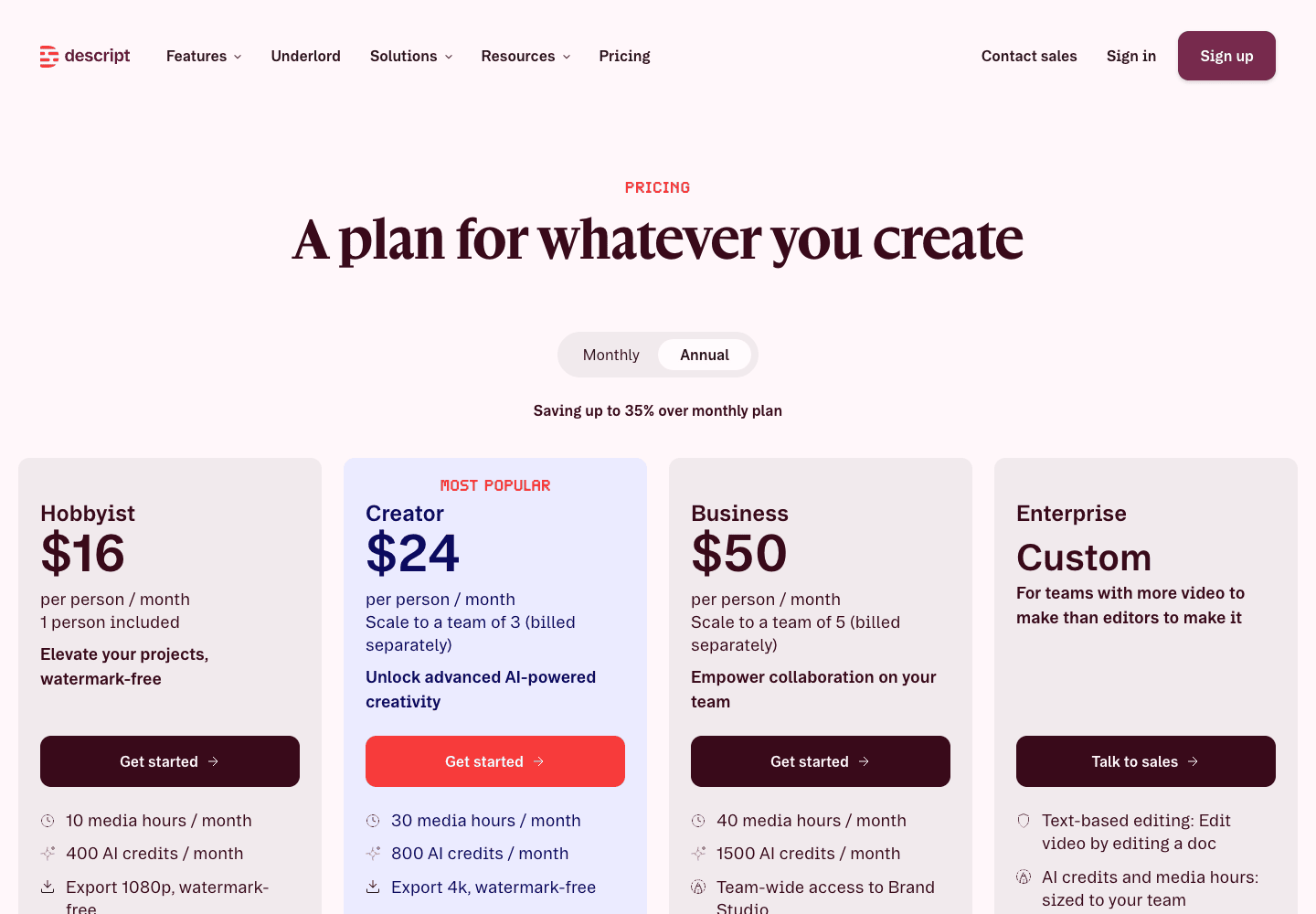
Price: Free (60 media minutes a month, 720p, watermarked exports); Hobbyist $16 per person a month billed yearly ($24 monthly); Creator $24 ($35); Business $50 ($65), from descript.com/pricing. See also our Descript alternatives.
ScreenFlow
ScreenFlow by Telestream is the closest like-for-like Camtasia alternative on a Mac: screen and camera recording, a multitrack timeline, callouts and transitions, pitched for software and iPhone demos. You buy it once.
What you lose vs Camtasia: Windows support, and quizzes and SCORM. Major versions are paid upgrades. Check your macOS version first: Telestream's store says macOS Sonoma and Sequoia, while its tech specs list Sequoia 15 and Tahoe 26.
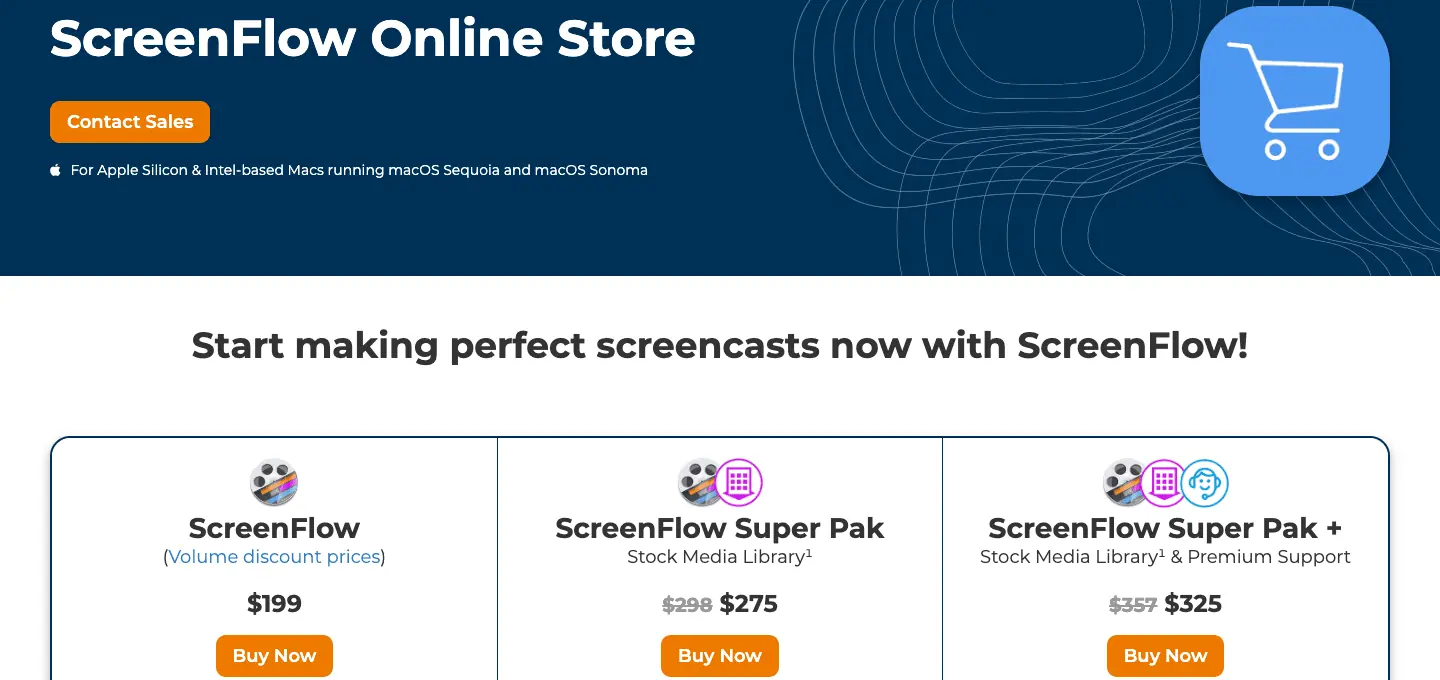
Price: $199 one-time; Super Pak with the stock media library $275 (first year), from the ScreenFlow store.
Filmora
Wondershare Filmora is a general-purpose editor with a large effects and template library, a built-in screen recorder, auto captions and AI tools.
What you lose vs Camtasia: tutorial-specific tools such as cursor smoothing, click effects and SCORM. The free version adds a watermark to exports.
Price (US prices; Filmora prices vary by country): Basic $49.99 a year, Advanced $59.99 a year (list price; discounted at the time of writing), or a Perpetual licence at $79.99 that covers updates within Filmora 16, from Filmora's store page.
ActivePresenter
ActivePresenter by Atomi Systems is the usual pick for e-learning teams leaving Camtasia. Besides screen recording and a timeline editor, its Pro edition builds lessons with 14 question types and exports SCORM 1.2, SCORM 2004 and xAPI packages for an LMS. It runs on Windows and macOS.
What you lose vs Camtasia: the Snagit bundle. The free edition is for trial and non-commercial use only, and features that rely on third-party services add a watermark until you buy a licence.
Price: one-time: Standard $249 (no SCORM or quizzes), Pro $499 per computer, a year of major upgrades included, from atomisystems.com/pricing.
ScreenPal
ScreenPal (formerly Screencast-O-Matic) is a lightweight recorder and editor for quick explainers, with hosting and video quizzes. LMS integration is on the Team Business plan ($8 per user a month paid yearly, 3 users or more).
What you lose vs Camtasia: the deep timeline and effects.
Price: Free (15-minute recording limit, limited hosting: the plans table lists 10 hosted videos); Deluxe $4 a month paid yearly; Max $10 a month paid yearly with AI captions and text-to-speech, from screenpal.com/plans.
Loom
Loom records your screen and camera and shares the result as a link, for quick async updates. It is a recorder for messages, not an editor for finished tutorials. If that is the job, our Loom alternatives and Clevera vs Loom pages compare the options.
What you lose vs Camtasia: real timeline editing, cursor effects, quizzes and SCORM.
Price: Starter free (25 videos per person, 5 minutes each, 720p); Business $15 per user a month billed yearly ($18 monthly); Business + AI $20 ($24), from loom.com/pricing.
AI does the edit: Clevera and Guidde
These tools turn a recording of your product into the edited, narrated video; you review and adjust instead of building every cut. That trades some control for time, which suits how-tos and onboarding videos you update after every release (more in our best AI video editing tools). 63% of video marketers have now used AI to create or edit video, up from 51% a year earlier (Wyzowl State of Video Marketing 2026, 266 respondents; vendor survey).
Guidde
Guidde records a workflow in your web app and turns it into a step-by-step video with an AI voice-over, plus a written guide. Its Free plan makes up to 25 how-to videos (per its Free plan card).
What you lose vs Camtasia: a free-form timeline. Desktop-app capture needs the Business plan; Free and Pro capture web apps only. SCORM export is listed only on Enterprise.
Price: Free; Pro $19 per creator a month billed yearly ($29 monthly), which removes the watermark and adds exports; Business $39 ($59) with desktop capture, up to 5 creators; Enterprise on request, from guidde.com/pricing. See our Guidde pricing breakdown and Clevera vs Guidde.
Clevera
Clevera is an AI platform that turns a screen recording into a narrated how-to video, a step-by-step help article and a page on your hosted help center, in 74 languages.
It writes the script and adds an AI voice, or keeps your own narration and cleans it up. More below.
What you lose vs Camtasia: a free-form multitrack timeline (step length follows its narration), quizzes and SCORM, and GIF export. The Free plan has no MP4 download.
Price: from $29 a month billed yearly; plans below.
Free Camtasia alternatives: OBS Studio, Kdenlive, Shotcut and DaVinci Resolve
The free route is two tools: one to record, one to edit.
OBS Studio records your screen, camera and audio, with scenes, sources and an audio mixer. It runs on Windows 10 and 11, macOS 13 or newer, and Linux (obsproject.com), but has no editor.
Kdenlive is KDE's open-source non-linear editor for Linux, Windows, macOS and BSD, with multitrack editing, keyframed effects, subtitles and voice-over recording (kdenlive.org). Shotcut is another free, open-source, cross-platform editor with wide format support and its own screen and webcam capture (shotcut.org).
DaVinci Resolve from Blackmagic Design is a professional editor with color grading and audio post-production. It has a free version; the paid Studio version adds AI and advanced HDR tools for a one-time $295 at list price. It runs on Mac, Windows and Linux (blackmagicdesign.com). It has no screen recorder, so pair it with OBS.
What you lose vs Camtasia: cursor and click effects, one-click zooms and other tutorial shortcuts. In return you pay nothing and can run it on Linux. For recorders only, see our roundup of the best screen recording tools.
Is there Camtasia for Linux?
No. TechSmith's support article says neither Snagit nor Camtasia is supported on Linux; they are only available for Windows and Mac (TechSmith support, checked 2026-11-04). The browser-based Camtasia Online needs a Chromium browser, and TechSmith says Linux-based Chromium browsers are not supported and have not been tested (TechSmith support). TechSmith also says the Camtasia Editor does not work in any virtual environment, VirtualBox and VMware included (TechSmith support), so a Windows VM on Linux is unsupported too.
What runs on Linux, per each vendor's download page:
| Tool | Job | How it installs on Linux |
|---|---|---|
| OBS Studio | Record | Flatpak on Flathub (official); PPA for Ubuntu 26.04 and newer |
| Kdenlive | Edit | AppImage or Flatpak |
| Shotcut | Edit (also records screen and webcam) | Flatpak, Snap, AppImage or portable tar; Mint 21+, Ubuntu 22.04+, Debian 12+, Fedora 36+ and others |
| DaVinci Resolve | Edit | Linux build from Blackmagic Design |
| Clevera | Record, then AI edit in the browser | AppImage (Intel/AMD or ARM64) for Ubuntu 24.04+, Fedora or Debian 13, on GNOME 46+ or KDE Plasma 6, Wayland or X11 |
Clevera for Linux records a display or a window with microphone, camera and system audio. On GNOME, the Clevera for GNOME extension captures your clicks, which become the steps and drive the automatic zooms; on GNOME with Wayland, keys that don't type text (Enter, shortcuts) can't be captured. There is no area recording and no iPhone recording on Linux. See Install and use Clevera on Linux.
Our best Linux screen recorders guide covers Wayland support per desktop.
When to stay on Camtasia
Stay if:
- You publish to an LMS and want it in one familiar editor. Quizzes and SCORM export come with Essentials ($179.88 a year). Of the tools here, ActivePresenter Pro also exports SCORM and xAPI, ScreenPal has video quizzes (LMS integration on Team Business), and Guidde lists SCORM export only on Enterprise. Descript, ScreenFlow, Filmora, Loom, Clevera and the free stack have neither.
- You need frame-level control over many tracks, annotations and animations, and you have the time to use it.
- You also use Snagit. Every Camtasia plan bundles it, which is good value if your team lives in screenshots.
- You work offline on Windows or Mac and want everything in one desktop app.
Switch when the editing time, not the tool, is your bottleneck, when you need Linux, or when one recording should also become a written guide. If you switch, export finished MP4s and keep the raw .trec recordings first.
How Clevera handles screen tutorials
Clevera is built for the job Camtasia is most often bought for, a software tutorial with voice-over, zooms and captions; the difference is who does the edit.
1. Record or upload. Use the desktop recorder (Mac, Windows or Linux), which captures your clicks and keystrokes separately from the video (on Linux, click capture needs GNOME and the Clevera for GNOME extension). Or upload an existing recording. Or let Record with AI click through a public https:// web app in a cloud browser (desktop apps and intranets need the desktop recorder).
2. The AI writes and narrates, or keeps your voice. Clevera writes a script from what happens on screen, records it with one of 30 built-in AI voices (or your own ElevenLabs voice through your own key), cuts dead time and adds zooms on your clicks. The Script tab lists every narrated step with its timestamp; edit a line and regenerate just that voice line. Prefer your own narration? Choose Polish > Clean-up: Clevera keeps your voice, cuts filler words, retakes and dead time, and can caption what you said. Every plan has it (Clean up or restyle a recording with Polish).
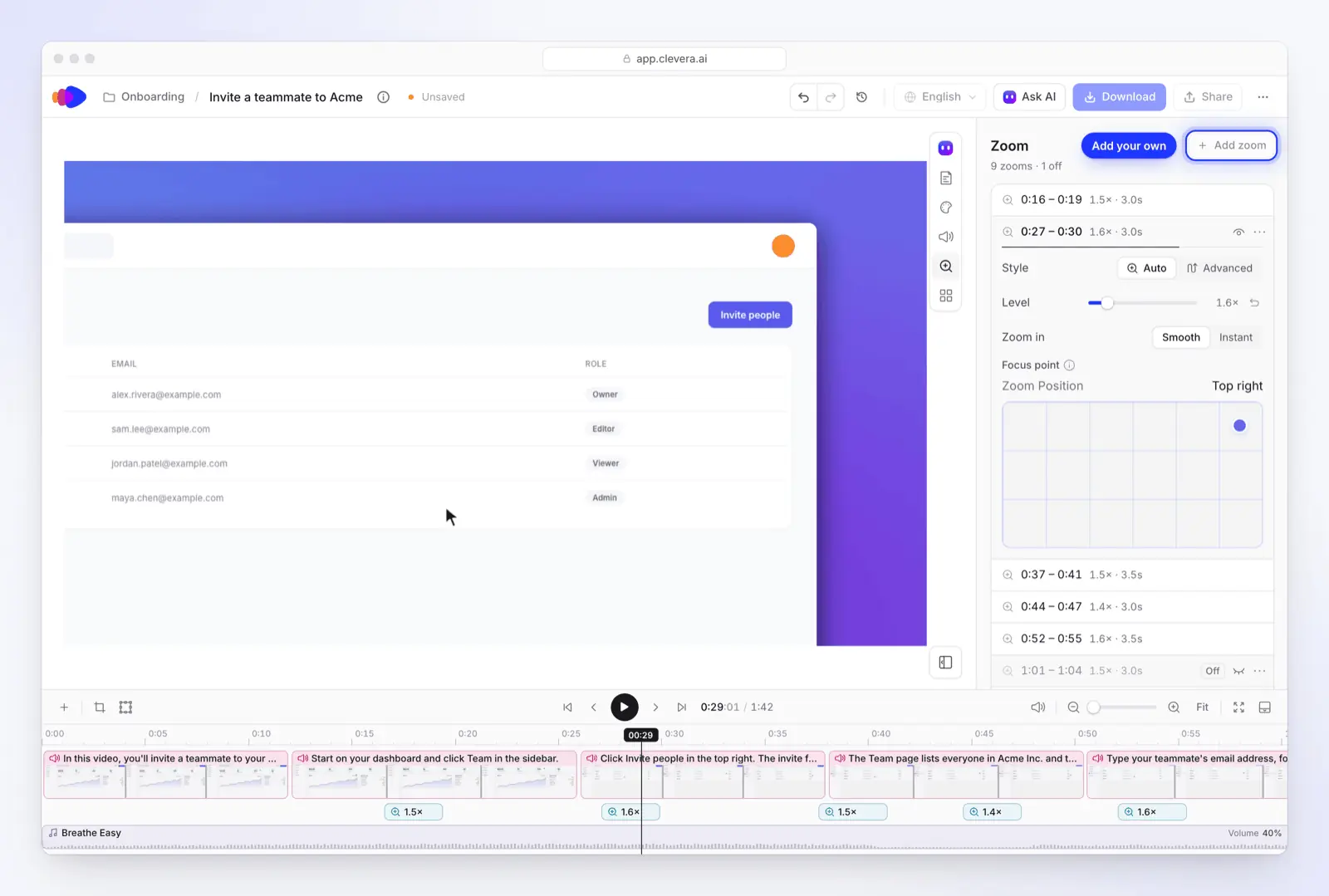
3. Adjust zooms like Camtasia's zoom-and-pan. The Zoom tab lists every automatic zoom. Turn one off or change its level, or switch it to Advanced, click Edit path and set keyframes in the Zoom & pan window. Our post on auto-zoom screen recording explains how this works and when to turn it off.
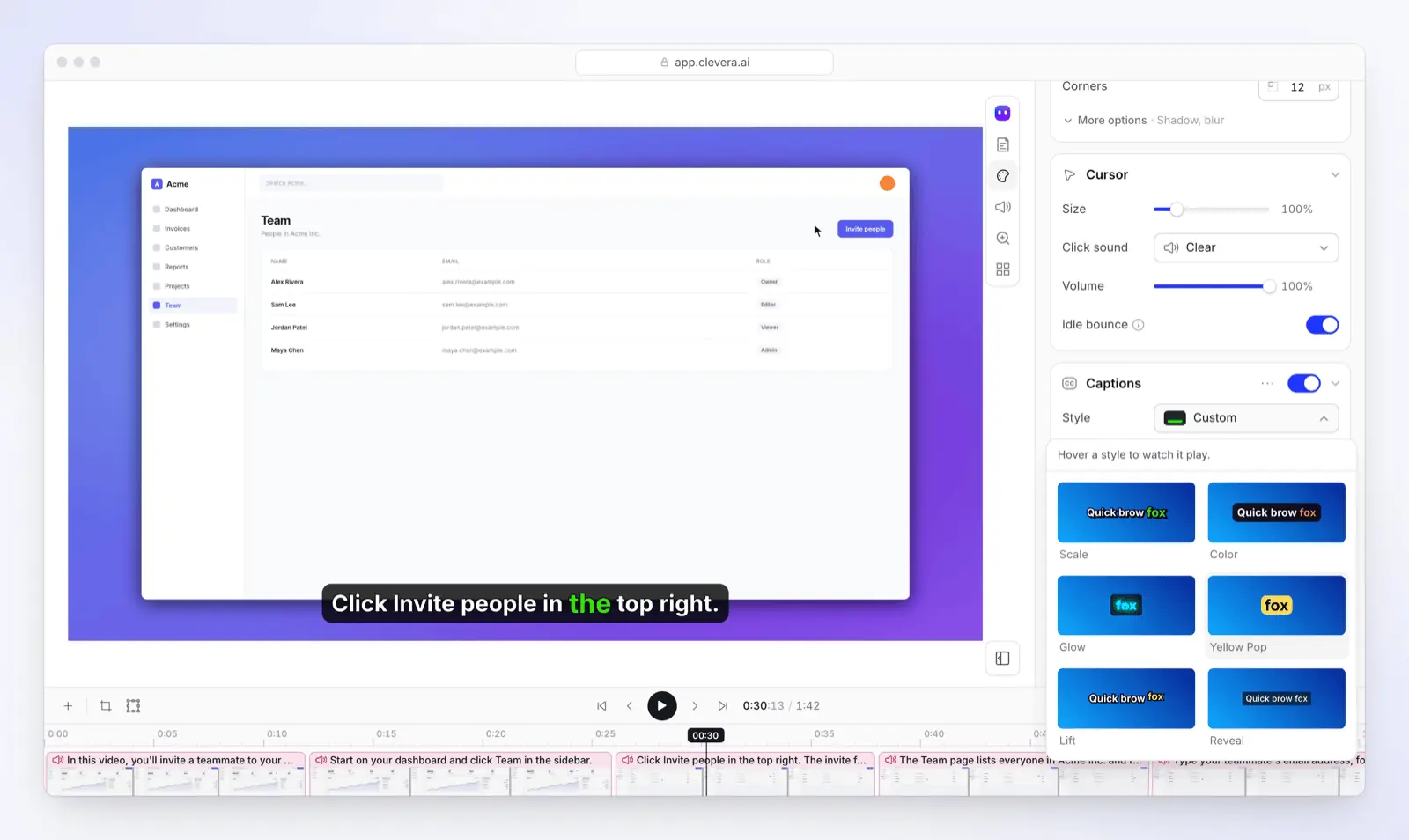
4. Style and captions. The Style tab sets the background, cursor size and click sound, and captions. Captions are made from the voice: open Style > Captions and click Generate captions, then pick a style. They are not on by default.
5. Share, and keep it current. Download an MP4 (Starter up to 2K, Pro up to 4K; not on Free), or share a link or embed. When the UI changes, edit the step and every share link, embed and help center page plays the new version (LiveSync); downloaded MP4s stay as they were. The same recording can also become a step-by-step article on the hosted help center every plan includes.
Plans: Free to try (100 credits a month, videos up to 3 minutes, no MP4 download); Starter $36 a month or $29 billed yearly for MP4 downloads up to 2K and a help center on your own domain; Pro $124 a month for 2 creators ($86.80 billed yearly) for 4K, publishing integrations and AI agents and API (pricing). The video editor tour in the help center walks through every tab.
How we compared these tools
- Sources: each vendor's public pricing page, product page, download page and support docs, read on 2026-11-04. Prices are the list prices a US visitor sees; where a vendor prices by country (Filmora), we used the page's default US prices.
- No hands-on tests: this is not a "we tested" review; claims about how a tool works come from the vendor's own documentation.
- Selection: tools people search for as Camtasia replacements, covering the jobs above. We left out discontinued tools.
- Clevera is our product. We placed it in the group where it fits and listed what it lacks against Camtasia.
FAQ
Is there a free version of Camtasia? Yes, with limits. TechSmith lets you download the full Camtasia Editor for free, but exports carry a watermark until you buy Essentials ($179.88 a year) or higher, and Camtasia Online is a free browser recorder for Chromium browsers. The best free alternative without a watermark is OBS Studio to record plus Kdenlive, Shotcut or DaVinci Resolve to edit; all of them also run on Linux, where Camtasia doesn't (details). Clevera's and Guidde's Free plans make short narrated tutorials.
What is cheaper than Camtasia? Camtasia Essentials, the cheapest plan without a watermark, is $179.88 a year. Cheaper: ScreenPal Deluxe ($48 a year), Filmora Basic ($49.99 a year, US price) and Filmora Perpetual ($79.99 once). ScreenFlow is $199 once for Mac, so it costs less from the second year. OBS Studio, Kdenlive, Shotcut and DaVinci Resolve are free. Descript Hobbyist ($192 a year billed yearly) costs slightly more, and Guidde Pro is $228 per creator a year.
Camtasia vs Descript: which should I pick? Both now let you edit by transcript (Camtasia from Essentials). Pick Camtasia for screen tutorials with cursor and click effects, quizzes and SCORM, and the Snagit bundle. Pick Descript if most videos are talking-head or podcast-style and you want a web app, and AI voice, caption translation and dubbing from Hobbyist ($16 a month billed yearly, $24 monthly); translation proofreading is on Business.
Can I buy Camtasia once instead of subscribing? TechSmith's store lists the individual plans only as yearly subscriptions. If you want a one-time purchase, ScreenFlow ($199, Mac only), ActivePresenter ($249 Standard, $499 Pro), Filmora Perpetual ($79.99, US price) and DaVinci Resolve Studio ($295) are sold that way.
Make your next tutorial without the timeline
Record your product once. Clevera writes the narration, adds the voice and zooms, makes captions when you want them, and turns the same recording into a help article.
Or see what the AI screen recorder captures on Mac, Windows and Linux.