AI motion graphics generator
Starts from a brief
Automatic + 7 Looks
74 languages
Exports never use credits


Both made with Clevera: a 30-second brand film with kinetic type, and a 9:16 music & motion clip.
Trusted by product teams worldwide







Motion graphics,
made with Clevera.
Explainers, launch films, product promos and brand loops. Every clip below was made with Clevera and plays as it was exported.

Animated explainer
Leap years · 16:9 · 0:10 · Made with Clevera

Launch motion
SellKit, bold type · 16:9 · 0:10 · Made with Clevera

Launch film, music first
SellKit · 16:9 · 0:10 · Made with Clevera

Product promo
Kelvo, UI in motion · 16:9 · 0:45 · Made with Clevera

Launch teaser
Ledgerleaf · 16:9 · 0:40 · Made with Clevera

Graphics over footage
Clevera promo · 16:9 · 1:00 · Made with Clevera

Hook reel
Halyard · 9:16 · 0:25 · Made with Clevera
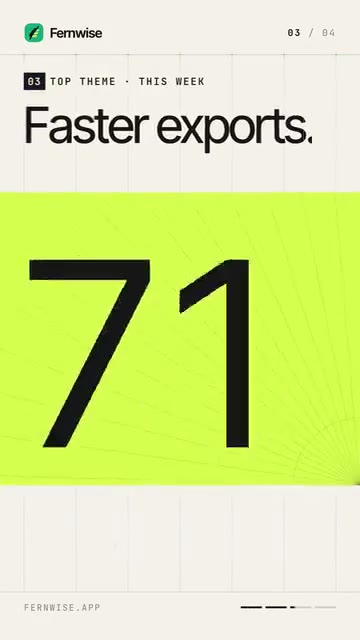
Hook reel loop
Fernwise · 9:16 · 0:05 · Made with Clevera

Launch teaser loop
Fernwise · 9:16 · 0:05 · Made with Clevera

Feature spotlight loop
Fernwise · 9:16 · 0:05 · Made with Clevera
Custom briefs and the other social and promo types are on Starter and above. Fernwise, Halyard, Kelvo, Ledgerleaf, Orvel and SellKit are demo brands, not customer results.
One brief in,
one infographic out.
This is the brief we typed into Start from scratch, word for word, and the video Clevera made from it. The number, the filling bar, the closing line and the source line all came from the brief.
One thing it didn’t follow: the brief asked for 15 seconds and the video runs a minute. Length is set in the Format menu, not in the brief.
The brief
“Animated infographic, 9:16, 15 seconds. One number: 80% of features in the average software product are rarely or never used (Pendo, 2019 Feature Adoption Report). Show the 80% as a filling bar, then the line ‘Show people the feature, don’t just announce it.’ Source line at the bottom: Pendo 2019.”

The result
Animated infographic · 9:16 · 1:00 · Made with Clevera. Press play with the sound on.
From a sentence
to a finished clip.
01
Describe what you want
In Create, open the Custom tab, pick Start from scratch and write the brief: what the video should show, the numbers, the lines and the style.
02
Set the format and Look
Choose the ratio and length in the Format menu, and a Look, or let Automatic pick one. Add a link, images or footage if you want your own product on screen.
03
Get it, then edit it
Clevera plans the scenes, animates them and adds a voice-over or music with captions. Change anything by chatting, or add elements by hand.
Your colours,
your motion style.
Automatic Look
Let AI pick a Look that fits the brief and the format.
Seven named styles
Candy Brick, Ink & Ember, Moss & Rose, Poster Punch, Signal Grid, Soft Aura and Zine collage.
Your colours
Pick a style, then set its colours to match your brand.
Add elements
Text boxes, shapes, animated emoji, highlights, blur, images, video and recording clips.
Voice or music
An AI voice-over with captions, or music and sound effects only.
74 languages
Make the video in any of 74 languages, voice and on-screen text included.
Edit by chatting,
not by keyframe.
Ask for a change
Type something like “Make the opening line shorter” and the assistant applies it to the clip.
Add your own touches
Add elements to any scene and set captions and sound the way you like.
Go back any time
Revision history keeps every version, so you can return to an earlier one.
When Clevera is enough,
and when After Effects is the right tool.
Animated infographics, explainers and launch clips from a brief
Promo clips built around your own product, logo and colours
Changes by chat instead of reopening a project file
Frame-level timing, like every word landing on a beat
Character animation and illustration-heavy explainers
Rotoscoping and compositing on live footage
Motion Graphics templates for a Premiere team
A common setup: a motion designer builds the hero assets once, and the marketing team makes the weekly clips in a faster tool.
Questions about AI motion graphics
What is an AI motion graphics generator?
Can I make motion graphics from a text prompt?
How do I set the length of the video?
Which plan do I need?
How many credits does a motion graphics video use?
Can I add motion graphics to my own footage?
Do I still need After Effects?