how to create employee training videos with ai
How to Create Employee Training Videos with AI: 8 Steps + Best Tools for 2026
Most employee training videos take days to produce, look like they were made in 2014, and get watched once. AI changes every part of that equation — from scripting and narration to publishing and updates. Here's exactly how to do it, and which tools belong in your stack.
74%
of employees say they'd be more engaged if training was delivered via video
6x
higher knowledge retention with video vs. text-only training
40–60%
less time needed to deliver the same training content through video
3 in 4
L&D teams say content creation is their biggest production bottleneck
What are AI-generated employee training videos?
AI-generated employee training videos are training content created with AI-assisted tools that handle the parts that used to require a video editor, voice actor, and instructional designer working in sequence. You record or upload your source material — a screen recording, slide deck, or talking-head clip — and AI writes the voiceover script, applies narration in a natural-sounding voice, adds visual polish (zoom, highlights, captions), and outputs a publish-ready video.
The result: training content that looks professionally produced, gets created in a fraction of the time, and stays easy to update when your product or process changes.
There are three broad categories of AI training video tools in 2026:
Screen-to-video generators
turn screen recordings into narrated tutorials and help articles (Clevera, Loom AI)
AI avatar and presenter tools
generate training videos from a script using a digital human presenter (Synthesia, HeyGen)
AI-enhanced editing tools
bring AI assistance to traditional video production workflows (Descript, Camtasia AI)
The right category depends on your training type. This guide covers all three.
How to use this guide:
The 8-step process below applies to any AI training video workflow. Jump to the tools section to find the right tool for your specific training type — then come back to the steps for implementation.
Quick comparison: best AI tools for employee training videos
How to create employee training videos with AI: 8 steps
Step 1
Define your learning objective before you record anything
The most common mistake in training video production is starting with the tool instead of starting with the outcome.
Before you open any software, answer two questions: What should the employee be able to do after watching this video that they couldn't do before? How will you know they can do it?
If you can't answer both cleanly in one sentence each, the scope of your training is too broad. Split it. For AI-generated training videos specifically, shorter and more focused is almost always better. A 3-minute video explaining one specific workflow will get watched, re-watched, and bookmarked. A 20-minute overview of your entire platform will get skipped.
Target length by training type: Process or software tutorial: 2–5 minutes · Compliance or policy training: 3–8 minutes per topic (not all at once) · Onboarding overview: 5–10 minutes maximum, then branch into role-specific modules · Microlearning reinforcement: 60–90 seconds
Once you have a clear objective and target length, you're ready to record.
Step 2
Choose the right AI training video format for your content
Not all employee training content is the same — and different formats produce better outcomes for different types of training.
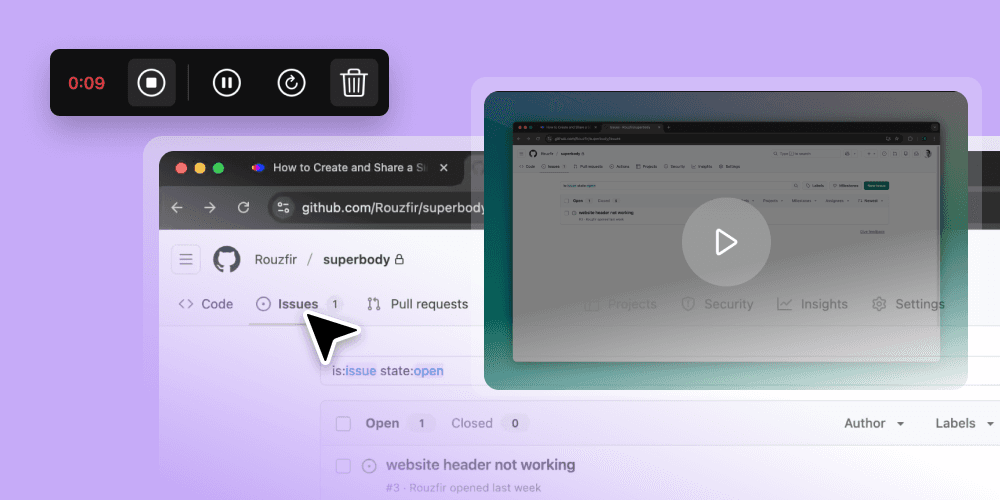
Use a screen recording format if: Your training is about a software product, system, or workflow. This is the highest-value format for SaaS tools, internal platforms, HR systems, and any process that happens on a screen. Tools like Clevera were built specifically for this — you record your screen, and AI handles the rest: script, voice, visuals, and a companion help article.
Use an AI avatar format if: Your training is presenter-driven — compliance overviews, company policy walkthroughs, leadership messages, or any content where a human face on screen increases credibility or engagement. Synthesia and HeyGen generate these from a script alone.
Use an animated format if: Your training involves scenarios, roleplay, or conceptual content that's hard to demonstrate on a screen. Think customer service scenarios, soft skills training, or safety procedures. Vyond is built for this.
Use an AI-enhanced editing format if: Your L&D team already has a production workflow and just needs AI to speed up the editing, transcription, and caption work. Descript fits here.
Most training libraries end up using a combination. Start with the format that matches your most urgent content need.
Step 3
Script your training content — or let AI write it from your recording
A good script is the difference between training that lands and training that gets tuned out.
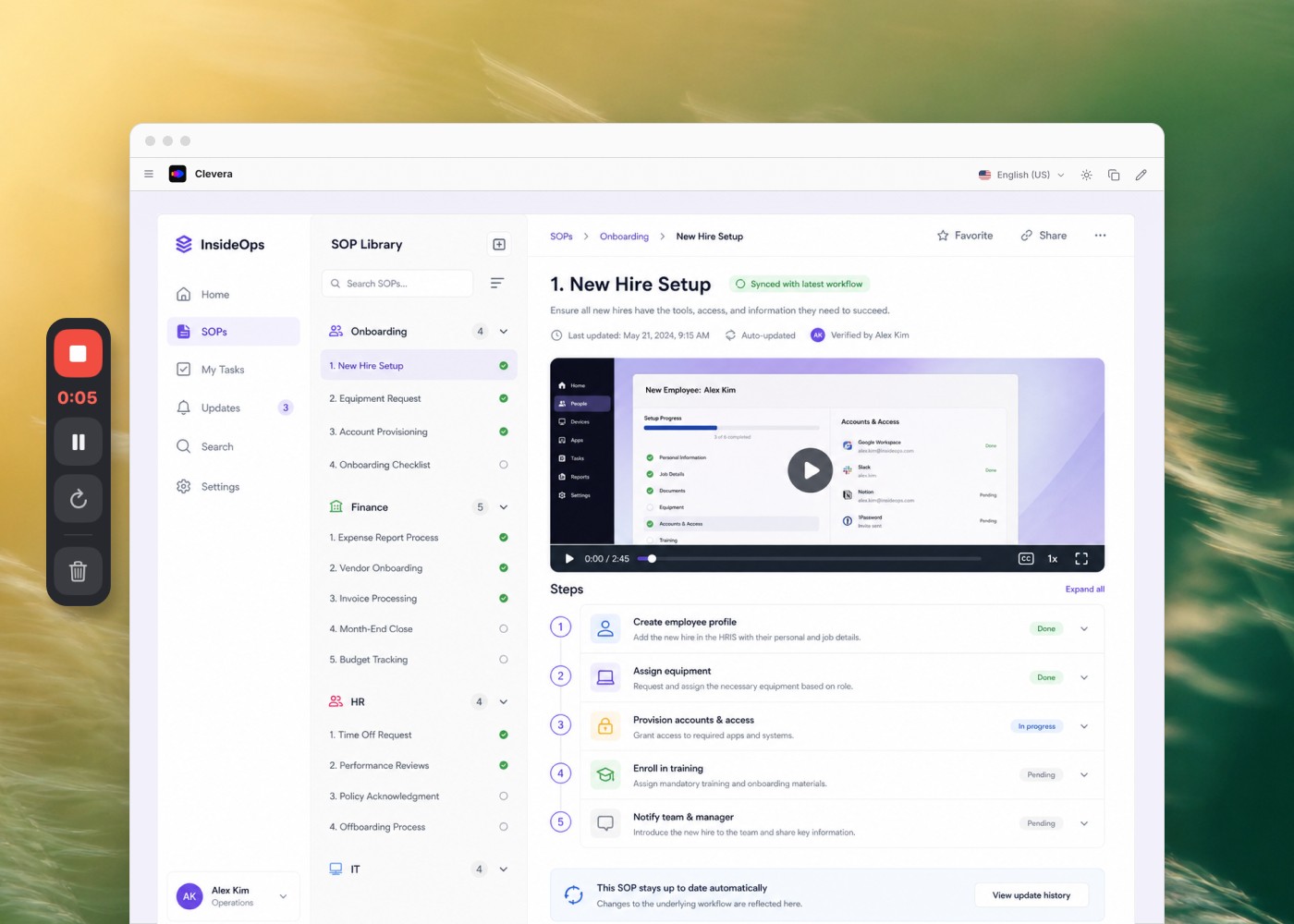
Option A: Record first, let AI generate the script. This is the fastest path for screen-based tutorials. With Clevera, you record your screen — talking through what you're doing as you go, even imperfectly — and AI analyzes the recording to generate a polished voiceover script. You review and edit it, but you're editing a draft, not starting from scratch. Most users report a 5–10 minute total time from recording to a reviewed script.
Option B: Write the script first, then use it as your AI input. Better for avatar-based or presenter-led videos where the script is the video. Tools like Synthesia and HeyGen take a script as input and generate the video from it.
Script principles: Open with the "why" · Use second-person ("you") throughout · One concept per sentence · Write at a 7th-grade reading level · End with a clear action: what should the employee do immediately after watching
Step 4
Record your source material
This is the step most teams overthink. The recording doesn't need to be perfect — AI will clean it up.
For screen-based tutorials: Record at full resolution (1080p or higher). Move your mouse deliberately — hover over the elements you're explaining so the AI has clear signals for where to add zoom effects and highlights. Narrate as you go, even loosely. Modern AI tools (including Clevera) can detect and remove fumbles, dead air, and filler words automatically.
For avatar or presenter-based videos: You don't actually record anything — you just submit your script. The avatar does the presenting.
For webcam-based training: Lighting matters more than camera quality. Shoot facing a window or with a softbox behind your screen. A built-in laptop webcam in good light beats an expensive camera in a dark room.
Practical setup: Close unnecessary browser tabs and notifications · Set your display to a clean, minimal state · Record at the resolution you want the final video to be · Use a decent USB microphone if recording audio
If you're using Clevera, you can record directly in the platform or upload an existing recording. The raw file doesn't need to be polished.
Step 5
Apply AI voice narration — and skip the recording booth
This is where AI training video tools pay for themselves. Professional voiceover costs $250–$1,500 per finished minute. AI voices in 2026 are indistinguishable from human narrators in controlled listening tests.
What to look for in AI voice quality: Emotional awareness — does the voice modulate naturally, or does it read everything at the same pitch and pace? Pronunciation of technical terms — can you correct mispronunciations without re-recording the entire script? Language and accent range — if you have a global workforce, you need voices that sound natural to different regional audiences.
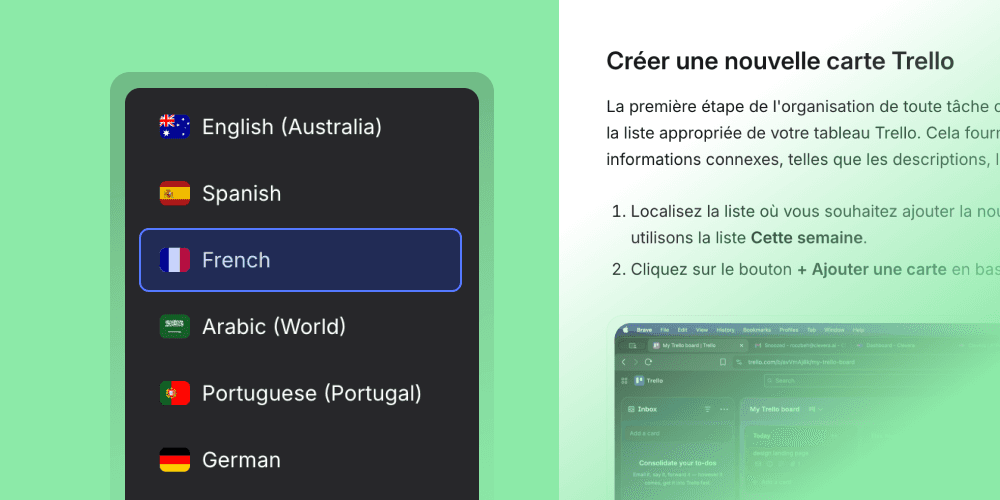
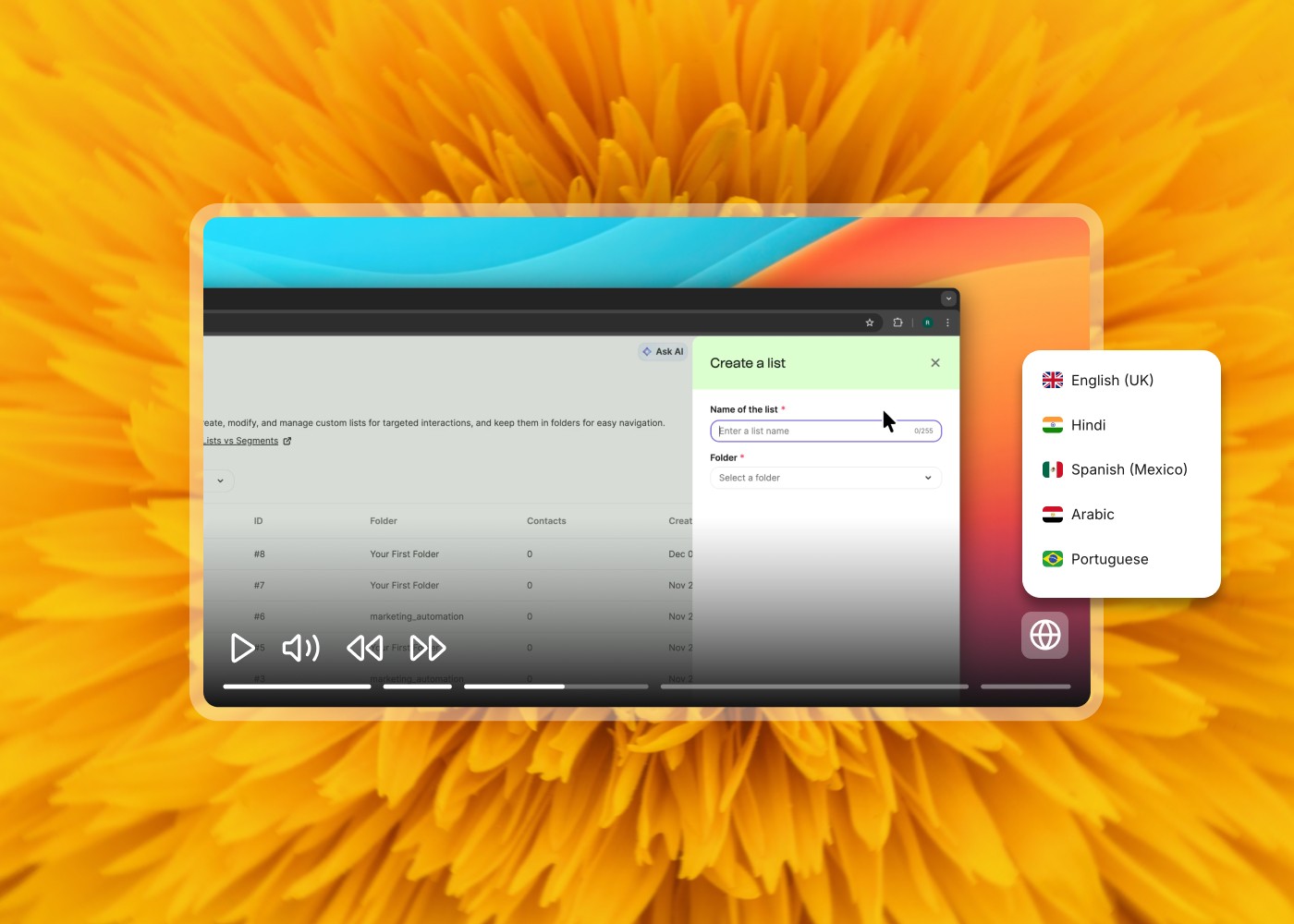
Clevera includes 100+ contextually-aware AI voices across 74 languages. You can preview any voice before committing, adjust pacing, and correct individual word pronunciations inline — without touching the video timeline.
One thing to avoid: using the same generic AI voice as your competitors. If your employees also use tools from other companies in their workflow, hearing the same synthetic narrator on multiple platforms creates cognitive friction. Pick a voice that fits your brand's communication style and stick with it.
Step 6
Add visual enhancements — zoom, highlights, and captions
The gap between an amateur training video and a professional one often comes down to three things: zoom, click indicators, and accurate captions.
Smart zoom: AI detects where your cursor is focused and applies zoom effects that direct the viewer's attention. You don't manually set keyframes — the tool infers the right moments from your recording. Review the output and adjust any that feel off, but most AI-generated zoom sequences need minimal editing.
Click highlights: Visual indicators that show where a click happened. These are critical for software tutorials — without them, viewers often can't tell what was clicked, especially on dense UI. Clevera applies these automatically; most other screen recording tools require manual placement.
Captions and subtitles: Auto-generated from your voiceover script. Always review for technical terms, product names, and proper nouns before publishing. Burned-in captions on every training video is now a baseline expectation — many employees watch training at their desks without sound.
What not to add: Resist the urge to add animated transitions, music beds, or decorative motion graphics to training content. They don't improve comprehension — they extend runtime and distract. The best training videos are visually clean and focused.
Step 7
Auto-generate a companion help article from the same recording
This is the step most teams skip — and it's the one that multiplies the value of every training video you produce.
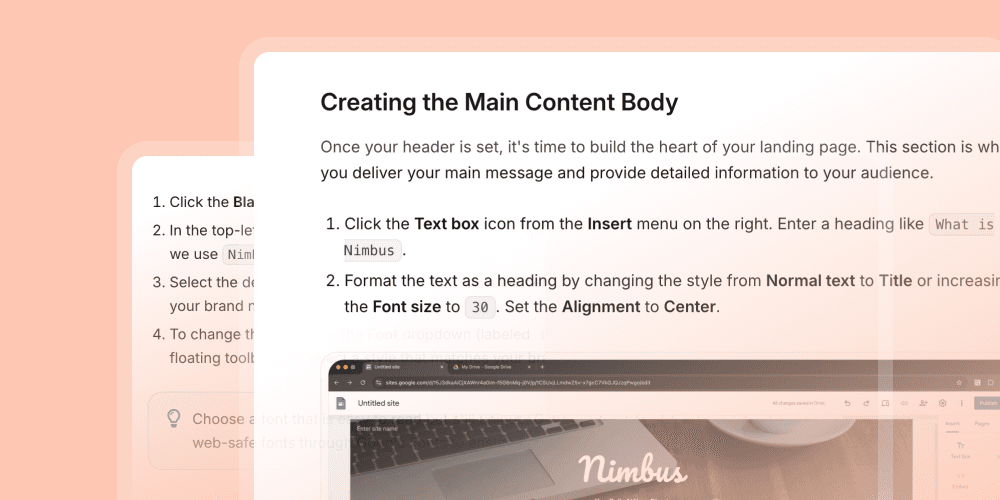
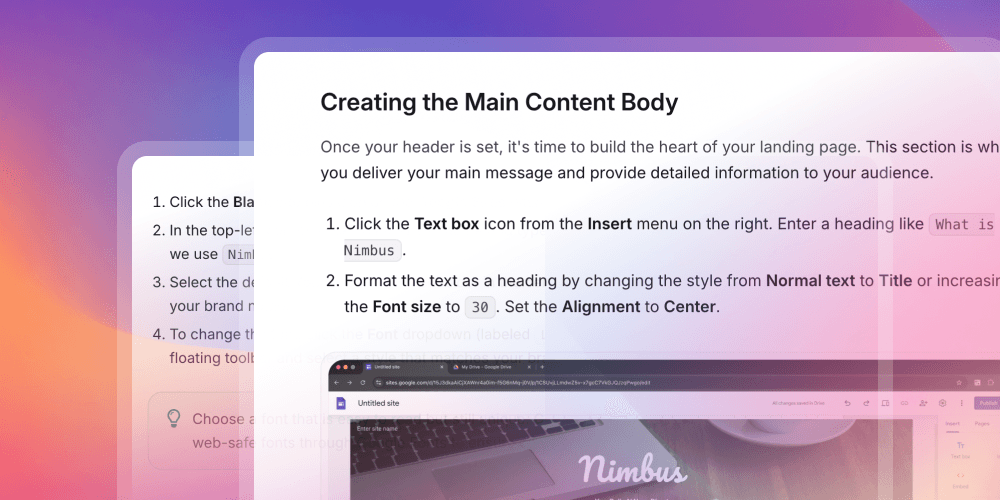
A video alone is difficult to reference. An employee who watches a training video on Tuesday and tries to apply it on Friday has to re-watch the whole thing to find the one step they forgot. A companion help article — with the same steps, structured text, and annotated screenshots — solves that problem. It's the resource they bookmark, share with a colleague, and return to.
Traditionally, creating a help article to accompany each video meant doubling the production work. Clevera eliminates that. The same recording that generates your training video simultaneously generates a formatted help article with step-by-step text and screenshots — indexed to the same source material. You get both outputs without doing twice the work.
Teams that publish video + article pairs see significantly higher content engagement than video-only libraries — because different employees consume content differently. Some watch. Some read. Some do both, in different orders. You're not choosing between them.
Step 8
Publish, embed, and keep content live with LiveSync
Publishing a training video is easy. Keeping it accurate after your product or process changes is where most training libraries fall apart.
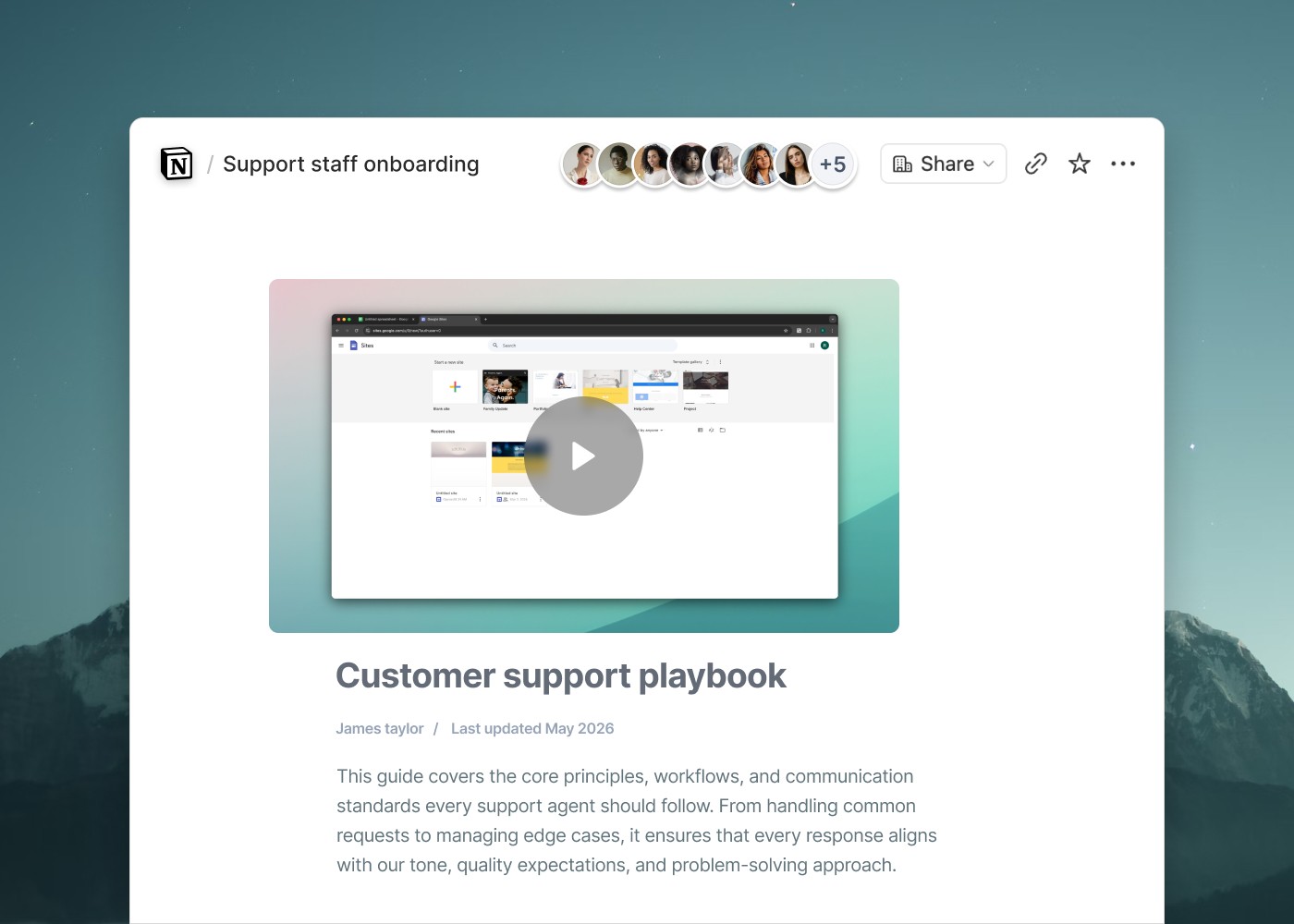
Embed, don't download. Embed training videos in your LMS, help center, Notion pages, onboarding portals, and internal wikis using the platform's embed code. This keeps the video under your control — you can update it without changing every link.
Use a live asset system. Clevera's LiveSync means the video you embedded six months ago reflects any changes you make today — automatically, without re-exporting or updating individual links. Edit the script, the AI voice regenerates. The embed updates everywhere it's published. For fast-moving SaaS products or companies going through process changes, this alone eliminates one of the biggest drags on training team productivity.
Organize for discoverability. Group your training videos by role, team, workflow, or onboarding stage — not by the date they were created. The goal is that an employee who needs to learn something can find the right video in under 30 seconds.
Set a review cadence. Even with LiveSync, schedule a quarterly audit of your most-viewed training content. What's changed in the product? What's getting the most rewatch time? What topics generate the most support tickets?
The best AI tools for creating employee training videos in 2026
#1 — Featured Pick
Screen-to-video generator
1. Clevera
Best for AI-generated software tutorials and help content
The problem it solves: Your team knows how your product and internal tools work. Getting that knowledge into polished, narrated training videos — and keeping them updated as things change — is the production bottleneck that slows every training initiative down. Clevera removes that bottleneck.
What it actually does: Clevera is an AI-powered training video and help article generator. Record your screen — narrating as you go or in silence. Clevera generates the voiceover script, applies a natural-sounding AI voice from 100+ options, adds smart zoom effects and click highlights, and outputs a publish-ready training video. The same recording simultaneously generates a step-by-step help article with screenshots.
Where it stands apart: Clevera solves the content creation problem. Most LMS and training delivery platforms assume you already have polished content to deliver. Clevera is how you create it — faster than any video editor, without a studio, without a narrator, and without a writer. LiveSync is the feature training teams consistently call out: edit the script of a published training video, and every place it's embedded reflects the change automatically.
Key features:
→ AI script generation from screen recordings — no manual writing required
→ 100+ emotionally-aware AI voices across 74 languages
→ Auto-generated step-by-step help articles alongside every video
→ Smart zoom, click highlights, and visual effects applied automatically
→ LiveSync — edit once, update everywhere the video is published
→ 74-language translation for global teams
→ Team roles (Admin / Editor / Viewer) + SAML/OIDC SSO
→ Embed anywhere: LMS, help centers, Notion, portals, email sequences
Best for:
SaaS and ops teams creating software tutorials, onboarding walkthroughs, process training, and help center content. Especially powerful for teams that need to update training content regularly as their product evolves.
Honest take:
If your training library consists of screen recordings with no narration — or doesn't exist yet — Clevera is where to start. The production time drops from days to minutes. The content quality jumps significantly. And LiveSync means you're not re-recording the same video every quarter.
Start free
Starts at $29/month.
#2 — AI avatar tools
Synthesia
Best for AI avatar-based training at scale
Synthesia generates video from a text script using one of 230+ AI avatars. You type (or paste) your training content, choose a presenter avatar, select a language, and receive a finished video. No camera. No recording. No re-shooting when the script changes.
Key features
230+ AI avatars with diverse representation options · Custom avatar creation from your own recorded footage · 140+ language and accent options · Template library for structured eLearning layouts · Screen recording module · SCORM export for LMS delivery · Brand kit for consistent visual identity
Best for
L&D teams producing presenter-led training at scale — compliance, HR policy, soft skills, onboarding overviews. Particularly strong for global companies that need the same training in 10+ languages without 10x the production time.
Pricing
Starts at $29/month (Personal). Teams plan from $89/month. Enterprise custom.
Honest take
Synthesia's avatar quality has improved substantially. For face-to-camera presenter style content, it's now genuinely production-ready. If your training doesn't involve screen interaction, it's one of the fastest paths from script to finished video that exists.
#3 — AI avatar tools
HeyGen
Best for personalized AI presenter videos
HeyGen is best understood as Synthesia's closest competitor with a stronger emphasis on personalization. Its standout feature is Video Avatar — you record a 2-minute clip of yourself, and HeyGen creates a custom AI avatar that speaks any script you provide in your voice and with your appearance.
Key features
Custom avatar from personal footage (your face, your voice) · 300+ stock avatars · AI voice cloning · Video translation with lip-sync adjustment · Interactive video capabilities (branching scenarios) · API access for programmatic video generation
Best for
Teams where trainer or executive presence matters — leadership training, culture content, personalized onboarding messages. Also strong for companies rolling out localized training across multiple markets from one source recording.
Pricing
Starts at $29/month.
Honest take
HeyGen's custom avatar feature is its differentiation. If you want the efficiency of AI video generation but the trust and authenticity of a known face, it's the strongest option in this category. The interactive video (branching) feature is still early-stage but worth tracking for scenario-based training.
#4 — Async training
Loom AI
Best for async training and knowledge sharing
Loom is a screen and webcam recording tool that has added meaningful AI capabilities: automatic transcription, AI-generated summaries, chapter markers, filler-word removal, and a first-pass editing layer. It's the tool many teams already use for internal communication — the AI features extend it toward training use cases.
Key features
Screen + webcam recording with one click · AI transcript, summary, and chapter generation · Filler word and silence removal · Viewer engagement analytics · Loom AI for basic video editing · Integration with Notion, Confluence, Slack, and most productivity tools
Best for
Teams that need quick, async knowledge transfer — not formal training courses. Loom works well for manager-to-team updates, process walkthroughs shared informally, and ad-hoc training on newly released features.
Pricing
Free (25 videos). Business from $12.50/user/month.
Honest take
Loom is the fastest way to record and share a training video — it's designed for speed over polish. If your training content needs professional voiceover, auto-generated help articles, or enterprise publishing workflows, Loom's AI layer isn't deep enough. If you need to share something with your team in the next 10 minutes, it's unbeatable.
#5 — AI-enhanced editing
Descript
Best for AI-powered video editing and transcription
Descript is a video editor built around a transcript. You record or import your video, and Descript transcribes it. From there, you edit the video by editing the text — delete a word from the transcript and that section of the video is cut. AI features include Overdub (regenerate audio from text in your own cloned voice), filler word removal, Studio Sound, and Eye Contact correction.
Key features
Text-based video editing · Overdub — regenerate audio in your voice without re-recording · Studio Sound — removes background noise, balances audio automatically · Eye Contact — adjusts gaze to face the camera · AI script writing assistance · Screen recording built in · Multitrack editing
Best for
L&D teams or trainers with existing video production workflows who want AI to dramatically speed up editing and polishing — without rebuilding their production process around a new tool.
Pricing
Starts at $24/month (Creator). Business from $40/user/month.
Honest take
Descript is the best AI tool for people who already know how to edit video. The Overdub feature alone eliminates entire re-recording sessions. If you're starting fresh with no video production background, the learning curve is steeper than Clevera or Synthesia. If you have a producer or editor on your team, Descript will become their most-used tool.
#6 — Animated training
Vyond
Best for animated employee training scenarios
Vyond is an animated video creation platform with a library of customizable characters, environments, and assets. It's used primarily for L&D teams creating scenario-based training — soft skills, compliance scenarios, safety training, and any content where "showing" a situation is more effective than narrating it over a screen recording.
Key features
Library of animated characters with diverse representation · Pre-built templates for common training scenarios · AI script-to-scene generation · Custom character creation aligned to company appearance · Voiceover recording or AI voice integration · SCORM and xAPI export for LMS platforms · Brand kit
Best for
L&D teams creating compliance training, soft skills modules, safety and procedures content, or any scenario-based training where live-action or screen recording doesn't serve the content type.
Pricing
Starts at $49/month (Essential). Professional at $89/month.
Honest take
Vyond fills a gap that screen recording tools and avatar tools can't: animated scenario training. If you're creating an anti-harassment training module or a safety procedure walkthrough, animation gives you control over the scenario that real footage can't. It's slower to produce than screen-based tools, but the format is irreplaceable for its use case.
#7 — eLearning authoring
Articulate 360
Best for structured eLearning course creation
Articulate 360 is the industry standard for full eLearning course development. It includes Storyline 360 (PowerPoint-like authoring with branching and interactivity), Rise 360 (responsive web-based course builder), and a growing set of AI features for content generation, narration, and image creation. It's the tool your LMS was probably designed to receive content from.
Key features
Storyline 360 for branching, interactive, SCORM-compliant courses · Rise 360 for fast, responsive web-based course building · AI-generated narration scripts and voiceover · 9M+ asset library · Review 360 for stakeholder feedback · SCORM, xAPI, and AICC export for any major LMS
Best for
L&D teams building formal eLearning courses with completion tracking, knowledge checks, branching scenarios, and compliance certification — not informal video training.
Pricing
$1,299/year (per user). Teams pricing available.
Honest take
Articulate 360 is the right tool when the output is a formal course, not a video. If you need SCORM compliance, completion tracking, knowledge checks, and a certificate at the end, there's no better option. If you just need to make a great training video, it's significant overkill — both in price and in production complexity.
#8 — Screen recording
Camtasia
Best for screen recording with production control
Camtasia is the long-standing standard for screen recording and tutorial production. It combines a screen recorder with a full video editor and has added AI features in recent versions: Smart Focus (auto-zoom), voice synthesis, noise removal, and a new AI-powered script-to-video workflow.
Key features
Screen recording with system audio and webcam · Full video editor with a traditional timeline · Smart Focus — AI-generated zoom effects based on click and cursor activity · AI-generated captions and search-indexed transcript · Voice synthesis · Library of royalty-free assets and callout graphics · SCORM export
Best for
Training teams that want precise editorial control over their final video — frame-level editing, custom transitions, complex overlay graphics — and have the time and skill to use a traditional timeline editor.
Pricing
$169.99/year (individual). Business and education pricing available.
Honest take
Camtasia is powerful, but the AI features are additions to a traditional production workflow — not a replacement for it. If you want to go from recording to finished video in 10 minutes, it's not designed for that. If you want complete editorial control with AI assistance along the way, it's the most mature option in this category.
How to choose the right AI training video tool for your team
Match the tool to your training type:
Software and process tutorials
Screen recording + AI generation is your path. Clevera gets you from raw recording to polished video and help article in minutes, and LiveSync keeps that content accurate as your product evolves. Start here.
Presenter-led or compliance training
AI avatar tools. Synthesia for scale and global localization. HeyGen if you want a custom avatar based on a real trainer's face and voice.
Scenario-based or soft skills training
Animated tools. Vyond for scenario creation; pair with Clevera for any software portions of the same course.
Formal eLearning with LMS completion tracking
Articulate 360 for course structure, with Clevera-generated videos embedded as the content layer within each module.
Quick async sharing
Loom for speed. Not for formal training, but excellent for just-in-time knowledge transfer.
Then match to your team's production capacity:
1–2 person L&D team (or none)
Clevera + Synthesia covers 80% of what you need. Both are genuinely no-code and optimized for non-video-producers. You can ship professional training content without a production background.
5–15 person L&D team
Add Articulate 360 to the stack for formal course development, and Vyond if compliance/scenarios are a significant part of your library. Use Clevera as the content engine that feeds the other platforms.
Large L&D function with dedicated producers
Full stack: Clevera for tutorials and help content, Synthesia or HeyGen for avatar-based presentations, Articulate 360 for course structure, Descript or Camtasia for editorial polish.
The one thing every training video stack needs: Every tool in this list delivers training content. None of them creates it faster or keeps it more up-to-date than the screen-based AI generation approach that Clevera takes. If your training library is growing, outdated, or non-existent, that's the production bottleneck to solve first.
Why most employee training videos get ignored — and how AI fixes it
The average employee watches 32 minutes of training video per year. That's not because employees don't want to learn. It's because most training content is too long, too generic, and too disconnected from the moment the employee actually needs it.
AI training video tools change the production math. When a polished, narrated, captioned tutorial takes 5–10 minutes to create instead of 2 days, training teams can produce at the pace that matches how fast products and processes actually change. Short, focused, role-specific videos that live inside the tools employees already use — not in an LMS they log into twice a year.
Clevera was built specifically for this motion: record your screen, let AI handle the production, embed the result where the work actually happens, and update it in seconds when something changes. No production queue. No stale content.
Frequently asked questions about creating employee training videos with AI
What is the best AI tool for creating employee training videos?
The best tool depends on your training type. For software tutorials, onboarding walkthroughs, and process training — Clevera is the fastest path from recording to polished video, and the only tool that simultaneously generates a companion help article. For presenter-led or compliance training, Synthesia or HeyGen are the strongest options. For formal eLearning courses, Articulate 360 is the category standard.
How long does it take to create an employee training video with AI?
With Clevera, the workflow from screen recording to a published, narrated training video is 5–10 minutes for a 3–5 minute video. That includes AI script generation, voice selection, and visual effects. Compared to traditional video production (typically 2–5 business days per finished minute), the time reduction is significant.
Do AI training videos work as well as human-produced videos?
In controlled studies comparing AI-generated and human-produced training content, knowledge retention and task completion rates are statistically equivalent when the script quality is the same. The script — not the production quality — drives learning outcomes. AI narration in 2026 is indistinguishable from human narration for most training use cases.
Can I use AI to update existing training videos without re-recording?
Yes — if your training content is created in a platform that supports live asset management. Clevera's LiveSync feature lets you edit the script of any published video, and every embedded instance updates automatically. This eliminates the "stale training content" problem that most teams manage manually.
How do I create training videos in multiple languages with AI?
Tools like Clevera and Synthesia both support 70+ language translations. In Clevera, a video created in English can be translated and re-narrated in another language without re-recording. Synthesia offers similar localization through its avatar system. For large-scale global rollouts, evaluate which tool covers your specific language markets before committing.
What's the difference between AI training videos and traditional eLearning?
Traditional eLearning (built in Articulate, Adobe Captivate, or similar) produces structured, interactive courses with branching logic, knowledge checks, SCORM compliance, and LMS completion tracking. AI training videos are faster to produce and better for just-in-time learning, but don't inherently include those formal learning structures. Most enterprise training programs use both: AI video tools for rapid content creation, formal eLearning tools for certification-required compliance content.
How much does it cost to create employee training videos with AI?
Entry-level AI training video tools start at $29–$49/month (Clevera, Synthesia, HeyGen). Mid-tier tools like Descript start at $24/month. Full eLearning authoring platforms like Articulate 360 run $1,299/year per seat. Traditional video production costs $1,000–$5,000 per finished minute for professional-grade output — meaning a single video can cost more than a year of AI tool access.
Start creating employee training videos in minutes — not days
Your team knows the product, the process, and the workflows. Clevera turns that knowledge into polished, narrated training videos and step-by-step help articles — without a production team, a recording booth, or a re-record every time something changes.
Record your screen. AI handles the rest.
Try Clevera free →