How to Generate SOPs from Screen Recordings Using AI (+ 7 Best Tools in 2026)
Stop writing SOPs by hand. Record your screen once, let AI turn it into a polished, step-by-step standard operating procedure in minutes - no writing, no formatting, no pain.
Jump to
Introduction
8 min read
You finish walking through a process. You hit stop on the screen recorder. And then comes the real work - rewatching the recording, typing out every step, adding screenshots, formatting the whole thing so it doesn't look like a ransom note.
That used to be the deal. Not anymore.
AI SOP generators from screen recordings have changed the equation entirely. You record once. AI does the rest - capturing every click, writing the step-by-step instructions, pulling in annotated screenshots, and delivering a formatted SOP that's ready to share the moment you hit export.
This guide covers everything you need to know: what these tools actually do, how to pick the right one, and a ranked breakdown of the 7 best AI SOP generators from screen recordings available right now. We'll also walk you through exactly how to use one from start to finish, so you can go from raw recording to polished SOP before your coffee gets cold.
What Is an AI SOP Generator from Screen Recording?
An AI SOP generator from screen recording is a tool that watches a video of you performing a task - whether that's a live screen recording or an uploaded video file - and automatically produces a written standard operating procedure from it.
In plain terms, you show the tool what to do, and it writes the how-to guide.
Instead of manually transcribing your actions, the AI analyzes what's happening on screen - the clicks, the navigation, the text fields - and translates that into structured, numbered steps with supporting screenshots. The result is a clean, shareable SOP document without a single minute of writing.

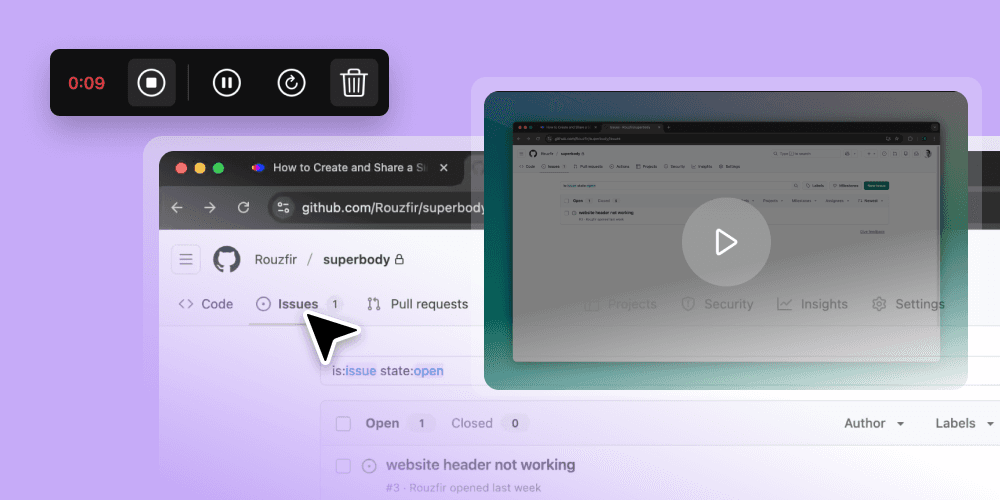
1. Record
Capture the workflow in real time, or bring in an existing Loom, Zoom, or QuickTime recording.

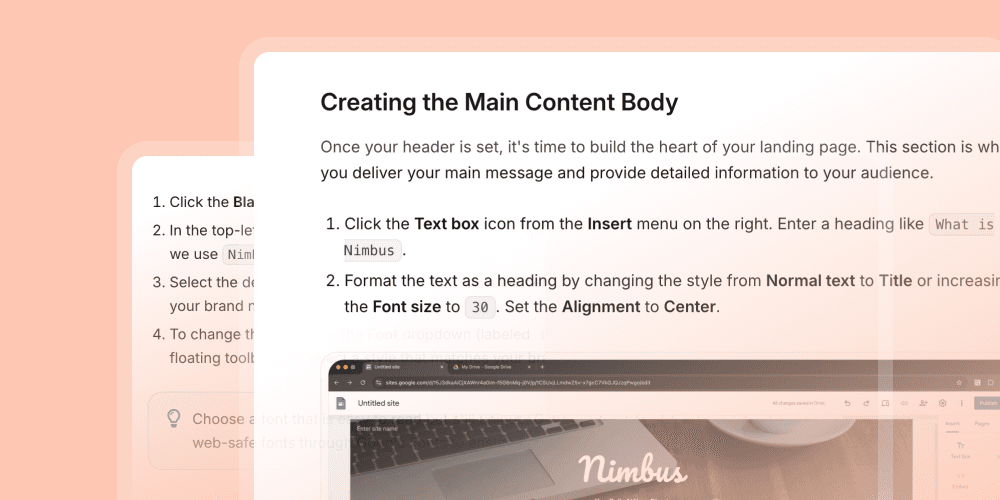
2. Upload
Let the tool process clicks, navigation, spoken context, and key frames into usable steps.

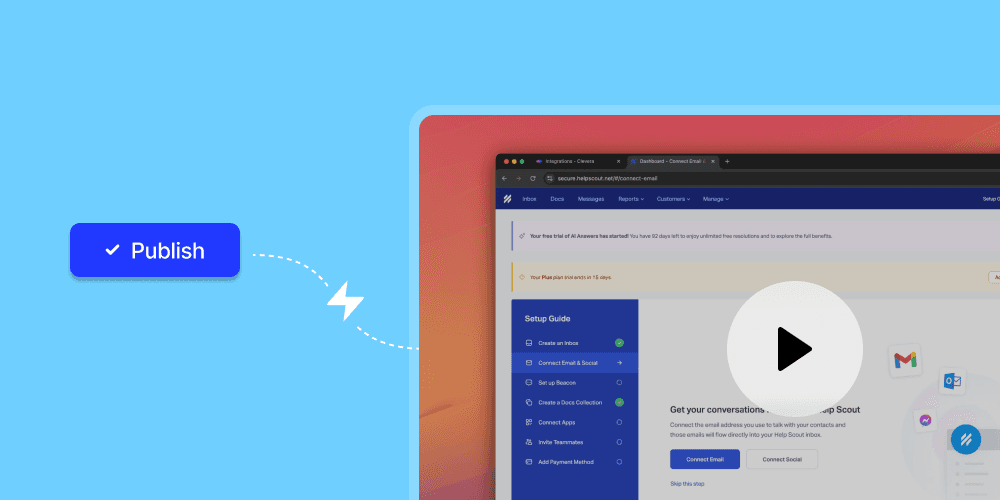
3. Publish SOP
Share a clean document with screenshots, numbered steps, and often a matching training video.
Browser extension-based recorders
You install an extension, hit record before you start, and the tool captures your workflow in real time. Think Scribe or Trupeer.
Upload-based video-to-SOP converters
You record separately and upload the file for AI processing. This model is more flexible for existing video libraries and async workflows. Think Clevera, Clueso, Kommodo, and Vidocu.
Why Use AI to Turn Screen Recordings into SOPs?
Writing SOPs the traditional way is a slow, painful, and bizarrely undervalued job. Here's why AI-powered screen recording to SOP conversion is a genuine upgrade.

It's 10x faster than writing from scratch
Recording a three-minute walkthrough takes three minutes. Writing it manually can take ten times longer. AI closes that gap fast.

Output is consistent and formatted
No more docs that look different depending on who wrote them. Numbered steps, clear language, and clean structure become the default.

Anyone on the team can create docs
You don't need a technical writer. You need the person who knows the process. AI handles the formatting burden.

Documentation stays in sync with your product
When the UI changes, you can re-record and regenerate instead of rebuilding the SOP from zero.

Screenshots are captured automatically
Manual screenshotting, cropping, and insertion is the part most teams quietly skip. AI tools make visuals part of the default workflow.
How to Choose the Right AI SOP Tool
Not every AI video-to-SOP generator is built for the same workflow. Before you commit to a tool, consider these five factors.
7 Best AI SOP Generators from Screen Recordings
This is the shortlist that matters if you need to turn recordings into SOPs quickly. Clevera leads for teams that want both tutorial video and written SOP output from the same workflow.
#1 Best Overall

Best for: teams that need video and written SOPs
Clevera
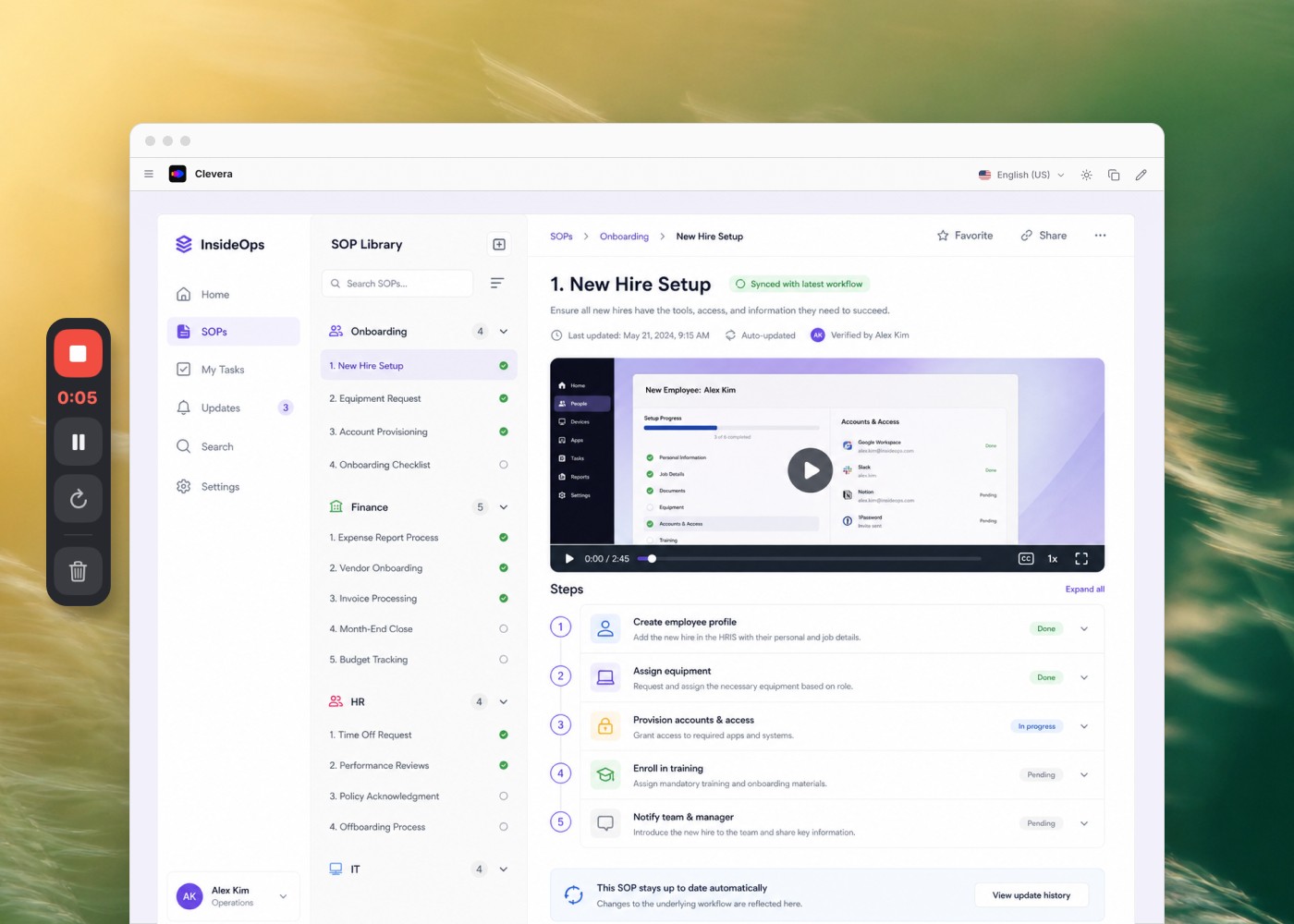
Clevera is built for exactly this use case. You record your screen once and the AI handles the rest: it drafts the narration, generates voiceover, removes dead air, and produces a step-by-step SOP article with screenshots from the same source recording.
What makes Clevera stand out is that when your process changes, you can re-record and refresh the SOP everywhere it's embedded instead of manually updating every version by hand.
Key features:
- Screen recording to narrated video and written SOP in one workflow
- AI-written voiceover and cleanup
- Smart zoom and highlight on key interactions
- Auto-captured screenshots inside the article
- Team collaboration and brand customization
Pricing: Starts from $29 / month
Start free
From $29/month
#2 Scribe

Scribe
Best for Quick Process Capture
Scribe is one of the most established names in this category. Its browser extension captures clicks and keystrokes in real time, then converts them into an annotated guide with almost no setup.
The tradeoff is that Scribe focuses on written guides rather than video output. If all you need is a fast SOP from a browser workflow, it's a strong option.
Key features:
- Chrome and Edge browser extension
- Real-time click and keystroke capture
- Auto-generated annotated screenshots
- One-click share links
- Integrations with Notion, Confluence, and more
Pricing: Free plan available. Paid plans start at $23 per user per month.
#3 Trupeer

Trupeer
Best for Branded SOP Documentation
Trupeer turns screen recordings into both video tutorials and written SOPs, with a strong emphasis on branded output. That makes it useful for teams that need consistent presentation across a larger documentation library.
It also supports bulk generation, which can matter if you're documenting many workflows in a short time window.
Key features:
- Screen recording to video and written SOP
- Brand kit support across outputs
- Bulk SOP generation
- Custom templates
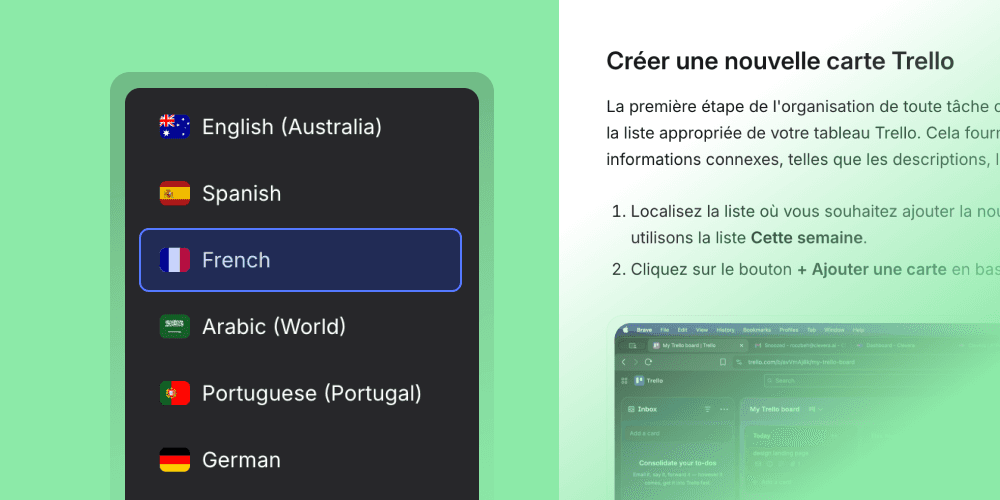
- Multi-language support
Pricing: Check Trupeer for current plan details.
#4 Clueso

Clueso
Best for customer-facing product docs
Clueso focuses on the quality of the final output, particularly for help centers and customer-facing documentation. It is built around turning video uploads into polished, readable SOPs.
If your priority is external-facing documentation rather than internal process capture, Clueso is worth a close look.
Key features:
- Video upload to structured SOP document
- Help-center friendly formatting
- Screenshot capture and annotation
- Integrations with support platforms
Pricing: Check Clueso for current plan details.
#5 Kommodo

Kommodo
Best Free Option for Video-to-SOP
Kommodo offers one of the more accessible entry points in this category. Upload an MP4, MOV, or WebM and it extracts steps with annotated screenshots quickly, making it practical for trying the workflow before committing.
It's especially useful for teams that want a testable free tier before moving to a paid product.
Key features:
- Upload-based workflow with no extension required
- MP4, MOV, and WebM support
- Annotated screenshot extraction
- Fast processing for short videos
- Limited free generations without a credit card
Pricing: Check Kommodo for current plan details.
#6 ScreenApp

ScreenApp
Best for AI-Powered Step Recognition
ScreenApp combines speech-to-text with frame analysis to recognize UI elements, button labels, and page transitions. That makes it a good fit for more technical workflows where accurate step detection matters.
It balances recording flexibility with more context-aware step extraction than many basic screenshot-driven tools.
Key features:
- Speech-to-text and frame analysis
- UI element and button detection
- Page transition recognition
- Free tier with limited monthly minutes
Pricing: Free tier available. Paid plans start at $19 per month.
#7 Vidocu

Vidocu
Best for Video + SOP Combined Output
Vidocu takes a purely upload-based approach: no extension, no setup, just upload an existing recording and receive both a formatted SOP and a polished video with subtitles, zoom effects, and optional AI voiceover.
It's a solid choice for teams that already have a recording workflow in place and want output on both sides.
Key features:
- Upload any video with no extension required
- Outputs both video and SOP together
- Subtitles, zoom effects, and optional voiceover
- Free tier available
Pricing: Free plan available. Paid plans start at $29 per month.
How to Generate an SOP from a Screen Recording: Step-by-Step
Using Clevera as our example, here's how to go from a raw screen recording to a published, shareable SOP in under 10 minutes.
Step 1: Record your process
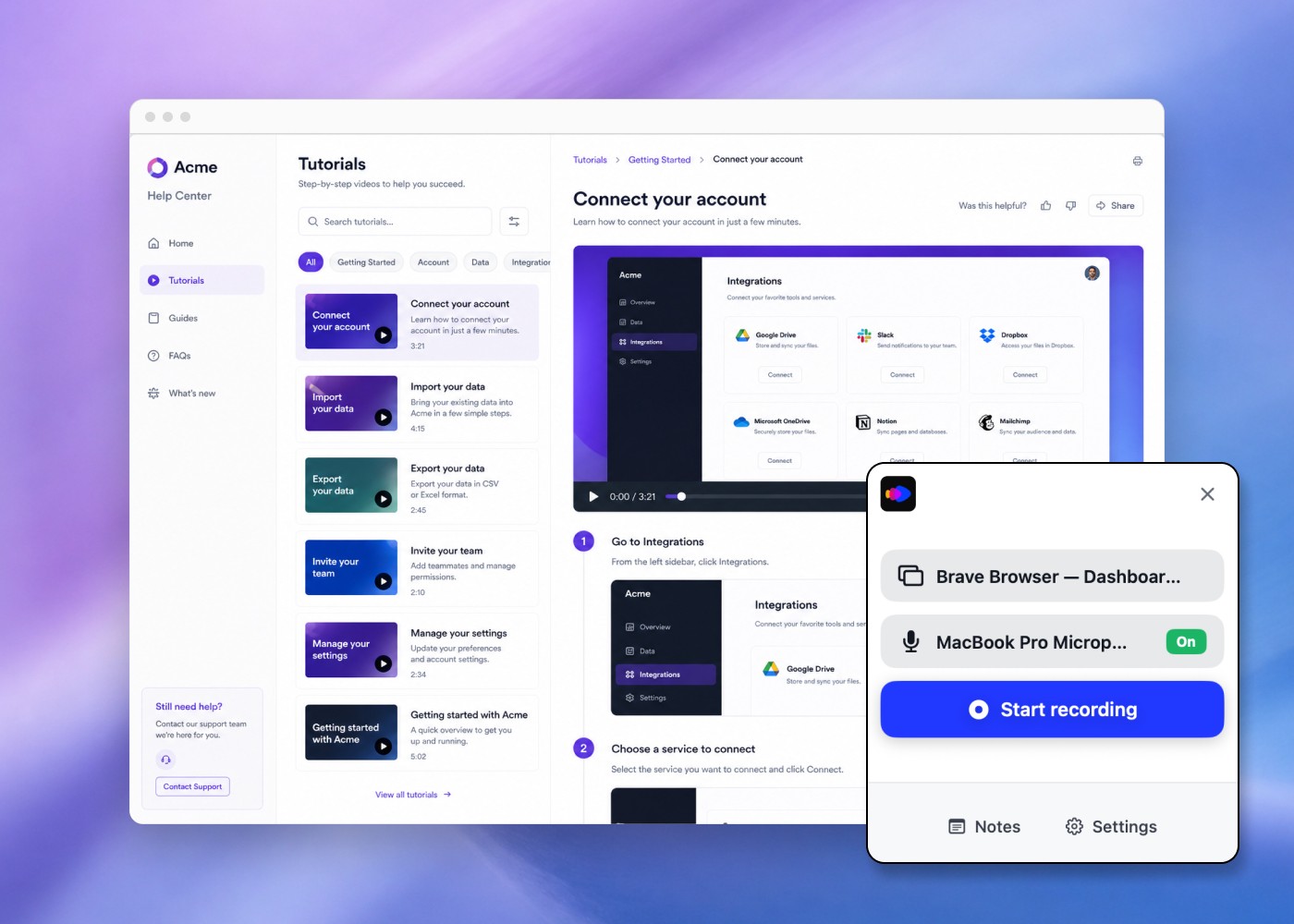
Open Clevera and hit record. Walk through the process at a natural pace - mistakes, pauses, and rough edges are fine because the AI handles cleanup. If you already have a Loom, QuickTime, or Zoom recording, you can upload that instead.
Pro tip: narrate out loud as you go. The AI uses your spoken context to write clearer steps.
Step 2: Upload the recording
Once you stop recording, Clevera begins processing.
Most recordings finish processing in just a few minutes, depending on length.
Step 3: Review the AI-generated output
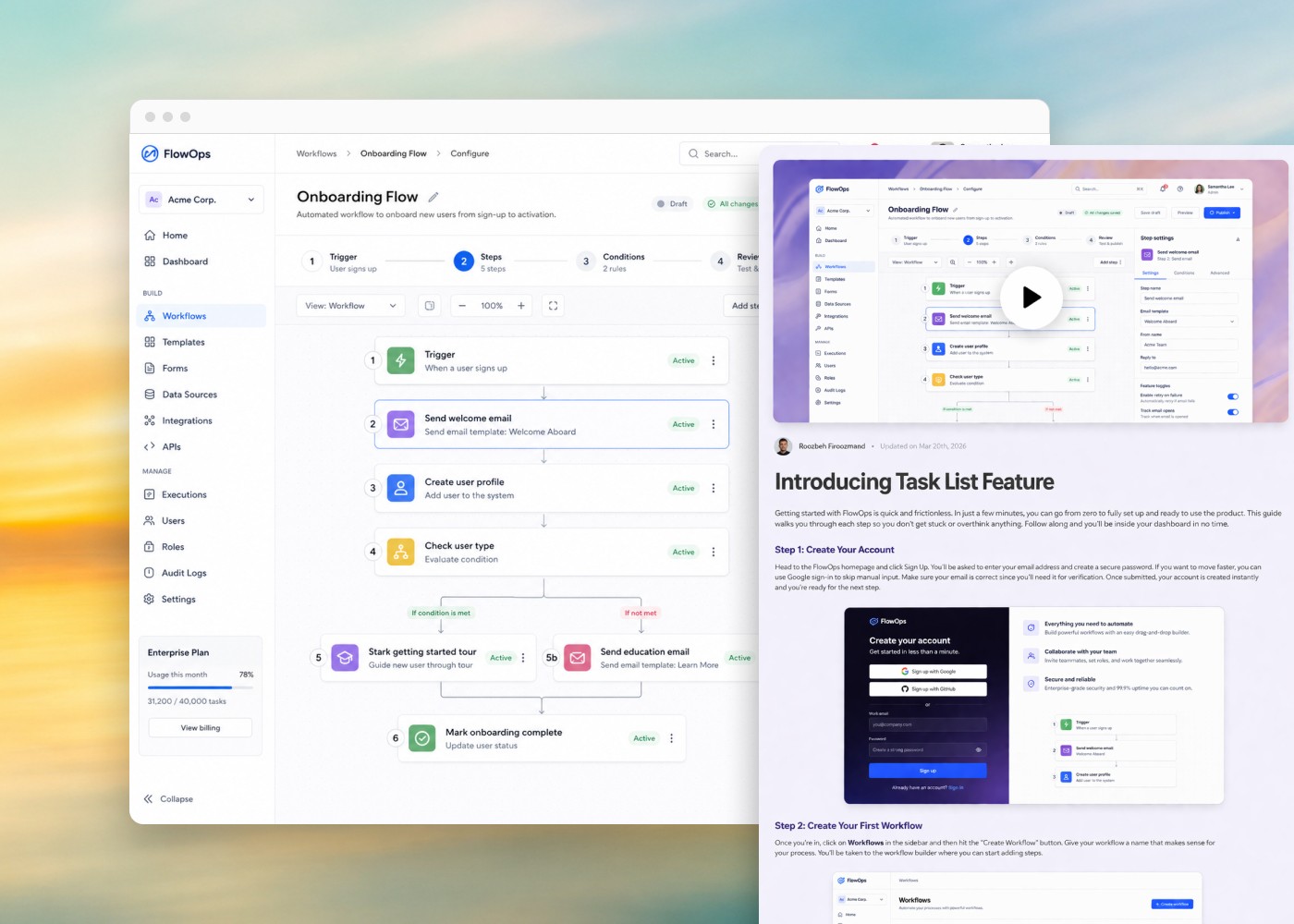
Clevera produces two outputs from one recording: a narrated video and a written SOP with screenshots. Review both and check whether the structure, wording, and selected frames match the process accurately.
Step 4: Edit and refine
Use the editor to rewrite any unclear steps, swap in better screenshots, reorder sections, and add context where the AI needs help. This is usually a quick polish pass rather than a rewrite.
Step 5: Publish and share
Export, embed, or share the SOP directly. Once the process changes, re-record and regenerate so the published version stays current without manual republishing.
Side-by-Side Comparison Table
Use this as a quick filter if you already know which inputs and outputs matter most to your team.
Frequently Asked Questions
What is an AI SOP generator from screen recording?
An AI SOP generator from screen recording is a tool that analyzes a video of you performing a task and automatically writes a step-by-step SOP from it, often including numbered steps, descriptions, and screenshots.
Can I generate an SOP from an existing video, not just a live recording?
Yes. Many modern tools, including Clevera, Kommodo, Clueso, and Vidocu, support uploads from Loom, Zoom, QuickTime, and other common video sources.
How accurate is AI-generated SOP content?
Accuracy depends on the tool and on how clearly the process is shown and narrated. Most teams still do a quick review pass, but editing is usually far faster than writing from scratch.
What's the difference between a video-to-SOP tool and a screen recorder with SOP output?
A video-to-SOP tool processes pre-recorded footage, while a recorder with SOP output captures the workflow live as it happens. Upload-based tools are usually more flexible because they work with more video sources.
Does Clevera generate written SOPs or just videos?
Both. Clevera produces a narrated video tutorial and a written step-by-step SOP article from the same screen recording.
How long does it take to generate an SOP from a screen recording?
Most AI SOP generators deliver output in roughly two to five minutes for shorter recordings, though timing varies by tool and video length.
Are AI-generated SOPs good enough to publish without editing?
Often yes, especially for straightforward, well-narrated processes. A quick review is still smart to verify accuracy and make sure the screenshots show the right state.
What file formats can I upload for AI SOP generation?
Most tools accept MP4, MOV, and WebM. Some also support additional formats, but those three are the safest assumption across the category.
Stop Writing SOPs by Hand
Record your process once. Let Clevera turn it into a polished step-by-step SOP - and a professional video tutorial - automatically.
No credit card required. Your first SOP in under 10 minutes.
Start free