How to create an SOP with AI
Creating a standard operating procedure used to mean opening a doc, describing a process from memory, adding screenshots one by one, and spending an hour editing before it was readable. With AI-powered SOP tools, most of that work is automated. You record your screen while doing the task, and the AI writes the procedure for you.
Here's how to do it properly, from setup to published SOP.
What you'll need
A screen recording tool with AI SOP generation (this guide uses Clevera)
A destination for your SOP: Notion, Confluence, Zendesk, GitHub, or wherever your team accesses documentation
About 5-10 minutes to record the process you want to document
No scripting. No video editing. No technical writing experience required.
Step 1: Set up your recording environment
Before you hit record, clean up what's on screen. Close tabs and applications that aren't relevant to the process you're documenting. Log in to the relevant accounts. Get to the starting point of the workflow, whether that's a dashboard, a settings page, or an open document.
This matters because the AI analyzes everything on screen. A clean, focused recording produces a tighter, more accurate SOP.
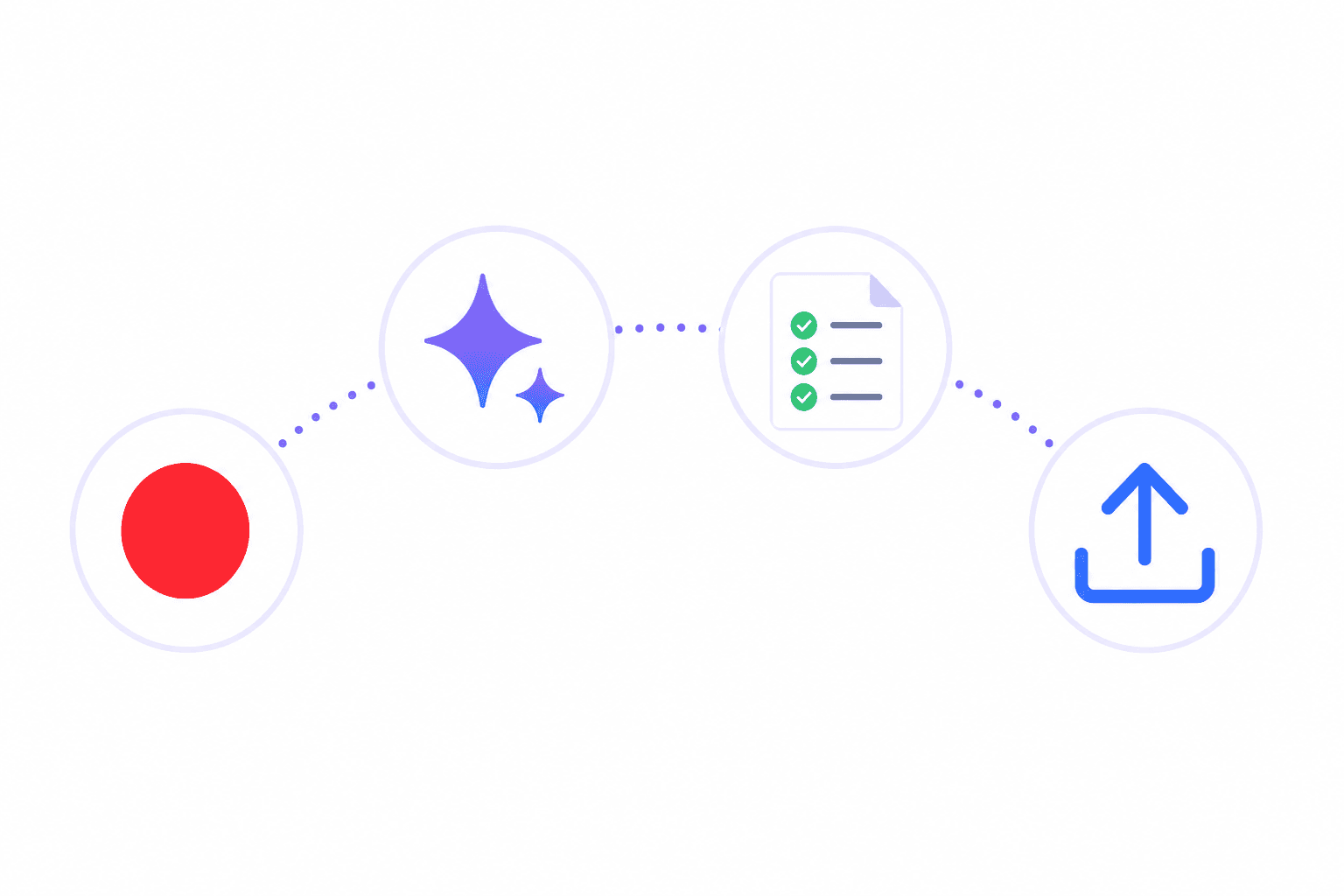
If you're using Clevera, open the Mac or Windows app and set it to record your full screen or a specific window. You don't need to narrate while recording. The AI generates the voiceover from what it observes, so you can stay silent and focus entirely on performing the process correctly.
Step 2: Record the process
Perform the task at a natural pace. You don't need to slow down or pause at each step for the camera. Move through the process the way you'd normally do it.
A few tips for clean recordings:
Be deliberate with your clicks: hesitating, clicking the wrong thing, and correcting yourself is fine. The AI filters out accidental actions and pauses, but the cleaner your recording, the tighter the output.
Complete the full workflow: don't stop partway through. Record from the entry point (logging in, opening the relevant screen) to the final action (saving, confirming, closing). SOPs need to cover the complete process.
Keep it focused: one recording, one process. If you're documenting a workflow with 3 distinct phases, consider recording each as a separate SOP so each document stays scannable.
Step 3: Let the AI generate your SOP
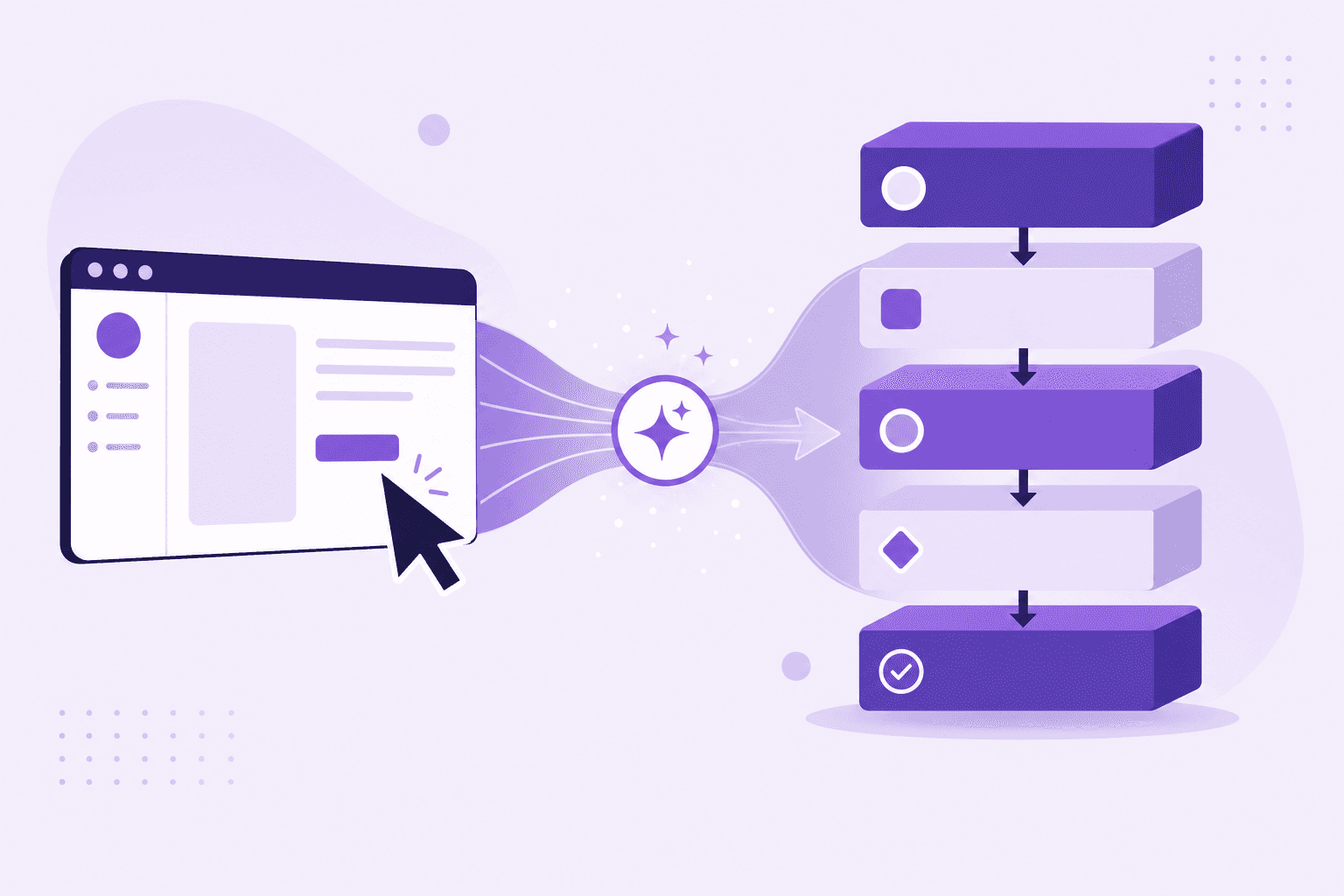
Once you stop recording, Clevera uploads your capture and processes it in the cloud. This takes a few minutes depending on the length of your recording.
The AI does several things simultaneously:
Identifies each meaningful action in the recording
Removes accidental clicks, backtracking, and pauses
Writes a voiceover script that explains each step in context, not just what was clicked but what it does and why
Generates an AI voice narration synced to the video
Applies smart zoom to key moments and smooths cursor movements
Produces a structured help article with numbered steps, embedded screenshots with captions, and proper headers
When it's done, you have a narrated tutorial video and a written SOP in a single tab.
Step 4: Review and edit
Open the article editor. Read through the generated SOP and check for accuracy. The AI writes from what it sees on screen and interprets context from the application you're in, so it's generally accurate, but edge cases in complex processes may need a manual tweak.
In Clevera's Notion-like article editor, you can:
Rewrite any step directly
Ask the AI to shorten, extend, or simplify specific sections
Add or remove screenshots
Insert code blocks, callout boxes, tables, or lists
Adjust tone (more formal, more casual)
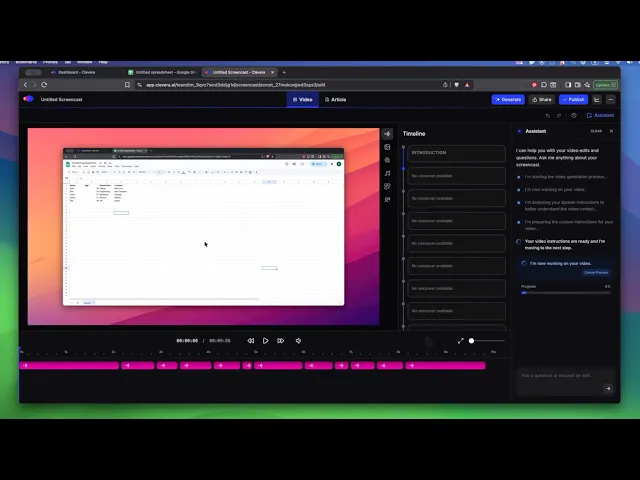
For the video, open the timeline editor to review the narration. If a line doesn't land right, rewrite the voiceover text for that moment and regenerate the narration in seconds. You can also add custom audio, blur sensitive on-screen content, and adjust the visual container styling.
Most SOPs need minimal editing. The AI catches the important steps and explains them clearly. You're mostly confirming accuracy rather than rewriting from scratch.
Step 5: Publish to your documentation platform
When the SOP looks right, export it. Clevera publishes articles directly to Notion, Confluence, Zendesk, GitHub, HelpScout, Gitbook, Intercom, ClickUp, Readme, Bitbucket, and more. The video embeds as an HTML block at the top of the page, with the written SOP underneath.
Your team gets a document they can read and watch in the same place.
For video embeds specifically: the video is live after publishing, meaning any changes you make inside Clevera update instantly across every embed. No re-exporting, no new links.
Step 6: Keep your SOPs current
This is where AI-generated SOPs pay off most. When a process changes, you don't rewrite a document from scratch. You re-record the updated workflow, and a new SOP is generated in minutes. Or if only the narration needs updating (for example, a policy change rather than a UI change), you edit the voiceover text and republish.
A library of SOPs only works if it stays current. The speed of AI-generated creation makes that realistic.
A quick note on complex processes
AI SOP generation works best for screen-based workflows: software tasks, platform configurations, step-by-step processes in a web or desktop app. It doesn't apply to physical processes, judgment-heavy decisions, or workflows that happen outside a screen.
For screen-based documentation, it's the fastest method available.