Download the Clevera screen recorder
Record your screen, voice, clicks and typing with our free desktop app. Clevera turns each recording into a narrated how-to video and a step-by-step help article with screenshots, ready to share. On a Mac, it also records your iPhone and iPad.
Free to download
Updates itself
Passwords never recorded
Records only when you press Start
Choose your computer
The same recorder on every platform. Sign in once and every recording goes to your Clevera workspace.
Mac
- macOS 12.3 or later
- Apple silicon and Intel
- Records your iPhone and iPad over USB
Checking the latest version…
Windows
- Windows 10 version 2004 (build 19041) or later
- 64-bit
Checking the latest version…
Linux
- Ubuntu 24.04 or later, Fedora or Debian 13
- GNOME 46 or later, or KDE Plasma 6, on Wayland or X11
Checking the latest version…
Checking the latest version…
uname -m in a terminal: x86_64 is Intel / AMD, aarch64 is ARM64.What the recorder does
A small app that stays out of your way. You show the task once; Clevera does the editing, the voice-over and the writing.
Pick a display or a window, your mic and camera
Open Clevera, choose what to record and press Start. Talk over it with your microphone, or add your face in a camera bubble. The app remembers your choices for next time.
On Mac you can also record part of the screen, or a connected iPhone or iPad.
Record your iPhone and iPad
Plug your iPhone or iPad into your Mac with a USB cable and pick it in the launcher. Then use the app on the device and talk over it: Clevera records the device’s screen, its sound and your voice.
The first time, unlock the device and tap Trust when it asks whether to trust your Mac. The recording uploads to your workspace like any other.
A small bar to pause, restart or stop
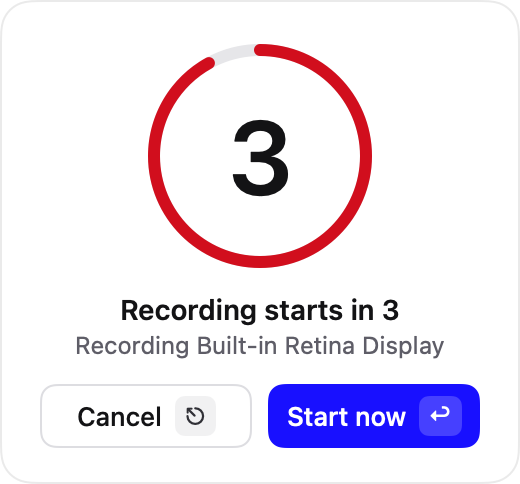
A short countdown, then you’re recording. The bar shows the time and lets you pause, start over or stop. Mistakes and waiting are fine: Clevera cuts them later.


Every click and typed word becomes a step
While you record, the app notes where you click and what you type. That’s how Clevera zooms in on each action and writes a step-by-step guide with the right screenshot for every step.
Text in password fields is never recorded.
- 1Click New report
- 2Type “Q3 summary” in Title
- 3Click Share
- 4Password field: not recorded
Safe on your computer until it’s uploaded
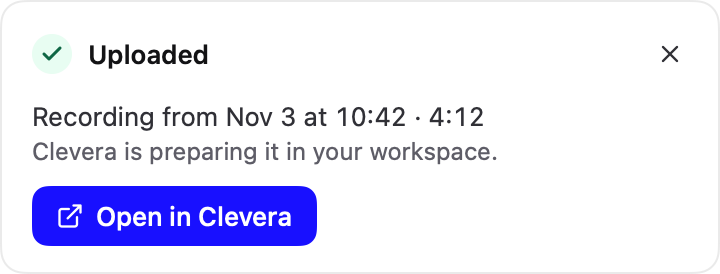
When you stop, the app keeps a copy on your computer and uploads the recording to your Clevera workspace by itself. If something goes wrong, nothing is lost: the recording stays on your computer so you can try again.
When it’s done, one click opens it in Clevera.
Ready in a minute
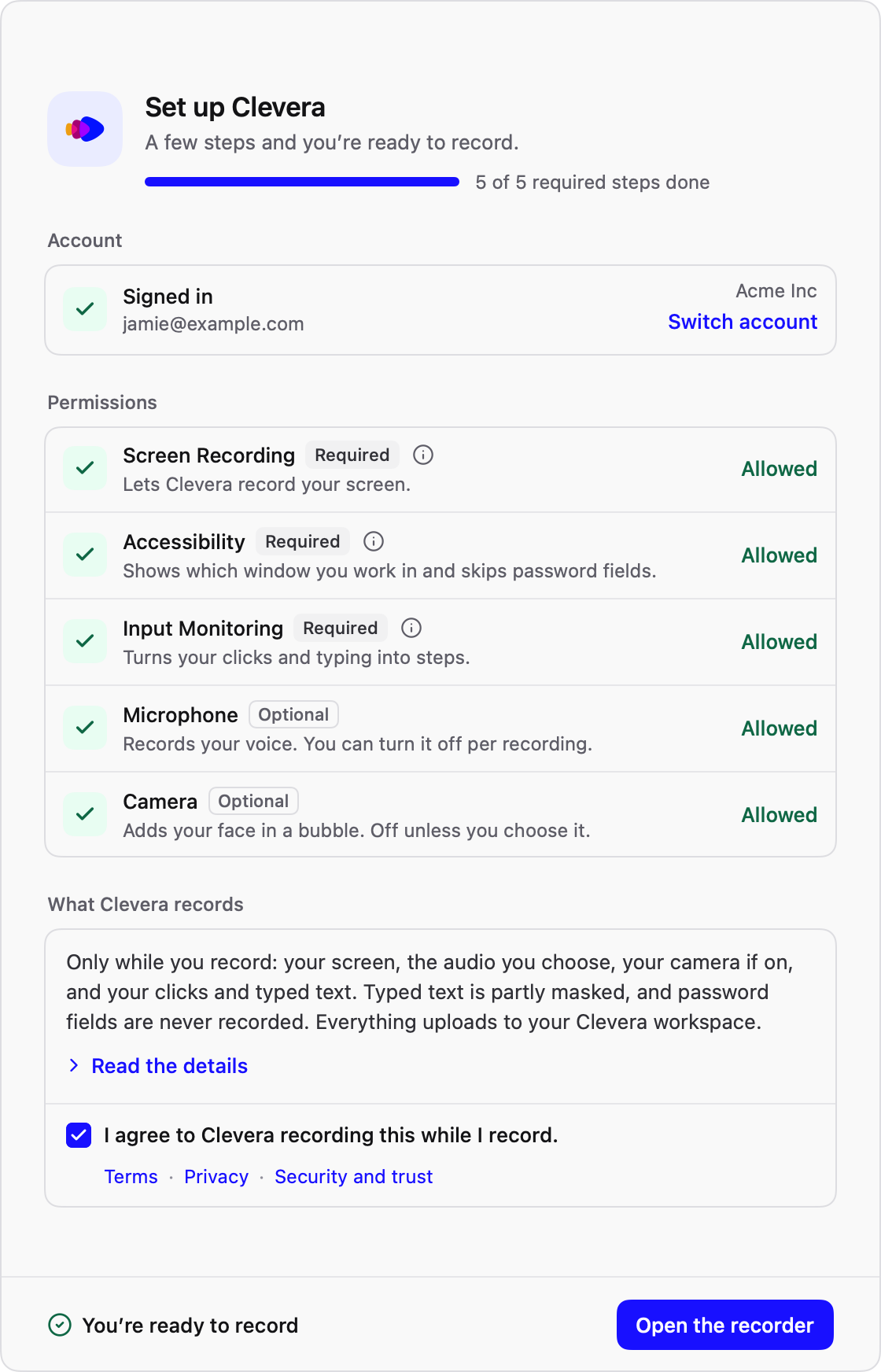
The first time you open it, the app walks you through signing in and the permissions it needs to record your screen, microphone and camera. After that it updates itself, so you never have to download it again.
Security and privacy
You decide when Clevera records. Here is exactly what the app does, and what it doesn’t.
When you press Start
- Clevera records only what you picked: a display, a window, an area or a connected iPhone or iPad.
- Your microphone, camera and computer sound only if you turned them on.
- Your clicks and typing, so Clevera can write the steps. Text in password fields is never recorded.
- The recording uploads to your Clevera workspace as you record. A copy stays on your computer until the upload has finished.
When you’re not recording
- Nothing you see, say or type is captured or sent. Clicks and typing are only noted between Start and Stop.
- The launcher’s microphone meter and camera preview stay on your computer.
- The app only talks to Clevera to keep you signed in, show your workspaces, check for updates and finish uploading earlier recordings.
- Its logs reach us only when you send a problem report.
Signed apps
Mac: signed with an Apple Developer ID and notarized by Apple. Windows: the app and its installer are digitally signed.
Signed updates
Every update, on Mac, Windows and Linux, is signed and checked before it installs.
Encrypted
Recordings travel over TLS and are stored encrypted in your own Clevera workspace.
Not used for training
We don’t use your recordings to train AI models.
How it works
Download and sign in
Install the app for your computer and sign in with your Clevera account. No account yet? Create one for free.
Record the task once
Click through what you want to show, with or without your voice. Press Stop and the app uploads it.
Clevera makes the content
Clevera writes and voices the script, zooms in on each click and cuts the waiting. From the same recording it writes the help article, in any of 74 languages.
- 1Make it executable: in Files, right-click the file, choose Properties and turn on “Executable as Program”. Or run
chmod +x clevera-*.appimage. - 2Double-click the file to open Clevera.
- 3Clevera adds itself to your apps list, so next time you open it from there.
Questions
Yes. The apps are free to download and use with any Clevera plan, including Free: 100 credits a month and videos up to 3 minutes, shared by link or embed, no card needed. Paid plans add MP4 downloads and more credits. See pricing.
Most PCs and laptops with an Intel or AMD processor need Intel / AMD (x86_64). Computers with an ARM processor, such as ARM laptops or a Linux virtual machine on an Apple silicon Mac, need ARM64 (aarch64). Not sure? Open a terminal and run uname -m: it prints x86_64 or aarch64.
Make the file executable first: in Files, right-click it, choose Properties and turn on “Executable as Program”, or run chmod +x on it in a terminal. Then double-click it. Clevera adds itself to your apps list, so next time you can open it from there.
Yes, with the Mac app. Connect the iPhone or iPad to your Mac with a USB cable, unlock it and tap Trust if it asks, then choose iPhone/iPad in the launcher. Clevera records the device’s screen and sound, with your voice from the Mac’s microphone. The Windows and Linux apps record the computer’s screen.
Yes. The app checks for new versions and updates itself automatically, so you only download it once.
Only what you choose, and only while you record: the display or window you pick, your microphone and, if you turn it on, your camera. It also notes your clicks and typing so Clevera can write the steps. Text in password fields is never recorded. Recordings go to your own Clevera workspace, encrypted in storage and in transit. More on our security page.
Mac: macOS 12.3 or later, on Apple silicon or Intel. Windows: Windows 10 version 2004 (build 19041) or later, 64-bit. Linux: a current distribution such as Ubuntu 24.04 or later, Fedora or Debian 13, with GNOME 46 or later or KDE Plasma 6, on Wayland or X11, on Intel / AMD or ARM64.
Nothing is lost. The app keeps a copy of every recording on your computer until the upload has finished, so you can try again.
Record it once.
Share it everywhere.
Create your free Clevera account, download the recorder and turn your next screen recording into a narrated how-to and a help article.