12 min read · Updated April 2026

How to Create a User Manual with AI: A Complete Step-by-Step Guide

Writing a user manual used to mean weeks of back-and-forth, outdated screenshots, and a Google Doc nobody wanted to touch. AI changes that — here's how to do it right.

What You'll Get From This Guide

User manuals shouldn't take weeks. They shouldn't require a technical writer on staff, a video editor, or a three-round review cycle just to explain how to reset a password.

With the right AI tools and a clear process, you can go from a raw screen recording — or even a rough set of notes — to a complete, polished user manual in a few hours. This guide walks you through every step, in order, with no fluff.

Whether you're a product team shipping a new feature, a customer success manager drowning in support tickets, or a solo founder who needs to look professional without a full content team, this is the process that works.

What you'll learn:

→ The exact steps to create an AI-powered user manual from scratch
→ How to gather source material without writing a word by hand
→ Which AI tools are worth using (and what each one is best for)
→ How to keep your manual up to date without re-exporting everything
→ The mistakes that make AI-generated docs sound robotic — and how to avoid them

Why Traditional User Manual Creation Breaks Down

Before we get to the steps, let's be honest about what we're fixing.

The classic user manual workflow looks something like this: a product manager writes a rough outline, hands it to a technical writer (or tries to do it themselves), the writer spends days drafting, screenshots get taken manually, someone realizes the UI changed since the screenshots were captured, everything goes back for revision, and by the time the manual ships, it's already partially wrong.

For small teams, it's worse. There's no dedicated technical writer. The person who knows the product best — usually a developer or PM — is the last person who has time to write documentation.

The result? User manuals that are either never written, written once and never updated, or so dense and joyless that users ignore them and open a support ticket instead.

The real cost isn't just time. Every support ticket that a good help article could have prevented is a ticket your team has to handle. Multiply that across your user base, and the gap between "shipped documentation" and "documentation users actually find" becomes expensive fast.

AI doesn't just speed up the writing. It changes the source material you can start from — which is where the real leverage is.

How AI Changes User Manual Creation

AI doesn't replace your expertise — it handles the parts that eat your time:

1. Turning recordings into structured content

Instead of writing from scratch, you can record yourself using your product and let AI transcribe, structure, and format it as a help article. What used to take a day takes 10 minutes.

2. Writing clear, consistent prose

AI generates first drafts that are grammatically clean, logically ordered, and formatted for the web — without the blank-page paralysis.

3. Keeping content in sync

Modern AI tools can update your documentation automatically when your product changes, so you're not manually re-exporting or hunting down outdated screenshots.

Before You Start: What You Need

You don't need much. But you do need to decide a few things before you open any AI tool:

→ A clear scope — one process, one feature, or one workflow per manual. Don't try to document everything at once.

→ A target audience — are you writing for new users, advanced users, or support agents? This shapes every word.

→ Source material — a screen recording of the workflow, a rough transcript, or even a bullet list of steps. The richer your input, the better your AI output.

→ A place to publish — your help center, Notion, a PDF, or an in-app tooltip. Know the format before you start.

That's it. Let's build the manual.

Step-by-Step: How to Create a User Manual with AI

Step 1 — Define Your Audience and Scope

The most common mistake in user manual creation — with or without AI — is starting too broad. "Document the whole product" isn't a brief. It's a path to a 40-page document nobody reads.

Start with one specific workflow. Pick something users get stuck on, something your support team explains repeatedly, or a feature you've just shipped that needs clear explanation. Make that your first manual.

Then define who you're writing for. A first-time user needs a different level of detail than a power user who just needs a reminder. Getting this right upfront shapes the tone, the assumed knowledge level, and the length of every section your AI will generate.

Questions to answer before moving on:

- What is the one thing the user needs to be able to do after reading this?

- What do they already know? What can you skip?

- Where will they read this — a help center article, an in-app tooltip, a PDF?

Pro tip: Write your scope as a single sentence: "This manual teaches [audience] how to [specific task] so they can [outcome]." If you can't complete that sentence, the scope is too vague.

Step 2 — Gather Your Source Material

This is the step where AI gives you the biggest time advantage. You don't need to write anything yet.

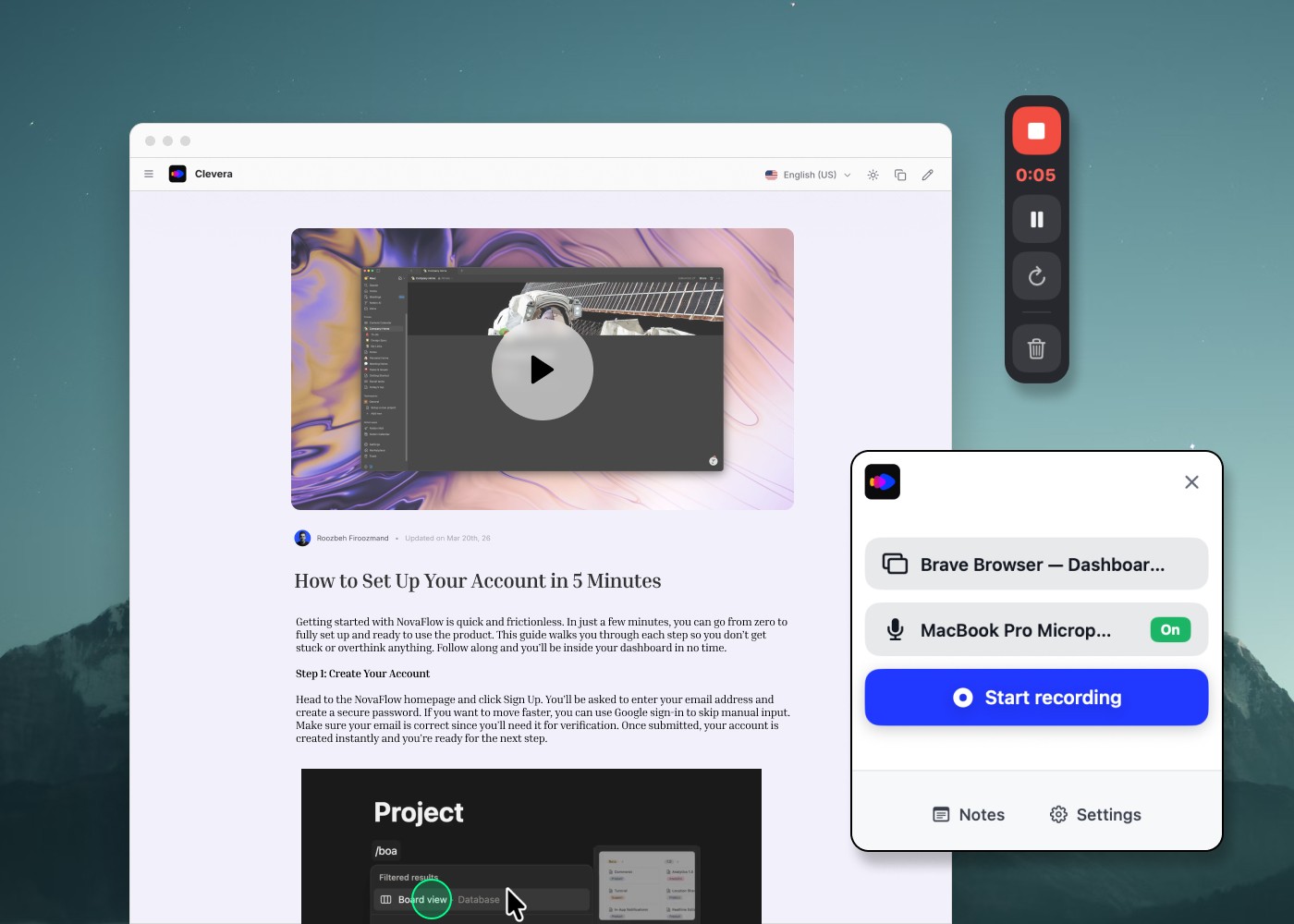
The best source material for an AI-generated user manual is a screen recording of you (or a teammate) actually completing the workflow. Walk through every step, click by click. Narrate what you're doing as you go — even rough narration gives the AI structure to work with.

If recording isn't an option, a bulleted list of steps works too. Even a Slack message where you explained the process to a teammate is a valid starting point. AI is good at taking rough input and producing polished output — but the more complete your source, the better the result.

What makes good source material:

- A screen recording with narration (ideal)

- A written walkthrough — even rough bullet points

- An existing support reply that explains the process

- A transcript from a customer call where you walked someone through it

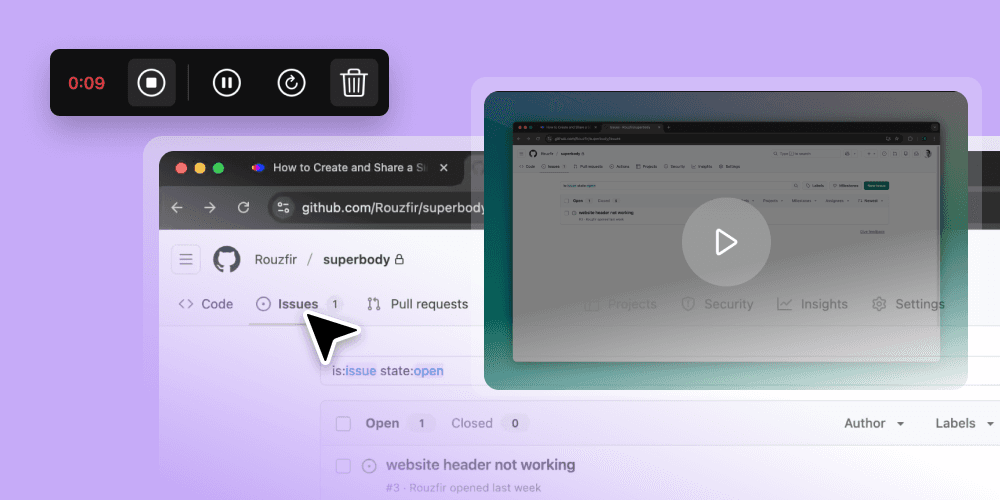
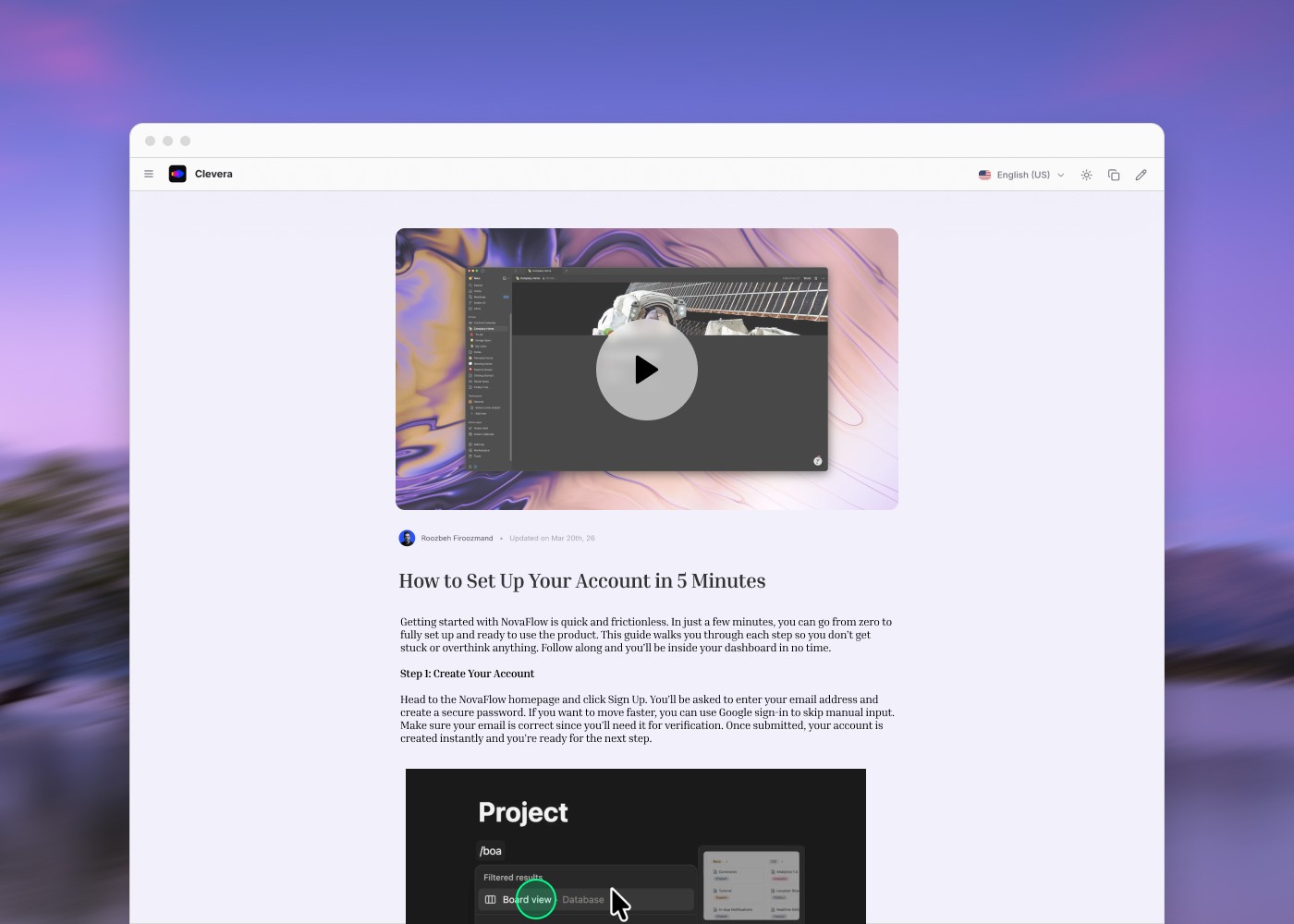
Pro tip: Tools like Clevera let you record your screen once and automatically generate both a video tutorial and a formatted help article from the same recording — so you're not duplicating effort.

Step 3 — Generate a First Draft with AI

Now you hand the source material to your AI tool and get a first draft out.

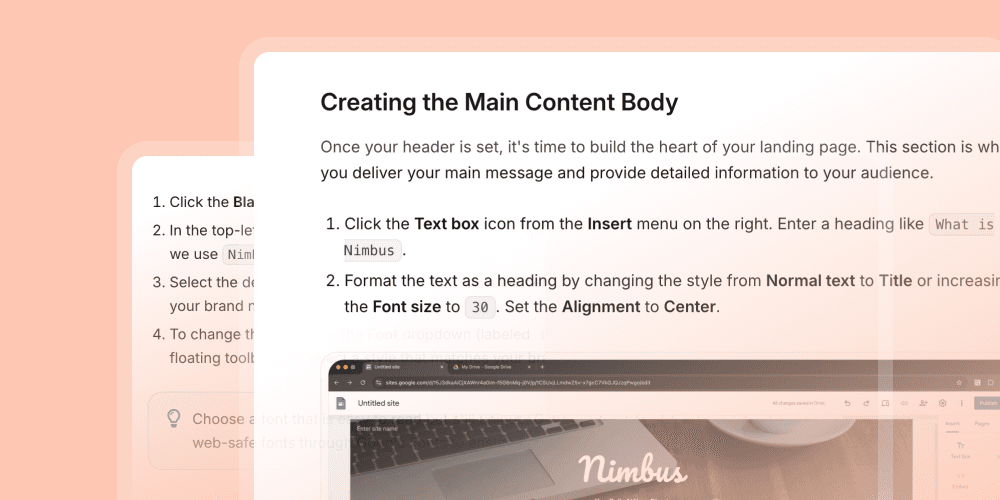
If you're using a screen-recording-to-docs tool, this step is almost automatic. The AI watches your recording, identifies each step, writes a description, and structures it as a numbered guide. A 10-minute recording becomes a full help article in minutes.

If you're using a general-purpose AI (like ChatGPT or Claude), paste your notes or transcript and use a prompt like:

"Turn these notes into a step-by-step user manual. Format each step with a heading, a 1–2 sentence description, and any important cautions. Write for a non-technical audience. Use clear, direct language."

Don't expect the first draft to be final. Expect it to be 70–80% of the way there — well-structured, clean prose, logical order. Your job is to verify accuracy and adjust the voice.

What good AI output looks like:

- Numbered steps with clear headings

- Short paragraphs, one idea per step

- Cautions or notes highlighted separately

- Consistent terminology throughout

Step 4 — Add Structure and Formatting

A first draft from AI is usually a flat list of steps. Good user manuals have more structure than that: an introduction that tells users what they'll accomplish, grouped sections for multi-part workflows, a summary or "what to do if something goes wrong" section at the end.

Go through the draft and:

1. Add an intro paragraph — one or two sentences that tell the user what they're about to do and what the end result will be.

2. Group related steps — if the workflow has phases (setup, configuration, publishing), use H2 headings to break them out.

3. Add callouts for cautions and tips — any step where users commonly go wrong deserves a highlighted note.

4. Write a closing section — confirm what the user has accomplished and tell them what to do next (link to a related article, contact support, etc.).

Formatting matters for usability. Users scan help articles — they don't read them top to bottom. Headers, bold text on key terms, and numbered steps all make your manual easier to use.

Step 5 — Add Visuals

Text alone is often not enough. Screenshots, annotated images, and short video clips dramatically increase comprehension — especially for UI-heavy workflows.

For screenshots: take them after the copy is written, not before. This way you know exactly which moments need visual support. Annotate with numbered callouts that match your step numbers. Keep them updated — outdated screenshots are worse than no screenshots.

For video: short screen recordings embedded inline (15–30 seconds) work better than one long video. Users can jump to the step they need without scrubbing through a 5-minute tutorial.

Pro tip: If you recorded your workflow in Step 2, you already have the visual source material. Tools like Clevera extract screenshots automatically from your recording, so you're not taking them manually.

Step 6 — Review for Accuracy and Voice

AI writes clean prose, but it doesn't know your product as well as you do. This review step is about catching what the AI got wrong — not rewriting everything from scratch.

Accuracy check:

- Walk through the manual against the actual product. Does every step work as described?

- Check all UI labels, button names, and menu paths — AI sometimes guesses these or uses slightly wrong phrasing.

- Flag any steps that assume knowledge the user doesn't have.

Voice check:

- Read it aloud. If it sounds robotic or stiff, rewrite those sentences.

- Remove any filler phrases AI tends to add: "It is important to note that...", "Please be aware that...", "In order to..."

- Make sure the tone matches your brand — whether that's friendly and casual or precise and professional.

One pass through the manual with fresh eyes takes 20–30 minutes. That's a fraction of the time you'd spend if you were writing from scratch.

Step 7 — Publish and Set Up a Maintenance Process

Publishing is the easy part. The hard part is keeping your manual accurate over time.

Products change. UI gets updated. Workflows get simplified. If your user manual goes stale, it erodes trust — users stop reading it and go straight to support.

A simple maintenance system:

- Tag each manual with the product version it covers

- Add a "Last updated" timestamp that users can see

- Set a quarterly reminder to review each article

- When you ship a product update that affects a documented workflow, update the manual before or on the same day

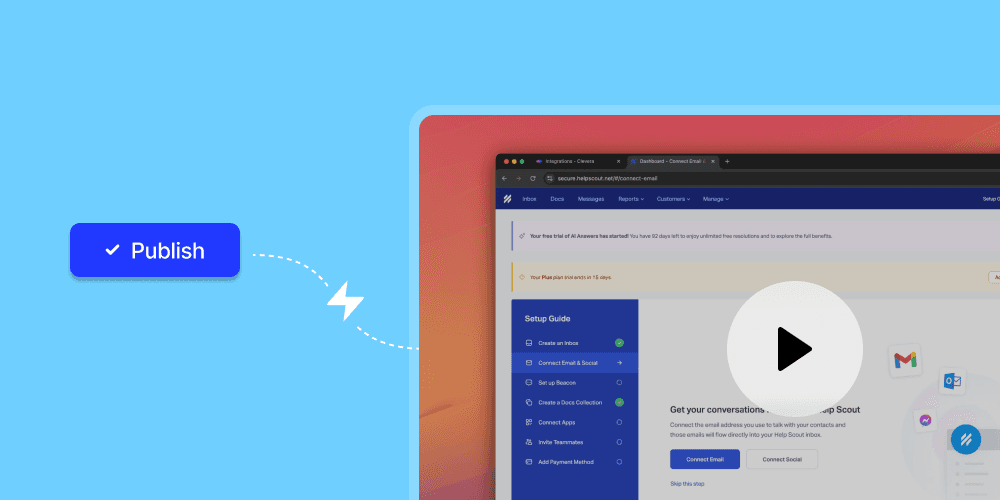
Some AI tools — including Clevera — support a LiveSync feature that automatically updates your help articles when the underlying recording or workflow changes. This removes most of the manual maintenance work.

Pro tip: Build documentation updates into your product release checklist, not as an afterthought. If docs are part of the definition of "shipped," they stay current.

Best AI Tools for Creating User Manuals

There's no one-size-fits-all tool. Here's an honest breakdown of what's available:

Clevera

Recommended

Best For: Product teams & SaaS

Key AI Capability: Record once → video + help article, LiveSync

Output: Video tutorial + formatted help article

Scribe

Best For: Step-by-step process docs

Key AI Capability: Auto-captures clicks, generates step list

Output: Web article, PDF

Notion AI

Best For: Teams already on Notion

Key AI Capability: Draft generation from prompts

Output: Notion pages

ChatGPT / Claude

Best For: Custom drafts from rough notes

Key AI Capability: Prompt-based generation

Output: Raw text / markdown

Confluence + AI

Best For: Enterprise teams

Key AI Capability: In-editor AI suggestions

Output: Confluence pages

Which one is right for you?

- If your manual needs to include a video alongside the written steps — and you want both from one recording — Clevera is built for that use case.

- If you just need a quick written guide from a process you can walk through, Scribe is fast and lightweight.

- If you already live in Notion and want to stay there, Notion AI handles basic drafting well.

- For complex, heavily customized manuals where you're working from existing notes, a general-purpose AI with a good prompt will get you further than most specialized tools.

5 Common Mistakes When Creating User Manuals with AI

1. Using AI output without an accuracy review

AI doesn't know your product. It will describe steps confidently but sometimes get UI labels or the order of actions slightly wrong. Always walk through the manual against the actual product before you publish.

2. Documenting too much at once

Trying to cover an entire product in one manual produces a document nobody reads. One workflow, one article. Keep scope tight.

3. Skipping visuals

A wall of text is hard to follow for UI-heavy workflows. Even one screenshot per major step makes a significant difference in comprehension.

4. Letting the manual go stale

An outdated manual is worse than no manual. If users follow the steps and find they don't match the product, they lose trust in your documentation entirely. Build maintenance into your process from day one.

5. Not editing for voice

AI drafts are clean, but they tend toward a generic, slightly formal register. If your brand voice is warmer, more direct, or more technical, spend 20 minutes adjusting the tone. Users notice.

Frequently Asked Questions

How long does it take to create a user manual with AI?

For a single workflow — 5 to 15 steps — most teams can go from recording to published article in under an hour. The bulk of the time is the accuracy review and any edits to match your brand voice. The AI draft itself takes minutes.

Do I need a technical writer to use AI for user manuals?

No. AI tools handle the prose generation, structure, and formatting. What you need is someone who knows the product well enough to review for accuracy and someone who can make judgment calls about tone and scope. That's usually a PM, CS lead, or founder.

Can AI create user manuals from existing documentation?

Yes. If you have existing docs, notes, or even a long-form support reply, you can feed that into an AI and have it restructure and rewrite it as a proper user manual. The output will be cleaner and more consistent than most manually-written docs.

What's the difference between a user manual and a help article?

In practice, very little — a help article is usually shorter and covers a single task, while a user manual may cover an entire product or feature area. For most SaaS use cases, a collection of well-structured help articles is more useful than a single long manual.

How do I keep AI-generated user manuals up to date?

The simplest approach: tag each article with the version it covers, add a "Last updated" date, and review it whenever you ship a change that affects the workflow. Some tools (like Clevera's LiveSync) handle this automatically. For everything else, treat docs updates as part of your release process.

Will AI-generated user manuals sound robotic?

Not if you edit them. Raw AI output can be stiff or overly formal. One pass — reading aloud, cutting filler phrases, adjusting the tone to match your brand — makes a significant difference. The goal is to use AI for the structural and grammatical lift, then bring your own voice in.

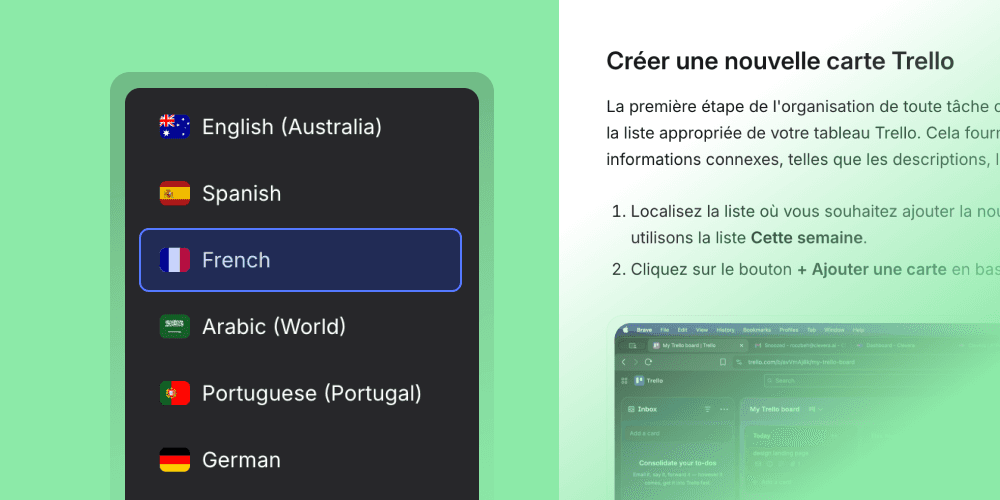
Can I generate user manuals in multiple languages with AI?

Yes. Most AI tools support translation or can generate content in a target language from the start. Quality varies — for high-stakes documentation, have a native speaker review the output before publishing.

Ready to Ship Your First AI-Generated User Manual?

You don't need a technical writer, a video editor, or a three-week timeline. Record your workflow once — Clevera turns it into a polished video tutorial and a formatted help article automatically. Your users get both. You get your afternoon back.

No credit card required. 5 minutes to your first help article.

Try Clevera Free →