How to build a video training library fast (without a production team)
Building a video training library used to mean booking studio time, writing scripts, coordinating with video editors, and waiting weeks for the final cut. Most teams just didn't bother — they relied on one-off Loom recordings and hoped new hires could piece things together.
That's changed. With AI-powered tools, you can build a proper video training library in days, not months — and keep it up to date without re-recording everything every time the product changes.
Here's how to do it.
Why a video training library is worth building
Before getting into the how, it's worth being clear about what you're actually getting.
A well-organized training video library means:
New employees reach competency faster because they can watch the exact process, not just read about it
Support teams can handle edge cases on their own by searching for the relevant tutorial
Customers can self-serve onboarding without needing 1:1 calls
Your team spends less time answering the same questions repeatedly
The bottleneck has never been "we don't want to do this" — it's been the production overhead. AI tools have eliminated most of that overhead.
Step 1: Audit what you already have
Before creating anything new, spend 30 minutes cataloguing what already exists. Check:
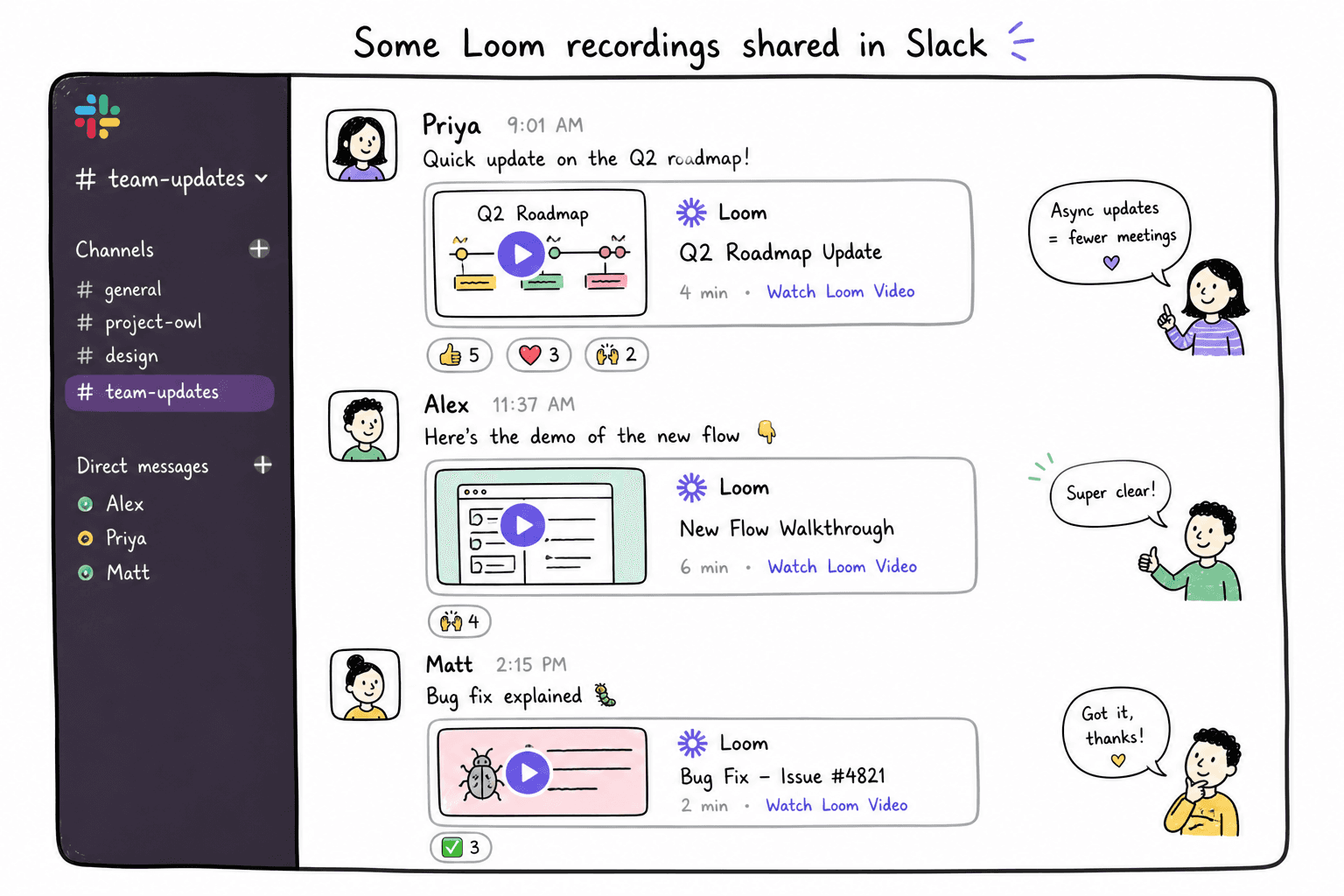
Loom recordings shared in Slack or email
Onboarding call recordings
Internal screen share recordings
Any existing written documentation that could be paired with video
You'll probably find you already have a lot of raw material. The job is to turn it into something organized and findable — not start from scratch.
Step 2: Define your content categories
A training library without structure is just a folder of videos. Decide how you'll organize content before you start recording.
Common categories for SaaS teams:
Product walkthroughs: How to use each core feature
Workflows: End-to-end processes like "how to set up a new client" or "how to run a monthly report"
Troubleshooting: Common errors and how to fix them
Onboarding sequences: New hire or new customer tracks with a defined order
Advanced training: Power user features or edge case workflows
You don't need all of these on day one. Start with the content that gets requested most often or that consumes the most support time.
Step 3: Record your screen, not your face
The fastest way to build a training video library is to record your screen while walking through a process — no camera required, no green screen, no studio lighting. Just your screen and your workflow.
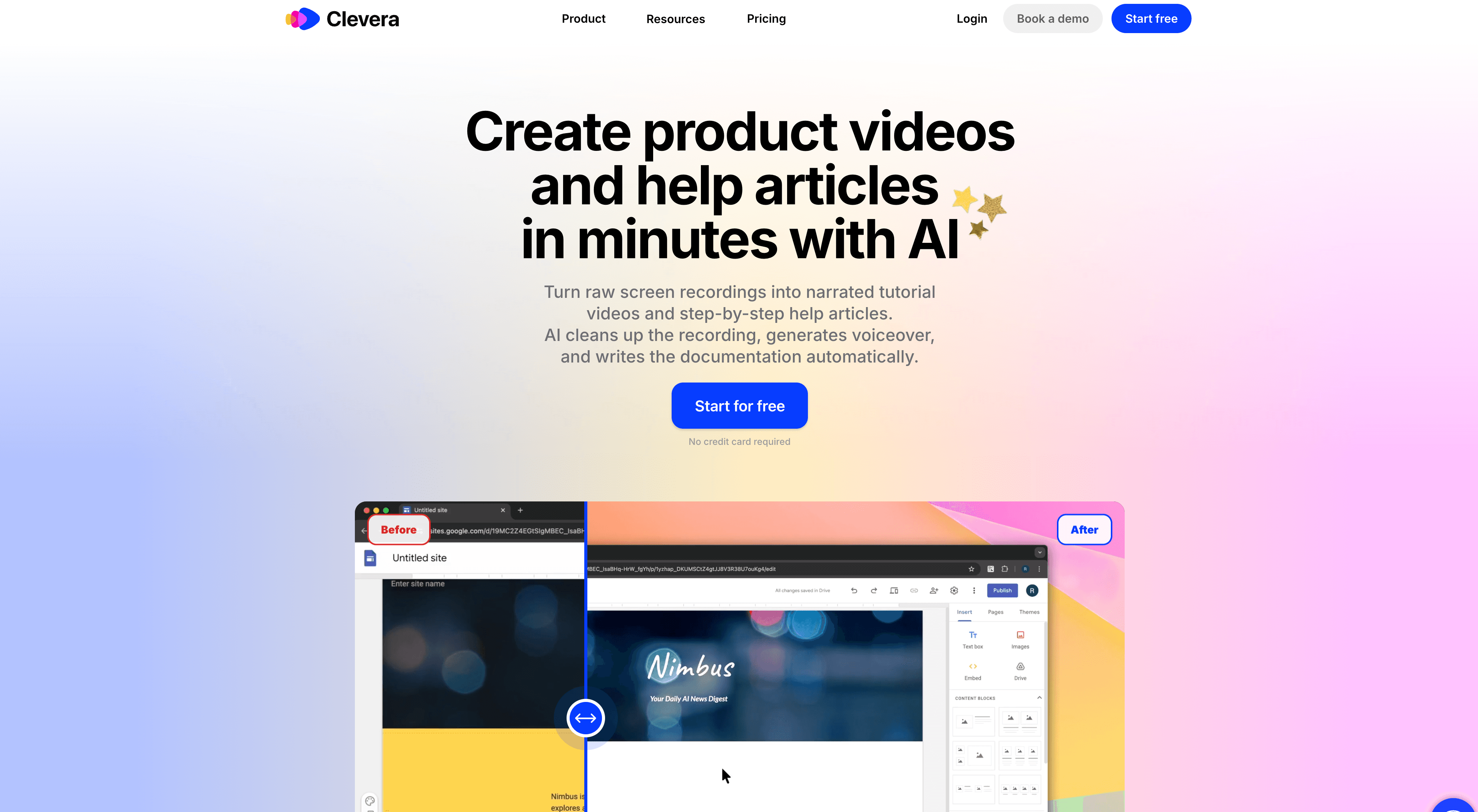
With a tool like Clevera, you don't even need to narrate while you record. You just do the thing, and Clevera generates the AI narration afterward. The voice sounds natural and you can edit the script before publishing, so you can correct mistakes, clarify steps, and adjust tone without re-recording.
This matters because recording anxiety is a real bottleneck. Most people are much more comfortable clicking through a workflow than they are narrating live — removing the live narration requirement dramatically lowers the friction to create content.
Step 4: Generate video and written documentation at the same time
One of the biggest time savings in building a training library comes from getting 2 assets from 1 recording.
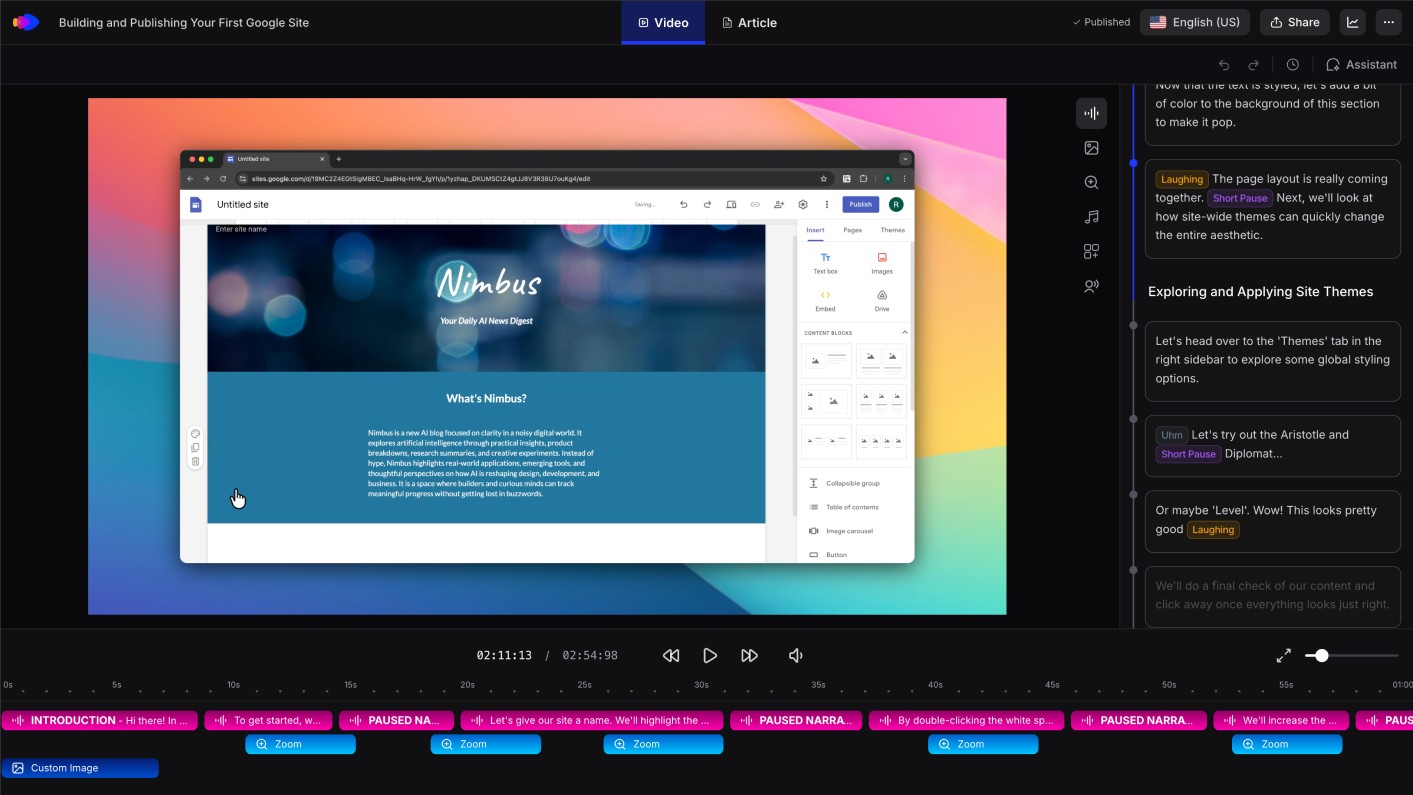
Clevera automatically generates both a narrated video tutorial and a formatted help article from each screen recording. That means for every workflow you record, you end up with a video for learners who prefer watching, and a written guide for learners who prefer reading (or searching for a specific step).
This also helps with SEO if you're building a public-facing help center — the written articles get indexed while the videos provide engagement.
Step 5: Organize before you publish
Dump everything into a structured folder or help center platform before sharing links. A few practical tips:
Name videos consistently: Use a format like
[Category] — [Task](e.g., "Onboarding — Setting up your workspace")Add a short description to each video: What does it cover, and who is it for?
Group related videos into playlists or tracks: New hire onboarding, customer setup, admin workflows, etc.
Link to written docs from the video page: If you generated a help article alongside the video, make it easy to find
If you're using a knowledge base platform like Notion, Confluence, or Zendesk, embed the videos directly in the relevant articles rather than hosting them separately.
Step 6: Plan for updates before you need them
The #1 reason training libraries go stale is that no one thought about the update process when they built it.
Software products change constantly. A feature gets renamed, a workflow gets redesigned, a button moves. If your training video library requires re-recording every time that happens, you'll either fall behind or stop maintaining it.
A few approaches that help:
Use LiveSync embedding: Clevera's LiveSync feature lets you embed a video once in your help center or documentation. When you update the video in Clevera, every embedded instance updates automatically. No re-linking, no finding all the places the video appears.
Record modular content: Instead of one 20-minute onboarding video, record 5 focused 4-minute videos. When something changes, you only need to update the relevant clip.
Assign content ownership: Each section of the library should have an owner — usually the team lead or subject matter expert for that area. They're responsible for flagging when something needs updating.
Step 7: Translate for global teams
If you're working with a distributed team or serving customers in multiple regions, translation is often an afterthought — and a painful one. Re-recording content in multiple languages is expensive and time-consuming.
Clevera's one-click translation covers 70+ languages, translating both the video narration and the paired help article. You record once and publish in as many languages as your audience needs.
How long does it actually take?
Here's a rough timeline for a team of 2 people building a training library from scratch:
Week 1: Audit existing content, define categories, record the 5 most-requested workflows
Week 2: Organize in your help center or LMS, record 10 more videos, set up playlists
Week 3: Share with the team for review, gather feedback, fill gaps
Week 4: Publish, announce internally, assign content ownership for ongoing maintenance
By the end of a month, you can have a functional training library with 15-20 videos and paired written documentation. That's a realistic target, not an aspirational one.
What to avoid
A few common mistakes that slow teams down:
Trying to make everything perfect before publishing: Training videos don't need to be broadcast quality. A clear, correct recording is more valuable than a delayed, polished one.
Building without a consistent format: Decide upfront how long videos should be, how they should start, and whether they'll have captions. Consistency makes the library feel professional even when the content varies.
No maintenance plan: Assign owners, set a quarterly review cadence, and have a clear process for flagging outdated content.
Hosting everything in a folder instead of a knowledge base: Videos in a Google Drive folder are findable by your team but not by your customers. Use a proper help center or LMS so content is searchable.
Building a video training library fast isn't about cutting corners — it's about removing the production overhead that used to make this impractical. With the right tool, the bottleneck shifts from "how do we make this?" to "what do we need to teach?" That's a much better problem to have.