How to turn a website into a video
Two ways to turn your company's website into a video about your product: record and narrate the page yourself, or let an AI read it and build the scenes. Step by step, with fixes for a wrong first draft.
 Berkay Akpolat15 min read
To turn your company's website into a video about your product, either record the page yourself (a slow scroll or a click-through, then a short script and a voice-over) or paste the URL into an AI website-to-video tool that reads the page and builds scenes from its copy, screenshots, logo and colors. Recording suits product walkthroughs. The AI route suits short promo, launch and social videos.
Updated 2026-11-04
In this guide
- Which method fits your video?
- How to turn a website into a video by hand
- What an AI pulls from a web page
- Website to video with AI, step by step
- How to fix a first draft that's wrong
- Which pages don't work well?
- Which size and length to export
- How Clevera does it
- Questions about turning a website into a video
Which method fits your video?
If viewers need to see where to click, you need footage of the real product. If they need to know what it is and why it matters, the page's copy and screenshots are often enough.
| Method | Best for | What's on screen | Works behind a login? | Typical cost |
|---|---|---|---|---|
| Scroll recording + voice-over | A quick tour of a landing or feature page | Your page, scrolling | Yes, you're signed in | Free (OBS Studio plus a free editor such as Shotcut) |
| Click-through recording + script | Product walkthroughs and demos | Your app, step by step | Yes | Free (OBS) or a screen-recorder subscription |
| AI URL to video | Promo, launch and social clips about what the page says | Varies: your screenshots, stock clips or an AI presenter | Usually not: public pages only | HeyGen Free (3 watermarked videos a month); Pictory from $25/mo billed yearly |
| AI that records your web app (e.g. Clevera's Record with AI) | Walkthroughs without doing the clicking yourself | Your real app, filmed by an AI agent | With a sign-in you give it or type yourself | Credits for the AI's working time (Clevera, every plan) |
| Code or AI-agent pipeline (e.g. HyperFrames' website-to-video workflow, Remotion with Claude Code, GrabzIt's URL to MP4 API) | Developers making many site videos, or videos inside a build pipeline | Your page's own screenshots and copy, animated in code | Only if you script the sign-in | Free open-source tools plus a coding agent's subscription, or API pricing |
Prices and features are from each vendor's own pages (HeyGen pricing, Pictory pricing) as of 2026-11-04, in USD. HyperFrames is open source under Apache 2.0; Remotion is free for individuals and small companies and needs a company license above that.
How to turn a website into a video by hand
If the video teaches, narrate it: in TechSmith's 2024 Video Viewer Study (a vendor survey of 929 people in six countries), 83% said they prefer to learn instructional or informational content by watching video.
The manual method works with any screen recorder and gives you full control. It takes longer, and hand scrolling often looks jerky.
Pick one page and one message
Pick the page that holds your message (a feature page, a pricing page, a case study) and write the message as one sentence: "Acme sends invoices and chases late payments for you."
Prepare the page
Use a clean browser profile, a 1920×1080 window and 100% zoom. Dismiss the cookie banner, chat bubble and pop-ups first. If the page shows account data, use a demo account with invented names.
Write the script before you record
Write two or three short sentences per section: the headline, the proof, the call to action, or draft it with the tutorial video script generator. Read it aloud and time it; 30 to 90 seconds suits most landing pages.
Record a slow scroll or the click path
Record the browser window with a screen recorder such as OBS Studio (free and open source). Scroll slowly and pause two or three seconds on each section the script mentions. If hand scrolling looks uneven, use a scroll-capture tool (see the FAQ).
Add the voice-over, zooms and captions
Record your voice separately or use a text-to-speech tool. Cut the waits, zoom in on what each sentence talks about, and add captions for viewers with the sound off.
Export the shapes you need
Export 16:9 for your site and YouTube. For Reels and Shorts, re-frame the shots and resize the video to 9:16; see which size to export.
If the video is a software walkthrough rather than a page tour, see how to create narrated product demos and, if you'd rather not narrate on camera, making tutorial videos without showing your face.
What an AI pulls from a web page
An AI URL to video tool opens the page, reads it and turns what it finds into a script and scenes. Most look for the same things:
| From the page | Becomes in the video |
|---|---|
| Headlines and body copy | The script and on-screen text |
| Screenshots of the page | Scenes that show your product |
| Images and videos hosted on the page | Product shots and B-roll |
| Logo, colors and fonts | The video's look |
| Reviews, customer logos, numbers | Proof scenes |
| Pricing, offer, call to action | The closing scene |
Whatever the page says, the video repeats, so an old price or a retired feature on the page ends up in the video too.
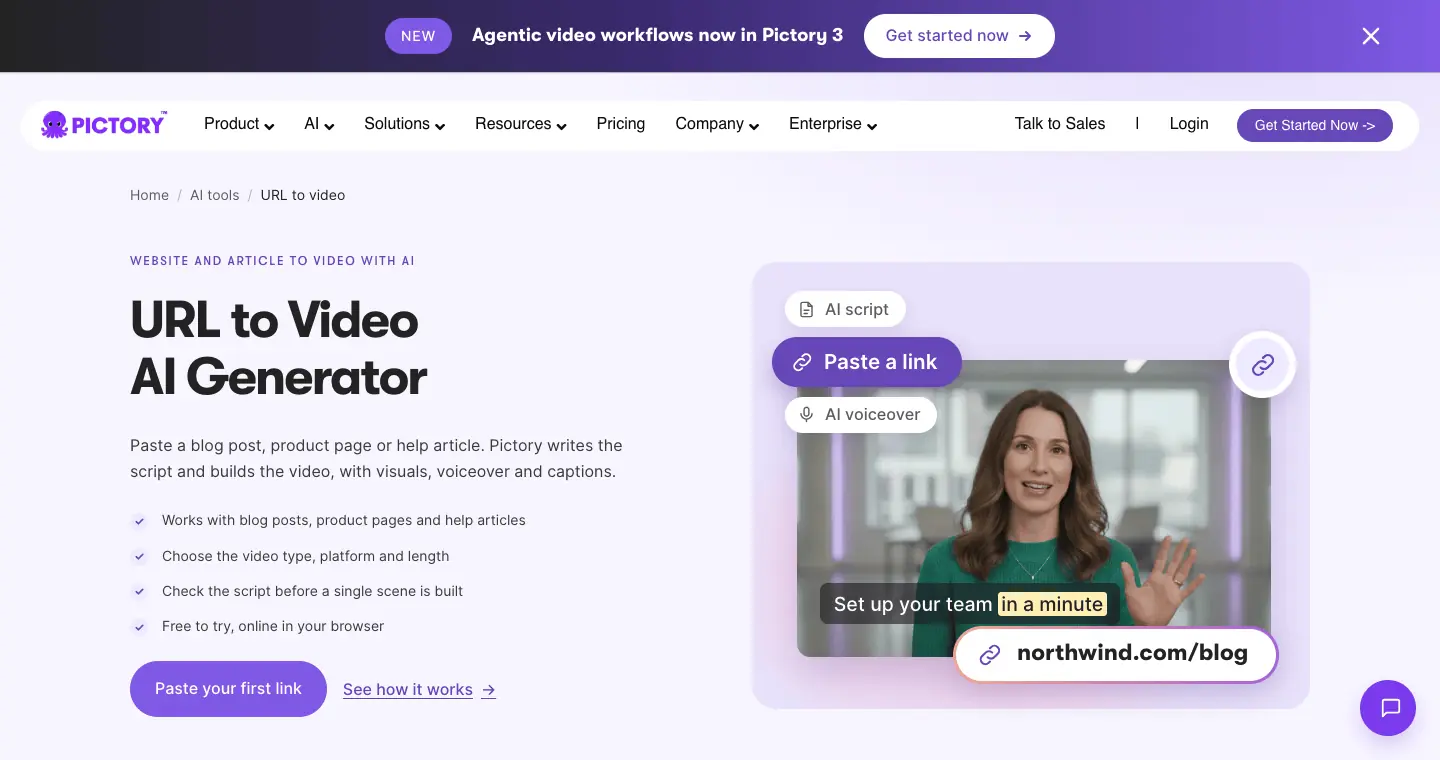
Tools differ most in what fills the screen: your own screenshots, stock footage or an AI presenter. Pictory, for example, matches each scene to a stock library of 18M+ clips and images, while HeyGen's URL to video pulls headlines, copy and images into a template, and its Brand Systems can apply your logo, fonts and colors. For software, ask one question in any free trial: does my product appear on screen? Our roundup of URL to video AI tools compares eight of them on exactly that.
Website to video with AI, step by step
These steps apply to most AI tools. The screenshots show Clevera, where you start with Create > Social & promo and pick a style card, such as Product tour or Feature spotlight. That opens the Compose page.
Paste the URL of the page that matters most
Use a specific page, such as a feature or pricing page, not your homepage: one page gives the AI one clear story. In Clevera, type it in the Start from your website box and click Add.
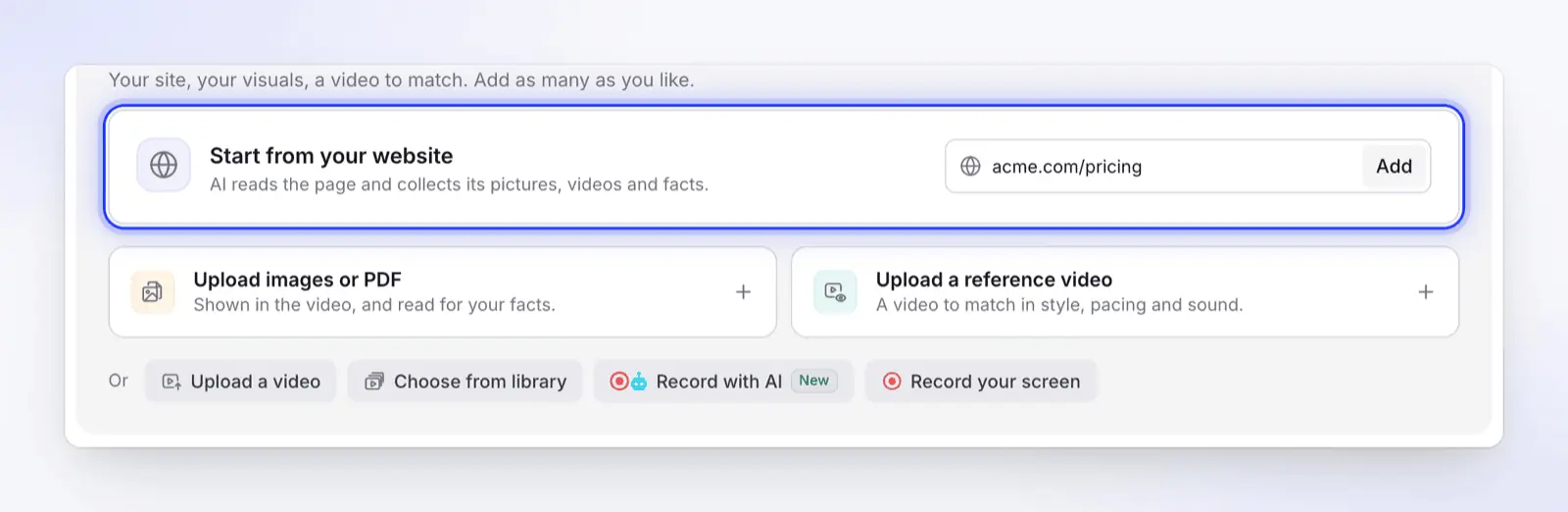
Step 1: paste the page that matters most. Clevera starts there. Tell it where to look
If the tool takes a note, name the pages or sections you want used. In Clevera's Make it from a website window, write the note in What should we look at? (optional, up to 600 characters) and click Start. The AI reads up to five pages, starting with the one you pasted.
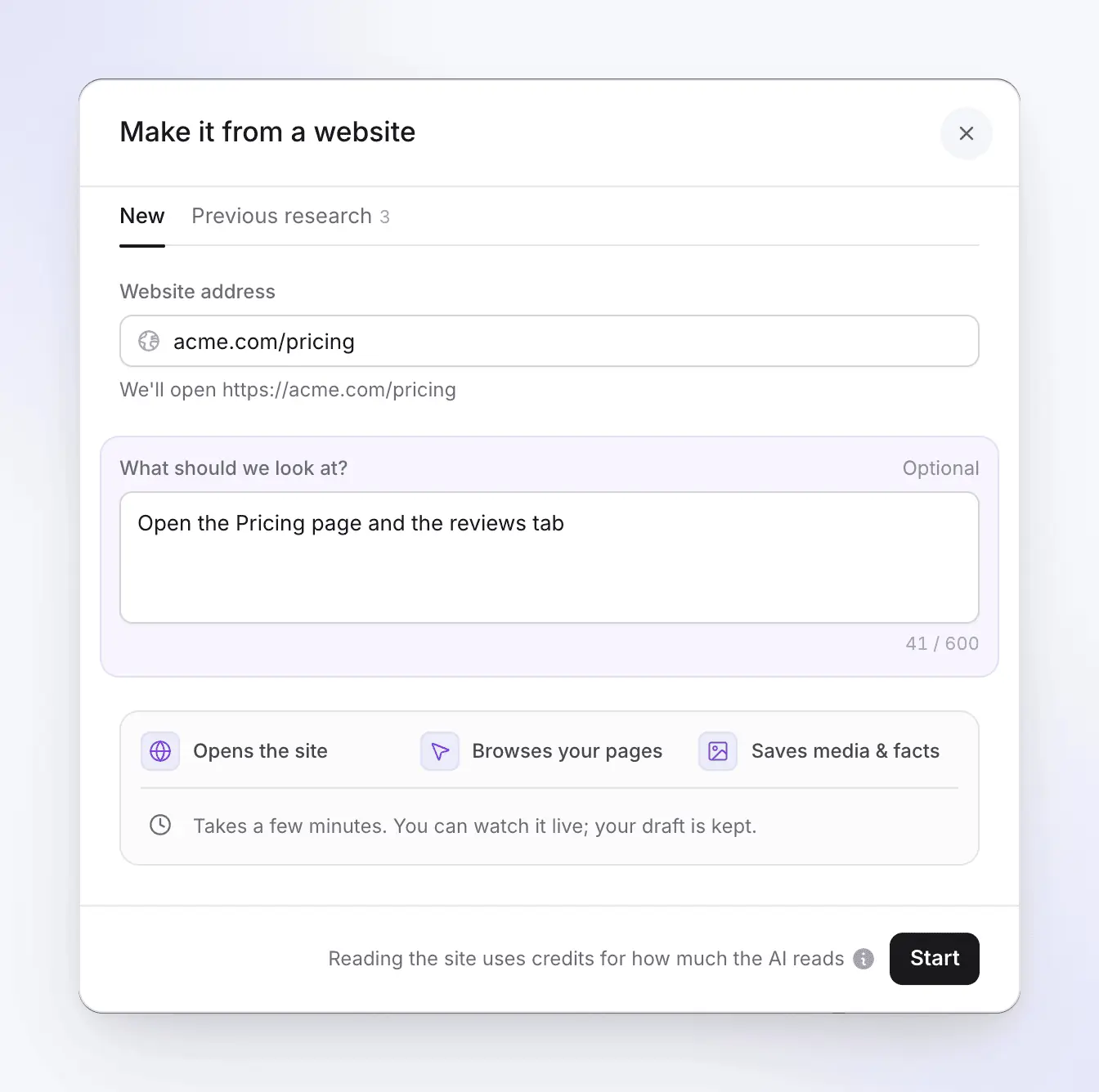
A note tells the AI where to look first. Reading the site is billed by how much the AI reads. Let it research the site
The AI opens the page in a cloud browser, opens tabs and accordions, and saves text, screenshots, pictures and site-hosted videos. In Clevera it spends about four minutes on the site; click Watch on the link's card to see it live.
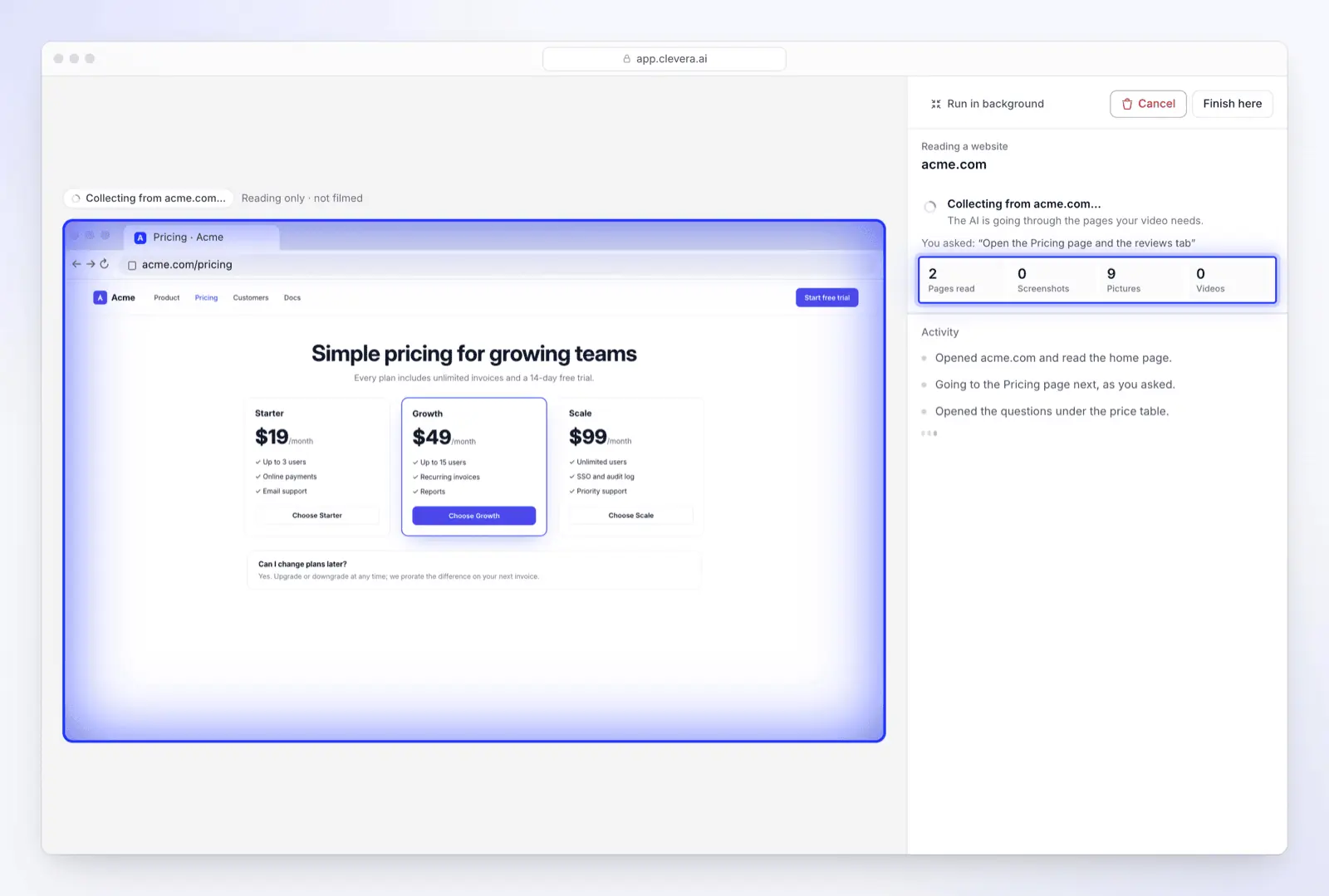
Website research reads up to five public pages and films nothing. Check what it found before you generate
Don't skip this step. When the card shows Collected, click See what we collected and read the facts and anything marked as missing. Below, the reviews tab needed a sign-in, so the video won't use it. Add missing facts to your brief (in Clevera, the What's it about? box), or research the exact page that has them.
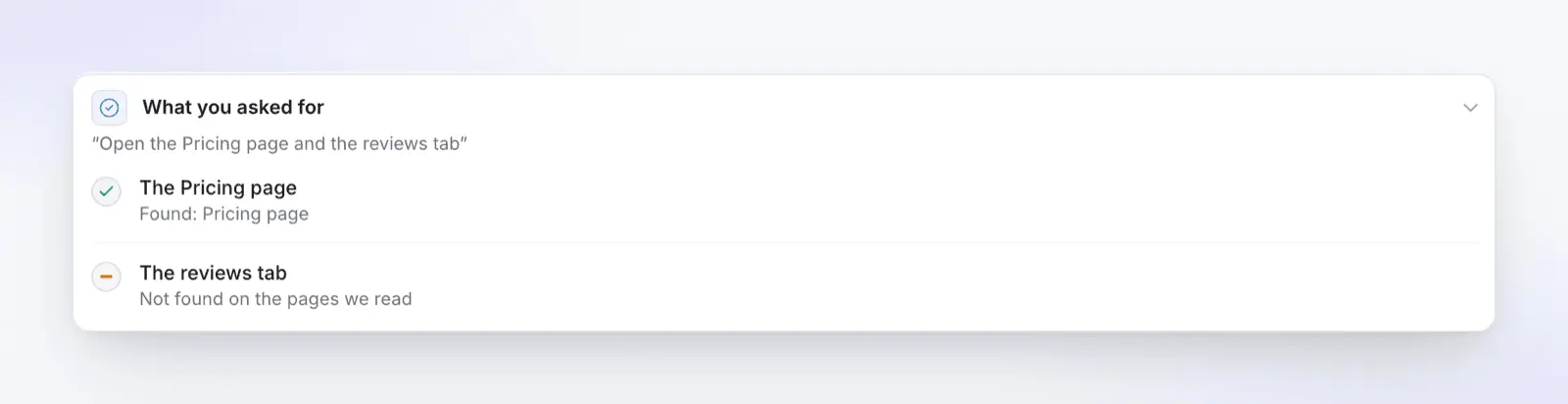
The reviews tab is marked Not found: it needed a sign-in, so nothing from it will appear in the video. Pick the size and length
Pick the shape and length for the channel it will run on. In Clevera, open Format under Settings.
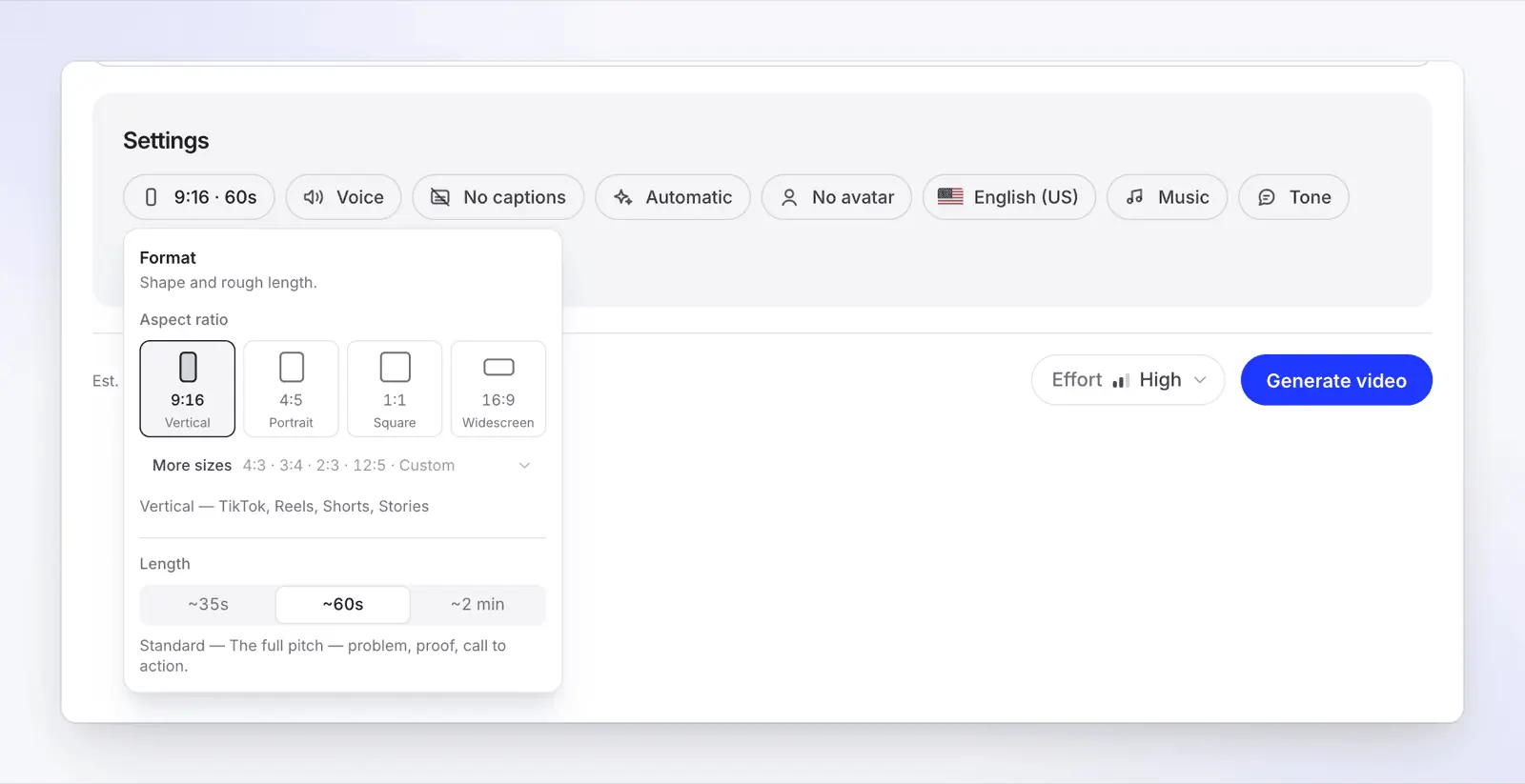
Pick one shape per channel: 9:16 for Reels and Shorts, 16:9 for your site and YouTube. Generate and review the scenes
Click Generate video, then watch every scene. Check that each one shows your product, that the text is readable on a phone, and that every claim is one you'd make yourself.
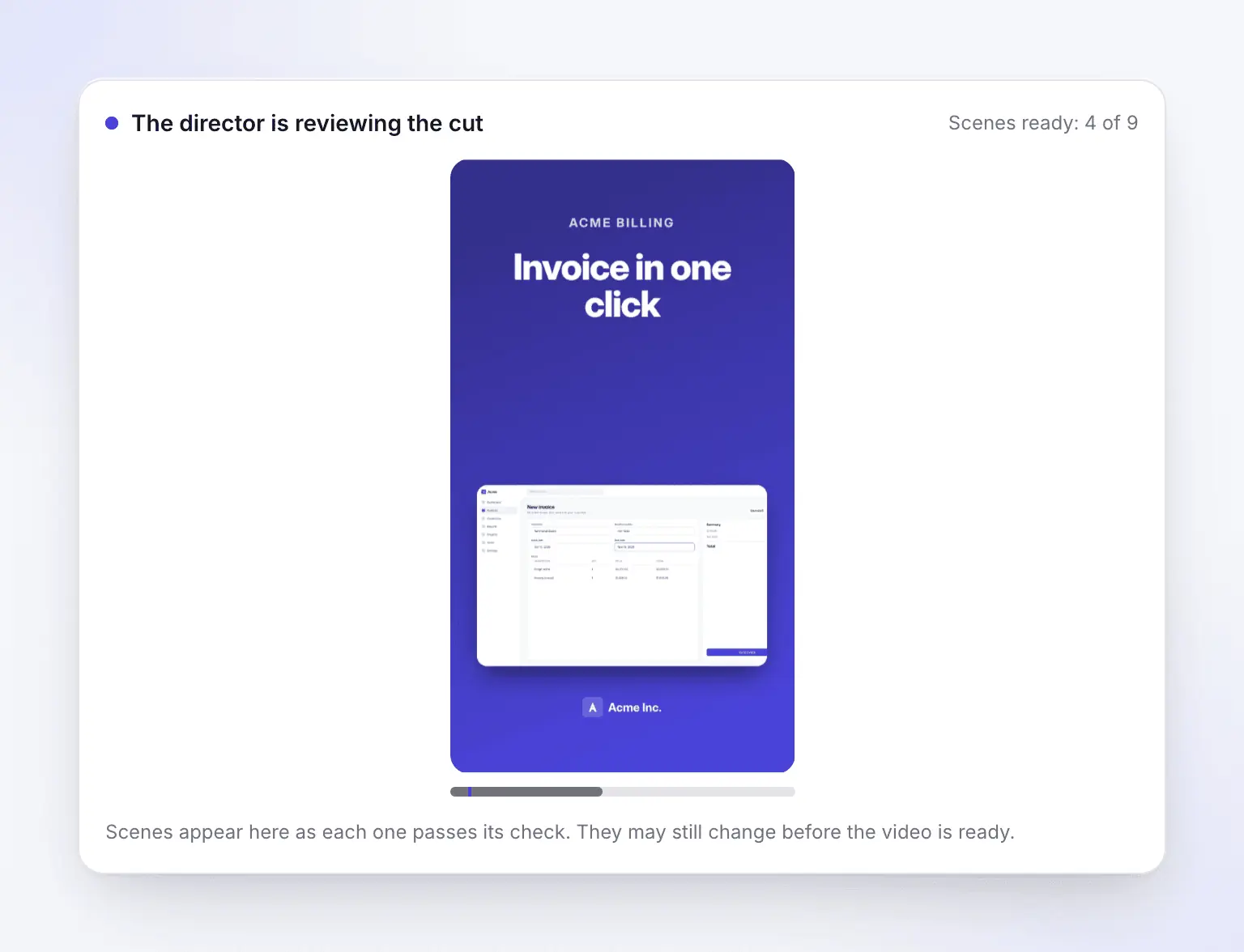
A feature spotlight being generated (example project). Scenes appear as each one passes the AI director's check. Edit by chat or by hand, then export
Click Open your video. Fix small things in the scene's Text field, and click Ask the assistant for bigger ones ("make the opening line shorter", "end on the demo booking page"). Then export or share the link.
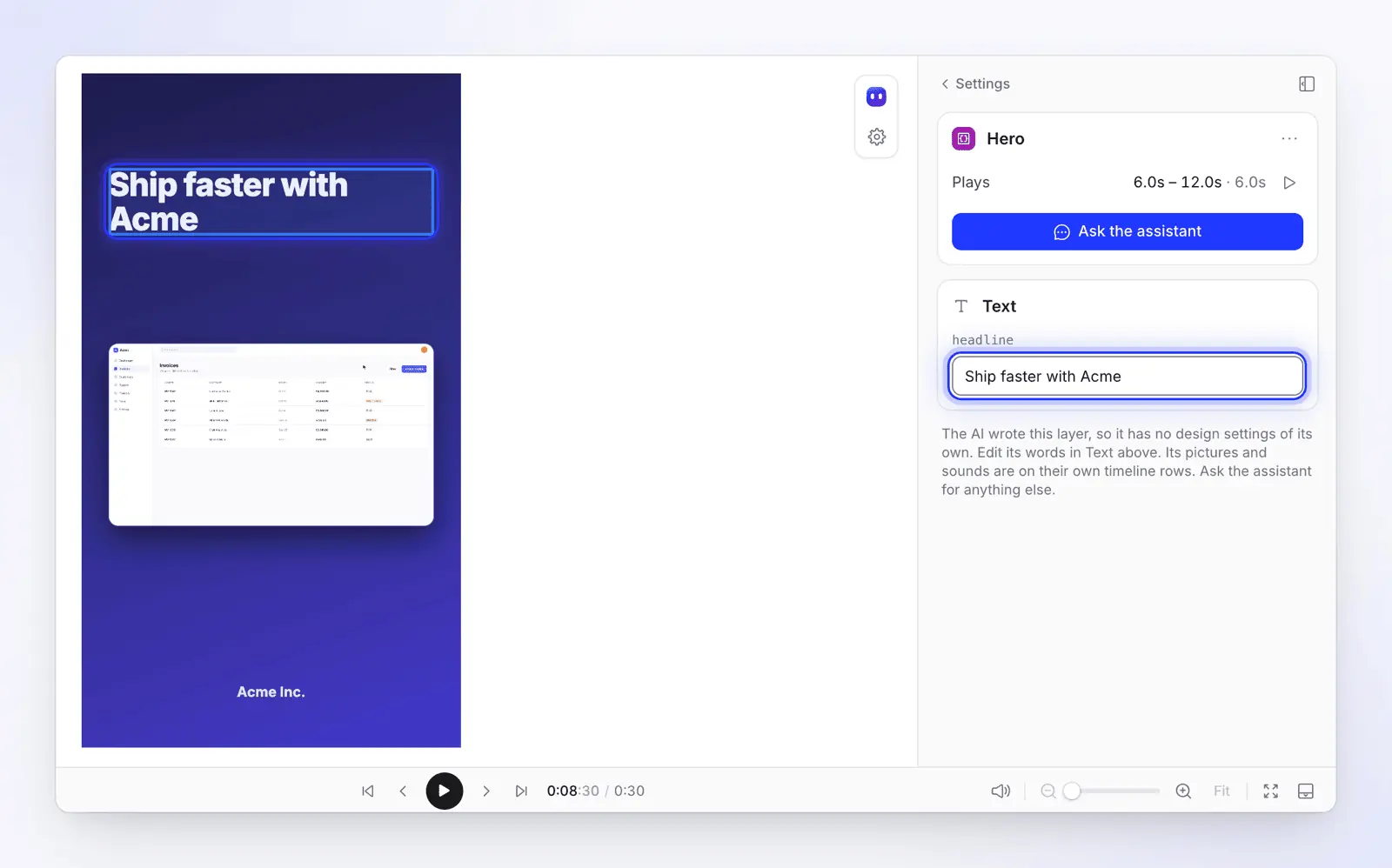
Fix a wrong line by hand in the scene's Text field, or ask the assistant.
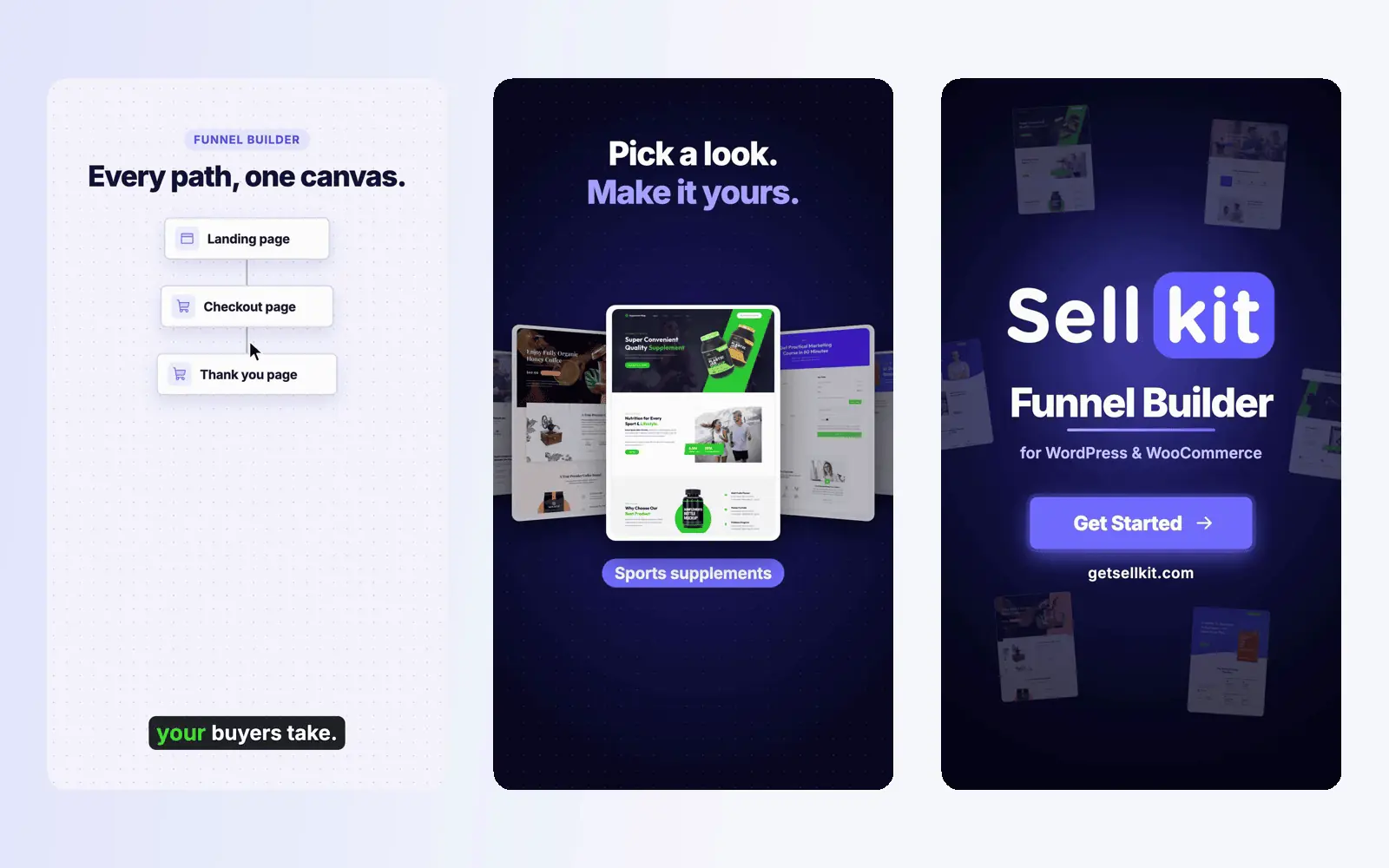
Here is what a finished one looks like: a promo Clevera made from a website link, shown as three of its frames.
How to fix a first draft that's wrong
Each problem in a first draft usually has one cause, and fixing the cause beats regenerating.
| What you see | Usual cause | Fix |
|---|---|---|
| Old prices or a retired feature | The page itself is out of date, or the AI read a different page than you meant | Update the page first, or put the correct fact in the brief |
| Stock clips instead of your product | The tool fills scenes from a stock library | Pick a tool or setting that uses your screenshots, or upload your own |
| A claim you never wrote | The AI reused a line from elsewhere on the site, such as a testimonial band | Delete the line; check every number and quote against the page |
| Wrong colors or logo | It read a banner, a partner logo or a dark-mode variant | Set your brand (logo, colors, fonts) and apply it to the video |
In our own tests on clevera.ai, a generated clip closed on a customer-count line we hadn't asked for: the AI had picked it up from the site. Whatever claims your pages make, the video can repeat, so check every number and quote against what your company stands behind today before you post.
Which pages don't work well?
Most website to video tools read pages the way a first-time visitor's browser does, so they share the same limits.
- Logged-in apps and dashboards. The AI doesn't sign in, so it never sees the app itself, only what your public pages show of it. Record the app yourself, or use an AI recorder with a test account. Pictory's FAQ suggests pasting a login-only page's text instead.
- Heavy animation, scroll effects and WebGL. Screenshots catch one frame, and scroll-driven effects can leave sections half-drawn. Record the page at real speed and add it as footage.
- Single-page apps with little text. The AI may get a nearly empty page. Paste the key copy (headline, benefits, proof, offer) into the brief.
- Security checks and bot protection. Some sites turn automated browsers away. Try another page or upload screenshots.
- PDFs and YouTube embeds. Some tools skip linked PDFs and embedded YouTube or Vimeo videos. Upload the file itself.
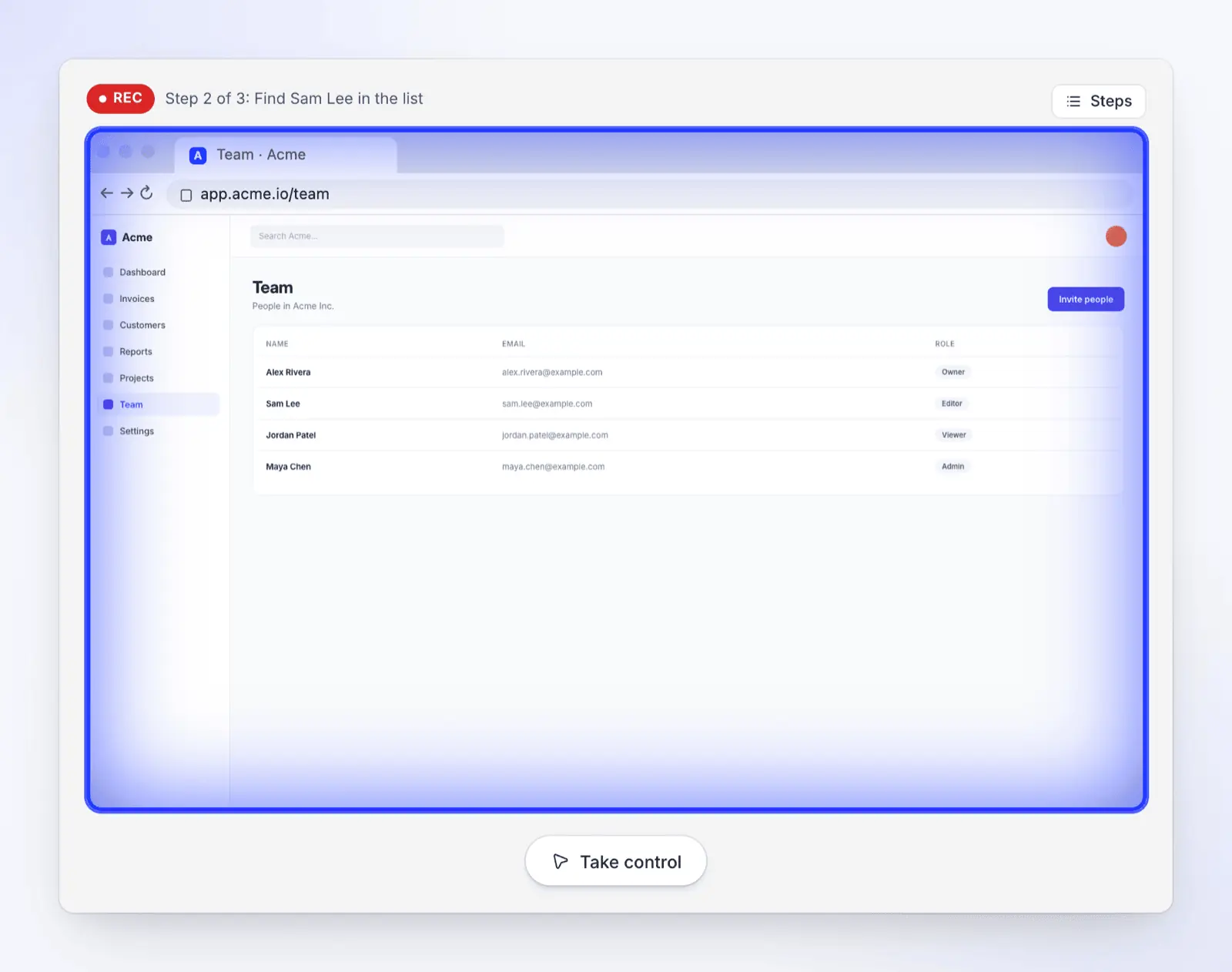
For more on letting an AI do the clicking, see how to record a web app demo automatically. If Clevera couldn't read your site, see Fix a website the AI couldn't read.
Which size and length to export
Pick the shape for where people will watch. Pew Research Center found that 84% of US adults say they ever use YouTube and 37% use TikTok (survey of 5,022 adults, February to June 2025). Most website videos need a 16:9 version and a 9:16 version.
| Where it runs | Shape | Length that usually fits |
|---|---|---|
| Your website, YouTube, sales emails | 16:9 | 60 seconds to 2 minutes |
| Reels, Shorts, TikTok, Stories | 9:16 | About 30 to 60 seconds |
| LinkedIn and feed posts | 1:1 or 4:5 | About 30 to 60 seconds |
Make each shape on purpose: a 16:9 page screenshot squeezed into 9:16 loses most of its text.
How Clevera does it
Clevera is an AI platform that turns a screen recording into a narrated how-to video, a step-by-step help article and a page on your hosted help center, in 74 languages. It can also start from a website, in two ways.
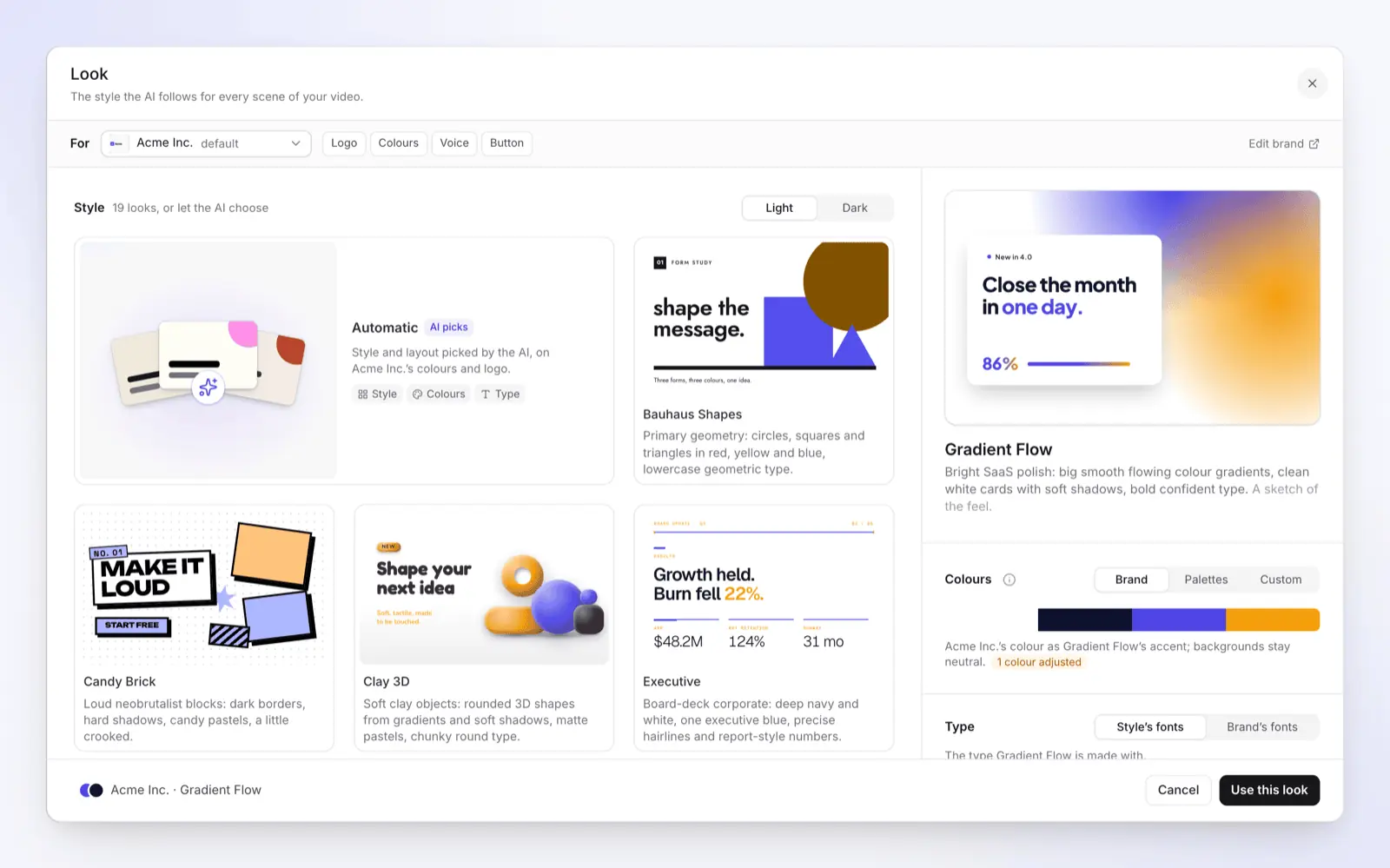
A promo or social video from your site (Starter and up, Beta). With Clevera's URL to video, the AI reads up to five public pages and collects the copy, screenshots, pictures, logo and colors. You pick a type (product tour, feature spotlight, launch teaser and more), a size (9:16, 4:5, 1:1, 16:9 or custom) and a length of about 35 seconds, 60 seconds or 2 minutes. The AI director builds motion-graphic scenes with a voice-over, music and sound effects, and you edit by hand or by chat. Social and promo videos come with Starter ($36 a month, or $29 a month billed yearly). Reading the site is billed in credits by how much the AI reads, on top of the video's estimate, and reusing earlier research costs nothing. See Research a website for a social clip for every limit, and Clevera's AI promo video maker for the clip types.
A walkthrough of your web app (every plan, including Free). Record with AI opens a public https:// web app in a cloud browser, follows the steps you describe and records them, signing in with a login you give it or one you type yourself. The recording becomes a narrated how-to video or a product demo (see Clevera's product demo generator). Desktop apps and intranet pages go through the Clevera desktop app for Mac, Windows or Linux instead. On the Free plan, videos can be up to 3 minutes and are shared by link or embed with the Clevera watermark; MP4 downloads and watermark-free sharing start on Starter.
Where Clevera is not the right fit: if you need a promo video today at no cost, HeyGen's Free plan makes watermarked ones; if you want stock footage of people and places rather than your own product, Pictory's stock library suits that better.
Questions about turning a website into a video
Can I turn a website into a video for free?
Yes. Record the page with OBS Studio (open source, no cost) and add your own voice-over. Some AI tools have limited no-cost tiers: HeyGen's Free plan gives 3 watermarked videos a month, each up to 1 minute. Clevera's Free plan makes how-to and demo videos from a recording of your web app, shared by link or embed with a Clevera watermark; videos made from a link need Starter.
Can ChatGPT or Claude turn a website into a video?
Not on their own. A chat assistant can read a public page and write the script, scene list and voice-over text, but turning that into a video of your site needs a video tool or a code setup, such as Claude Code with Remotion's agent skills or HyperFrames' website-to-video workflow. Review that draft the way you would any AI video.
Can an AI make a video of a page behind a login?
Not from the URL alone. Website to video tools read public pages and don't sign in. For a logged-in app, record it yourself, or use an AI recorder you can give a test account to, such as Clevera's Record with AI.
How long does it take to turn a website into a video?
In our own test in October 2026, Clevera's research read 2 pages in about 3 minutes, and a 35-second clip was ready in about 7.4 minutes (test details). Reviewing and fixing the draft takes longer than generating it. By hand, the script, retakes and editing take longer still, even for a one-minute video.
Can I just convert a web page into an MP4 of it scrolling?
Yes. Capture tools and browser extensions record a page into an MP4. For example, GrabzIt's HTML to video converter turns a URL into an MP4 of up to 60 seconds, and it also comes as a Webpage to Video add-on for Firefox (as of 2026-11-04). For a smooth scroll, record one yourself at a steady speed. Either way you get footage, not a finished video: you still add the script, voice-over and captions.
Turn your product's website into a video
Paste a feature or pricing page and Clevera builds scenes from its copy, screenshots and brand, with a voice-over. Videos made from a link need Starter ($36 a month, or $29 a month billed yearly).