SOP template (free, with a software example)
A free, copy-paste SOP template with each section explained, simple and checklist versions, a filled software example with screenshots, and an example video SOP.
 Berkay Akpolat14 min read
Updated 2026-11-04
An SOP template (standard operating procedure template) is a fixed outline for writing a procedure: a header (title, owner, version, review date), purpose and scope, roles, prerequisites, numbered steps with the expected result of each, quality checks, exceptions, and a revision history. Copy the free template below, then see it filled in for a typical software task, with screenshots, and an example of the video version.
On this page
- The SOP template (copy and paste)
- What goes in each section
- SOP example: send a customer invoice
- Simple or detailed: which SOP format fits?
- The video version of an SOP
- How often to review an SOP
- Make an SOP from a screen recording with Clevera
- FAQ
The SOP template (copy and paste)
Paste this into Google Docs, Word, Notion or your wiki. Turn the numbered lines into headings, and delete any section the procedure doesn't need.
SOP TITLE: [Verb + task + system, e.g. "Send a customer invoice in Acme Billing"]
SOP ID: [e.g. FIN-012]        Version: [1.0]
Owner: [role or person who keeps it current]
Approved by: [name, date]
Effective date: [YYYY-MM-DD]  Next review: [YYYY-MM-DD]

1. PURPOSE
Why this procedure exists and the outcome it protects (one or two sentences).

2. SCOPE
Applies to: [teams, cases, systems]
Does not apply to: [exclusions, with a link to the SOP that covers them]

3. ROLES AND RESPONSIBILITIES
[Role] - [what they do in this procedure]
[Role] - [who approves or reviews]

4. PREREQUISITES
- Access or permissions needed: [role in the system]
- Tools and inputs: [records, files, data that must exist first]

5. EXPECTED OUTPUT
What exists when the procedure is done, and how to tell (status, record, file).

6. PROCEDURE
Step 1. [Where on screen] + [action, with the exact UI label in bold]
        Expected result: [what the user should see]
        [Screenshot of the step, with the click marked]
Step 2. ...
Step 3. ...

7. QUALITY CHECKS
- [What must be verified before the task counts as done]

8. EXCEPTIONS AND ESCALATION
- If [condition], then [what to do / who to contact]

9. RECORDS AND HANDOFF
Where the result is logged and who picks it up next.

10. RELATED DOCUMENTS
[Links to policies, other SOPs, the video version]

11. REVISION HISTORY
Version | Date | Author | What changed and why
1.0     |      |        | First version
These are the sections most published formats share; regulated teams often add definitions, references and approval signatures, as in The FDA Group's guide. For a shorter SOP, use the simple or checklist version below.
What goes in each section
| Section | What to write | Common mistake |
|---|---|---|
| Header | Title as verb + task + system, an ID, version, owner, effective and next review dates | No owner, so nobody updates it |
| Purpose | The outcome the procedure protects, in one or two sentences | A paragraph of background nobody reads |
| Scope | Who and what it covers, and what it doesn't | Leaving out the exclusions, so people apply it to the wrong case |
| Roles | Each role and what it does, including who approves | Naming people instead of roles, so it breaks when someone leaves |
| Prerequisites | Access, permissions, records and inputs needed before step 1 | Discovering at step 4 that the user lacks the right role |
| Expected output | The end state, in terms the reader can check | "Task complete" with no visible signal |
| Procedure | Numbered steps: where on screen, the action, the expected result | Steps that mix three actions, or describe the screen from memory |
| Quality checks | What to verify before the task counts as done | Skipping it, so errors surface later |
| Exceptions | What to do when data, permissions or system state are missing | Silence, so people improvise |
| Records and handoff | Where the result is logged and who acts next | The trail ends at the person who did the task |
| Revision history | Version, date, author, what changed and why | Overwriting the document with no record |
Keep steps short. People scan instructions rather than read them: Jakob Nielsen's 2008 analysis of web usage data found that users have time to read at most 28% of the words on an average page, and about 20% is more likely (Nielsen Norman Group). One action per step, with the UI label in bold, survives that kind of reading.
SOP example: send a customer invoice
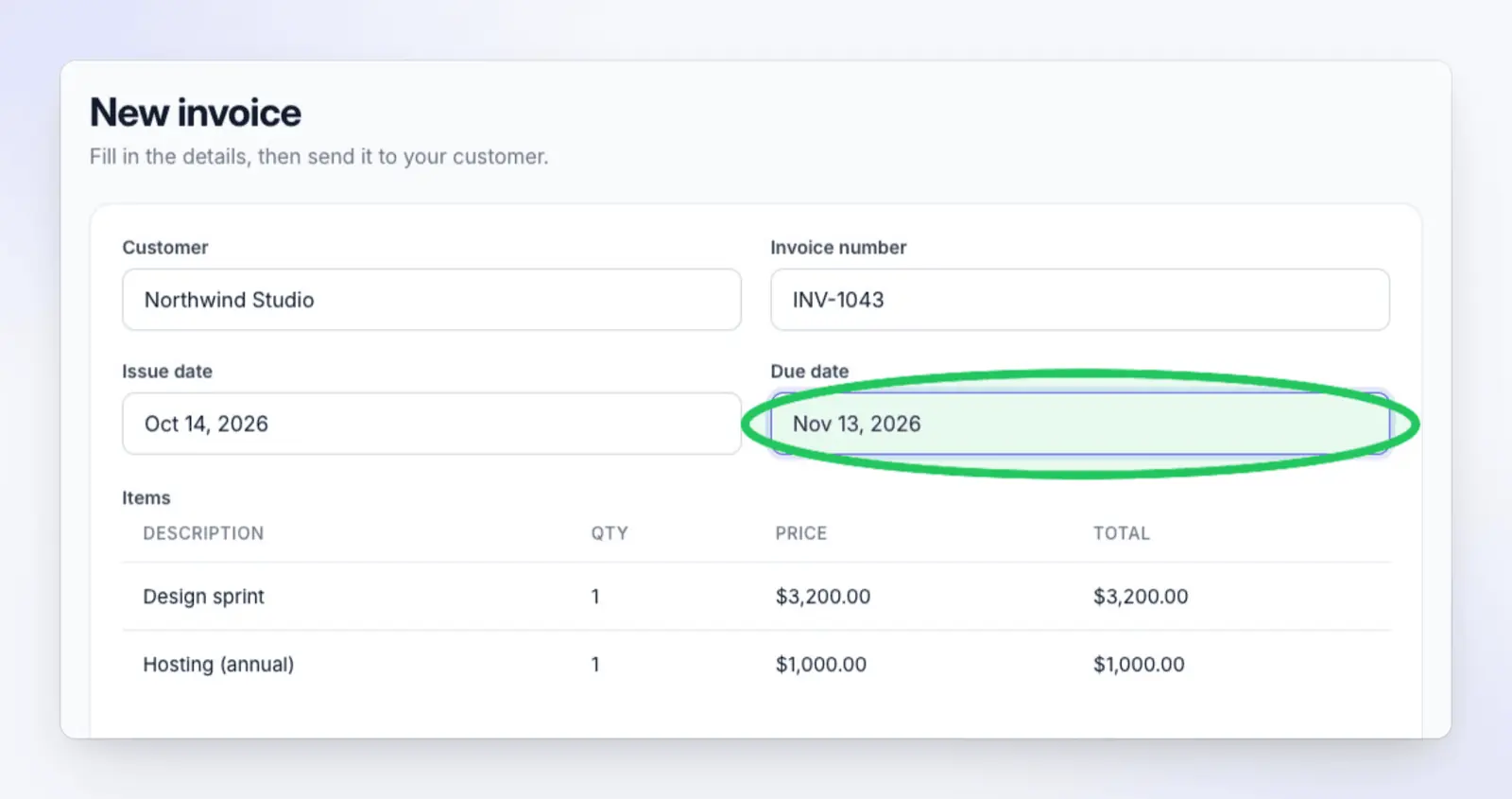
Most SOP examples online cover kitchens, warehouses and HR. Here is the template filled in for a software task, in an invented app called Acme Billing. The screenshots show this SOP laid out in Clevera's article editor (dummy data, written for this example); Clevera's SOP kind produces the same structure from a screen recording (more on that below).
SOP title: Send a customer invoice in Acme Billing
Owner: Finance operations lead · Next review: 2027-05-04
Purpose and scope. Use this procedure every time a finished job is billed to a customer. It covers one-off invoices created by the finance team. Recurring invoices follow their own SOP.
Prerequisites
- The Admin or Billing role in Acme Billing.
- The customer record exists, with a billing email address.
- The approved hours or items for the job.
Expected output. An invoice in the Open state, emailed to the customer, with the correct due date.
Procedure
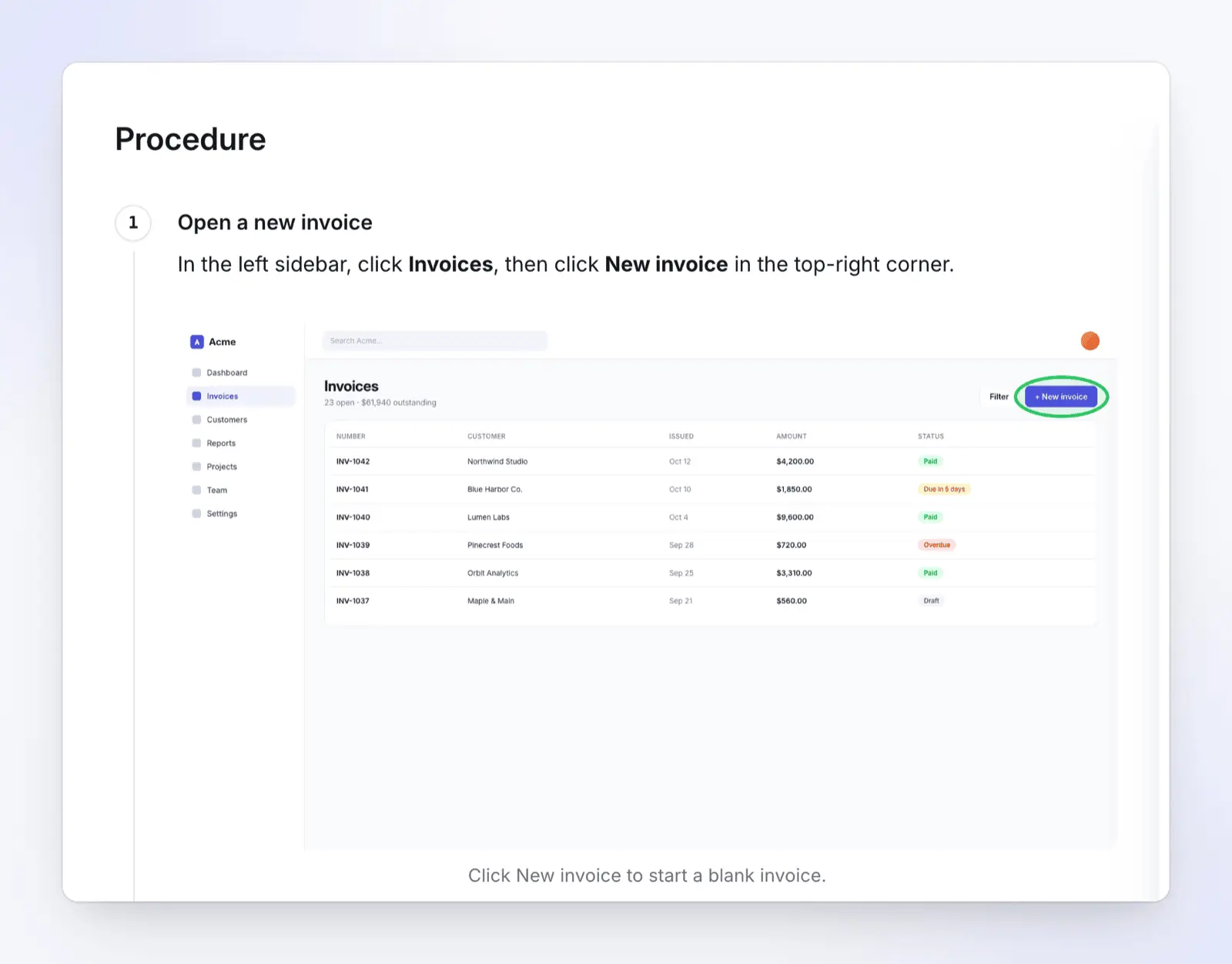
- In the left sidebar, click Invoices, then click New invoice in the top-right corner. Expected result: a blank invoice opens.
- Pick the customer from the Customer list. Expected result: the customer's name shows in the Customer field. Check it is the right account before you add items.
- Set the Due date. Net 30 is the default; use the terms in the customer's contract if they differ. Expected result: the date shows in the Due date field, 30 days after the issue date unless the contract says otherwise.
- Click Send invoice. Expected result: the invoice moves to Open.
Quality checks. The total in the Summary panel matches the approved amount. The invoice appears at the top of the Invoices list as Open.
Exceptions. If Send invoice is greyed out, the customer or a line item is missing. Add it before you continue.
Records and handoff. Note the invoice number in the job's ticket and assign the ticket to Accounts receivable.
What makes it work for software: each step says where to look, then what to click, ends with a result the reader can check, and has a screenshot with the click marked.
Simple or detailed: which SOP format fits?
Not every procedure needs eleven sections. Match the format to the task's risk and the reader's experience. If you are unsure whether you need an SOP or a work instruction at all, see SOP vs work instruction.
| Format | Use it when | Sections to keep | Example |
|---|---|---|---|
| Checklist | Experienced people, routine task, order matters little | Title, owner, checklist, review date | Month-end close checks |
| Simple step-by-step | Short linear task in one system, low risk | Header, purpose, prerequisites, steps, revision history | Reset a user's password |
| Detailed step-by-step | New staff, several systems, money or customer data involved | All eleven sections | Send a customer invoice; issue a refund |
| Hierarchical | Long procedure with phases and sub-steps | All sections, procedure split into numbered phases | Onboard a new enterprise customer |
| Flowchart | The path depends on decisions | Header, scope, flowchart, exceptions | Route a support ticket by severity |
| Text + video | Software task with many screens, or readers who learn by watching | Detailed step-by-step, plus a short video of the same steps | Configure SSO for a new workspace |
Checklists earn their place even for experts. In a study across eight hospitals, introducing a 19-item surgical safety checklist was followed by a drop in deaths from 1.5% to 0.8% and in inpatient complications from 11.0% to 7.0% (Haynes et al., New England Journal of Medicine, 2009). Your invoicing SOP carries lower stakes, but the mechanism is the same: a written sequence catches the step a busy person skips.
Simple SOP template
SOP TITLE: [Verb + task + system]
Owner: [role]   Version: [1.0]   Next review: [YYYY-MM-DD]

PURPOSE: [One sentence: the outcome this protects]

PREREQUISITES:
- [Access or role needed]
- [Records or inputs that must exist]

STEPS:
1. [Where on screen] + [action, UI label in bold]. Expected result: [...]
2. ...

REVISION HISTORY:
Version | Date | Author | What changed
Checklist SOP template
CHECKLIST: [Task name]
Owner: [role]   Next review: [YYYY-MM-DD]

[ ] [Check or action 1]
[ ] [Check or action 2]
[ ] [Check or action 3]
[ ] Done: [what to record, and where]
The video version of an SOP
A video SOP shows the same steps being done on screen, with narration. It doesn't replace the written SOP: people search, skim and copy values from text, and auditors need a document. Pair the two.
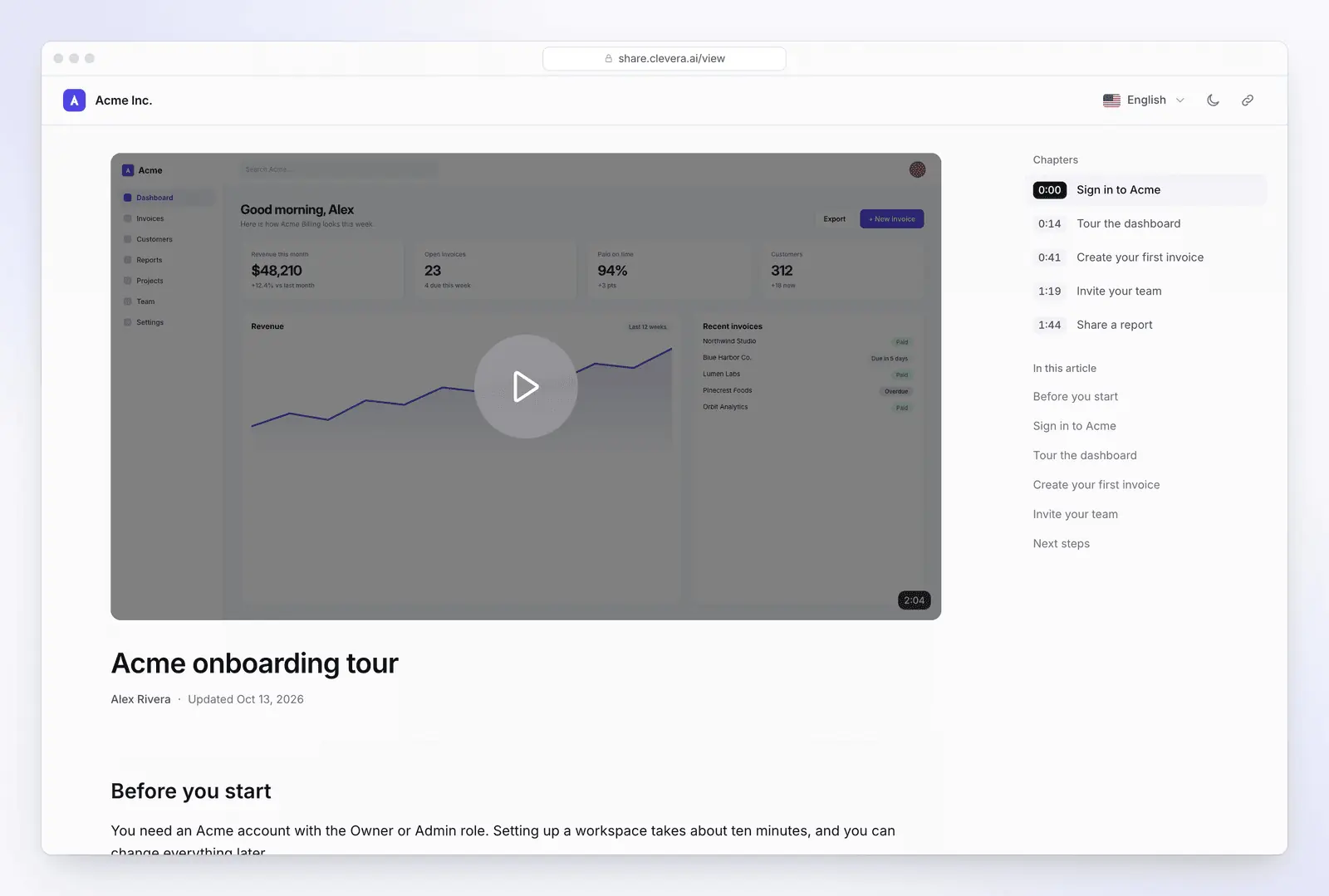
Example of a video SOP: a step-by-step how-to Clevera made from one screen recording of an invented accounting app, matching bank transactions to invoices.
Many people prefer to learn a task by watching. In TechSmith's 2024 Video Viewer Study, 83% of respondents said they prefer video for instructional or informational content, against 41% for reading text and 40% for looking at images (vendor survey of 929 people in six countries who had watched a work-related instructional video in the past 30 days; respondents could pick more than one) (TechSmith). Because people could pick several, the numbers point to offering both, not replacing text.
How to adapt the template for video:
- Keep the written SOP as the source of truth. The video follows the Procedure step for step, with the same step names.
- One procedure per video. Start at the entry point and end on the expected output.
- Narrate the why, not just the click. "Set the due date from the contract, because reminder emails use it" beats "click Due date".
- Zoom on the field that matters. Small form fields are unreadable on a full-screen recording.
- Link both ways. Put the video in Related documents, and link the SOP from the video page.
- Re-record when the screen changes. An old screen in a video looks authoritative and misleads.
If you would rather not narrate on camera or with your own voice, make the tutorial video without being on camera covers AI voice-over and screen-only options.
How often to review an SOP
An SOP that nobody reviews drifts out of date, and for software SOPs the screens change with every release. For software procedures, tie reviews to events, not only to the calendar; for the calendar part, Asana suggests annual reviews as a rule and quarterly ones in fast-changing industries (Asana).
| Trigger | Review | Who |
|---|---|---|
| The app's UI changes (new release, renamed button) | Before the release ships, or within a week of it | The SOP owner, with the product team's release notes |
| A user reports a step that doesn't match the screen | Same week | SOP owner |
| An incident or audit finding traces back to the procedure | Immediately, and record why in the revision history | SOP owner and approver |
| Policy or regulation changes | Before the change takes effect | Approver |
| No change at all | Every 6 months if the app ships updates monthly or faster; every 12 months otherwise | SOP owner |
Put the next review date in the header, and log every change and its reason in the revision history.
Make an SOP from a screen recording with Clevera
Writing an SOP by hand means doing the task, screenshotting and marking each step, then writing it up. Clevera is an AI platform that turns a screen recording into a narrated how-to video, a step-by-step help article and a page on your hosted help center, in 74 languages. One of its article kinds is SOP.
How it works:
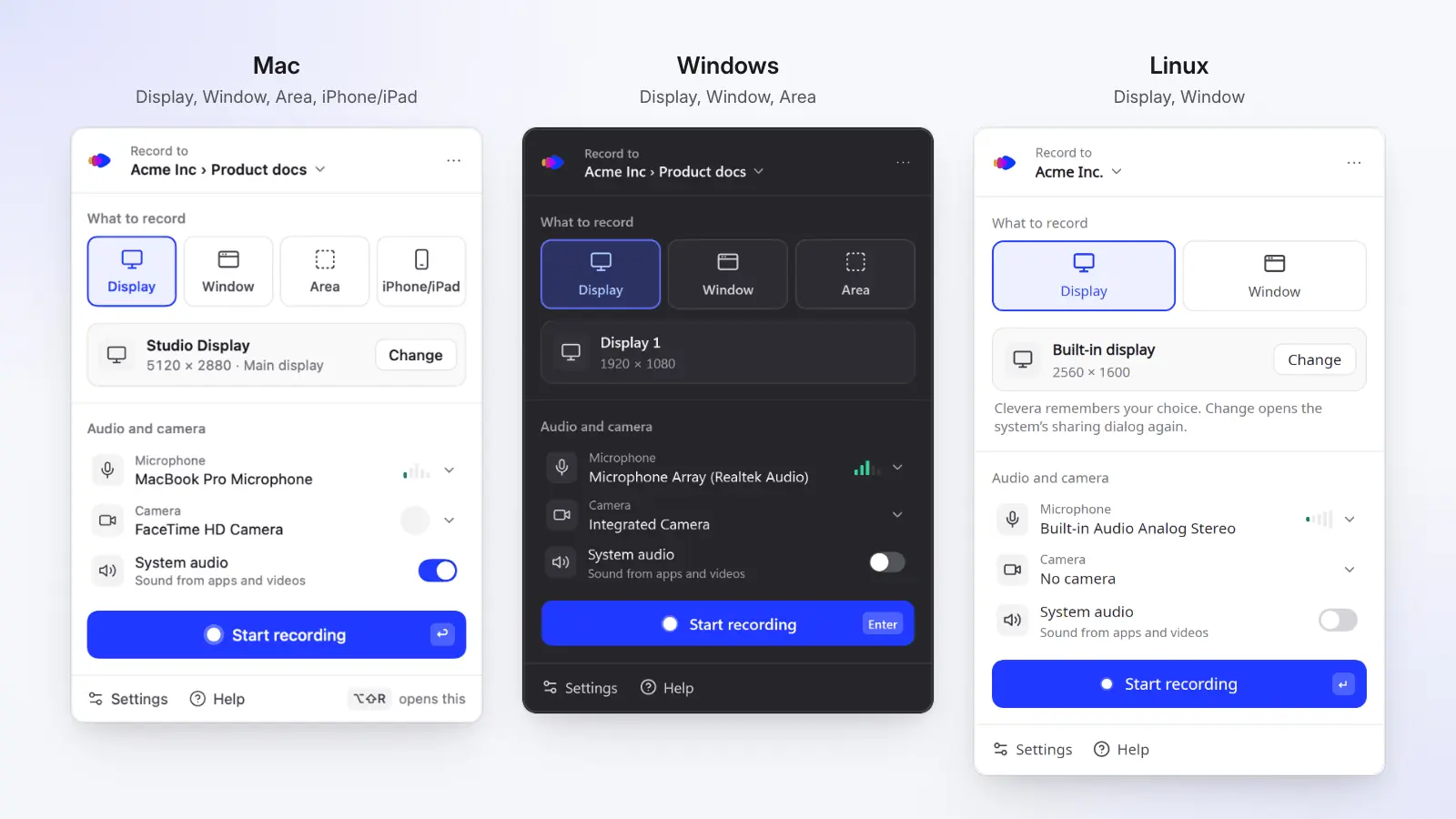
- Record the task once. Use the Clevera desktop app on Mac, Windows or Linux, which records desktop apps as well as browser tabs, the Clevera Chrome extension, or upload a recording you already have. For a public web app, Record with AI can click through it for you.
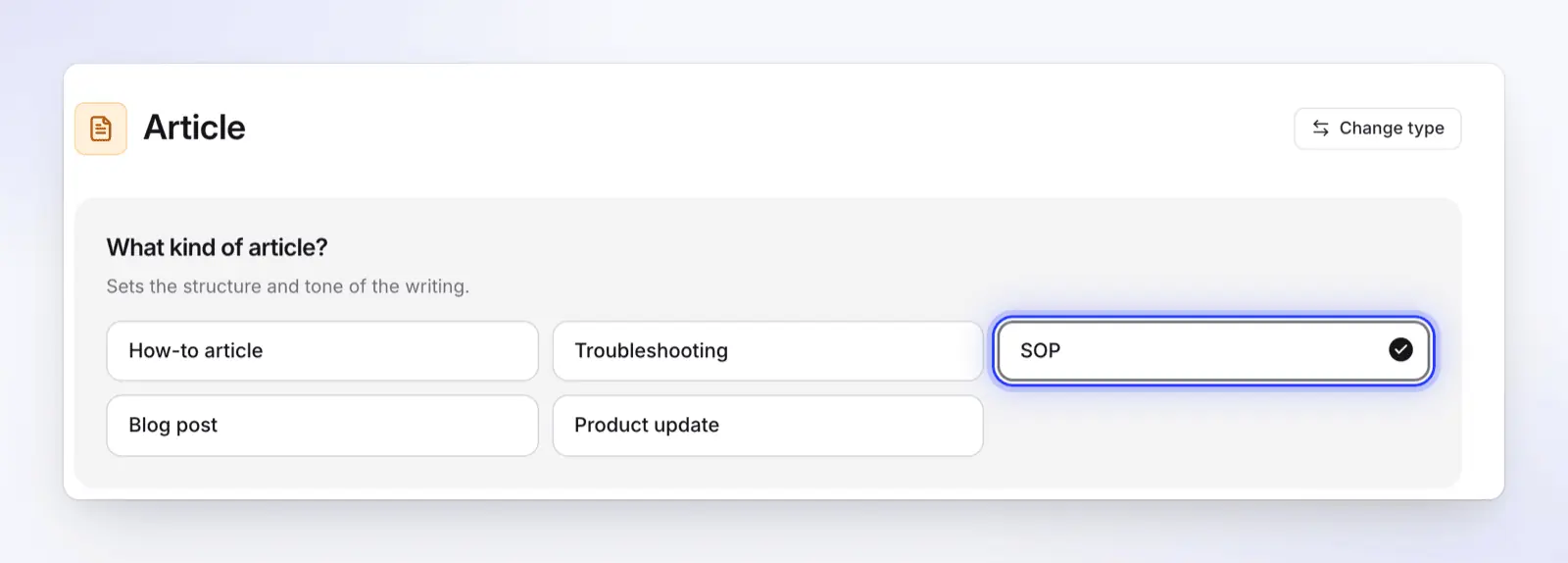
- Choose Article, then SOP. The SOP kind writes Purpose and scope, Prerequisites, Expected output, a numbered Procedure, Quality checks and, when the recording supports them, Exceptions and Recordkeeping and handoff sections, plus an optional FAQ. Steps name the UI labels, and screenshots are taken from the recording. Every setting is explained in the help article Turn a recording into an article.
- Click Generate article. An article usually costs 5–15 credits. When the recording comes from the desktop app, screenshots are taken just before each click and the click is ringed.
- Review and edit. Fix any step in the block editor, or use Ask AI to rewrite or translate. Every change is kept in revision history.
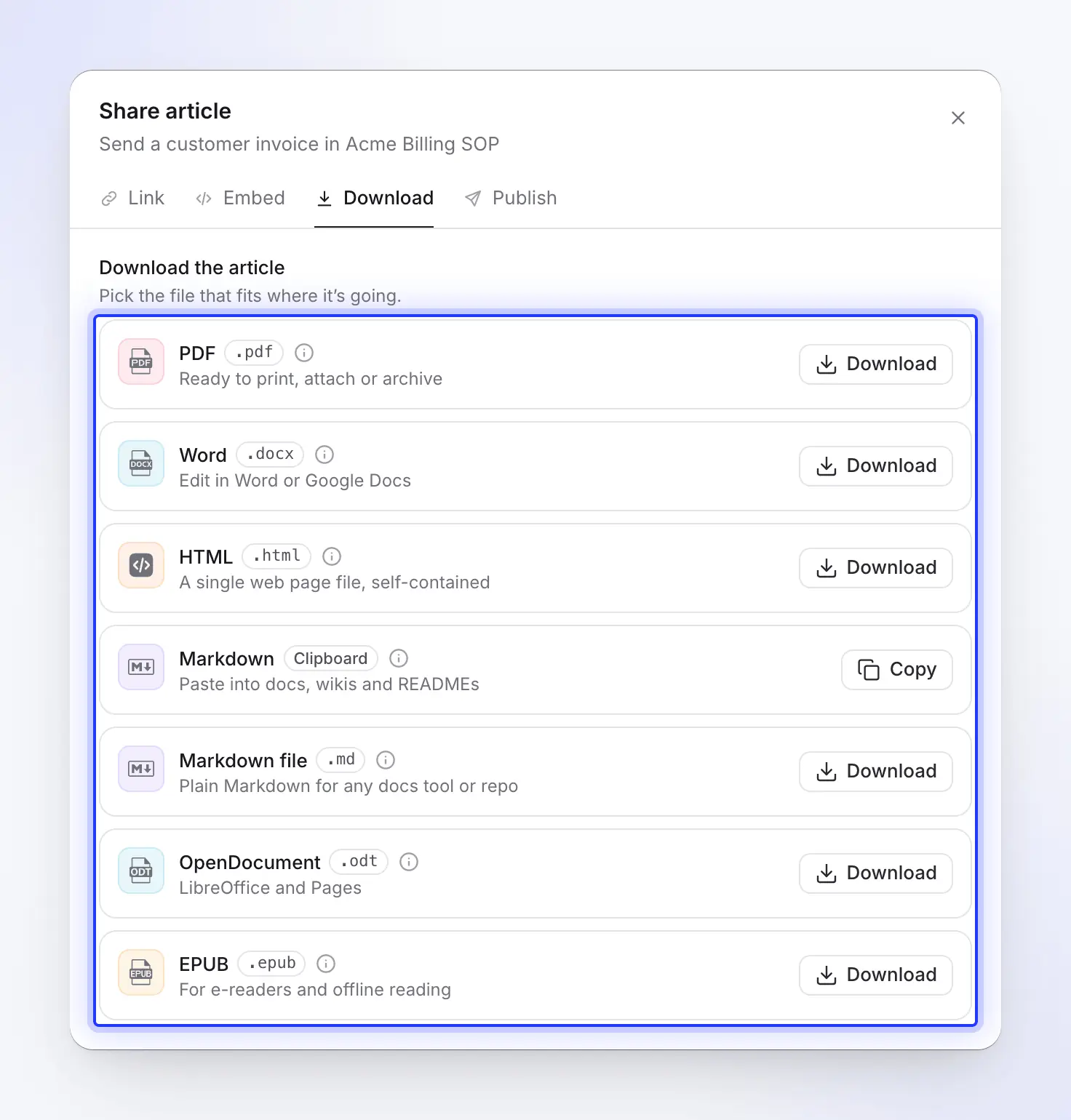
- Publish or download. Download the SOP as PDF, Word, HTML, Markdown, OpenDocument or EPUB, or publish it to your hosted help center.
The same recording can also become the narrated video version, so the text and the video show the same steps. When the app changes, edit that video instead of making a new one: rewrite the voice-over line of the changed step and Clevera records it again, or add narration over new footage of the changed screen. Every share link and embed of that video then plays the new version; downloaded MP4 files stay as they were. In the written SOP, replace the changed screenshots in the editor.
Plans, as listed on clevera.ai/pricing on 2026-11-04 (US prices):
- Free ($0, no card): 100 credits a month, recordings up to 3 minutes, articles and translations, one hosted help center. Videos are shared by link or embed; there are no MP4 downloads on Free.
- Starter ($36/month, or $29/month billed yearly): 900 credits, MP4 downloads up to 2K, a custom domain for the help center.
- Pro ($124/month for 2 creators, or $86.80/month billed yearly): adds publishing to Notion, Confluence, Google Docs, GitBook and other tools, and private help centers.
Clevera is not the right fit for every SOP. It writes from what happens on a screen, so physical procedures (packing an order, cleaning a machine) still need a writer. If you only need a one-page checklist, the template above is faster. If you only need a click-by-click screenshot guide from a browser, Scribe or Tango is quicker to capture with its browser extension, which saves a screenshot at each click. Clevera's Chrome extension records a video, not each click. Scribe also exports guides to Word on its paid plans (see Scribe vs Tango, or how Clevera compares with Scribe).
For screen-based SOPs, the AI SOP generator page shows more examples, and the full method is in how to create an SOP with AI. To draft a text-only SOP from a short description first, try the free SOP generator. Comparing tools? See the best AI SOP software.
FAQ
What are the main sections of an SOP? A header (title, ID, owner, version, effective and review dates), purpose, scope, roles and responsibilities, prerequisites, the procedure steps, quality checks, exceptions, and a revision history. Simple tasks can drop some of these; regulated ones often add definitions and approval signatures.
Is there an SOP template in Google Docs or Word? Use the one above. Paste it into a blank Google Doc or Word document, apply Heading 1 and Heading 2 styles to the section names, and save it as your team's master copy.
What are the types of SOP formats? Checklist, simple step-by-step, detailed step-by-step, hierarchical (phases with sub-steps) and flowchart, plus text with a video for software tasks. A routine task may fit on one page as a checklist; a multi-system task with approvals can run several pages. See the format table.
How often should SOPs be reviewed? At least once a year, and every 6 months for software that ships frequent updates. Also review whenever the process, the software or the rules change, ideally before a release that changes the screens the SOP shows.
Can AI write an SOP from a screen recording? Yes, for screen-based tasks. Tools such as Clevera write the steps with the UI labels and add screenshots from the recording. Someone who knows the process should still review the draft.
Turn your next recording into an SOP
Record the task once and get a step-by-step SOP with screenshots, plus a narrated video of the same steps. The Free plan needs no card.