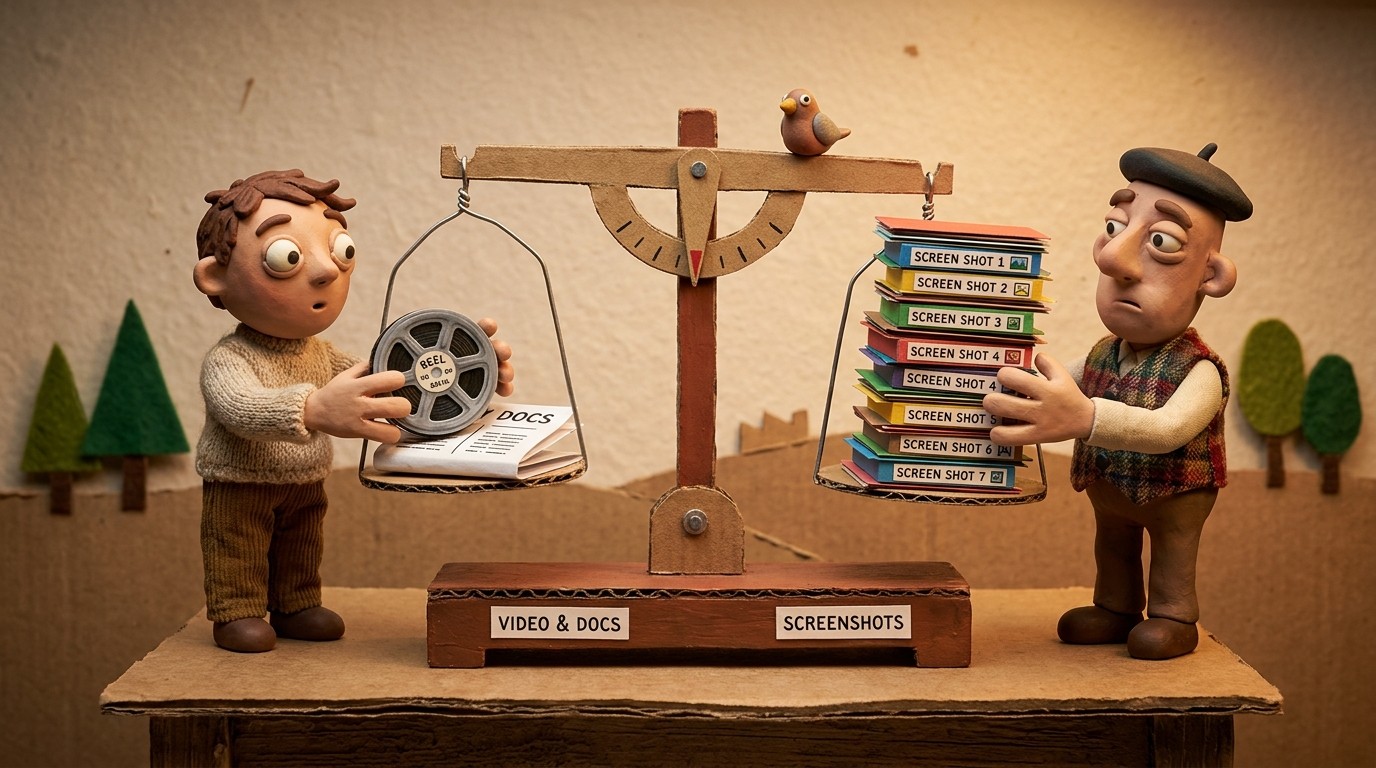
AI voice-over tool: get professional narration automatically
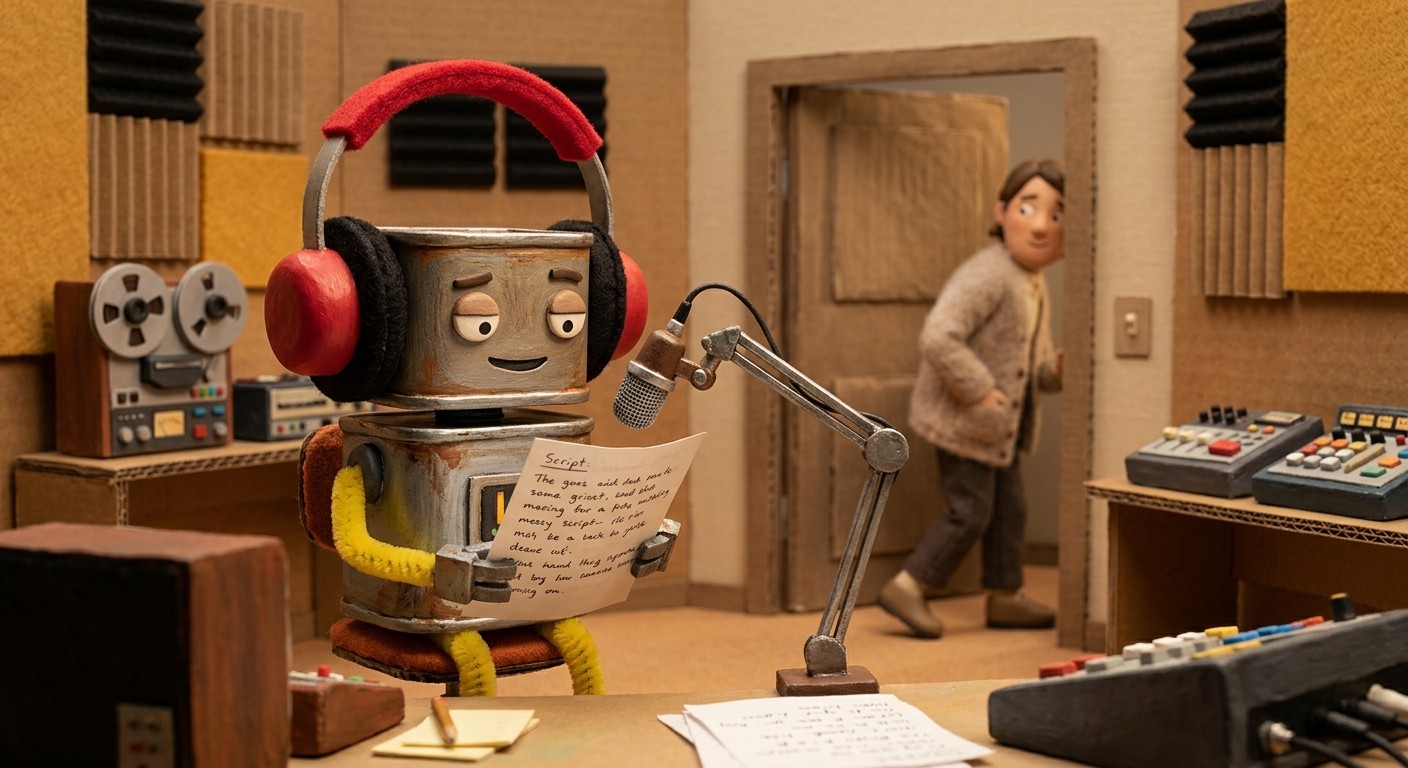
An AI voiceover tool is software that produces spoken narration for video without you recording live audio. Most tools fall into two groups: text-to-speech engines that read a script you write, and context-aware tools that analyze screen recordings and generate narration matched to each on-screen action.
Typical use cases for an AI voiceover tool:
1. Product tutorials and walkthroughs — narrate software demos for onboarding, sales, or help centers. 2. Support and how-to videos — turn screen recordings into polished explainers without a mic or studio. 3. Multilingual publishing — generate or dub narration in many languages from one source recording. 4. Consistent tutorial libraries — keep the same voice and pacing across dozens of videos your team produces.
Recording a screen walkthrough is fast. Adding a polished voiceover to it has always been the slow part. You need a script, a quiet room, a decent mic, and at least a few retakes. Most teams skip the narration entirely, which means their tutorials go out as silent slideshows that nobody watches until the end.
An AI voice-over tool removes that bottleneck. You capture what you're doing on screen, and the AI writes the script and narrates it for you, matching the audio to every click and transition automatically.
What an AI voice-over tool actually does
A proper AI voiceover generator doesn't just read text aloud. It analyzes context. When it sees you clicking "Create new workspace" in an app, it understands that action and writes a sentence that explains it naturally, not just reads a tooltip.
That's different from generic text-to-voice generators, which need you to hand them a script first. Those tools are useful, but they don't save you the hardest part: writing.
The best AI voice-over tools handle the full pipeline:
1. Analyze on-screen actions and context 2. Draft a voiceover script based on what happened 3. Generate narration using AI voices that sound natural 4. Sync the audio timing to match your video frame by frame
The result is a narrated video you didn't have to script, record, or edit the audio for.
How Clevera's AI voice-over tool works
Clevera is built around this exact workflow. You record your screen using the Clevera desktop app (available on Mac and Windows), and when you stop recording, the AI takes over.
It removes accidental clicks and dead pauses, analyzes every interaction in context, and generates a voiceover script. Then it produces the narration using your choice of AI voice and tone, and syncs it precisely to the video timeline.
You don't need to say a word during recording. The AI generates the narration whether you spoke or stayed silent.
From there, you can:
Review and rewrite any line of the script
Pick from different voices and speaking styles
Add your own custom voiceover to specific timestamps
Regenerate any section with one click after editing
This makes Clevera's AI voice-over tool different from tools that just convert text to speech. The context-awareness is what makes the narration sound like someone who understands the product, not a robot reading instructions.
Why voice consistency matters across a tutorial library
If you're building a library of tutorials across your product, voice consistency matters. Every video should sound like it came from the same narrator, with the same pacing and tone.
Clevera supports voice cloning, which means you can capture your own voice profile and use it across all your tutorials. New videos sound exactly like the previous ones. Your CS team can create tutorials without coordinating recording sessions. The voice stays consistent whether 1 person or 10 people are creating content.
This is particularly valuable for SaaS teams that publish onboarding videos, help center content, and product walkthroughs on a regular cadence.
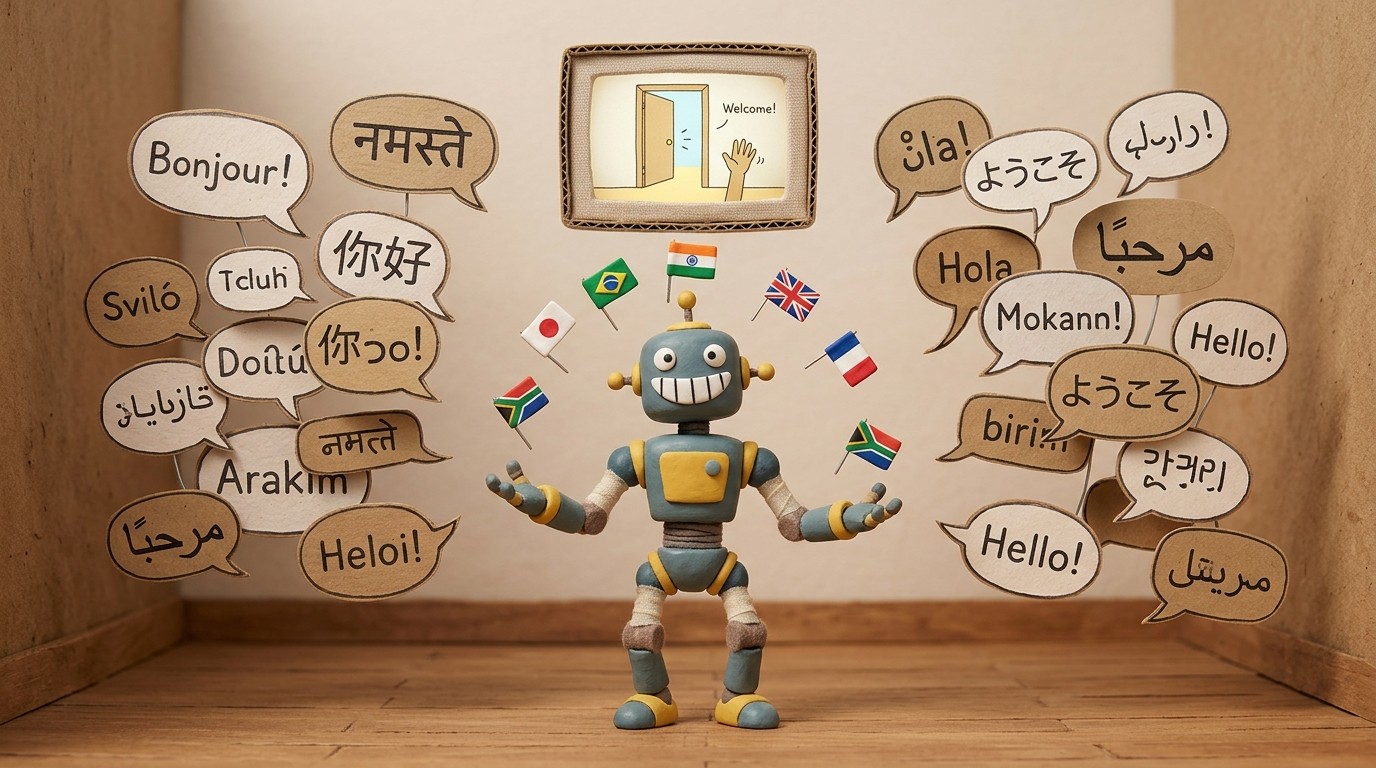
AI video dubbing: one recording, 70+ languages
Once your video has an AI-generated voiceover, translating it takes seconds. Clevera translates both the narration and the on-screen text into 70+ languages with one click. The AI video dubbing syncs the translated audio to the original video timing automatically.
This means a product team can create a walkthrough in English and have it ready in German, Japanese, French, and Portuguese the same day. No separate recording sessions. No translation agency. No timeline slippage.
For any SaaS company with international users, this changes what's practical.
Setting up your AI voiceover workflow in Clevera
Here's how the full workflow runs:
Step 1: Record your screen with Clevera Open the Clevera desktop app and hit record. Walk through the feature, flow, or process you want to document. Speak if you want, stay silent if you don't. Either way works.
Step 2: Let the AI process the recording After you stop recording, Clevera sends the captured data to its servers. The AI removes noise, analyzes context, and drafts your voiceover script. This typically takes a few minutes.
Step 3: Review and refine Open the timeline editor. Read through the generated script. Most of the time it's accurate, but you can rewrite any line if needed. Swap voices, adjust tone, add your own recording to specific sections.
Step 4: Publish and embed Export as MP4 or embed with an HTML snippet. Clevera's LiveSync feature means you can update the narration later and the change appears everywhere the video is embedded, with no re-export needed.
What to look for in an AI voice-over tool
Not all AI voiceover tools are equal. Here's what separates the useful ones from the gimmicks:
Context-aware scripting. The tool should understand what's happening on screen, not just convert your text to speech. If you have to write the script yourself, it's a text-to-speech converter, not an AI voice-over tool.
Editing control. You need to be able to rewrite the script and regenerate audio without re-recording the video. Line-level editing matters.
Voice quality and variety. The narration needs to sound like a professional, not a first-generation synthesizer. Multiple voice options and tone settings help you match the product's personality.
Language support. If your product has international users, translation and dubbing are table stakes.
Sync accuracy. The audio has to match the video. Frame-level synchronization is what makes the difference between "this sounds off" and "I can't tell this was AI-generated."
Where AI voiceover fits into a broader tutorial workflow
An AI voice-over tool is one piece of what a mature AI tutorial maker does. Narration is the part that makes a screen recording feel finished, but the rest of the workflow matters too: editing, formatting, publishing, keeping videos current as the UI changes.
Clevera handles the full stack. You record once, get a narrated video and a written help article simultaneously, and publish to Notion, Confluence, HelpScout, Zendesk, or any other platform your team uses.
If your team has been putting off building a tutorial library because the narration step felt too expensive or too slow, AI voiceover tools have closed that gap. The bottleneck is no longer the recording. It's deciding what to record first.
Start with your most-asked support questions. Record the answer once. Let Clevera narrate it. You'll have your first 5 tutorials done before the end of the day.