How to migrate your help center without losing traffic
Move your help center to a new platform without losing search traffic: URL inventory, 301 redirect map, DNS switch, launch checks and what to watch.
 Berkay Akpolat15 min read

To migrate a help center without losing traffic, keep every old URL working. List every address the old help center has, map each one to its new page, and serve permanent (301) redirects from the old hostname by moving that hostname to the new platform. Then switch over in a quiet hour, test every redirect, update the links you control and watch Search Console for a few weeks.
Updated November 3, 2026. For support and docs leads moving off Zendesk Guide, Intercom Articles, Help Scout Docs, Document360, GitBook or a similar tool. Google guidance quoted from Search Central as of that date.
What loses traffic when you move a help center?
Copying articles is the easy part. Traffic is lost in the gaps around them:
| What goes wrong | What readers and Google see | Fix |
|---|---|---|
| Article addresses change and nothing redirects | 404 pages; those pages drop out of the index | A 301 for every old URL (step 2) |
| The old hostname goes away with the old tool | Every old link fails at once | Keep the hostname, move it to the new host (step 3) |
| Everything redirects to the new home page | Google may treat it as a soft 404 | Redirect one to one, to the closest page |
Translations stay behind, or hreflang still points at old URLs |
Non-English pages drop out of local results | Move each language and update hreflang |
| Images and attachments still load from the old tool | Broken screenshots and downloads when the account closes | Copy them and map attachment URLs too |
| Product, macro and email links point at old URLs | Extra hops, then 404s if a redirect is ever removed | Update the links you own (step 5) |
The new site launches with noindex, or robots.txt blocks the old paths |
Pages fall out of the index; Google never sees the 301s | Launch checks (step 7) |
Google's guide to site moves with URL changes starts with the map: "It's important to map your old site's URLs to the URLs for the new site." It recommends permanent server-side redirects (301 or 308).
Why it matters: a help center only deflects tickets when people find the right page. In a Gartner survey of 5,728 customers (published August 2024), only 14% of service issues were fully resolved in self-service, and in 43% of failed cases customers couldn't find content relevant to their issue. A migration that leaves readers on 404s adds to that number. More figures are in our customer self-service statistics.
Step 1: How do I list every URL my help center has?
Build one spreadsheet with a row per old address. Use several sources, because each one misses something:
- The sitemap. Most hosted help centers publish
sitemap.xml, often with one file per language. Download every sitemap file now: once DNS moves, the old platform stops serving them at your hostname. - Search Console. Export the Pages and Performance reports (longest date range). The export stops at 1,000 rows, so for a larger help center use the Search Console API or a crawler in list mode. Verify the help center hostname now (a Domain property covers every subdomain), so you have a baseline before the move.
- The platform's API or export. It gives you article IDs, section IDs and every language. Zendesk has the Help Center API, Intercom only the REST API (there's no export button), Help Scout the Docs API, and Document360 a ZIP export of Markdown, HTML or JSON.
- Attachments and embedded files. PDFs and downloads attached to articles carry backlinks too. Add their URLs to the list.
- Analytics and backlinks. Your top landing pages and the pages other sites link to are the ones that must not break.
Add columns for article ID, language, monthly clicks, backlinks, the new URL and a "tested" column. Sort by clicks.
Step 2: How do I build the redirect map?
Each platform has its own URL pattern. The article ID in it is what lets you pair old pages with new ones:
| Platform | Article URL pattern | Also map |
|---|---|---|
| Zendesk Guide (now Zendesk Knowledge) | /hc/en-us/articles/360001234567-Reset-your-password |
Section and category pages, attachments, every locale (/hc/de/…) |
| Intercom Articles | /en/articles/1234567-reset-your-password |
Collection pages and other language prefixes |
| Help Scout Docs | /article/123-reset-your-password |
Category and collection pages |
| Document360 | /docs/reset-your-password or /v1/docs/… |
Category pages and language paths |
| GitBook, Mintlify, Docusaurus | The path follows your page tree | Old versions and pages you moved |
Patterns as they appear on each vendor's own help center or docs on November 3, 2026; yours may differ if you customized them.
Rules that keep rankings:
- One old URL, one new URL. Point each article at its own new page. Google warns that sending many old URLs to one page such as the home page "might be treated as a soft 404 error".
- Cover the variants that get traffic. Old links often carry an older slug, or none (Zendesk serves
/hc/en-us/articles/360001234567without the slug too). If the new platform supports pattern or wildcard redirects, match on the ID. If it matches exact paths only, add rows for the variants that actually appear in Search Console, analytics and backlinks. - One row per language.
/hc/de/articles/…should land on the German page, not the English one. - No chains. Google's crawler follows up to 10 hops, but its guide says to avoid chaining and redirect straight to the final page. If you migrated before, update those old redirects too.
- Retire pages on purpose. If an article is gone and nothing replaces it, let it return 404 or 410. Google's crawling-error guide says to return a 301 when a page "has moved or has a clear replacement".
Count before you choose a platform. Articles × languages, plus sections, categories, attachments and slug variants. A 300-article help center in 3 languages needs about 900 article redirects before anything else. Some platforms cap redirects per site by plan, and some skip redirects over the cap without failing the import.
Step 3: Should we keep the same help center domain?
Yes, whenever you can. A redirect only runs on a hostname that answers requests. If your help center lives at help.yourcompany.com, keep that hostname and, at cutover, point it at the new platform with a DNS change (usually a CNAME). The new platform then answers the old paths with 301s, so old links, bookmarks and search results keep working.
If the URLs stay identical, Google treats it as a site move without URL changes. If only the paths change on the same hostname, you need the 301 map, but not Search Console's Change of Address tool.
| Where your old help center lives | What to do |
|---|---|
Your own subdomain (help.yourcompany.com) |
Keep it. Load the redirect map on the new platform, then move the subdomain at cutover (step 6). |
Only the vendor's address, on Zendesk (yourcompany.zendesk.com/hc/…) |
While Guide is still active, Zendesk's Redirect Rules API can send article URLs that return 404 to a full external URL: up to 50,000 rules per brand, on all Guide plans except Guide Lite Legacy, for archived or deleted articles. That means keeping Guide active for as long as you keep the redirects. |
Only the vendor's address, on Intercom (intercom.help/yourcompany) |
Intercom's redirects only point inside the same help center. Workaround: first connect your own subdomain in Intercom (old intercom.help links then redirect to it), then move that subdomain to the new platform. Whether intercom.help links keep redirecting after that isn't documented, so test it. |
| Only the vendor's address, on Help Scout | Help Scout Docs redirects can point to an external address. Check the status code with curl -I; it isn't documented. |
A new hostname on purpose (support. to help.) |
The old hostname must keep serving 301s. Verify both hostnames in Search Console and use the Change of Address tool, which works at domain or subdomain level (not for path moves) and needs a 301 from the old home page to the new one. |
So: avoid changing hostnames if you can. An analysis of 1,052 domain migrations by SEO agency SALT.agency (June 2026) found a median of 304 days to return to pre-migration traffic. Those were whole-domain moves, not help center swaps, but they show what is at stake when old addresses change.
Step 4: How do I move the content itself?
Use an importer if the new platform has one for your old tool. Otherwise export through the old tool's API and convert to Markdown or HTML. Zendesk Guide has no export button: you export through the Help Center API (articles, sections, categories, translations) or a marketplace app. After the import, check:
- Structure: categories, sections and order. Deep trees may be flattened.
- Images and attachments: copied to the new platform, not hotlinked to the old tool's storage. Images in restricted Zendesk articles need an authenticated (API) download.
- Translations: each language arrives as its own page, linked to the original. If you're adding languages at the same time, see how to translate a help center and its videos.
- Internal links: links between articles point at the new addresses.
- Restricted content: drafts, internal notes and articles limited to certain users. Make sure none goes public by accident.
From here until cutover, freeze edits in the old tool, or re-import the changes just before you switch.
Step 5: Which links should we update ourselves?
Redirects catch outside links. Links you own should point straight at the new URLs:
- Help links and tooltips inside your product
- Saved replies, macros and canned responses
- Your chat widget's suggested articles, and any AI agent or chatbot that answers from the help center (point its knowledge source at the new site)
- Onboarding and lifecycle emails
- Your website's footer, status page and docs links
- Videos and PDFs that show a help center address
Step 6: How do we switch over without downtime?
| When | What to do |
|---|---|
| A week before | Lower the DNS record's TTL to a few hours (Google's host-move guide suggests doing this at least a week in advance). Save the old sitemaps. Confirm Search Console access. |
| The day before | Freeze edits in the old tool and re-import any changes. Test the whole redirect map on the new platform's temporary address, if it serves redirects there. |
| Cutover, in a quiet hour | Change the CNAME. Most hosted platforms issue the HTTPS certificate only after DNS points at them, which can take minutes, so watch for it to go live. Some platforms need a plain CNAME, without a proxy or CNAME flattening in front. |
| Right after | Run the full redirect test (step 7). |
| The next 30 days | Monitor (below). |
Step 7: What should we check on launch day?
- Test every row of the map, not a sample. A crawler in list mode, or the short loop below the checklist, does it in minutes. Each old URL should return 301 (or 308), not 302, and land on its new URL in one hop.
- Open the 20 busiest old URLs in every language by hand and check the page is the right one.
- Each new page has a self-referencing canonical tag, and language versions link to each other with
hreflangon the new URLs. -
robots.txtallows crawling, including the old paths (such as/hc/), so Google can see the 301s. No page carriesnoindexby mistake. - Submit the new sitemap in Search Console. Google also suggests submitting the old one so it recrawls the redirects; if you can't host it anymore, check your top old URLs with URL Inspection instead.
- Search, the AI assistant, feedback and the contact form work on the new site.
The loop reads a file with one old URL and its new URL per line, and prints each old URL's status code and where it redirects:
while read old new; do
  curl -s -o /dev/null -w "%{http_code} %{redirect_url} $old\n" "$old"
done < map.tsv
How long should we keep the redirects?
Google's answer: "Keep the redirects for as long as possible, generally at least 1 year." In practice, keep them for as long as you run the help center. Old links live on in forum answers, support emails and other sites for years, and a redirect costs nothing to keep.
What should we watch in the first weeks?
Google says to "expect temporary fluctuation in site ranking during the move" and that "a small to medium-sized website can take a few weeks for most pages to move". Each week, check:
- Search Console, Pages: new "Not found (404)" entries point at missing redirects.
- Search Console, Performance: clicks to new URLs should rise as the old ones fall.
- Redirect hits: which old URLs still get traffic, and from where.
- Searches with no results on the new help center: readers telling you what didn't come over. Our guide to help center content gaps shows how to work through them.
How does Clevera handle a help center migration?
Clevera is an AI platform that turns a screen recording into a narrated how-to video, a step-by-step help article and a page on your hosted help center, in 74 languages. Its help centers import from the tool you use today, on every plan, at no cost.
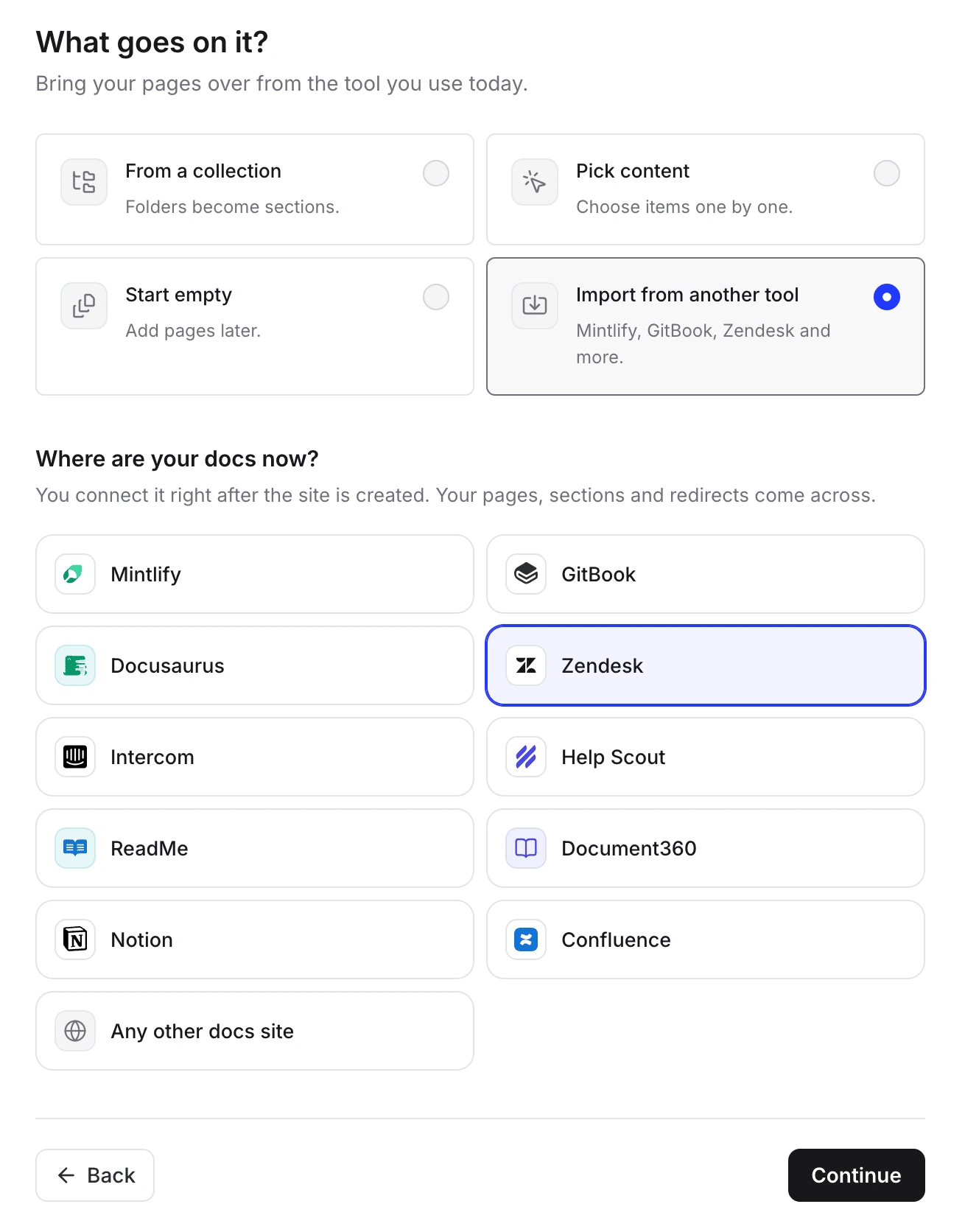
- Importers: Zendesk, Intercom, Help Scout, Document360, GitBook, ReadMe, Mintlify, Docusaurus, Notion, Confluence, or any other public docs site or zip of Markdown or HTML. You connect with an API token, the public site, a Git repository or a zip, depending on the platform. Intercom is read from the public site only, so private Intercom articles stay behind. A Zendesk or Document360 token brings translations into the languages you've added to the site. See the guides for importing from Zendesk Guide, Intercom Articles, Help Scout and Document360.
- Redirects from the old addresses: Create redirects from the old addresses is on by default when the source has web addresses, and Help Scout's own redirects come along. They work once your own domain points at Clevera. Redirects match exact paths (no wildcards), so add slug variants that still get clicks as manual redirects.
- Review first: a preview to untick pages, a report with warnings, and Undo import until any imported page is published. Where the source says a page isn't public, it's flagged Restricted and starts unticked.
- Limits that decide whether you keep your traffic:
- Redirects need your own domain, which needs Starter or above, so on Free the old links won't redirect.
- Redirects an import creates count toward the plan's manual redirect limit, and any over it are skipped: 500 per site on Starter, 2,000 on Pro. 2,000 is the most any site can have.
- Published languages per site: 5 on Starter, all on Pro.
- 2,000 pages per import.
- Redirects Clevera adds later, when you rename or move a page, are automatic and don't count.
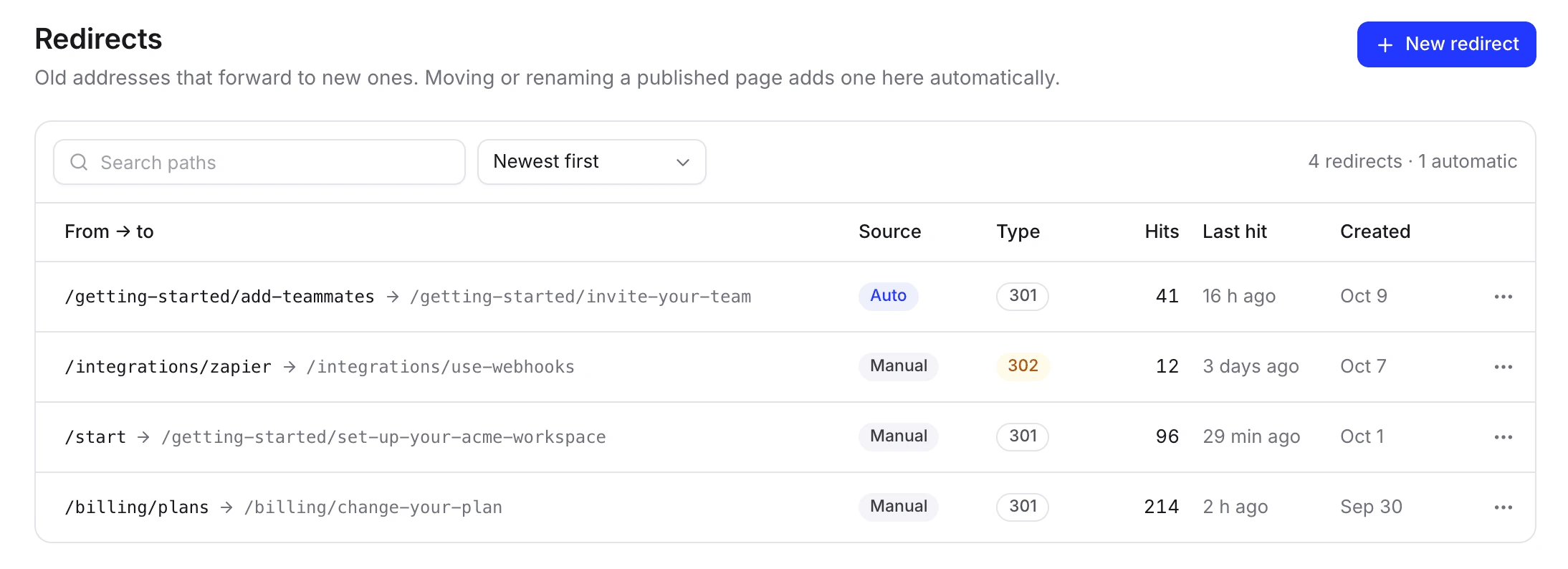
After the move you get search, an Ask AI assistant that answers readers from your published pages with sources, a sitemap and llms.txt (see how to make documentation AI-ready), and insights on searches that found nothing. You can export the whole site as HTML or Markdown at any time. On Pro and Custom, Autopilot can watch your releases and plan updates to the articles and videos they affect, for you to approve.
When Clevera is the wrong move: if your old help center has more than 2,000 addresses to redirect, if it must live in a folder of your main site (example.com/help; Clevera connects subdomains only), if it has to stay inside your ticketing tool, or if you depend on Zendesk-only features such as custom user segments. Our comparisons of the best help center software for SaaS and of Zendesk Guide alternatives cover other options, and how to build a knowledge base covers the structure to aim for.
Try the import before you move anything
Import a copy of your help center into a free Clevera help center and review the result. Nothing changes in your current tool or DNS until you decide.
The full steps are in Import and export a doc site, and the help center software page shows what you get after the move.
FAQ
Will we lose Google rankings when we change help center software?
Usually only briefly, if every old URL redirects to its matching page and the content stays the same. Google says to expect "temporary fluctuation". Lasting losses usually come from 404s, redirects to the home page, or an old hostname that stops answering.
Can we keep exactly the same URLs?
Rarely. Most platforms use their own URL pattern and can't reproduce /hc/en-us/articles/…; ask before you choose. Keeping the same hostname with a full 301 map gives readers and search engines the same result.
What's the difference between a help desk migration and a help center migration?
A help desk migration moves tickets, contacts and macros between support tools, usually with a migration service. A help center migration moves the public articles readers find in search, so the work is about URLs, redirects and the domain. You can do one without the other.
Do we have to move our tickets too?
No. A help center can move on its own while the inbox, ticket history and chat stay where they are. Point your widget, macros and AI agent at the new help center.
Should we use 301 or 302 redirects?
301 or 308. Google treats those as permanent and uses the new page as the canonical one. A 302 says the move is temporary.
How long does a help center migration take?
An import can take minutes. Plan a few days for the URL inventory, review and testing, a week of lead time for the DNS TTL, and a few weeks of monitoring afterwards.
What happens to the AI answers in our old tool?
They stay with the old tool. Check whether the new platform answers readers from your articles, which plan includes it, and whether it charges per answer, per resolution or within a monthly allowance.