Your help center's search bar is telling you what to write next
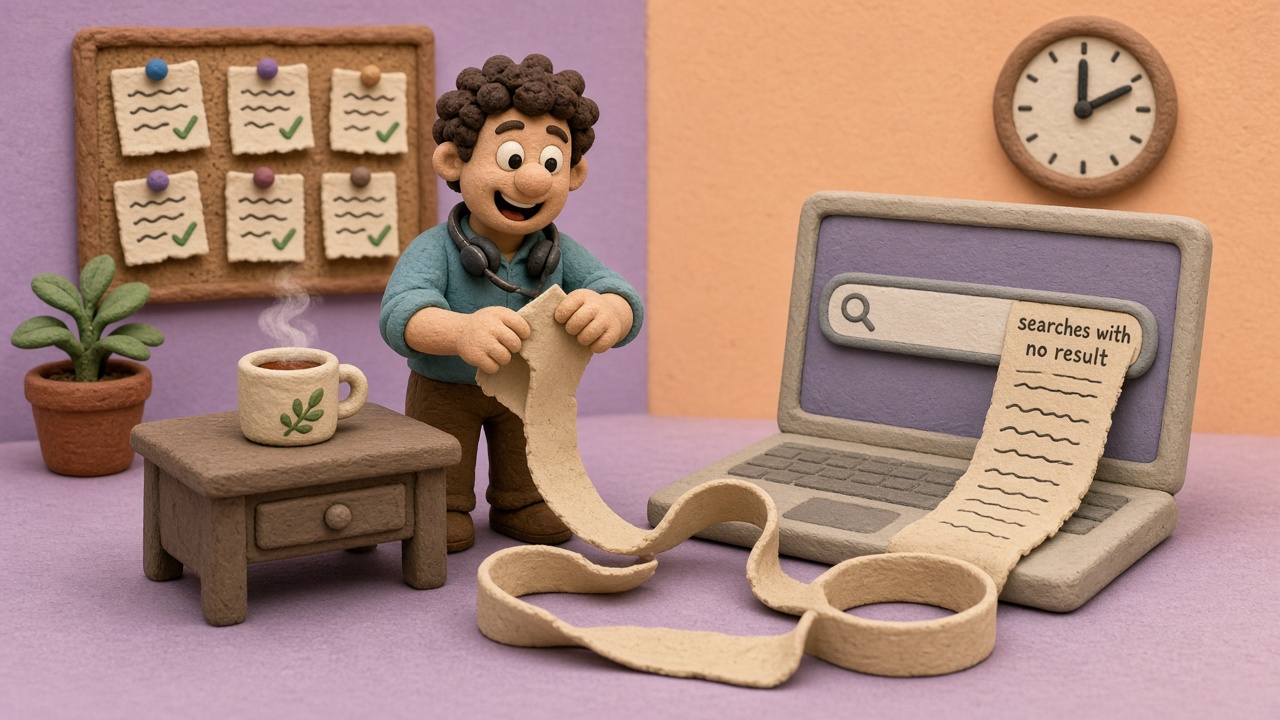
Every week, your readers type questions into your help center search bar. Some of those searches come back empty. That list of empty searches is the most useful thing your help center produces, and most teams never open it.
This guide shows how to find your help center content gaps, pick the ones worth fixing, and fill them with a page that has both a narrated video and a written article. The first round takes an afternoon. After that, it's a 20-minute habit every Monday.
Why empty searches are the most honest feedback you get
Ticket tags tell you what people complained about. Page views tell you what people found. Empty searches tell you what people wanted and couldn't find, in their own words, at the moment they needed it.
That last part matters. Nobody writes "refund" in a survey. They type it into your search bar at 11 PM when they want their money back. If nothing comes up, a share of those people open a ticket, and the rest leave.
Empty searches usually fall into two groups:
- Missing pages. You have no article about exporting to CSV, so the search for "export to csv" finds nothing.
- Missing words. You do have the article, but it's called "Cancel your subscription" and your readers search for "refund". The content exists. The vocabulary doesn't match.
The fix for each is different, so keep them apart from the start. Missing words take 2 minutes. Missing pages take a bit longer.
Step 1: get your help center somewhere that shows you the gaps
You need two things: a help center with search, and a report that lists searches with no result. Most help center tools have some version of search reporting. If yours doesn't, or it's buried, you can move your existing articles into a Clevera doc site and get it there.
Doc sites are on every Clevera plan, including Free. Import is free too. It brings over pages, images and internal links from Zendesk, Intercom, GitBook, Mintlify, Help Scout, ReadMe, Document360, Notion, Confluence, Docusaurus and other docs sites. What else comes over (translations, redirects) depends on the tool you're leaving. There are guides for importing a Zendesk help center, moving Intercom articles, migrating from GitBook and migrating from Mintlify.
Once your readers have been searching for a week or two, open the site's insights. You're looking for two lists:
- Searches that found nothing. In a Clevera doc site, these show up as content gaps, with the query, how many times it was searched, and when.
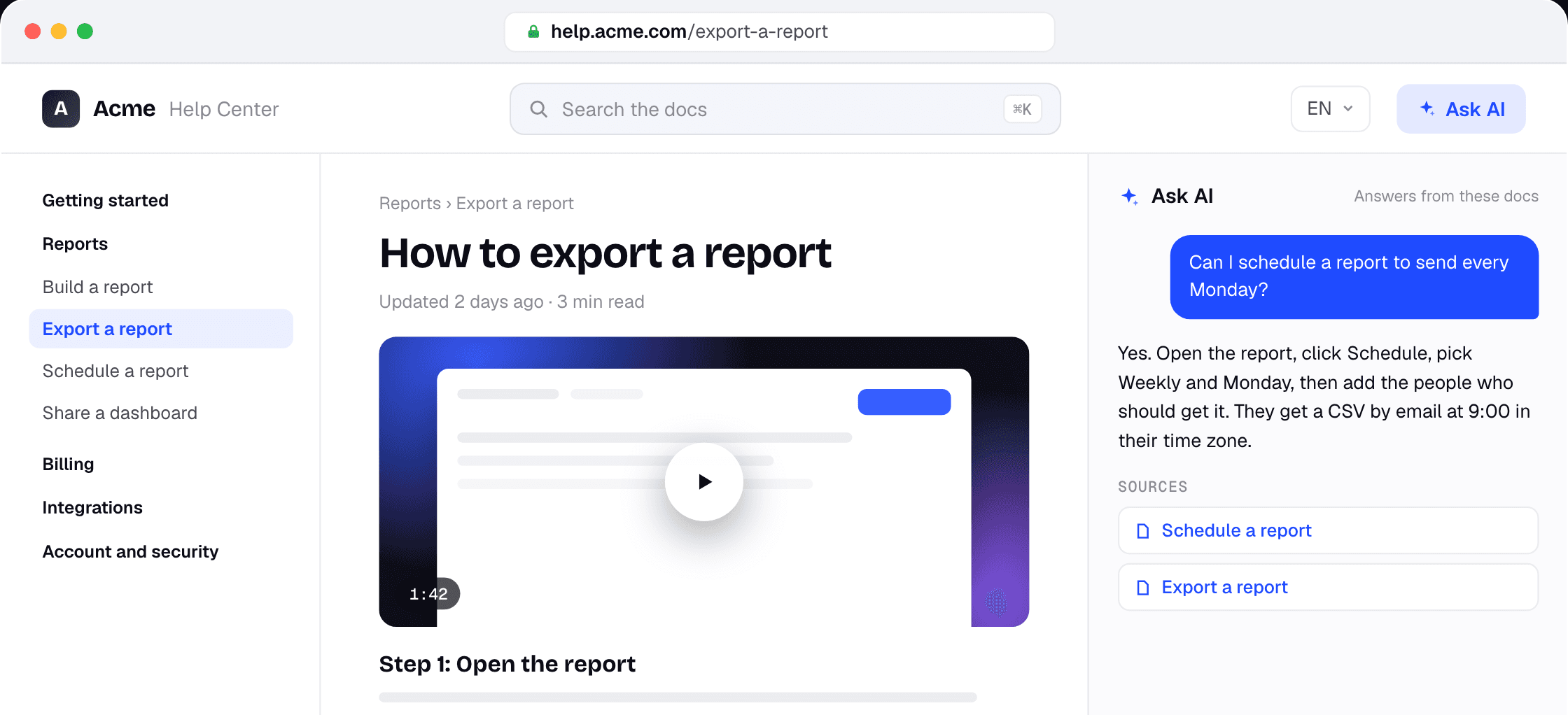
- What readers ask Ask AI. Ask AI is the reader assistant on the site. It answers from your published pages and lists its sources. The questions people type there are longer and more specific than search queries, so they often explain what a two-word search meant.
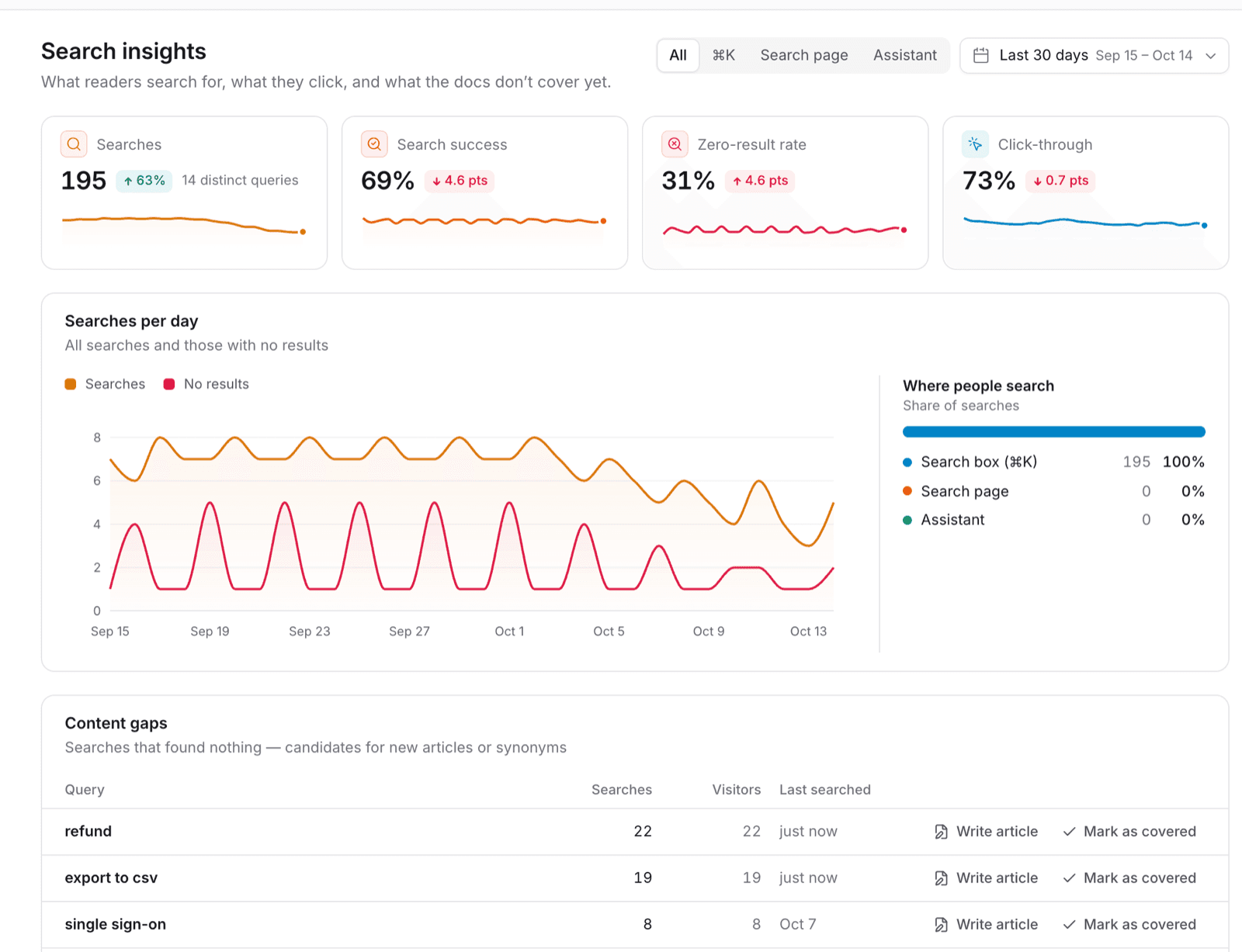
Step 2: pick your top 5 gaps
Don't try to fix everything. Sort the list by number of searches and take the top 5. Then, for each one, ask three quick questions.
Is this a missing page or a missing word? Search your own help center for the topic using your team's words. If the article exists, add the reader's word to its title, first paragraph or a heading. Done. Mark it covered and move on.
Is it a "how do I" or a "what is"? "How do I export to CSV" is a task with clicks. "What is single sign-on" is an explanation. Tasks need to be shown. Explanations can be written.
Does it need a video, an article, or both? Here's the rule Sam uses:
| The gap is about | Make |
|---|---|
| A task with 3 or more clicks in your product | Narrated how-to video plus article |
| A setting, a limit or a policy | Article only |
| A concept people keep misunderstanding | Article, maybe a short video later |
| A word mismatch | Edit the existing article |
For Sam, the top 5 looked like this: "refund" (word mismatch, existing cancellation article), "export to csv" (task, video plus article), "single sign-on" (setting, article only), "invite teammate" (word mismatch, the article said "add users"), and "change billing email" (task, video plus article).
That's 2 edits, 1 short article and 2 video-plus-article pages. Very doable in an afternoon.
Step 3: fill one gap end to end
Take your biggest task gap. For Sam, that's "export to csv".
Write down what the reader was trying to do
Use the exact search phrase as your starting point. "Export to csv" becomes the article title "How to export your data to CSV". Keep the reader's words in the title so the next search finds it.
Record the flow once
Open your product and do the task, start to finish, while recording. You don't need to talk. Use the Clevera desktop app, or upload a recording you already have. If the flow is on a public web app, Record with AI can capture it from a written instruction. It can't record desktop apps, localhost or pages behind your intranet.
Turn the recording into a narrated video and an article
From the one recording, Clevera makes a how-to video with an AI voiceover and a step-by-step article with screenshots. They're two separate items, generated one after the other, and each uses credits. Read the article once and fix anything the AI got wrong. You know your product. It doesn't, yet.
Put the video inside the article
Add the video block at the top of the article, above step 1. Readers who want to watch, watch. Readers who want to skim, skim. Both land on one page.
Publish and close the gap
Publish the site. Then go back to the content gap and mark it covered, so next week's list only shows what's still open.
Now repeat for the other task gap. The article-only gap is quicker: write it, keep the reader's phrase in the title, publish.
If you want a checklist for what goes inside each article, we wrote one: the 7 sections that make a help center article work.
Step 4: re-check a week later
A week after you publish, open the insights again and check three things.
- Did the search stop failing? The query should drop off the content gaps list. If it's still there, the title or wording doesn't match what people type. Fix the words, not the page.
- How did the new page rate? Doc sites collect page ratings and reader feedback. A low rating on a fresh page usually means a step is missing or the video skips something.
- What's new on the list? There will be new gaps. There always are. That's your next batch.
Also watch the zero-result rate over a month or two. One week tells you little. A trend tells you whether the habit is working.
The 20-minute Monday routine
After the first afternoon, this becomes a small weekly job. Sam's version:
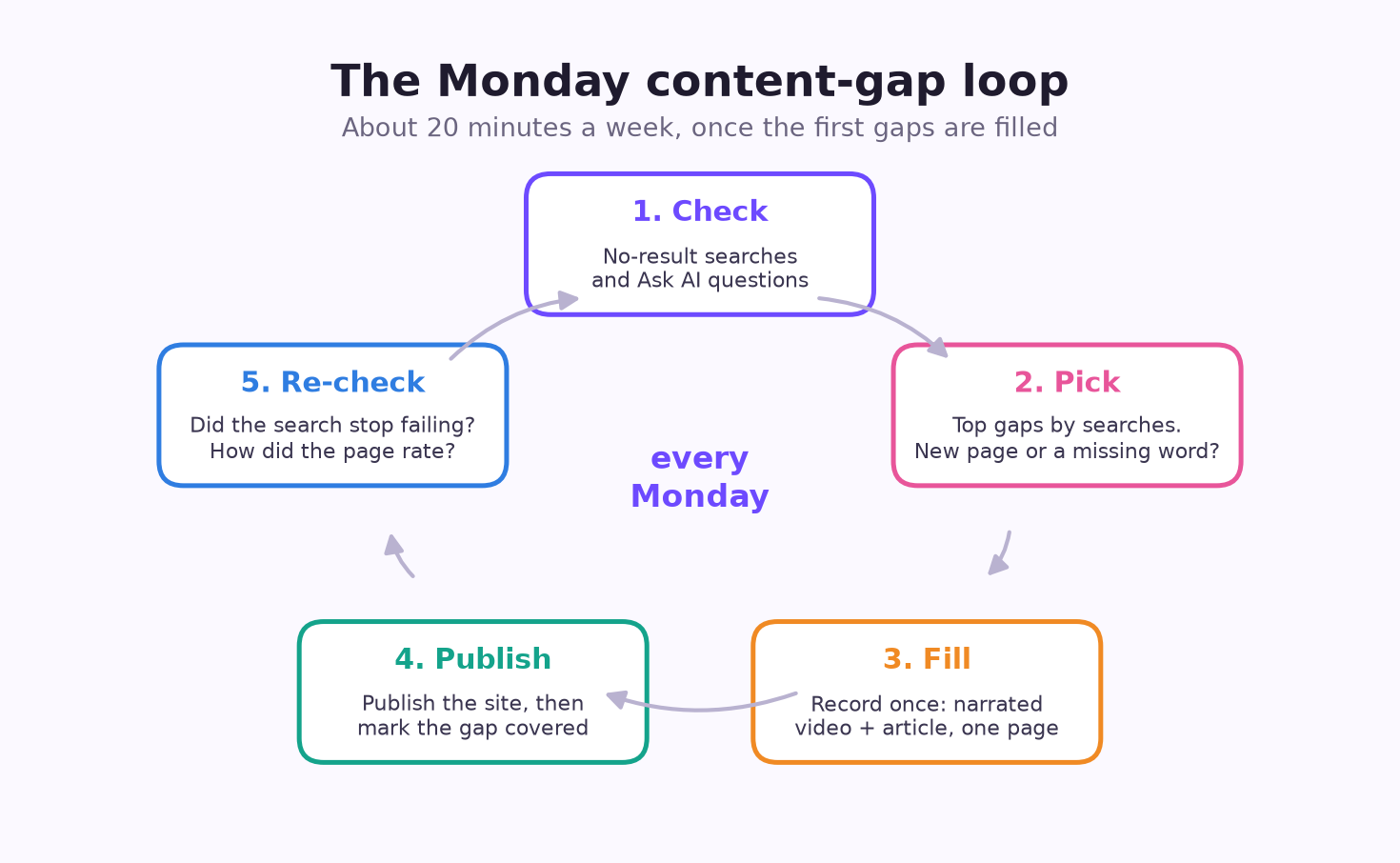
- 5 minutes: open the content gaps list and the Ask AI questions. Note the top 3 new gaps.
- 5 minutes: fix any word mismatches on the spot.
- 10 minutes: start one new page. Record the flow and let the video and article generate. Review and publish later in the week if it needs more time.
Twenty minutes isn't a lot. But 50 Mondays is 50 fewer gaps, and every one of them was a question someone actually asked.
When this isn't worth it
Be honest with yourself about traffic. If your help center gets a handful of searches a week, the content gaps list will be short and noisy. One person searching "asdf" twice doesn't make a gap.
In that case, skip the weekly routine. Your support inbox is a better signal. Write down the questions you answer more than twice, and turn those into pages instead. Come back to the search report when traffic grows.
And if your help center is mostly reference material (API docs, long policy pages), video won't help much. Article-only fixes are fine there.
Your search bar already wrote the to-do list
You don't need a content strategy meeting to decide what to write next. Your readers already told you, one empty search at a time. Open the list, take the top 5, and fix them this week.
For more on keeping what you've written accurate, see how to keep your knowledge base up to date. For tool options, see the best knowledge base software with video.
Find out what your help center is missing
Import your help center for free, see which searches come back empty, and fill the gaps with a narrated video and an article on one page.