How to translate your help center and its videos together

Most teams translate the help center text and leave the videos in English. A Spanish reader then gets a Spanish article with an English voice talking over it, which is worse than no video at all. If you translate the help center and videos together, each language gets its own article plus a video with its own voice-over and captions.
This guide covers the general method first: what to translate, the glossary, native review, URLs and hreflang, and keeping languages in sync after updates. Then it shows how Clevera does it, including the one place it falls short today.
Decide what to translate first
You don't need every article in every language on day one. Start with the pages that cost you tickets.
Getting started and setup. New users in a new market hit these first.
Your top 20 articles by views. Your help center analytics already tell you which ones.
Billing and account pages. People want these in their own language, and mistakes here turn into refunds.
Every video inside those pages. If an article has a video, the video is part of the article. Translate both or neither.
Pick languages from data too: support tickets by language, signups by country, and what your sales team keeps hearing. Two or three languages done well beat ten done halfway.
Build a glossary before anyone translates
A glossary is a short list of your product terms and how each one is said in each language. It stops "Workspace" from being translated three different ways across 40 articles.
Put in it:
Words you never translate: product name, plan names, feature names you treat as brand.
UI labels exactly as they appear in your product in that language. If your app says "Paramètres", the article says "Paramètres", not a synonym.
Terms with one approved translation, like "invoice", "seat" or "admin".
Keep it in a shared sheet. Your reviewers check against it, and it's the first thing you hand to any translator, human or AI.
Have a native speaker review, at least once
Machine translation is good enough for a first draft of step-by-step docs. It still gets tone, UI terms and the odd step wrong. The fix is a native speaker who knows your product, reading each language before it goes live.
Make the review cheap:
Review the article and watch the video in the same sitting. Voice-over and on-screen titles count as copy.
Check every UI label against the product in that language, not against the English article.
Fix the source when the problem is in the source. If an English step is vague, every language inherits it.
The vendors agree on this pattern. Document360's multilingual guide suggests AI translation as a first pass and a human review after it.
Give every language its own URL and hreflang
Search engines and readers both need each language at its own address, for example `/getting-started` in English and `/fr/getting-started` in French. A browser translate widget on one URL doesn't count: search engines index one language.
Then tell search engines the pages are versions of each other with hreflang. Google's guide to localized versions has the rules: each version lists itself and every other version, the links must go both ways, and `x-default` marks the fallback page. Google also says a page with only its menus translated and the main content left in English counts as a duplicate, not a translation.
Also add a language switcher in the header, so readers who land on the wrong language can fix it in one click.
Keep translations in sync after every update
This is where multilingual help centers rot. You change a step in English, and the French page keeps the old one for months.
Help center tools mostly leave this to you. In Zendesk, you flag an outdated translation by hand in the article editor. In Document360, you mark a translated article Needs translation yourself after the source changes, and its AI translation doesn't re-run on its own. In Intercom, you translate and publish each language per article, on the Advanced plan or higher. None of the three documents translating the videos inside articles, so a video stays one language unless you make another one.
A simple routine works anywhere:
1. When a source article changes, note it in a changelog or a "needs translation" list. 2. Re-translate the changed article in every language that week, not at the end of the quarter. 3. If the product UI changed, re-record the video first, then translate it. A translated voice-over over old screens is still wrong.
How Clevera translates a help center and its videos
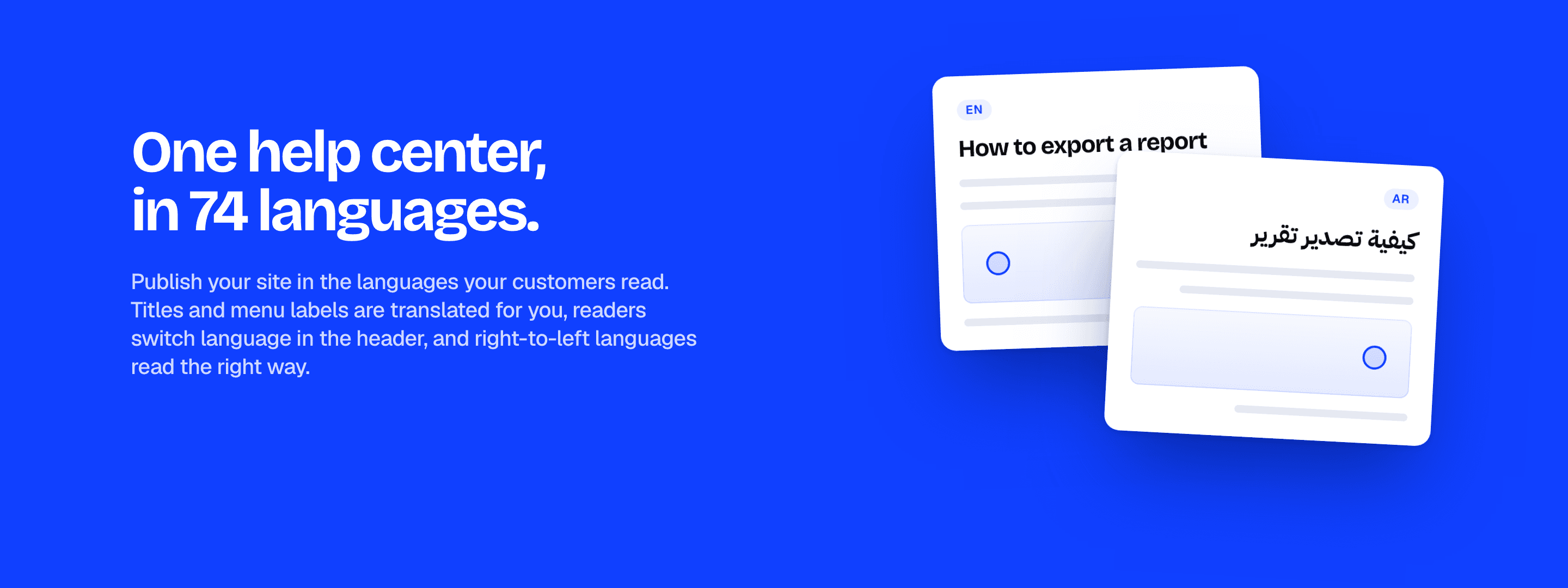
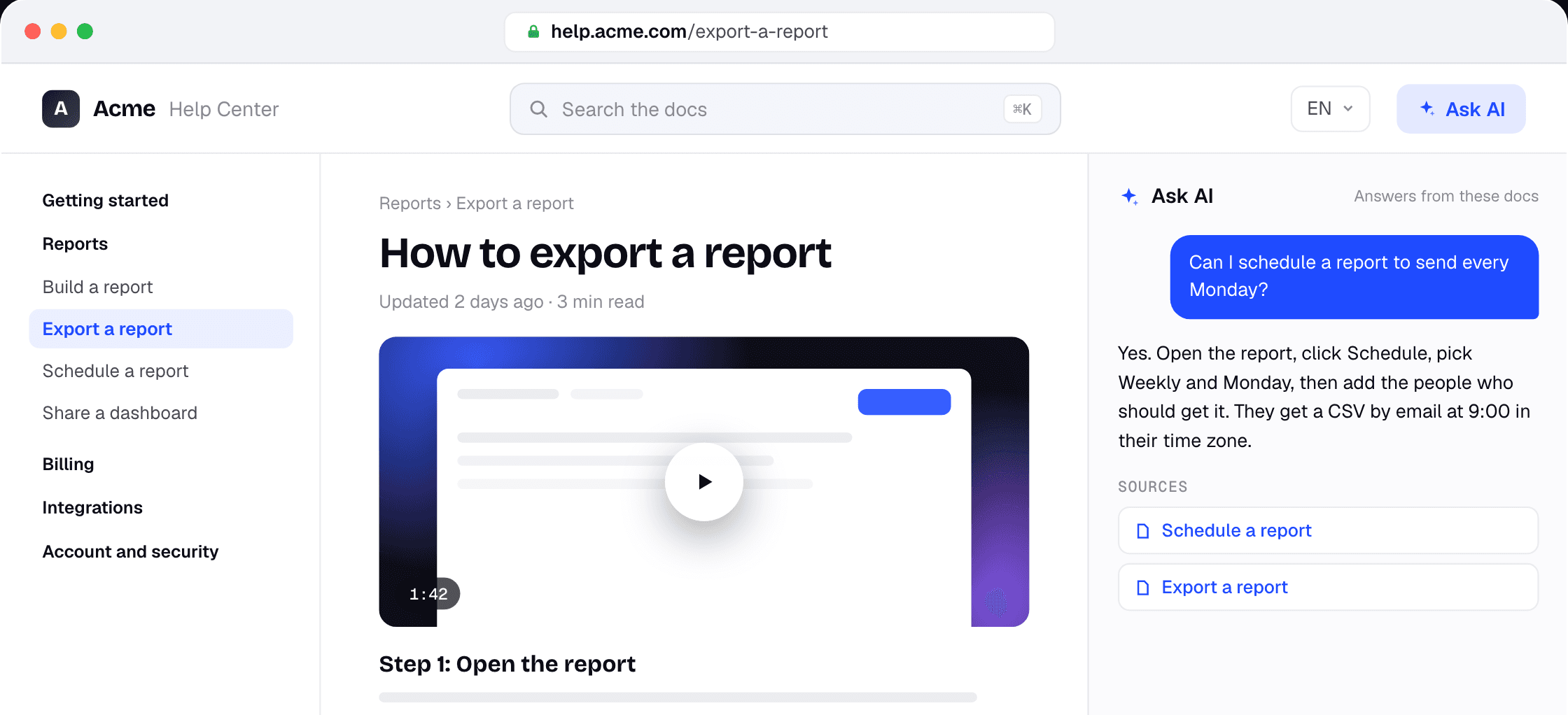
In Clevera, an article and its how-to video come from the same screen recording, and they translate together. Translate an article into a new language and its video is translated too. You get the article in that language plus a video with a new AI voice-over, captions in that language, and translated chapter and title cards. One catch on the help center: a video placed inside an article still plays the original language for now (more on that below). The footage is re-timed to fit the new voice, so zooms still land on the right click. You can pick the voice for each language.
Each language is a version of the same item, not a copy you have to track. Clevera translates into 74 languages, and a translation costs 3 to 10 credits per language for a recording of up to 5 minutes. Longer recordings cost more. See pricing for what each plan includes.
Here's the workflow on a Clevera help center:
1. Record the flow once with the desktop app or Chrome extension, or let the AI recorder capture your web app. Clevera writes the article and makes the how-to video. 2. Add your languages to the site. Free publishes 2 languages per site, Starter 5 and Pro unlimited. 3. Translate each article. The first run into a language also translates its video in your library. 4. Review before you publish. Changes wait until you publish the site, so your reviewer reads and watches each language first, and you can edit any line. 5. Publish. Each language gets its own URL (`/fr/…`, `/de/…`), the site adds hreflang links with an `x-default`, and the sitemap lists every language. Readers switch language in the header, and titles and menu labels are translated too. 6. Check the videos in each language. A video page plays the reader's language. A video block inside an article doesn't yet: the French article shows the video in its original language. If the video matters, add it to the site as its own video page too and link to it from the article.
A page you haven't translated yet shows the original with a short "not translated" note, and it stays out of the hreflang set, so search engines don't see it as a duplicate.
Keeping it current: when a step changes, re-record that flow, then run Translate again for each language; a re-run translates the article again from the source. Edits to a published video show up on every link and embed. Site pages, like an About or FAQ page, warn you when the source changed since the last translation, and changelog entries re-translate their changed parts when you publish them. On Pro, you can also connect Claude, ChatGPT or Cursor and ask an agent to translate pages after each release.
Moving from another tool? Import is free, and translations come over when your old tool supports them. The multilingual docs page has the full picture.
Where Clevera is not the right fit
Clevera's AI voice-over is a narrated walkthrough, not a lip-synced presenter. If your help videos are a person talking to camera, you'll want a dubbing tool or a native presenter per language. And on the help center today, a video inside an article doesn't switch with the page language yet, so a reader on the translated article hears the original voice-over. If every article leans on an embedded video, that gap matters until it's fixed.
If your docs live in Zendesk and you're staying there, its built-in AI translation handles article text in the editor, and you'd make the translated videos elsewhere.
FAQ
Do I need to re-record my videos for each language? No. Record once. Clevera makes the voice-over, captions and on-screen titles in each language from the same recording. Re-record only when the product UI changes. On a Clevera help center, video pages play the translated version; a video inside an article still plays the original for now.
How do I translate a knowledge base without breaking SEO? Give each language its own URL, add hreflang between the versions with an `x-default`, and don't publish pages where only the menus are translated. A Clevera help center does the URLs, hreflang and sitemap for you.
How much does it cost to translate a help center in Clevera? Hosting the help center is free on every plan. Translation uses credits: 3 to 10 credits per language for an article and its video, from a recording of up to 5 minutes. Free publishes 2 languages per site, Starter 5, Pro unlimited.
Is AI translation good enough for help docs? For step-by-step instructions, it's a strong first draft. Have a native speaker who knows your product review each language once, against a glossary, before you publish.
What happens to translations when I update an article? Run Translate again for each language after the change. Clevera translates the article again from the updated source. If the UI changed, re-record first.
Start with your top five articles
Pick the five articles that answer the most tickets, add one language, and translate the article and its video together. Watch the tickets from that market for a month. For tool options, see the best multilingual help center software in 2026 and knowledge base software with video. Set up a help center in your customers' languages →

