How to update docs with Claude Code after every release

The code ships on Tuesday. The changelog gets written on Friday, if someone remembers, and the help article for the changed screen stays wrong for a month. You can update docs with Claude Code instead: it already sits in the repo, so it knows what shipped.
This guide connects Claude Code to a Clevera doc site through the Clevera MCP server. After each release, Claude Code reads the git log, drafts the changelog entry, finds the help articles the release touched and proposes the edits. A person reviews and publishes. Nothing reaches readers on its own.
What you need first
A Clevera doc site. Doc sites are Clevera's hosted help center, with a changelog and RSS feed built in. Every plan includes one.
Pro or up. AI agents & API is on Pro and up. Pro is $86.80 a month billed yearly ($124 monthly) for 2 creators, with 4,000 shared credits a month. API calls themselves cost no credits. See pricing.
Claude Code in the repo you release from. It needs to run `git log`, and `gh` if you want it to read pull request titles.
Step 1: Create a Writer token
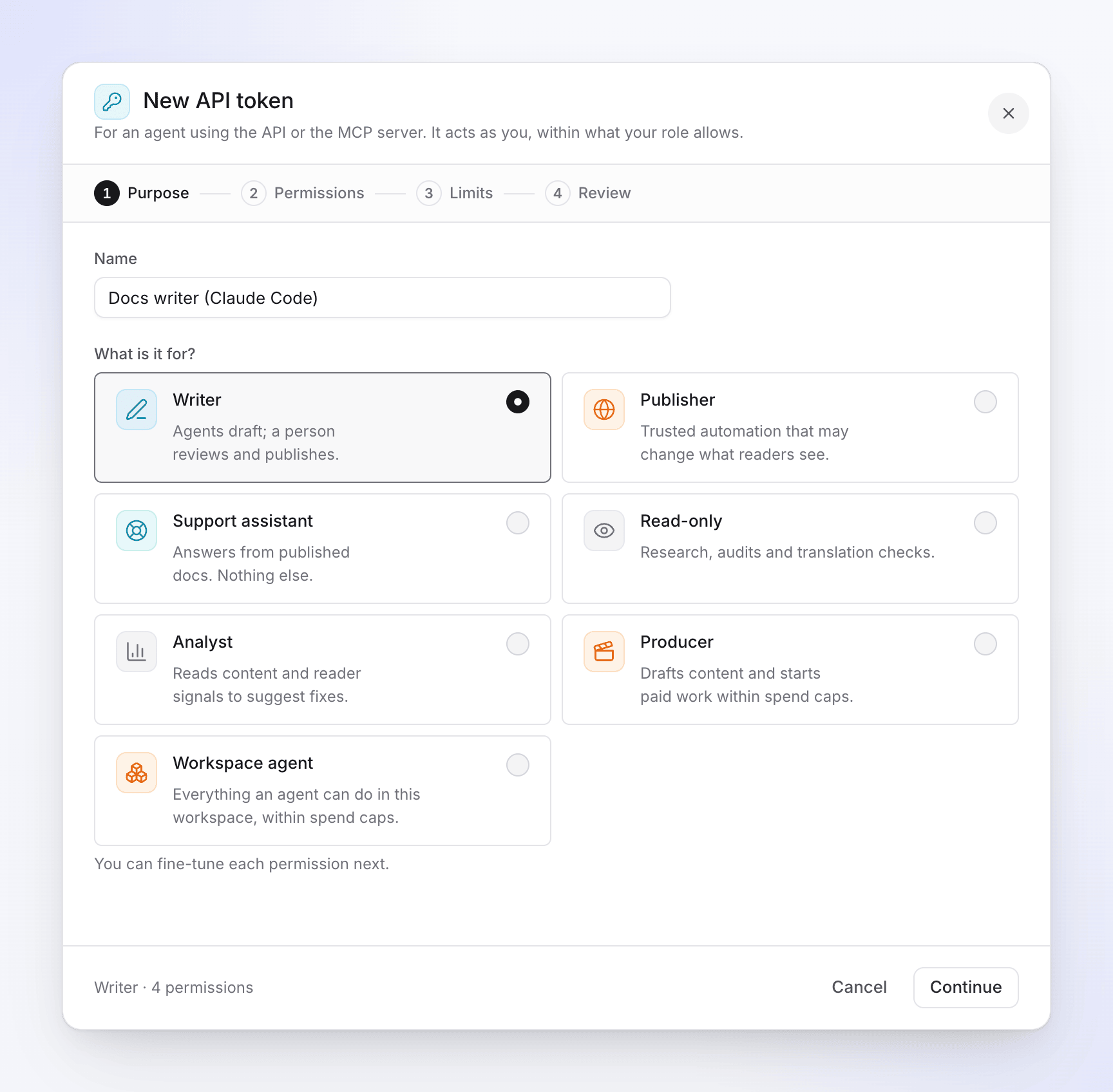
1. In Clevera, open the workspace menu and choose AI agents & API, then Tokens and New token. 2. Name it ("Docs writer (Claude Code)") and pick the Writer preset: "Agents draft; a person reviews and publishes." It holds 4 permissions: read content, write draft articles, write changelog drafts and upload images. 3. On Limits, choose the doc site under Doc sites and an expiry. Tokens always expire, after 7 days, 30 days, 90 days or 1 year. 4. On Review, click Create token and copy it. Clevera shows it once. Put it in an environment variable called `CLEVERA_TOKEN`, never in the repo.
Why Writer and not Publisher? A Writer token can't change what readers see. It can't publish, and it can't edit an article that's already live. That second limit shapes the whole workflow, so it's covered in step 3.
Step 2: Connect Claude Code
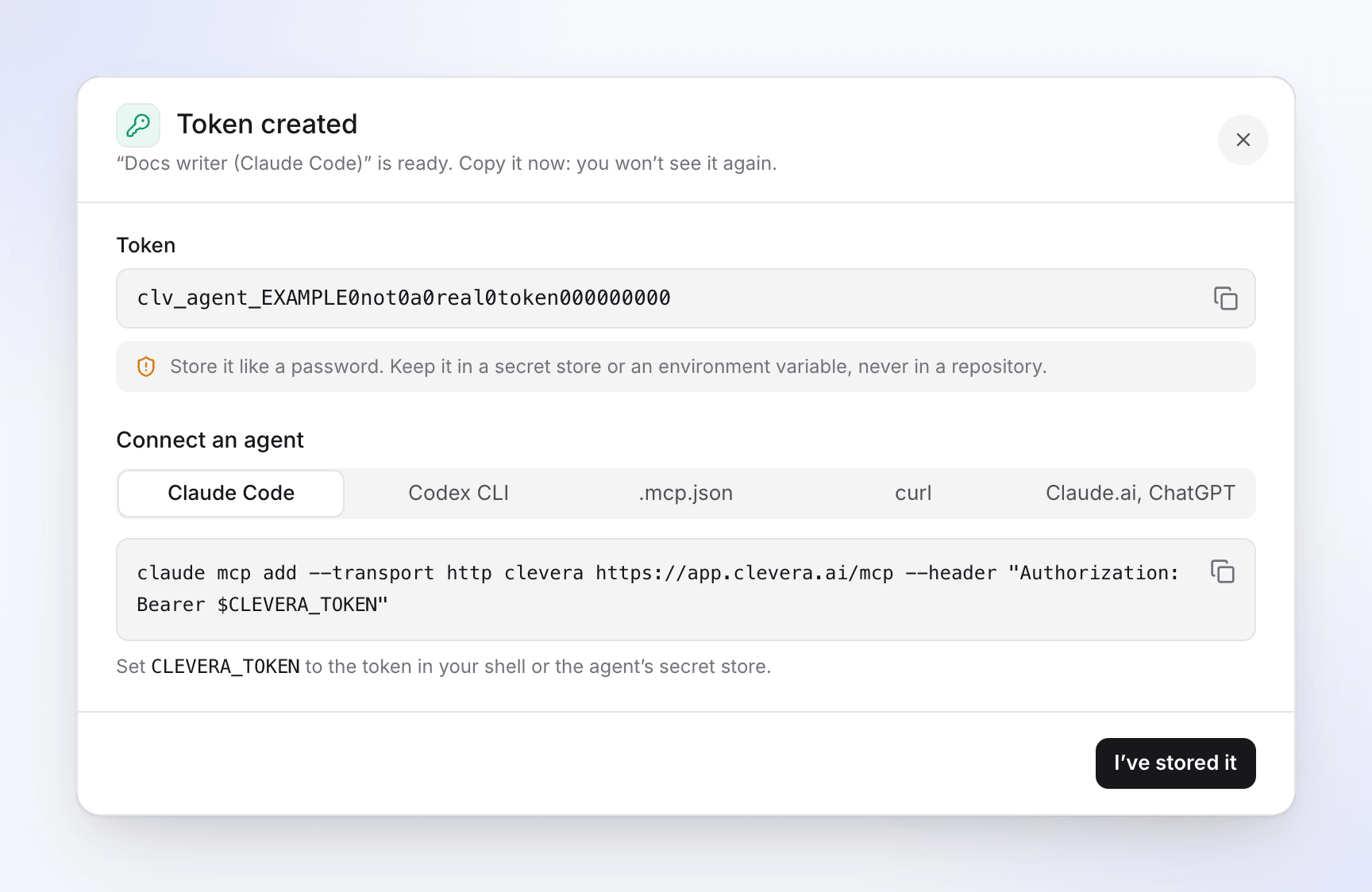
Run this in your terminal:
```bash claude mcp add --transport http clevera https://app.clevera.ai/mcp --header "Authorization: Bearer $CLEVERA_TOKEN" ```
That adds the server for you, in the current project. If the whole team should get it, add it to `.mcp.json` in the repo root instead. Claude Code expands `${VAR}` in that file, so the token itself stays out of git:
```json { "mcpServers": { "clevera": { "type": "http", "url": "https://app.clevera.ai/mcp", "headers": { "Authorization": "Bearer ${CLEVERA_TOKEN}" } } } } ```
Each teammate then sets `CLEVERA_TOKEN` to their own token. Claude Code asks before it uses a project server for the first time. Type `/mcp` or run `claude mcp list` to check it's connected. Details are in Claude Code's MCP docs, and the full token walkthrough is in our guide to making a video with Claude over MCP.
Step 3: Ask for the release docs
Tag the release, then give Claude Code one prompt. Here's an example you can adapt:
> "We tagged v2.4. Read the commits and PR titles since v2.3. On our Clevera doc site, check the changelog so you don't repeat an entry, then draft one entry for v2.4 with New, Improved and Fixed. Then search the site for articles about anything that changed. Update the drafts directly. For live articles, send each one for review with the exact changes. Don't publish anything."
Here's what it does with the Clevera tools:
1. Reads what shipped. `git log v2.3..v2.4` and, with `gh`, the merged pull requests. This part is plain Claude Code. 2. Finds the site. `list_sites` returns the site id and whether auto-publish is on. 3. Checks the changelog. `list_changelog` shows recent entries, so it doesn't announce the same change twice. 4. Drafts the entry. `create_changelog_entry` saves it as a draft with a title, category and Markdown body that links to the articles. 5. Finds the affected articles. `search_content` and `get_site_tree` find pages that mention the changed feature. `get_page` reads each one. 6. Writes the edits. For an article that isn't live yet, `update_article` writes the new text. It needs the revision id it read, so it can't overwrite a teammate's edit made in between. For a new feature with no article, `create_article` makes a draft in the right section. 7. Asks for review. For a live article, the edit is refused without publishing rights. So the agent calls `submit_for_review` with a note saying what should change and why. The site's managers get an inbox notice with a link.
An example of what the draft entry might look like (illustrative, not a real run):
> Faster invoice search and a new Slack app · Improved, New > Search now finds invoices by customer, amount or number as you type. Connect the new Slack app to post paid invoices to a channel. Fixed: PDF exports keep your logo on every page. Links to the two updated articles follow.
Every change shows in the page's history with the agent's name and the token it used.
Step 4: Review and publish
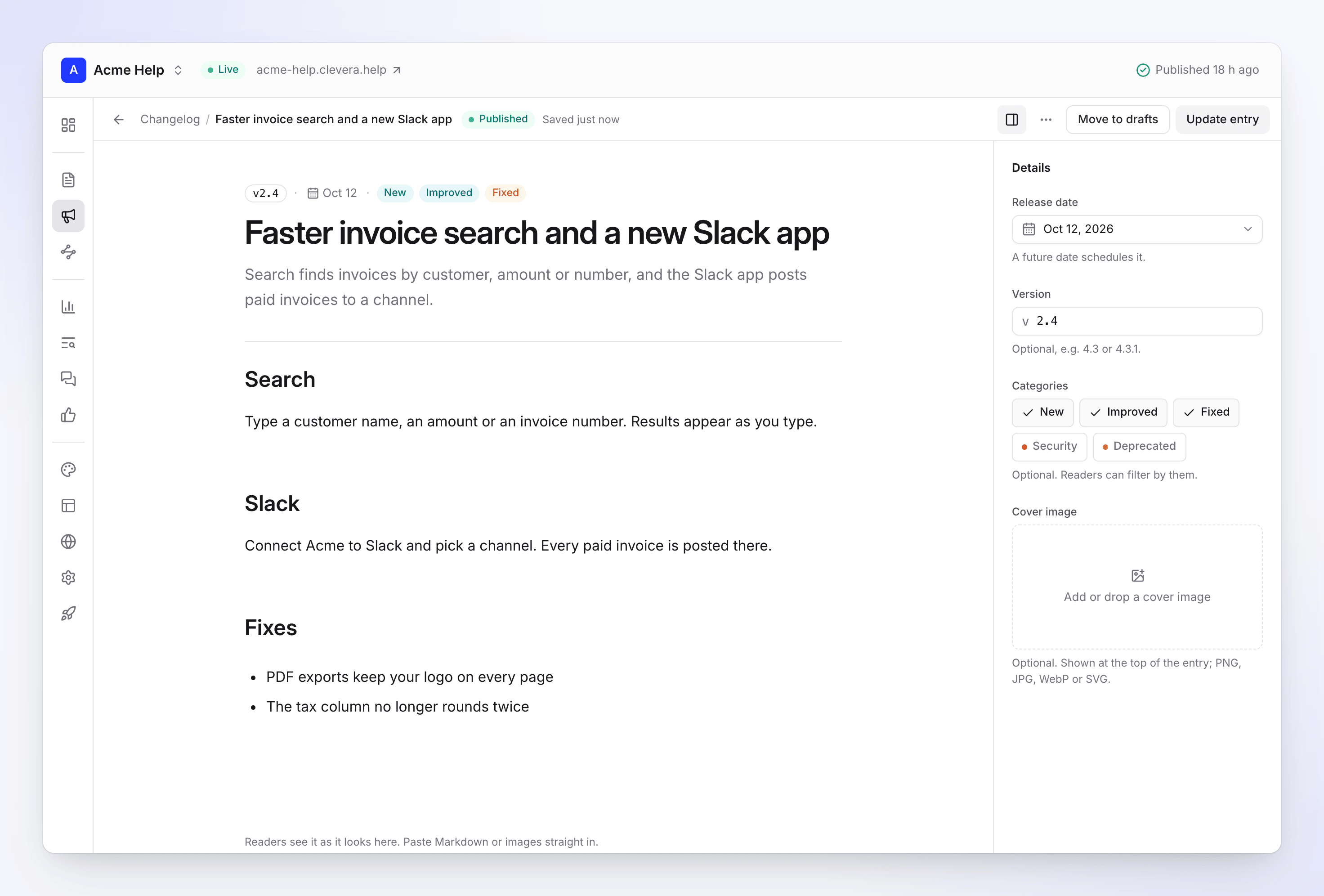
Open the doc site in Clevera. The changelog entry sits under Drafts. Fix the wording, set the Version, then click Publish entry. Open the articles from the review notices, apply or adjust the changes, and publish the site. The entry goes live with that publish.
Two settings matter here:
Auto-publish. With it on, a change to a live page goes out a couple of minutes after editing stops. Turn it off if you want one deliberate publish per release.
Languages. On a site with more than one language, publishing an entry translates it into each language. That uses credits.
If you trust the agent with live edits, a Publisher token can edit live articles and publish. Only owners, admins and editors can grant publishing. The tools still tell agents to publish only when you explicitly ask. Most teams should start with Writer and decide after a few releases.
Optional: a new how-to video for the changed flow
A changed screen usually means an old video is wrong too, and there's a whole routine for updating tutorial videos after a UI change. Claude Code can make the new how-to video from a recording that's already in your Clevera library. It can't record your screen, so record the new flow first.
This needs a token that may spend credits, such as the Producer preset, which also includes everything Writer has. Ask for a quote first. A how-to video from a recording of up to 5 minutes usually costs 5 to 25 credits. Leave Approve automatically below at 0, the default, and an owner or admin approves every paid start on Agent requests. The video can then go into the article as a video block.
When you don't need this
If your docs live as Markdown in the same repo as your code, Claude Code can edit those files directly and you review the pull request like any other change. You don't need an MCP server for that. This workflow is for teams whose help center and changelog live in a hosted tool that support and product people edit too. Comparing hosted options? See our roundup of MCP servers for documentation and the best AI changelog generators.
FAQ
Can Claude Code publish my changelog without me? Not with a Writer token. It can only draft. A Publisher token can publish, and Clevera's tools tell the agent to publish only when you've asked it to.
What happens if a teammate edits the article at the same time? The agent's update fails with a revision conflict, and the tool tells it to re-read the article and apply its change to the new version. Your teammate's edit isn't overwritten.
Does this cost credits? Reading, drafting, updating and review requests cost no credits. Translating entries or articles and making videos do.
Which plan do I need to update docs with Claude Code? Pro or up for AI agents & API. The doc site and its changelog are on every plan.
Does it work with other agents? Yes. Codex, Cursor and scripts connect with the same kind of token, and Claude and ChatGPT connect with a sign-in. See all Clevera integrations.
Make it part of the release
Save your prompt in the repo, next to the release script, and run it every time you tag. The first run takes a few minutes of setup. After that, the changelog draft and the list of stale articles are waiting before anyone thinks to ask. See what else agents can do with the Clevera MCP server →

