Update tutorial videos after a UI change
When a release ships, most help-center teams find out which videos broke from support tickets. This guide is the opposite approach: a repeatable way to update tutorial videos after a UI change, sorted by how much changed, so you re-record only the videos that need new footage and fix the rest in minutes. It assumes you already own a library of 20 to 200 videos.
Step 1: Inventory your videos by the screens they show
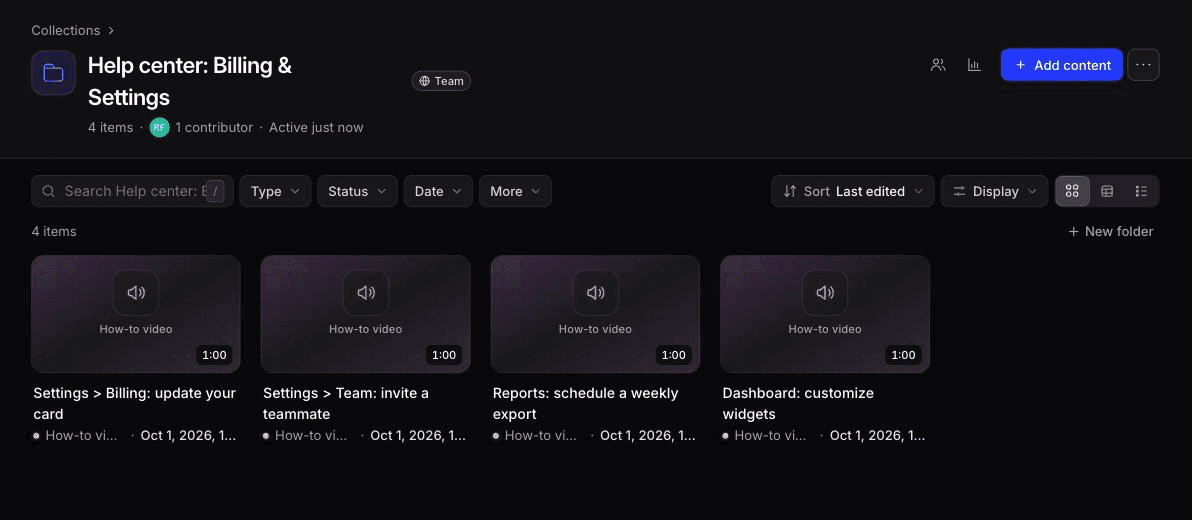
A list of video titles won't tell you what a release broke. A list of screens will. Build one row per video in a spreadsheet and tag it with every screen, page or component it shows on camera, using the same names your product team uses in tickets and release notes ("Billing settings", "Invite modal", "Left nav").
Columns that earn their place:
Column | Why it matters on release day |
|---|---|
Screens shown | The join key between release notes and videos |
UI labels said aloud | Narration that names a button breaks even when the layout doesn't |
Where it lives | Hosted link, embed, downloaded MP4, YouTube, in-app widget, email sequence |
Paired article | The written guide that has to change with it |
Languages | Every translation is another copy to refresh |
Capture method | Desktop app, Chrome extension, AI recorder, or upload |
Recording instruction | For AI-recorded videos, the exact instruction text, so you can rerun it |
Owner and last verified date | Who checks it, and when it was last checked against the live product |
The "where it lives" column decides how much work an update costs. A video embedded from a live host can change in place. A downloaded MP4 sitting in an LMS, a slide deck or a customer's onboarding folder doesn't update, and you'll have to replace each copy by hand. Move those to hosted links or embeds before the next release, not during it.
Step 2: Triage the release into 4 levels of change
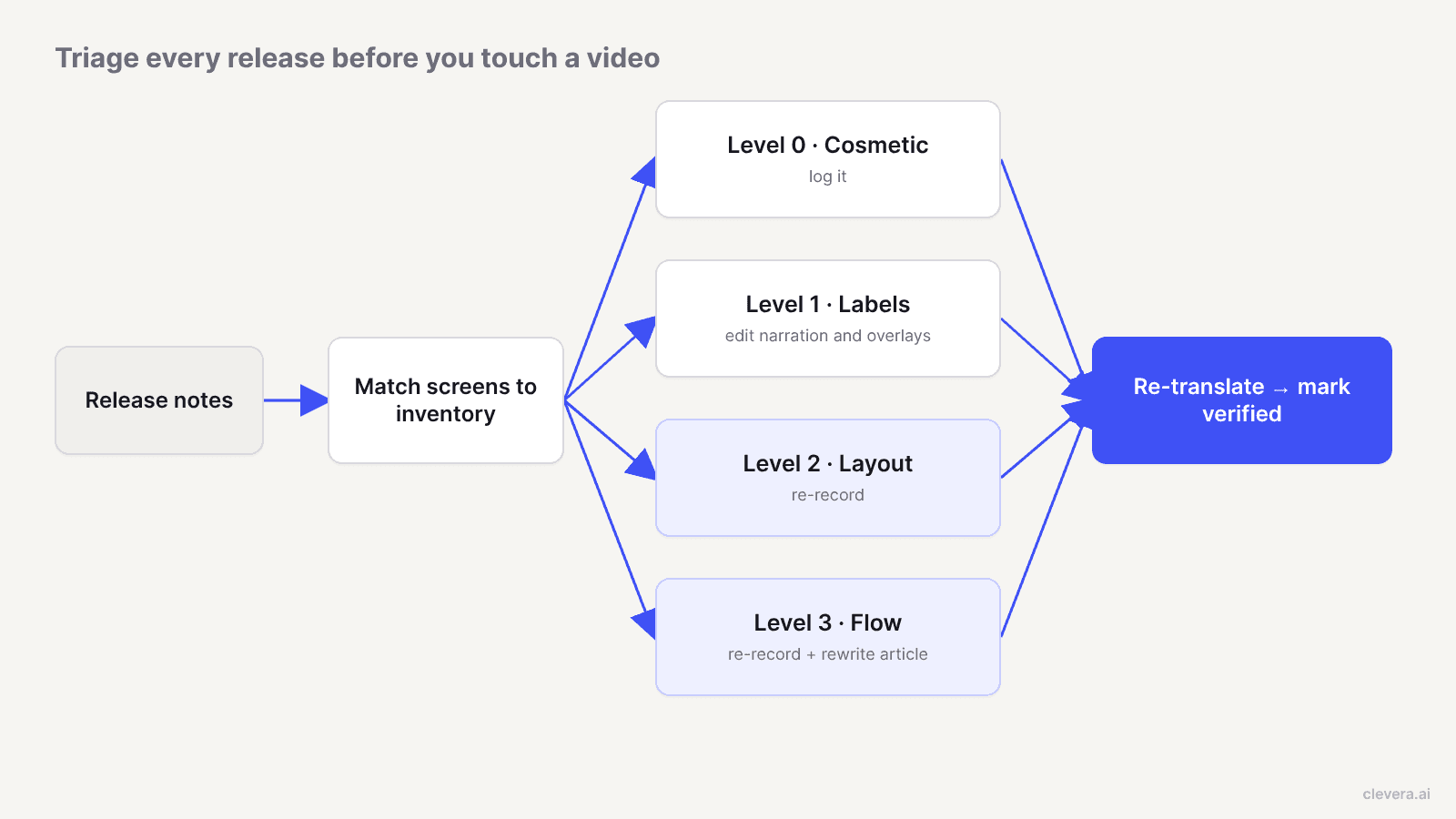
Read the release notes (or the merged PRs tagged "UI") against the "Screens shown" column. Every affected video lands in 1 of 4 levels, and each level has a different fix.
Level | What changed | Example | Right fix |
|---|---|---|---|
0. Cosmetic | Colors, icons, spacing, fonts | Primary button goes from blue to green | Usually leave it. Note it in the inventory |
1. Text and labels | Wording on screen, same place, same flow | "Workspace" renamed to "Team" | Edit narration and overlays. No new footage |
2. Layout | Same steps, things moved | Settings moved from a top menu into a sidebar | Re-record the affected segment or the whole video |
3. Flow | Steps added, removed or reordered | Invite now requires choosing a role first | Re-record, rewrite the script and the article |
2 rules keep triage honest. First, judge the level by what a viewer does, not by what the designer changed. If a renamed button is the thing the viewer has to click, and the old name is visible on screen for 6 seconds, a narration fix alone can confuse them more than it helps. Second, check feature flags. If a new layout is rolling out to 20% of accounts, the old video is still correct for 80% of viewers. Update when the rollout reaches everyone, or publish both versions and say which one applies.
Step 3: Fix level 1 changes without re-recording
Most releases are mostly level 1. These are the cheapest fixes, and where your hosting choice pays off.
If your videos live in Clevera, LiveSync handles this tier. Published Clevera videos behave like a web page: you edit in the editor and the change appears on Clevera-hosted links and embeds instantly, with no re-export and no new link. What you can change this way:
Narration. Rewrite the script so it uses the new label, by hand or with AI, and regenerate the voiceover.
Voiceover sync. Retime the narration in the sync editor if the new wording is longer.
Text overlays and title cards. Update step labels and callouts.
Images. Swap an image overlay, for example a new logo or a static screenshot.
Highlights. Point attention at the right element.
Blurs. Cover an old label or a piece of data that shouldn't be there anymore.
Voice tone and style. Change the voice if your style guide changed.
What LiveSync doesn't do: it doesn't change the footage. If the product UI looks different, the recorded pixels still show the old one, and no edit fixes that. A common stopgap for a renamed button is to blur the old label and place a text overlay with the new name, but treat it as a bridge until you re-record, not a permanent fix. And MP4 files someone already downloaded won't pick up any of these edits.
If your videos are on other hosts, check what they support before you plan around it. YouTube Studio lets you trim and cut a published video while keeping the URL, view count and comments, but new footage means a new upload and a new URL. Vimeo says replacing a video file keeps the same URL and iframe embed, and Wistia's replace media keeps the embed code, though it regenerates the transcript and existing dubs don't update.
Step 4: Re-record level 2 and 3 videos fast
Re-recording is the step teams postpone, because the original creator is busy and the take has to be clean. 2 things make it cheaper.
For web apps, rerun the instruction. Clevera's AI recorder records a website or web app in a cloud browser from a written instruction and a start page. If you saved the instruction in your inventory, the re-record is that same text run again against the new UI, for example: "Start on the dashboard, open Settings, go to Team, invite a new member as Editor, and stop on the confirmation." If the flow changed (level 3), edit the instruction to match the new steps first. Sign-in can be skipped, given as a login, or typed by you, and you can take over the browser mid-recording when the agent needs help, then hand it back. The agent is read-only unless you allow it to create or edit things, which matters when the flow ends in a "Send invite" button on a real account. AI recording uses credits based on how long the AI works. Setting up the demo account and the instruction is covered in how to record a web app demo automatically.
For desktop software, use the desktop app. The AI recorder works on websites and web apps only. For desktop software, or anything that leaves the browser, record with the Clevera desktop app on macOS or Windows. You don't need to narrate while you record. A silent walkthrough is fine, because Clevera removes accidental clicks and pauses, writes the script from the on-screen actions and generates the voiceover.
Then rebuild the how-to video from the new footage. If you use templates for style, title cards and logo reveals, and team AI rules for terminology and pronunciation, the new version will look and sound like the rest of the library without a second round of review. One honest catch: a re-recorded video is a new piece of footage, so plan where it goes. Use your "where it lives" column to swap it into every hosted link, embed and in-app widget that showed the old one.
For a deeper walkthrough of building tutorials this way, see how Clevera's AI tutorial maker turns a recording into a narrated video.
What a web-app re-record costs: about 2 minutes and 9 credits
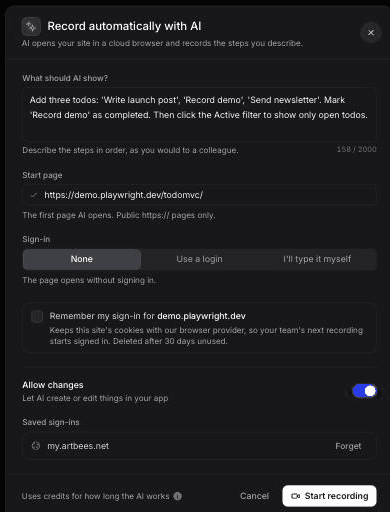
To put a number on Step 4, we ran the AI recorder on a public demo app (TodoMVC) in October 2026. The instruction was 3 sentences: add 3 named todos, mark one as completed, then click the Active filter. That text is the whole re-record. Save it in your inventory, and on release day you paste it in again, edit only the steps that changed and start the run.
The 0:40 how-to video Clevera made from that AI recording, unedited.
The agent followed it exactly, with no retries or wrong clicks that we saw. Recording took about 78 seconds, and generating the 0:40 how-to video from it took about 50 more. It cost 9 credits: 5 for the recording analysis and 4 for the how-to. At that rate, a level 2 change across 10 short web-app videos is roughly 90 credits and 20 minutes, mostly waiting.
2 caveats. We haven't yet rerun this instruction against a changed UI, so this prices a fresh take, not a level 3 rewrite. And the footage came out faded and low-contrast, so watch each new take before you swap it into embeds. The agent also pauses between steps: 58 seconds of footage for a task a person does in about 20. Clevera trimmed it to 0:40, but longer flows mean longer runs and more credits, one more reason to keep 1 flow per video.
Step 5: Update the article in the same pass
In Clevera, videos and articles are separate content items that you can pair on share pages and embeds, so updating one doesn't update the other. Do them together or the article will drift.
Level 1: edit the article in the editor. Search for the old label and replace it, then swap any screenshots that show it.
Level 2 and 3: generate a fresh article from the new recording, so step order and screenshots match the footage, then copy over any hand-written notes from the old version.
Articles export as Markdown or HTML to Notion, Confluence, GitBook, GitHub, GitLab, Bitbucket, Google Docs, ClickUp, ReadMe and Help Scout on Pro and above. The broader article side of this, including review cycles and archiving, is covered in how to keep your knowledge base up to date.
Step 6: Translate after the English is final
Translations are where stale content hides longest, because nobody on the core team watches the Japanese version. Two rules:
1. Never translate a draft. Finish and approve the English video and article first. Translating twice costs credits and review time twice. 2. Re-translate, don't patch. Clevera translates videos and articles into 74 languages in one click. After a level 2 or 3 change, run the translation again on the new version instead of trying to edit each language by hand.
If your product UI itself is localized, footage recorded in the English UI shows English labels in every translated video. Decide per market whether that's acceptable or whether the top languages need their own recording in the localized UI. Our guide to translating tutorial videos goes deeper on review and voice choices per language.
Step 7: Set a cadence and name the owners
A workflow without owners turns back into "support will tell us." Here's a lightweight split that works for a team of 2 to 10 people who touch help content:
Role | Responsibility | When |
|---|---|---|
Release owner (PM or eng lead) | Lists changed screens in the release notes, using inventory names | Before the release ships |
Docs owner (support ops, enablement or tech writer) | Runs triage, assigns fixes, updates the inventory | Within 1 business day of release |
Video owner per product area | Level 1 edits, re-records, article updates | Within 3 to 5 business days |
Support lead | Tags tickets that mention "the video shows" or "can't find the button" | Ongoing; review weekly |
Docs owner | Full sweep: open each video next to the live product | Quarterly |
The quarterly sweep catches what triage misses, such as a shared component that changed in 12 places. Start with the videos that get the most views, and the ones linked from tickets, because those are the ones that move support ticket volume.
The release-day checklist
Copy this into your release template.
``` RELEASE: ________ DATE: ________ DOCS OWNER: ________
[ ] Release notes list every changed screen, using inventory names [ ] Feature flags checked: rollout % noted; update only at 100% (or publish both) [ ] Affected videos pulled from inventory by "Screens shown" [ ] Each affected video tagged: L0 cosmetic / L1 labels / L2 layout / L3 flow
L1 (labels) [ ] Narration rewritten with new labels; voiceover regenerated and synced [ ] Text overlays, title cards and highlights updated [ ] Old labels blurred + overlaid where they're the click target (temporary) [ ] Re-record queued if the stopgap covers a key step
L2/L3 (layout or flow) [ ] Web app: AI recorder instruction updated (L3) and rerun [ ] Desktop software: re-recorded with the desktop app [ ] New video generated with team template and AI rules [ ] New version swapped into every hosted link, embed and widget listed
ALL LEVELS [ ] Paired article updated or regenerated; screenshots replaced [ ] Article re-exported to the help center [ ] Downloaded MP4 copies found and replaced (LMS, decks, email) [ ] English approved, then translations re-run [ ] Inventory updated: last verified date, new instruction text, owner ```
The fix is mostly in the spreadsheet
The tooling matters, but the expensive part of a stale library is not knowing which videos a release touched. Once every video is tagged by the screens it shows, a release becomes a 15-minute triage and a short list of fixes, most of which are narration and overlay edits. Build the inventory before your next release, tag the 10 most-watched videos first, and rerun the triage on release day.

