How to write help center articles (with template)
How to write help center articles people finish: one question per article, the answer first, exact labels, copy-paste templates and a before-and-after rewrite.
 Roozbeh Firoozmand14 min read
Updated November 3, 2026
To write a help center article, answer one customer question per article. Title it in the words customers search with, answer in the first two sentences, then give numbered steps with the exact UI labels in bold and one screenshot per key step. Finish with prerequisites, the expected result, fixes for what usually goes wrong, and links to the next task. Then have someone who didn't write it follow it.
Below: copy-paste templates, a before-and-after rewrite, rules for titles and screenshots, writing for AI assistants, upkeep, and how to tell whether an article works.
What makes a help center article good?
A good help article gets one reader through one task without contacting you. Everything else follows from that:
- One question per article. "Invite a teammate" and "Change a teammate's role" are two articles, linked to each other.
- The reader's words, not yours. If customers search "add user", that phrase belongs in the title or the first line, even if the feature is called "Members".
- Answer first. Readers scan. In Nielsen Norman Group's classic study, 79% of test users always scanned a new page; only 16% read word by word (1997). A later NN/g analysis estimated that people have time to read at most 28% of the words on an average page, and 20% is more likely (2008).
- Steps that match the screen. Exact labels, in order, one action per step.
- Nothing the reader has to guess. Required plan or role up front, what "done" looks like at the end.
Which type of help article do you need?
Most help centers need four types. Mixing them is a common reason articles get long and hard to use.
- How-to answers "How do I…?". Title: a verb and an object, such as "Invite a teammate to your workspace". Structure: answer, prerequisites, numbered steps, result, fixes.
- Troubleshooting answers "Why isn't… working?". Title: the symptom in the reader's words, such as "Invitation email didn't arrive". Structure: the most likely cause first, checks in order, when to contact support.
- Concept answers "What is…?" or "Should I…?". Title: "What are roles and permissions?". Structure: definition, how it works, when to use it, next steps.
- Reference answers "What are all the…?". Title: "Plan limits for workspaces". Structure: a table, with one line of context.
FAQ pages work as an index that links to these articles, not as a place to hide the answers.
Help center article templates (copy and paste)
Copy the template for the article type you need and replace everything in brackets. They work for any knowledge base article, too. Download all three templates and the pre-publish checklist (opens as plain text).
How-to article template
[Verb] [the thing]
[One or two sentences: what this does and the result. Someone who reads only this paragraph should know what to do.]
Before you start
- You need: [plan, role or permission]
- Have ready: [file, account, information]
Steps
- Open [exact menu or page name].
- Click [exact button label]. [Screenshot: the screen just before the click, button marked]
- Enter or choose [what], then click [button].
- [Last action]. You'll see: [what tells the reader it worked]
If it doesn't work
- [Symptom in the reader's words]: [cause]. [Fix.]
Related: [next task people usually do] · [concept they may need]
Last updated: [date] · Owner: [name or team]
Troubleshooting article template
[Symptom in the reader's words]
[One sentence: the most common cause and its fix.]
Check these first
- [Quickest check]. [What to do if that's it.]
- [Next check]. [Fix.]
- [Next check]. [Fix.]
Still not working? [What to send support: screenshot, account email, when it happened.] [Contact link]
Last updated: [date] · Owner: [name or team]
What the parts that people skip are for:
| Section | Why it's there | Common mistake |
|---|---|---|
| Opening answer | Many readers stop here; AI assistants quote it | A welcome line ("In this article, we'll…") |
| Before you start | Stops people failing at step 4 on a missing permission | Leaving it out because "everyone knows" |
| You'll see | Tells the reader they're done | Ending on the last click |
| If it doesn't work | Catches the follow-up ticket | A generic "contact support" with no fixes |
| Last updated, owner | Shows freshness, makes someone responsible | No owner, so nobody updates it |
The download adds a concept-article template ("What is X?"). For reference articles, use a table with one line of context.
How do you write a help center article, step by step?
Pick the question from real data
Start from your ticket tags, your help center's searches that returned nothing, and questions sales and success hear on calls. Write the question the way the customer asked it. That sentence is your working title. Coverage matters: in a Gartner survey of 5,728 customers, the most common reason self-service failed was that customers couldn't find content relevant to their issue (in 43% of cases) (Gartner, 2024; more in our customer self-service statistics).
Do the task yourself, with notes
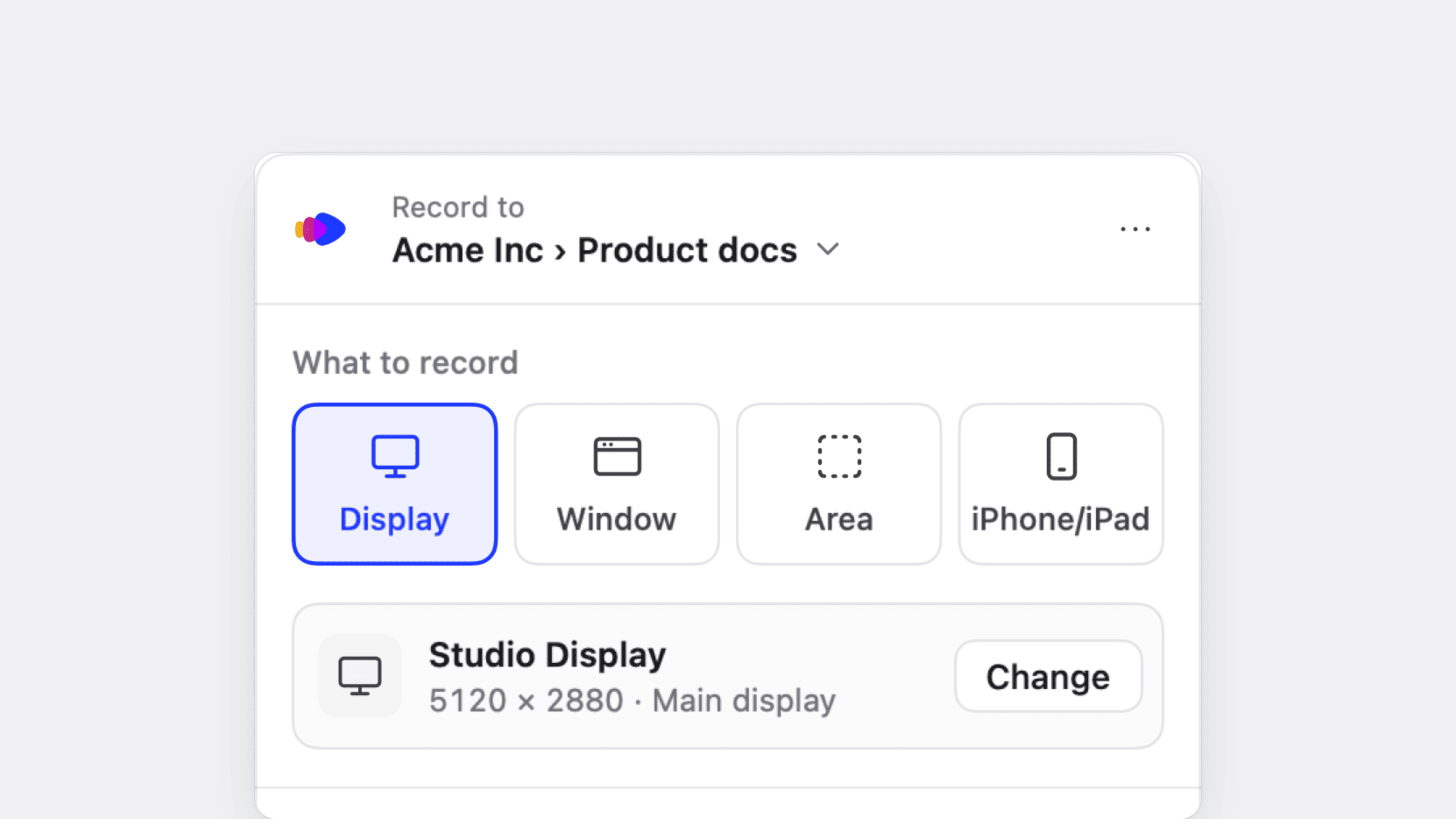
Go through it in the product with the role your reader has, and write down every click, the exact label and what appears. Record your screen while you do it: you'll want the frames for screenshots, and maybe a video. Here's how to turn a screen recording into documentation.
Write the answer first
Two sentences that would be enough on their own: where to go, what to do, what happens. For "How do I invite a teammate?": "Go to Settings › Members and click Invite. You need the Admin role."
Write the steps
One action per step, starting with a verb. Bold the exact label. Add the result after any step where something changes on screen. Put a warning in a callout above the step it applies to. For platform differences, add a short "On Windows:" line or tabs, not a second article. If you pass 12 steps, split the article.
Add screenshots where people get lost
Not every step needs one. Add them where the control is hard to find, where a form has several fields, and at the end to show the finished state. Show the screen just before the click, crop to the area that matters and mark the target.
Add the edges
Prerequisites at the top. At the bottom, the two or three things that go wrong, taken from your tickets about this task.
Test it with someone else
Give it to a colleague who hasn't done the task. Watch where they hesitate. Each hesitation is a missing step, a wrong label or a missing screenshot.
Publish, link and date it
Put it in the right section (see how to build a knowledge base with AI for structure), link to it from related articles and from the screen in your product where people get stuck, and add the date and owner.
What does a before-and-after rewrite look like?
Here's a typical first draft for a fictional project tool (not Clevera), and the same article rewritten with the template.
Before
Team Management
In this article we'll cover everything you need to know about managing your team in our platform. Team management is an important part of collaboration! To add new members, navigate to the settings area where you will find various options including the members section. From there you can use the invite functionality to send invitations to colleagues by entering their details. Please note that only certain users can do this. Once invited, they will receive an email.
After
Invite a teammate to your workspace
Go to Settings › Members, click Invite and enter their email address. You need the Admin role.
- Open Settings › Members.
- Click Invite.
- Enter their email address and choose a role: Member or Admin.
- Click Send invitation. They appear in the list as Pending until they accept.
If it doesn't work
- The Invite button is grayed out: you don't have the Admin role. Ask an Admin to invite them, or to change your role.
- The email didn't arrive: ask them to check spam, then click Resend next to their name.
Related: Change a teammate's role · Remove a teammate
What changed:
| Before | After | Why |
|---|---|---|
| "Team Management" | "Invite a teammate to your workspace" | The title is the task people search for |
| Two sentences of preamble | The answer in the first line | Readers and AI assistants take the top of the page |
| "they will receive an email" | Pending status, plus what to do if the email doesn't arrive | Catches the follow-up ticket |
How do you write titles people find?
Write the title as the task or question, in the customer's words, and put the important word first. Keep it under about 60 characters so it isn't cut off in search results.
| Weak | Better | Why |
|---|---|---|
| Members | Invite a teammate to your workspace | Task, not feature name |
| Billing FAQ | Change the card you pay with | One question per article |
| Troubleshooting exports | Export stuck at 99% | Symptom in the reader's words |
| How to utilize the reporting functionality | Create a weekly report | Plain verbs, no filler |
| Getting Started Guide Part 3 | Connect your calendar | Says what's inside |
Check your help center's search report: the words people type are the words your titles should use.
How do you use screenshots and video in help articles?
Screenshots help most when the control is hard to find or a form has several fields. Show the screen just before the click, crop to the relevant part, mark the target with a ring or box, and use realistic sample data, never a real customer's. Write alt text that says what the image shows ("The Members page with the Invite button marked"), for screen readers and for search.
Video helps for tasks with many steps, anything with drag-and-drop or timing, and onboarding. Put a short video at the top of the article and keep the written steps below it. Readers who want to watch can; readers who need step 6 can jump there. Nielsen Norman Group's research on instructional video recommends including both text and video for informational content when budget allows: people ignore the video when they don't need it and use it when they do (NN/g, 2020).
Screenshots and videos go stale when the UI changes. Make them from a recording of the task, so updating means re-recording one task, not retaking 15 screenshots by hand.
How do you write articles that AI assistants can quote?
More readers now meet your help content through an AI answer: your own help center's assistant, or ChatGPT, Perplexity and Google's AI Overviews. Pew Research Center found that when Google showed an AI summary, people clicked a traditional search result on 8% of visits, against 15% when it didn't (2025). More answers are read where they're quoted, not on your page. The same habits that help skimmers help these systems pick the right passage:
- Make each section stand alone. An assistant may quote only the part under one heading. Repeat the feature name instead of writing "it" or "as above".
- Put the answer directly under a heading phrased as the question. "How do I change my billing email?" followed by the answer.
- Use the exact names of plans, roles and settings. "Available on Pro" beats "on higher plans".
- Keep facts in text, not only in images. An assistant can't read a value that only appears in a screenshot.
- State limits plainly. "You can't undo this" is the sentence that prevents the angry ticket.
For crawler access, robots.txt and llms.txt, see how to make documentation AI-ready.
How do you keep help articles up to date?
Articles go stale one release at a time. Three habits keep that manageable:
- Give every article an owner and a "last updated" date. Someone has to be responsible for it, and readers trust a recent date.
- Check after every release. List the screens that changed and open the most-viewed articles that show them. Fix labels first, screenshots second. Here's a release-by-release routine for keeping documentation up to date.
- Re-record the changed task. If your screenshots and video come from a recording of the task, updating means one short re-recording instead of retaking each image by hand.
How do you know if a help article works?
Look at four numbers per article, monthly:
| Signal | Where to find it | What it tells you |
|---|---|---|
| Views | Help center analytics | Whether people find it |
| "Was this helpful?" votes and comments | Article feedback | Whether it answered the question |
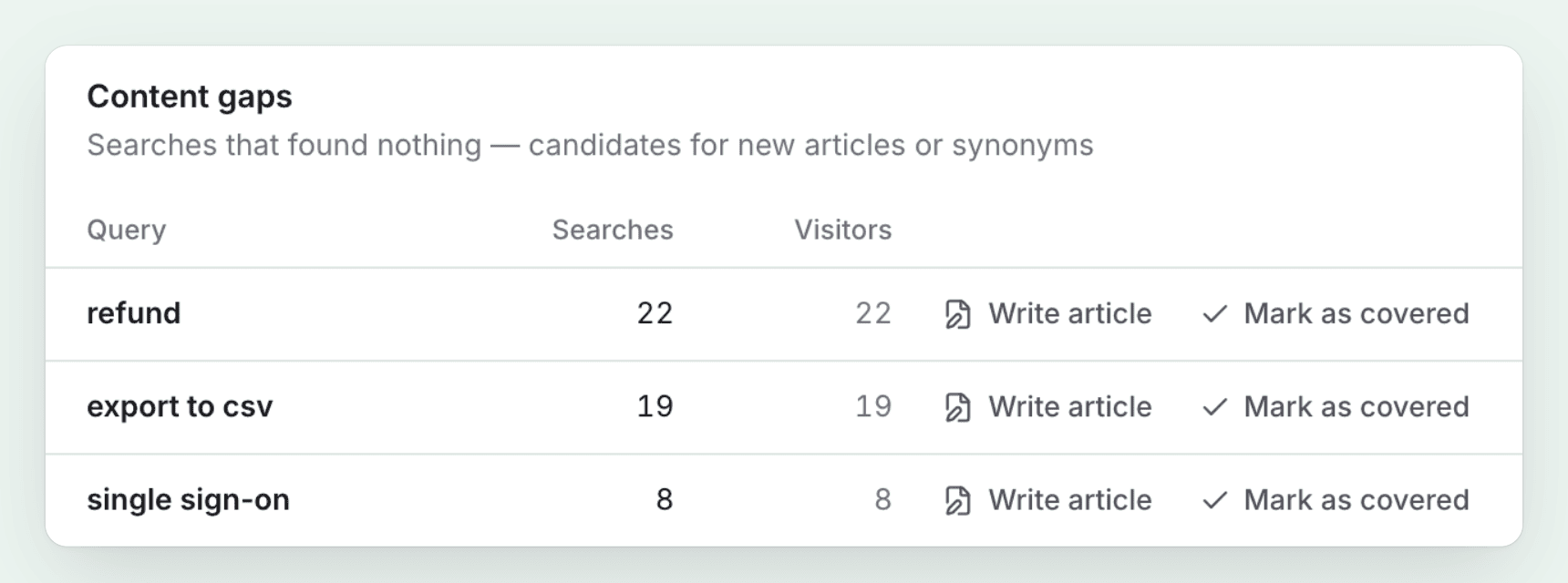
| Searches that found nothing | Help center search report | Articles you still need to write, and words missing from titles |
| Tickets on the same topic after viewing | Your help desk, if it links tickets to article views | Whether it actually prevents contacts |
An article with many views, poor votes and steady tickets on its topic is the first one to rewrite. For the formulas, see how to measure ticket deflection rate.
Help article style checklist
| Do | Don't |
|---|---|
| "Click Save." | "Click on the Save button in order to save your changes." |
| "You need the Admin role." | "Please note that certain permissions may be required." |
| "You can't undo this." | "Proceed with caution." |
| Second person, present tense | "The user should then navigate to…" |
| One idea per sentence | Sentences joined with "and then" three times |
| Name things exactly as the UI does | Synonyms for the same button |
The faster way with Clevera
Clevera is an AI platform that turns a screen recording into a narrated how-to video, a step-by-step help article and a page on your hosted help center, in 74 languages. It handles the slow parts of the method above: the step list, the screenshots and the video.
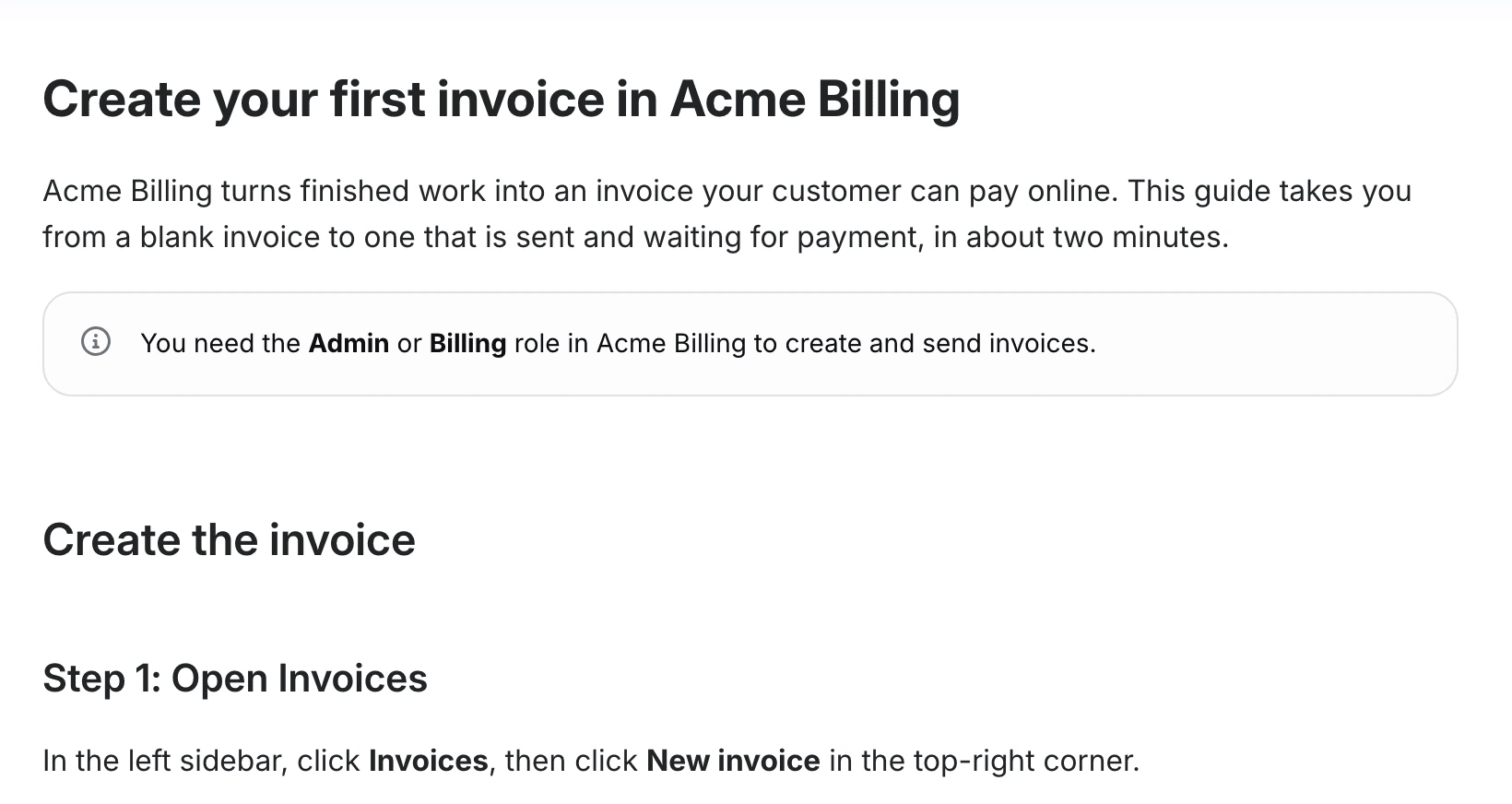
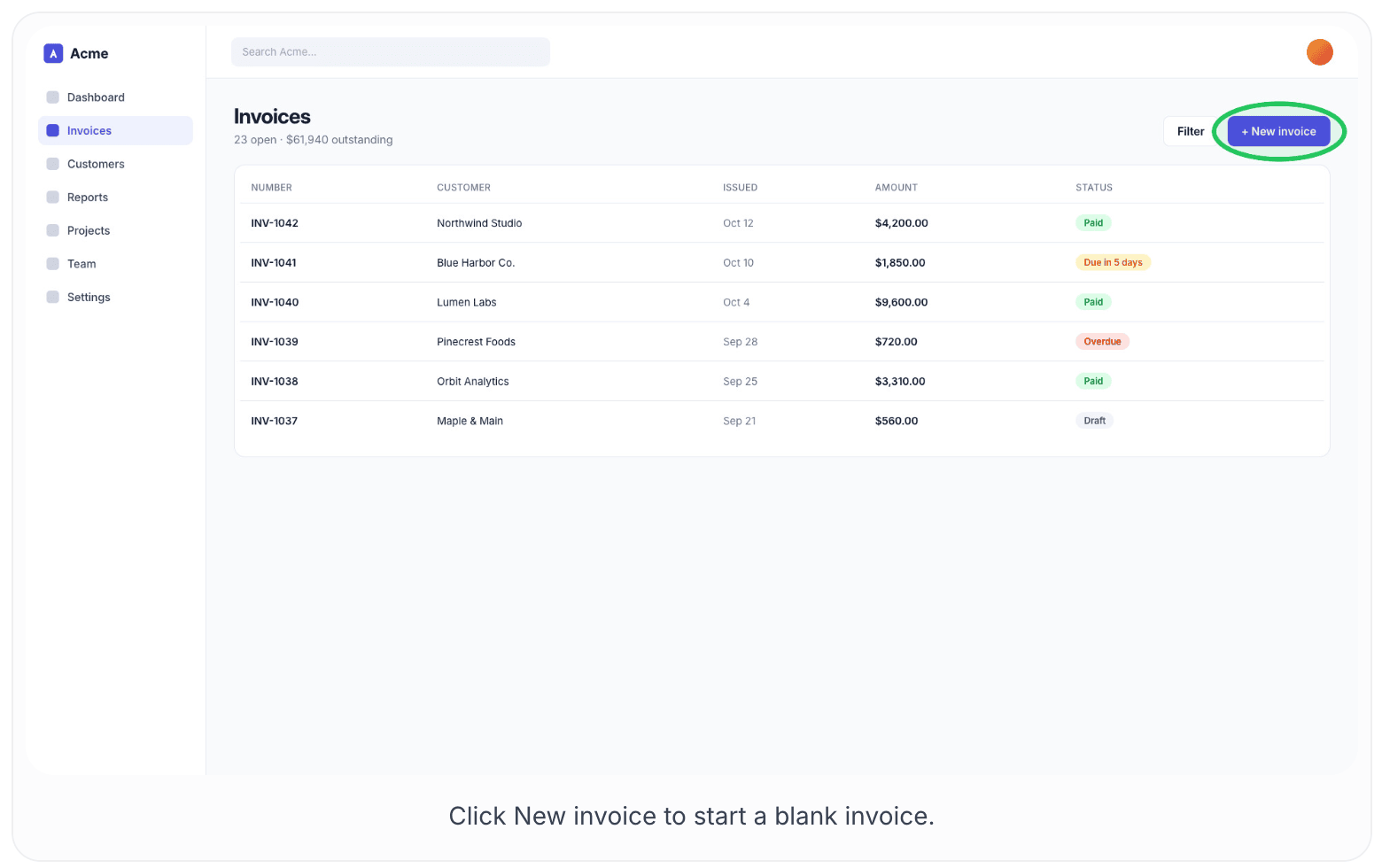
You record the task once with the Clevera desktop app for Mac or Windows, or upload a recording you already have. Choose How-to article or Troubleshooting, set Depth and Tone, and generate. Clevera writes numbered steps from what happens on screen and what you say. With a desktop recording it picks a frame just before each click and marks where you clicked; for an uploaded video, the AI picks the moments itself.
You still do the parts that need judgment: the title in your customers' words, the prerequisites the recording can't show, and the test with a colleague. From the same recording, Clevera can also make a narrated how-to video to put at the top of the article.
Then publish to a hosted help center with search, an Ask AI assistant that answers readers from your articles with sources, and reader feedback. The help center is on every plan, including Free; your own domain needs Starter. Its insights list searches that found nothing, so you know which article to write next.
The Free plan has 100 credits a month and recordings up to 3 minutes; an article usually costs 5–15 credits. Starter is $29 a month billed yearly ($36 monthly). Prices as of November 3, 2026; see pricing.
If you'd rather start from notes than a recording, the free help article generator turns rough notes into a structured article, no sign-up needed.
Start free, read how to turn a recording into an article in the help center, or see how Clevera works as help center software.
FAQ
How long should a help center article be? As long as the task needs and no longer. As a rule of thumb, a how-to runs 150–600 words and 3–12 steps. If you need more than 12 steps or several headings, it's probably two articles.
Should every help article have screenshots? No. Add them where people get lost: hard-to-find controls, forms with several fields and the finished state. A screenshot on every step makes the article long and goes stale faster.
What's the difference between a help center article and a knowledge base article? Usually nothing. "Help center" is the customer-facing site (more on the difference); "knowledge base" is the collection of articles, and sometimes means an internal one. The writing rules are the same.
Who should write help center articles? Whoever answers the tickets on that topic, with an editor for consistency. Support agents know the real questions and the real wording. Product teams should review for accuracy when a feature changes.
How often should you update help articles? Whenever the UI or behavior they describe changes, and at least once a year. Put an owner and a "last updated" date on every article, and check the most-viewed ones after each release.
Can AI write help center articles? It can write a solid first draft, especially from a recording of the task or from your notes. A person should still check labels against the product, add prerequisites and test the steps.