Screen recording to documentation: how one walkthrough becomes a full guide
I’ve watched this happen more times than I can count.
A product manager records a quick walkthrough. It’s clear. It’s helpful. Everyone feels productive.
Then someone asks, “Can we also add this to the docs?”
Suddenly that one screen recording turns into a second job. Someone rewrites steps. Someone screenshots the UI. Someone forgets to update it after the next release.
This is the real pain behind screen recording to documentation. Not recording. Not writing. The gap between the two.
What screen recording to documentation actually means
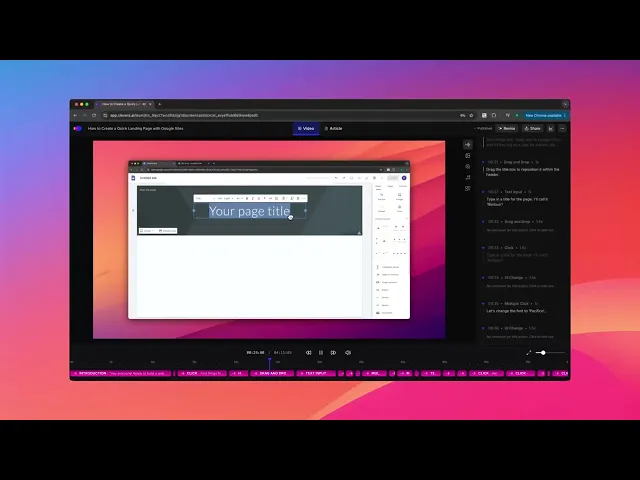
Screen recording to documentation is the process of turning a single recorded walkthrough into structured, searchable, step-by-step guidance without rewriting everything by hand. The recording captures what happened. The documentation explains what to do, in what order, and why it matters.
Most teams stop at the recording. That’s where the problems start.
Why screen recordings break down as documentation
A screen recording is an event stream. It shows clicks, cursor movement, and narration in real time.
Documentation is a task model. It answers:
What do I need before I start?
What are the actual steps?
What happens if something goes wrong?
What does “done” look like?
When you publish a video alone, users are forced to scrub, rewind, and guess. When you transcribe it line by line, you get noise instead of clarity.
That mismatch is why most tutorial documentation feels bloated or outdated within weeks.
The core mistake teams make with video to step-by-step guide workflows
The most common mistake is treating the video as text input.
Record a walkthrough.
Dump the transcript into a doc.
Clean up the grammar.
Ship it.
That produces something that looks like documentation but behaves like a meeting recording. Every micro-action becomes a step. Important context gets buried. Preconditions never show up.
A good video to step-by-step guide workflow does the opposite. It throws away most of the transcript and keeps only what supports the task.
What “great” looks like in tutorial documentation
Here’s the bar I use.
If a user can skim your guide and complete the task without watching the video, the documentation is doing its job.
If they can watch the video for confidence and speed, the pairing is working.
Great tutorial documentation has:
Clear prerequisites and permissions upfront
Steps grouped by intent, not clicks
Screenshots that match each step, not the whole flow
Warnings only where mistakes are expensive
Language that survives small UI changes
The recording supports the guide. The guide does not depend on the recording.
One walkthrough, two assets: the practical workflow
This is the workflow we’ve seen work consistently across product, CS, and enablement teams.
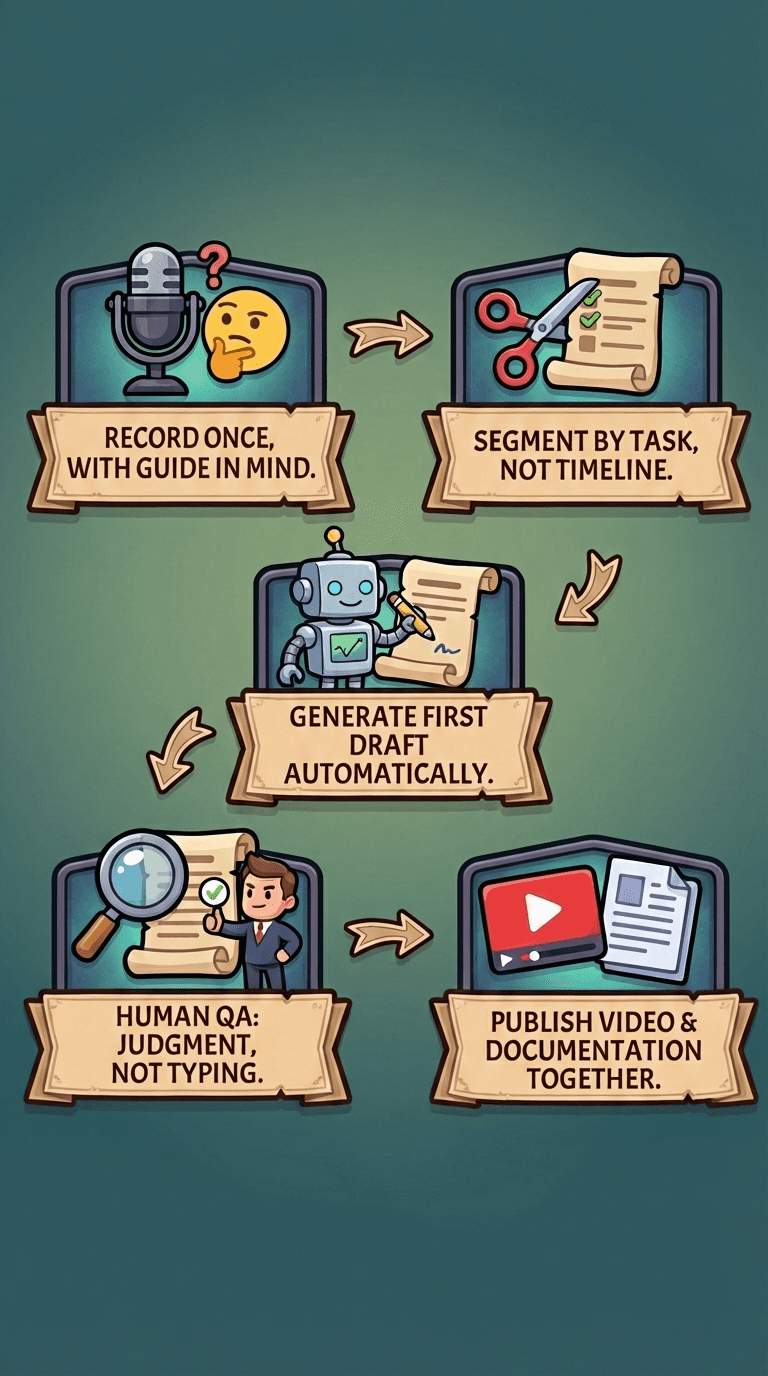
1. Record once, with the guide in mind
Narrate intent, not muscle memory. Say why you’re doing something, not just where you click. That context becomes step headers later.
2. Segment by task, not timeline
After recording, break the flow into logical steps. If three clicks serve one purpose, they’re one step.
3. Generate the first draft automatically
Modern tools like Loom, Scribe, and Tango already do part of this by turning actions into written steps with screenshots.
The value is not perfection. It’s speed.
4. Human QA focuses on judgment, not typing
The fastest review pass checks three things:
Can I follow this exactly as written?
Are prerequisites and permissions correct?
Do screenshots match the current UI?
If those pass, you publish.
5. Publish video and documentation together
The video builds confidence. The guide builds reliability. Together, they reduce support tickets far more than either alone.
This is where screen recording to documentation stops feeling like extra work and starts feeling like leverage.
Why pairing video and documentation beats choosing one
Teams love to argue video versus text. Users don’t.
Video helps when someone wants to see the flow.
Documentation helps when someone wants to finish the task.
Data backs this up. Instructional videos tend to hold attention longer, while written guides win when users need to search, skim, or revisit a specific step. The pairing covers both behaviors without forcing users into one format.
If a task is high-stakes or multi-step, publish both. Default to that.
Designing tutorial documentation that survives product changes
The hidden cost isn’t creation. It’s drift.
Buttons move. Labels change. Menus get reorganized.
Documentation that relies on visual directions like “click the blue button in the top right” rots fast. Documentation that relies on stable anchors like feature names, settings paths, and outcomes lasts longer.
Treat your screen recording as a source capture. When the UI changes, re-record the flow and regenerate the guide instead of editing screenshots one by one.
This mindset turns maintenance from a rewrite into a refresh.
Where Clevera fits in this workflow
This is exactly why we built Clevera: An AI documentation generator.
Clevera is designed so one walkthrough becomes both a video and structured tutorial documentation. You record once. The system turns that recording into a step-by-step guide with screenshots and text that you can review and publish.
No duplicate work. No starting from a blank page. No choosing between formats.
If you’re already recording walkthroughs for onboarding, support, or releases, you’re sitting on documentation you haven’t unlocked yet.
The real win of screen recording to documentation
The win isn’t faster docs. It’s fewer interruptions.
When your tutorial documentation is clear, current, and paired with video, users stop asking the same questions. New teammates ramp faster. Support tickets flatten instead of spiking after every release.
Here’s the challenge I’ll leave you with.
Look at the last screen recording your team shared internally.
Could a new hire complete the task tomorrow using only that recording?
If the answer is no, you don’t have a content problem.
You have a screen recording to documentation gap.