How to auto-update documentation on every release
Start a docs job from each release, find the help pages and videos it affects, draft the fixes and keep a person in the loop. With GitHub, GitLab and Bitbucket examples.
 Berkay Akpolat11 min read
Updated 3 November 2026
To auto-update documentation on every release, start a docs job from the release itself: a published GitHub release, a GitLab release event, a Bitbucket tag, or a new entry on your public changelog. The job reads the release notes, finds the help pages and videos the release affects, drafts the changes and sends them to a person to approve. For customer-facing docs, that review step is what keeps documentation automation safe.
This guide walks through that pipeline with any tool first (GitHub Actions, GitLab, Bitbucket, a changelog page), then shows how Clevera's Autopilot runs the same loop for a help center with videos.
What is continuous documentation?
Swimm, which popularized the term, defines continuous documentation as creating and updating docs incrementally as part of the development workflow, instead of in occasional catch-up projects. Most tools built on the idea, now often sold as "self-updating documentation", watch commits or pull requests and update developer docs next to the code.
Customer-facing help centers need a different trigger. Readers don't see a commit; they see a release. The table shows the trade-off.
| Trigger | Good for | Problem for help centers |
|---|---|---|
| Every commit | Code comments, READMEs | Noise: most commits change nothing a reader sees |
| Merged pull request | API reference, internal docs | Still noisy; a merged PR may sit behind a flag for weeks |
| Release (when a version ships) | Help articles, tutorials, videos | Needs decent release notes |
| Public changelog entry | Teams whose releases aren't on Git | Only as good as the changelog |
The case for automation is pace. DORA's 2021 State of DevOps research found elite teams deploy 973 times more frequently than low performers. Not every deploy changes what readers see, but teams ship far more often than anyone can re-check articles by hand. The same research found teams with high-quality documentation were 3.8 times more likely to implement security best practices, so the docs are not a side issue. And outdated docs are common: in GitHub's 2017 Open Source Survey, 93% of respondents had run into incomplete or outdated documentation, and 60% of contributors said they rarely or never contribute to docs.
Step 1: Write release notes a docs job can use
Automation can only update docs as well as the release notes describe the change. Two conventions help.
- Group changes by type. Keep a Changelog uses Added, Changed, Deprecated, Removed, Fixed and Security. "Added" usually means a new article or video; "Changed" and "Removed" mean existing content is now wrong.
- Separate what users see from what they don't. GitHub's automatically generated release notes sort merged pull requests by label in
.github/release.yml, and can exclude labels entirely.
# .github/release.yml
changelog:
  exclude:
    labels: [internal, chore]
  categories:
    - title: New
      labels: [feature]
    - title: Changed in the app
      labels: [ui-change]
    - title: Fixes
      labels: [bug]
    - title: Other changes
      labels: ["*"]
A "ui-change" label is the most useful label to add: it tells the docs job which items can break an article. Name the screen in the pull-request title too ("Billing settings: move reminders to Automations"), so the change can be matched to the pages that show that screen.
Step 2: Auto-update documentation on release: start a job
Every major Git host can start a job when you ship, which is how you generate docs updates from GitHub releases or their GitLab and Bitbucket equivalents. The details differ.
| Where you release | Trigger | Watch out for |
|---|---|---|
| GitHub | Actions workflow on: release with types: [published], or a release webhook |
A release created by another workflow with the default GITHUB_TOKEN doesn't start new workflows |
| GitLab | A webhook with Release events (Release Hook), or a CI job that runs when CI_COMMIT_TAG is set |
The Release Hook also fires on update and delete, so filter for create; tag webhooks skip pushes that change more than 3 tags |
| Bitbucket Cloud | A pipeline under tags: that runs when a matching tag is created |
There's no GitHub-style Releases object, so tags are the signal |
| A public changelog page | A scheduled job that reads the page or its RSS feed daily or weekly | Entries written for marketing may skip UI details |
On GitHub, a minimal workflow looks like this:
# .github/workflows/docs-on-release.yml
name: Docs on release
on:
  release:
    types: [published]
permissions:
  contents: read
jobs:
  draft-docs:
    runs-on: ubuntu-latest
    steps:
      - uses: actions/checkout@v7
        with:
          persist-credentials: false
      - name: Draft docs updates for this release
        env:
          TAG: ${{ github.event.release.tag_name }}
          NOTES: ${{ github.event.release.body }}
        run: ./scripts/draft-docs-updates.sh
Use published rather than created: per GitHub's event reference, created doesn't fire for draft releases, while published covers both stable releases and pre-releases. Pass the release notes through an environment variable as above, not straight into the shell command, because release text is user input. And if a tool such as release-please or semantic-release creates your releases with the default token, events it triggers won't start your docs workflow; give that tool a GitHub App token or a personal access token instead.
On GitLab and Bitbucket, the equivalent is a job that runs on tags:
# .gitlab-ci.yml
draft-docs:
  rules:
    - if: $CI_COMMIT_TAG
  script:
    - ./scripts/draft-docs-updates.sh "$CI_COMMIT_TAG"
# bitbucket-pipelines.yml
pipelines:
tags:
'v*':
- step:
script:
- ./scripts/draft-docs-updates.sh "$BITBUCKET_TAG"Step 3: Find the pages and videos each release affects
This is the step most guides skip, and the one that decides whether the automation helps. A release note says "Reminders moved to Billing → Automations"; your job has to turn that into "these three articles and two videos are now wrong".
Three methods, from simplest to strongest:
- Search for renamed labels. Pull every quoted UI string out of the release notes and search your articles and video scripts for the old wording.
- Keep a screen inventory. Tag each article and video with the screens it shows, and match the screen names in pull-request titles against it. Our guide to keeping documentation up to date has an inventory template.
- Let a model read each candidate in full. Give a language model the release notes and the full text (or transcript) of each candidate page, and ask for a verdict: still right, needs a text fix, or needs new screenshots or footage. Reading the whole page matters, because the broken step is often not the one the release note names.
A prompt for that verdict can be short:
You check help articles against a software release.
Release notes: {release_notes}
Article ({url}): {article_text}

Answer in JSON: {"verdict": "still_right" | "text_fix" | "new_screenshots_or_footage",
"reason": "<one sentence quoting the release item>",
"changed_steps": [<step numbers>]}
Only use facts from the release notes. If unsure, answer "text_fix" and say why.
Step 4: Draft the updates
For text, the draft is the easy part: the model gets the release notes, the current article and your style rules, and returns a revised version. Keep the article's ID and URL, so you update the existing page instead of creating a near-duplicate, and record which release last changed it. The rules in how to write help center articles make a good style prompt.
Screenshots and videos are harder. A model can't produce a screenshot of a screen it hasn't seen. You either capture new images in your UI test suite, re-record the changed flow, or flag the item for a person to re-record. Mark each item in the plan: text fix, new screenshot, or re-record. Once the changed flow is recorded, turning the recording into documentation gives you new steps and screenshots in one pass.
Step 5: Put a person between the draft and the reader
Pull-request descriptions are written by many people and never reviewed with customers in mind. Treat them, and release notes, as untrusted input: they can carry instructions a model will follow. Send every draft to review.
- Who approves: the support or docs lead for help-center content, an engineer for API reference.
- What a good review shows: each affected page with a before-and-after diff, the release item that caused it, and a clear "nothing to change" list so reviewers trust what was skipped.
- What to publish automatically: nothing customer-facing at first. Once a few releases have gone through without surprises, you can loosen the rule for low-risk items such as typo-level text fixes.
Which setup fits your team?
| Your docs | Best fit | Trigger |
|---|---|---|
| Markdown in the same repo as the code | Docs-as-code with a CI job or an AI coding agent; you maintain the scripts and prompts | Release or merged PR |
| Developer docs on a docs platform | The platform's AI agent or Git sync, such as ReadMe's GitHub AI Writer or Mintlify's Autopilot agent, which draft updates from code changes for review | Usually PRs or code changes |
| A customer help center with screenshots and videos | A help-center tool that watches releases and plans text fixes and re-recordings, for you to approve | Release or changelog page |
| A few articles, rare releases | A release checklist with a docs line | Manual |
If your team already works in Claude Code, you can also ask it to update docs after a release over MCP; we walk through that in how to update docs with Claude Code after every release.
How to auto-update documentation on release with Clevera Autopilot
Clevera is an AI platform that turns a screen recording into a narrated how-to video, a step-by-step help article and a page on your hosted help center, in 74 languages. Its Autopilot feature, on the Pro and Custom plans, runs steps 2 to 5 above for a Clevera help center.
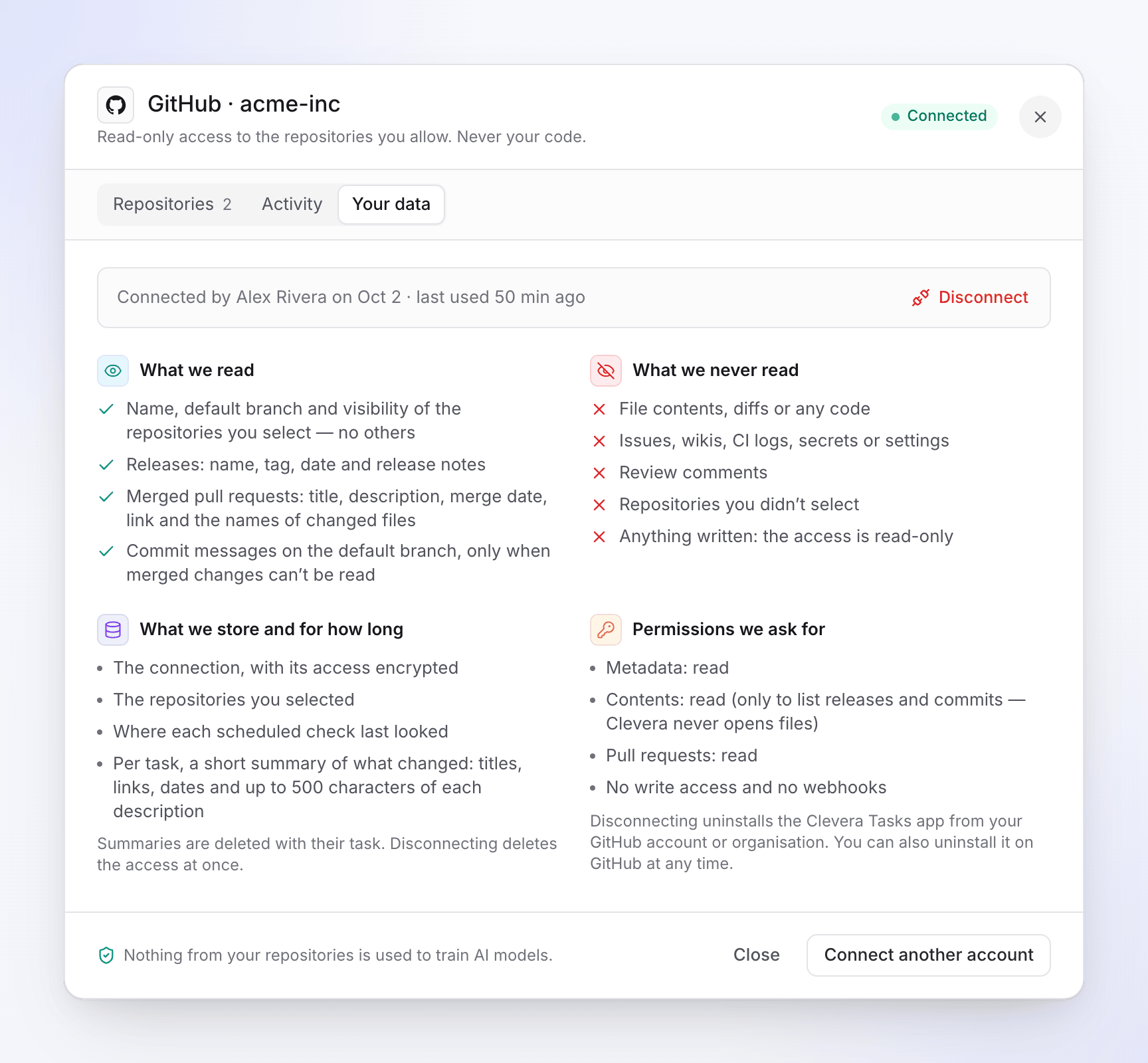
- Trigger. The recipe Keep my help center up to date when we ship watches a repository's Releases or Merged changes, or A changelog page read daily or weekly. GitHub connects through a read-only app; GitLab (gitlab.com) and Bitbucket Cloud connect the same way where available. Clevera checks the repository about once an hour. It reads release notes, tags and pull-request titles and descriptions, never your code.
- Matching. Each run checks up to 40 of the help center's videos and articles and reads each affected one in full.
- Drafting. Every item gets a verdict: still right, a text fix shown before and after, or record again with the new steps. Re-recording needs Use my app: your app's address and, if it needs one, a sign-in (a test account works best). The new video replaces the old one at the same link, so, as with LiveSync edits, embeds and help-center pages show it without new links.
- Review. Every run waits for you. You untick what you don't want and click Run, or click Ask for changes for a new plan. A plan expires after seven days, and the next run picks up everything since.
Watching and planning are free; each line of a plan shows its credits, and a typical run costs 10 to 150 credits. The same loop is available for videos without a help center through Update my videos when the product changes, and Record a video for every new feature proposes a new how-to for what each release adds (see how to make a release notes video for the manual version).
Where Clevera isn't the right tool: it doesn't generate API reference from code or write your CHANGELOG.md. For that side, see our comparison of AI changelog generators, or MCP servers for documentation if you want an AI agent to edit docs in another platform.
Start free to build the help center and videos first; Autopilot comes with Pro. Setup steps are in the help article Connect GitHub or another repository to Autopilot.
FAQ
Can documentation update itself automatically when we release?
The detection and drafting can be automatic: a release starts a job that finds affected pages and drafts the fixes. Publishing should stay a human decision for customer-facing docs, because release notes don't always say what you intended readers to do.
Should docs update on every commit or every release?
For help centers, every release. Commits and pull requests change constantly and often sit behind feature flags; a release is when readers actually see the change. Developer docs that live next to the code can follow pull requests.
How do I trigger a GitHub Action when a release is published?
Use on: release with types: [published]. If the release is created by another workflow using the default GITHUB_TOKEN, it won't start your workflow; use a GitHub App token or a personal access token for the release tool.
What if we don't publish releases on GitHub?
Use the signal you do have: GitLab release events, Bitbucket tag pipelines, or a scheduled job that reads your public changelog page or its RSS feed. Clevera's Autopilot can watch a changelog page daily or weekly for exactly this case.
Can screenshots and videos be updated automatically too?
Screenshots can be captured in UI tests on every build. Videos need the changed flow recorded again; an AI recorder can rerun a saved instruction against the new UI, and Autopilot can do this for Clevera videos when you give it your app's address (and a sign-in if your app needs one). Watch the new take before approving it.