Release notes video: how to make one for every release
Turn each release into a short video: which items deserve footage, a fill-in script for a multi-item release, length by channel, accessibility, and keeping the changelog and help articles in step.
 Roozbeh Firoozmand12 min read

Updated 3 November 2026
A release notes video (also called video release notes) shows what changed in a release instead of only listing it. To make one, pick the one or two items users will actually notice, record each changed flow in the real product, script it as problem, action, result, and keep it short: under a minute for a roundup, 10 to 40 seconds per feature. Then publish it next to the written note and the updated help article.
This guide gives you a triage rule for which releases deserve video, a fill-in script for a release with several items, length by channel, and a way to keep the video, the changelog and the help center in step when the next sprint changes the UI again.
Why turn release notes into a video?
Release notes describe a change; a video shows where it is and what it looks like. That matters because most shipped features go unseen. Pendo's 2019 analysis of 615 of its customers' products found that 80% of features in the average product are rarely or never used.
People also say they'd rather watch than read when they're learning about a product. In Wyzowl's 2026 survey, 63% of respondents said they'd most like to learn about a product by watching a short video (a vendor survey of 266 people). Short is the operative word: TechSmith's 2024 viewer study found that 50% of viewers prefer videos of 30 seconds or less to learn about a general topic such as a product, even though they'll watch much longer videos to learn a job skill.
Video release notes or a written changelog: do you need both?
Yes, for anything users will notice. The written changelog is the record: searchable, complete, quick to skim and easy for support to link. The video shows where the change lives and what it looks like. Keep every item in the written notes and give video only to the items below that earn it. Fixes and small polish stay text-only.
Which releases deserve a video?
Not every release. A video for a bug fix teaches people to skip your videos. Score each release item on three questions:
- Will users see it? A new screen, button or workflow, yes. A performance fix, no.
- Does it change how they work? A new way to do a common task, yes. A rename, usually no.
- Will support or sales get asked about it? If yes, it needs at least a short clip.
| Release item | Video treatment | Example |
|---|---|---|
| Headline feature (yes to all three) | Its own clip, 20 to 40 seconds, plus the lead slot in the roundup | Saved views for a reports table |
| Visible improvement (yes to one or two) | An 8 to 12 second "quick hit" in the roundup | A filter added to an existing table |
| Fix, polish, internal change | A line on an "Also in this release" card, or nothing | Faster exports, a bug fix |
| Breaking change or removal | A clip that shows the new path, even if small; mark it Deprecated in the changelog | A setting moved to a new menu |
For the release-tier playbook across email, in-app and social, see how to announce a new feature. This post stays with the video itself.
How do you write a script for a release with several items?
Most guides assume one feature per video. Sprint releases often ship several items. This roundup structure keeps a multi-item release under a minute:
RELEASE NOTES VIDEO SCRIPT (45–60 s)

[0–5 s] HOOK
"[Product] [version]: [headline benefit]."

[5–30 s] HEADLINE ITEM
Friction: "[Job] used to take [N steps]."
Action:   open [screen], do [action 1],
          then [action 2], in the real UI.
Result:   "[What the user now has]."

[30–45 s] QUICK HITS (8–12 s each, max 3)
"Also new: [item 2]." Show one proof shot.
"And: [item 3]." Same.

[45–52 s] ALSO IN THIS RELEASE
On-screen card: 3–5 one-line fixes.

[52–60 s] NEXT STEP
"Live today for [plans]. Open [screen]
to try it, or read the notes at [URL]."
Three rules make the script work:
- Write benefits, not feature names. "Saved views" is a feature name. "Open your weekly report in one click" is a reason to watch.
- One proof shot per item. The viewer needs to see the moment the change matters, not a tour of the screen.
- Say who gets it. Plan, role or rollout percentage. A viewer on the wrong plan who can't find the feature becomes a ticket.
How long should a release notes or changelog video be?
Length depends on where the viewer meets it. Wyzowl's marketers most often named 30 to 60 seconds as the length that works best (51%), and Vidyard's 2025 benchmarks found 65% of viewers watch business videos under a minute to the end, against 20% for videos over 20 minutes.
| Where it plays | Length | Sound and format |
|---|---|---|
| Changelog entry, one per feature | 10 to 40 seconds | Muted loop, 16:9 |
| In-app "What's new" | 10 to 20 seconds | Muted loop of the key action |
| Release email (thumbnail linking out) | 30 to 60 seconds | Sound on, captions, 16:9 |
| Social post | 30 to 45 seconds | Muted by default, burned-in captions, 9:16 or 1:1 |
| Help-center article | 1 to 3 minutes | Sound on, captions, full walkthrough of the task |
Real changelogs follow this pattern. Linear's changelog embeds one clip per feature, between about 17 and 40 seconds when we checked in November 2026. Notion's 2.32 release note (August 2023) used silent clips of 6 to 13 seconds, one per feature. Qlik's Talend docs file a monthly release highlights video alongside the written release notes in the help center.
How do you record the footage?
Screen footage of the real product beats animation for release videos, because the point is to show where the change lives. The same holds for any narrated product demo.
- Record only the changed flow. Start on the screen just before the change, do the new action once, stop on the result. Five to forty seconds of footage is plenty.
- Use realistic demo data. Empty tables and "test123" make a feature look unfinished.
- Record on the release build. Footage from a staging branch that changed before release is a common reason a launch video is wrong on day one.
- Add zoom on the click. The viewer's eye needs to land on the new button within a second.
How much this costs with a traditional process is worth knowing. PostHog's public handbook budgets up to 1.5 weeks for a teaser under 30 seconds and up to 2 weeks for a 30 to 90 second use-case video, and that's a team with a defined video process. Most SaaS teams shipping every sprint can't spend that per release, which is why the tooling choice below matters.
How do you make the video accessible?
- Captions on everything. Burned-in captions for social, where sound is off; a caption track for players that support one.
- Don't carry information by voice alone. If the narration says "it's in the new Automations tab", the screen should show the tab.
- Give a text equivalent. The written release note and the help article are the transcript for readers who can't or won't watch.
- Muted loops shouldn't need sound at all. Changelog and in-app clips should make sense with no narration.
How do you keep the video, changelog and help article in sync?
This is the part most release-video guides skip. A release touches three places: the changelog entry, the help article for the changed task, and every existing video that shows the old UI. Plan them together.
- One recording, several outputs. Record the changed flow once, then cut the release clip, the help-center walkthrough and the screenshots for the article from the same footage. Here's how to turn a screen recording into documentation.
- Update the old content in the same pass. If the release moved a menu, the getting-started video from last quarter is now wrong too. Check every video and article that shows the changed screen. Our guide to keeping documentation up to date covers the triage, and how to auto-update documentation on every release shows how to start that check from the release itself.
- Host videos where an edit updates every copy. If a label changes again next sprint, you want to fix the narration once, not re-upload to five places.
- Translate last. Approve the English video and article first, then translate both.
How do you know the video worked?
Track three numbers for each release that got a video:
- Play rate on the changelog entry and in-app message: plays divided by views of the page.
- First use of the headline feature within 14 days, among users who have access.
- Tickets about the change in the same 14 days. A video that shows the new path should lower them; if it doesn't, the video probably skipped the step people get stuck on. For counting tickets prevented, see how to measure ticket deflection rate.
How to make a release notes video in Clevera
Clevera is an AI platform that turns a screen recording into a narrated how-to video, a step-by-step help article and a page on your hosted help center, in 74 languages. For a release, that means one recording of the changed flow becomes the video, the product-update article and the help-center page.
- Record the changed flow. Use the desktop app on Mac, Windows or Linux, or let the AI screen recorder click through a public web app from a written instruction. You don't need to narrate.
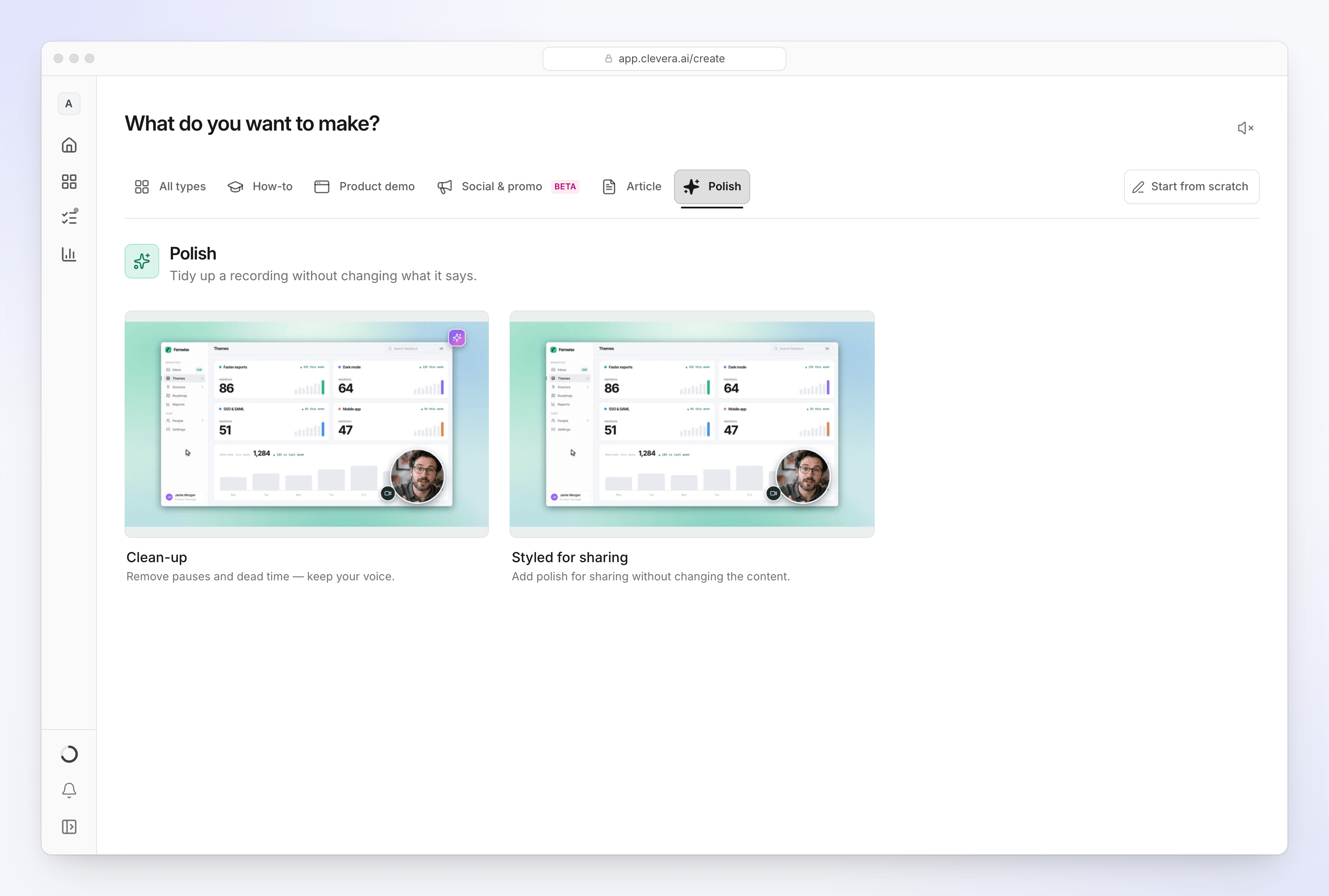
- Make the video. For a narrated roundup, create a Product demo and choose New version (it aims at 30 to 75 seconds, one improvement per part). For a muted 10 to 40 second changelog loop, record just the changed action and use Polish my footage → Styled for sharing, which keeps your footage and adds no AI voice. New feature aims at 1 to 1.5 minutes, so save it for the release email or the help center. Clevera writes the script from what happens on screen, adds an AI voice-over, zoom accents on the key moments and captions; edit any line in the script and the voice regenerates. On the Free plan, videos can be up to 3 minutes and you share them by link or embed; MP4 download needs Starter.
- Make the article from the same recording. Choose the Product update article kind ("Ship notes as readable content"); Clevera writes it with screenshots taken from the recording and highlights where you clicked. Put the video in the article with a Clevera video block.
- Publish to the changelog and help center. Every Clevera help center has a changelog with an RSS feed, version numbers and New, Improved and Fixed categories; scheduling an entry for a future date needs Starter or higher. Link the entry to the article and video (the changelog body takes text, images and links). Setup is in Publish a doc site changelog.
- Cut the social version if you want one. A Feature announcement clip can be built from your changelog URL or recording as a motion-designed clip in 16:9, 9:16 or 1:1 (at least 30 seconds). Social and promo clips are a Beta feature on Starter and above. Clevera doesn't post to social networks for you.
When the next release changes the UI again, LiveSync means a narration or text fix in a published video shows up on every Clevera share link, embed and help-center page that plays it (downloaded MP4s don't change). Changed footage needs a new recording.
Automate it on every release
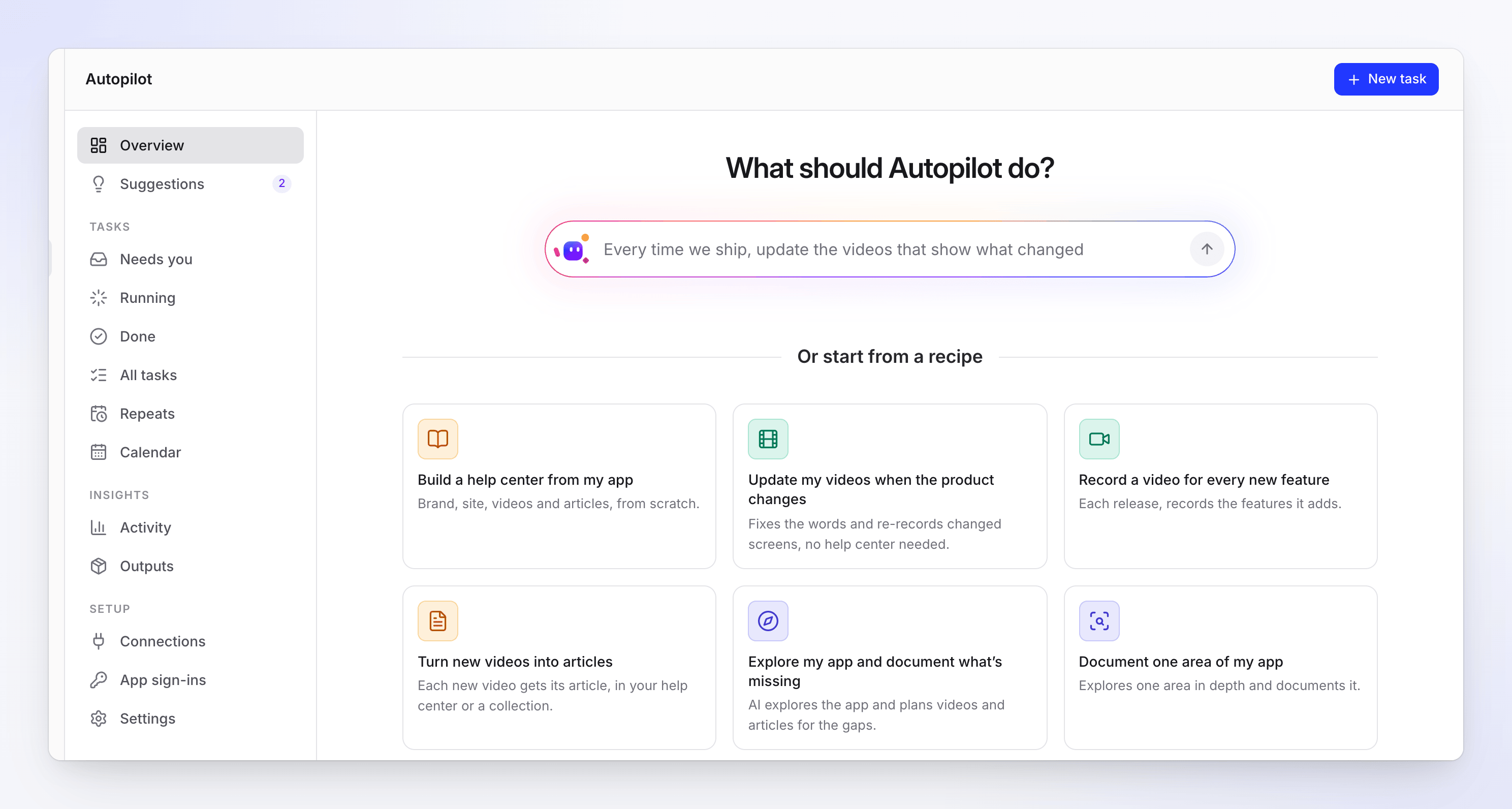
On the Pro and Custom plans, Autopilot can watch a connected GitHub repository's releases and run Record a video for every new feature: for each release it proposes a new how-to video for each feature the release adds, plus fixes for existing videos the release made wrong. Each plan waits for you to review it and click Run; recording needs your app's address, plus a sign-in if your app needs one. A typical run costs 10 to 150 credits. Details are in Update your videos when your product changes.
Where Clevera isn't the fit: it doesn't send release emails or show in-app messages, so keep your messaging tool for delivery. For the full launch plan across email, in-app and social, see how to announce a new feature and how to make a product launch video.
Start free and turn your next release into a video and a product-update article from one recording. For more on the format, see the launch video maker.
FAQ
What is a release notes video?
A short video that shows the changes in a software release, usually 10 to 60 seconds, built from screen recordings of the new or changed features. It's published next to the written release notes, not instead of them.
How long should a product update video be?
Under a minute for a roundup of several items, and 10 to 40 seconds for a clip about one feature. Put longer walkthroughs of a changed task in the help center, where people come to learn rather than to skim.
Can AI turn release notes into a video?
AI can write the script from release notes and build a motion-graphics clip from a changelog page. To show the real interface, you still need footage of the new UI, recorded by you or by an AI recorder that clicks through your app. Clevera can do both, and its Autopilot can propose a video for each new feature in a release (Pro and Custom).
Should every release get a video?
No. Give a clip to changes users will see and use differently, put smaller visible improvements in a roundup, and leave fixes to the written notes.
How do I keep release videos from going out of date?
Keep each clip to one feature, record on the release build, and host videos where an edit updates every embed. When a later release changes the same screen, re-record only that clip and update the help article in the same pass.