How to make a product launch video

Most SaaS launches get one video, finished the night before, cut once for every channel. That's the main reason launch videos underperform: a 90-second demo is the wrong asset for a muted LinkedIn feed 10 days out, and a 15-second teaser is the wrong asset for a Product Hunt visitor who wants to see the product work.
This guide treats how to make a product launch video as a set of 5 short videos with different jobs, posted on a schedule. You'll get the set, a T-14 to T+7 timeline, a script structure for each video with a worked example, the specs that matter per channel, and a copyable checklist at the end.
The 5 videos a SaaS launch needs
Each video answers a different question for a different viewer. Write that question down before you script anything.
Video | Viewer's question | Length | Shows the product? |
|---|---|---|---|
Mystery teaser | "What's going on?" | 6–15 s | No. Hints only |
Coming soon | "What is it and when?" | 10–20 s | Partly. A glimpse, plus the date |
Launch teaser | "Is it live? Where do I go?" | 15–30 s | Yes, fast highlights |
Feature announcement | "What's new and why should I care?" | 20–45 s | Yes, the one feature |
Product demo | "How does it work in practice?" | 60–120 s | Yes, the full workflow |
The first 3 build attention up to launch day. The feature announcement targets existing users. The demo is what people watch when they're deciding, so it lives on your Product Hunt gallery, landing page and sales follow-ups.
Smaller launches don't need all 5. A feature shipped to existing customers usually needs the feature announcement and the demo, nothing more. Save the mystery teaser for launches with a new product name, a new pricing tier or anything you'd put on Product Hunt.
A launch video timeline from T-14 to T+7
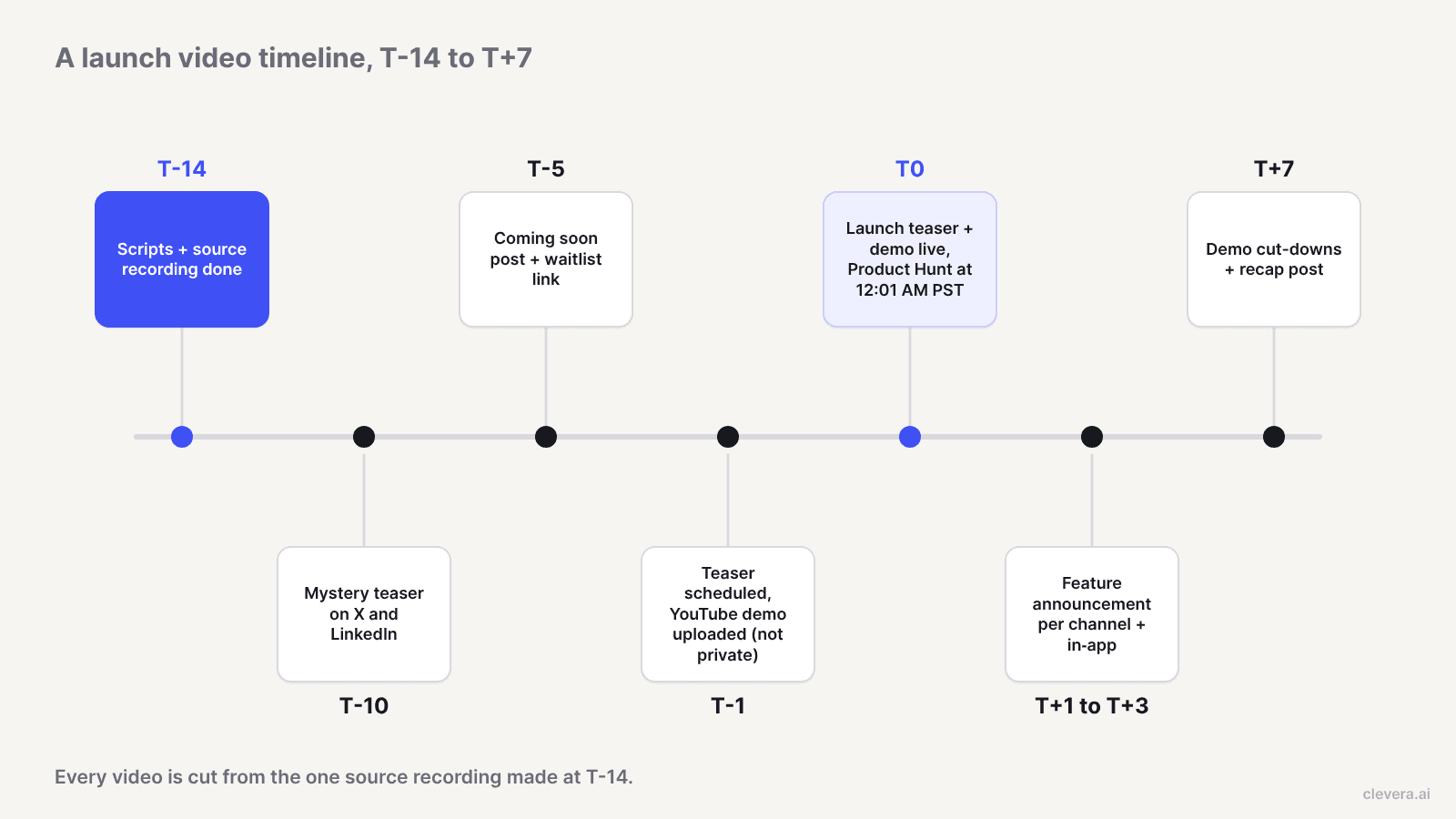
T is launch day. Dates assume a mid-size launch with a public waitlist or Product Hunt post.
T-14: lock the source material. Finish the scripts and record the product once, end to end, on production-like data. Every later video is cut from this. If the UI changes after T-14, re-record the affected screens now, not on T-1.
T-10: post the mystery teaser. One post on X and LinkedIn from the founder or company account. No product name, no link.
T-5: post the coming soon video with the date and a waitlist or "notify me" link. This is the first video with a call to action.
T-1: schedule everything. Upload the demo to YouTube and check it isn't set to private: Product Hunt's posting guide says only YouTube links work for gallery videos, and full URLs only. Queue the launch teaser for every channel.
T0: launch. Product Hunt days start at 12:01 AM PST. Post the launch teaser everywhere, with the demo on your Product Hunt gallery, landing page and launch blog post.
T+1 to T+3: feature announcements. One clip per headline feature, spaced a day apart, plus the in-app version for existing users.
T+7: cut-downs and recap. Trim the demo into 2 or 3 single-feature clips for paid tests and sales follow-up, and post a recap with what shipped. If you also publish release notes, the tools in our AI changelog generator comparison cover the written side.
Script structures for each launch video
The backbone for all 5 is hook, problem, reveal, proof, call to action. What changes is how much of each a video gets. A teaser is almost all hook; a demo is mostly proof.
To make this concrete, here's a worked example for a hypothetical product. Ledgerline is an invented invoicing app for agencies, launching a feature called Auto-match that pairs incoming bank payments with open invoices. It's not a real company or customer; it's here only to show the scripts.
Mystery teaser
Structure: 1 visual hook, 1 line of tension, a date or symbol. No product, no feature name.
> Example (Ledgerline, hypothetical). Scene 1: a spreadsheet with 214 rows highlighted red. On-screen text: "Unmatched." Scene 2: the rows turn green one by one, then cut to black. Text: "10.21."
Keep it under 15 seconds and make it work on mute.
Coming soon
Structure: problem in one line, a partial reveal, the date, one call to action.
> Example. "Matching payments to invoices takes our users 3 hours a month." Quick shot of the Auto-match button, blurred results panel. "Auto-match. October 21. Join the waitlist."
The "3 hours" number has to come from your own data. If you don't have one, describe the task instead ("Every Friday, someone reconciles payments by hand.") rather than inventing a stat.
Launch teaser
Structure: hook, 3 fast product shots, "live now", where to go.
> Example. "Your bank feed, matched to your invoices." Shot 1: payments flow in. Shot 2: Auto-match pairs them. Shot 3: 1 exception flagged for review. "Live today on Product Hunt."
Put the destination in the last 3 seconds and in the post copy.
Feature announcement
Structure: who it's for, the before, the after, how to turn it on, call to action.
> Example. "For agencies on Ledgerline Pro." Before: a finance lead copies payment IDs between 2 tabs. After: Auto-match does it on sync. "Turn it on in Settings, then Payments. Live for every Pro workspace."
This is the video that ends up in your changelog and in-app modal, so the "how to turn it on" step matters more than polish.
Product demo
Structure: 1-line setup, the workflow in 3 or 4 beats, one proof moment, call to action. Narrate outcomes, not clicks.
> Example. Setup: "It's month-end and 40 invoices are open." Beat 1: connect the bank feed. Beat 2: Auto-match pairs 37 payments. Beat 3: review the 3 it couldn't match and why. Proof: the aged-receivables report updates. CTA: "Try Auto-match on your last month's payments."
The proof moment is the one most demos skip: show a result someone outside the product team cares about. For more on narration and pacing, see how to create narrated product demos with AI.
Formats and lengths per channel
Platform limits are generous. The constraint is attention, so the right length is usually far below the maximum.
Channel | Best video | Ratio to use | What the platform allows |
|---|---|---|---|
Product Hunt | Product demo | 16:9 | YouTube links only, must not be private (Product Hunt) |
LinkedIn (organic) | Teasers, feature announcement | 1:1 or 9:16 in feed, 16:9 for demos | 3 s to 15 min, up to 5 GB (LinkedIn Help) |
LinkedIn (ads) | Launch teaser, feature announcement | 16:9, 1:1, 4:5 or 9:16 | 3 s to 30 min; LinkedIn recommends 15–30 s (LinkedIn ad specs) |
X | Mystery teaser, launch teaser | 1:1 for teasers, 16:9 if you post the demo | Up to 140 s without Premium (X Help) |
YouTube | Product demo (long-form), teasers (Shorts) | 16:9 long-form; Shorts must be square or vertical | Shorts up to 3 min (YouTube Help) |
In-app | Feature announcement | Match your modal, usually 16:9 | Your own player; keep it under 45 s |
A few details from those pages that change how you plan:
LinkedIn ads under 30 seconds loop until they reach 30 seconds of playback, per LinkedIn's ad spec page. A 10-second teaser plays 3 times, so the end frame should lead cleanly back into the start.
YouTube Shorts over 1 minute with any copyright claim are blocked globally. If your launch teaser runs longer than 60 seconds as a Short, use royalty-free music.
Over 140 seconds on X needs Premium. Your 2-minute demo fits; a 3-minute one doesn't on a standard account. Post the teaser natively and link the demo.
Burn in captions on every feed video. Most people scroll with sound off, and the mystery and coming soon videos should make sense with no audio at all.
How to make your launch videos in Clevera

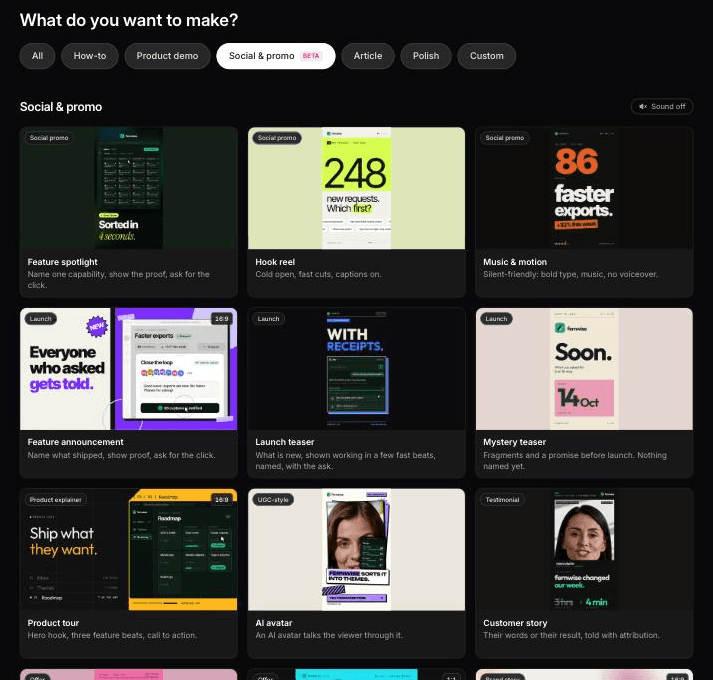
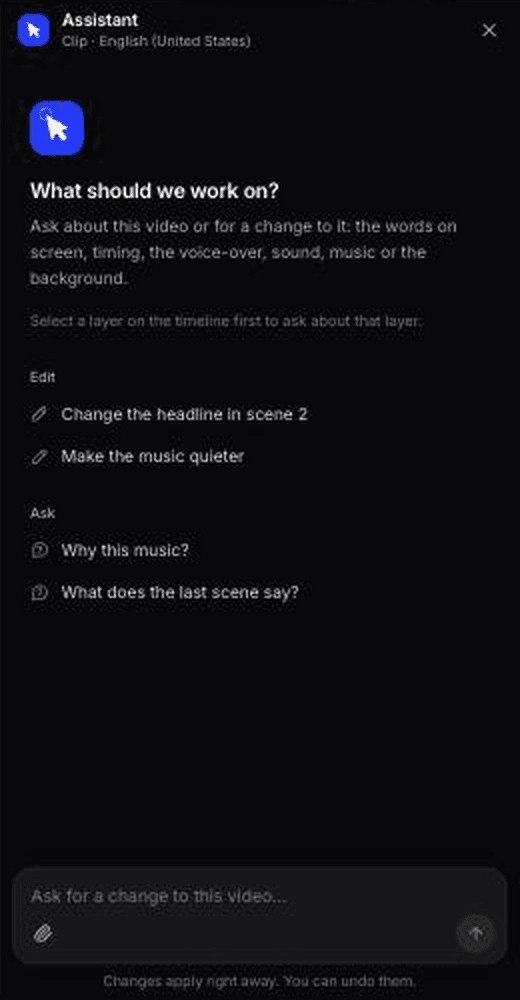
Clevera turns a recording, a link, a PDF or a short brief into product videos. One source can become all 5 launch videos as separate, independently editable items.
1. Start from what you have.
A recording. Record the T-14 walkthrough with the desktop app or Chrome extension, or upload an existing video. If the feature lives in a web app and you don't want to record it yourself, the AI recorder can capture it in a cloud browser from a written instruction. It's read-only by default, and you can take over the browser mid-recording.
A URL. Paste your landing or changelog page and Clevera pulls product facts, screenshots and your logo from it.
A brief. For social & promo videos, a few sentences are enough. This is useful for the mystery teaser, where you don't want product footage anyway.
2. Pick a type per video. In Social & promo, the Launch types cover 3 of the first 4 videos: mystery teaser, launch teaser and feature announcement. For the coming soon clip, use the launch teaser type and put the date and waitlist link in the brief. For the narrated walkthrough, use the Product demo type and choose the new feature or product launch subtype. The demo gets an AI-written script and voiceover, and it skips low-value footage instead of narrating every click.
3. Add the facts once. Put the launch date, the feature name, who it's for and the call to action in the prompt. If a type needs a fact you didn't give, Clevera asks before it generates, which is better than a teaser with a made-up date.
4. Choose the aspect ratio for the channel. Social & promo clips come in 9:16, 4:5, 1:1 and 16:9, plus other sizes, from the Format menu. Each type has a default, such as 9:16 for the launch teaser and 16:9 for the feature announcement. Use the table above: 1:1 or 9:16 for feeds, 16:9 for the demo on YouTube and Product Hunt.
5. Edit by prompt, then by hand. Social clips open in a clip editor with an AI assistant: type "make the date larger and hold the last frame for 2 seconds" and it makes that targeted change. Revision history lets you compare versions and restore one. The demo opens in the timeline editor, where you can rewrite narration, add title cards and adjust zooms.
6. Export and localize. Export an MP4 per channel, and translate into any of 74 languages if you launch in more than one market.
A few honest limits. Social & promo clips are on paid plans; Starter is $29/month billed yearly (pricing), while the Free plan includes unlimited styled videos (videos up to 3 minutes, watermarked 1080p exports). Clevera won't film your founder on camera or shoot live-action b-roll; if your launch concept is a filmed story, you still need a camera crew, and Clevera fits the product clips around it. The AI recorder works on websites and web apps, not desktop software, and mobile recorders aren't available yet, so a mobile app launch means uploading your own screen recording. And if the UI changes after you record, edits to narration and text update live embeds, but the footage itself needs a new recording.
For how product marketing teams run this across every release, not only big launches, see Clevera for product marketing.
We made 2 of the 5 for our own launch: 99 and 140 credits
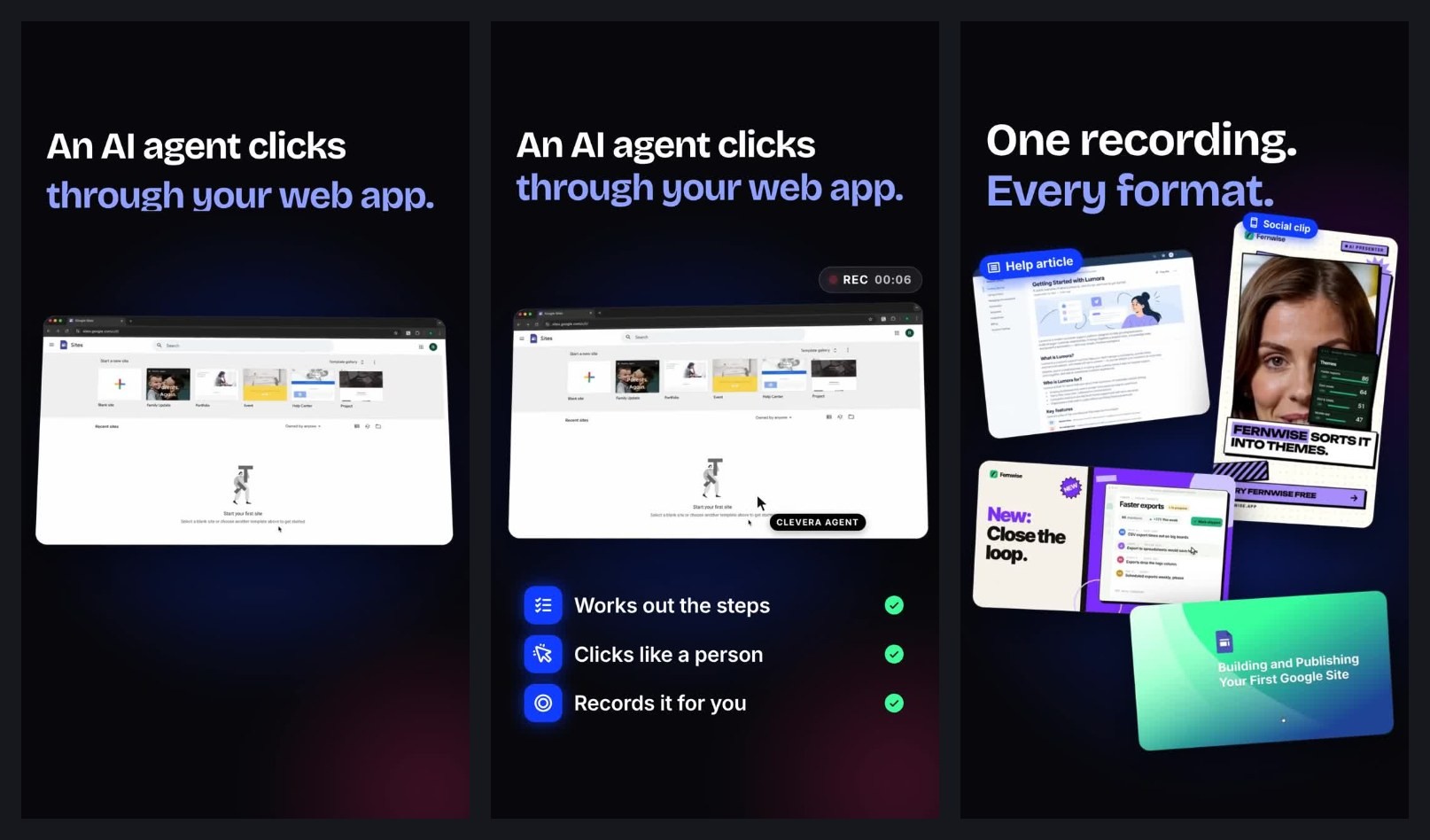
In October 2026 we made a launch teaser and a feature announcement for Clevera's AI recorder. Both started from the clevera.ai homepage, added once through "Research a website", plus a one-line brief.
The launch teaser kept its type's defaults: 9:16, 35 seconds and no voice. It took about 7 minutes and 99 credits. The frames are strong and work on mute: "An AI agent clicks through your web app." over a recording with a REC timer, then "One recording. Every format."
The feature announcement ran 16:9 and 60 seconds, with voiceover and captions. It took about 11 minutes, with 3 jobs generating at once, and 140 credits, the most of any clip we made that day. Its title card, "AI app recording" with a NEW badge, was a sharper headline than the one in our brief.
What we'd fix before posting: both clips reused an unrelated Google Sites example from our showreel where AI recorder footage should be. You can see it in the frames above. Swap that clip in the editor. Both also ran longer than the lengths in the table at the top, because we kept the defaults. Set the length in the Format menu before you generate; the shortest preset we saw was about 35 seconds.
Launch teardown: what goes wrong most often
These 3 mistakes are common, and each is cheap to fix before T-1.
The first 3 seconds are a logo. LinkedIn's own ad guidance is to put the most important content in the first 10 seconds. A 3-second logo reveal spends 30% of that window on nothing.
The call to action is only spoken. On mute, it doesn't exist. Put the destination on screen and in the post copy.
The Product Hunt video is private, shortened or not on YouTube. All 3 break the gallery video on launch morning. Check the link from a logged-out browser at T-1.
If you're weighing an interactive tour against a video for the demo slot, interactive demo vs product video covers when each wins.
Copyable launch video checklist
``` LAUNCH VIDEO CHECKLIST (T = launch day)
T-14 [ ] Launch date, feature names, audience and CTA written in 1 doc [ ] Scripts drafted for: mystery teaser, coming soon, launch teaser, feature announcement, product demo [ ] Product recorded end to end on production-like data [ ] Any numbers in scripts come from your own data (or are cut)
T-10 [ ] Mystery teaser posted on X and LinkedIn (6-15 s, works on mute)
T-5 [ ] Coming soon posted with date + waitlist link (10-20 s) [ ] Captions burned in on all feed videos
T-1 [ ] Demo uploaded to YouTube, NOT private, full URL copied [ ] Product Hunt gallery video link tested logged out [ ] Launch teaser scheduled for each channel in the right ratio (1:1 or 9:16 feeds, 16:9 YouTube/Product Hunt) [ ] X versions under 140 s; LinkedIn ads 15-30 s
T0 [ ] Launch teaser live on every channel, destination on screen + in copy [ ] Demo embedded on landing page and launch blog post
T+1 to T+3 [ ] 1 feature announcement per headline feature, a day apart [ ] In-app version live for existing users (under 45 s)
T+7 [ ] Demo cut into 2-3 single-feature clips for ads and sales [ ] Recap post with what shipped [ ] Re-record any screens the UI changed since T-14 ```
The video set is the easy part to plan and the hard part to finish, because the work lands in the last 2 weeks when everything else is moving. Record once at T-14 and cut everything from that source, and you'll have 5 videos on schedule instead of 1 on launch night. Make your launch videos with Clevera →

