Product Hunt launch video: a practical guide

A Product Hunt launch video has one viewer: someone who clicked your tagline, scrolled into the gallery and is deciding in a few seconds whether your product deserves a comment. That viewer is often on mute.
This guide covers only the video side of a Product Hunt launch: where video appears on the post, the rules Product Hunt enforces, what 5 top-ranked launches did in their videos, a shot list for a 60–90 second gallery demo, and the clips you'll post on X and LinkedIn on the day.
Where video shows up on a Product Hunt post
There are 3 places video or motion can appear, each with its own rules. Everything below comes from Product Hunt's launch preparation guide and its posting help article.
Slot | What Product Hunt says | What it means for you |
|---|---|---|
Gallery video | Optional. YouTube links only, not private, full URL (shortened links won't load) | Upload to YouTube early and paste the full `youtube.com/watch?v=` link |
Gallery images | 2 required, 1270x760 recommended, drag to reorder, GIFs allowed | Use stills for the screens your video moves past quickly |
Thumbnail | Required, square, 240x240 recommended, under 3MB. GIFs animate only on hover. Strobing, quick cuts and unreadable text may be edited by Product Hunt | The first frame is what the homepage shows, so design that frame |
First comment | Appears right below the gallery. Images, videos and GIFs welcome | A place for a short clip of a feature the main video skipped |
Product Hunt says about 53% of products that reached Product of the Day since 2021 included a video, so video helps but isn't mandatory. Interactive demos from Arcade, Storylane, Hexus, Supademo, Layerpath or ScreenSpace can also go in the gallery, free for Product Hunt launches; interactive demo vs product video covers when each wins.
Private vs unlisted. The docs only say "not private". Unlisted works in practice: the gallery video on Perplexity's Automations in Perplexity Computer launch (#3 Product of the Day, October 11, 2026) is an unlisted YouTube video. That's useful if you don't want it on your channel before launch.
Timing. Product Hunt days run on Pacific time and posts go live at 12:01 AM PST. You can schedule up to 1 month ahead. Upload the video at least a day early: Screen Studio published its 3.0 video on February 5, 2025 for a February 6 launch, and the Call Arc video also went up the day before its launch.
What 5 top Product Hunt launches did with their video
We took 5 software launches that finished in the daily top 5 and went through each gallery video frame by frame (1 frame per second; 2 seconds for the longest). Ranks and dates come from the launch pages.
Launch | Result | Length | First seconds | Product on screen by |
|---|---|---|---|---|
#1 of the day, May 24, 2024 | A hand picks up a landline, then a card: "Pick up your phone!" | ~10 s | ||
#1 of the day, Feb 6, 2025 | Presenter to camera, product website by second 2 | ~2 s | ||
#2 of the day, June 12, 2025 | Film opens on a live-action kitchen scene | ~20 s into the film | ||
#3 of the day, Oct 11, 2026 | 2 s of logo, then "Automate anything with Computer." | ~6 s | ||
#5 of the day, Mar 15, 2026 | Co-founder Peer Richelsen to camera, captions burned in | ~38 s |
Call Arc sells one gesture. Each shot is someone raising a phone to their ear, the question appears as on-screen text, and the answer arrives as a card. It ends on the URL. At 31 seconds there's no room for a second feature, and it doesn't try.
Screen Studio 3.0 covers 1 feature, shareable links. A presenter (the description credits creator @mattiagntt) alternates with screen footage every few seconds: the face carries energy, the UI carries proof.
Dia used 2 videos. The teaser is text cards only ("Tomorrow", "Available first to all Arc members"). The film spends about 20 seconds on a live-action story before any UI. That works for a team with an existing Arc audience; for an unknown product, it's a lot of patience to ask for.
Perplexity has no people. Each claim is a large text card ("Kick off automations with conditional triggers") followed by the UI doing it: a "$24,000 renewal at risk" report, then a schedule ticking from 7:59 to 8:00 AM and running. It reads fully on mute.
Cal.com is the longest and mostly talking head, with captions on every line, so a muted viewer still gets the pitch even though the UI arrives late.
Across the 5: 4 put the product or a written line about it on screen within the first 8 seconds, and 3 are about a single feature. None uploaded a caption file to YouTube (only auto-generated tracks, and none on the Dia teaser), so the ones that work on mute carry the words inside the video. Gallery lengths run from 31 to 131 seconds, with a median of 78 (counting Dia's film).
The first 5 seconds of the gallery video
The gallery viewer has already read your name and tagline. The opening has to show what that tagline looks like in use.
Seconds 0–2: a sentence on screen. Your one-line promise as large text, or a presenter saying it with captions.
Seconds 2–5: the product doing the thing. The most impressive screen, mid-action. Not a logo sting, not a dashboard tour.
A custom YouTube thumbnail. It's the still people see before pressing play in a YouTube embed, so use a product frame with the promise in text.
LinkedIn's video ad guidance states the same principle: show the most impactful content in the first 10 seconds.
Length, silent viewing and captions
Aim for 60–90 seconds for a new product and 30–50 seconds for a single feature or new version. Call Arc and Screen Studio, both single-feature launches, came in at 31 and 49 seconds. Past 2 minutes, put the longer walkthrough on your site or in the first comment instead.
For muted viewing:
Burn in captions for every spoken line rather than relying on YouTube's auto captions.
Write text cards that stand alone. "Run automations on a set schedule" needs no audio.
Zoom in on the UI. A full-screen app shrunk into a gallery frame is unreadable; crop to the panel that matters.
Put the call to action on screen in the last 3 seconds: "Live on Product Hunt today" or your URL.
A shot list for a 60–90 second Product Hunt demo
Record on clean demo data, at 1920x1080, with notifications off.
Time | Shot | On-screen text |
|---|---|---|
0–3 s | Best result screen, mid-action | Your tagline as a promise |
3–10 s | The manual "before", 1 shot | One line naming the problem |
10–30 s | Core workflow, steps 1 and 2, zoomed | Short step labels |
30–45 s | The result appears | The outcome, with a real number from your data if you have one |
45–60 s | Proof: an export, a report, a teammate receiving it | What someone outside the product team cares about |
60–75 s | 1 secondary feature or integration (optional) | Feature name |
75–90 s | Who it's for, then end card | "Live on Product Hunt today" + URL |
Narrate outcomes, not clicks: "Your renewals report runs every Monday at 8" beats "Click Schedule, then pick a time." More on pacing in how to create narrated product demos with AI.
Supporting clips for X and LinkedIn on launch day
Your launch-day posts need their own cuts, uploaded natively rather than as YouTube links. For the full launch video set and the T-14 to T+7 timeline, see how to make a product launch video.
At 12:01 AM PST: a 15–30 second launch teaser in 1:1 or 9:16. 3 fast product shots, "Live on Product Hunt today" on screen, the link in the post copy.
Through the day: 1 clip per headline feature, 20–45 seconds, a few hours apart. Use them in comment replies too.
Mind the limits. X allows 140 seconds without Premium. LinkedIn organic video runs 3 seconds to 15 minutes; boosted posts under 30 seconds loop to 30 seconds.
Ask for feedback, not upvotes. Product Hunt's sharing guide says asking specifically for upvotes is against its policies and it may ask you to remove posts. Keep "Upvote us!" off your end cards.
Common Product Hunt launch mistakes with video
A private video or a shortened link. Test the full URL from a logged-out browser at T-1.
Uploading on launch morning. Processing delays or a wrong YouTube thumbnail are bad surprises at 12:01 AM.
A thumbnail GIF with a weak first frame. It only animates on hover, so a blank or mid-transition frame is what the homepage shows.
One 3-minute video for every job. The gallery viewer wants 60–90 seconds; the feed scroller wants 20.
Screens that changed after recording. If a new nav shipped Thursday, Tuesday's recording shows the old one.
How to make your Product Hunt video in Clevera
Clevera turns a screen recording, a link or a short brief into product videos, so one source can give you the gallery demo and the launch-day clips.
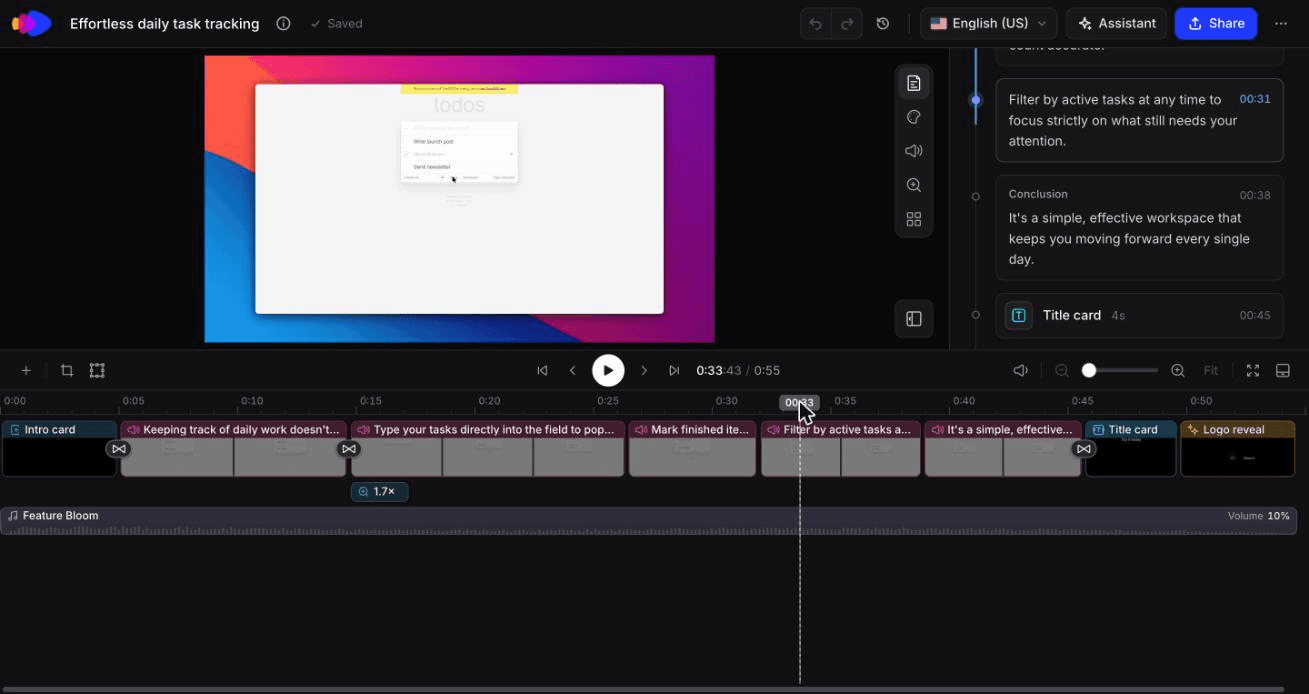
Gallery video: product demo. Record the workflow with the desktop app or Chrome extension, or upload a recording. For a web app you'd rather not record yourself, the AI recorder captures it in a cloud browser from a written instruction; it's read-only by default and you can take over mid-recording. Pick the Product demo type with the product launch or new feature subtype. Clevera writes the script and AI voiceover, skips low-value footage instead of narrating every click, and adds title cards. Refine narration, zooms and text in the timeline editor, then export 16:9 for YouTube.
Launch-day clips: social & promo. The launch teaser and feature announcement types match the 12:01 AM post and the feature clips. They can start from your recording, your landing page URL or a few sentences, and come out in 9:16, 4:5, 1:1 or 16:9, plus other sizes, from the Format menu. In the clip editor, type "put 'Live on Product Hunt today' on the last frame" and the AI assistant makes that targeted edit, with revision history to compare and restore versions.
Founder-narrated instead. If you'd rather the gallery video be your own voice, record with the desktop app (camera optional) and make a styled video: background, zooms and branding, with your voice kept. Styled videos are unlimited on the Free plan (watermarked 1080p, videos up to 3 minutes). Videos also translate into 74 languages if you launch in several markets.
Where Clevera is not the right fit. It doesn't film live action, so a Dia-style story or Call Arc's phone-to-ear scenes still need a camera. Social & promo clips are on paid plans; Starter is $29/month billed yearly (pricing). The AI recorder works on websites and web apps, not desktop software, and mobile recorders aren't available yet, so a mobile app launch means uploading your own recording. Clevera exports MP4, so the thumbnail GIF is a separate step. And if the UI changes after recording, narration and text edits update live embeds, but the footage needs re-recording.
For how product marketing teams run this on every release, see Clevera for product marketing.
Our test run: a 55-second demo and a 35-second teaser
In October 2026 we ran this split on our own material. For the gallery slot, we made a Product overview demo from one AI recorder recording of a to-do app: 58 seconds of footage became a 0:55 demo with music and real frames from the recording. It took about 70 seconds to generate and cost 6 credits.
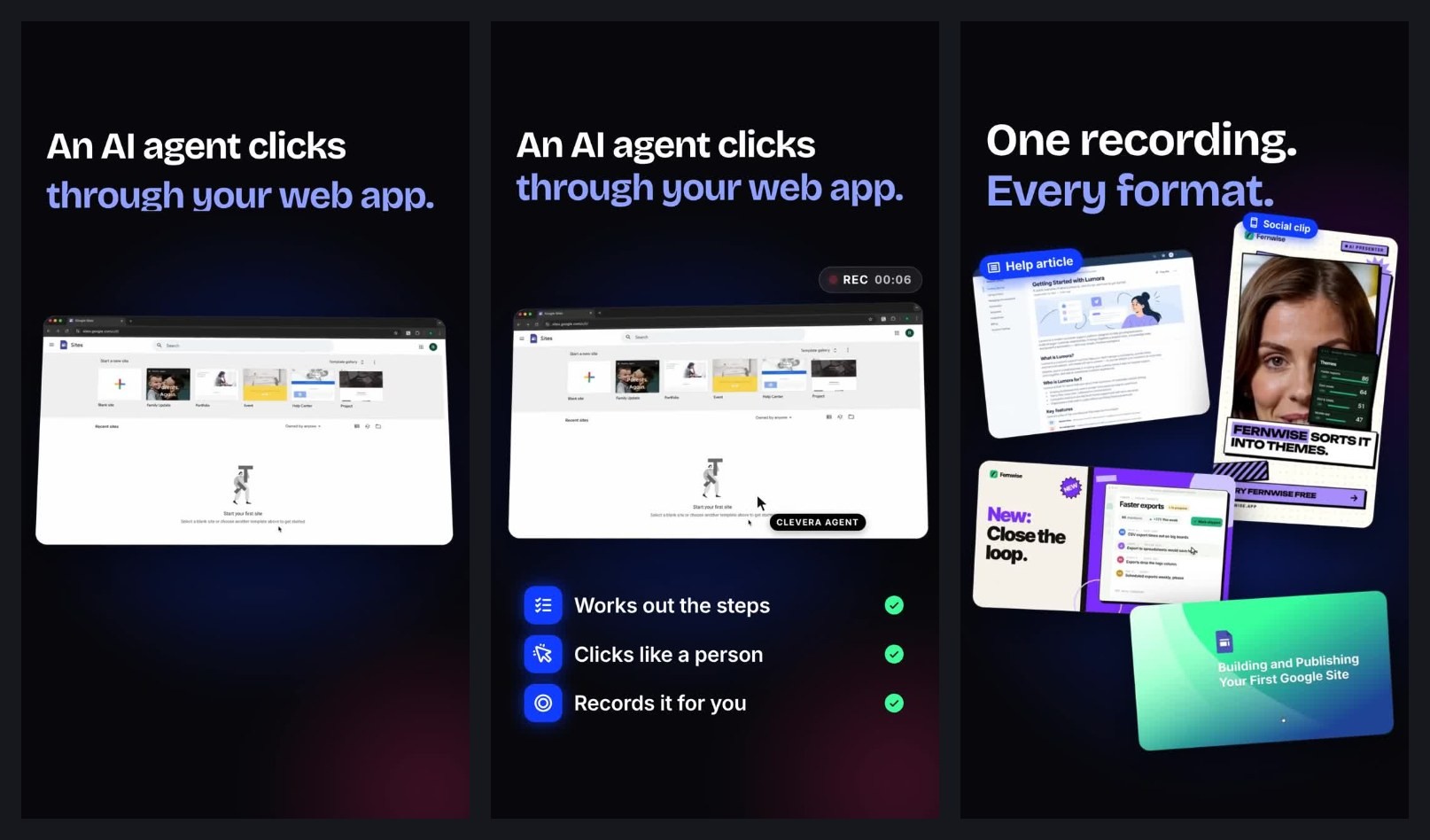
For the 12:01 AM post, we made a launch teaser for Clevera's AI recorder from the clevera.ai homepage and a one-line brief. It used the type's defaults, 9:16, 35 seconds and no voice, and took about 7 minutes and 99 credits. The on-screen lines carry it with the sound off.
Three things needed work. The teaser's "web app" shots reused an unrelated Google Sites example from our showreel instead of our recorder, which you can see in the frames above, so we'd swap that clip in the editor before posting. 35 seconds was the shortest length preset we saw, above the 15–30 seconds suggested earlier for the 12:01 AM teaser. And the editor preview was blank on first load until we scrubbed the timeline.
The 5-second test before you schedule
Mute your laptop, open the gallery video and stop it at 0:05. If a stranger couldn't say what your product does from those 5 seconds, rework the opening before you polish anything after it. See how product marketing teams make launch videos in Clevera →

