20 SaaS social media video ideas, no crew

Most lists of SaaS social media video ideas stop at "show behind the scenes" and leave you to work out the format. This one doesn't. Below are 20 ideas for B2B software teams, grouped by the job each video does: awareness, activation of people who already pay you, trust, launches and hiring.
None of them need a camera operator, a studio or an actor. Most can be made from your product, your help center and a few screenshots.
How to use these SaaS social media video ideas
Each entry gives the format, an example hook line written out in full, a target length, the channel it fits first and the inputs you need, including the Clevera type that fits where one does. The example hooks use made-up products, so swap in your own specifics.
Lengths are working targets, not platform rules. LinkedIn's video ad specs recommend 15 to 30 seconds so an ad qualifies for every placement, while organic posts can run up to 15 minutes. Most ideas below sit between 15 and 60 seconds.
B2B social video ideas for awareness
These reach people who don't know you yet, so they lead with the problem, not the logo.
1. Old way vs new way split
What it is: a split screen. On the left, the current workflow in all its tab-switching glory. On the right, the same job in your product. Same task, same timer in the corner.
Hook: "Approving one expense report: 4 tools on the left, 1 on the right."
Length: 15 to 30 seconds. Best channel: LinkedIn, then YouTube Shorts.
What you need: 2 short screen captures of the same task, or screenshots of each step. In Clevera, a feature spotlight or hook reel builds this as motion graphics from your product link and screenshots.
2. One-number animated infographic
What it is: a single number from your own aggregate, anonymised product data, animated with one line of context and one line of "so what". No stock footage, no talking head.
Hook: "The median team in our product closes the month on day 6. The fastest close on day 2. Here's the difference."
The hook is a pattern, not a stat. Post a number only if it's real and you can explain how you measured it.
Length: 15 to 30 seconds. Best channel: LinkedIn, where a sourced number gets shared in comments and DMs.
What you need: 1 verified data point and a sentence on method. Clevera makes this from a free-form brief as an animated infographic.
3. "Stop doing X" text-only take
What it is: a contrarian opinion your team actually holds, delivered as large on-screen text over motion and music. No voice at all, so it works fully muted.
Hook: "Stop sending onboarding PDFs. Nobody reads page 3."
Length: 7 to 15 seconds. Best channel: LinkedIn, where videos under 30 seconds loop (LinkedIn has no toggle to stop auto-looping on them), then Instagram Reels.
What you need: 1 opinion, 3 to 4 supporting lines of text. Clevera's music & motion type is built for this: no voiceover, made for muted feeds.
4. "3 signs your X is broken"
What it is: a quick diagnostic. 3 symptoms, each on its own beat, then 1 line pointing to the fix. The viewer self-qualifies while watching.
Hook: "3 signs your sales handoff is losing deals before kickoff."
Length: 20 to 40 seconds. Best channel: LinkedIn and TikTok.
What you need: 3 symptoms your sales or success team hears on calls. Clevera's hook reel opens on the hook and cuts fast, which suits a numbered list.
5. Category term in 30 seconds
What it is: an animated explainer for one term your buyers search but half-understand: "dunning", "SOC 2 Type II", "usage-based billing". Define it, show 1 example, show where it goes wrong.
Hook: "Dunning sounds like a medieval punishment. It's how you still get paid when a customer's card expires."
Length: 30 to 60 seconds. Best channel: YouTube Shorts. YouTube treats square or vertical videos up to 3 minutes as Shorts, so a longer explainer still lands in the Shorts feed.
What you need: a 100-word definition and 1 example. Clevera builds it as an animated explainer from a free-form brief.
Videos that activate the users you already have
Your existing users are the cheapest audience you'll reach. These clips work on social and again in in-app announcements and customer emails.
6. "You're not using this yet" feature spotlight
What it is: one underused feature, shown doing one job. Pick it from your product analytics: high value for the people who use it, low adoption overall.
Hook: "Most teams never open the Rules tab. It's the one that saves Monday mornings."
Length: 20 to 40 seconds. Best channel: LinkedIn, then the same file in a customer email.
What you need: the feature's help article or page link and 2 or 3 screenshots. Clevera's feature spotlight pulls the facts and screenshots from the link.
7. Your top support ticket, answered in 45 seconds
What it is: the question support answers most often this month, answered as a short narrated walkthrough. One recording gives you a social clip and a help-center asset.
Hook: "The question we get most every week: how do I add a teammate without giving them billing access."
Length: 30 to 60 seconds. Best channel: YouTube Shorts and your help center.
What you need: a screen recording of the steps. Clevera's how-to video writes and voices the script from the recording, and it's on the Free plan. Change the aspect ratio in the editor for a vertical cut.
8. Workflow recipe: 2 features, 1 outcome
What it is: a recipe that combines 2 features people use separately. "Saved views + Slack alerts = a daily pipeline check you never have to open."
Hook: "2 features, 1 setting, and you never run the Monday pipeline report again."
Length: 45 to 90 seconds. Best channel: LinkedIn and YouTube.
What you need: a recording of the full setup. A Clevera product demo or how-to video handles the narration. For more on choosing between formats, see interactive demo vs product video.
9. Monthly "what shipped" in 30 seconds
What it is: every release from the past month, 1 beat per item, ending on the one you most want people to try.
Hook: "October in 30 seconds: 5 things that shipped and 1 you'll use tomorrow."
Length: 20 to 40 seconds. Best channel: LinkedIn, then your newsletter.
What you need: your changelog entries. Clevera's feature announcement type works from the changelog page link. If you're still writing the changelog by hand, our roundup of AI changelog generators covers that step. For the full announcement playbook, see how to announce a new feature.
Trust videos
B2B buyers check that you're a safe pick before they book a call. These clips answer that early.
10. Customer story from a real review
What it is: one customer's before, after and the result, built from a review or testimonial they've already given and agreed you can use. Their words on screen, their logo with permission.
Hook: "They were reconciling 3 bank feeds by hand every Friday." Use only details from the real review.
Length: 30 to 45 seconds. Best channel: LinkedIn, then your pricing page.
What you need: a written testimonial or public review, plus permission. Clevera's customer story type builds the clip from real testimonials or reviews. Don't let any tool, Clevera included, embellish the quote.
11. "Where your data goes" explainer
What it is: a plain-language animated diagram of where customer data is stored and who can access it. Security reviewers forward this.
Hook: "Here's every place your data goes when you connect your bank. It's a short list."
Length: 45 to 60 seconds. Best channel: LinkedIn and your trust or security page.
What you need: your actual architecture facts, checked by whoever owns security. Build it as a free-form animated explainer in Clevera.
12. Answer the number 1 sales objection
What it is: the objection your reps hear on every second call, answered head on in under a minute. "We already have spreadsheets." "Migration sounds painful."
Hook: "'We'll switch next year' is what everyone says before their busiest quarter."
Length: 30 to 60 seconds. Best channel: LinkedIn, and sent by reps after calls.
What you need: the objection in the buyer's words and your honest answer. Clevera's AI avatar can deliver it with an avatar you pick. For this idea a founder filming on a phone often reads as more credible than any avatar, so test both.
13. Integration proof
What it is: the integration working, on screen, start to finish. Not the logo wall. The actual record moving from one tool into yours.
Hook: "Connect HubSpot, close a deal, watch the invoice appear. No CSV."
Length: 20 to 40 seconds. Best channel: LinkedIn, tagged so the partner can reshare.
What you need: a screen recording of the integration flow. Clevera's product tour or a styled screen recording fits here. For long flows, see how to create a product walkthrough video.
14. "You asked, we shipped"
What it is: a feature request on screen (anonymised, with the user's OK), then the shipped feature. It proves that feedback goes somewhere.
Hook: "In March, a customer asked for bulk edit. Here it is."
Length: 15 to 30 seconds. Best channel: LinkedIn and X.
What you need: the original request text and the feature's link. Clevera's feature announcement type covers it.
Launch videos
These 4 clips cover the week before a launch, the day itself and the week after. For the full set and timeline, see how to make a product launch video and Clevera's product launch video maker.
15. Mystery teaser (7 days out)
What it is: a tight crop of the new UI, blurred or partly hidden, with one line about what changes. No feature name.
Hook: "Something in your billing settings is about to get a lot shorter."
Length: 7 to 15 seconds. Best channel: LinkedIn and Instagram Reels.
What you need: 1 or 2 screenshots of the unreleased feature. Clevera's mystery teaser is built for this.
16. Coming soon with a date
What it is: the name, the date, the 1 benefit and where to sign up. Countdown energy, no detail.
Hook: "Thursday, 10am ET: approvals you can do from your phone."
Length: 10 to 20 seconds. Best channel: LinkedIn, X and your email list.
What you need: the feature name, date and sign-up link. Clevera's launch teaser type, with the date in the brief.
17. Launch day announcement plus tour
What it is: 2 cuts from the same source. A 20-second launch teaser for the feed and a 60 to 90-second product tour for the launch post, landing page and Product Hunt.
Hook: "Approvals now take 1 tap. Here's the whole flow in 20 seconds."
Length: 20 seconds and 60 to 90 seconds. Best channel: LinkedIn for the short cut, your site for the tour.
What you need: the launch page link and screenshots or a recording. Both are Clevera social & promo types.
18. Launch-week event or offer promo
What it is: the follow-up that converts attention: a live walkthrough you're hosting, or a time-limited offer. Make 1 clip per purpose.
Hook: "Live on Wednesday: we'll migrate a real workspace in 20 minutes. Bring questions."
Length: 10 to 20 seconds. Best channel: LinkedIn (pin it to the event) and email.
What you need: the event date and link, or the exact offer terms. Clevera's event promo or offer promo. If you leave out a fact the type depends on, like the discount, Clevera asks before it generates.
Hiring videos
Candidates check your company page before they apply. Neither of these needs an office tour.
19. "What we're building and why" brand film
What it is: a short film about the problem your company exists to fix, told through your product, not a montage of laptops.
Hook: "Every month, finance teams lose a week to work a computer should do. We're here to take it back."
Length: 45 to 60 seconds. Best channel: LinkedIn company page and your careers page.
What you need: your mission in 2 sentences and product screenshots. Clevera's brand film type.
20. "The problem you'd own" role clip
What it is: for one open role, the actual problem the hire would work on in their first 90 days, shown with the real screen or diagram. Strong candidates pick problems, not perks.
Hook: "Our sync engine handles 40 file types. Your first project: make it handle the 41st without breaking."
Length: 30 to 45 seconds. Best channel: LinkedIn, attached to the job post.
What you need: a 3-sentence description from the hiring manager. A free-form animated explainer in Clevera works. The hiring manager talking for 30 seconds on a phone is a strong alternative.
Hook reel examples for muted feeds
Most feeds start your video with the sound off. LinkedIn's help center says some videos play automatically without sound as people scroll. Plan every clip so the first frame and the on-screen text do the work the voiceover would.
Put the hook in the first frame. Don't fade in from black or open on a logo. The frame that autoplays should already show the hook text and the product.
Keep on-screen text to 1 idea per screen. About 7 words, large, held long enough to read twice. The hooks above are written to fit that.
Use platform captions for speech, burned-in text for the hook. LinkedIn offers auto captions in 10 languages or an uploaded caption file. TikTok's auto captions can be edited by the creator and turned off by the viewer. Since viewers can hide platform captions, the hook line itself should be part of the video.
Respect the safe zones. LinkedIn asks you to keep the top, bottom and side edges free of key text and logos so the interface doesn't cover them. Reels and Shorts overlay their own buttons in similar places.
Design the ending to loop. On LinkedIn, clips under 30 seconds loop. If the last frame leads back into the first, a second view feels deliberate.
Hook line patterns that work across the 20 ideas:
Pattern | Example |
|---|---|
Specific pain, specific time | "Approving one expense report: 4 tools on the left, 1 on the right." |
Contrarian instruction | "Stop sending onboarding PDFs. Nobody reads page 3." |
Numbered diagnostic | "3 signs your sales handoff is losing deals before kickoff." |
Hidden feature | "Most teams never open the Rules tab." |
Date and benefit | "Thursday, 10am ET: approvals you can do from your phone." |
The ask, then the answer | "In March, a customer asked for bulk edit. Here it is." |
Making these with Clevera, and where it isn't the right fit
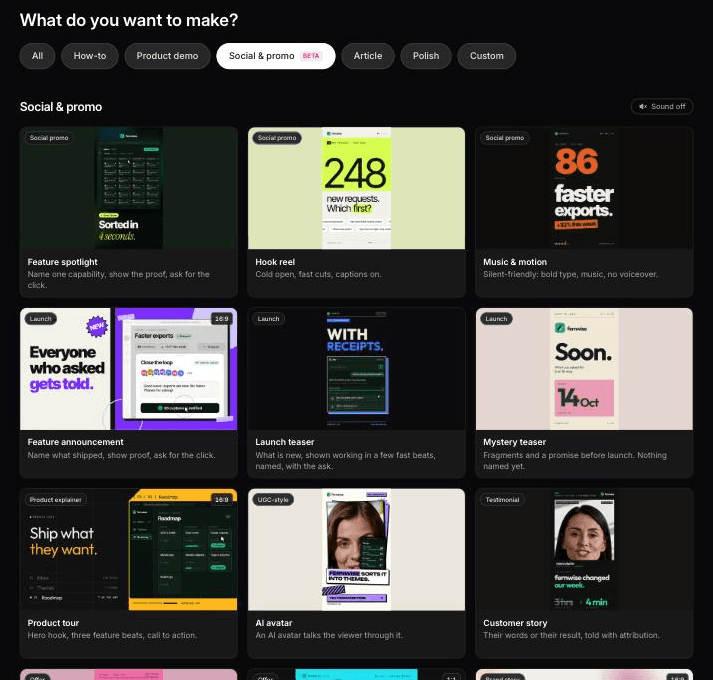
Clevera's social & promo types map to 14 of the 20 ideas: feature spotlight, hook reel, music & motion, feature announcement, launch teaser, mystery teaser, product tour, AI avatar, customer story, offer and event promo, and brand film. Ideas 2, 5, 11 and 20 come from a free-form brief. You can start from a page link, screenshots, a PDF or only a few sentences, and Clevera pulls your product's facts, screenshots and logo from the link. Clips come in 9:16, 4:5, 1:1, 16:9 and other sizes, and you edit them by prompt in the clip editor. See how this fits a full launch and content calendar on the product marketing page.
Social & promo clips and the AI avatar are on paid plans, starting with Starter at $29 a month billed yearly (pricing). The Free plan covers how-to videos, product demos and articles, so ideas 7 and 8 work there.
Clevera isn't the right tool for every idea on this list. A founder answering an objection on camera, a hiring manager describing a role in their own voice, or footage from a live event carry a credibility no generated clip can. Trend formats on TikTok and Reels that depend on a platform's own trending audio are better made in the native editor. Use Clevera for the clips you'd otherwise skip because nobody has time to animate them, and keep a phone for the ones that need a real face.
We made 3 of these for Clevera: 86 to 99 credits each

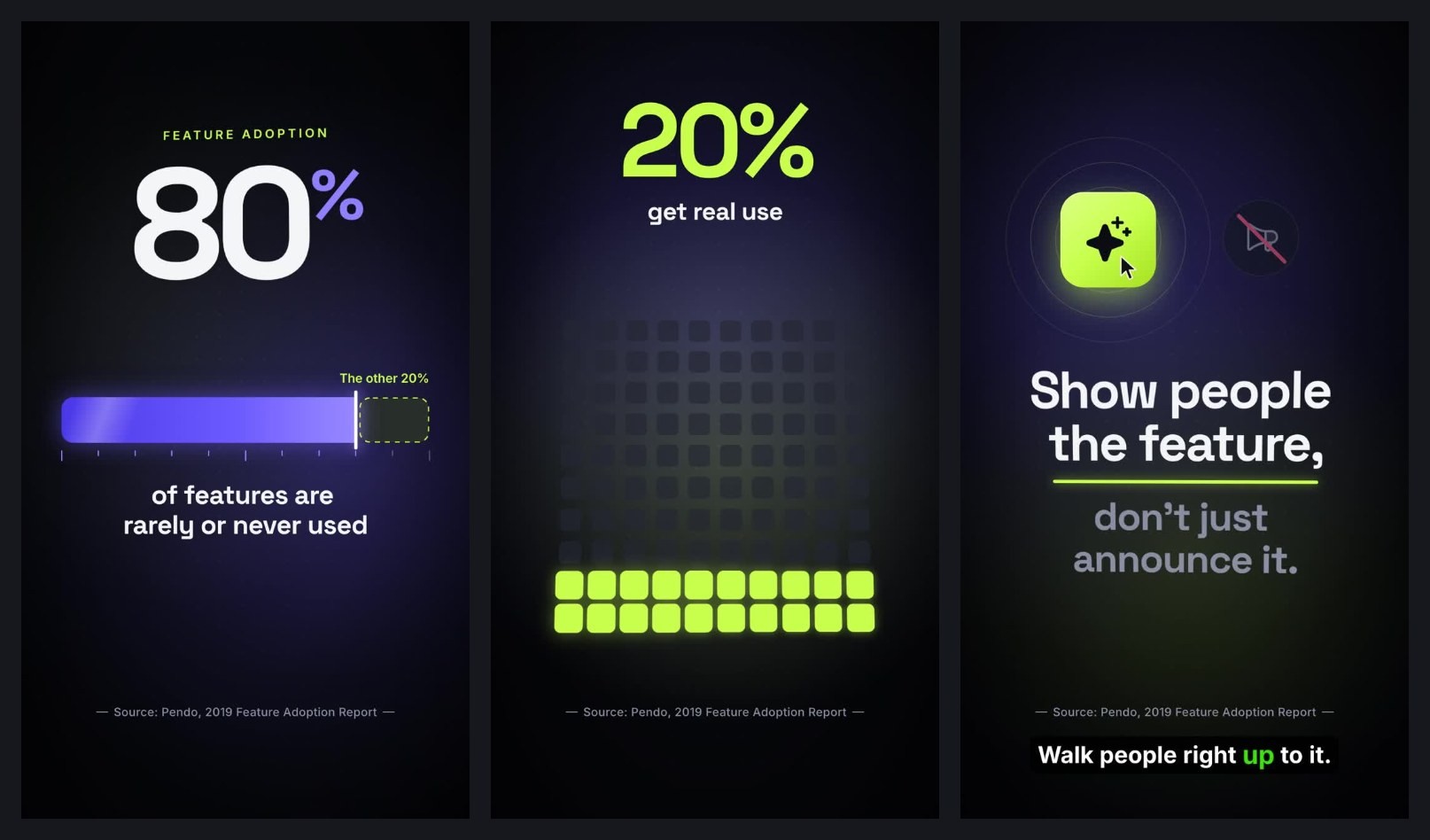
In October 2026 we made 3 of the ideas above for our own product, all in 9:16, each ready in about 7 to 8 minutes.
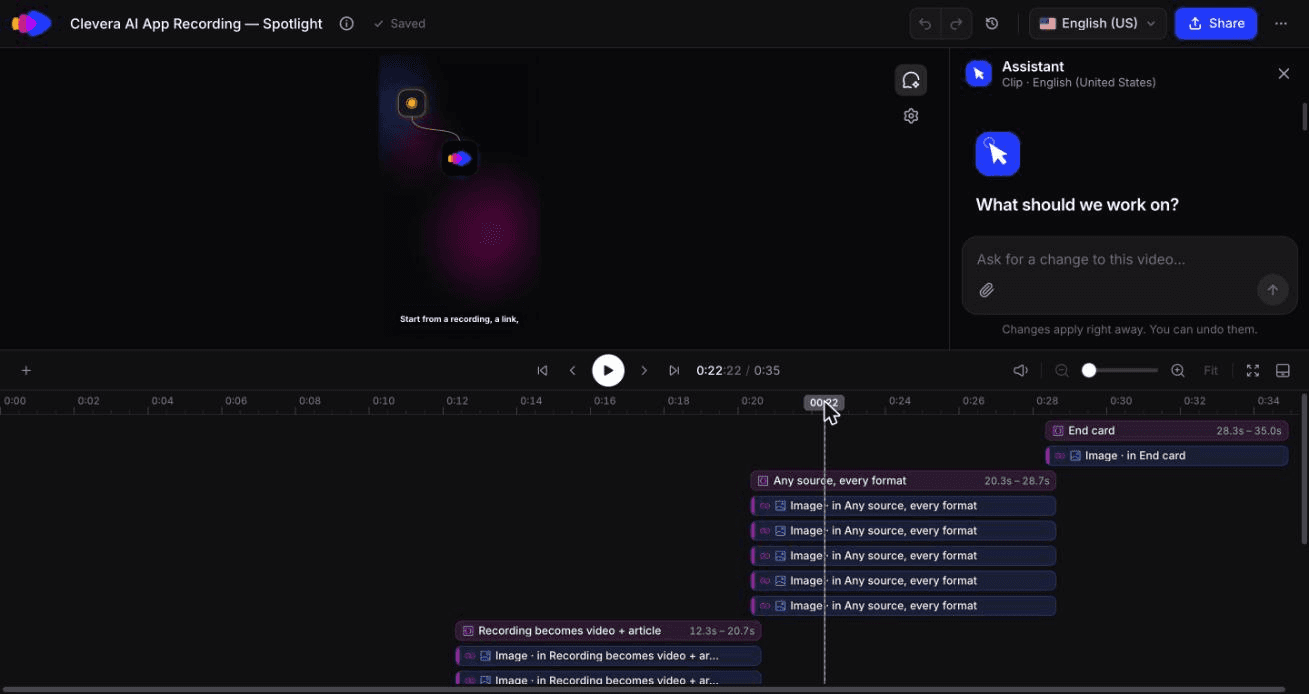
Idea 6, feature spotlight (96 credits). Made from the clevera.ai homepage through "Research a website" plus a one-line brief about the AI recorder. The 35-second clip had a tight structure and real UI from our site. One AI assistant edit shortened the opening voiceover line for 4 credits.
Idea 17, launch teaser (99 credits). Same research, 35 seconds, no voice. It works fully on mute.
Idea 2, one-number infographic (86 credits). A Custom brief through "Start from scratch", with Pendo's 80% stat. The number, the filling bar, the source and our closing line all rendered correctly.
The problems were specific. The spotlight and the teaser both reused an unrelated Google Sites example from our showreel where AI recorder footage belonged, so swap it in the editor. The infographic ignored the "15 seconds" in our brief and ran 1:00, because length is set in the Format menu, not in the text. Its source line was too small to read on a phone, and one narration caption didn't match the on-screen line. For comparison, a 60-second feature announcement from the same research took about 11 minutes and 140 credits.
Pick a few formats and run them for a month
Don't try all 20. Pick 1 idea per goal you care about this quarter and post it weekly with a new subject: a new feature for idea 6, a new support question for idea 7, a new objection for idea 12. By week 4 you'll know which hook pattern your audience stops for, and each new clip starts from a format you've already proven.

