How to announce a new feature: a playbook

Most feature announcements fail quietly: the email gets opened, and 30 days later usage is flat. This playbook covers how to announce a new feature so people adopt it: tier the release, build only the assets that tier deserves, copy the templates below, and check adoption on day 7 and day 30.
Pendo's 2019 analysis of 615 subscriptions found that 80% of features in the average product are rarely or never used. Some of that is bad features. A lot of it is good features nobody saw in action.
Why feature announcements don't drive adoption
Two problems show up again and again.
No visual. "You can now bulk-edit tags from the table view" asks the reader to imagine a UI they've never seen. Most won't. A 40-second clip of the cursor selecting 12 rows and changing their tag in one action answers "where is it and what does it look like" before anyone clicks.
No "why it matters". Release copy written by the team that built the feature describes the feature. Customers care about the job it removes. "Bulk tag editing" is a feature name. "Retag a whole import in one step instead of 50 clicks" is a reason to try it.
A third, quieter problem: every release gets the same treatment. When a bug fix gets a modal, users learn to dismiss modals, and the next major launch gets dismissed too.
Step 1: tier the release before you write anything
Decide the tier first, because it decides the asset list. Produktly's guide suggests sorting releases into major, minor and bug fix but stops there. Here's what each tier gets.
Tier | What qualifies | Announcement video | Product-update post | In-app message | Social clip | |
|---|---|---|---|---|---|---|
Major | New workflow, new product area, pricing-relevant, or something sales will pitch | Yes, 45 to 90 seconds | Yes, full post | Yes, dedicated send | Modal or banner, targeted | Yes, 2 to 3 cuts |
Minor | Improvement to an existing workflow that changes how people work | Optional, 20 to 40 seconds | Yes, short section | Bundle into monthly digest | Tooltip on the relevant page | One clip, optional |
Fix | Bug fix, performance, small polish | No | Changelog line only | No | No | No |
Two rules keep the tiers honest. If the support team will get questions about it, it's at least minor. If sales would put it in a deck, it's major.
Step 2: build the asset set for the tier
A feature release announcement for a major launch has 5 assets, each with a different job. Don't paste the same paragraph into all of them.
Announcement video. Shows the feature working. Everything else links to it.
Product-update article. The canonical page: what changed, who gets it, how to use it, limits. This is what support links to and what search engines and LLMs index.
Email. Reaches people who aren't logged in this week. Its only job is the click.
In-app message. Reaches people who are logged in, ideally on the page where the feature lives. Intercom recommends targeting the message to the relevant page URL and setting a stop date, because a feature is only new once.
Social clip. Reaches prospects and lapsed users. Vertical or square, readable with the sound off.
Feature announcement templates you can copy
Replace the brackets. Keep the benefit line identical across all 5 assets so the message stays consistent.
Announcement video script (45 to 60 seconds)
``` [0-5s] Problem in one line: "[Job] used to take [N steps / N minutes]." [5-10s] Name it: "Now there's [feature name]." [10-40s] Show it: open [page], do [action 1], [action 2], show [result]. One take, real data, no menu tours. [40-50s] Who gets it: "Live today on [plans] / for [roles]." [50-60s] One call to action: "Open [page] and try it on [object]." ```
Product-update article
``` Title: [Benefit in plain words], not [Feature name] Intro (2 sentences): What you can do now that you couldn't before. Who has access. [Embed: announcement video] How to use it: 3 to 6 numbered steps, one screenshot each. What's different: before vs after, in one short table. Limits: what it doesn't do yet, and the workaround. FAQ: the 3 questions support expects. Link: help article for the full reference. ```
``` Subject: [Benefit], now in [Product] Preview text: [Feature name] is live for [plans].
[Name], [one sentence: the old pain]. [Feature name] fixes that: [one sentence: the new result]. [Video thumbnail linking to the post] Try it: [button: "Open [page]"] ```
In-app message
``` Headline (max 8 words): [Benefit] Body (max 25 words): [What it does] on this page. [Where to click]. Media: 10 to 15 second loop of the action Buttons: [Try it] / [Watch the 1-min video] Targeting: users on [page URL] with access on [plan]; stop after [14] days ```
Social clip caption
``` Hook (first line): [Old pain in 8 words or fewer] Line 2: [Feature name] does it in [N clicks / N seconds]. Line 3: Live now for [audience]. [Link to post] On-screen text: the hook, the result, the product name. No paragraph overlays. ```
How to make the video and the post from one recording in Clevera
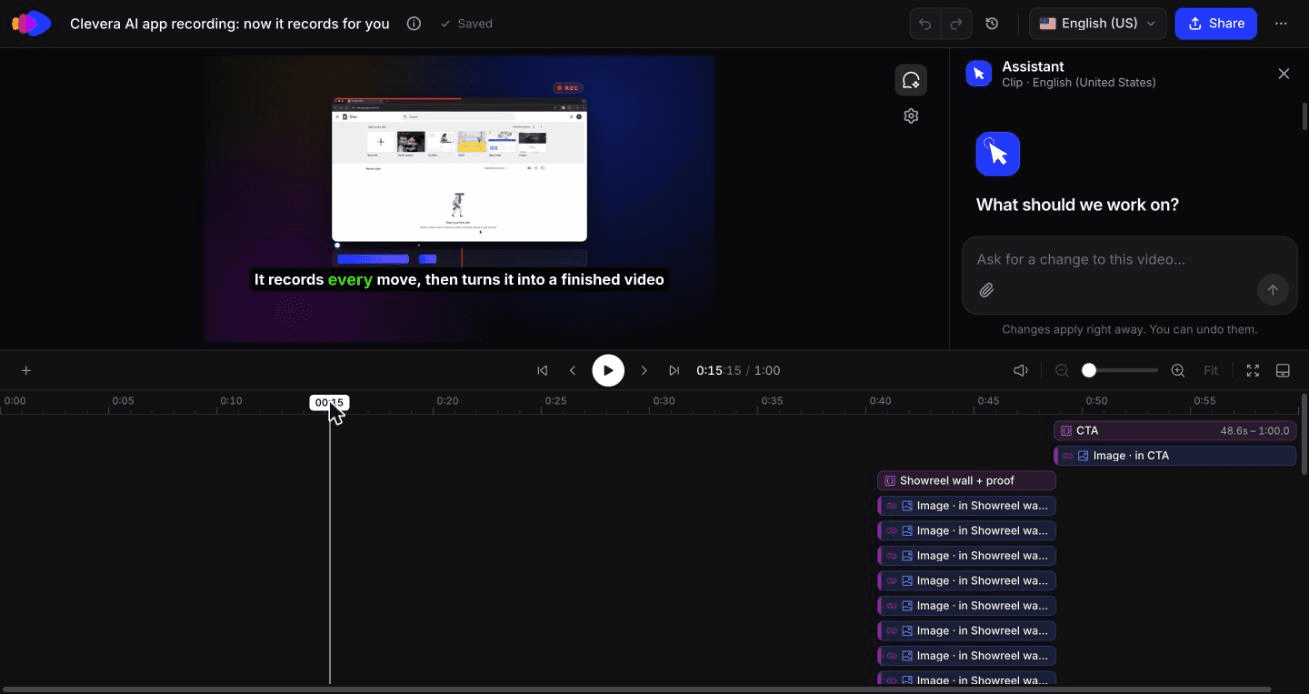
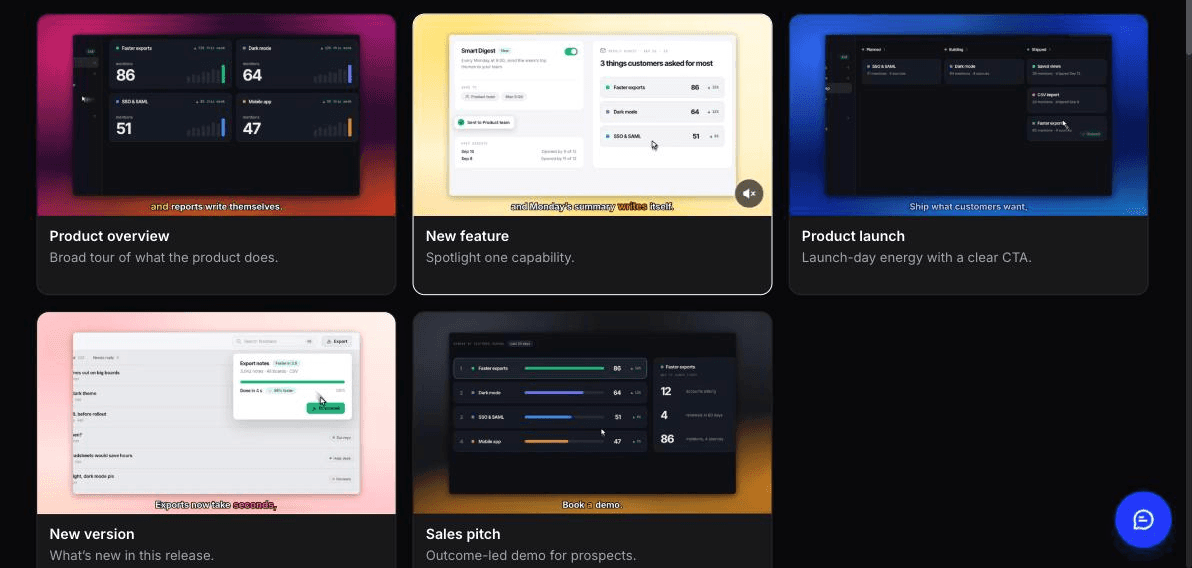
The video is the slow part. Clevera gives you 2 starting points.
Route A: from one recording. Record the new workflow once with the desktop app or the Chrome extension, or let the AI recorder capture it in a cloud browser from a written instruction ("open Reports, select 12 rows, bulk-edit their tags"). The AI recorder works on websites and web apps, not desktop software, and is read-only unless you allow it to create or edit things, so for a write action like bulk editing you'll either grant that or record it yourself.
From that recording, create separate Content items:
1. A product demo with the new feature type. Clevera's AI picks the high-value moments, writes the script and adds the voiceover, so you don't narrate while recording. 2. An article with the product update type. A writer agent drafts it from the same recording and picks captioned screenshots for each step.
Route B: from the changelog URL. Open social & promo, pick the feature announcement type and paste the URL of your changelog entry or release page. Clevera reads the page, pulls the product facts, screenshots and logo, and builds a short motion-graphics clip with voiceover and music. Add the recording or images for more specific scenes. Edit with the clip editor's AI assistant ("shorten the intro to 3 seconds"), and make a 9:16 cut for social and a 16:9 cut for the post.
Route B gives you the announcement clip, not the product-update article. Clevera's articles come from a recording, so for a major release use both routes: the URL clip for email and social, the recording for the demo and the post. For a launch with several videos, see how to make a product launch video.
Embed the demo in the product-update article and link the article from the email and in-app message. Clevera embeds are live: fix a word in the narration after launch and every embed updates without a new link. That covers narration, text and voice, not footage, so if the UI changes before launch, record again. Translation into 74 languages is one click.
A cost note: feature announcement clips are part of social & promo, which is on paid plans. The demo, article and how-to are available on Free, with videos up to 3 minutes. See pricing for credits. For how product marketing teams run this across every release, see Clevera for product marketing.
Where Clevera is not the right fit. Clevera doesn't send emails or show in-app messages. You still need your messaging tool (Intercom, Pendo, Appcues or similar) for targeting and delivery. And it won't turn pull requests into a `CHANGELOG.md`. For that job, see our comparison of AI changelog generators.
We announced our own feature this way: 140 credits, 1 swap needed
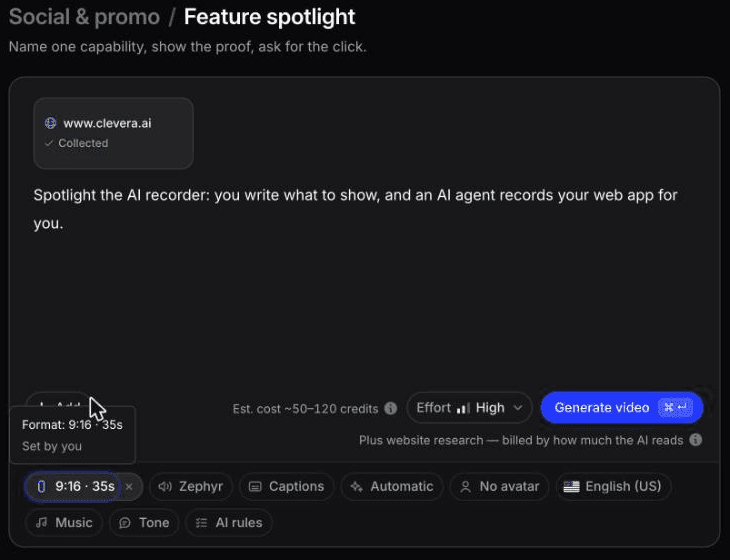
In October 2026 we used Route B to announce Clevera's AI recorder. We added the clevera.ai homepage through "Research a website", which took about 3 minutes and 4 credits the first time. After that, the research sat under "Previous research" and we reused it for later clips at no extra research cost.
Our brief was one line: "Announce: Clevera can now record your web app for you with AI." The feature announcement came out at 1:00 in 16:9, with voiceover and captions, after about 11 minutes and 140 credits. Its headline, "AI app recording" with a NEW badge, was better than the wording in our brief.
From the same research we also made a 9:16, 35-second feature spotlight. It took about 7 minutes and 96 credits, including 1 AI assistant edit.
One thing needed fixing in both clips. The scene meant to show a recording used an unrelated Google Sites example from our showreel instead of AI recorder footage. Swap that clip in the editor before posting, and check every scene that's supposed to show the new feature, because showing it is the whole job of the video.
What's the best AI tool for turning release notes into a product update video?
Your release notes are a public changelog page, and you want a short announcement clip: use a tool that reads the URL and builds the video from it. Clevera's feature announcement type does this: paste the changelog URL, get a voiced motion-graphics clip in 9:16, 1:1 or 16:9 that uses your own screenshots and logo.
You want a product update video that shows the real UI: release notes text alone can't show your interface. You need footage. Record the new flow once (or have the AI recorder do it), then generate a narrated new-feature demo and the product-update article from that recording.
Your release notes live in git and you want them rewritten for customers: that's a changelog generator's job first, then a video tool. Our changelog generator comparison covers the git side.
For most SaaS teams the honest answer is both: the URL clip for reach, the recorded demo for adoption, because people adopt what they've seen working in their own product.
Step 3: time the rollout
Release day is a sequence, not one send.
1. Day 0, morning: publish the product-update article with the embedded video. Everything links here. 2. Day 0: turn on the in-app message for users with access, on the feature's page. 3. Day 1: send the email. Intercom suggests skipping users contacted in the last 3 days and those who signed up in the last 30, so new users stay in onboarding. 4. Days 1 to 5: post the social cuts. 5. Day 14: switch off the in-app message.
Minor releases skip steps 3 and 4 and go into the monthly digest.
Step 4: measure adoption, not opens
Open rates tell you the email worked. They don't tell you the feature worked. Track 4 numbers for every major and minor release, at day 7 and day 30.
Metric | Definition | What it tells you |
|---|---|---|
Reach | Users with access who saw any asset (in-app view, email click, video play) ÷ users with access | Did the announcement get seen |
First use | Users who used the feature at least once ÷ users with access | Did seeing it lead to trying it |
Repeat use | Users who used it 3+ times by day 30 ÷ users who used it once | Did it stick |
Time to first use | Median days from release to first use | How fast the message landed |
Before launch, fire a product event for the feature's key action and set it as the in-app message's goal, so you see which recipients went on to use it. Add UTM tags to email and social links to split first use by channel.
Check video watch-through in Clevera's analytics too. If viewers drop before the "show it" section, cut the intro and republish.
High reach with low first use means the feature is hard to find. Fix that with in-product guidance, not another announcement. Our post on interactive demos vs product videos covers when a click-through beats a video.
Checklist: how to announce a new feature
[ ] Tier picked: major, minor or fix
[ ] One benefit line, used word for word across every asset
[ ] Product event for the key action is live before launch
[ ] Video shows the feature working in the real UI, under 90 seconds
[ ] Product-update article published with the video embedded, limits stated
[ ] In-app message targeted to the feature's page, stop date set
[ ] Email excludes recent contacts and new sign-ups, links carry UTMs
[ ] Social cuts in 9:16 and 1:1, readable without sound
[ ] Support has the article link and the 3 expected questions
[ ] Day 7 and day 30 adoption review on the calendar
The fastest way to raise feature adoption is to show the feature working the day it ships. Turn your next release into a video and put it at the top of the post.

