Product demo without screen recording

You can get a usable product demo without screen recording anything yourself. The right method depends on what you already have: a live web app, a slide deck or screenshots, or only a URL and a few sentences. Each produces a different kind of video with different limits, and the table near the end matches each one to a job.
Why skip the recording at all
A clean demo take needs a tidy test account with realistic data, a script you can follow while clicking, and no wrong turns or notification pop-ups. If you narrate live, one stumble means starting over. Then the product ships a UI change, and someone has to set up the account and redo it all. For a team that releases every 2 weeks, that's a standing tax on whoever owns demos.
Method 1: let an AI agent record your web app
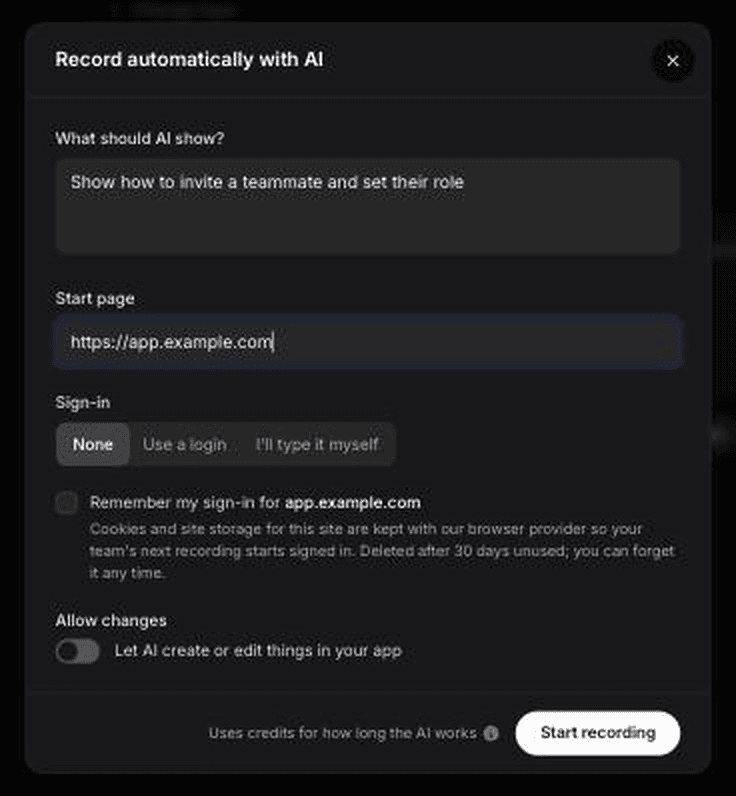
Use this when: your product is a website or web app and you want a demo that shows real clicks in the real interface.
Clevera's AI recorder works from a written instruction. You describe what the demo should show and give it a start page, and an AI agent performs the steps in a cloud browser while it records. Clevera then removes dead time, writes and voices the script, syncs it to the action and adds zooms and highlights. The setup is covered in how to record a web app demo automatically.
Worked example
Say you sell a scheduling tool and want a 90-second overview for the pricing page.
1. Pick Product demo, then the Product overview type. 2. Choose Record automatically with AI as your footage source. 3. Enter the start page, for example `app.yourproduct.com/calendar`. 4. Write the instruction: "Open the team calendar, switch to week view, open the booking settings for the Discovery Call event, show the buffer-time options, then open the analytics tab and hover over the no-show rate chart." 5. Handle sign-in. You can skip it for public pages, supply a login for a demo account, or type the credentials yourself when the agent reaches the login screen. 6. Let it run. If the agent gets stuck on a cookie banner or an unusual date picker, take over the browser, do that step and hand control back.
The agent is read-only by default, so it won't create, edit or delete anything unless you allow it. If the demo needs it to create a booking, allow it and point it at a demo account, not production. AI recording also uses credits based on how long the agent works, so a tight instruction costs less than "show everything in settings."
Limits
Web only. It records websites and web apps in a cloud browser, not desktop or mobile apps. For those, use the Clevera desktop app or Method 2.
The app must be reachable. A cloud browser can't open a staging server behind your VPN or a tool on `localhost`. Use a public demo environment or a sandbox with its own login.
Your instruction sets the ceiling. Vague instructions give wandering footage. Name the screens, the order and the exact element to open.
When the UI changes, you rerun the same instruction instead of rebooking a recording session.
Method 2: build a narrated demo from a deck, PDF or screenshots
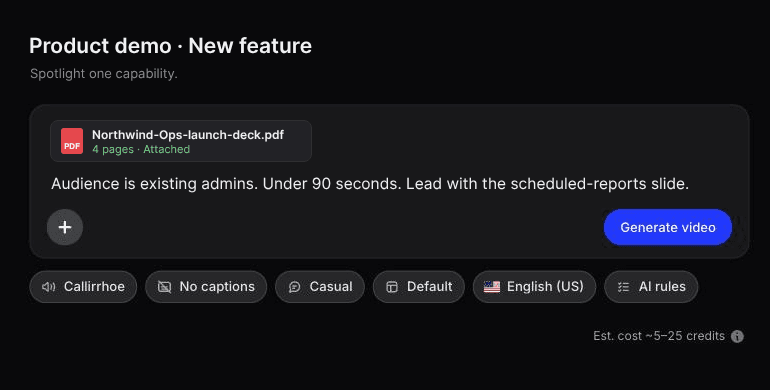
Use this when: you have a sales deck, a feature one-pager or a set of product screenshots, and the app isn't ready, isn't public, or isn't a web app at all.
Clevera can make a how-to video or a product demo from a PDF deck or screenshots, with no screen recording. Upload the file, pick a demo type such as new feature or sales pitch, and the PDF's own text guides the narration Clevera writes and voices over your slides.
Worked example
You're launching a reporting module next month. It isn't in production yet, but you have a 12-slide launch deck with mockups.
1. Export the deck as a PDF. Keep slide copy specific, because the narration follows it. "Export any report to CSV in 1 click" beats "Powerful exports." 2. Pick Product demo, then New feature. 3. Upload the PDF and add a line of direction in the prompt box, such as "Audience is existing admins. Keep it under 90 seconds. Lead with the scheduled-reports slide." 4. Generate, then review the script in the timeline editor. Rewrite lines by hand or with AI, change the voice and fine-tune timing in the sync editor.
The same approach works for screenshots. If your product is a desktop app, 8 to 10 well-chosen screenshots can become a clear narrated walkthrough, which is a practical way to make a tutorial video without recording.
Limits
This method can't show real interaction. There are no live clicks and no cursor moving through a flow, only stills with narration and motion. That's fine for a launch preview or an investor update. For a "here's exactly where to click" training video it's weaker than real footage, and an experienced buyer will notice. Quality also tracks the source: a slide with 40 words of jargon gives you a vague script.
Method 3: start from a URL or a few sentences

Use this when: you need a short product video for social, ads, a launch post or the top of a landing page, and you have no footage and no deck.
Clevera's social & promo types don't need footage. Paste a link and Clevera pulls the product's facts, screenshots, media and logo from the page, or describe the product in a few sentences. AI writes and directs the clip as motion graphics, with voiceover where the type has one, plus music.
The closest types to a demo are product tour (a tour of your website), feature spotlight and feature announcement. AI avatar adds an avatar you pick to talk the viewer through the product. The Format menu offers 9:16, 4:5, 1:1 and 16:9, plus custom sizes, and lengths of about 35 seconds, 60 seconds or 2 minutes.
Worked example
You want a 35-second vertical clip for LinkedIn announcing a new integration.
1. Pick Social & promo, then Feature announcement. 2. Under Add, choose Research a website and paste the URL of the integration's landing page. The research takes a few minutes the first time and can be reused for later clips. 3. Set 9:16 and about 35 seconds in the Format menu, then add direction: "For ops managers. Open on the problem of copying data between tools by hand." Set the length in the Format menu, not the brief: in our tests a length typed into the brief was ignored. 4. Generate. If the type needs a fact you didn't give, Clevera asks before it builds the clip. 5. Use the AI assistant in the clip editor for targeted changes, such as "make the second scene shorter." Revision history lets you restore an earlier version.
Limits
These videos are promo, not training. They show what the product is and why it matters, not a real workflow, so don't use one in your help center in place of a how-to video. A clip made from a prompt alone only knows what you told it. Add a link or screenshots if you want your actual interface on screen.
Social & promo videos and AI avatar are available on paid plans, starting with Starter at $29 a month billed yearly or $36 billed monthly (see pricing). The Free plan covers how-to videos, demos and articles, with videos up to 3 minutes.
We tried methods 1 and 3: 11 credits vs 96
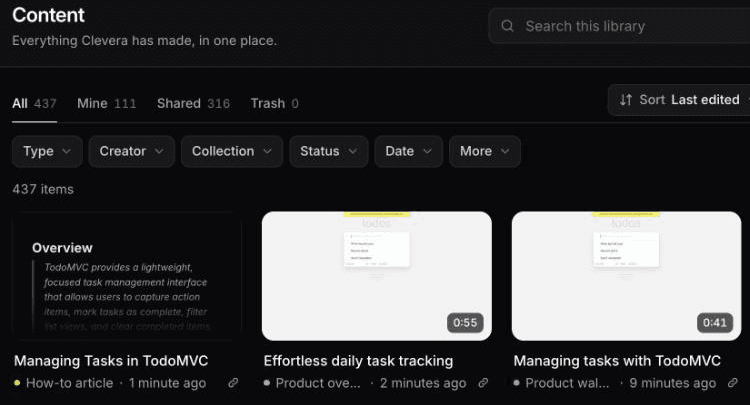
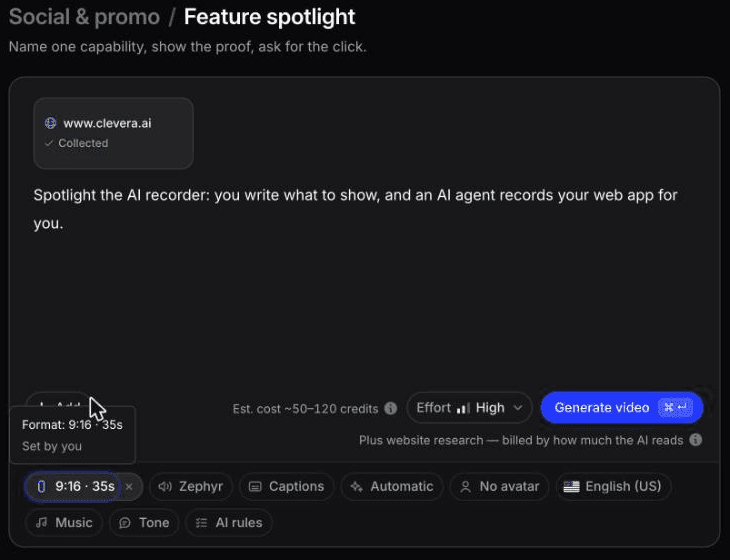
In October 2026 we ran method 1 and method 3 on real inputs.
Method 1. The AI recorder took about 78 seconds to record a public demo app (TodoMVC) from a 3-step instruction and followed it exactly. Analysing the recording cost 5 credits. From it, Clevera generated a 0:55 Product overview demo in about 70 seconds for 6 more. The same recording also gave us a how-to video and a how-to article with no new capture. The article needed fixing: it added a "Clear completed" step that never happened in the recording.
The 0:55 product overview Clevera made from the same recording, unedited.
Method 3. We used Research a website on clevera.ai. It took about 3 minutes and 4 credits, read 2 pages, pulled 6 screenshots and stays reusable for later clips. With a 1-sentence brief, a Feature spotlight at 9:16 and about 35 seconds took about 7.4 minutes to generate. The total was 96 credits, including the research and 1 Assistant edit that shortened the opening line. The problem: the first frame showed a typing animation from an unrelated Google Sites example in Clevera's showreel, not the AI recorder. Check every scene before you post.
Method 1 showed real clicks for 11 credits. Method 3 cost almost 9 times as much and gave us a promo, not a walkthrough.
Other ways to get a product demo without screen recording
Avatar-led video tools. HeyGen's product video generator takes a script, product photos or a product link, with an optional AI avatar. For software demos, its own page suggests you "pair screen recordings with an on-camera presenter," so the screen footage still has to come from somewhere. It's a strong pick when the presenter is the point.
Interactive demo tools. Tools like Arcade and Supademo produce click-through demos instead of video. Supademo's guided HTML demo has you start the Chrome extension and "click through your product or workflow as you normally would," capturing each page's HTML and CSS into an editable clone. Arcade's recorder turns your clicks into screenshots with hotspots. You skip the narrated take, but someone still clicks through. Our breakdown of interactive demos vs product videos covers when each converts better.
Which method fits which job
You have | You need | Best method | What you get | Main limit |
|---|---|---|---|---|
A live web app | Sales or website demo showing the real UI | AI recorder | Narrated demo of real clicks | Web only; app must be reachable from a cloud browser |
A deck or PDF | Launch preview before the feature ships | Deck to demo | Narrated demo built on your slides | No real interaction |
Screenshots of a desktop or mobile app | Simple walkthrough without a recorder | Screenshots to how-to or demo | Narrated sequence of screens | Stills only; no cursor or transitions |
A URL | Social clip, ad or launch teaser | Social & promo from a link | Motion-graphics clip with your screenshots and logo | Promo, not training; paid plans |
A few sentences | Quick promo when nothing else exists | Social & promo from a prompt | Motion-graphics clip | Only knows what you wrote |
A script and want a face on screen | Presenter-led explainer | AI avatar, or an avatar tool like HeyGen | Avatar talks through the product | Software footage still needs a source |
Methods combine well. A launch can use an AI-recorded demo for the website and a feature announcement clip for social, from the same workspace. For every demo format and how teams use them, see the product demo generator.
Tips for demos that don't look automated
Write the input like a script. List the 3 or 4 moments that prove value and cut everything else. A demo that shows 12 features shows none of them well.
Keep it short. Aim for 60 to 120 seconds for an overview and under 45 seconds for social. Split anything longer into a series by feature.
Set team AI rules once. Rules for terminology and pronunciation mean every demo says "workspace" instead of "project" and gets your product name right, whoever made it.
Plan for UI changes. Published Clevera videos update on hosted links and embeds when you edit narration, text or highlights, but that doesn't change the footage. When the interface changes, rerun the AI recorder instruction or regenerate from updated slides. Downloaded MP4s don't update, so embed where you can.
Translate after you approve. Once the English version is right, translate it into any of 74 languages. Our guide to translating tutorial videos covers what to check.
FAQ
Can I create a demo video without recording my screen at all? Yes. The AI recorder records for you in a cloud browser, a PDF deck or screenshots need no recording, and a URL or prompt becomes a promo-style video.
Does the AI recorder work with desktop software? No. It records websites and web apps only. For desktop software, use the Clevera desktop app (macOS and Windows) to record, or build a demo from screenshots.
Is an AI product demo video generator good enough for sales calls? For demos built from real footage, usually yes, because the viewer sees your actual interface. Deck-based and prompt-based videos work better as previews and top-of-funnel content than as the main demo in a late-stage deal.
Can I make a demo for free? The Free plan includes how-to videos, product demos and articles, with videos up to 3 minutes and watermarked 1080p exports. AI recording uses credits on every plan. Social & promo videos and AI avatar need a paid plan.
Pick the method that matches your source
Start from what you have today, not the video you wish you had. A live web app gets you real footage without touching a recorder, and a deck gets you a launch preview before the feature ships. Make a demo without recording and see which source gets you closest to the video you need.

