Fix a tutorial video without re-recording: the Ask AI requests that actually work
A small mistake in a tutorial video usually means a re-record. Here are the Ask AI requests that actually fix a take in place, from real runs, including what costs credits and what just gets a question back.
 Roozbeh Firoozmand7 min read
A clipped logo, a typo on a caption, a button that's too small to read: in a tutorial video, any of those usually means you record the whole thing again. The person who made the first take has to find a quiet hour, click through the same product path, and hope they don't introduce a new mistake.
You don't always have to do that. In Clevera's video editor, Ask AI can change the narration, hold a scene, zoom in on a control or fix a caption in place. This is a cheat sheet of requests that actually work, from real runs on 23 November 2026 against one of our own one-minute walkthroughs, Exporting Clevera videos to Google Drive. Each request took about 40 to 90 seconds. Across the seven completed runs, the credit balance moved by 2 credits. A bigger change, like swapping the voice, didn't run straight away: it showed a plan with an estimate and waited for a go-ahead.
Where Ask AI lives
Open a video in the editor and click Ask AI in the top right. The panel asks "What should we work on?" and then: "Tell me what to change in this video and I'll do it. Ask me anything about it, or make something new from it."
The placeholder is "Ask anything, or describe what to make". Under the empty state are starter chips: Shorten the script, Make the intro punchier, Change the voice, What does this video say?, Write an article from this video, Make a social clip from this, and Show me how to use Clevera.
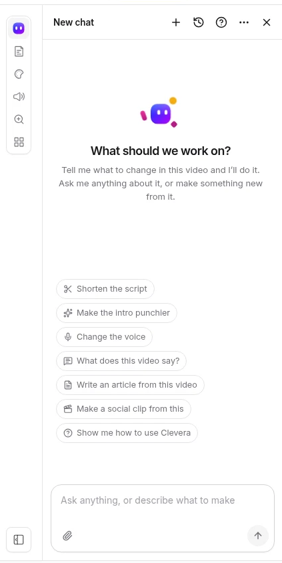
Ask AI is also in the clip editor and the article editor, with chips that match the medium. In the article editor, for example, you get Tighten the intro, Add a short summary at the top, Make it easier to scan, Make a video from this article, Translate it, and Show me how to use Clevera.
Requests that work
The requests that worked were specific: name the thing you want changed, and say what to do to it. Vague ones didn't edit anything.
Name the on-screen element, not just the time
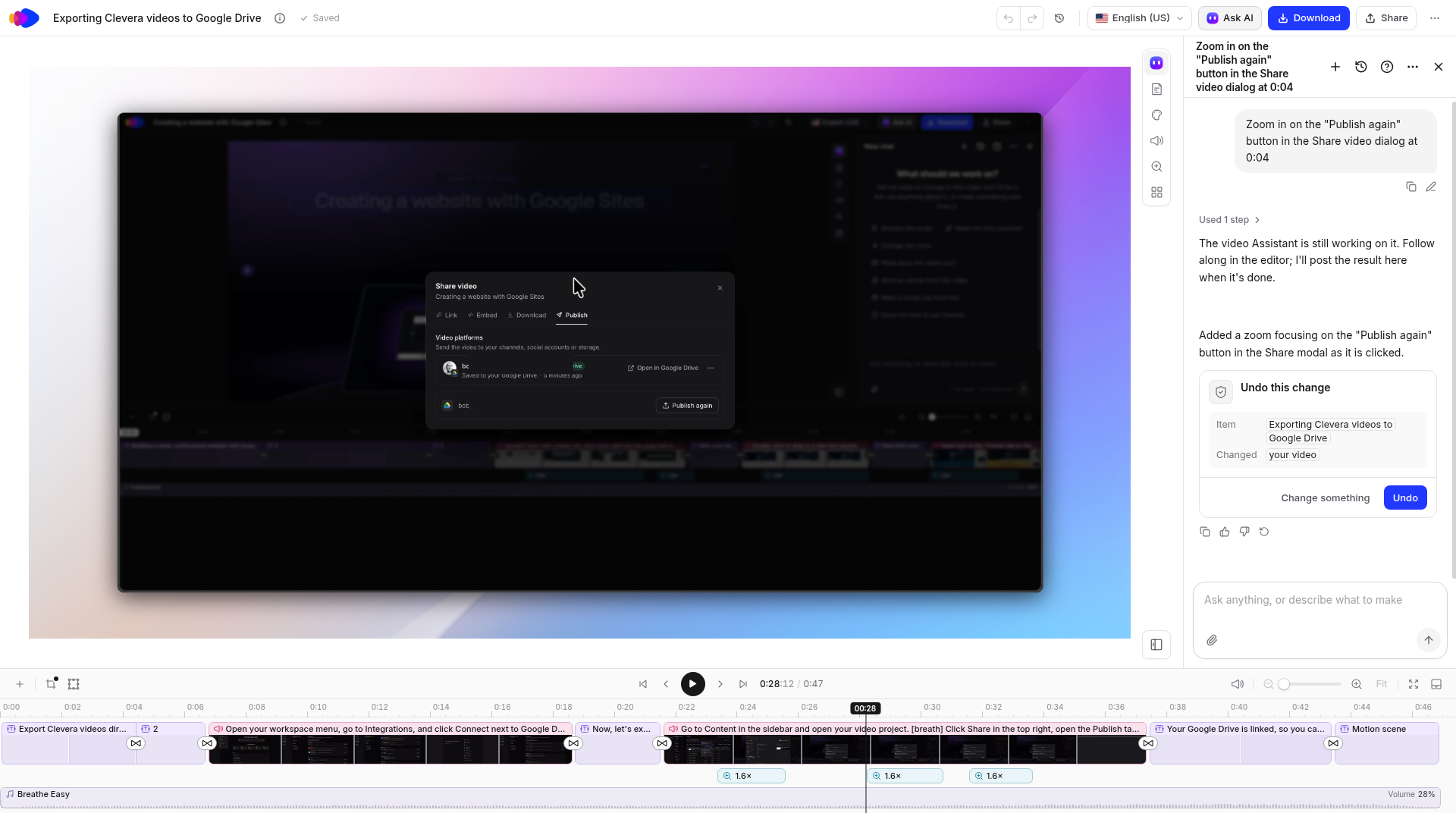
"Zoom in on the "Publish again" button in the Share video dialog at 0:04" used the wrong timestamp. The dialog was at about 0:28. Ask AI still found the right moment and added a zoom. Naming the control mattered more than getting the timecode exact.
The same pattern shows up in everyday fixes: "the logo at 0:10 is clipped", or "at 0:38 keep the about clevera longer so we can see it better".
Say whether you mean the narration or the on-screen text
"Replace "Integrations" with "Connections" everywhere in the narration" updated the voice-over. On-screen labels may need a separate request, so say which one you mean.
A wording fix on a caption, from "Clevera guide" to "Clevera Guide", was applied. Closed captions were left alone because they were off.
Be precise about length and pacing
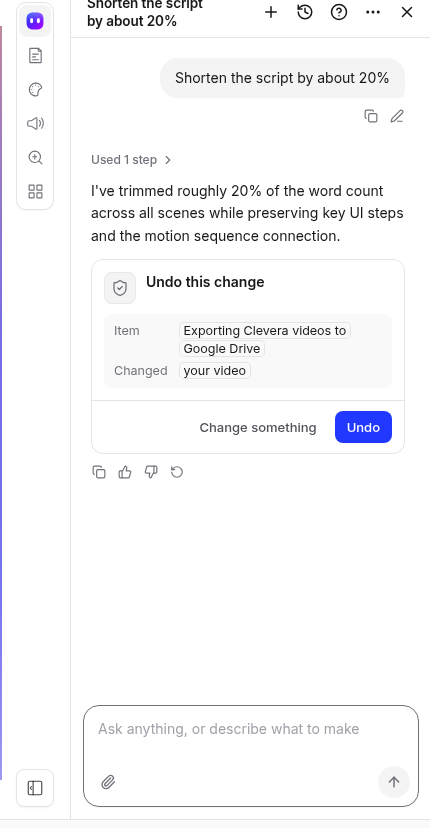
"Shorten the script by about 20%" took the walkthrough from 1:00 to about 0:49, roughly 18% shorter. It cut whole sentences and steps, so watch the result and check that nothing important went.
"Make the intro punchier" rewrote the opening to: "Export Clevera videos directly to Google Drive in seconds— here is how to link your account."
"At 0:28 hold this scene 2 seconds longer" held the scene and added two seconds to the runtime.
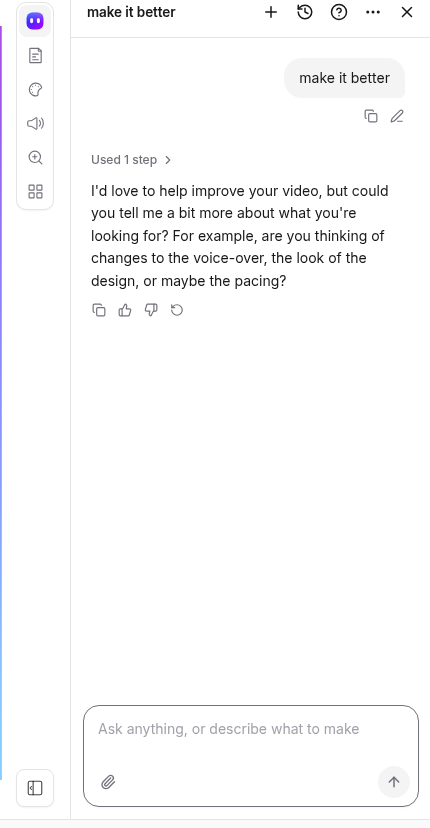
Don't just say "make it better"
"make it better" didn't change the video. It asked a question instead:
I'd love to help improve your video, but could you tell me a bit more about what you're looking for? For example, are you thinking of changes to the voice-over, the look of the design, or maybe the pacing?
A short list you can copy:
- Zoom or hold a control: name the button or dialog, then what to do. A timestamp helps, but the name matters more.
- Fix a typo: quote the old wording and the new wording, and say whether it's a caption, a title card or the narration.
- Shorten or punch up: say by how much, or what the intro should do. Then watch it, because a shorten can drop a step.
- Swap a term in the voice-over: say "in the narration" if you don't also want on-screen labels changed.
- A clipped logo or a scene that's too short: say what's wrong and what "better" looks like (keep it longer, so we can see it).
What costs credits
Small edits in this test ran straight away, with no plan card. After each applied edit, the panel showed Undo this change, with Change something and Undo.
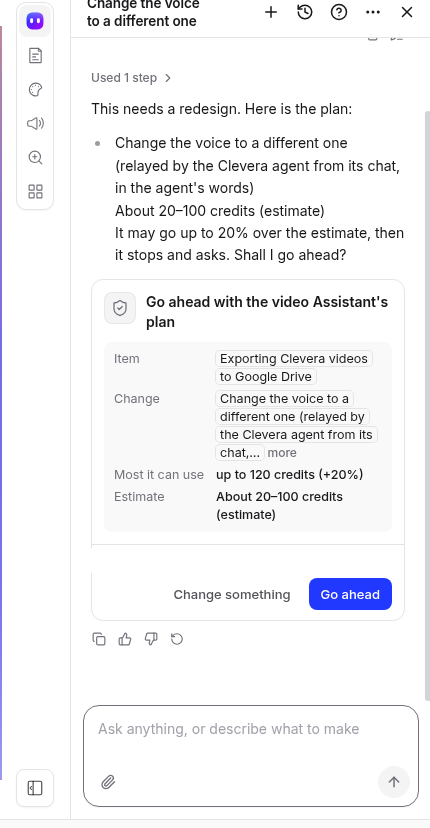
A bigger change is different. "Change the voice to a different one" brought up a plan instead of running. The message was:
This needs a redesign. Here is the plan: … About 20–100 credits (estimate). It may go up to 20% over the estimate, then it stops and asks. Shall I go ahead?
The card showed up to 120 credits (+20%), and the buttons were Change something and Go ahead. There is no Start button. We didn't approve this one, so it spent nothing. That's the point of the plan: you see the estimate before any of those credits are used.
If you come back later and see This plan has expired. you can click Make a fresh plan. Plans don't hang around forever, and you aren't charged for an expired one.
So: small, local edits in this test were nearly free (2 credits across the seven completed runs). A redesign like a voice change shows the price first, with a 20% cap, and only goes ahead if you say so.
A short checklist
- Open the video, click Ask AI, and describe the change in one sentence.
- Name the on-screen element. Add a timestamp if you have one, but don't lean on it alone.
- Say narration, caption or on-screen label when the same words appear in more than one place.
- For a shorten, watch the whole video afterwards. Check that a step didn't disappear.
- If you get a question back, answer it. A vague request won't be guessed into an edit.
- If you see a plan card, read the estimate and the +20% cap before you click Go ahead.
- Use Undo this change if the result isn't right.
- Ask AI can also turn a video into an article or a social clip, or work on a clip or an article you already have.
If the problem is a UI that has moved since you recorded, that's a different job: how to keep product tutorial videos up to date. For making the original recording easier to follow, auto-zoom in screen recordings covers when a zoom helps and when to turn it off.
Fix the take you already have
A tutorial doesn't have to go back to a full re-record for a clipped logo, a rushed intro or a button that's hard to see. Ask for the specific change, watch the result, and undo it if you need to. Keep the re-record for when the product itself has moved.
Fix a tutorial without sitting down to re-record
Open a video in Clevera and tell Ask AI what to change.