How to make your help center match your brand (with a custom HTML home page)
Make your help center home page look like your product: what a good knowledge base homepage needs, a starter page in HTML and CSS you can copy, and an AI prompt that turns a mockup into code.
 Roozbeh Firoozmand14 min read
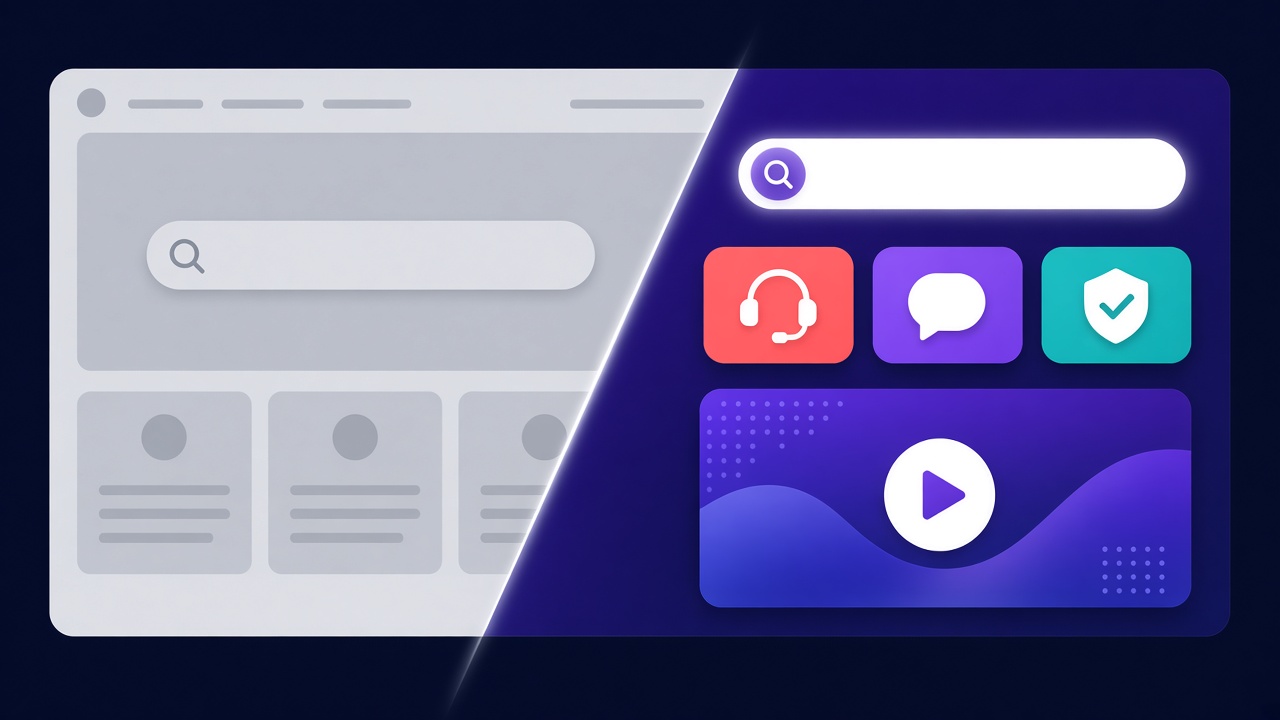
Most help centers look like the tool they're built on, not the company that runs them. Same grey hero, same search bar, same grid of categories you've seen on a hundred other sites. Your product has its own colours, its own type and its own voice, and then a customer clicks Help and lands somewhere that could belong to anyone.
That matters more than it sounds. The home page is the first screen a stuck customer sees, and it's where they decide whether to look for the answer themselves or give up and open a ticket. A generic page doesn't help them choose well.
This guide walks through what a good help center home page needs, then shows how to build one in your own HTML and CSS with a Clevera doc site. You'll get a starter page you can copy, a prompt that turns a mockup or a screenshot into working code, and the steps to make it your home page. You don't need a designer. If you have one and they've made a mockup in Figma, even better, but brand colours and a clear idea of your top three tasks are enough.
What a good help center home page does
A help center home page has one job: get the reader to the right answer in as few clicks as possible. Everything on it should either point them at search or point them at a path.
In practice that means three things:
- A search prompt. Most readers arrive with a question already in their head. Put search front and centre, and say so in plain words: "Search above, or start with one of these."
- Three "start here" paths. Not twelve categories. Three. Look at your ticket tags or your most-viewed articles and pick the top three reasons people come. For most B2B SaaS products, that's something like getting started, inviting the team and billing.
- One video. A short tour answers the "how does this even work" question that no single article does. One, not a gallery.
And one quiet extra: a clear way to reach a person when none of that helped. Hiding the contact link doesn't reduce tickets, it just makes people angrier when they finally find it. If you want to measure whether the page is working, our guide to ticket deflection rate covers the formulas.
What a good home page doesn't need is everything. Popular articles, every category, announcements, a newsletter box. Each extra block makes the three paths harder to see.
Why templates only get you so far
Most help center tools give you a theme with a logo slot and a colour picker. That covers "make it less grey". It doesn't cover "make it look like our product", because the layout is fixed. You can change the blue, not the shape of the page.
The usual fixes are a custom theme (often on a pricier plan, and usually in a templating language you have to learn) or a separate landing page on your marketing site that links into the help center. The second one works, but now your help center has two front doors and the real one still looks generic.
In a Clevera doc site, site pages come with a set of templates (About us, FAQ, a Getting started hub, a Product overview and more). For when none of them fit, there's Custom HTML: you write the page yourself in HTML and CSS, it sits under your site header, and it can replace the built-in home page.
Step 1: Create a Custom HTML page
Open your doc site, go to Pages and click New site page under Site pages in the page tree. Under Start from, pick the last card, Custom HTML ("Your own HTML and CSS under the site header.").
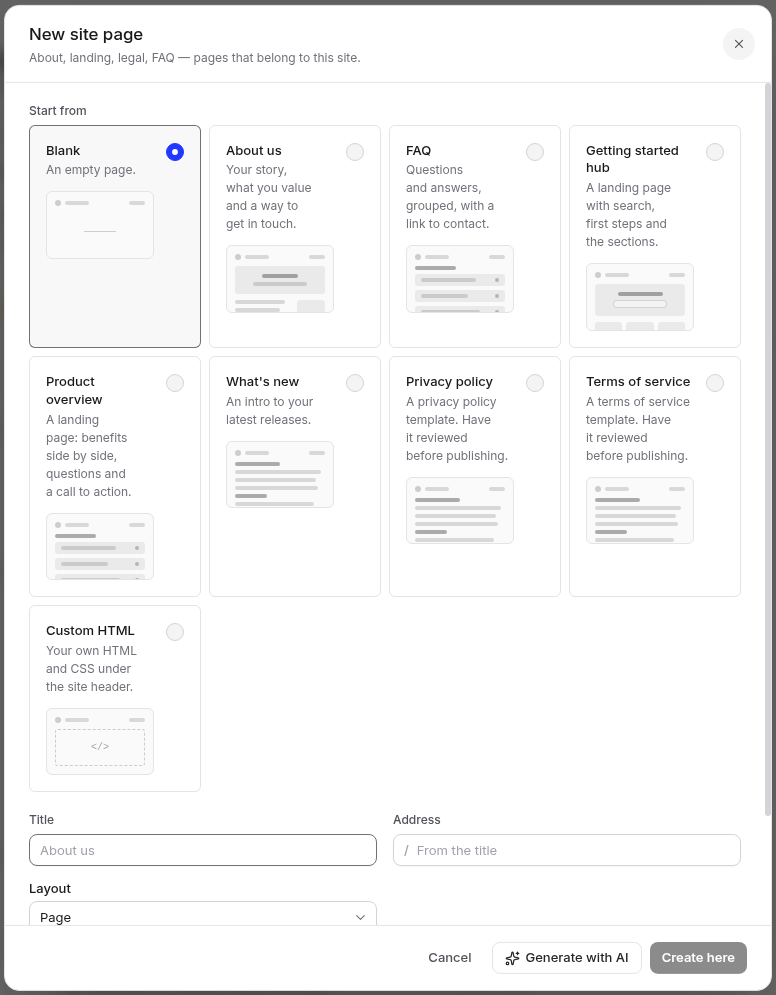
Give it a Title, such as "Home", and an Address if you want one (leave it empty and it's made from the title). You can also choose whether it shows in the header and which footer column it goes in. Then click Create here.
A Custom HTML page is written by you, so it starts empty and is created in your site's default language. Once you pick Custom HTML, the Layout, Language and Generate with AI options don't show.
Step 2: Write your HTML and watch the preview
The editor is split in two. On the left is a code box with a short reminder above it: "HTML with <style> tags. Scripts and forms are removed when saved." On the right is your actual site, with your header, logo and theme, showing the page as readers will see it.
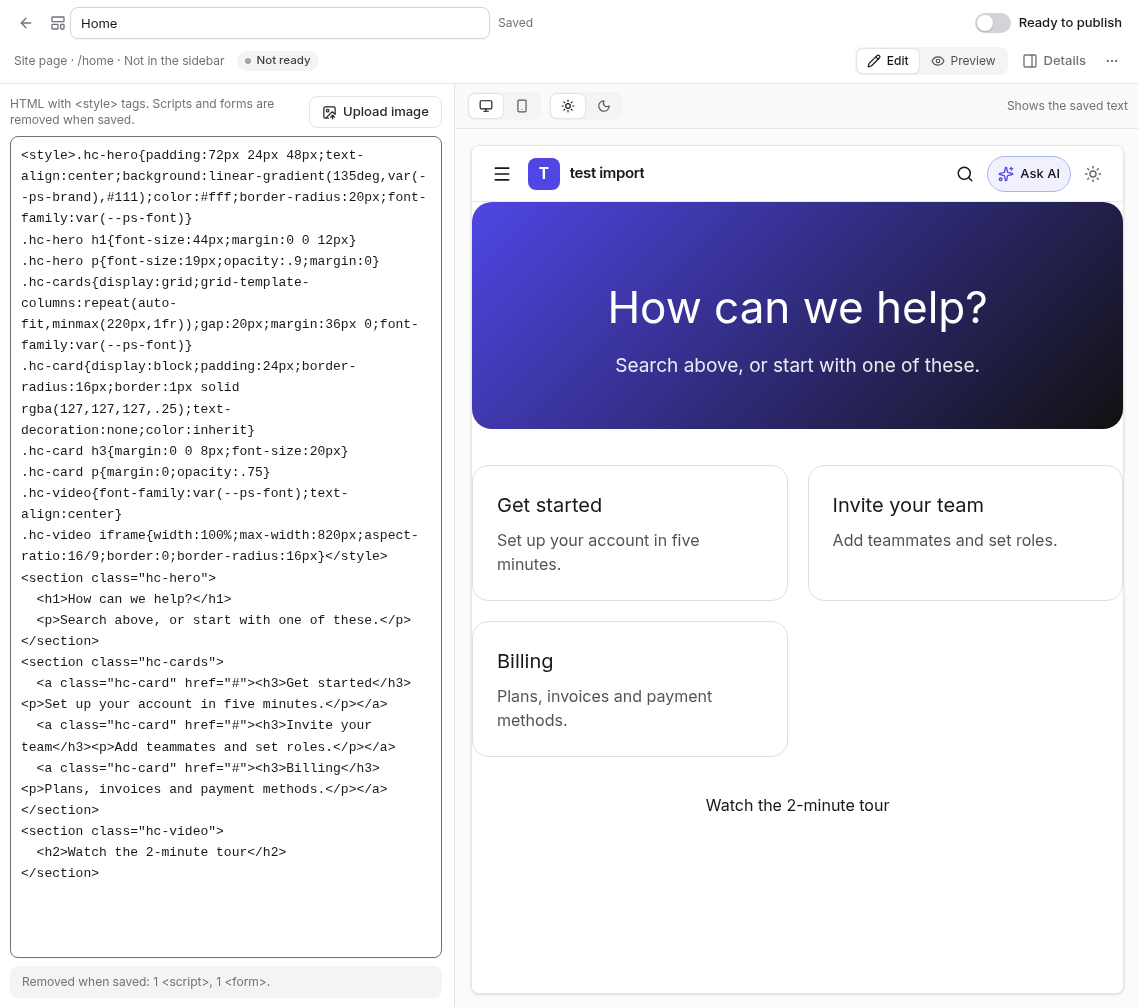
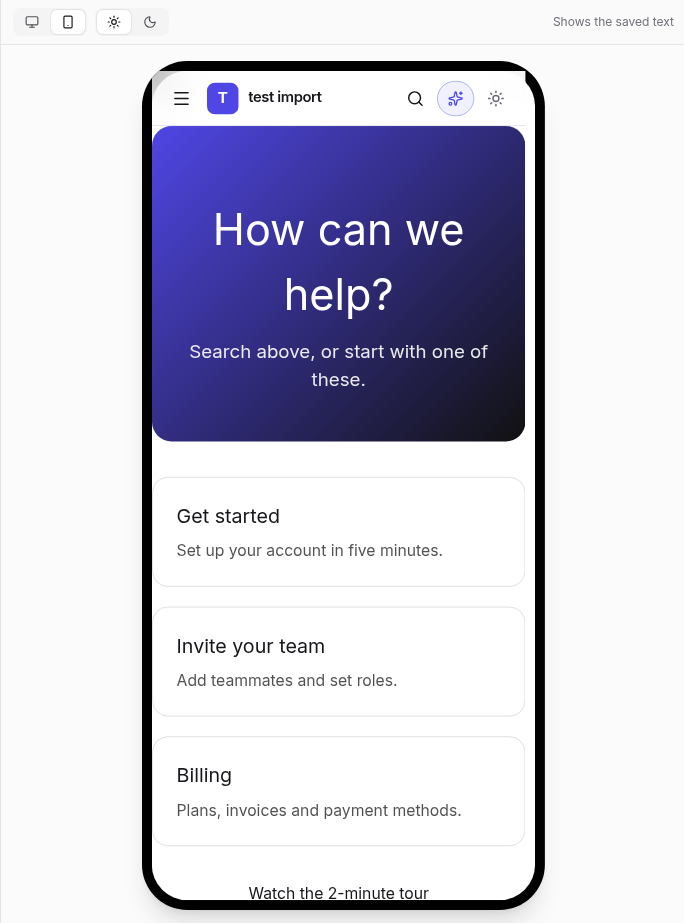
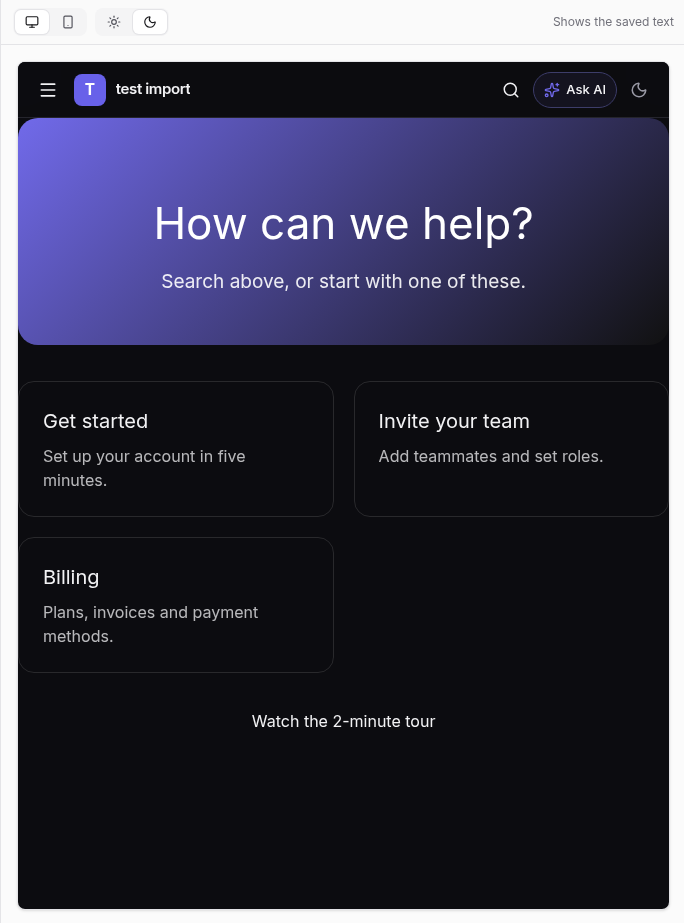
Paste or type your HTML, with the CSS in <style> tags. It saves a moment after you stop typing, or press ⌘S / Ctrl+S to save at once. The preview shows the saved version, and the buttons above it switch between desktop and phone width, and between light and dark.
Check all four before you go further. A hero that looks great at desktop width can wrap into four lines on a phone, and a hard-coded white card disappears in dark mode.
Add your images
Click Upload image and pick a PNG, JPEG, GIF or WebP file of up to 5 MB. An image tag is added where your cursor is, such as <img src="asset:abc123" alt="">. Fill in the alt text. The same asset: address works in your CSS too, for example background-image: url(asset:abc123) for a hero background. Images from any https:// address work as well.
Check what the save took out
If you paste something that isn't allowed, the save takes it out and tells you, right under the code box:

That's on purpose. A Custom HTML page is HTML and CSS only, so it's safe for your readers and can't break your site.
A starter home page you can copy
Here's a complete home page with everything from the first section: a hero that points at search, three "start here" cards, one video and a way to reach a person. Paste it into the code box, then change the words, the links and the video.
<style>
  .hc { font-family: var(--ps-font); color: var(--ps-fg); max-width: 1080px; margin: 0 auto; padding: 32px 20px 64px; }
  .hc h1, .hc h2, .hc h3 { font-family: var(--ps-font-heading); }

  /* Hero: your brand colour, with a soft shade so white text stays readable */
  .hc-hero { padding: 72px 24px 56px; text-align: center; border-radius: var(--ps-radius);
    background: var(--ps-brand); color: var(--ps-on-brand);
    background-image: linear-gradient(135deg, rgba(255,255,255,.14), rgba(0,0,0,.32)); }
  .hc-hero h1 { font-size: clamp(32px, 5vw, 48px); margin: 0 0 12px; }
  .hc-hero p { font-size: 19px; opacity: .9; margin: 0; }

  /* Three "start here" paths */
  .hc-cards { display: grid; grid-template-columns: repeat(auto-fit, minmax(240px, 1fr)); gap: 20px; margin: 40px 0; }
  .hc-card { display: block; padding: 24px; border-radius: var(--ps-radius); background: var(--ps-card);
    border: 1px solid var(--ps-border); color: inherit; text-decoration: none; transition: transform .15s, border-color .15s; }
  .hc-card:hover { transform: translateY(-2px); border-color: var(--ps-brand); }
  .hc-card h3 { margin: 0 0 8px; font-size: 20px; }
  .hc-card p { margin: 0; color: var(--ps-muted); }

  /* One video */
  .hc-video { text-align: center; }
  .hc-video h2 { margin: 0 0 16px; }
  .hc-video iframe { width: 100%; max-width: 820px; aspect-ratio: 16 / 9; border: 0; border-radius: var(--ps-radius); }

  /* A way out when nothing above helped */
  .hc-contact { margin-top: 48px; text-align: center; color: var(--ps-muted); }
  .hc-cta { display: inline-block; margin-top: 12px; padding: 12px 22px; border-radius: var(--ps-radius);
    background: var(--ps-brand); color: var(--ps-on-brand); text-decoration: none; font-weight: 600; }
</style>

<div class="hc">
  <section class="hc-hero">
    <h1>How can we help?</h1>
    <p>Search above, or start with one of these.</p>
  </section>

  <section class="hc-cards">
    <a class="hc-card" href="/getting-started"><h3>Get started</h3><p>Set up your account in five minutes.</p></a>
    <a class="hc-card" href="/invite-your-team"><h3>Invite your team</h3><p>Add teammates and set roles.</p></a>
    <a class="hc-card" href="/billing"><h3>Billing</h3><p>Plans, invoices and payment methods.</p></a>
  </section>

  <section class="hc-video">
    <h2>Watch the 2-minute tour</h2>
    <!-- Paste your video's embed link in src. YouTube must use www.youtube-nocookie.com/embed/… -->
    <iframe src="https://www.youtube-nocookie.com/embed/YOUR_VIDEO_ID"
            title="Product tour" allow="fullscreen; picture-in-picture" allowfullscreen></iframe>
  </section>

  <section class="hc-contact">
    <p>Still stuck? A real person will get back to you.</p>
    <a class="hc-cta" href="/contact">Contact support</a>
  </section>
</div>
A few things worth knowing about it:
- It uses your theme, not hard-coded colours. Your site's colours and fonts are available as CSS variables:
--ps-bgand--ps-fg(background and text),--ps-muted,--ps-cardand--ps-border,--ps-brandand--ps-on-brand,--ps-fontand--ps-font-heading, and--ps-radius. Because the starter uses them, it follows dark mode, and when you change your brand colour in Appearance, the page changes with it. - The links go to your own pages. Swap
/getting-started,/invite-your-team,/billingand/contactfor real addresses on your site. Links to your own pages,httpsaddresses,mailto:andtel:all work. - The video is a placeholder. Replace
YOUR_VIDEO_IDwith your video's ID, or paste your video's embed link from Vimeo (player.vimeo.com), Loom (www.loom.com) or Wistia (fast.wistia.net). For YouTube, use thewww.youtube-nocookie.com/embed/…address; plainwww.youtube.comiframes are removed. Clevera share links can be embedded too. - The call to action is a link, not a button. A
<button>can't run anything on this page, so style a link to look like one, as the starter does with.hc-cta.
The rules your HTML has to follow
You'll rarely hit these with a normal page, but they're good to know before you hand the job to an AI:
| Works | Taken out on save |
|---|---|
Text and layout tags: div, section, headings, lists, tables, details and summary |
<script>, <noscript> and anything that runs code |
<style> tags and style attributes, with @media, @keyframes, CSS variables and nesting |
@import, @font-face and other at-rules |
Images and video from https addresses, your site or Upload image |
Images from http:// or data: addresses |
Iframes from YouTube (www.youtube-nocookie.com), Vimeo, Loom, Wistia and Clevera share links |
Iframes from anywhere else, including www.youtube.com |
class, id, data-… and aria-… attributes |
on… attributes such as onclick |
| CSS hover effects, transitions and animations | Forms and fields: form, input, select, textarea |
Two more. Your CSS only styles your page: when the site is published, every rule is limited to your page's area, so it never changes the site header. And a few ids are reserved for the site itself (main, and anything starting with kb- or ps-), so pick other names.
Fonts from other sites, such as Google Fonts, don't load on doc sites. Pick your font in Appearance and use var(--ps-font).
A prompt that turns a mockup into a page that passes
If you have a mockup from a designer, a screenshot of a help center you like, or just your brand colours and a rough idea, an AI tool such as Claude or Cursor can write the page for you. The trick is telling it the rules up front, so you don't spend an hour pasting code that gets half removed on save.
Attach your mockup or screenshot, fill in the brackets, and paste this:
Build a help center home page as ONE block of HTML with the CSS inside <style> tags.
It will be pasted into a hosted doc site's "Custom HTML" page, under the site's own header.

Match the attached mockup/screenshot as closely as you can. Brand colour: [#HEX].
Tone: [e.g. friendly and direct]. Product name: [NAME].

The page must have:
1. A hero with one headline and one line telling readers to use the search in the header above.
   Do NOT build a search box yourself.
2. Exactly three "start here" cards, each a link: [TITLE - /path], [TITLE - /path], [TITLE - /path].
3. One video section with a 16:9 iframe pointing at https://www.youtube-nocookie.com/embed/VIDEO_ID
   (I'll swap in my own link).
4. A short "Still stuck?" line with a link styled as a button to [/contact or mailto:...].

Hard rules (anything else is stripped when saved):
- HTML and CSS only. No <script>, no on... attributes (onclick etc.), no forms, inputs, selects or textareas.
- No <button> for actions. Use <a> links styled as buttons.
- Iframes only from www.youtube-nocookie.com, player.vimeo.com, www.loom.com or fast.wistia.net.
  No frameborder attribute; use CSS border: 0.
- No @import, no @font-face, no Google Fonts. Use font-family: var(--ps-font) for body text
  and var(--ps-font-heading) for headings.
- Don't hard-code page colours. Use these CSS variables so dark mode works:
  --ps-bg, --ps-fg, --ps-muted, --ps-card, --ps-border, --ps-brand, --ps-on-brand, --ps-radius.
  Use my brand colour only through var(--ps-brand).
- Don't try to style the site header, html:has(), or anything outside the page.
- Don't use the ids "main" or anything starting with "kb-" or "ps-".
- Images: use https URLs or leave <img src="asset:REPLACE" alt="..."> placeholders for me to upload.
- Must look right at phone width (single column) and desktop width. Use CSS grid with auto-fit.

Return only the HTML, no explanation.
Paste the result into the code box, save, and check the notice under it. If anything was removed, paste the notice back into the chat and ask the AI to fix just that part.
Step 3: Make it your home page and publish
When the page looks right on desktop and phone, in light and dark, make it the front door.
Turn on Ready to publish
Flip Ready to publish in the page's top bar. A draft can't be your home page. If you try first, the menu tells you: "Turn on Ready to publish first — a draft can't be your home page."
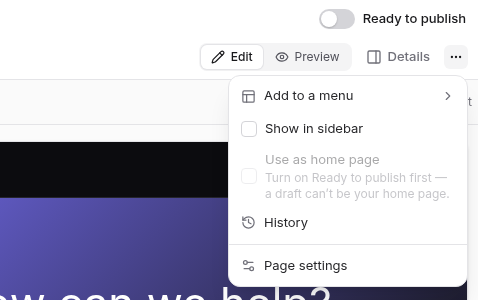
Use as home page stays greyed out until the page is ready to publish Choose Use as home page
Open the ⋯ menu and choose Use as home page ("Your site's address shows this page instead of the built-in home."). You'll see "This page is now your home page. It goes live with your next publish."
Publish the site
Publish your doc site as usual. Your site's address now shows your page.
After you publish, the page's own address (such as /home) redirects to your site's main address, so old links keep working. The built-in home, with its hero, Start here, topics and popular articles, is hidden. Header and footer links to Home go to your page.
Changed your mind? Open ⋯ → Use as home page again to turn it off, and publish. Your site goes back to the built-in home page.
What to know before you start
A few honest limits, so nothing surprises you:
- One language. The page is created in your site's default language, and every language of your site shows that same version. It isn't translated. If you need several languages, put each language's text in the HTML yourself.
- No AI writing for this one. Generate with AI, the inline AI menu and Translate to all languages don't work on Custom HTML pages. That's what the prompt above is for.
- It stays out of search. The page itself doesn't show up in site search, Ask AI or
llms.txt. That's fine for a home page, since it's a way in, not an answer. Search and Ask AI in the header keep working for the rest of your site. - No scripts or forms. You can't build your own search box or contact form inside the page. Point readers at the header search, and link to your contact page.
- It keeps its layout. A Custom HTML page can't switch to another layout, and other pages can't switch to Custom HTML. To move content across, create a new page.
- No Undo button. Use ⌘Z / Ctrl+Z in the code box. The page's History still lets you restore an earlier version.
Doc sites are on every plan, including Free.
A home page checklist
Copy this into your team notes.
- Top three reasons people contact support, pulled from tickets or page views
- Hero with one headline and a line pointing at search
- Three "start here" cards linking to real pages
- One short tour video, embedded from YouTube (nocookie), Vimeo, Loom, Wistia or Clevera
- A visible way to reach a person
- Colours and fonts from
var(--ps-…)variables, not hard-coded - Checked on desktop and phone, in light and dark
- Nothing listed under "Removed when saved"
- Ready to publish on, then Use as home page, then publish
Your help center, looking like your product
The built-in home page is a sensible default. But if your help center is the place customers go when something's wrong, it should feel like part of the product, not a stranger's site. A Custom HTML page gets you there with one page of HTML, a prompt to write it and a few clicks to make it the front door.
If you haven't set up a doc site yet, start with how Clevera's doc sites work. And if the articles behind your three cards need work, here's how to write help center articles that actually answer the question.
Give your help center a front door that looks like you
Publish your articles as a doc site on any plan, then make the home page your own.