Doc sites: turn your Clevera articles into a hosted help center
Doc sites publish your Clevera articles as a hosted help center with search, Ask AI, 74 languages and insights on what readers can't find. On every plan.
 Berkay Akpolat7 min read
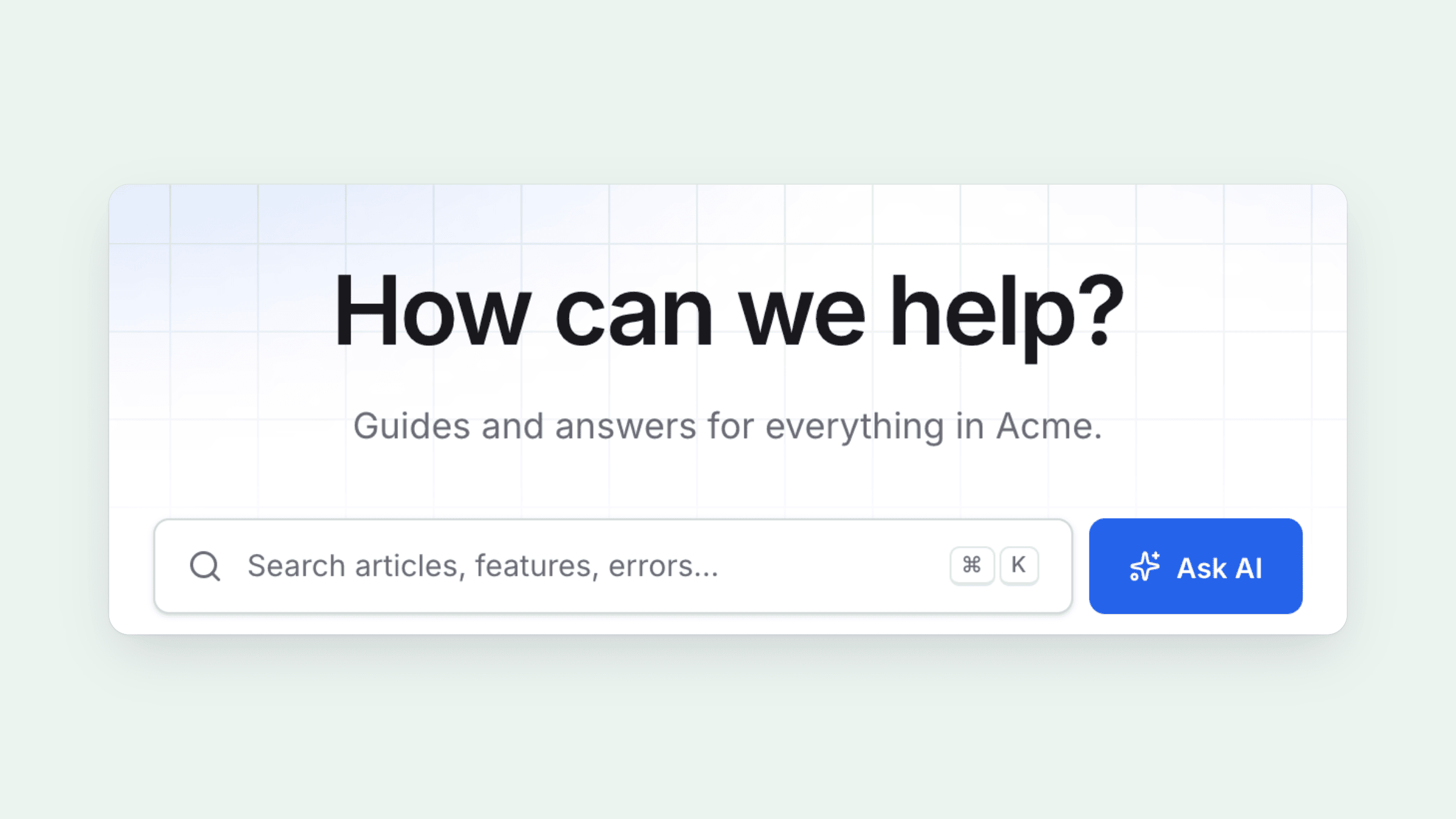
Doc sites turn the articles you write in Clevera into a hosted help center that your customers can search, browse and ask questions of. They are on every plan, including Free, and each site gets its own your-site.clevera.help address when you create it.
Until now, publishing a Clevera article meant copying it somewhere else: a help desk, a docs tool, a CMS. Doc sites remove that step. Your articles stay in Content, and every edit reaches the site on the next publish.
What is a doc site?
A doc site is a public (or private) help center built from your Clevera library. Each page on the site shows an article, and videos you add to an article with the video block appear inside that page. When you edit the article in Content, the page changes on the next publish. If you take a page off the site, the article stays in your library.
Readers get what they expect from a modern help center:
- Search with ⌘K or Ctrl K from any page.
- Ask AI, an assistant you turn on in Settings → AI assistant, that answers from your published pages and lists its sources.
- Language switching across 74 languages, with titles and menu labels translated automatically.
- Light and dark mode, page feedback, and a changelog with an RSS feed.
Hosting is free on every plan, and reader search uses no credits. The help center software page has the full overview.
How do you create a hosted help center in Clevera?
Open Doc sites in the sidebar and start a new site. The wizard has three steps.
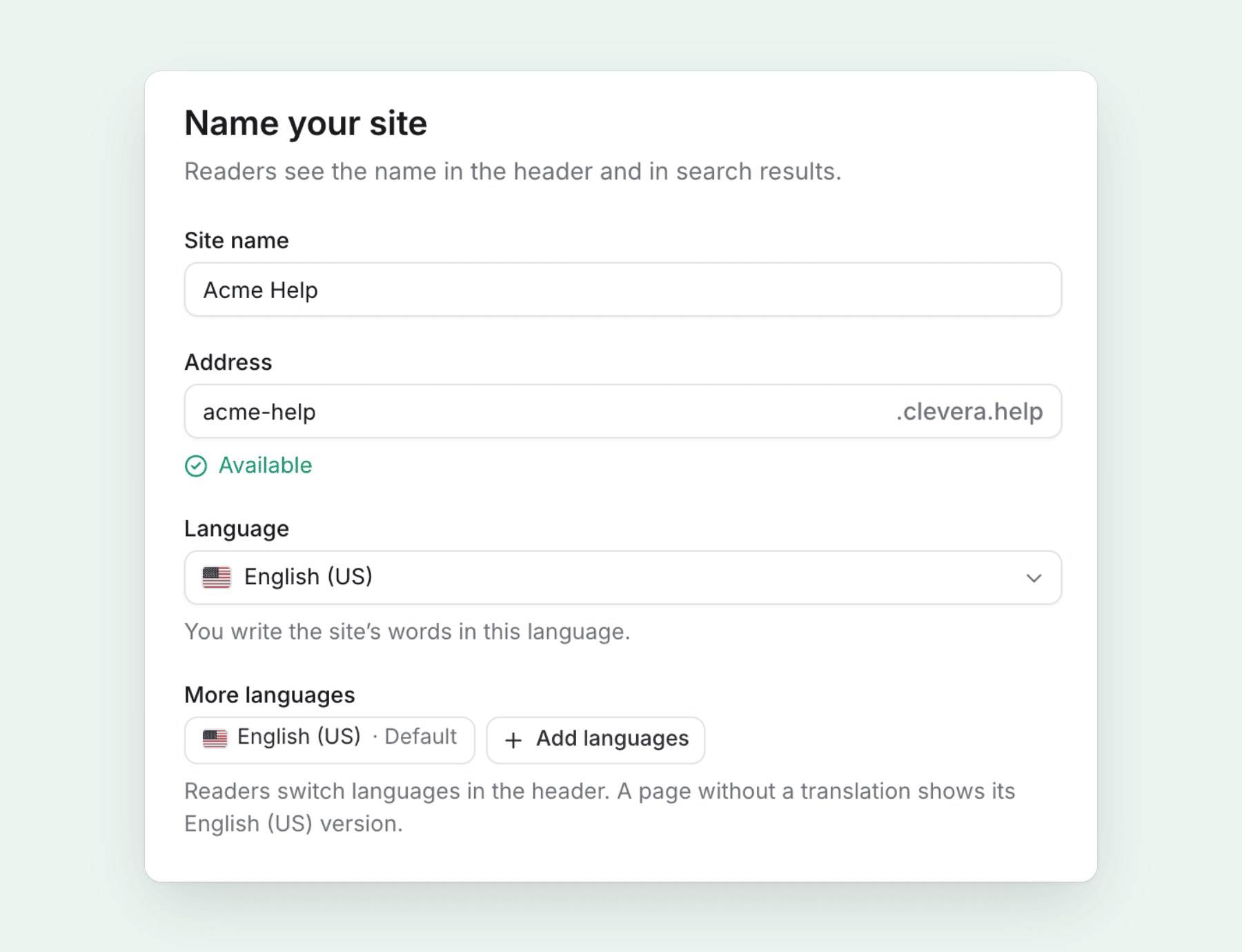
Name your site
Type a Site name. The Address fills in from it and ends in
.clevera.help. Pick the language you write in, and add More languages if readers should be able to switch.What goes on it?
Choose From a collection (folders with finished articles become sections), Pick content, Start empty, or Import from another tool.
Make it yours
Upload a logo, set a brand color and font, and choose the default appearance: System, Light or Dark.
Click Create site and you land on the site's Overview, with a short Get started checklist: publish, add at least five pages, add your logo and color, connect your own domain, and set up the AI assistant. The full walkthrough is in Create a doc site.
How does Ask AI answer readers?
Once you turn the assistant on, readers click Ask AI on the home page, or the assistant button in the header, and type a question. The assistant answers only from your published pages. Drafts, unpublished changes and pages hidden from navigation are left out. Each answer lists the pages it used as sources, so readers can check the details and keep reading.
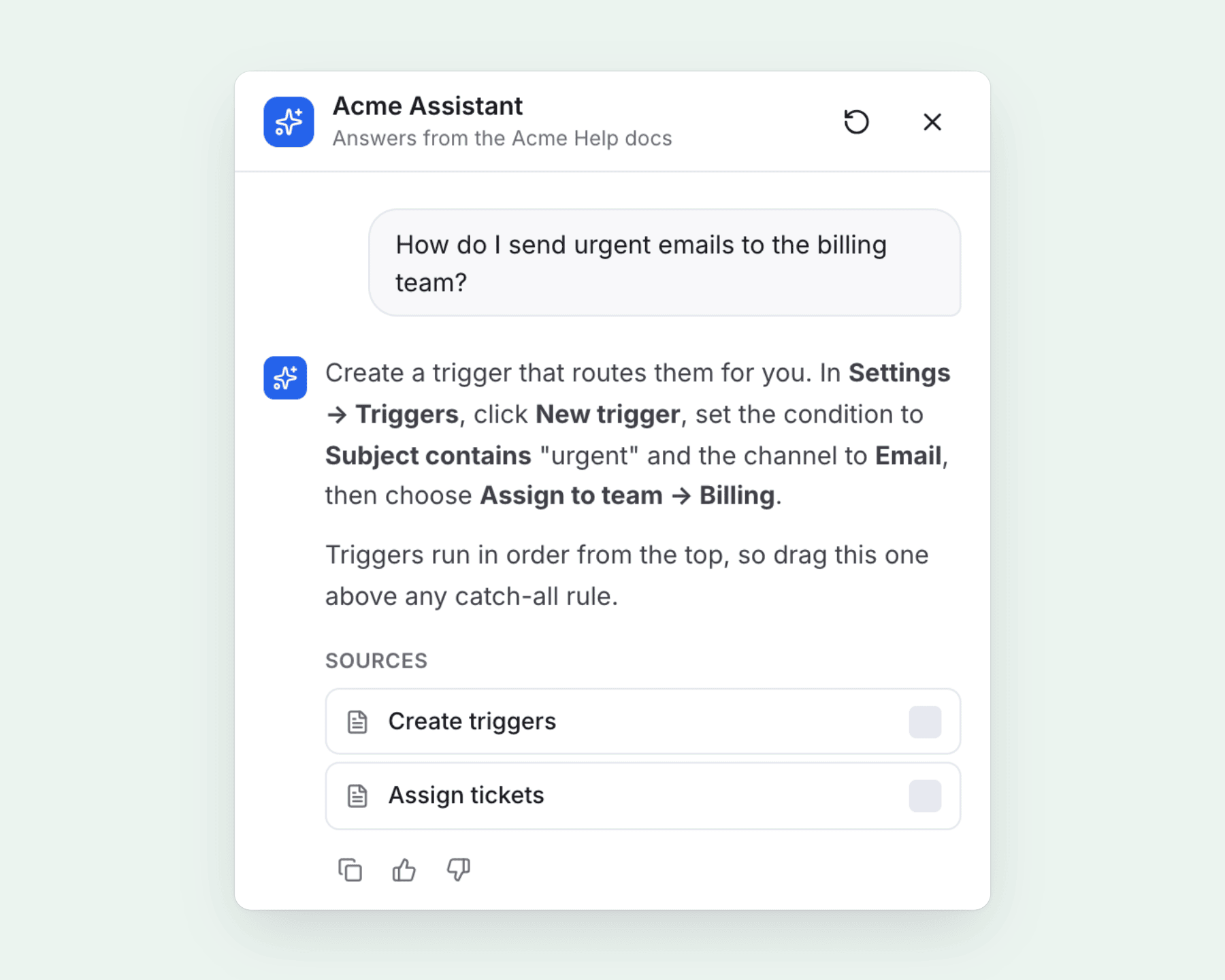
Assistant answers do not use credits. Each plan includes a monthly allowance, shared across your sites: 300 answers on Free, 1,000 on Starter, and 5,000 on Pro, plus 1,000 per seat above two. If you run out, search keeps working and the assistant comes back on the 1st of the month. On Starter and up you can also give it a display name, an answer tone and a short description of your product. See Set up the doc site assistant.
What do readers search for that your docs don't cover?
This is the part of a help center that usually stays invisible. Doc sites record what readers search for and ask, and turn it into a list you can act on.
Under Insights you get Analytics (views, visitors, top pages, languages, referrers), Search (search success, zero-result rate, click-through), Assistant (conversations and unanswered questions) and Feedback (the "Was this page helpful?" votes and the reasons people give).
The Search screen ends with Content gaps: searches that found nothing, with how many times each was searched and by how many visitors.
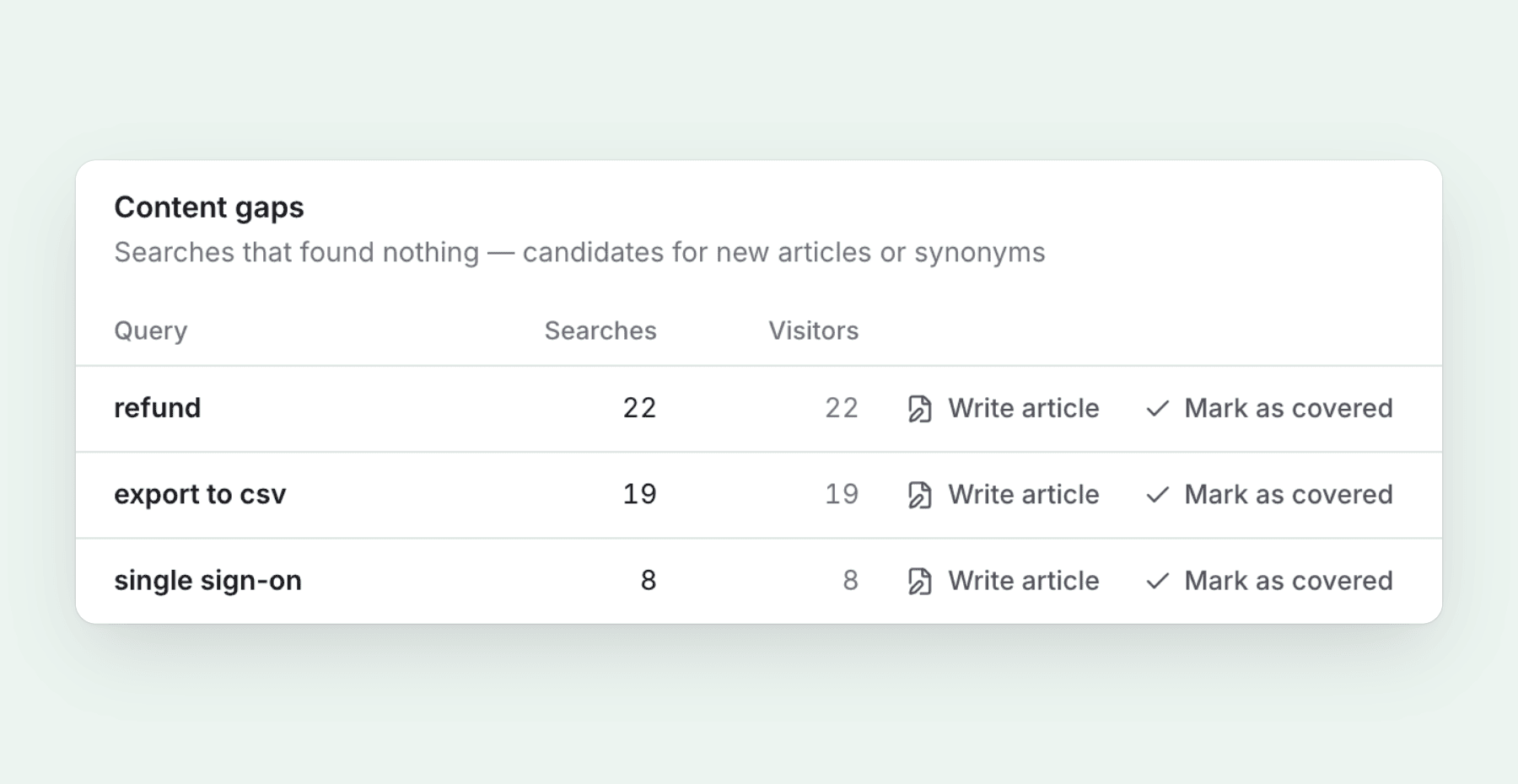
Click Write article next to a query and Clevera opens Compose with that query as the topic. Pick where the article should go, and it becomes a page on the site, ready for the next publish. Writing the article uses credits, like any AI article. If a page already covers the topic, Mark as covered takes the query off the list.
Insights are free on every plan. History goes back 30 days on Free, 90 days on Starter and a year on Pro and above. For a routine that puts this data to work, see our guide to keeping a knowledge base up to date.
Publishing, versions and rollback
Click Publish in the site header and the Publish changes sheet lists everything that will go live, marked as added, edited or removed. You can leave any change out of this publish. Publish automatically is on by default for new sites, so once a site is live, saved edits go out a couple of minutes after you stop editing.
Every publish is a new version of the whole site, and versions are kept in Publishing.
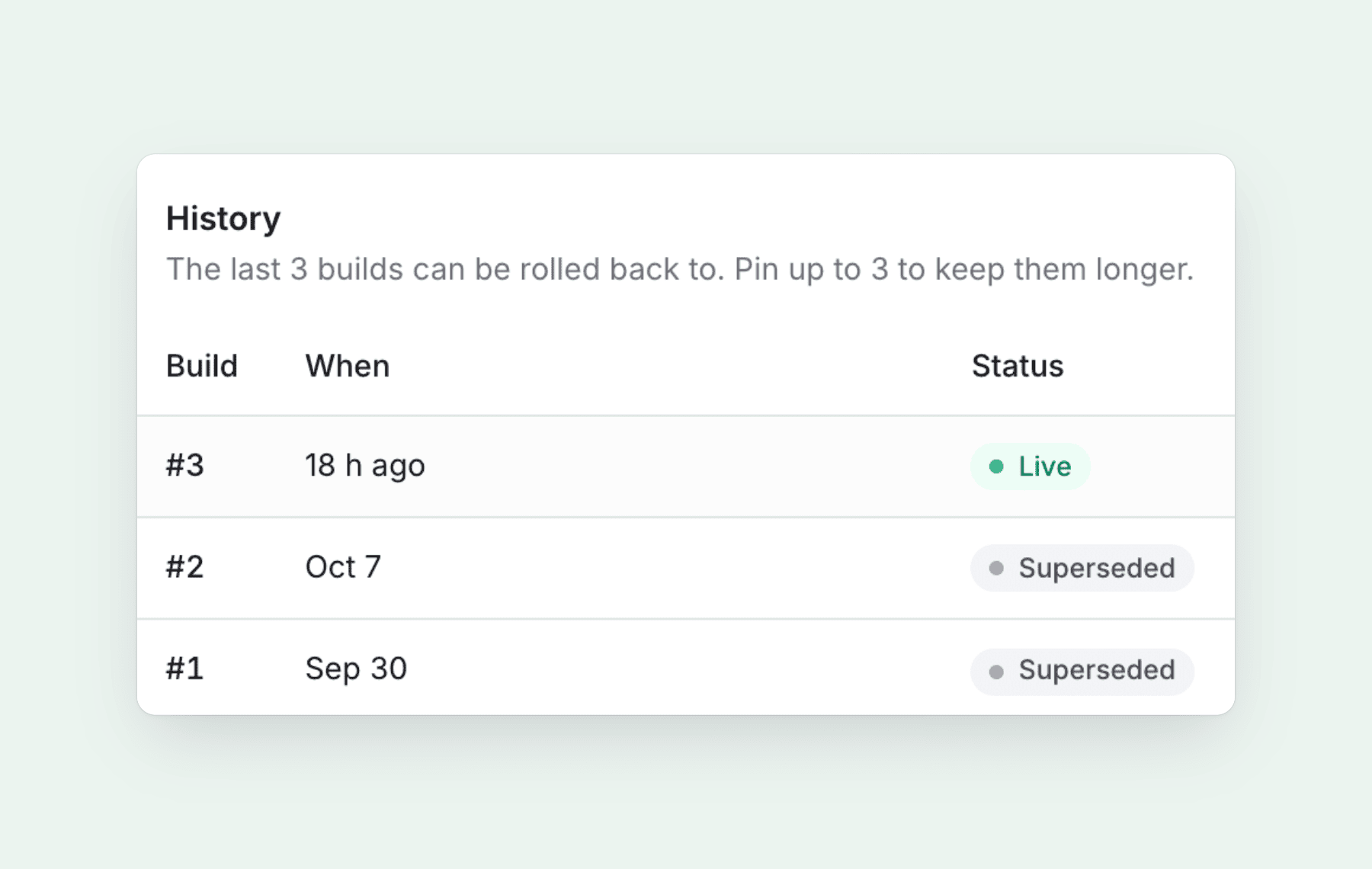
To undo a bad release, open an older build and click Roll back to this build. Free keeps the last three builds to roll back to, Starter keeps 30 days, and Pro and above keep every build. On any plan you can pin up to three versions to keep them longer. See Publish a doc site.
Custom domain, site pages and languages
- Custom domain (Starter and up). Serve the site from an address like
help.yourcompany.com. Setup shows the DNS records to add, with guides for common providers. - Site pages. Add About, landing, FAQ and legal pages next to your articles. AI can draft them for you, and AI agents connected through the Clevera MCP server can work in your workspace as well.
- Navigation and appearance. Set the header and footer links and match your branding.
- Changelog. Publish release notes on the site, with an RSS feed readers can follow.
- Languages. Free sites can have 2 languages, Starter 5, and Pro and above all 74. If you already translate articles and videos in Clevera, see how to translate your help center and its videos together.
Can you import from GitBook, Zendesk or Intercom?
Yes. Doc sites import from Mintlify, GitBook, Docusaurus, Zendesk, Intercom, Help Scout, ReadMe, Document360, Notion and Confluence, or from any other docs site by its public address or a zip. Images, structure, translations and redirects come along, and you preview the pages before anything is created. Exporting works the other way: request an HTML or Markdown zip at any time. Imports and exports are free and use no credits on any plan.
If you are weighing options, our roundup of GitBook alternatives compares doc sites with the tools teams most often move from. Steps and limits are in Import and export a doc site.
Private help centers
Not every help center should be public. On Pro and above, you can protect a site with a shared password, or limit it to members of your Clevera workspace with Workspace sign-in. Private sites are never indexed by search engines.
FAQ
Which plans include doc sites?
All of them. Free and Starter include one site, and Pro includes two to five, depending on seats. The full table is in Doc site plans and limits.
Does the hosted help center cost credits?
Hosting, search, insights, imports and exports use no credits, and neither do assistant answers, which count against your monthly allowance instead. Writing new articles with AI, for example from a content gap, uses credits as usual.
Can I use my own domain?
Yes, on Starter and up. Every site also keeps its free clevera.help address.
Can I make a doc site private?
Yes, on Pro and above, with a password or Workspace sign-in.
Publish your help center today
Turn the articles you already have into a searchable help center with Ask AI, free on every plan.