Best PDF to video AI tools in 2026

The best PDF to video AI tools in 2026 are Clevera for turning a product deck or SOP into a narrated product video, HeyGen and Synthesia if you want an avatar presenting your slides, and NotebookLM if you want a free study-style summary of a long document. They all read your PDF. Where they differ is what ends up on screen: your own slides, an avatar in front of them, or new visuals the AI made up.
Quick picks
Tool | Best for | What's on screen | Free tier | Starting paid price |
|---|---|---|---|---|
Clevera | Sales decks, launch slides, SOPs and screenshots turned into product videos | Your pages, rebuilt as moving scenes, with AI voiceover | Yes, videos up to 3 min, watermarked | $29/mo billed yearly |
HeyGen | Slides presented by an AI avatar | Your slides with an avatar overlay | 3 videos a month, 1 min each | $29/mo (Creator) |
Synthesia | PowerPoint training decks with an avatar | Your .pptx layout as editable scenes, plus an avatar | 10 min of video, watermarked, no downloads | $29/mo billed monthly |
Colossyan | Long documents turned into avatar training videos | New scenes planned from your text, with avatars | 20 min a month | $59/mo billed yearly |
Pictory | Reports and articles turned into stock-footage videos | Stock clips, plus charts and images kept from the PDF | 14-day trial | $25/mo billed yearly |
Fliki | Fast narrated videos from slides, with lots of voices | Stock, AI images or your slides, with voiceover | Yes, 720p, watermarked | £20/user/mo (UK page) |
NotebookLM | A free explainer of a long PDF you don't need to brand | AI-made slides summarising your sources | Yes, watermarked | Via Google AI plans |
Prices come from each vendor's official pricing page, checked on 19 October 2026. Fliki showed us UK prices only, and Google doesn't list NotebookLM's paid price on its help pages, so we've said what we saw rather than convert or guess.
The one test: does your deck stay on screen?
A PDF to video tool has 3 ways to fill the screen:
1. Your own pages. Each slide or screenshot becomes a scene, and the narration explains it. 2. An avatar in front of your pages. A presenter talks while your slides sit behind or beside it. 3. New visuals. The AI reads your text and builds the video from stock clips or images it generates.
For a sales deck or a product walkthrough, option 1 is usually what you want, because the slides already show the product. For a compliance course, an avatar can feel more human. For an internal summary, new visuals are fine. Decide which one you need before you compare prices.
How we chose
We picked tools that come up when people ask ChatGPT, Gemini or Google for a PDF to video tool, then checked each vendor's own product page, help docs and pricing page for 4 things: which files it takes (PDF, PPTX, screenshots), what ends up on screen, how you edit the script, and the cheapest plan that exports without a watermark. We didn't run a scored bake-off across all 7.
The 7 best PDF to video AI tools
1. Clevera
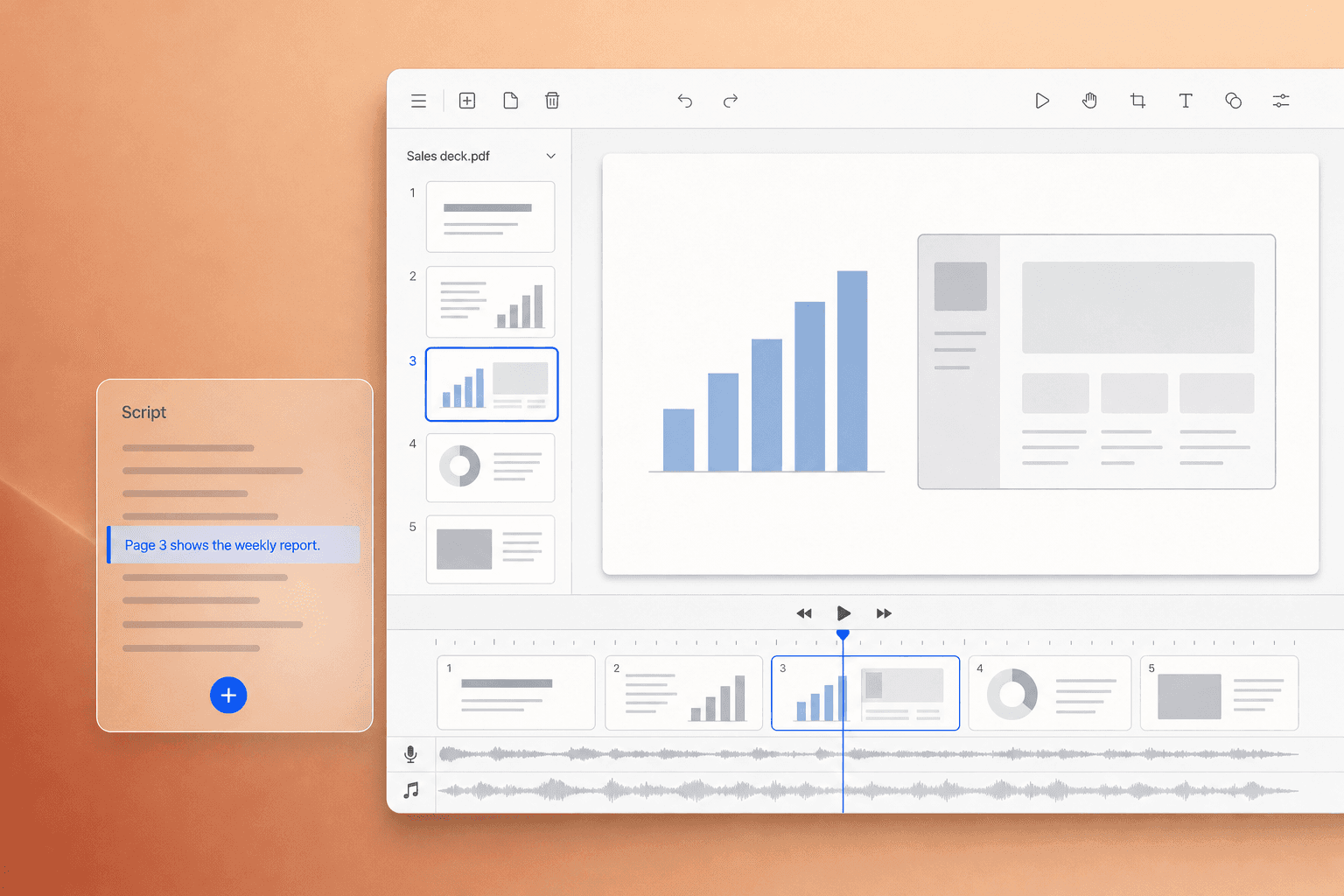
Best for: software teams turning a sales deck, launch slides, a training PDF or a set of screenshots into a narrated product video.
Upload a PDF or screenshots on Clevera's PDF to video page and pick what you're making: a how-to video or a product demo. Clevera reads the text on each page, writes narration that explains what the slide is saying, voices it in an AI voice and turns each page into a timed scene with motion. You don't record anything. If your deck lives in PowerPoint, Keynote or Google Slides, export it as a PDF first.
What makes it different from the avatar tools is the output. You get a product video that looks like your product, because the pages are your product. A few things that matter once the first draft is done:
Edit the words, not a timeline. Rewrite any line yourself or ask the AI to make it shorter or more technical, then fine-tune timing in the sync editor.
Mix sources. Combine a PDF with up to 3 screen recordings and pictures in one how-to or demo, so the deck can set up the story and a recording can show the click path.
One deck, several outputs. The same PDF can become a narrated demo, a help article and, on paid plans, a short social clip for LinkedIn.
Your brand and 74 languages. Team templates add your logo, colours and title cards, and the voice and on-screen text translate into 74 languages.
Embeds that stay current. Embed the player on your site and later edits to narration or text show up without a new export.
What's on screen: your pages, built into moving scenes. There's no stock library, and no avatar on the Free plan.
Pricing: the Free plan costs $0 with no card and includes how-to and demo videos up to 3 minutes, exported at 1080p with a watermark. Starter is $29/month billed yearly ($36 monthly) with 900 credits and exports up to 2K. Pro is $86.80/month billed yearly for 2 creators, with 4,000 shared credits and 4K export. See Clevera pricing.
2. HeyGen
Best for: teams that want an AI presenter talking through their slides.
HeyGen's PDF to video flow takes a PPT, PPTX or PDF, keeps your slide content and places a circular avatar over each scene. A second option builds a new deck from your PDF or a prompt, with a setting to preserve, condense or regenerate your text. One catch: speaker notes and editable slide elements work with PowerPoint files only, not PDFs, and the current guide caps uploads at 50MB.
What's on screen: your slides with an avatar.
Pricing: per the pricing page, Free gives 3 videos a month up to 1 minute. Creator is $29/month with 600 credits; Pro is $49/month.
3. Synthesia
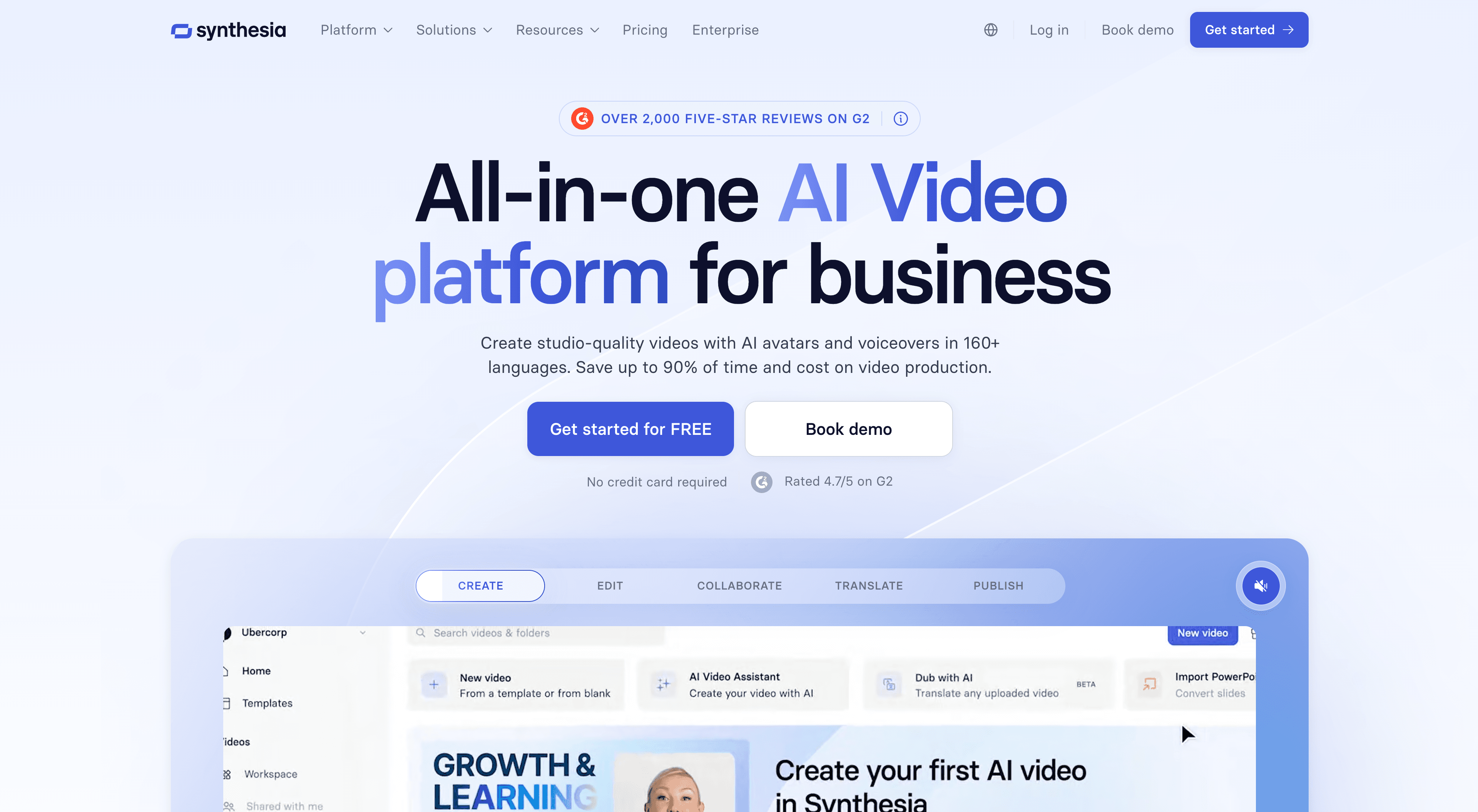
Best for: L&D teams converting PowerPoint training decks into avatar videos.
Synthesia's PowerPoint import keeps your layout: text, shapes, images and tables arrive as editable elements, speaker notes become the script, and an avatar narrates. It's the most faithful slide import in this list. Its import docs list .pptx only, so if all you have is a PDF, this isn't the shortest path. Animations don't carry over.
What's on screen: your PowerPoint layout plus an avatar.
Pricing: per the pricing page, Basic is free with 10 minutes of video, a watermark and no downloads. Starter is $29/month billed monthly ($18/month billed yearly) for about 12 minutes of video a month; Pro is $89/month billed monthly.
4. Colossyan
Best for: training teams turning long policy documents and manuals into avatar-led lessons.
Colossyan's document to video reads a DOCX, PDF or PPTX (scanned PDFs too) and drafts a scene-by-scene plan, with each scene citing the part of the document it came from. You approve the plan before anything renders, which is useful when accuracy matters. For documents it builds new scenes from your text rather than keeping your page designs.
What's on screen: new scenes and avatars, planned from your document.
Pricing: per the pricing page, the free Starter plan gives 20 minutes of video a month. Professional is $59/month billed yearly, and minutes don't roll over.
5. Pictory
Best for: content teams turning reports, whitepapers and articles into stock-footage videos.
Pictory's PDF to video takes files up to 50MB (best under 50 pages), writes a script and fills scenes with visuals from a library of 18M+ stock clips and images. It says charts, tables and images from your PDF are kept in the matching scenes. A separate PowerPoint path makes one scene per slide and uses speaker notes as narration.
What's on screen: mostly stock, with some of your charts and images.
Pricing: per the pricing page, there's a 14-day trial with 15 video minutes. Starter is $25/month billed yearly ($29 monthly).
6. Fliki
Best for: creators who want a narrated video out of slides fast, with a big voice library.
Fliki's PPT to video accepts PPT or PDF uploads up to 100MB, turns each slide into a scene and uses speaker notes as the narration. It has a large voice library and can add stock clips, AI images or an avatar. Its page doesn't say how much of your original slide design carries over, so test with your own deck.
What's on screen: your slides or stock and AI visuals, with voiceover.
Pricing: the pricing page showed us prices in pounds from the UK: Free is £0 with 3 credits a month, 720p, a 5-minute cap and a watermark. Standard is £20 per user per month on monthly billing, with yearly billing 25% off. Check the page in your own region.
7. NotebookLM
Best for: a free narrated explainer of a long PDF, for study or internal briefings.
Google's NotebookLM makes a Video Overview from the sources you add: a narrated set of AI-made slides that pulls images, diagrams, quotes and numbers from your PDF. It summarises your material rather than presenting your deck, so it's great for understanding a 60-page report and wrong for a branded product video. Generation can take 30 minutes or more, and Google warns that overviews can contain mistakes.
What's on screen: new slides made by the AI.
Pricing: free with a Google account, with a watermark on free videos. Higher limits come with Google's paid AI plans, whose prices Google's help pages don't list.
Where Clevera is not the right fit
Clevera is built for product videos from product material. Pick something else if:
You need an avatar on screen and have no budget. Avatars in Clevera come with social & promo videos on paid plans. HeyGen's free plan includes an avatar on short videos.
Your source is a PowerPoint with careful layouts you want kept exactly. Synthesia imports .pptx as editable elements; Clevera works from a PDF and rebuilds each page as a scene.
You're making formal training with tracking. Colossyan and Synthesia are built for L&D teams, with avatars and approval steps aimed at courses.
You want stock footage. If the video should show people and places rather than your pages, Pictory's stock library is the better fit.
You only need to understand a document. NotebookLM is free and good at summarising. You don't need a product video tool for that.
A 20-minute test before you choose
1. Use your real deck. Pick 8 to 12 pages with at least one screenshot and one dense text slide. 2. Count the scenes that still show your pages. If most of the video is stock or new visuals, ask whether that's what you wanted. 3. Read the script out loud. Does it explain the slide, or read the bullet points back? 4. Change one line. Note whether you rewrite a sentence or regenerate the whole video. 5. Check the free export. Watermarks, resolution and length caps decide whether a free plan is usable for anything outside your team.
If the deck is the start of a launch, our guide on how to make a product launch video covers what to put in it, and the best product demo software compares tools for recorded walkthroughs.
Your deck is already the script
Most teams already have the material. It's sitting in a sales deck or an onboarding PDF that nobody opens. Pick the tool by what you want people to see: your pages, a presenter, or a summary. If it's your pages, turn your PDF into a video with Clevera and see how far the first draft gets you.
