YouTube integration
Publish screen recordings to YouTube automatically
Turn a screen recording into a narrated video in Clevera, then send it to your YouTube channel as a private draft. Clevera writes the title, description, tags and chapters for you, so the upload takes a minute instead of an afternoon.
Private by default
AI title, description and tags
Chapters from your video
Several channels at once
What you can do
A finished video on your channel,
without the upload chores.
Most teams lose more time to the YouTube upload form than to the video itself. With the YouTube integration the work after the edit is a quick check, not a second job.
Ship tutorials every week
Record a walkthrough, let Clevera turn it into a narrated how-to video and send it straight to your channel. A steady tutorial library stops depending on one person’s free afternoon.
Get found in search
Every upload gets a searchable title, a structured description, tags and chapters written from what the video actually says, so viewers can find it and jump to the part they need.
Nothing goes public by surprise
Videos arrive as private drafts. You decide when they go live, in YouTube Studio, after a last look on the real watch page.
One video, every channel
Connect your main channel and your tutorials or regional channels, tick the ones you want and send them all from the same window.
Your viewers’ language
Translate the narration and captions into any of 74 languages in Clevera, then publish the version your channel needs. The details are written in that language too.
Updates without re-uploading by hand
When the product changes, fix the video in Clevera and publish the new version to YouTube from the same place, with fresh details ready to check.
How it works
From recording to YouTube
in four steps.
Connect once. After that, every finished video is a few clicks away from your channel.
- 1
Connect your channel
Sign in with Google from Clevera’s Integrations page. Add as many channels as your team publishes to. - 2
Clevera writes the details
Open Share, then Publish. Clevera reads the video’s script and chapters and drafts the title, description, tags, category and thumbnail. - 3
Check it and send
Edit anything, answer YouTube’s declarations, then click Send as private draft. The upload runs in the background. - 4
It lands as a private draft
The video waits in YouTube Studio, visible only to you, until you publish it there.
See it in Clevera
Everything YouTube asks for,
on one screen.
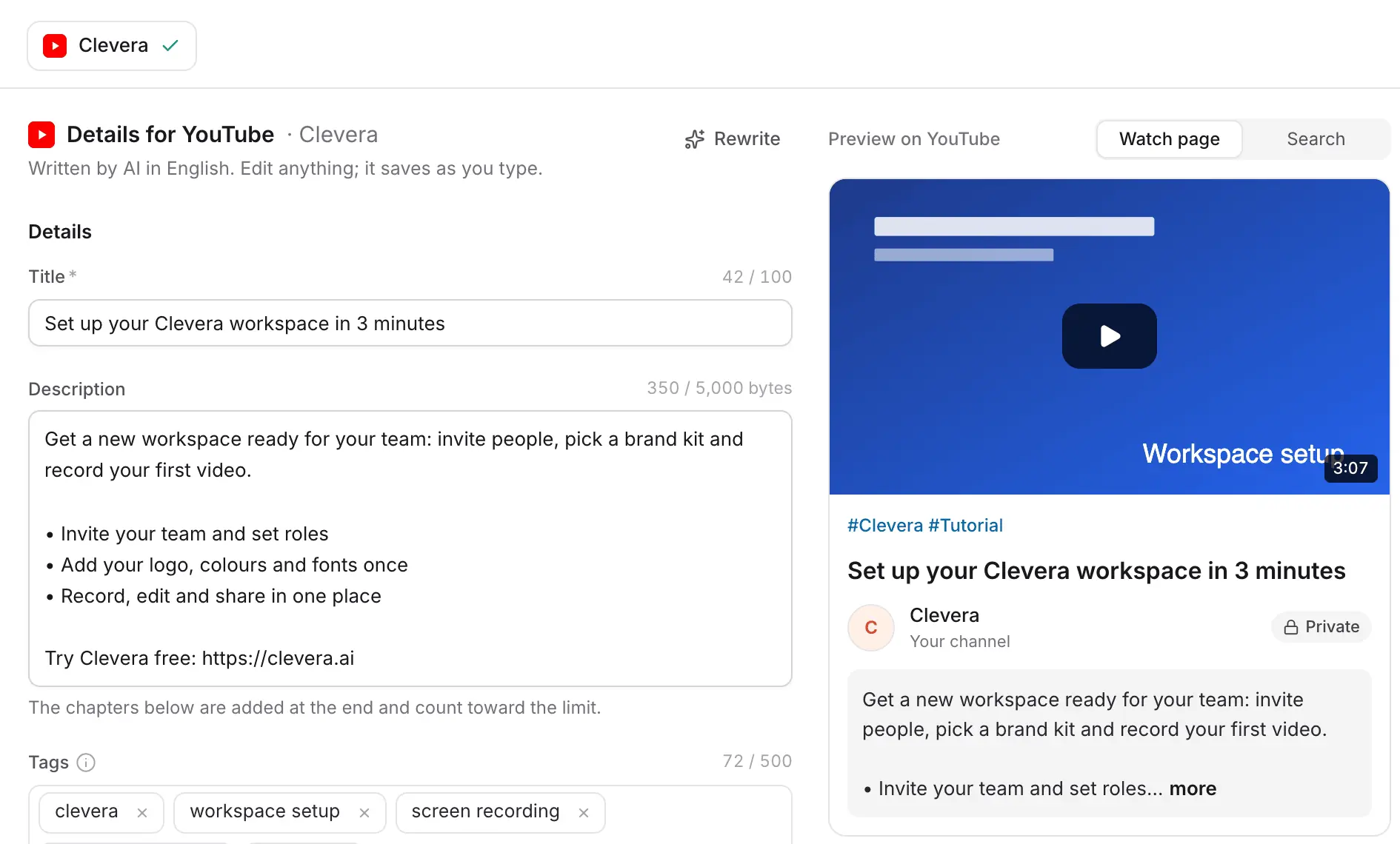
The Publish window shows the form on the left and a live preview of the YouTube watch page on the right, so you see the title, description and thumbnail the way viewers will.
AI-written details, ready to check
Clevera writes a title, a description with a short summary and bullet points, tags and a category from the video’s own script, in the video’s language. Character counters follow YouTube’s limits, so nothing gets cut off at upload.
Change a word and it saves as you type. Don’t like the draft? Click Rewrite for a new one.
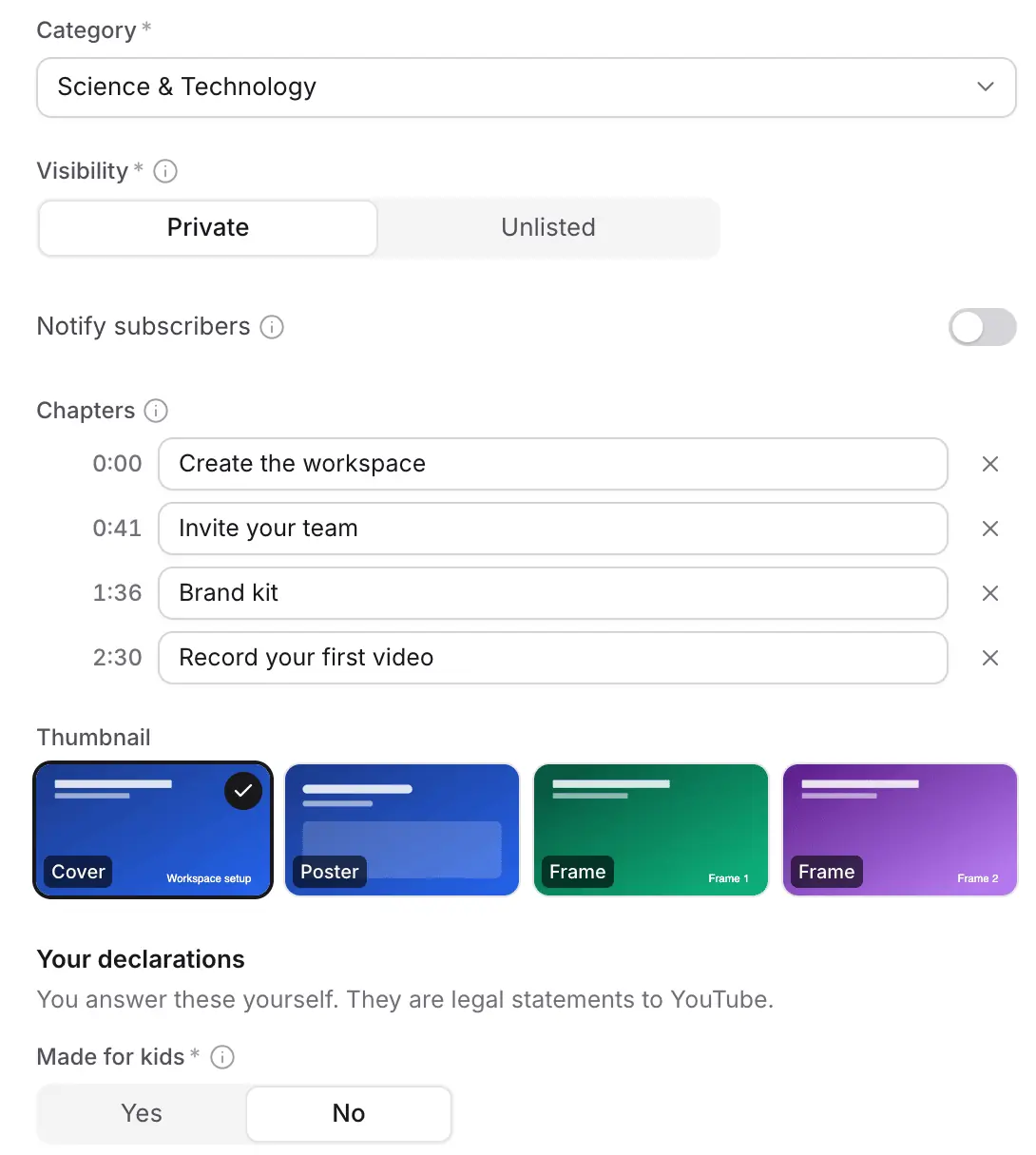
Chapters, thumbnail and the declarations
Chapters come from the timecodes of your finished video, starting at 0:00. Pick the cover, the poster or a frame as the thumbnail. Choose Private or Unlisted, and whether subscribers are notified.
Made for kids and altered or synthetic content are legal statements, so you answer them yourself. Clevera never guesses them for you.
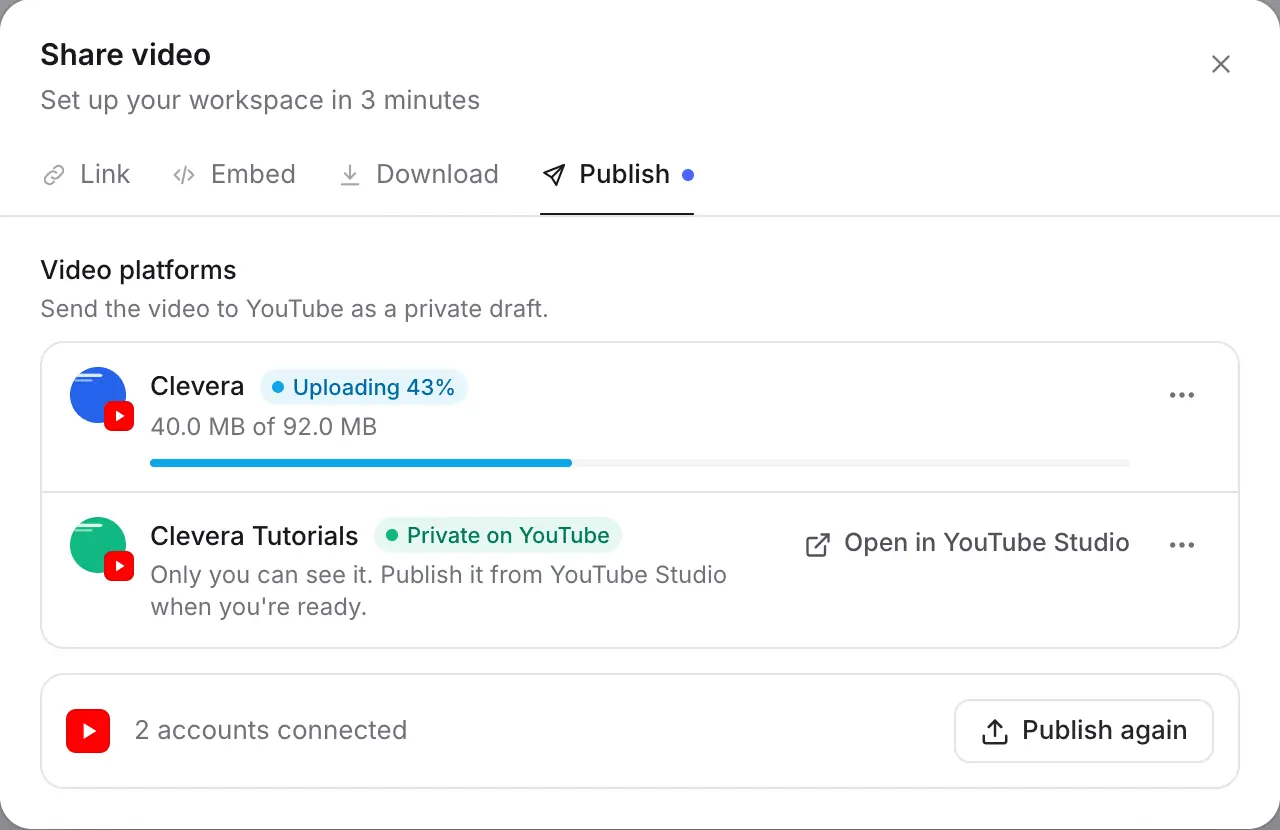
Watch it upload, then open it in YouTube Studio
Each channel gets its own row with the upload’s progress. When it’s done, the row says Private on YouTube and links straight to the video in YouTube Studio.
You can close the window while it runs. If the video hasn’t been rendered yet, Clevera renders it first and sends it when it’s ready.
Filled in for you
What Clevera fills in
and what stays your call.
Every field below is checked against YouTube’s own limits before anything is sent. The AI writes the text; the legal choices are yours.
- TitleAI writes it
- A clear, searchable title of up to 100 characters, written from what the video shows.
- DescriptionAI writes it
- A hook, the key points as bullets and the chapter list, within YouTube’s 5,000-byte limit. Clevera counts bytes, not letters, so descriptions in Japanese, Arabic or Thai fit too.
- Tags and hashtagsAI writes it
- Relevant tags within YouTube’s 500-character total, and up to three hashtags above the title.
- CategoryAI picks it
- Chosen from your channel’s own category list, for example Science & Technology or Education.
- ChaptersSet for you
- Taken from the chapter timecodes of the rendered video. If the video has no reliable chapters, Clevera leaves them out instead of guessing.
- ThumbnailAI suggests it
- The best of your cover, poster and frames from the video is picked for you. Switch it with one click.
- VisibilityYou choose
- Private by default, or Unlisted. You publish it to everyone from YouTube Studio.
- Made for kidsYou choose
- Required by YouTube. Clevera remembers your answer for each channel.
- Altered or synthetic contentYou choose
- YouTube’s AI-content disclosure. It’s switched on for you when the video uses an AI presenter.
Setup
Set up the YouTube integration
in about two minutes.
You need a Clevera workspace on Pro or above. The workspace owner or an Administrator connects the channel once; after that, anyone who can edit a video can publish it.
- 1
Open Integrations
In Clevera, open the workspace menu and choose Integrations. YouTube is under Publishing destinations. - 2
Add your channel
Click Add and sign in with the Google account that owns the channel. Clevera shows the channel’s name and picture so you know which one is connected. Repeat for more channels. - 3
Open a finished video
In the video editor, click Share and open the Publish tab, then pick the channels and the language to publish. - 4
Check the details and send
Review what Clevera wrote, answer the declarations and click Send as private draft. Or click Keep as draft to finish later. - 5
Publish on YouTube
Open the video in YouTube Studio from the Publish tab and make it public when you’re ready.
YouTube integration questions
Every workspace on Pro and above. The workspace owner or an Administrator connects the channel once; after that, anyone who can edit a video can publish it. See pricing.
No. Nothing is uploaded until you click Send, and videos arrive as private drafts that only you can see. You make them public in YouTube Studio.
Yes. Connect as many channels as you need, then tick several in the Publish window. Each one gets its own details to check and its own upload status.
A vertical or square video of up to three minutes is shown as a Short in the preview, because that’s how YouTube files it. Clevera exports 9:16, 1:1 and 16:9 videos, so you can make the vertical cut in the same place.
YouTube allows uploads of up to 15 minutes on channels that haven’t been verified with a phone number, and up to 12 hours on verified channels. Clevera checks the length before sending and tells you if your channel needs verifying.
No. The AI-written title, description, tags and chapters, Rewrite and the upload are free, and so is rendering. Making the video itself uses credits as usual. See pricing.
Permission to upload videos and set their thumbnails, and to read your channel’s name, picture and category list. Clevera doesn’t edit, delete or read your other videos. Disconnecting the channel in Clevera revokes that access at Google.
Yes. Translate the video in Clevera, pick the language in the Publish window and send that version. The title and description are written in the same language. Learn more about multilingual videos and docs.
Your next tutorial, already on YouTube.
Record it once. Clevera turns it into a narrated video and gets it to your channel with the details written.