Google Drive integration · Cloud storage
Save screen recordings to Google Drive automatically
For teams that live in Google Workspace. Turn a screen recording into a narrated video in Clevera and save the MP4 into a Clevera folder in My Drive, filed by collection. Share that folder once, and every new video reaches the same people.
Sees only the files it creates
A subfolder per collection
Optional file description
Nothing is posted
What you can do
Videos in Drive,
shared the way your team already shares.
Google Workspace teams share through Drive folders: a team folder, a customer folder, a folder linked from the onboarding doc. Clevera saves each finished video into Drive so it picks up that sharing without anyone re-uploading.
Share a folder, not every file
Files in Drive follow the sharing of their folder. Share the Clevera folder or a collection’s subfolder with your team or a customer once, and each video saved there later is shared the same way.
Collections become Drive folders
The video’s collection is its subfolder, so “Onboarding”, “Release notes” or a customer’s name turns into a tidy Drive folder that fills up as you make videos.
The rest of your Drive stays private
Clevera asks Google for the narrowest Drive permission there is: it can see only the files and folders it creates. Your documents, sheets and other folders stay out of reach.
A description people can search
Add a file description, such as what the video covers or who it’s for. Drive shows it in the file’s details, next to the name.
Drive and your channels in one send
Tick a Google Drive account next to LinkedIn or X in the same publish. One click sends the post and saves the file, each with its own status.
It waits for the render
Save before the video is rendered and Clevera renders it first. If Drive’s daily upload capacity is used up, the file goes out automatically once it resets.
How it works
From recording to Google Drive
in four steps.
A workspace owner or admin connects the Google account once. After that, anyone who can edit a video can save it to that Drive.
- 1
Connect with Google
Sign in from Clevera’s Integrations page and allow one permission: the Drive files you use with Clevera. - 2
Details from the video
Tick Google Drive in the Publish window. The file name is the video’s title and the subfolder is its collection. - 3
Save to Google Drive
Check the path, add a description if you like, and click Save to Google Drive. - 4
It’s in My Drive
The MP4 sits in My Drive / Clevera / your collection. Open in Google Drive opens it, ready to share.
See it in Clevera
Save it, then find it,
without leaving Clevera.
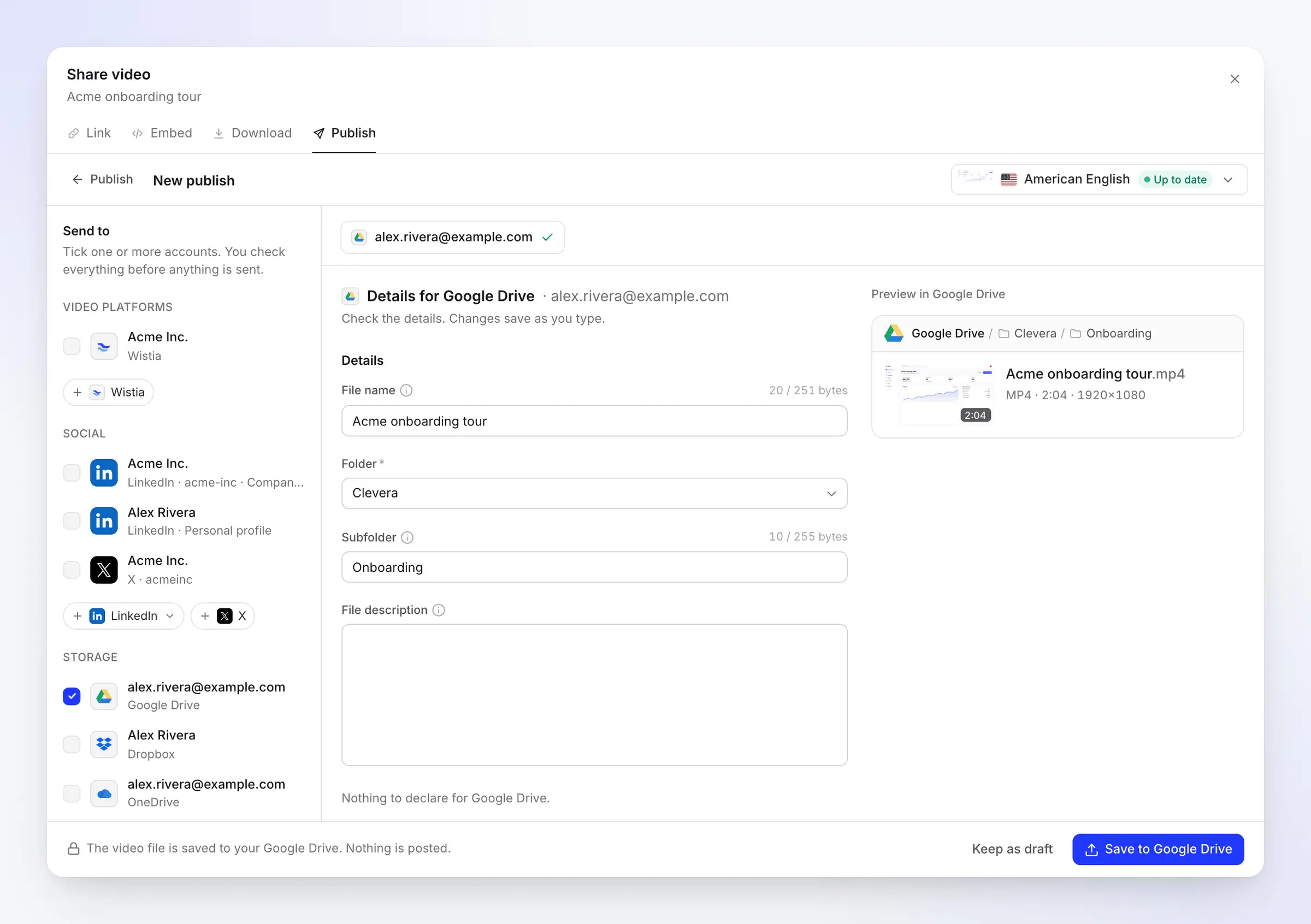
The Publish window fills in the Drive details and shows where the file will go. After you save, the Publish tab tracks the upload and links straight to the file.
Four fields, three already filled
File name, Folder and Subfolder come from the video. File description is yours to fill, or to leave empty. Changes save as you type, and the preview shows the Drive path, the length and the resolution.
The counters read in bytes, the way Google counts, so names in accented letters, other scripts or emoji are checked against the real limit before you save.
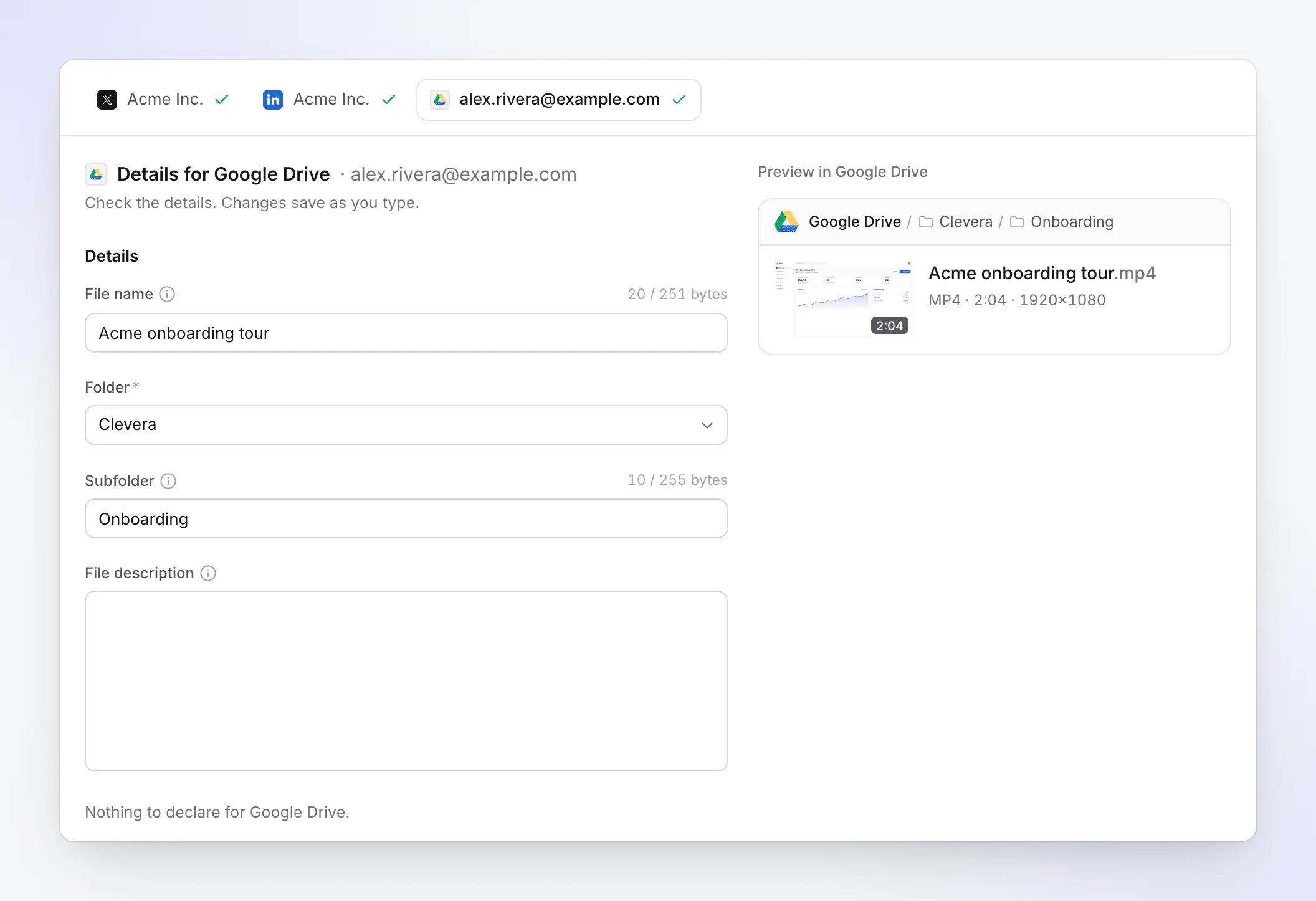
Drive next to your other destinations
Tick Google Drive alongside your social accounts and each one gets its own tab: the AI writes the posts for LinkedIn and X, and the Drive tab holds the file details.
One Send button sends all of them, and the bar says which go live and which are only saved.
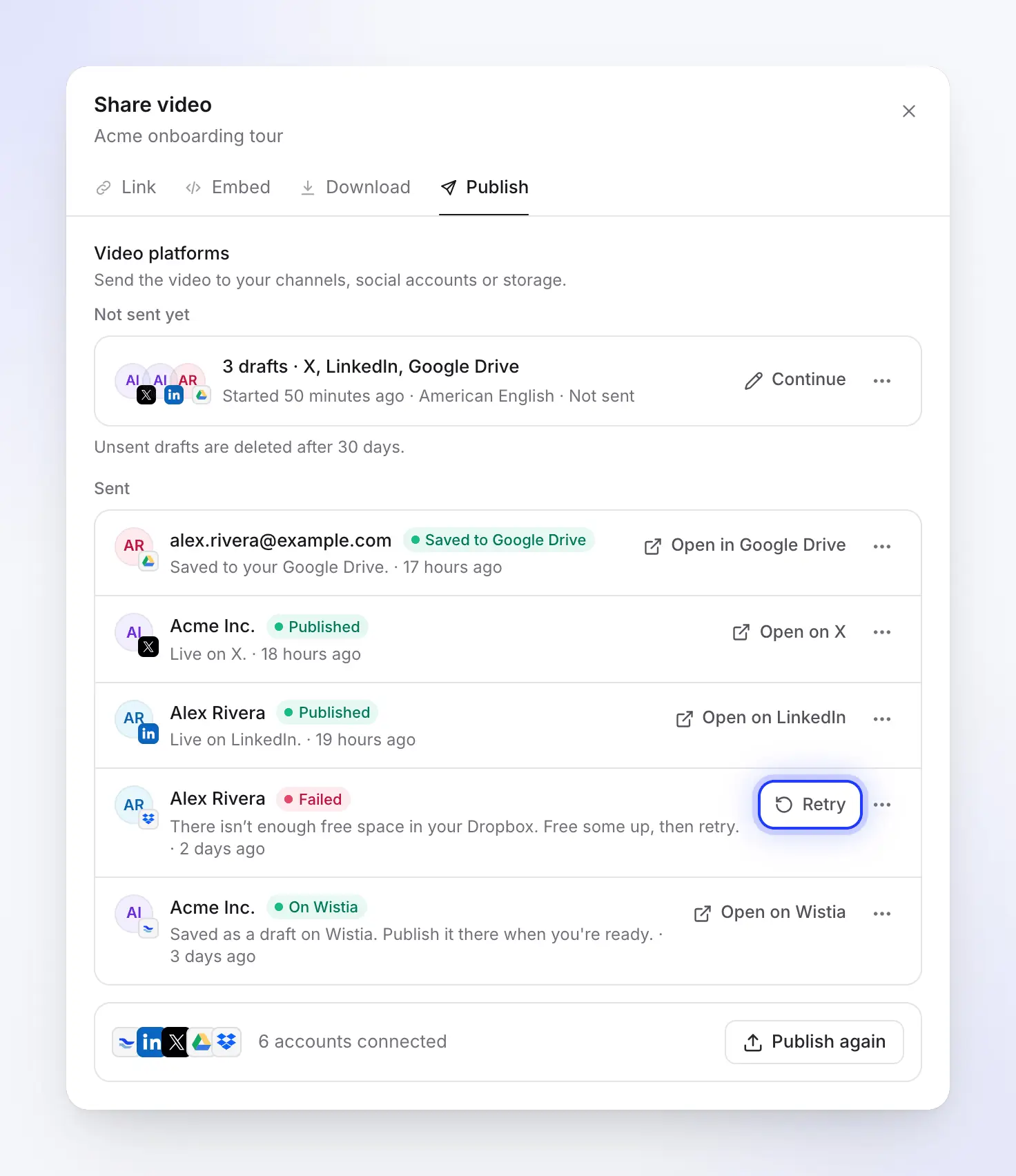
Saved, with a link to the file
The video’s Publish tab lists every send with its status. When the file is in Drive, the row reads Saved to Google Drive and Open in Google Drive takes you to it.
If the file is later deleted or moved to the trash in Drive, the row changes to Removed, so you always know whether the copy is still there.
For Workspace admins
What Clevera can see in Drive
and what it can’t.
Clevera uses Google’s per-file Drive permission. Google classes it as non-sensitive, because the app only reaches files it created or that you opened with it. Clevera also never shares, edits or deletes a file once it’s saved.
Clevera can
- Create the Clevera folder and the collection subfolders.
- Upload the video files you save from Clevera.
- Check that each saved file arrived, even after you move it.
- Read your account’s name and email, to show it in Clevera.
Clevera can’t
- See, list or open your other files, documents or folders.
- See a folder you made yourself, even one you named Clevera.
- Pick a shared drive as the destination.
Filled in for you
What Clevera fills in
and what you add.
No AI writing is involved in a Drive save, so it uses no credits. Clevera fills the fields from the video and tidies the name before it sends.
- File nameSet for you
- The video’s title, in the language you’re sending, up to 251 bytes (255 with
.mp4). Drive only refuses/and\, which Clevera replaces with-. - FolderYou choose
- Clevera (a folder at the top of My Drive, created on the first save), My Drive itself, or a folder Clevera created earlier, such as Clevera / Onboarding. Remembered per account.
- SubfolderSet for you
- The video’s collection, found or created inside the folder. Clear it to save straight into the folder.
- File descriptionYou write it
- Optional, with no length limit. It appears in the file’s details in Drive.
- Same nameGood to know
- Drive allows several files with the same name, so saving the same video again adds a second file next to the first rather than replacing it.
Setup
Set up the Google Drive integration
in about two minutes.
You need a Clevera workspace on the Pro or Custom plan and a personal Google account or a Google Workspace account. On Workspace, your admin may need to allow third-party apps first.
- 1
Open Integrations
In Clevera, open Integrations from the sidebar. Google Drive is listed under Storage. - 2
Choose your Google account
Click Connect and pick the account. Google shows one permission: the specific Drive files you use with this app. If it has a checkbox, keep it ticked. - 3
Continue
Click Continue. You land back on Integrations with the account listed. Click Add Drive to connect another Google account. - 4
Save a video
In a video, click Share, Publish, then Publish…. Tick the Google Drive account, check the path and click Save to Google Drive. - 5
Share the folder in Drive
Open the Clevera folder in Drive and share it, or one collection’s subfolder, with the people who should see the videos.
Google Drive integration questions
Connect Google Drive on Clevera’s Integrations page, then click Save to Google Drive in a video’s Publish window. The name and folders are filled in for you, and an unrendered video is rendered first and saved when it’s ready. The Google Drive guide shows every screen.
No. Clevera uses Google’s per-file permission, so it can only see the files and folders it created. Your documents, spreadsheets and other folders are invisible to it.
For the same reason: Clevera can’t see folders it didn’t create. Save into the Clevera folder, then move the file in Drive, or move the whole Clevera folder where you want it. Files you move stay reachable for Clevera.
Yes, with Workspace accounts and personal Google accounts alike. Some Workspace domains limit third-party apps; if yours does, your admin needs to allow Clevera before you can connect.
Not by picking it in Clevera, because the folder list only shows folders Clevera made. Save to My Drive and share the folder with your team, which gives everyone the same access.
Not by Clevera. The file follows the sharing of the folder it lands in, which is private by default. Clevera never creates a link or changes sharing.
Google Drive accepts files of up to 5 TB, far beyond any Clevera render. Your Drive storage still needs room for the file; if it’s full, the save stops and Retry picks it up later.
Saving uses no credits, and rendering is free. Publishing to platforms and storage is part of the Pro and Custom plans; see pricing.
Record once. Find it in Drive, already shared.
Clevera turns your screen recording into a narrated video and saves the MP4 into the Drive folder your Workspace team already uses.