Vimeo integration · Coming soon
Upload screen recordings to Vimeo as private videos, ready to share
Turn a screen recording into a narrated video in Clevera and send it to your Vimeo library, private to you by default. The title, description and tags are written for you; you choose who can watch.
Private (only me) by default
AI title, description and tags
Embed-only on paid plans
Quota checked before upload
What you can do
Clean, searchable videos in Vimeo,
private until you decide otherwise.
Teams use Vimeo to host the videos they embed in courses, help centers and client portals. The Vimeo integration sends each finished Clevera video there with the details filled in, and keeps it private while you review it.
Private first, always
Every upload starts as Private (only me). Review it on Vimeo, then publish, or pick Unlisted, embed-only or Public before you send if you’re sure.
Videos that only play where you embed them
On a paid Vimeo plan, choose Hide from Vimeo (embed only): the video doesn’t appear on vimeo.com at all and plays only on your site, course or portal.
A library you can actually search
Up to 20 tags per video, written from what the video covers. Months later, the onboarding walkthrough is still easy to find among hundreds of uploads.
Training and course videos
Turn recordings of internal tools into narrated lessons and keep them on Vimeo, embed-only, next to the rest of your course material.
The right audience rating
Set a content rating from Not rated or All audiences to the Mature categories. Clevera remembers your choice for each account.
No empty placeholders
Before uploading, Clevera checks your Vimeo account has room for the file, so a full quota doesn’t leave a blank video in your library.
How it works
From recording to your Vimeo library
in four steps.
Sign in to Vimeo once. Each finished video after that is a quick check from your library.
- 1
Connect your Vimeo account
Click Connect on the Integrations page, sign in to Vimeo and allow Clevera to upload and tag videos. - 2
Clevera writes the details
Tick the account in the Publish window. The AI writes the title, description and tags from the video’s script. - 3
Choose who can watch
Pick Private, Unlisted, embed-only or Public and a content rating, then send. The button names what will happen. - 4
It’s in your library
Vimeo processes the upload. A private video waits on Vimeo, visible only to you, until you publish it.
See it in Clevera
The Vimeo page, previewed,
before the upload starts.
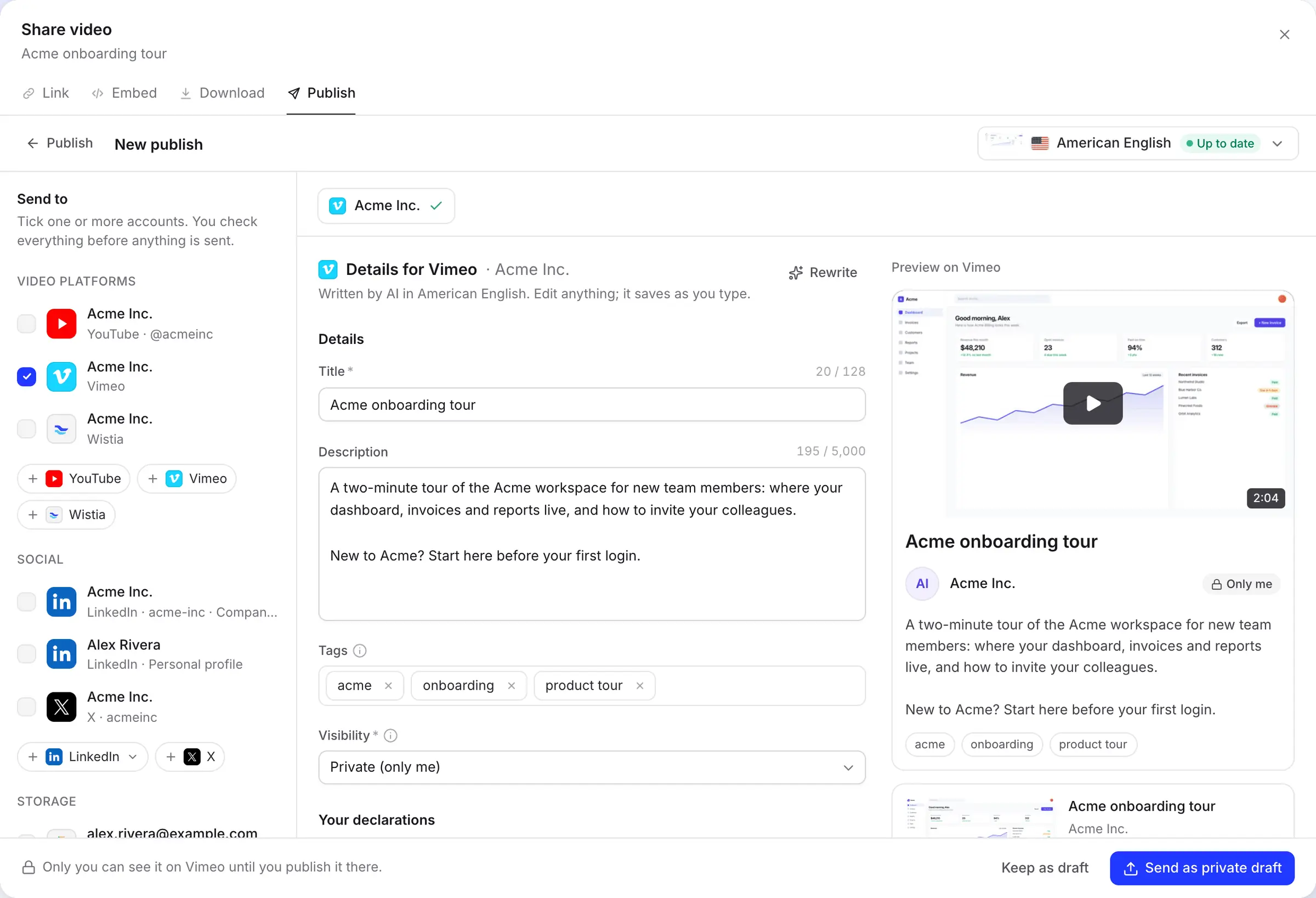
The Publish window puts Vimeo’s fields next to a preview of the video page, marked with the privacy you picked, so there’s no guessing what will appear on Vimeo.
Title, description and tags, written for you
The AI writes in the language of the render you’re sending, and that language is passed to Vimeo as the video’s language. A title can be up to 128 characters, a description up to 5,000.
Edit anything; it saves as you type. Click Rewrite for a new version, up to 10 times a day per draft.
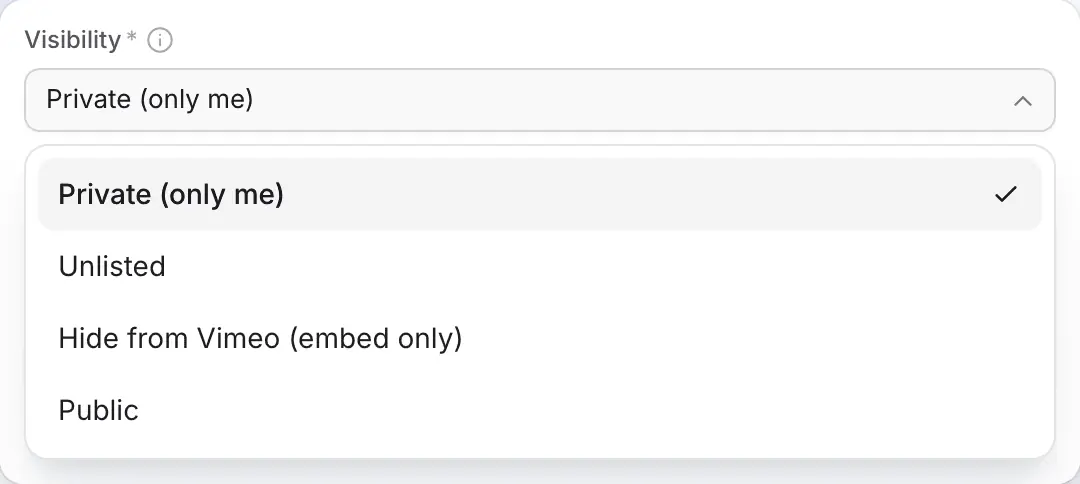
Four ways to share it, matched to your plan
Private and Public work on every Vimeo account. Unlisted and Hide from Vimeo need a paid Vimeo plan, because that’s where Vimeo offers them.
The send button changes with your choice, from Send as private draft to Publish now, so you always know what the click will do. Need a password? Send it private and set one on Vimeo.
One connection that doesn’t expire
Each sign-in connects one Vimeo account, and it stays connected until you disconnect it or remove Clevera on Vimeo. Add more accounts for clients or departments with Add account.
Clevera asks only to upload videos, edit the videos it creates to add tags, and read your account, your plan and the private video it uploaded. It doesn’t delete videos or download your files.

Filled in for you
What Clevera fills in
on every Vimeo upload.
The AI handles the words. Who can watch and how the video is rated stay with you, and both are remembered for the account.
- TitleAI writes it
- Up to 128 characters, kept on one line. Required by Vimeo.
- DescriptionAI writes it
- Up to 5,000 characters on what the video covers, in the video’s language.
- TagsAI writes them
- Up to 20 tags. A leading
#and duplicates are removed before they’re sent. - LanguageSet for you
- The language of the render you send, so Vimeo labels the video correctly.
- VisibilityYou choose
- Private (only me) by default; Unlisted, Hide from Vimeo (embed only) or Public, depending on your plan.
- Content ratingYou choose
- Not rated by default, All audiences, or a Mature rating for profanity, drugs or alcohol, violence or nudity. Mature videos are hidden from people who opted out.
Setup
Set up the Vimeo integration
once it reaches your workspace.
Vimeo publishing is built and waiting for Vimeo’s review. Until then, the Vimeo card on your Integrations page says Coming soon. When it opens, you’ll need a Clevera workspace on the Pro plan or above, and a workspace owner or admin to connect the account.
- 1
Open Integrations
Open Integrations from the sidebar. Vimeo is under Video platforms. - 2
Sign in with Vimeo
Click Connect, sign in to Vimeo and click Allow. You land back on Integrations with the account on the Vimeo card. - 3
Open a finished video
In the editor, click Share, open Publish, click Publish… and tick the Vimeo account. - 4
Check the details and pick visibility
Review the title, description and tags, choose Visibility and Content rating, then click Send as private draft (or the button for your choice). - 5
Finish on Vimeo
Click Open on Vimeo to add the video to a folder or showcase, change the thumbnail or publish it.
Vimeo integration questions
Soon. It’s built and waiting for Vimeo’s review, and opens for workspaces on Pro and above once that’s done. Until then, download the MP4 from the Share window and upload it to Vimeo yourself, or send it to Wistia, which is available now.
Only if you choose Public. Uploads are Private (only me) by default, so only you can see them until you publish them on Vimeo.
Vimeo only offers Unlisted and Hide from Vimeo on paid plans. Free and Basic accounts can choose Private or Public.
Not from Clevera yet. Do it on Vimeo after the upload; the video is a normal video in your library.
Not from Clevera. Send it as private, then set a password on Vimeo. The same goes for people-I-follow privacy.
Yes, like any upload. Free Vimeo accounts, for example, can upload 500 MB a week and 10 videos a day. Clevera checks the quota before uploading and tells you if the account is full.
From 1 second to 24 hours long, up to 300 GB, within your Vimeo upload quota. Clevera sends an MP4.
No. There’s no per-send fee, and the AI-written details are free. See pricing for what making videos costs.
Make the video now. Send it to Vimeo the day it opens.
Clevera turns a screen recording into a narrated video today. Download it as an MP4, and switch to one-click Vimeo uploads as soon as the integration reaches your workspace.