LinkedIn integration
Post screen recording videos to LinkedIn, on your profile or your company Page
Make a narrated product video from a screen recording in Clevera, then post it to your own LinkedIn profile or to a company Page you manage. The post text, the video title and the thumbnail are ready for you to check.
Profiles and company Pages
AI post text, title and thumbnail
Desktop and phone preview
No per-post fee
What you can do
A product video in the feed
your buyers already read.
LinkedIn is where customers, prospects and future hires look at what your team ships. The LinkedIn integration turns each finished Clevera video into a native LinkedIn video post, on the Page and on the people behind it.
Post as your company Page
Connect every Page where you’re a Super admin or Content admin. Each one shows up as its own account in Clevera, so the product Page, the brand Page and a regional Page are one tick apart.
And from the people who built it
Founders, product managers and sales reps connect their personal profiles. The same demo goes out from the Page and from the people, each with text written for that account.
See where the text folds
LinkedIn cuts long posts with “…see more”. Switch the preview between Desktop and Phone to check the first lines carry the point before anyone has to tap.
A thumbnail that isn’t a blank frame
Clevera picks the cover, the poster or a frame from the video as the thumbnail, so you decide what people see before they press play. Pick another with one click.
Control who sees and shares it
Post to Anyone, or to Connections only from a personal profile. Turn off reposts when a video is meant for your network and not for wider sharing.
A nudge before access runs out
LinkedIn connections last 60 days. Seven days before the end, Clevera tells you to reconnect, and one sign-in renews every Page from that account at once.
How it works
From recording to a LinkedIn post
in four steps.
Connect a profile or a Page once. Every finished video after that is a short check away from the feed.
- 1
Connect a profile or a Page
On the Integrations page, choose Personal profile or Connect a LinkedIn Page and allow Clevera on LinkedIn. - 2
Clevera writes the post
Tick the profile or Page in the Publish window. The AI writes post text and a title from the video’s script and picks a thumbnail. - 3
Check and publish
Read it in the desktop or phone preview, set visibility and reposts, and click Publish now. - 4
It’s live on LinkedIn
LinkedIn processes the video, then the post appears on the profile or Page, and Clevera links to it.
See it in Clevera
Company Page or personal profile,
each post fits its account.
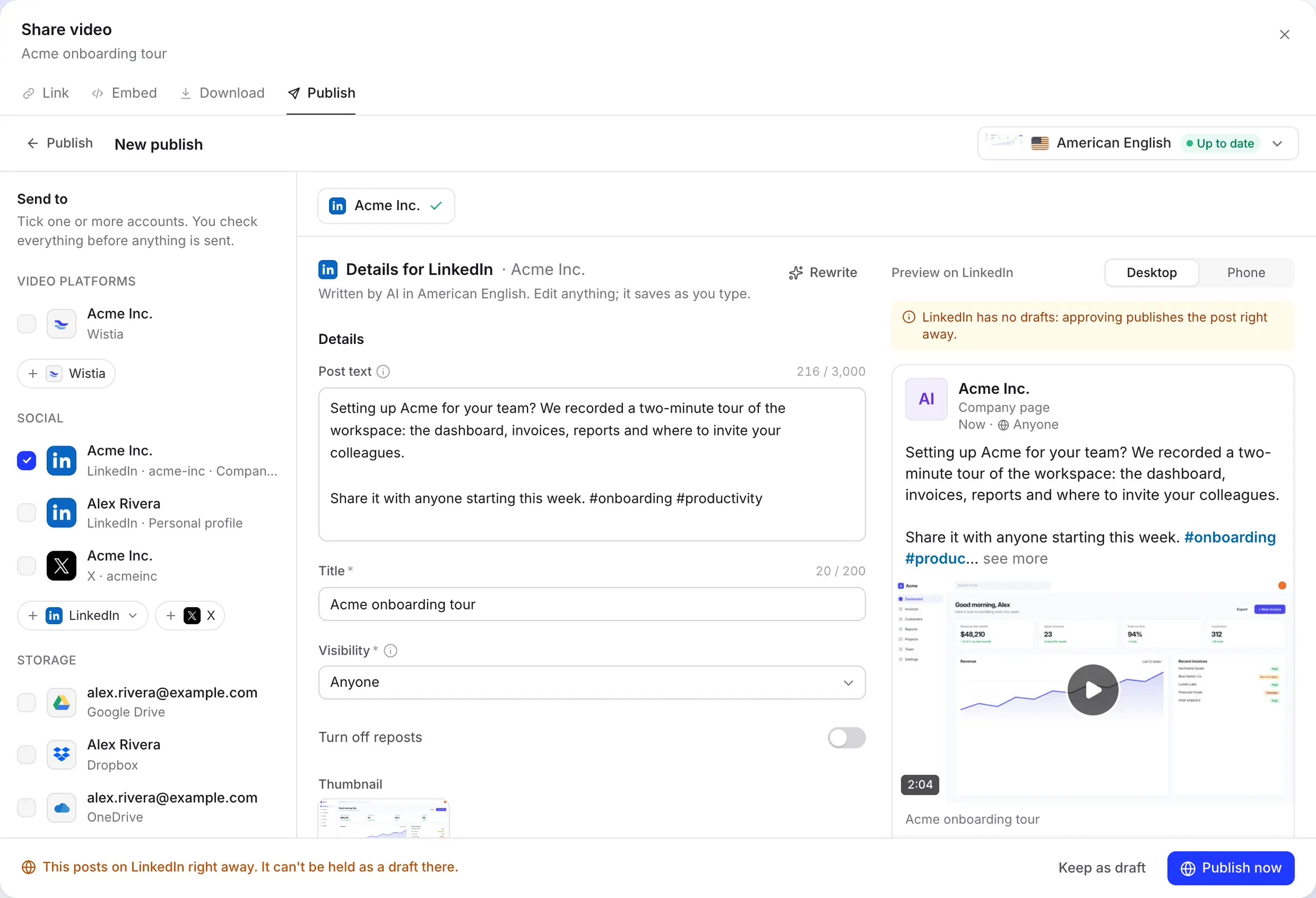
A Page post and a profile post aren’t the same post. Each account you tick gets its own tab with its own text, settings and preview, and the window warns you before anything goes live.
Post as the Page, with a preview of the feed
The Send to list shows every account by group, with each Page labelled as a company page and each profile as a personal profile. Tick the ones you want; the details for each open on the right.
A banner reminds you LinkedIn has no drafts: the post goes out as soon as you click Publish now. Want to sleep on it? Keep as draft saves everything in Clevera.
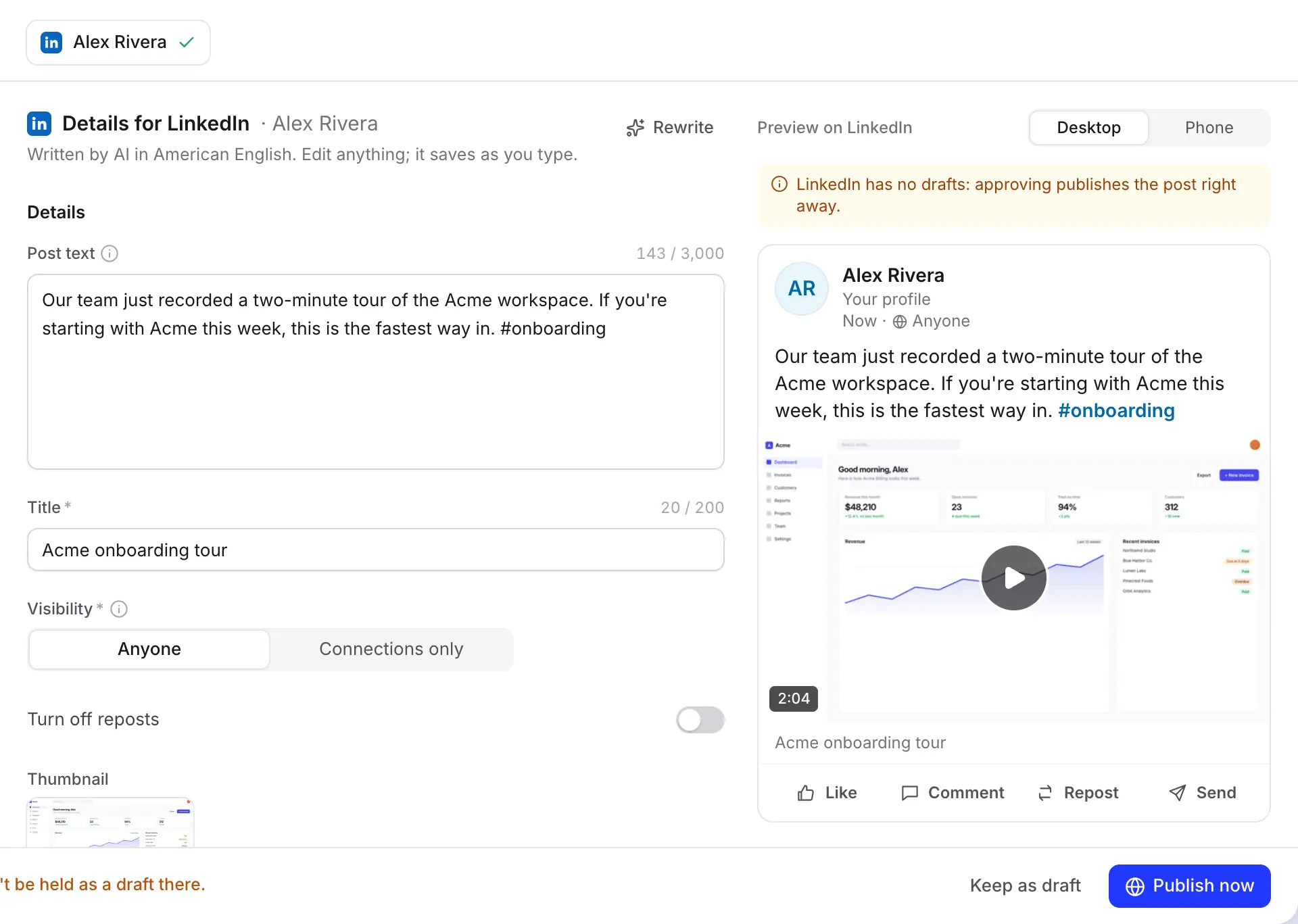
Personal profiles can post to Connections only
On a personal profile you choose between Anyone and Connections only. Company Pages always post to Anyone, so the choice only appears where LinkedIn offers it.
Hashtags work anywhere in the text and links appear as plain text. Mentions aren’t supported yet: an @name stays plain text, so tag people on LinkedIn afterwards if you need to.
Your Pages and your profile, side by side
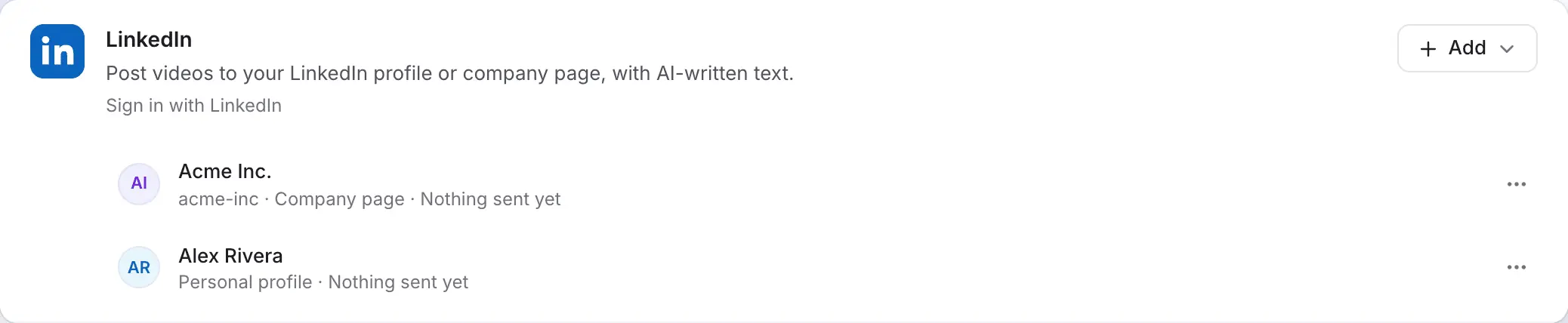
LinkedIn treats profiles and Pages as two separate apps, so they connect separately and never merge. A single Page sign-in adds one row for every Page where you have the right role.
Each row shows what it has received so far. Connected accounts belong to the workspace, so connect only the Pages your team may post to.
Filled in for you
What Clevera fills in
for every LinkedIn post.
The AI writes in the language of the video you send and keeps to LinkedIn’s limits. Your visibility and repost choices are remembered for each account.
- Post textAI writes it
- The commentary above the video, up to 3,000 characters. Check the first lines in the preview: LinkedIn folds the rest behind “…see more”. Hashtags go inline.
- TitleAI writes it
- Required by LinkedIn, up to 200 characters. It shows as a small line under the video and names the video itself.
- ThumbnailAI picks it
- The cover, the poster or a frame from the video. If the picture can’t be uploaded, LinkedIn picks its own and the post still goes out.
- VisibilityYou choose
- Anyone by default. Personal profiles can also post to Connections only.
- Turn off repostsYou choose
- Off by default. Switch it on to stop other people reposting the video.
Setup
Connect LinkedIn to Clevera
for a profile, a Page, or both.
You need a Clevera workspace on the Pro plan or above. A workspace owner or admin connects the accounts; then anyone who can edit a video can post it. For a company Page, you also need the Super admin or Content admin role on that Page.
- 1
Open Integrations
Open Integrations from the sidebar. LinkedIn is under Social. - 2
Pick a profile or a Page
Click Connect (or Add) and choose Personal profile or Connect a LinkedIn Page. - 3
Allow Clevera on LinkedIn
Sign in if asked and click Allow. For a profile, Clevera asks for your name, photo and permission to post. For Pages, it asks to see the Pages you administer and to post as them. - 4
Publish a finished video
In the editor, click Share, open Publish and click Publish…. Tick the profiles and Pages, check each post and click Publish now or Send to N. - 5
Reconnect every 60 days
When the row says “Reconnect within N days”, click Reconnect and approve again. It takes a few seconds and keeps everything else as it is.
LinkedIn integration questions
Yes. On the Integrations page, choose Connect a LinkedIn Page and sign in. Every Page where you’re a Super admin or Content admin is added, and you can post to any of them from a video’s Publish window.
Super admin or Content admin. Analysts and sponsored-content posters can’t post through apps. Ask a Super admin of the Page to change your role in the Page’s admin tools, then connect again.
LinkedIn only lets apps publish posts, not save drafts. Keep the draft in Clevera with Keep as draft and publish when you’re ready. Unsent drafts stay on the video’s Publish tab for 30 days.
An MP4 between 3 seconds and 30 minutes, from 75 KB to 500 MB, with a shape between 1:2.4 (tall) and 2.4:1 (wide). Clevera checks the render before sending, and you can export vertical, square or widescreen versions in the editor.
Yes. Tick both rows and click Send to N. Each gets its own text and preview. You can tick X too and post everywhere in one go; see the X integration.
No. The AI-written text, Rewrite and the upload are free. Making the video itself uses credits as usual; see pricing.
LinkedIn’s access for apps lasts 60 days and can’t be renewed silently. Clevera warns you a week ahead. If it lapses, sends wait with “Reconnect your LinkedIn account to send this.” until you reconnect.
Links are allowed and show as plain text. Mentions aren’t supported yet: an @name stays plain text rather than linking to the person. Hashtags work anywhere in the post.
Show your network what you shipped.
Record it once. Clevera makes the video and gets it onto your Page and your profile with the post written.