X integration
Post screen recording videos to X, with the post written for you
Turn a screen recording into a short narrated video in Clevera, then post it to X with text that already fits the 280-character limit. You read it, adjust a word if you like, and click Publish now.
Post text that fits 280
Native video in the feed
Several X accounts
3 credits per post, X’s own fee
Why teams post from Clevera
Show the product in the feed,
not just talk about it.
A 40-second clip of a new feature says more than a thread about it. The X integration takes the video you just made and gets it onto your timeline without a download, a re-upload or a rewrite to squeeze under the limit.
Announce a release the day it ships
Record the new feature, let Clevera turn the recording into a narrated clip, and post it to X before the changelog is even published. The post is drafted from what the video actually shows.
Posts that fit the first time
Clevera counts characters the way X does: emoji and Chinese, Japanese or Korean characters count as two. You see the count go red before X would cut anything off.
The video plays right in the timeline
The MP4 is uploaded to X and attached to the post, so people watch it where they scroll instead of clicking away. Standard accounts take videos up to 20 minutes; Premium accounts up to 125.
Brand account and founder account
Connect the company handle and the founder’s or product lead’s handle, tick both and send. Each account gets its own post to check, so the founder’s can sound like the founder.
One clip for every market
Translate the narration and captions in Clevera, pick the language when you publish, and the post is written in that language too. Handy for regional accounts.
A cost you can see up front
Every post uses 3 credits: that’s X’s own fee for posting through its API, passed on as is. It’s charged only once the post exists, so a failed post costs nothing.
How it works
From screen recording to a post on X
in four steps.
Connect your account once. After that, any finished video is a couple of clicks from your timeline.
- 1
Sign in with X
On Clevera’s Integrations page, click Connect next to X and approve Clevera on X’s Authorize app page. - 2
Clevera drafts the post
Open Share, then Publish, and tick the account. The AI writes post text from the video’s script, inside X’s limit and without links. - 3
Read it and publish
Edit the text, choose who can reply and answer the two declarations. Then click Publish now. - 4
It’s live on X
X processes the video, Clevera creates the post and the row turns to Published, with a link to the post.
See it in Clevera
The post, exactly as X will show it,
before anyone else sees it.
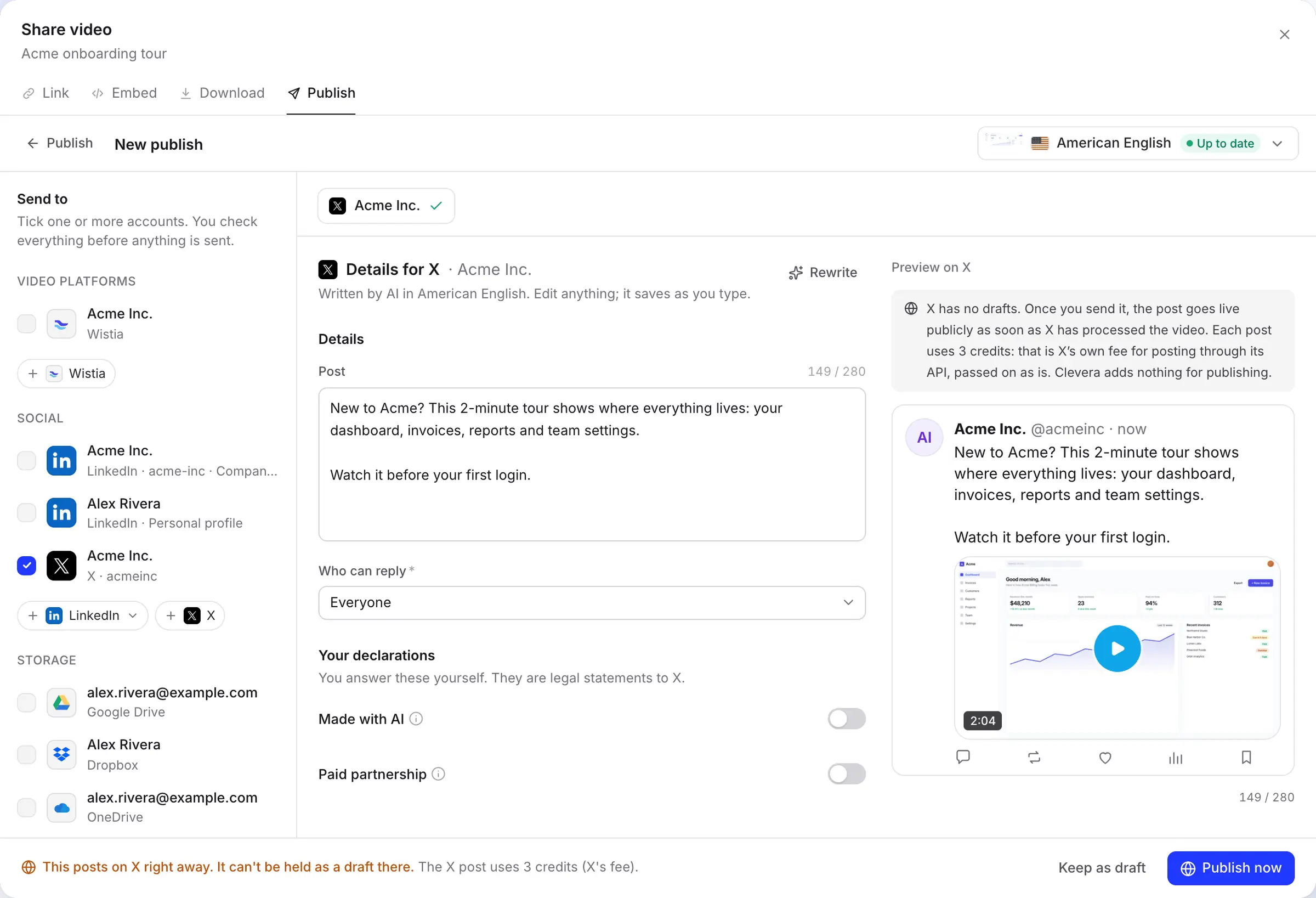
X has no drafts: once a post is sent, it’s public. That’s why the Publish window puts the text, the reply settings and a preview of the post side by side, and says plainly what will happen when you click.
Check the post next to its preview
The AI writes the post in the language of the video you’re sending. A counter shows how much of the 280 characters you’ve used, and the preview on the right shows the post with its video the way it will appear on X.
The bar at the bottom spells it out: the post goes out right away, can’t be held as a draft on X, and uses 3 credits. Not ready? Click Keep as draft and the draft waits in Clevera.
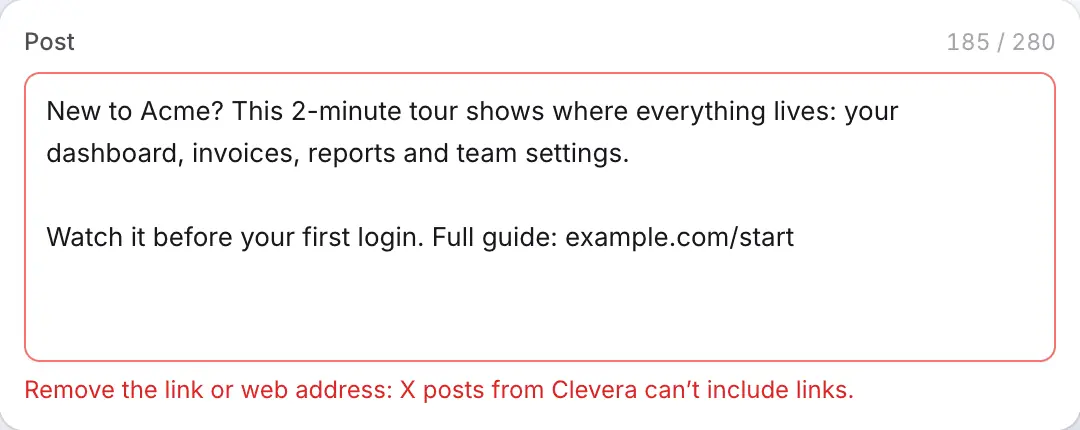
No links in the post, and why
X charges many times more for an API post that contains a link than for one without. To keep every post at 3 credits, Clevera leaves links out: the AI never writes one, and if you type a web address, a bare domain or a short link, the field turns red until it’s gone.
Want to point people to your docs or a signup page? Reply to your own post on X with the link once it’s live. The video does the convincing; the reply carries the URL.
Every connected account on one card
Each X account you connect gets its own row on the Integrations page, with what it has received so far. Add another with Add account; sign out of X first if it keeps picking your current account.
Connected accounts belong to the workspace, so anyone who can edit a video can post it. Connect only the handles your team is allowed to post to.

Filled in for you
What Clevera fills in
and what X asks you to answer.
The AI writes the words. Who can reply and the two labels X shows on a post are your decisions, and Clevera remembers them for each account.
- PostAI writes it
- Up to 280 characters, counted the way X counts them. Hashtags go inline in the text. The limit stays at 280 for Premium accounts too. Click Rewrite for a fresh version, up to 10 times a day per draft.
- VideoSet for you
- The finished render in the language you picked, uploaded as an MP4. Shapes from 1:3 to 3:1 work, so vertical, square and widescreen cuts all post.
- Who can replyYou choose
- Everyone, Accounts you follow, Only accounts you mention, Verified accounts or Your subscribers. Everyone is the default.
- Made with AIYou choose
- Adds X’s Made with AI label to the post. It’s switched on for you when the video uses an AI presenter, and you can change it.
- Paid partnershipYou choose
- Turn it on when a brand paid for, or gave you something for, the post. Clevera never guesses this for you.
Setup
Connect X to Clevera
in about a minute.
You need a Clevera workspace on the Pro plan or above, and enough credits for the post: 3 each. A workspace owner or admin connects the account; then anyone who can edit a video can post it.
- 1
Open Integrations
Open Integrations from the sidebar. X is under Social, with the note “Each post uses 3 credits (X’s fee)”. - 2
Authorize Clevera on X
Click Connect, sign in to the account you want to post from and click Authorize app. Clevera reads your profile to show the handle, and asks to create posts and upload media so it can post the video. - 3
Open the video’s Publish tab
In the editor, click Share, open Publish and click Publish…. Tick the X account under Social. - 4
Read the post and publish
Adjust the text, choose who can reply, set the two labels and click Publish now. No render yet? Click it anyway: Clevera renders first and posts when the render is done. - 5
Add your link in a reply
When the row says Published, click Open on X and reply to your post with any link you want people to follow.
X integration questions
Yes. Connect your X account on the Integrations page, then publish any finished video from its Share window. Clevera uploads the video to X and creates the post with the text you approved. Publishing is part of the Pro plan and above.
X charges for every post made through its API. Clevera passes that fee on as it is and adds nothing for publishing. It shows on your Usage page under Publishing as X post fee. Publishing to other platforms uses no credits; see pricing.
No. The 3 credits are taken only after the post exists on X. If the upload fails or X refuses the video, nothing is posted and nothing is charged.
Not in posts sent from Clevera. A post with a link costs many times more through X’s API, so Clevera keeps them out. Reply to your post on X with the link after it goes live.
X’s API has no drafts, so your draft lives in Clevera until you click Publish now. Scheduling isn’t available yet: the post goes out as soon as X has processed the video.
From half a second to 20 minutes and up to 8 GB on a standard account. Accounts with X Premium or a blue, business or government checkmark can post up to 125 minutes and 16 GB. Clevera checks this before sending.
No. Nothing is posted until someone in your workspace clicks Publish now on a post they’ve read. Clevera creates only the post you approved; it doesn’t follow accounts or reply for you.
Yes. Tick both accounts in the Publish window. Each gets its own text, written for that platform, and one click sends them all. See the LinkedIn integration.
Your next feature, playing in the timeline.
Record it once. Clevera turns it into a narrated clip and posts it to X with text that fits.