Clevera for Chrome: record a tab, window or screen
The Clevera Chrome extension is live: record a tab, window or screen with your mic and camera, and Clevera turns it into a video, guide or article.
 Berkay Akpolat11 min read

Clevera now records from Chrome. The Clevera Chrome extension, listed as Clevera — Screen Recorder, is live in the Chrome Web Store today. Click its icon, choose what to record, talk over it if you like, and press Stop. The recording goes straight to your Clevera workspace, where the AI writes the script, makes the voice-over and turns it into a product video, a step-by-step guide or an article.
There's nothing to install on your computer, and recording a tab needs no system permissions. All you need is Chrome 116 or later and a Clevera account.
To Clevera, a recording from the extension is like a video you upload: the picture, the sound and your voice. It doesn't capture clicks, pointer movements, scrolling or typed text. That's deliberate, and it keeps the extension simple and private. What it adds over uploading a file is your microphone and camera, the tab's sound, and never having to export anything and drag it somewhere.
Who is the Chrome extension for?
We built a desktop recorder first, for Mac, Windows and Linux, and it's still the richest way to record with Clevera. But a desktop app isn't always an option. These are the people we had in mind:
- People on managed work laptops. If IT decides what gets installed, a native screen recorder that needs system permissions can be a hard sell. A Chrome extension is often an easier request.
- Chromebook users. We don't make a desktop app for ChromeOS. The extension runs there like anywhere else.
- Anyone showing a web app. If the product, admin panel or process you want to explain lives in a browser tab, recording that tab and nothing else is often exactly right. Your other tabs, notifications and the chat window in the corner stay out of it.
- Quick, one-off recordings. A support agent answering a "how do I…?" ticket, a PM walking through a bug, a teammate showing where a setting lives.
Your first recording, step by step
Add it to Chrome and follow the welcome guide
Install the extension from the Chrome Web Store. A welcome tab opens once, with four short steps: pin Clevera to the toolbar, sign in, allow your microphone and camera if you want them (both optional), and learn how to start and stop. Each step ticks itself off when it's done.
Pinning matters more than it sounds. The Clevera icon is where you start, pause and stop, so it should be one click away.
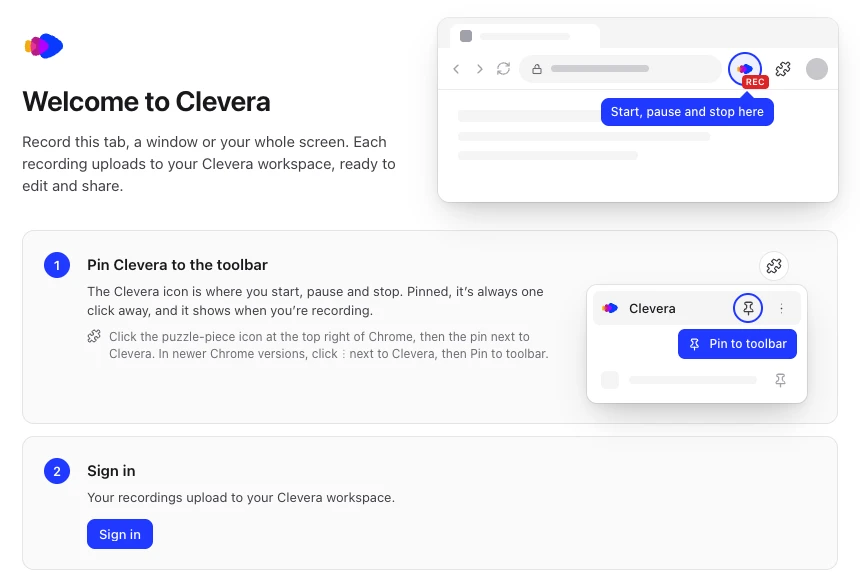
The welcome guide opens once, right after you install. Choose what to record
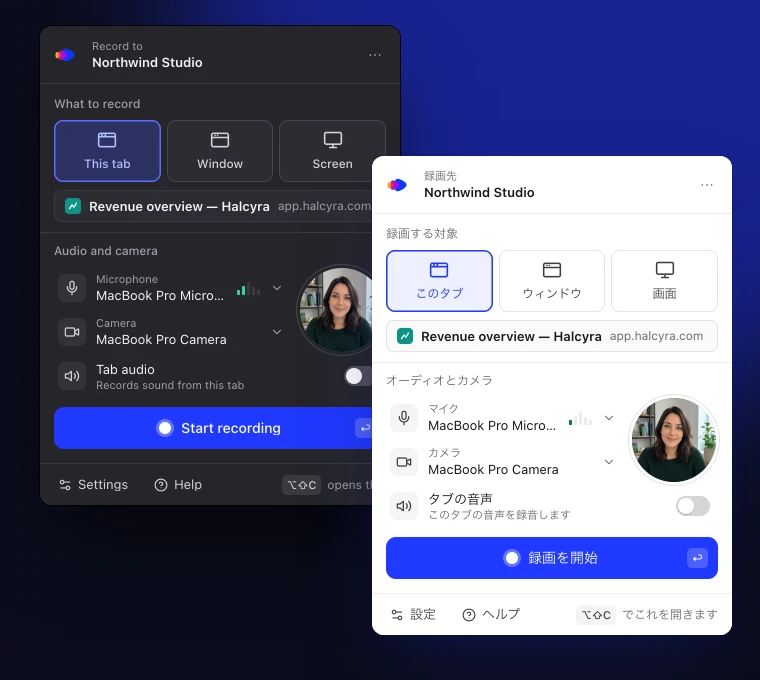
Click the Clevera icon, or press Alt+Shift+C (Option+Shift+C on a Mac). Under What to record, pick one of three:
- This tab records the tab you're on, and only that tab, in one click, with no share dialog. It follows the tab if you move to another page or site in it, and closing the tab stops the recording and uploads it.
- Window records one window of any app. Chrome asks which one after you press Start.
- Screen records a whole display. Chrome asks which one.
Under Audio and camera, choose a microphone (a level meter shows it hears you) and a camera, or leave them off. The camera shows as a round preview in the popup so you can check how you look first. For sound, turn on Tab audio with This tab, or Computer audio with Screen on Windows and ChromeOS. Window recordings, and Screen on a Mac or Linux, carry only your microphone.
Chrome's own pages (
chrome://pages and the Chrome Web Store) can't be recorded as a tab; use Window or Screen there. On a Mac, Window and Screen need Chrome to be allowed under Screen & System Audio Recording in System Settings, and the extension tells you if macOS blocks it.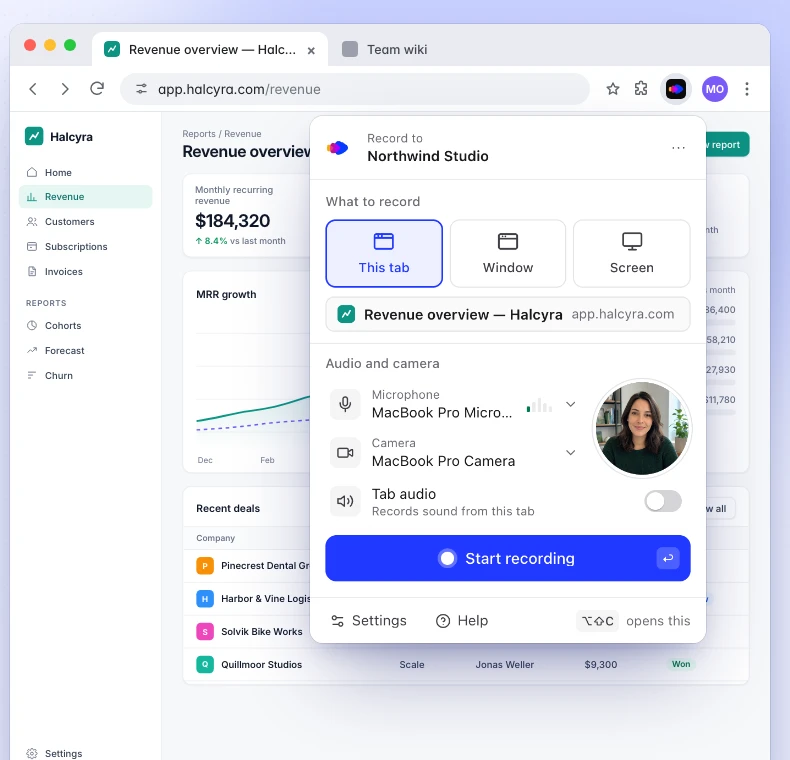
What to record, your microphone and camera, and one button to start. Record, then pause, restart or stop from the toolbar
Press Start recording. A 3, 5 or 10 second countdown gives you time to get ready (you can turn it off in Settings) and tells you how to stop. Then the popup closes and the icon shows a red REC badge.
Click the icon whenever you need the controls: Pause, Stop, Restart… to throw the take away and count down again on the same tab, window or screen, or Delete recording…. While Chrome is the app in front, the shortcuts work in any Chrome window: Alt+Shift+X stops and Alt+Shift+K pauses and resumes (Option instead of Alt on a Mac). You can change them in Chrome.
In a tab recording, none of this ends up in your video: no floating bar over the page, no camera bubble covering the button you're explaining. Window and Screen record whatever is on that screen, so open the popup there only when you need it. Chrome's own Stop sharing button also stops the recording, and it still uploads.
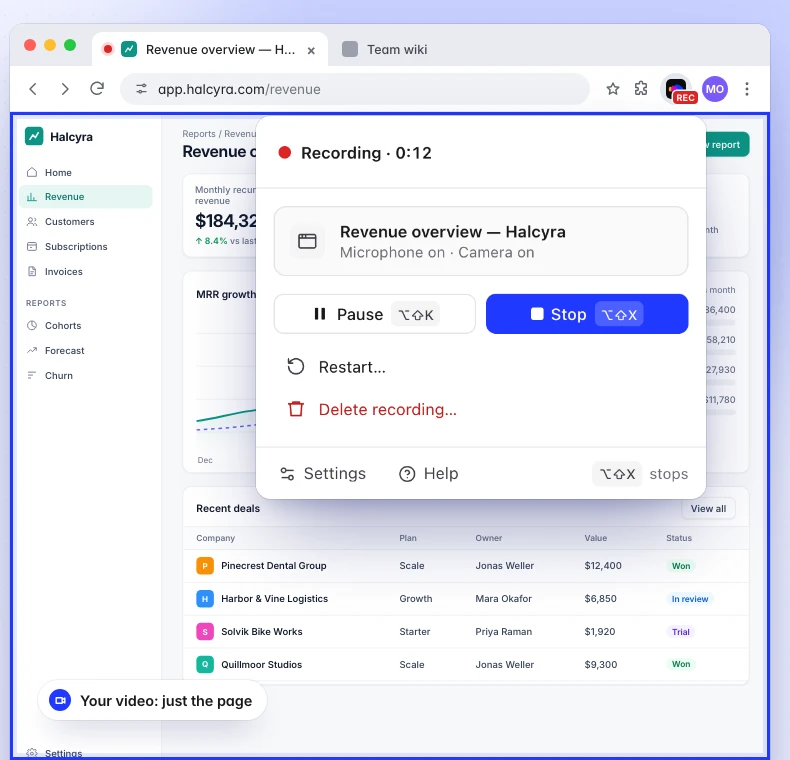
The controls live behind the toolbar icon, outside the page you're recording.
What happens after you press Stop?
The recording uploads to your workspace and opens in Clevera, named after the tab you recorded (or simply "Window" or "Screen"). From there it works like any other Clevera recording. You say what you want, and the AI makes it:
- A product or how-to video. Clevera writes the script from what you showed and said, makes the voice-over in the voice you choose, and builds the video, in any of 74 languages.
- A step-by-step guide that someone can follow without watching anything.
- An article for your help center or docs.
Your camera is recorded as its own video, so in the editor you decide where it sits and whether it appears at all.
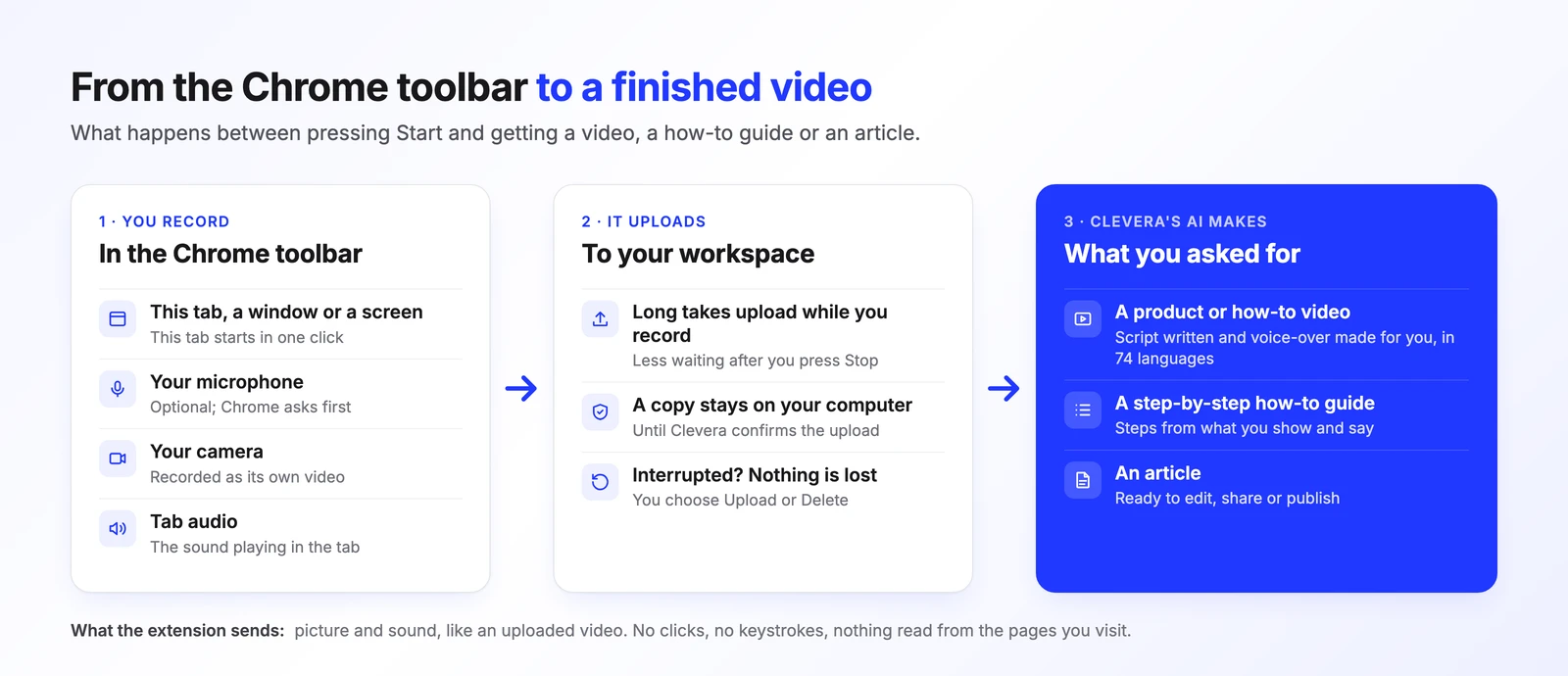
For how a walkthrough becomes documentation, read how one walkthrough becomes a full guide. For the video side, see turn a screen recording into a how-to video.
What if the upload fails?
The worst thing a recorder can do is lose a take you can't repeat: the bug that showed up once, the demo that finally went right. So the extension follows the same rule as our desktop apps: a copy stays on your computer until Clevera confirms the upload.
Every second is saved in Chrome as you record, and long takes start uploading before you stop. If your connection drops, the upload waits and resumes on its own. If Chrome quits or your computer shuts down mid-take, the popup offers We kept your recording next time, with Upload or Delete…. If an upload still can't finish, the card says so and keeps the recording, with Try again.
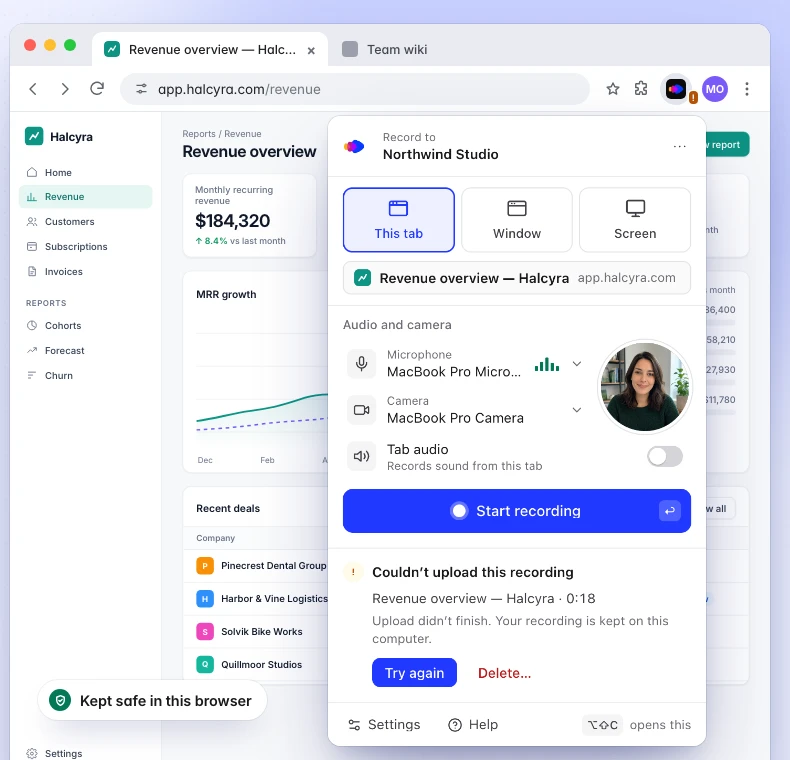
A recording that never uploads is removed from Chrome after 7 days, with a notice first. Two honest limits: starting a new recording needs a connection, because Clevera sets up the upload when you press Start; and removing the extension deletes recordings that haven't uploaded yet, so upload or delete them first. Recover a Chrome recording that didn't upload explains every card you might see.
What can the extension see?
A screen recorder is software you trust with your screen, so we kept the extension's reach as small as we could:
- It only talks to Clevera. Its one site permission is
app.clevera.ai, where you sign in and upload, and recordings go to Clevera's secure upload storage over HTTPS. It never asks for access to the websites you visit. - It reads nothing from your pages. No page text, form fields, clicks, keystrokes or browsing history. With This tab, it reads the tab's title (or its address, if it has none) to name your recording.
- It records only between Start and Stop. Nothing during the countdown and nothing while paused. The REC badge and Chrome's own recording indicator show when it's on.
- No ads, no analytics, no tracking. Diagnostic logs leave your computer only if you press Send logs in Settings, and they never include your recordings.
- Microphone and camera are opt-in. Chrome asks your permission first, and you can record without either.
Every permission and why it's needed is listed in what the Chrome extension collects. Our privacy policy covers the rest.
Should you use the extension or the desktop app?
Both upload to the same workspace, and you can use both with the same account. The difference is how much Clevera knows about what you did on screen.
| Chrome extension | Desktop app | |
|---|---|---|
| Runs on | Chrome 116+ on Mac, Windows, Linux and ChromeOS | macOS 12.3+, Windows 10 and 11, Linux |
| Install | Add it to Chrome | Install an app and grant its permissions |
| What you record | This tab, a window or a screen | A display, a window, an area (Mac and Windows); an iPhone or iPad on a Mac |
| Microphone and camera | Yes, camera as its own video | Yes, each as its own track |
| Other sound | Tab audio; computer audio for Screen on Windows and ChromeOS | System audio (macOS 13+ on a Mac) |
| Clicks and typing | Not captured | Clicks always; typed text optional, never in password fields |
| Zooms and steps that follow your clicks | No | Yes |
| Speaker notes | No | Yes |
| Longest recording | 60 minutes | 60 minutes |
| If something goes wrong | Kept in Chrome until you upload or delete it | Kept on your computer until you upload or delete it |
Choose the Chrome extension when what you're showing lives in a browser, when you can't or don't want to install apps, or when you want a recording of one tab and nothing else.
Choose the desktop app when you record desktop software or several apps, want part of the screen, or want the most polished how-to videos. Because it captures your clicks, cursor and typing, it can zoom in on each action automatically and build guide steps from what you did; see how auto zoom works. It also gives you private speaker notes, sound from your whole computer, and iPhone or iPad recording on a Mac. The desktop app launch post covers it in full, and the help center has a longer comparison of the two.
FAQ
Is the Clevera Chrome extension free?
Yes, it's free to install. To record, you need a Clevera account with a workspace, as an owner, administrator or content creator, and your plan decides what you can make from the recording. The install guide covers signing in and recording to another workspace.
Does it work on a Chromebook?
Yes. It runs in Chrome 116 or later on ChromeOS, Mac, Windows and Linux.
Can it record system audio?
It records the sound of the tab you're recording with Tab audio, and your computer's sound with Computer audio when you record a Screen on Windows or ChromeOS. For sound from any app on a Mac, use the desktop app (macOS 13 or later).
Will the recording controls show up in my video?
Not in a tab recording: the controls live behind the toolbar icon, outside the page. A window or screen recording captures whatever is on that screen, including the popup if you open it. There, stop with Chrome's Stop sharing button, or switch to Chrome and press Alt+Shift+X (Option+Shift+X on a Mac).
Does the extension see what I type?
No. It doesn't capture keystrokes, typed text, clicks, scrolling or page content. It records the picture and sound you chose, plus your microphone and camera if you turned them on. If you want guide steps built from your clicks and typing, use the desktop app.
How long can a recording be?
Up to 60 minutes; paused time doesn't count. The extension warns you at 55 minutes, and at 60 it stops and uploads.
Your next walkthrough, one click from Chrome
Add Clevera to Chrome, record what you want to show, and get the video, guide or article without exporting a single file.