Product how-to video software: a buyer's guide for support teams
What support and customer education teams should compare when choosing software for product how-to videos, with a comparison table, when each tool is the better choice, and a two-week trial plan.
 Roozbeh Firoozmand9 min read
Checked November 2026 against each vendor's pricing page. Confirm current prices before you buy.
The best software for product how-to videos turns a screen recording into a narrated, edited video without a video editor on staff, and makes the next update cheap. For support and customer education teams, the shortlist is usually AI tools built for software walkthroughs (Clevera, Guidde, Clueso, Trupeer), with Loom for quick unpolished clips and Camtasia when you have a dedicated editor. The right pick depends less on video quality, which is close across the AI tools, and more on four things: what you capture (browser only or desktop too), whether you also need the written article, where the videos will live, and what each update costs.
This guide is for a team lead choosing a tool for help center videos, onboarding walkthroughs and feature explainers. It gives the criteria that separate these tools in practice, a comparison table, and a two-week trial plan. If you're building a broader training programme with courses and certificates, see customer education video software instead.
What support and education teams actually need from a how-to video tool
Marketing videos are made once and promoted. How-to videos are made in batches, embedded in many places and re-made every time the product changes. That changes what matters:
- Anyone can record. The person who knows the feature best is rarely comfortable narrating live. The tool should write the script and voice it from a silent recording.
- Consistent output. Fifty videos from eight people should look and sound like one library: same intro, voice, pacing and terminology.
- An article from the same recording. Many readers skim instead of pressing play, and search engines and AI assistants read text. Writing the article separately doubles the work.
- Cheap updates. Renamed buttons should be a script edit, not a re-shoot, and embeds should update in place.
- Languages. If you support customers outside English, the voice-over and captions need translating, not just the article.
Criteria to compare
Capture: browser, desktop or both
Browser-extension capture covers web apps. If your product has a desktop client, or a flow leaves the browser (a downloaded file, an email client, an OS dialog), you need a desktop recorder. Check which plan includes it: Guidde's pricing page lists web-only capture on Free and Pro, with desktop and mobile from Business.
Narration from a silent recording
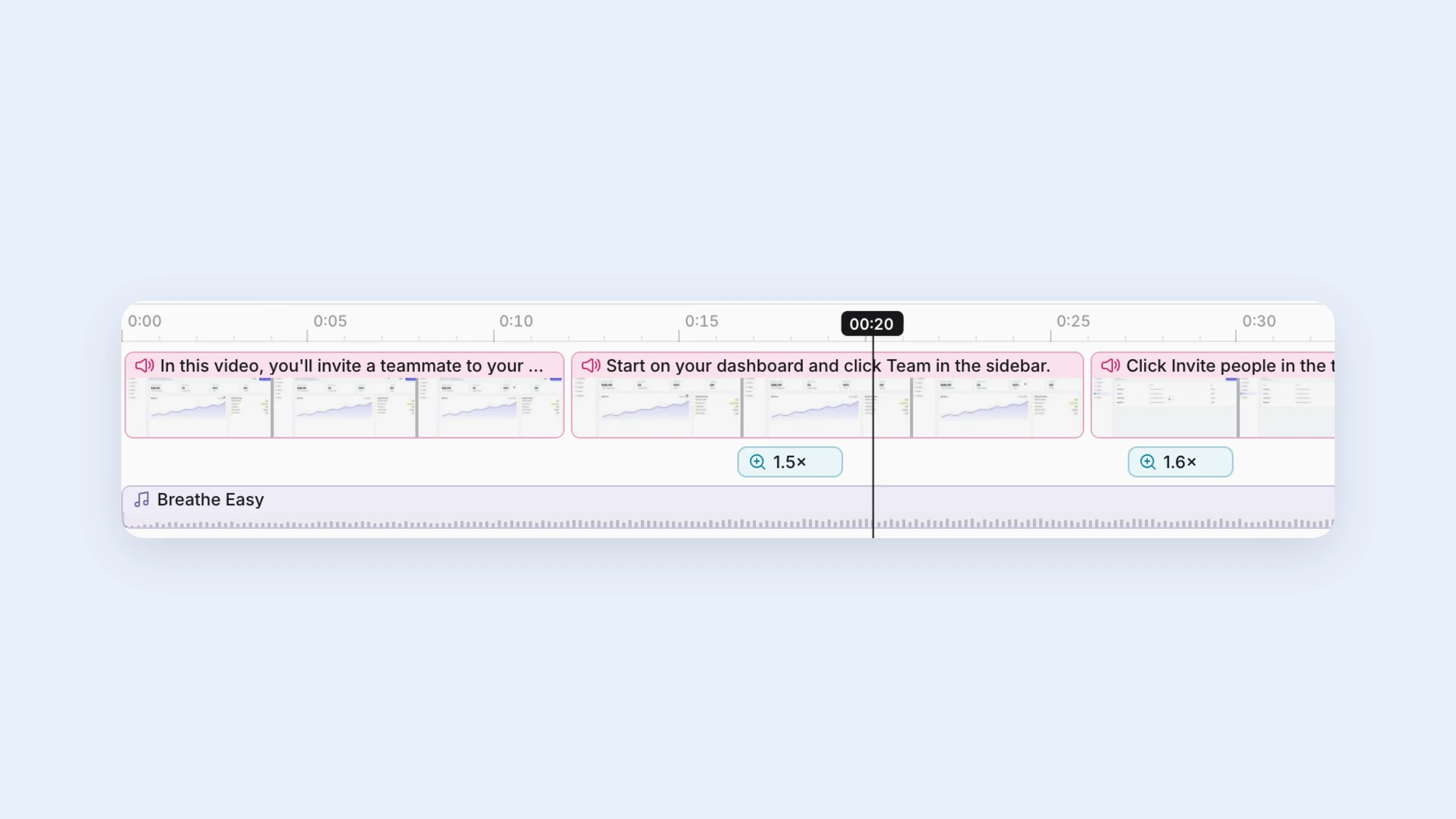
All the AI tools here write a script from what happens on screen and generate a voice-over. Test it on your own product: does the script name your UI elements correctly, and can you fix terminology once for the whole team rather than per video?
Written output
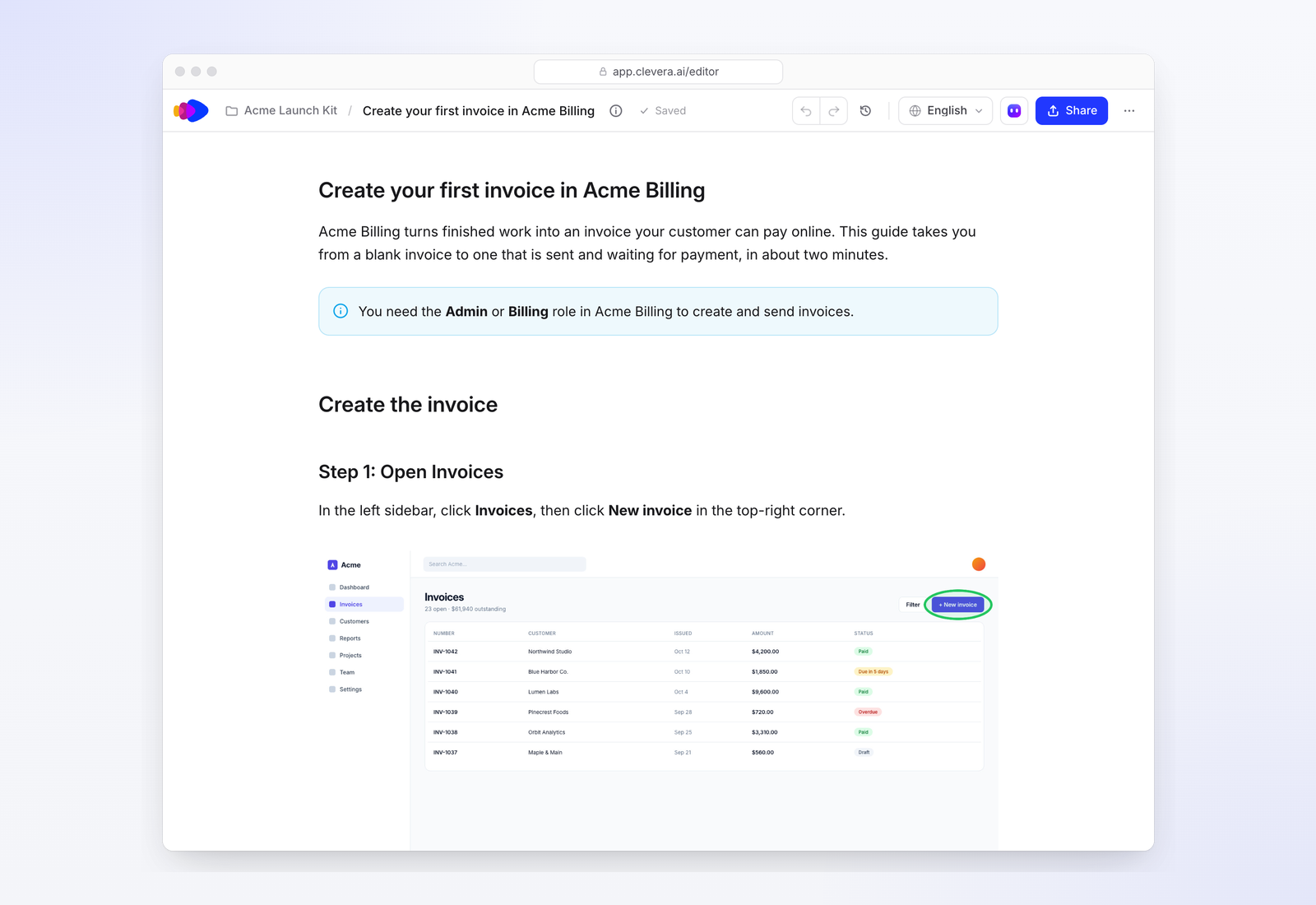
Some tools produce a full step-by-step article with screenshots, some a lighter step list, and some nothing. If your help center is text-first with video on top, this matters as much as the video.
Hosting and updates
Ask where the video lives after export. If the vendor hosts it and updates every embed when you edit, small fixes cost nothing extra. If you download MP4s and upload them to your help center, every fix is a re-export and re-upload.
Pricing unit
Per creator (Guidde, Supademo), per user (Loom, Scribe, Tango), per credit or per minute (Trupeer, Clueso's export minutes, Clevera). A team where three people make videos and fifteen review them should look closely at whether reviewers need a seat.
Comparison table
| Tool | Best for | Capture | Article from the recording | Translation | Entry paid price |
|---|---|---|---|---|---|
| Clevera | How-to videos plus articles on a hosted help center | Desktop app (Mac, Windows, Linux), Chrome extension, upload, AI recorder for web apps | Yes, full article | 74 languages, on credits | $29/mo billed yearly ($36 monthly), 1 seat |
| Guidde | Video-first walkthroughs with callouts | Web on Free and Pro; desktop and mobile from Business | Step document | Enterprise | Pro $19/creator/mo billed yearly ($29 monthly); Business $39 ($59 monthly) |
| Clueso | Polished product videos from recordings, decks or docs | Browser extension or upload | Yes | Listed on every plan; language count not stated | Solo $40/mo billed yearly |
| Trupeer | Credit-based videos and docs, optional hosted KB | Chrome extension or upload | Yes | 100 credits per minute per language | Pro $40/mo billed yearly ($49 monthly), 2,000 credits |
| Loom | Quick async clips narrated live | Desktop and browser | Video-to-text on AI tiers | Transcription | Business $18/user/mo billed monthly; Business + AI $24 |
| Camtasia | Full manual editing by a producer | Desktop | No | No | See TechSmith's pricing page |
Sources: Guidde, Clueso, Trupeer, Loom, Clevera, checked November 2026. Guidde and Trupeer show a monthly and a yearly figure without labelling each; the readings above follow the yearly discount each states. Loom's figures are for monthly billing.
Tool notes, including when each is the better choice
Guidde
Guidde captures a workflow and builds a step-by-step video with an AI script, voice-over and visual callouts. It's strong for customer-facing walkthroughs where on-screen highlights matter. Check two plan gates: desktop capture starts on Business (up to 5 creators, billed per creator), and multi-language translation is on Enterprise. Choose Guidde if your product is a web app, you want callout-heavy videos and you'll embed them in a help center you already run. See Clevera vs Guidde.
Clueso
Clueso turns recordings, slide decks and documents into narrated videos with an article. It's a good fit if you also make videos from non-recording sources. Export minutes are capped by plan (its page shows 15 minutes a month on Solo and 30 on Business, or the same as yearly pools), so estimate your monthly output first. Its Auto Updates feature, which re-records outdated guides, is a paid Enterprise add-on.
Trupeer
Trupeer is credit-based like Clevera: 100 credits per minute of AI video and 50 per document, with recording length capped at 10 minutes on Pro. It sells a hosted knowledge base as an add-on; see its pricing page for current prices. Choose it if you want timestamped video search in a video-first hub and the add-on fits your budget.
Loom
Loom is the fastest way to share a walkthrough: record, narrate live, send. It's ideal for internal explainers and one-off customer replies. For a help center library, what you record is what you ship, with no AI voice from a silent take. See Clevera vs Loom.
Camtasia
If you have a video producer, Camtasia's timeline gives full control over every frame. Without one, it moves the bottleneck rather than removing it.
When an interactive demo is the better format
If buyers or users should click through the product themselves, an interactive demo tool such as Storylane (Starter $40 a month billed yearly) or Supademo (Scale $38 per creator a month billed yearly) fits better than any video. Many teams use both: video in the help center, interactive demos on the website.
Where Clevera fits
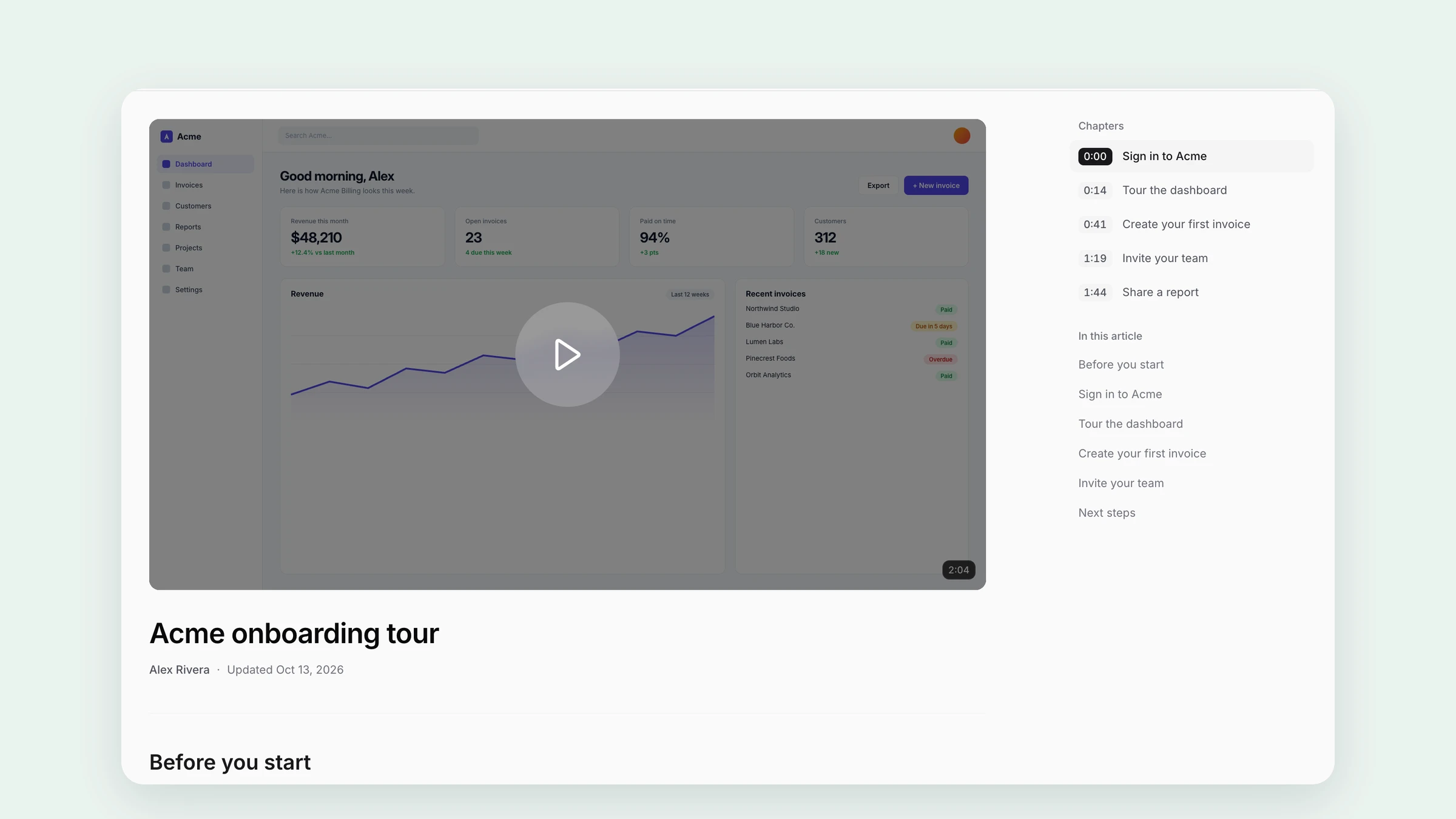
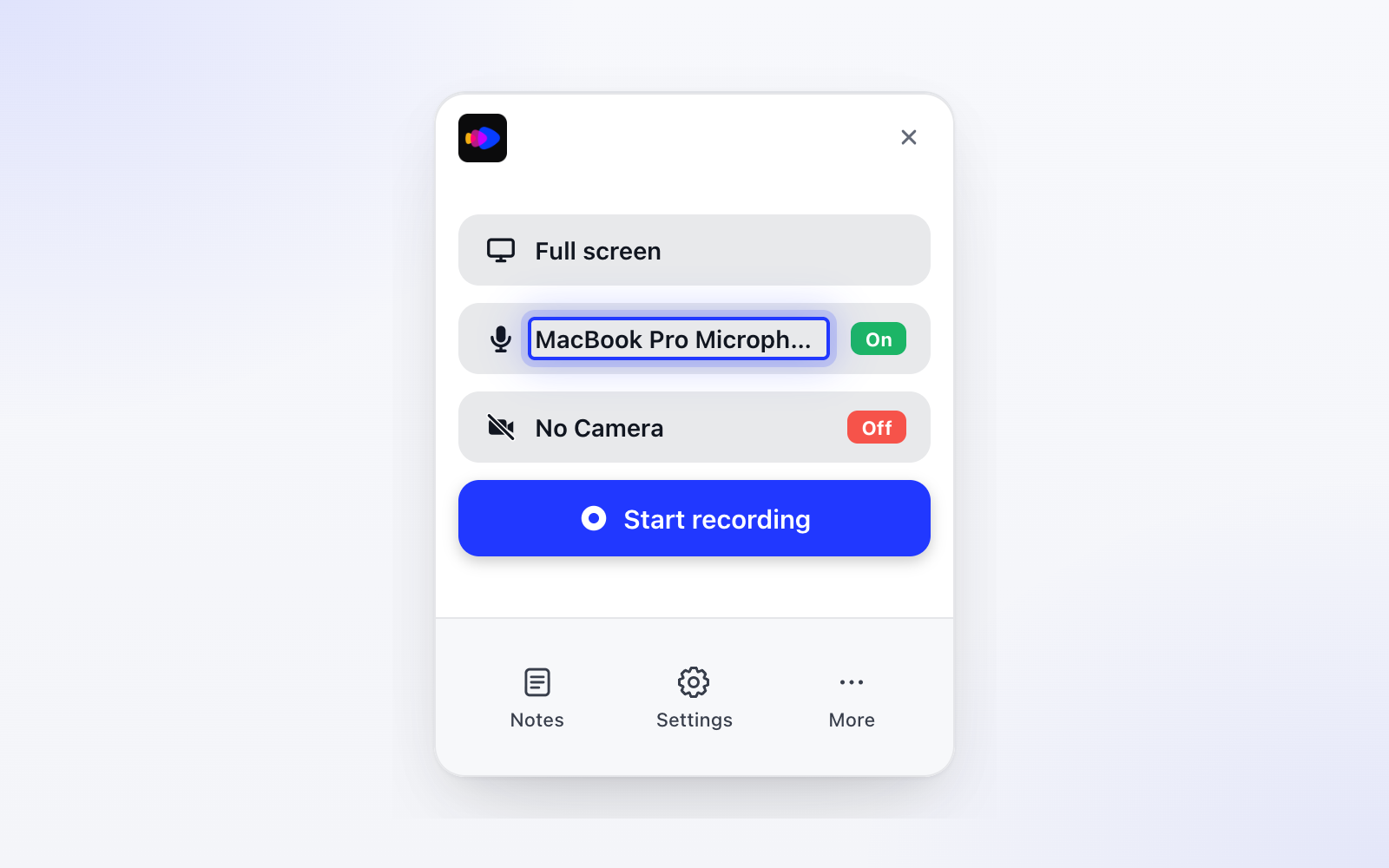
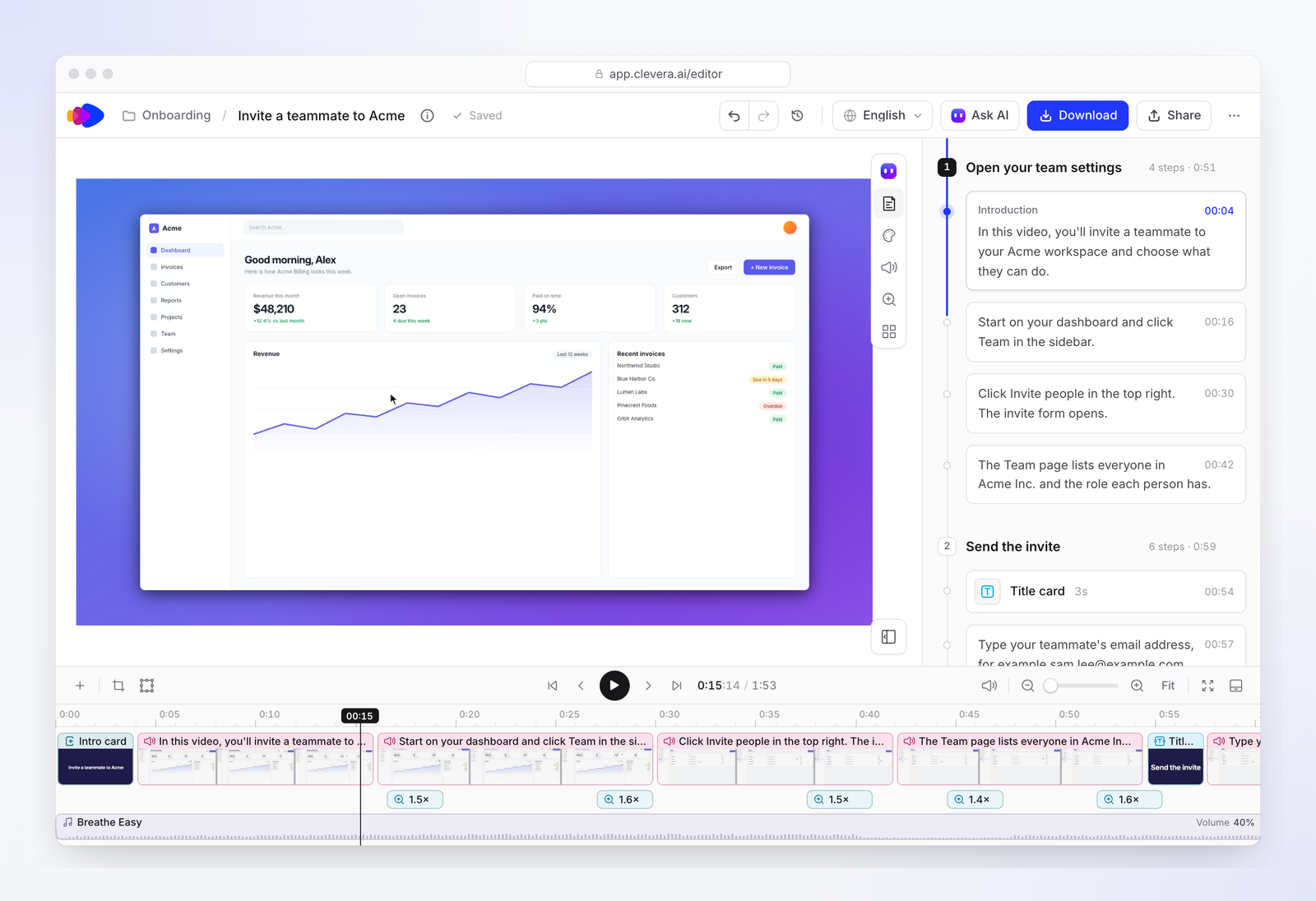
Clevera turns one screen recording into a narrated how-to video and a step-by-step help article, and publishes both on a help center it hosts. You can record with the desktop app on Mac, Windows or Linux (no narration needed), use the Chrome extension, upload an existing recording, or let the AI recorder click through your web app from a written instruction. See how a screen recording becomes a how-to video.
What's different from the tools above:
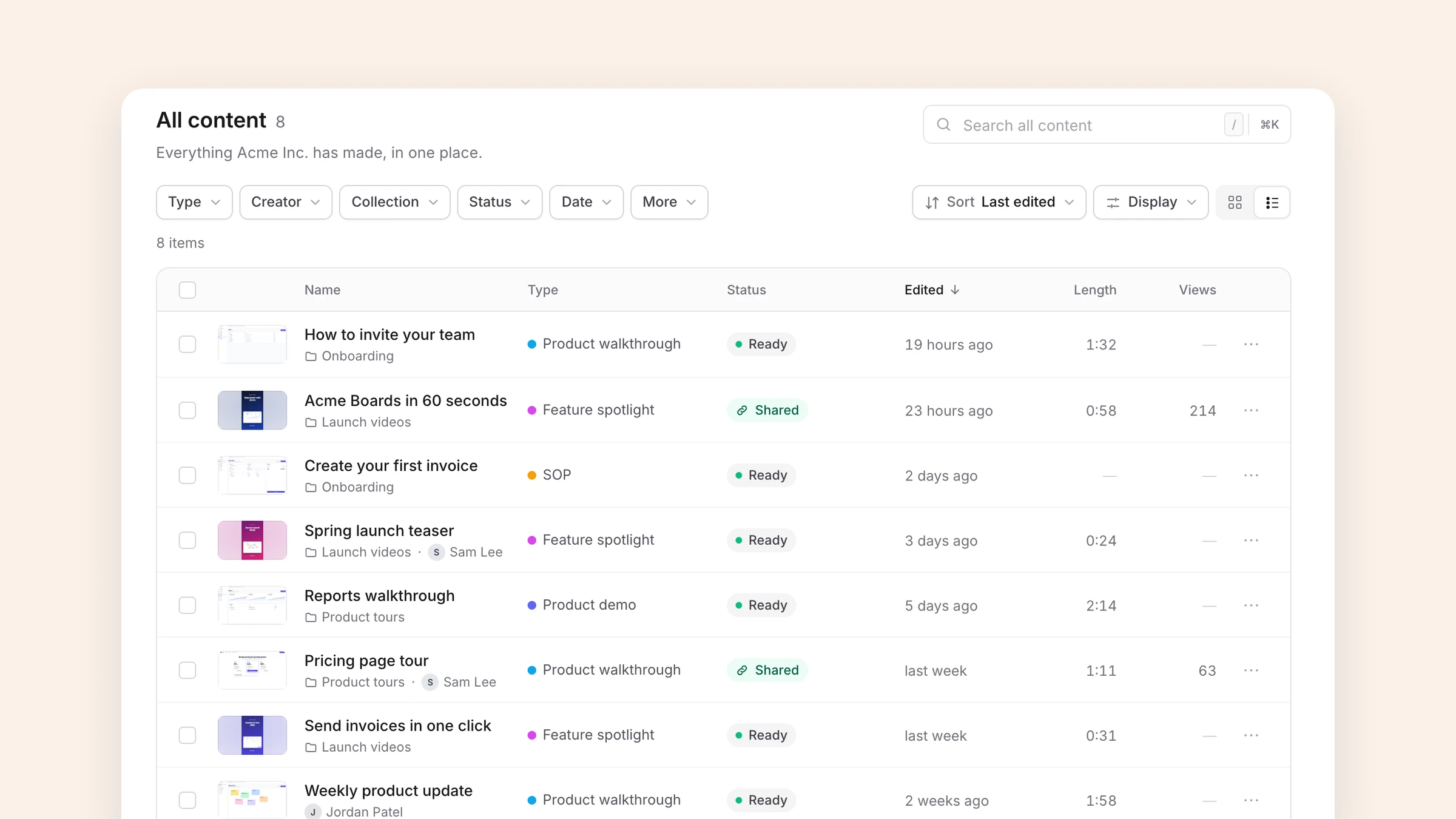
- Video, article and help center from one recording. No export and re-upload step for the help center.
- Edits reach every embed (LiveSync), so label fixes don't need a re-export.
- 74 languages for voice-over, captions and article, at 3 to 10 credits per language for each video or article.
- Seats only for the people who make content. Editors are unlimited and don't need a seat.
- Autopilot (Pro and above) proposes fixes and re-records after each release, for your approval.
Pricing in short: Starter is $36 a month ($29 billed yearly) with 900 credits; Pro is $124 a month ($86.80 billed yearly) for two seats with 4,000 credits, and each extra seat adds $36 a month and 650 credits. A typical how-to video uses 5 to 25 credits. Details on the pricing page.
Where it isn't the right fit: if you need on-screen callout styling as the main feature, Guidde is more focused there. If you need SSO below an enterprise contract, Clevera has it only on Custom. Its SOC 2 audit is in progress, expected in 2027 (security page), while Guidde, Clueso and Trupeer state SOC 2 Type II today. And it doesn't build click-through interactive demos.
A two-week trial plan
- Pick three real flows from your top support tickets: one simple, one long, one that touches a desktop app or a second tool.
- Record each once and run the same recording through two or three tools, so you compare output rather than recording skill.
- Score the drafts on script accuracy (are UI names right?), time to publishable, and the article.
- Rename a button in one flow (or pretend to) and time the update in each tool, including getting it onto your help center.
- Translate one video into your second-biggest language and have a native speaker review it.
- Price a year using your expected monthly video count, creators and reviewers.
Step 4 usually decides it. First drafts are close; updates aren't.
FAQ
What is the best software for product how-to videos?
For support and education teams without a video editor, an AI tool that narrates a silent screen recording: Clevera, Guidde, Clueso or Trupeer, depending on capture needs, article output and budget. Loom suits quick live-narrated clips, Camtasia teams with a producer.
Do I need to narrate while recording?
Not with the AI tools in this guide. They write a script from the on-screen actions and generate the voice-over. Loom and Camtasia expect you to narrate or record audio yourself.
Can these tools also write the help article?
Clevera, Clueso and Trupeer produce an article from the same recording, and Guidde produces a step document. Loom's AI tiers turn video into text, which is closer to a transcript than a publish-ready article.
How much should a support team budget?
Entry plans run from about $19 to $40 per creator or per month billed yearly, before translation and help center hosting. Check what's included: translation is Enterprise-only on Guidde, and Trupeer's knowledge base is an add-on.
Turn one recording into a video and an article
Record a real flow from your product and see the how-to video and help article Clevera makes from it.