Autopilot: help center automation you approve item by item
Autopilot builds and updates your help center, turns questions into articles and documents gaps in your app. It plans for free, you approve each item, and you get a receipt.
 Berkay Akpolat7 min read
Autopilot plans and makes whole help center jobs for you: a new help center built from your app, updates when you ship, articles from customer questions. You approve each item and its credit cost before anything runs, and you get a receipt when it is done.
Autopilot is Clevera's help center automation, released on October 31 for Pro and above, by invitation.
What is Autopilot?
Most of Clevera works one piece at a time. You record a workflow and get a narrated video, or you turn a video into an article. Autopilot works one level up. You give it a job, it works out which videos and articles that job needs, and then it makes them. If you want the background on what help center content automation can and can't cover, we wrote about it in AI help center content automation. This post is about the feature itself.
A job in Autopilot is called a task, and a task always moves through the same stages: Planning, Plan ready, Running, Done. Planning is free, and credits are only used for the items you approve.
What jobs can Autopilot do?
You start a task from a recipe, or by typing what you want into the What should Autopilot do? box on the Autopilot page. Clevera picks the matching recipe and fills in a setup card for you. The recipes fall into four kinds of work:
- Build your help center. Build a help center from my app creates the brand, the site, the videos and the articles from scratch. You can also import an existing help center instead of starting fresh. Usually 240–560 credits.
- Keep it current. Keep my help center up to date when we ship proposes video and article fixes when your product changes, triggered by each release in a connected repository, by your changelog page, or once. Update my videos when the product changes does the same for videos alone, with no help center needed. Usually 10–150 credits a run.
- Turn questions into articles. Turn customer questions into help articles writes an article for each question you give it. Fill the gaps in my help center every week writes articles for reader searches that found nothing. Usually 5–60 credits.
- Explore your app. Explore my app and document what's missing has the AI explore your app, compare what it finds with what you already cover, and plan videos and articles for the gaps. Document one area of my app and Make getting-started videos for new users work the same way with a narrower goal. Usually 100–260 credits.
Smaller recipes cover things like turning new videos into articles or translating them, and Your own task handles anything else. The ranges describe typical runs, not quotes: every plan shows its own estimate before you run it.
What does an Autopilot task look like, start to finish?
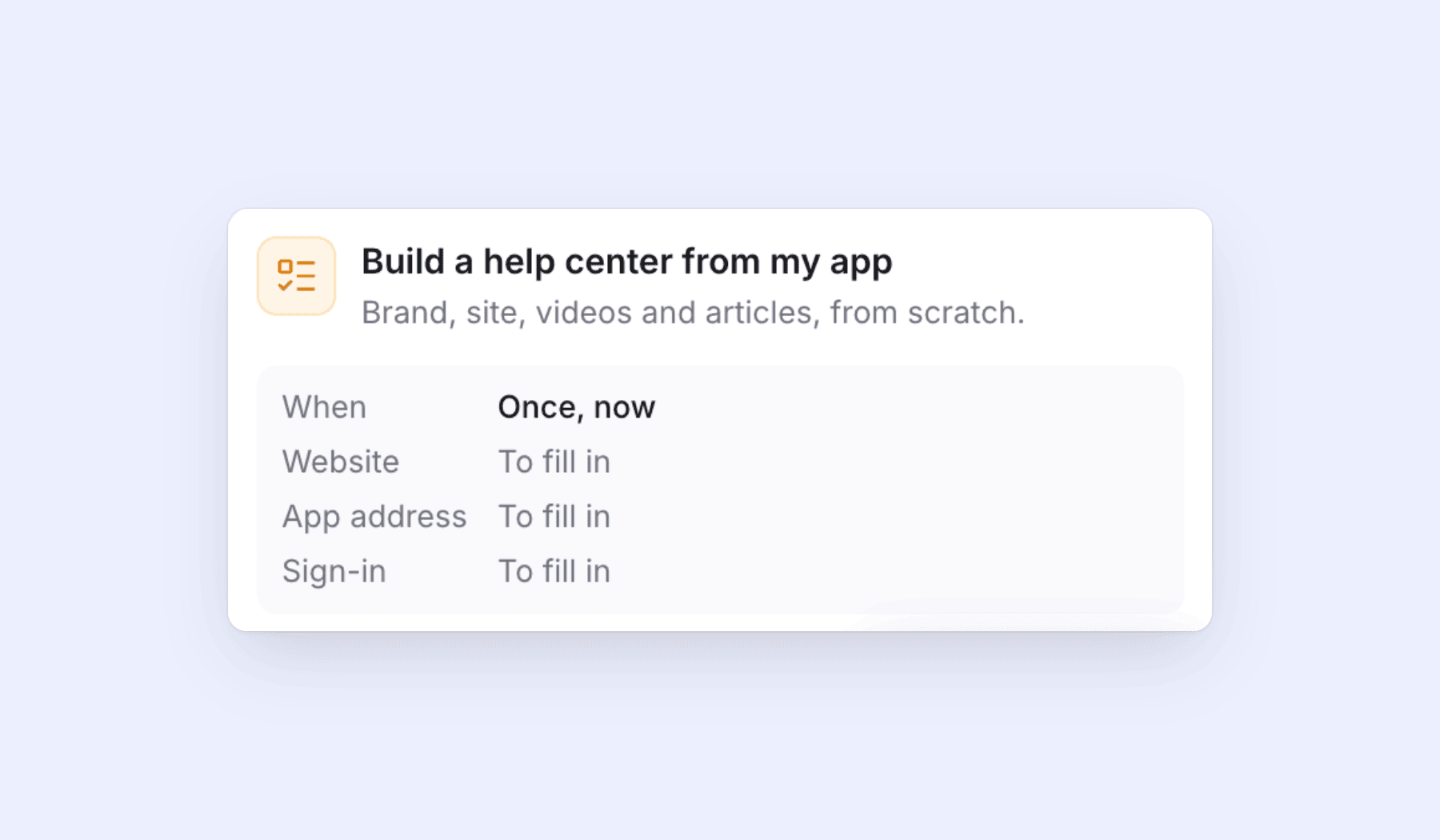
1. Set it up. Describe the job or pick a recipe. A setup card opens in the chat panel with a short summary: when the task runs, which app it works in, and how it signs in. Anything missing reads "To fill in". Click Fill in the details, then Continue, then Create task.
If your app sits behind a login, Autopilot uses a saved app sign-in. Passwords are encrypted and never pass through the chat. By default the AI only looks around and saves nothing. You can allow it to save changes while it records, but it is never switched on for you, and you should use a test account when you do.
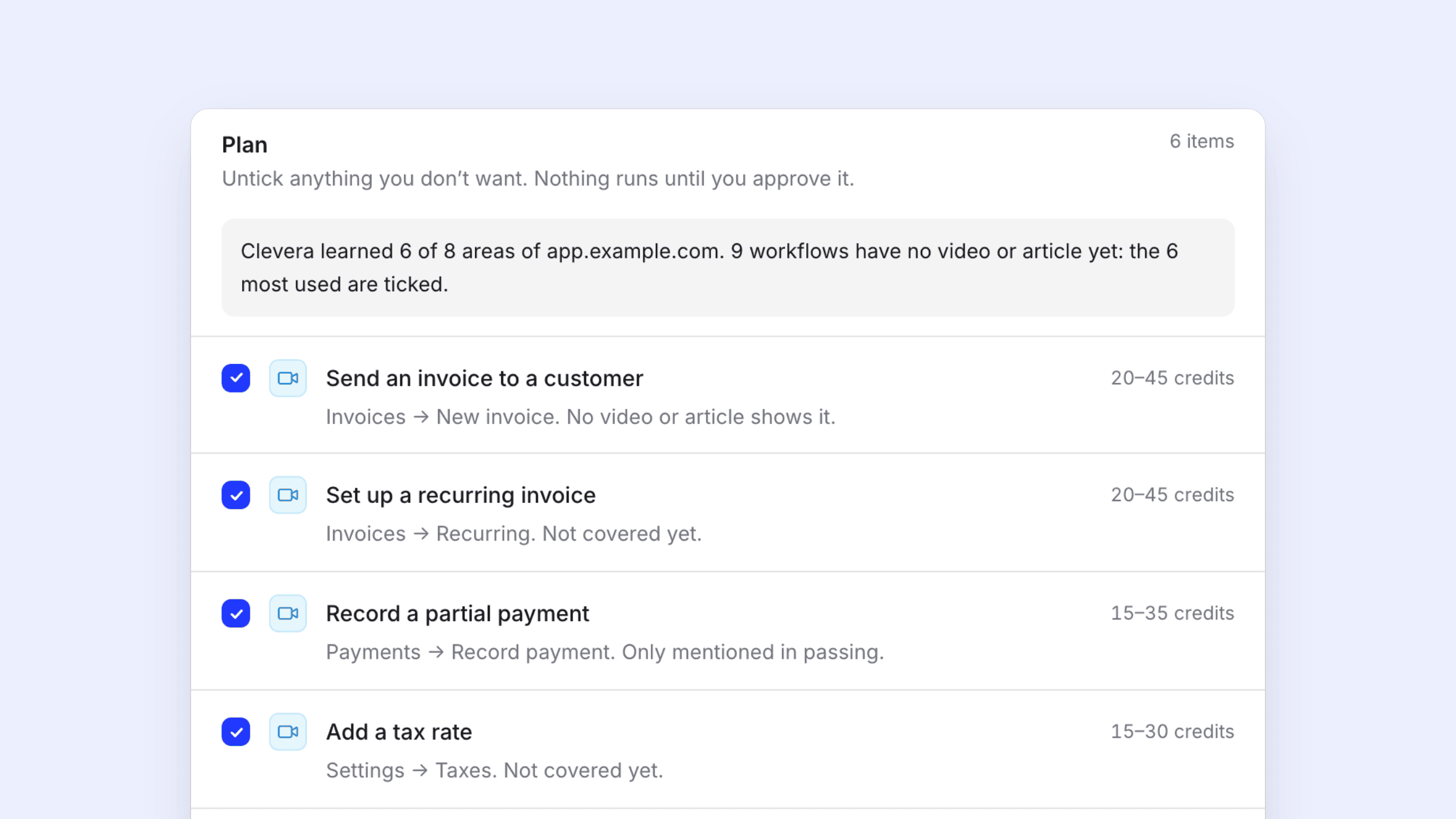
2. Clevera plans. A one-off task starts planning right away. This takes a few minutes, longer if the AI is exploring your app. When the plan is ready, the task appears under Needs you. Each line says what it will make, why (for example "Not covered yet" or "Only mentioned in passing"), and a credit range.
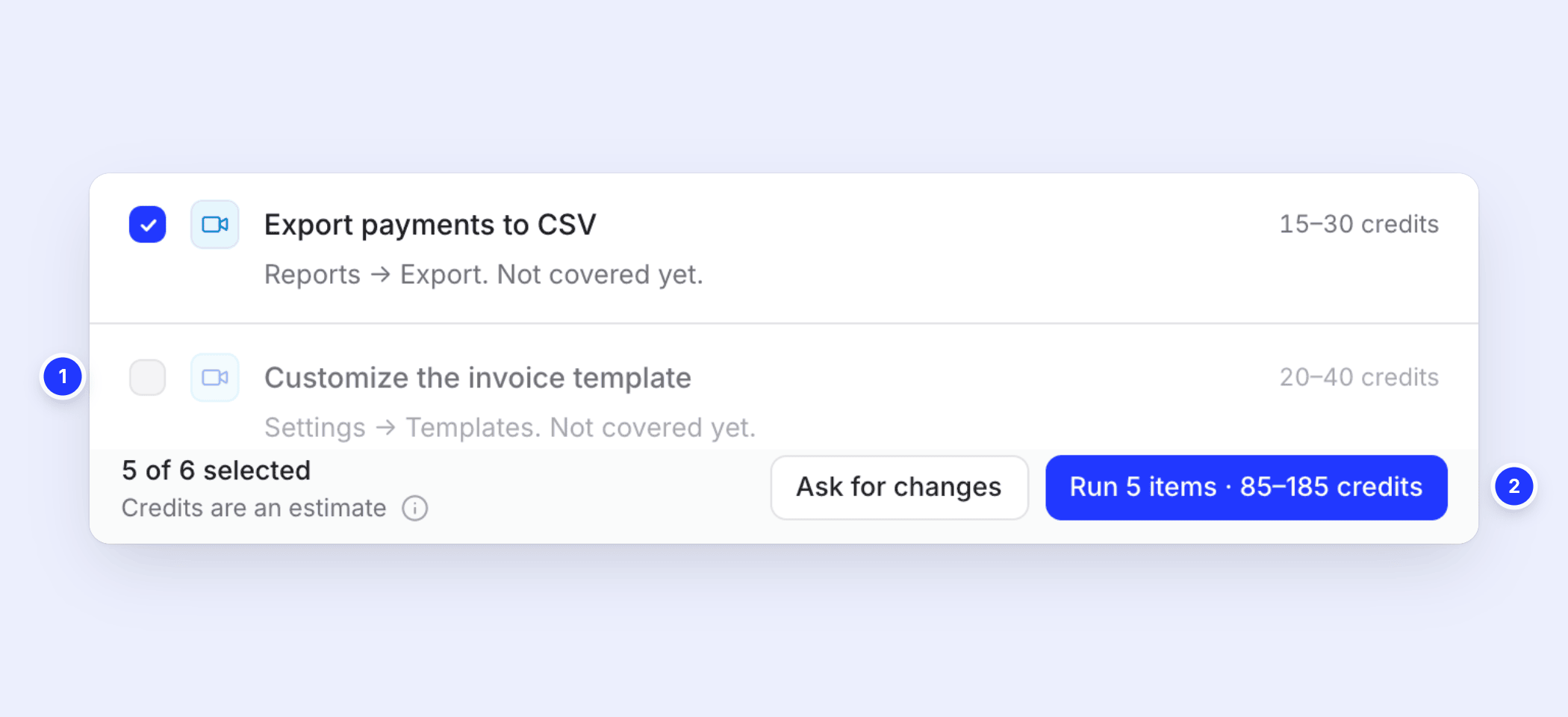
3. You approve. Untick anything you don't want ①. The run button updates as you go and shows the number of items and the credit range, for example Run 5 items · 85–185 credits ②. If the plan is off, Ask for changes lets you write a note and Clevera plans again.
4. It runs. You can leave the page while it works. Long recipes such as Build a help center from my app run in steps, with a separate approval for each step.
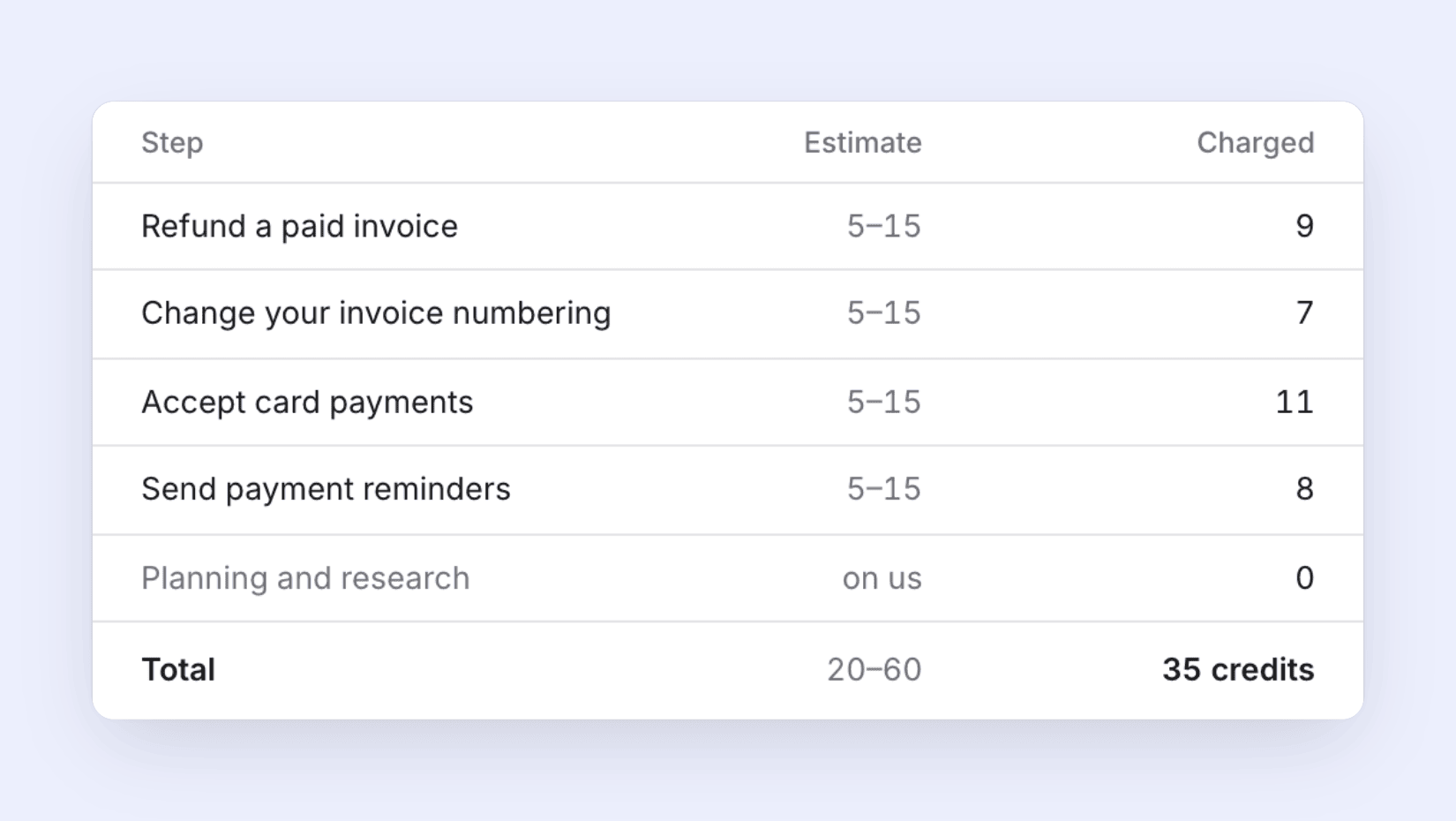
5. You get a receipt. When the task finishes, the receipt lists each item with its estimate next to what was actually charged. Planning and research show as free, and failed steps are refunded.
Will Autopilot publish anything without asking?
No. Help center articles always land as drafts, and no recipe publishes for you. A few other rules keep tasks from running away:
- Tasks that wait for a release, a changelog page or a new video plan each run and then wait for your review.
- The only task that can run without a click is Fill the gaps in my help center every week set to Make drafts, I publish, and only within its monthly budget. Even then, a run that writes from reader searches waits for your review, and the articles are drafts.
- Repeating tasks have a monthly budget. When it is reached, the schedule pauses and tells you.
- Owners and admins can set a Monthly credit cap in Autopilot settings. A run is refused if its high estimate would go over it.
- A plan you don't act on gets a reminder after 5 days and expires after 7.
If you keep a help center by hand today, our guide on keeping a knowledge base up to date covers the manual version, and updating tutorial videos after a UI change explains why stale videos are the expensive part.
If your help center lives on a Clevera doc site, Autopilot drafts straight into it. Doc sites explains how those work, and help center software shows the whole setup.
Who can use Autopilot?
Inside a workspace, owners, admins and content creators can set up and run tasks. Content creators can't start the recipes that create a new help center, and their budgets stay at the suggested amount. Editors can see tasks, plans, receipts and outputs, but can't start or change them. Only owners and admins can change Autopilot settings, connections and app sign-ins.
To get access, click Autopilot in the sidebar, then Get an invitation. Tell us your use case, what you want to make, and your app's address, then click Send request. The Clevera team reviews each request, and both you and the workspace owner hear back by email and in your inbox.
Also in this release
The same release added the Clevera agent (a chat panel you open with ⌘ J), Brands and templates for how-to and demo videos: see the October 31 release notes for the details.
FAQ
Which plans include Autopilot? Pro and above. Access also needs an approved invitation, which anyone in one of those workspaces can request from the Autopilot page. On Free, Starter or a trial, the Autopilot page shows a Pro badge, and pricing lists what each plan includes. If a workspace moves to a lower plan, Autopilot closes until you upgrade, and the approval stays, so you don't need to apply again.
What does Autopilot cost? Setting up a task and planning it are free, up to a daily planning limit per workspace. Each item you approve uses the credits it actually consumes, and the plan shows an estimate per line before you run it. Failed steps are refunded on the receipt.
Can Autopilot work in an app that needs a login? Yes. Save an app sign-in for your app, and the task uses it while it explores or records. Use a test account rather than a real admin account. If your product has no login, choose My product doesn't need a sign-in and Clevera sees only public pages.
Does Autopilot write blog posts or social clips? No. Autopilot focuses on help center work: videos, help articles and translations. Blog posts and social clips are not Autopilot tasks.
Hand Clevera the next help center job
Autopilot plans it for free and makes only what you approve. Available on Pro and above, by invitation.