Social clips: an AI social media video maker for feeds, ads and launches
Clevera's AI director writes, animates and voices short clips for feeds, ads and launches from a link, pictures, a PDF or a video.
 Berkay Akpolat7 min read
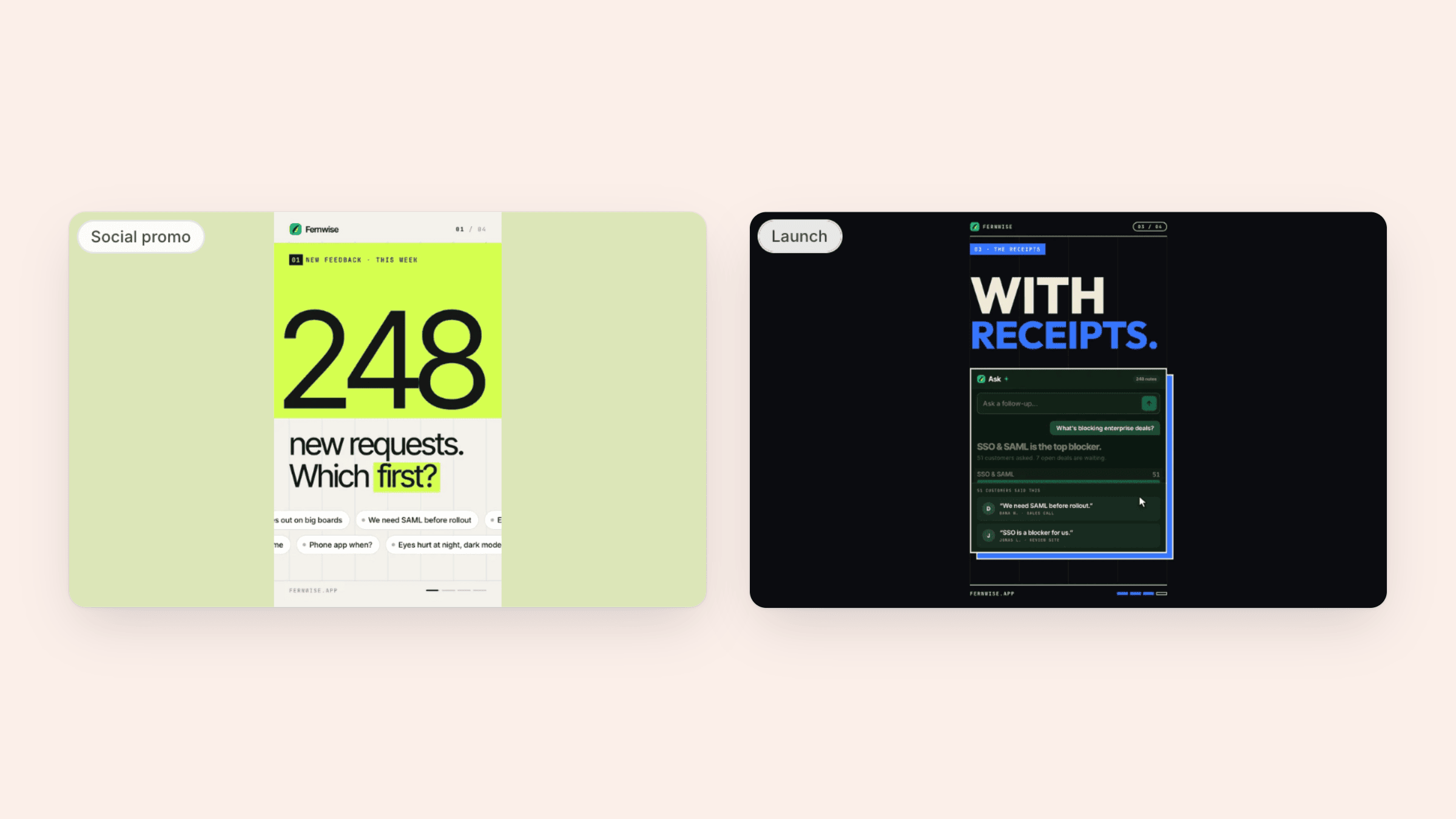
Social clips are short motion-designed videos for feeds, ads and launch days. Clevera's AI director writes, animates and voices them from a link, pictures, a PDF or a video. If you market a product and have no motion designer on call, you get a finished clip with voice-over, music and your logo. Social clips are available today as part of the new Clevera, on paid plans such as Starter and Pro.
Our how-to videos and demos start from a screen recording and explain a product step by step. Social clips do a different job. They are the 30 or 60 seconds that stop someone mid-scroll, show one thing working and ask for the click.
What can you make a clip from?
The AI director handles the whole job. It writes and animates each scene, records the voice-over, adds music and sound effects, checks its own work and gives the clip a title.
You can start from:
- A link. Paste your website or a product page under Start from your website and click Add. Clevera researches the page and collects screenshots and copy. The site has to be public, because the AI can't sign in.
- Pictures, a PDF or a video. Attach them to the brief and the director builds scenes around them.
- A description. With nothing attached, write at least 100 characters about what the clip should say.
Your screen recordings count too. The AI watches attached recordings or videos, plays the moments that make each scene's point and moves the camera with the pointer. A video's own speech can play as a sound bite, and sensitive text on screen, such as email addresses and card numbers, is masked.
Which kind of clip should you make?
Click Create and open the Social & promo card (still marked Beta). Each type has its own pacing and shape, so pick the one that matches the job:
- Feature spotlight: name one capability, show the proof, ask for the click.
- Hook reel: a cold open, fast cuts and captions on, made for TikTok, Reels and Shorts.
- Launch teaser: what is new, shown working in a few fast beats.
- Product tour: a walk through your product for homepages, landing pages and ads.
- Offer promo: sales, discounts and limited-time promos.
- Event promo: webinars, events and sign-ups.
- Customer story: social proof for feeds and landing pages.
Most types default to 9:16. Product tour defaults to 16:9 and Event promo to 1:1. You can change the format in the Format pill before you generate. If you are not sure where to start, Feature spotlight and Product tour are good first clips. The clip type guide compares them in more detail, and our list of SaaS social media video ideas has briefs you can borrow.
How much does a social clip cost?
Before you click Generate video, Clevera shows an estimate next to the button. You set the Effort level right beside it:
| Effort | Typical credits per clip | What you get |
|---|---|---|
| Medium | 30–60 | A lighter review. Fastest and cheapest. |
| High (default) | 50–120 | Richer motion and more scenes, checked as they are built. |
| Extra | 80–160 | Extra review rounds and a final pass over every scene. Slowest. |
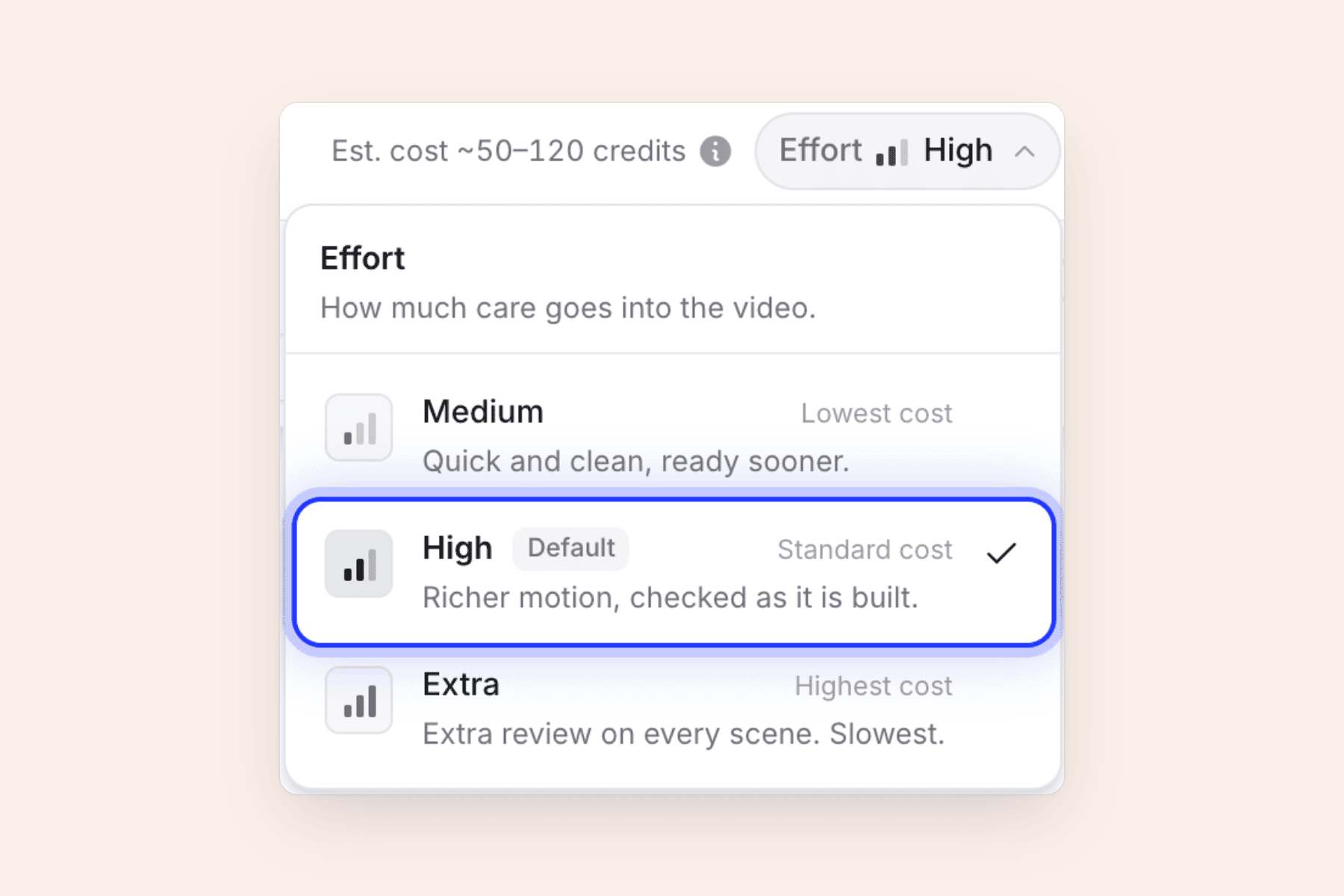
The ranges are estimates, not fixed prices. You pay for what the job uses, so a clip can land a little under or over its range. An AI avatar and website research add credits on top. A sensible routine is to try your brief and look at Medium, then make the version you publish at High or Extra. See Choose an effort level for when each one fits.
Can the clip match your brand?
Yes. Open the Look pill and leave it on Automatic, and the AI reads style, colors and type from your material and your brand. Or pick one of the named design styles and watch the live preview change. Each style has a light and a dark skin.
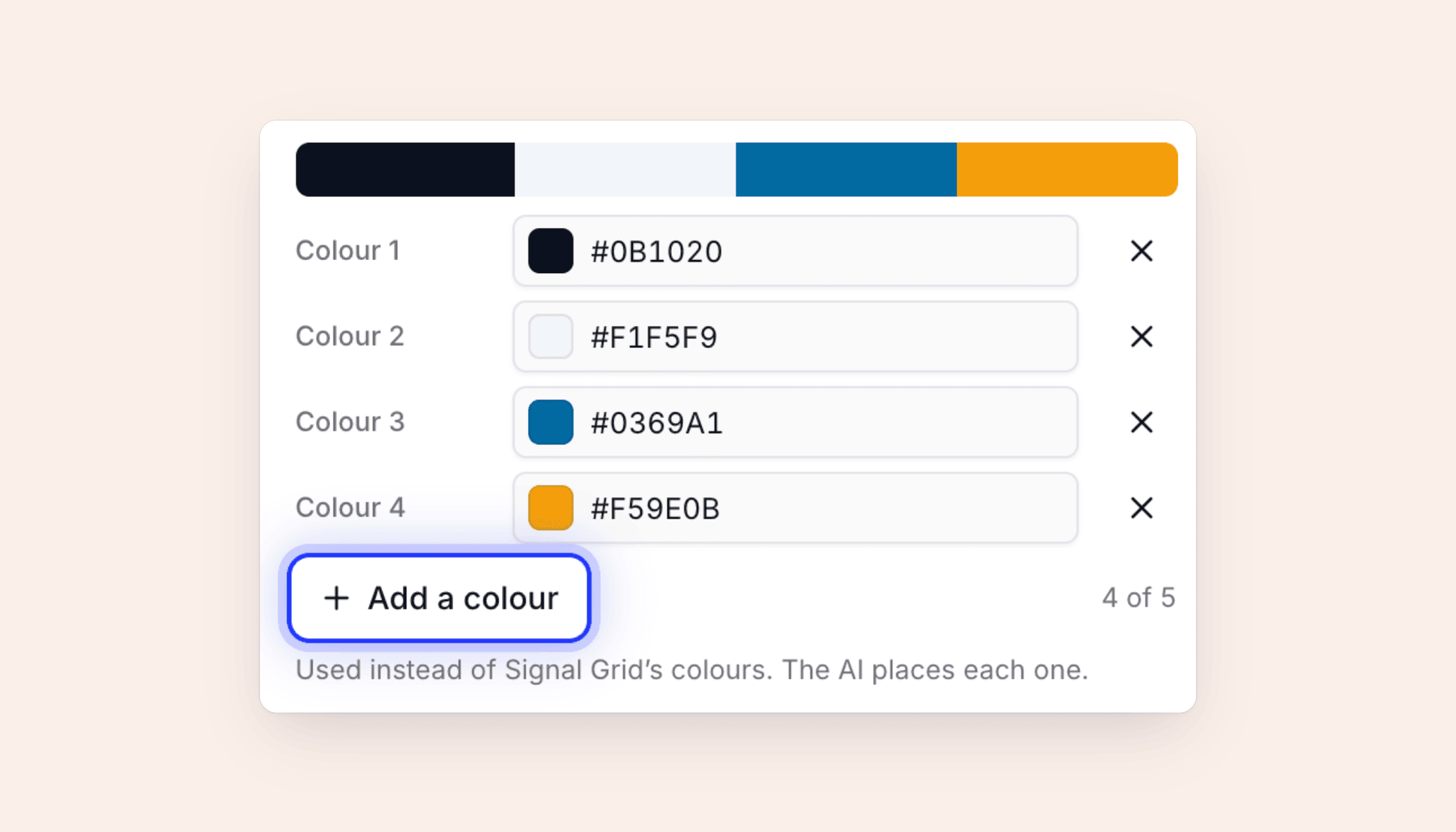
Once you have a style, you can keep its own colors, switch to one of the shared palettes, or click Add a colour to use up to five of your own. You don't assign roles: the AI decides which color becomes the background, the text and the accents.
Logos are handled the same careful way. The AI uses the logo you attach, your website's logo, your workspace logo or a mark from your footage, and it never recolors it. The guides on picking a look and getting your logo into a clip cover the details.
Add a presenter, music and sound
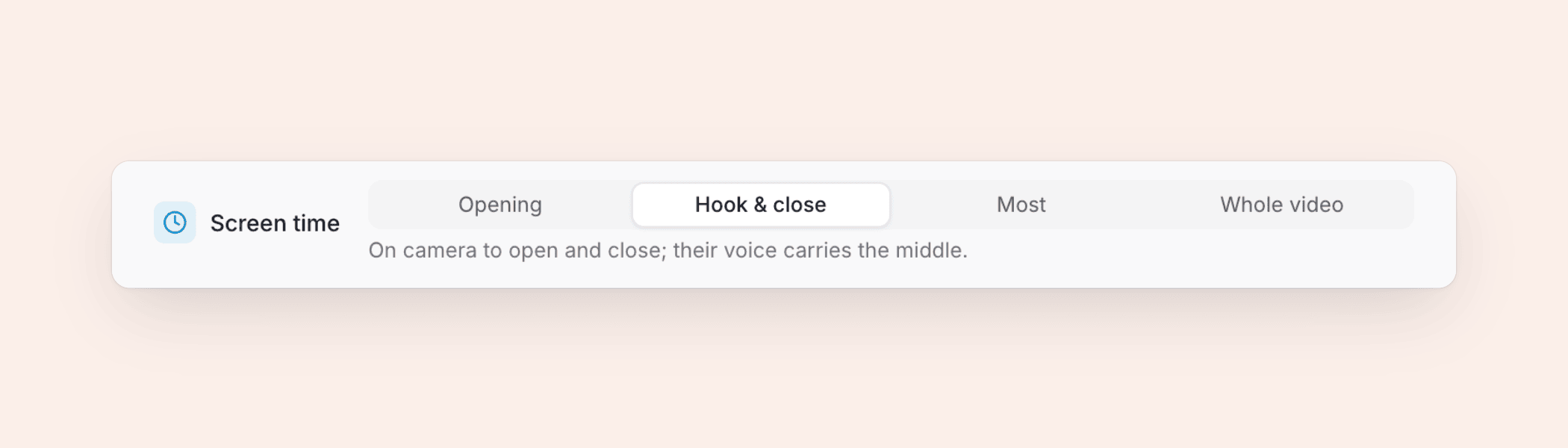
Some clips work better with a face. Click the AI avatar pill, choose a presenter and a look, then set their Screen time:
- Opening: on camera at the start, then voice only.
- Hook & close: on camera at the start and the end, with their voice over the middle. This is the default.
- Most: on camera for most of the clip, cutting away when the product needs the screen.
- Whole video: on camera the entire time.
The avatar's cost is added to the estimate and depends on its screen time. Avatars need a paid plan. Details are in Add an AI avatar.
For sound, the AI picks a track that matches the mood and keeps it under the voice. Sound effects are subtle and spaced out. You can swap either one later in the editor (music and sound in clips).
How do you edit a clip after it's made?
Generation runs through five stages, and you can close the tab while it works. When it's done, click Open your video to land in the clip editor.
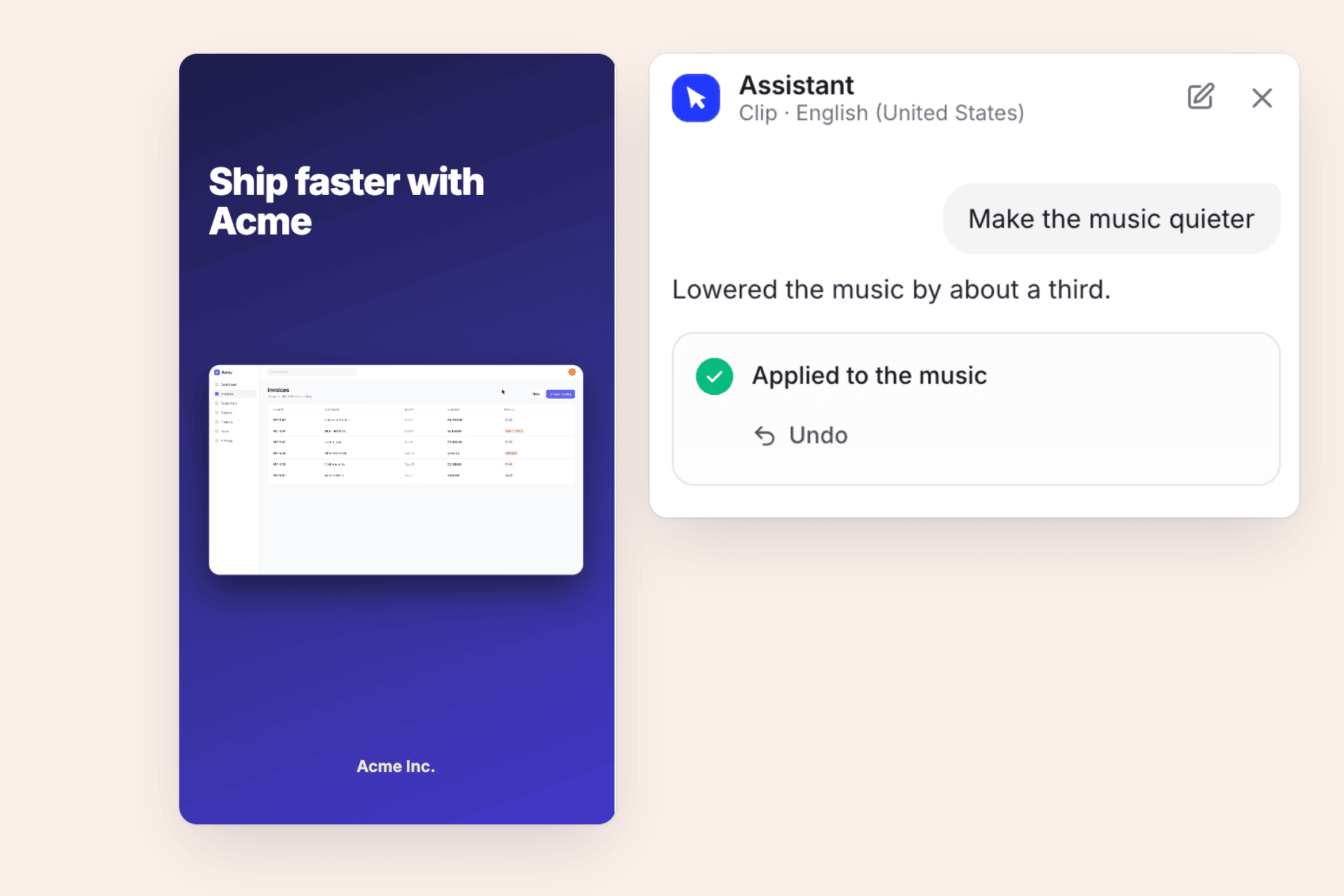
Two ways to change things live side by side. You can describe a change in plain words to the assistant, now the Clevera agent, such as "make the music quieter", "use a different picture here" or "shorten this headline". Each change applies right away and can be undone in one step. Or you can click any scene, word or picture on the preview and edit it directly. Asking the agent can use credits; manual edits to words, pictures, music, sound effects and timing don't.
The full tour is in Edit a social clip.
Post the same clip in five languages
If you sell in more than one market, open the language menu in the editor's top bar and pick up to five languages at once. The voice-over is recorded again and fitted to each scene, and captions render scripts such as Chinese, Japanese, Korean, Arabic and Thai. A translation typically costs 3–10 credits per language. See Translate a video.
Where an AI social media video maker fits
Social clips sit next to the rest of Clevera, so the same product footage can become a help-center tutorial and a launch-day clip. A few starting points:
- Launching a feature: read about the product launch video maker and the AI promo video maker.
- Have a landing page already: turn the URL into a video.
FAQ
Which plans include social clips?
Social clips are included in paid plans, including Starter, Pro and Custom. Starter is $36 a month, or $29 a month billed yearly, with 900 credits a month. Pro starts at $124 a month for two creators with 4,000 credits. See pricing.
Can I download clips as MP4?
Yes, on paid plans. MP4 exports run at 60 fps, up to 2K on Starter and up to 4K on Pro, and exporting doesn't use credits. You can also share a clip by link or embed it.
What can't the AI research?
Pages behind a login or a bot check, and YouTube links. For a video on YouTube, upload the file instead.
Who on my team can make clips?
Owners, admins and Content Creators can make clips. Editors can't.
Make your first social clip
Paste a link, pick a type and see the estimate before you generate.