Video replies for customer support

A 4-paragraph email explaining which menu, which tab and which toggle usually earns a reply that starts with "I still can't find it." A 50-second recording of the same path usually ends the thread. Video replies for customer support work when the answer is a place or a sequence on screen, and they backfire when the answer is a policy, a number or a yes.
This guide covers which ticket types to answer with video, when to record a one-off versus reuse a saved video, a 60-second structure, the privacy and caption rules that keep you out of trouble, and how to prove it worked with the metrics your help desk already reports.
Which tickets deserve a video reply
The test is simple: would the customer need to look at their own screen to follow your text? If yes, video probably wins. If the answer fits in 2 sentences, it doesn't.
Ticket type | Video or text? | Why |
|---|---|---|
Multi-step UI task ("how do I set up SSO", "how do I export by date range") | Video | Order and location matter; text loses both after step 3 |
"Where is X?" (moved button, renamed setting, hidden menu) | Video, 15 to 30 seconds | Showing the path beats describing it, especially after a redesign |
Bug reproduction confirmation ("here's what I see when I follow your steps") | Video | Proves you reproduced it, or shows exactly where your result differs |
Configuration review ("your rule fires because of this condition") | Video | Pointing at the condition is clearer than quoting it |
Billing, refunds, invoices, plan changes | Text | Customers forward these to finance and need searchable numbers and dates |
Account security (password resets, 2FA, access disputes, suspected compromise) | Text | Needs a written record, and a video can expose account details or teach the wrong person the wrong flow |
Simple yes/no or "is this supported?" | Text | A video adds a click and a minute to a 5-second answer |
Outage or incident updates | Text, linked to your status page | People scan these; nobody wants to scrub a timeline for an ETA |
Angry or escalated tickets | Text first, video only if asked | A cheerful screen recording can read as dismissive when someone is upset |
A useful middle case: when you're unsure the customer is looking at the same screen you are, send the text answer plus a short video and let them pick.
One-off recordings vs reusable saved-reply videos
Support video comes in 2 shapes, and mixing them up is where most teams waste time.
One-off live recordings answer one customer's situation: their workspace, their error, their config. You record, send, and never use it again. Speed matters more than polish. Loom-style quick recorders fit here because you hit record, talk, and paste the link. If you're comparing options for this job, our roundup of Loom alternatives covers the field.
Reusable saved-reply videos answer a question that arrives every week: "how do I invite a teammate", "where are invoices", "how do I connect Slack". These belong in your help desk's canned responses, which Help Scout calls saved replies and Zendesk calls macros. A reusable video gets watched hundreds of times, so it's worth 10 extra minutes to get the narration clean, blur anything private and pair it with a written article.
A workable rule: if you've answered the same question with a one-off video 3 times this month, stop recording it live and make the reusable version.
Where Clevera fits, and where it doesn't
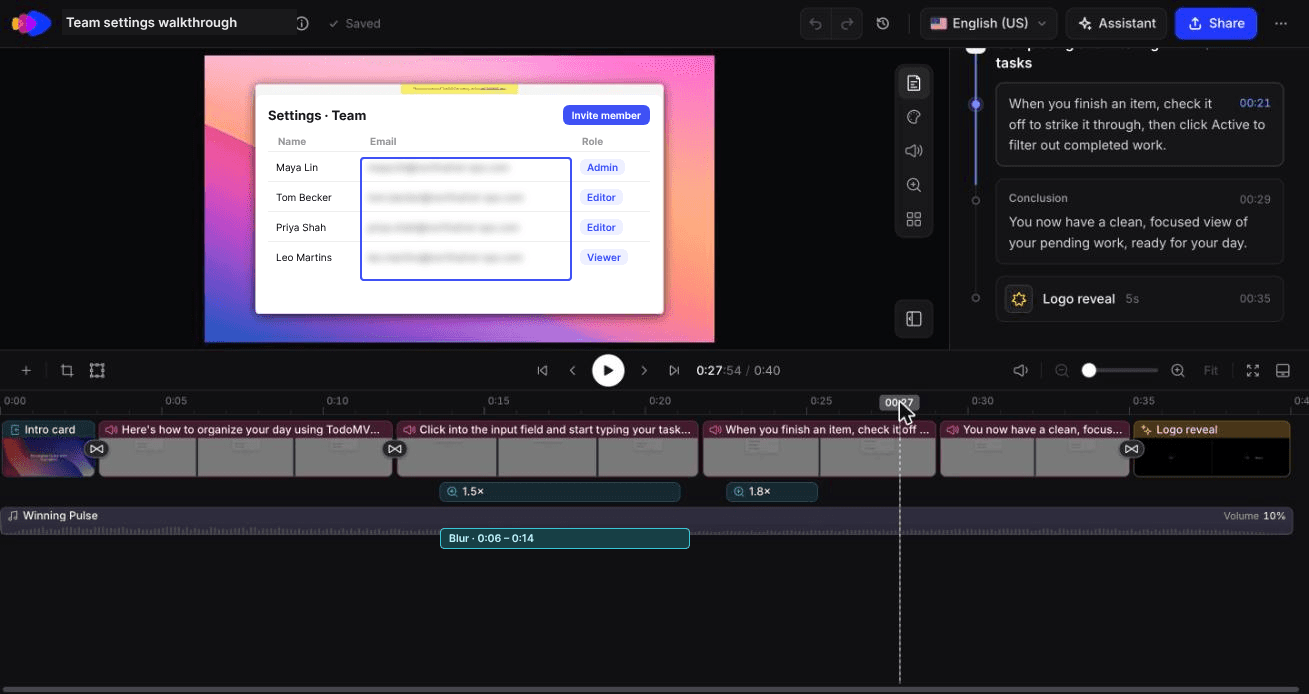
Clevera is built for the reusable side. You record the flow once (desktop app, Chrome extension, or upload a recording from another tool), and Clevera generates a narrated how-to video with an AI-written script and voiceover, so you don't have to narrate while clicking. From the same recording it can also generate a how-to article with captioned screenshots. The video and article are separate items you can pair on a share page.
A few details matter specifically for saved replies:
Blur overlays are added in the editor after recording, so you can hide an email address you missed on the first pass.
LiveSync means edits you publish to a video (narration, voiceover sync, text, highlights, blurs) show up on Clevera-hosted links and embeds without changing the link in your macro. It doesn't update footage when your UI changes. A redesigned screen means recording new footage. Downloaded MP4s don't update either.
Article publishing goes to Help Scout, ReadMe, Notion, Confluence and GitBook (among others) on Pro and above.
Translation into 74 languages covers both the video and the article, which helps when the same saved reply goes out in several languages.
Where Clevera isn't the right fit: a 20-second one-off for one customer's broken config. AI narration of your clicks adds nothing when the value is you saying "see this field? That's why." Use a quick recorder with your own voice for those. Here's how Clevera works for customer support teams.
One recording, a 40-second how-to and an article for 12 credits
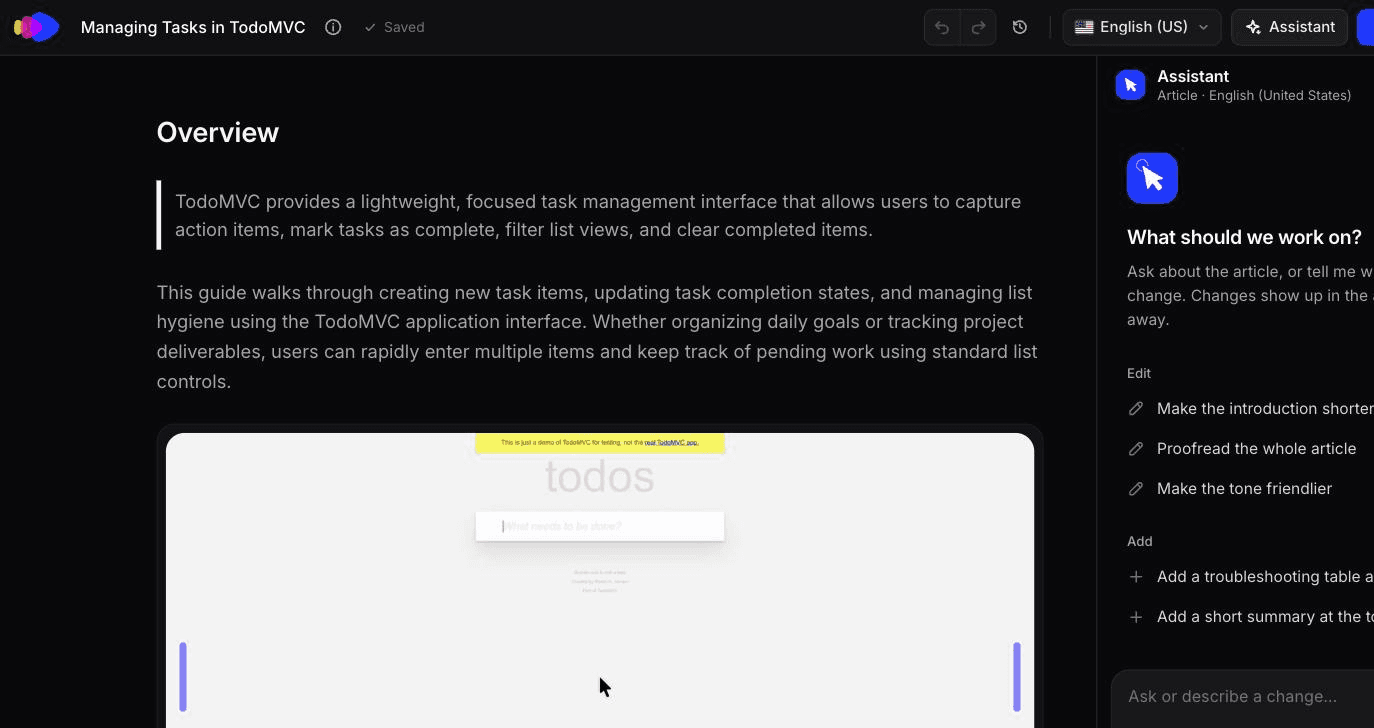

In October 2026 we had Clevera's AI recorder capture a short task in a public to-do demo app: add 3 todos, mark one done, then click the Active filter. The recording ran 58 seconds. Clevera turned it into a 0:40 how-to video with 2 chapters and 6 steps in about 50 seconds, for 9 credits including the recording analysis. From the same recording, a how-to article with an overview, numbered steps, a controls table and a screenshot per step took about 50 seconds and 3 credits.
The 0:40 how-to video Clevera made from that AI recording, unedited.
The video's script was clean. The article wasn't. It described clicking "Clear completed" to remove finished tasks, a step that never happened in the recording, and it left out the last action, the Active filter click. A customer following those steps would end up somewhere the video never went. Read generated steps against the video before you paste a link into a ticket, and fix the article first.
To send both in one link, the Share modal has an "Article below the video" option that shows the article under the video on the shared page and in embeds. The link we opened was already set to "Anyone with the link", so check access before it goes into a macro.
A 60-second structure for support video replies
Most good support video replies follow the same 5 beats. Times are targets, not rules.
1. 0 to 5 seconds: restate the goal. "Here's how to export only last month's orders." The customer knows within 5 seconds that this is the right video. 2. 5 to 10 seconds: show the starting point. Start from a screen they'll recognize, usually the dashboard or the page they mentioned. Starting mid-flow is the most common reason viewers get lost. 3. 10 to 45 seconds: do the steps once, at normal speed. Narrate the label you click, not "click here." Hover for a beat before each click. Zoom on small targets. 4. 45 to 55 seconds: show the result. The exported file, the green toast, the saved setting. Proof it worked is what stops the follow-up reply. 5. 55 to 60 seconds: one next step. "If the button is greyed out, you need admin access; reply and I'll check." Then stop.
If it runs past 90 seconds, it's probably 2 questions. Split it or link a help article for the second half.
Template reply to send with the video
The text around the video does as much work as the recording. Customers on phones, in open offices or using screen readers may never press play, so the written steps must stand on their own.
``` Hi {first name},
Here's a 45-second video showing how to {goal}: {video link}
The short version, if you'd rather read: 1. Go to {page} > {tab}. 2. Click {button label}. 3. Choose {option} and click {confirm label}.
You'll know it worked when {visible result}.
If {most likely blocker}, that's usually because {reason}. Reply here and I'll take a look.
{your name} ```
Put the video length in the first line. "45-second video" gets clicked; an unlabelled link doesn't. Keep the numbered steps even when they feel redundant, since they double as the text alternative for accessibility.
Privacy rules for support video
A support video is a screen recording of a real product, often an admin view. The risks are specific:
Never show another customer's data. Record from a demo or sandbox account with fake data. If you must record in production, filter views down to the requesting customer's own records before you hit record.
Close everything else. Email, Slack, other tickets and browser bookmarks leak names. Use a clean browser profile for recording.
Blur before sharing, then check again. Quick recorders vary here. Loom's blur, for example, works only in its Chrome extension, only before or during recording, and only on Business plans and above. If you miss something, you re-record. Tools that blur in an editor after recording let you fix it without starting over.
Watch the URL bar and notifications. Workspace IDs, internal hostnames and pop-up notifications slip into recordings without anyone noticing.
Check link permissions. A video link pasted into a ticket can be forwarded. Use your tool's sharing settings so the link only shows what you'd be comfortable with anyone seeing.
Don't record security flows. Even with blur, a video of a password reset or 2FA screen is a bad habit. Answer these in text.
Accessibility: captions and a text version
Video replies shouldn't be a barrier for customers who are deaf, hard of hearing, or who can't play audio. WCAG's Success Criterion 1.2.2 (Level A) asks for synchronized captions on prerecorded video with audio.
In practice:
Turn captions on in your recorder. Loom, for instance, generates transcripts on all plans and lets viewers toggle closed captions; correcting the transcript corrects the captions. Fix product names before sending, since auto-transcription mangles them.
Always include the written steps in the reply, as in the template above.
For reusable videos, pair the video with a help article. A written article is searchable, translatable and readable by screen readers. In Clevera the article comes from the same recording as the video, but check its steps against the video before you send it.
Don't rely on the cursor alone. Say the label out loud ("click Export CSV"), so the narration makes sense without seeing the screen.
How to measure whether video customer support is working

Don't measure "videos sent." Measure whether tickets that got a video closed in fewer replies than similar tickets that didn't. Every major help desk already reports the metrics you need.
Step 1: tag every video reply. Add a tag like `video-reply` (and `video-reusable` vs `video-oneoff` if you want to compare the two). Without the tag, you can't filter.
Step 2: compare against the same ticket types. Video tickets skew toward "how do I" questions, which naturally take more back-and-forth. Compare `video-reply` "how do I" tickets against untagged "how do I" tickets, not against your whole queue.
Step 3: pick the metrics your help desk actually names.
Help desk | Metrics to compare | Where |
|---|---|---|
Zendesk | One-touch tickets, Reopened tickets, Agent replies, Full resolution time | |
Intercom | Closed conversations on first contact rate, Replies to close a conversation, Time to close | Effectiveness and Responsiveness reports |
Help Scout | Resolved on First Reply, Resolution Time, Handle Time |
Intercom's effectiveness charts can be filtered by conversation tags, which is exactly what Step 1 sets up. If Fin handles a lot of your volume, Intercom recommends the teammate-handled first-contact rate instead, since it leaves out conversations no teammate touched.
Step 4: expect handle time to rise for one-offs. Help Scout's Handle Time measures the time from opening a conversation to pressing Send, so recording a one-off video will push it up. That's fine if Resolved on First Reply goes up with it. Reusable saved-reply videos shouldn't raise handle time at all, which is the clearest argument for building them.
Step 5: run it for 4 to 6 weeks, then decide by ticket type. You'll usually find video wins clearly on a few categories and does nothing on others. Keep the winners, turn them into saved replies, and stop recording the rest.
For the bigger picture of turning repeat answers into self-serve content, see our guide on how documentation reduces support tickets.
Start with your top 5 repeat questions
Pull last month's tickets, sort by tag or topic, and find the 5 "how do I" or "where is" questions you answered most. Those are your first saved-reply videos. Record each once, write the 3-step text version, add it to your macros, and tag every send. In 6 weeks your own help desk will tell you which ones earned their place.