Internal communications video with AI

Most internal announcements fail in the same place: a 600-word email about a new expense tool lands on a Tuesday, gets skimmed, and IT answers the same 4 questions in Slack for 2 weeks. Internal communications video AI changes the cost side of that problem. A 75-second video that shows the change and names the deadline now takes an afternoon instead of a booking with the video team. This guide covers which announcements earn a video, which ones never should, how to script one, and how to make it findable 3 months later.
Which announcements belong in an internal communications video
Video is worth the effort when the change is visual, procedural or affects many people in the same way. At a software company, that usually means 4 categories.
Tool rollouts. Switching from one password manager to another, a new expense app, a new VPN client. People need to see where to click, and a screen recording does that faster than any paragraph. Pair a short announcement with a separate how-to video for the actual steps.
Policy changes. A new travel policy, updated security training requirements, a change to how PTO is requested. The video carries the "what changed and why"; the policy document stays the source of truth and gets linked.
Org changes that aren't sensitive. A new team forming, a support rotation moving to a new time zone, a new owner for the on-call process. These are low-stakes but easy to miss in a busy channel.
Process updates. A new release checklist, a different ticket triage flow, a change to how laptops are returned. Anything with steps and a start date works well.
A useful test: if you'd normally answer the announcement's follow-up questions by sharing your screen, it should be a video.
Which announcements should never be an AI video
Some news has to come from a real person, live, with room for questions. Layoffs, restructures that eliminate roles, compensation changes, leadership departures, an incident that affected customers or employees, anything involving health or safety. People read the medium as part of the message. Delivering hard news through a synthetic presenter tells employees the company didn't think it was worth a leader's time, and that damage outlasts the news itself.
The same goes for anything where tone matters more than information: recognition, a thank-you after a hard quarter, a welcome from the CEO. Record those on a phone if you have to. Imperfect and human beats polished and generated for this kind of message.
A rough rule: the more an announcement changes someone's job security, pay or wellbeing, the further it should sit from an AI presenter.
Tell people when the presenter is AI
Say so at the start, on screen and in the post that shares it. A line like "This update is presented by an AI presenter. The content comes from Priya, IT Operations" costs 3 seconds and removes any sense that you're trying to pass off a synthetic person as a colleague.
There's a regulatory direction behind this, too. The EU AI Act's Article 50 sets transparency obligations for AI-generated and manipulated content, and Baker McKenzie's summary of the draft Commission guidance notes the deepfake disclosure obligations apply from 2 August 2026, with a test based on whether the audience could perceive the content as authentic. Whether a particular internal video falls in scope is a question for your legal team. Disclosing every time makes the question moot and is the honest default anyway.
Two more transparency habits help:
Name a real owner in the video and in the post. Questions go to a person, not to the avatar.
Never put an AI presenter in a real employee's name or likeness without their written consent and a clear label.
Structure for a 60–90 second announcement
An internal announcement video should run 60–90 seconds. Aim for roughly 150–200 words of script and read it aloud with a timer before you generate anything. Over 90 seconds, viewers drop before the part that matters most: what they need to do.
1. Disclosure and owner (0–5s). Who the message is from, and that the presenter is AI. 2. The headline (5–15s). What changes, for whom, from when. One sentence. 3. Why (15–30s). The single strongest reason. Skip the backstory. 4. What you need to do (30–60s). 1 to 3 actions, each with a date. Show the screen if it's a tool. 5. Where to get help (60–75s). A channel, a person and a link to the written version. 6. Close (75–90s). Repeat the deadline. Nothing else.
Announcement script template
Copy this and fill in the brackets.
> [On screen: "AI presenter. Message from [Name], [Team]"] > > Hi everyone. I'm an AI presenter sharing an update from [Name] on the [Team] team. > > From [date], [who: all employees / everyone in Sales / the Berlin office] will [what changes, in one sentence]. > > We're making this change because [the single most important reason, in plain terms]. > > Here's what you need to do. First, [action 1] by [date]. Second, [action 2]. [Optional: Third, action 3.] The short how-to video linked below shows each step. > > If anything doesn't work, post in [#channel] or message [Name]. The full written guide is in [Confluence / Notion / the intranet], linked under this video. > > Once more: [action 1] by [date]. Thanks.
Filled in for a tool rollout, the action section might read: "First, install 1Password from Self Service by March 14. Second, import your browser passwords using the guide below. LastPass access ends March 31."
Making an AI presenter internal comms video in Clevera (the AI avatar type)
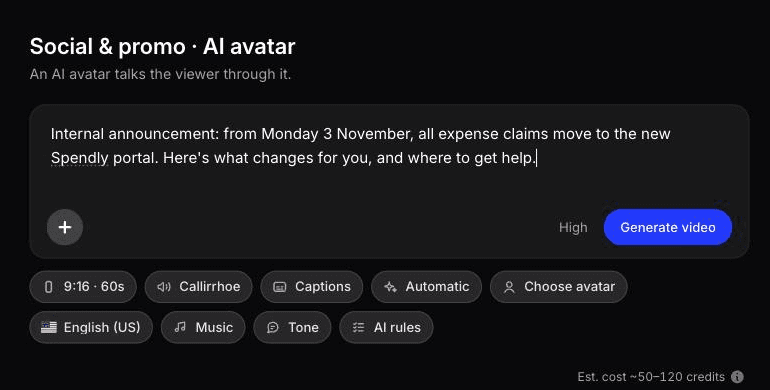
Clevera's AI avatar is one of the social & promo video types: you pick an avatar, give it the script or a short brief, and it talks the viewer through the update. The AI presenter is available on paid plans (Starter and above), not on Free.
For a tool rollout, the announcement is half the job. The other half is the how-to video people come back to when they actually do the task. You can make that from a screen recording with the desktop app (needed for desktop software like a VPN client), the Chrome extension, or the AI recorder. The AI recorder takes a written instruction and a start page, then records the web app in a cloud browser. It's read-only by default, you can take over mid-recording if a sign-in step needs you, and it works for websites and web apps only. Clevera writes the narration and syncs it, so nobody on the IT team has to narrate.
The same recording can also become an SOP article. Our guide on how to create an SOP with AI walks through that format, and the employee training hub covers longer onboarding series.
If a date or step in a published how-to video changes, you can edit the narration or text in Clevera and the hosted link and embeds update without a new link. Downloaded MP4s don't update, and if the tool's interface changes, you need new footage.
What our AI avatar test showed: check the presenter renders before you send it
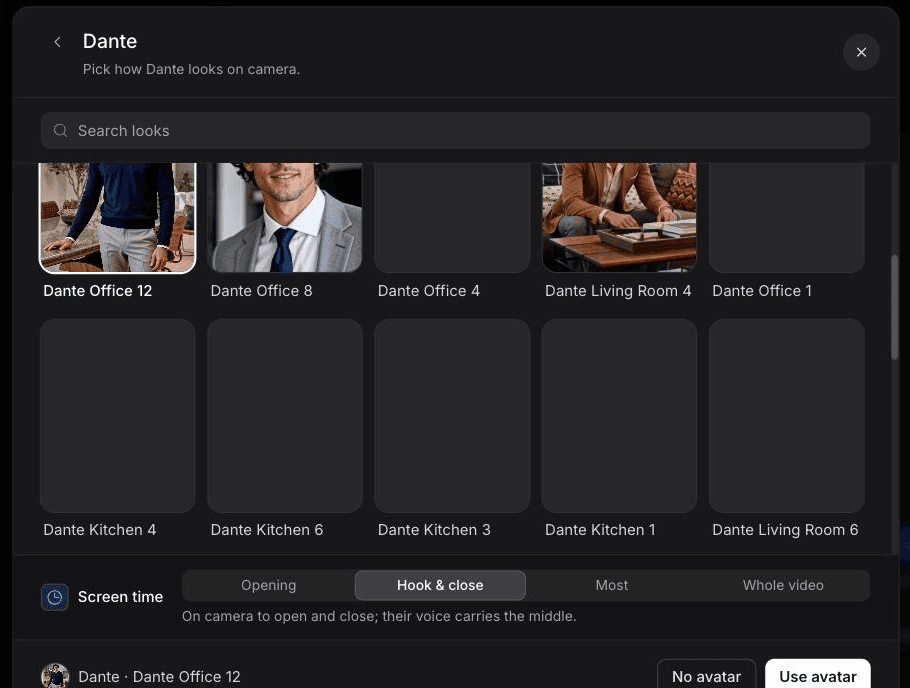
In October 2026 we made an AI avatar clip in Clevera about our own AI recorder, from our homepage and a one-line brief. We chose the avatar Dante with screen time set to "Hook & close". It took 11 to 12 minutes and 135 credits, 6 of them for the avatar. The script was on brief. The presenter wasn't there: Dante didn't appear in the editor preview or in frames we checked from the exported video, and the avatar layer showed a "Hidden" badge. The closing overlay also added "Trusted by 3,000+ companies" from the site research, a line nobody wrote into the brief.
For a company-wide announcement, that's the case for a review pass. Before the link goes out, play the opening and the close to confirm the presenter renders, and read every on-screen line against your script. Set length and shape in the Format menu: the AI avatar type defaults to 9:16 and 60 seconds, and 16:9 suits an intranet page better.
The written version is quicker. From one 58-second test recording, Clevera generated a how-to article in about 50 seconds for 3 credits. It still needed a read, because it added a "Clear completed" step that never happened. On the finished video, the Language menu ("For the script, voice and on-screen text") has a "Translate" action, so every language version starts from the same video.
Multilingual offices
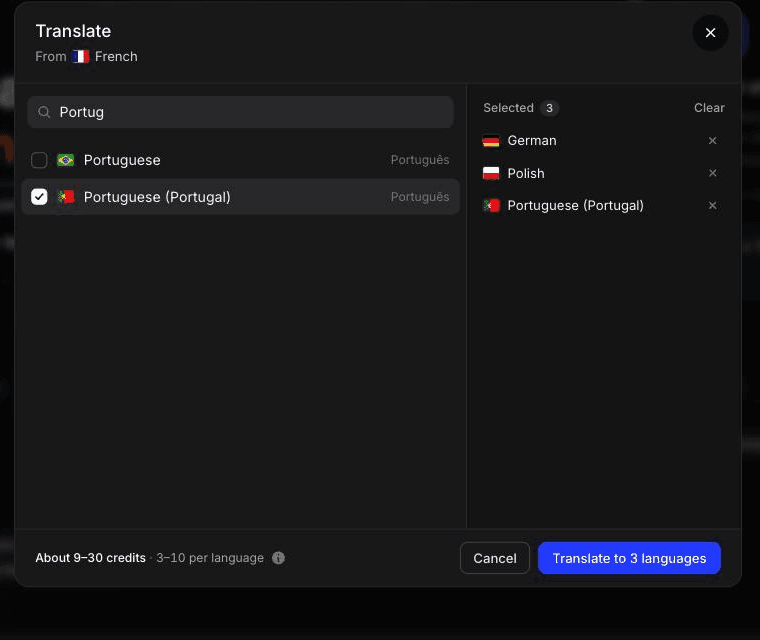
A company with offices in Lisbon, Warsaw and Austin will get 3 different levels of comprehension from an English-only announcement, and the gap is widest exactly where accuracy matters: deadlines and steps.
Clevera translates videos and articles into 74 languages with one click, including variants like Spanish (Mexico), Portuguese (Portugal) and French (Canada). For internal comms, a few practices keep translated versions useful:
Write the source script for translation. Short sentences, no idioms, dates written out ("March 14", not "14/3" or "3/14").
Have one fluent employee per language review it. 5 minutes of review catches a wrong tool name or an awkward phrase before 200 people see it.
Keep product and tool names in the original. Add them to your team's AI rules so they're never translated or mispronounced.
Publish all language versions in one place, so a manager can forward a single link and people pick their language.
Not every office needs every announcement. A US benefits enrollment change probably doesn't need a Polish version. Translate by audience, not by default.
For more on the workflow, see how to localize SaaS onboarding videos; the same steps apply to internal content.
Accessibility: captions are the minimum
W3C's Understanding SC 1.2.2 Captions (Prerecorded) makes captions a Level A requirement for prerecorded video with audio. That's the lowest conformance level, and most companies with an accessibility policy commit to at least AA. An internal announcement is no exception: employees who are Deaf or hard of hearing need it, and so does everyone watching in an open-plan office without headphones.
W3C's guidance on captions and subtitles is direct about automatic captions: they don't meet accessibility requirements unless confirmed fully accurate, and one missed word like "not" can reverse the meaning. For an announcement, that's the deadline sentence. Check captions against your script before publishing.
Three practical steps:
Use your script as the caption source. You already have the exact words, which makes correction quick.
Post the written version under the video. A short text summary or the full script helps people who prefer reading and anyone using a screen reader.
Describe what's on screen when it matters. If a step only appears visually ("click the shield icon"), say it in the narration too. W3C covers this under description of visual information.
Where to host it so people find it later
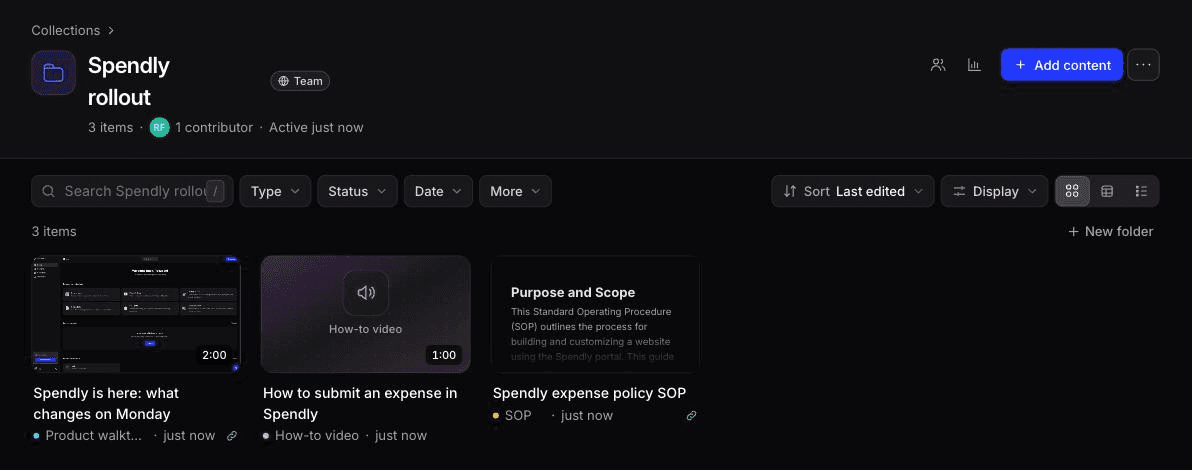
The Slack post gets attention for a day. The question "how do I request access to the new tool" comes up for months. Host the video where people search, and link everything back to that place.
A wiki or intranet page as the permanent home. Clevera publishes articles to Confluence, Notion and Google Docs (on Pro and above), so the SOP or written guide can sit next to the embedded video. See the Confluence integration for how that works.
One collection per change. In Clevera, Collections group the announcement, the how-to video and the article, and analytics show how content in each collection is watched.
A consistent title format. "[Tool or policy] | What's changing | [Month Year]" makes search work. "Exciting update from IT!" does not.
Access control that matches your org. Clevera has user roles, unlimited viewers on every plan (only creators count as seats), and SSO on Custom plans. For a company-wide rollout, unlimited viewers is what keeps the cost flat as headcount grows.
Where an AI presenter isn't the right fit
If your CEO's face and voice carry weight with the team, and the message is about direction or culture, record the CEO. If your company is under 30 people in one room, a 5-minute stand-up announcement probably beats any video. And if a change is still being debated, a polished video makes it feel final before it is. Use a written proposal and a live discussion first, then make the video when the decision is made.
Start with the next tool rollout
Pick the next internal change that already has a date: a tool switch, a new form, a policy update. Write the 150-word script from the template above, add the disclosure line, record the 2-minute how-to that goes with it, and publish both to the page where people will search for it in 3 months. Then count the follow-up questions in your help channel and compare them with the last rollout. See what's included on each plan.

