Personalized demo videos at scale: a how-to

A personalized demo video works when the prospect sees their own problem on screen in the first 15 seconds. It stops working when a rep has to record a fresh 6-minute take for every account, because the reps with the best pipelines are the ones with the least time to record. The fix is to separate what changes per prospect from what can be recorded once, and to stop treating "personalized" as one thing.
The 3 levels of a personalized demo video
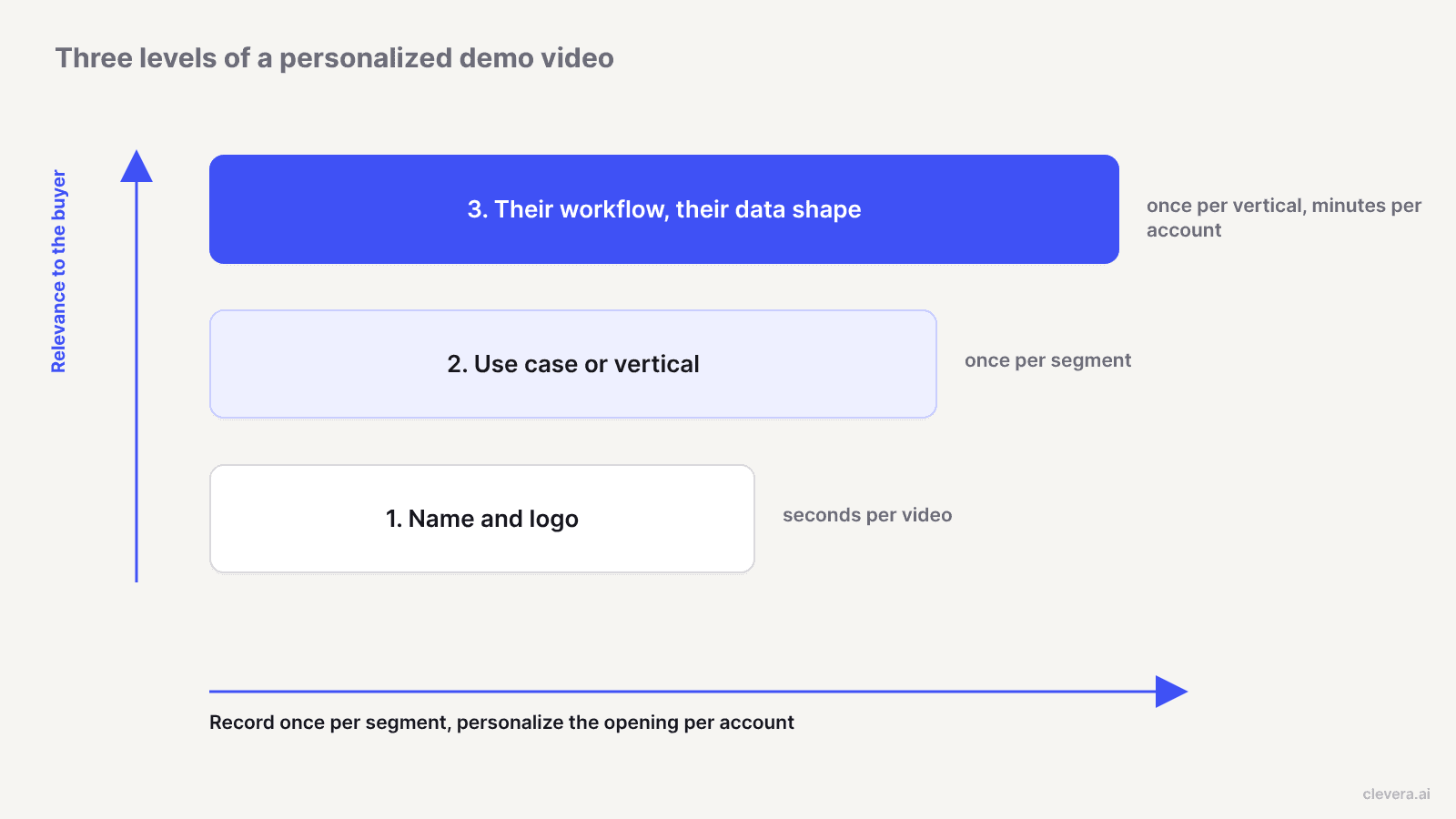
Most teams start at level 1 and stop there. The levels cost very different amounts of effort, so pick the level per deal stage.
Level | What changes per prospect | Effort per video | Where it earns its keep |
|---|---|---|---|
1. Name and logo | Greeting, company name, logo or website in the background, thumbnail | Seconds, once a template exists | High-volume outbound, first touch |
2. Use case or vertical | Which workflows you show, the order, the terminology in the narration | Built once per segment, reused across every account in it | Inbound follow-up, discovery recap, mid-funnel |
3. Their workflow, their data shape | A demo account with records that look like theirs: their field names, their volumes, their kind of objects | Hours per vertical, then minutes per account | Late-stage deals, multi-threaded buying groups, champions who have to sell internally |
Level 1 proves you looked them up. It doesn't prove the product fits. Once a prospect has had a few "Hi {first_name}" videos, the greeting reads as a sequence step.
Level 2 is where most of the value is for the effort. A RevOps lead and a support lead at the same company care about different screens. Showing the 2 workflows that match their role does more than saying their name, and one recording covers every account in the segment.
Level 3 is the one a champion forwards. If a logistics prospect sees shipments, carriers and exception queues instead of your generic "Acme Corp" sample project, they can picture their own team using it. The setup is per vertical, not per account, so it pays off once a few deals share the same shape.
A workflow for prospect-specific demos without live takes
The goal: 1 recording per segment, then a cheap, per-account layer on top. Here's how to set it up in Clevera's product demo generator, step by step.
1. Define segments before you touch the product
Write a grid of vertical by persona. 4 verticals and 2 personas gives you 8 demos. For each cell, list the 2 or 3 workflows that persona cares about and the words they use for things. A support team says "tickets" and "macros"; a field-service team says "jobs" and "dispatch".
2. Build one demo account per vertical
Seed each demo account with data in the prospect's shape: realistic record names, the custom fields that vertical always adds, believable volumes, and 1 or 2 messy records so exception handling shows. Never use a real customer's data.
3. Write the AI recorder instruction per use case
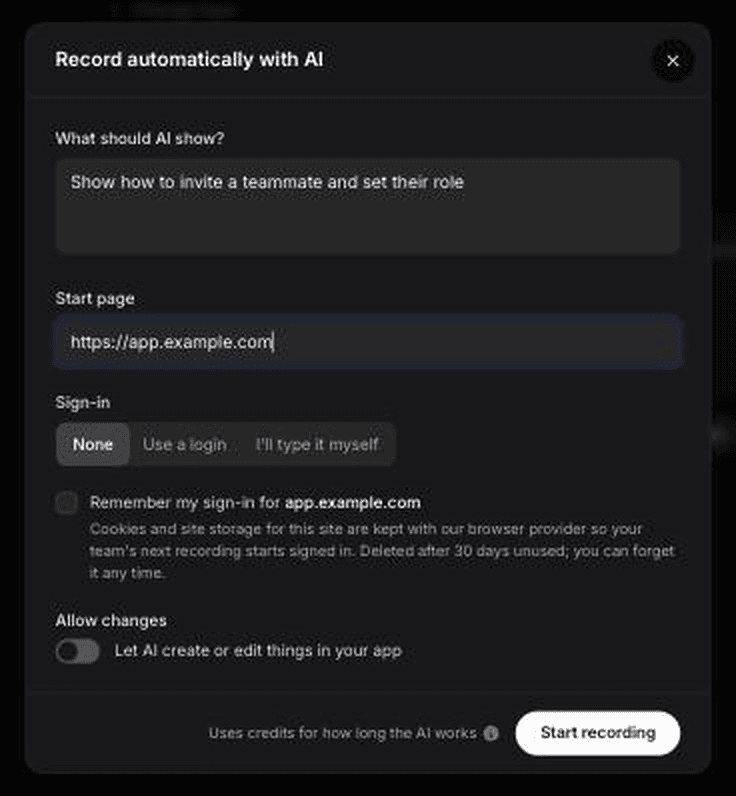
The AI recorder records websites and web apps in a cloud browser from a written instruction and a start page, so nobody has to sit and click through the flow. Sign-in can be skipped, supplied as a login, or typed by you, and you can take over the browser mid-recording and hand it back. It's read-only by default, which matters on a shared demo account: the agent won't create or edit records unless you allow it. It works on web apps only, so desktop software still needs the desktop app recorder. For a deck or a page link as the starting point, see how to make a product demo without recording your screen.
A good instruction reads like a brief for a sales engineer:
> Start on the Dispatch board in the "Northfield HVAC" workspace. Filter to today's jobs for the North region. Open the overdue job for "Unit 14B", show the technician's notes and the parts list, then reassign it to the next available technician. Finish on the region summary showing on-time rate. Don't open Settings or Billing.
Name the screens, the records, the order and what to avoid. "Show our dispatch features" produces a tour, not a demo.
AI recording uses credits based on how long the AI works, so tight instructions also cost less.
4. Generate a sales pitch demo with your AI rules
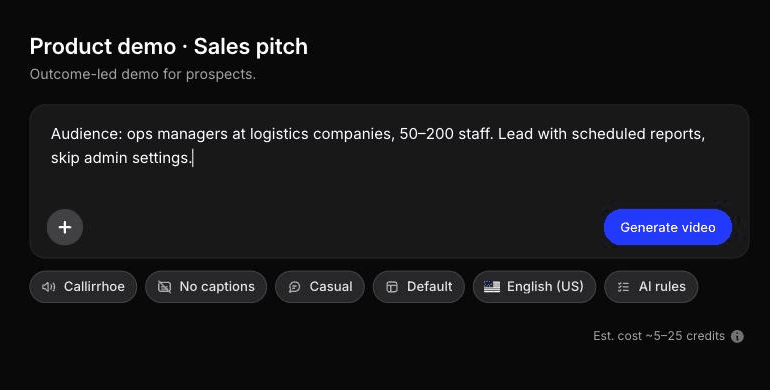
Pick the product demo type and the sales pitch subtype. Product demos are selective by design: the AI can skip low-value footage and reorder clips, and the narration explains outcomes rather than narrating every click. Add the persona and the pain you hear on discovery calls in the prompt box.
Set team AI rules once so every rep's demos sound the same. They cover tone, terminology, audience, product context, pronunciation, preferred phrasing and dos and don'ts. For a vertical, that might be "say 'technician', never 'user'" and "never promise integration timelines". Pronunciation rules help when prospect or product names are easy to mangle.
5. Personalize the opening per account
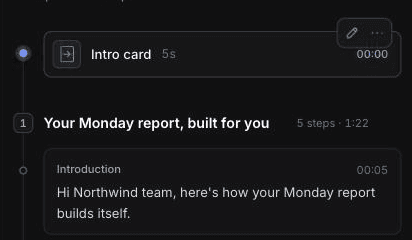
This is the cheap layer. The segment's AI recording stays in your library, so you generate each account's version from it without a new capture (generation still spends credits). In the timeline editor, change the intro card to the prospect's company and the deal context, and rewrite the first voiceover line ("Here's how dispatch would work for a 40-technician team like yours"). Keep the rest of the demo as is.
On paid plans, you can add a short AI avatar clip as a spoken intro. It's a separate social & promo video with an avatar you pick, so it's an on-brand presenter, not the rep's own face. If the relationship depends on the rep being recognizable, record a 20-second webcam intro with the desktop app instead and send it alongside.
6. Translate for multinational buying groups
Clevera translates videos into 74 languages, so a champion in Lyon can forward a French version to their CFO without you re-recording.
7. Share by link, fix by LiveSync
Send a Clevera-hosted link or embed the demo on a deal room page. With LiveSync, edits you publish to narration, voiceover timing, text, images, highlights and blurs show up on the hosted link and embeds without a new link. LiveSync doesn't change footage: when your UI changes, re-run the AI recorder instruction for the affected segment. Downloaded MP4s don't update either.
For more on building a full demo library for the sales team, see the sales enablement video guide and Clevera for sales enablement.
What "record once" cost us in credits
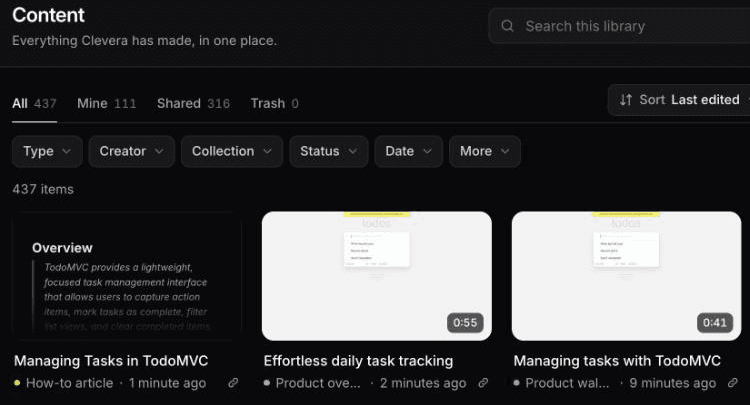
In October 2026 we tested the record-once part of this workflow on a public demo app (TodoMVC). The AI recorder took about 78 seconds to record a 3-step flow from a written instruction and did it exactly as written. Analysing the recording cost 5 credits.
From that one recording, with no new capture, we generated a 0:55 Product overview demo in about 70 seconds for 6 credits. The same recording also gave us a how-to video for 4 credits and a how-to article for 3. All 3 sit side by side in the content library.
For a segment grid, that's the cost model: 1 recording per segment, then a new generation for every version you make from it. In our run a demo was 6 credits and about a minute of waiting. 8 segments with 3 account versions each is 24 generations, so budget credits per version, not per recording.
What this run didn't cover: the Sales pitch subtype, team AI rules and an account-level intro edit. And review every output before it reaches a prospect. The article from our recording added a "Clear completed" step that never happened in the footage.
Personalized sales video tools vs a demo-first approach
Personalized sales video tools tailor the rep's message. A demo-first approach tailors the product footage. Many teams use one of each.
Tool | What it personalizes | Price checked 2026-10-12 |
|---|---|---|
Rep's cloned voice says each prospect's name; prospect's website as a dynamic background; personalized thumbnails | Solo $49/month monthly, 1 seat, 100 dynamic video minutes; 7-day free trial | |
Rep video messages, AI avatars, Video Agent that creates and sends personalized videos from buyer actions | Free plan; Starter $89/seat/month monthly or $59 annual; Video Agent add-on from $24/seat/month annual | |
Live screen-and-camera takes per prospect | Business $18/user/month; Business + AI $24/user/month | |
Click-through interactive demos; Growth plan adds personal intro videos and a rep contact card | Free Starter with 1 demo; Base and Growth billed annually | |
Clevera | The demo itself: which workflow, which data, which terms, which language | Free plan; Starter $29/month annual or $36 monthly; AI avatar on paid plans |
Specifics that change the choice:
Sendspark meters usage in dynamic video minutes, so 1 personalized 1-minute video uses 1 minute of your allowance. It's built for volume outbound, with workflows that push videos through HubSpot, Outreach or Smartlead on its Growth plan and above.
Vidyard gives reps per-viewer analytics and CRM integrations on paid tiers, which matters if your managers coach from video engagement data.
Loom announced it's deprecating audio variables on September 30, 2026. Variables let you duplicate one video with each recipient's name re-synthesized in your voice; new videos can no longer use them. Prospect-specific Loom demos now mean a new take per prospect.
Interactive demo tools like Navattic suit buyers who want to click around on their own. For the tradeoffs, see interactive demo vs product video and our list of the best interactive demo software.
Where Clevera isn't the right fit
If your outbound motion depends on the rep's own face and voice greeting thousands of prospects by name, Sendspark or Vidyard does that and Clevera doesn't. Clevera's AI avatar is an avatar you pick, not a clone of your rep. Clevera's analytics report by collection and creator, not per recipient, so if you need "Dana watched 80% on Tuesday" in your CRM, track that in your sequencing tool or a sales video platform. And if the product is a desktop app, the AI recorder can't capture it; use the desktop recorder instead.
An outreach email template for a prospect-specific demo
Let the video carry the detail. Put the specific thing you showed in the subject line, not the word "video".
> Subject: Dispatch for a 40-technician team, 3-minute walkthrough > > Hi {first_name}, > > On our call you mentioned overdue jobs get lost when a technician is out sick. I recorded how {product} handles that on a setup like yours: 40 technicians, 3 regions, parts tracked per job. > > {link_to_demo} > > It's 3 minutes. The reassignment part starts at 1:10 if you only want that. > > If it matches how your team works, worth 20 minutes with your ops lead next week? > > {rep_name}
What makes it work: one pain in their words, one fact about their setup, a timestamp for the busy reader, and one concrete next step. For a level 2 version with no discovery call yet, open with a pain common to their segment and say it's common ("Most field-service teams we talk to lose overdue jobs when someone's out sick.").
What to measure
Vendor reply-rate benchmarks won't tell you what works on your list. Measure your own, by level, against a control.
Reply rate and meetings booked per level. Split a comparable list into level 1, level 2 and a no-video control. Keep the cohorts the same size and wait for enough replies to compare; a difference of 2 or 3 replies is noise.
Watch-through to the first product moment. If viewers drop before the screen they care about, cut the intro. Use your sequencing tool's link data.
Forwarding. Count new contacts from the same account who join the next call. Level 3 demos exist to be forwarded.
Stage conversion. For late-stage deals, compare stage-to-stage conversion for deals that got a level 3 demo with those that didn't, over a full quarter.
Production time per video. Track minutes from "need a demo" to "link sent". If the per-account layer creeps past 15 minutes, your segment recordings are too generic.
Start with 1 segment, not 8
Pick the segment with the most open deals, build its demo account, write 1 instruction and send level 2 versions for 2 weeks before you build the rest. You'll learn which workflows prospects watch, and that tells you what goes in the next 7. Start in the product demo generator with the sales pitch type.

