7 After Effects alternatives for marketers

After Effects is the default for motion design because it can do almost anything, one keyframe at a time. Most marketers at software companies don't need almost anything. They need a 20-second launch clip, an animated stat for LinkedIn, a looping hero animation and a lower third that matches the brand. This guide covers 7 After Effects alternatives for marketers, grouped by how they work, so you can pick the approach first and the tool second.
For each tool you'll get what it's good at, the learning curve, export formats, price as listed on the vendor's site and who it's best for. Pricing was checked on official pages in October 2026. Where a vendor's page loads prices in a way that couldn't be read, the price is left out rather than guessed.
The short version
Tool | Approach | Learning curve | Key exports | Starting price |
|---|---|---|---|---|
Clevera | AI generation from your product's screens | Low: you write a brief | MP4, 9:16, 4:5, 1:1, 16:9 and more | Free plan; social clips from $29/month billed yearly |
Jitter | Browser motion design | Low to medium | Video, GIF, Lottie; ProRes, WebM on paid plans | Free plan; paid per editor |
Rive | Interactive animation | High | .riv runtime files; MP4, GIF, WebM on paid plans | Free; Cadet $9/seat/month |
Canva | Template editor | Low | MP4 up to 4K, GIF | Free plan; Pro and Business paid |
CapCut | Template video editor | Low | Video up to 4K on desktop | Free plan; Pro paid |
DaVinci Resolve (Fusion) | Pro editor with node compositing | High | Full encoding control | Free; Studio $295 one-time |
Apple Motion | Pro motion app, Mac only | Medium | QuickTime movie, image sequence | $49.99 one-time |
How to choose an after effects alternative in 3 questions
1. Where will the motion live? A social feed or a launch post needs an MP4 in the right aspect ratio. A website hero or an in-app animation needs a lightweight file that plays in the browser or app, such as Lottie or Rive's .riv format. That one answer rules out half the list. 2. Who builds it, and how often? A designer who makes 1 hero animation a quarter can afford a learning curve. A product marketer shipping 4 feature clips a month can't. 3. What's the source material? If every clip is built from your own product UI, a tool that starts from screenshots or a URL saves the hours you'd spend cutting screens apart and rebuilding them on a canvas.
AI generation: describe the clip, edit the result
1. Clevera
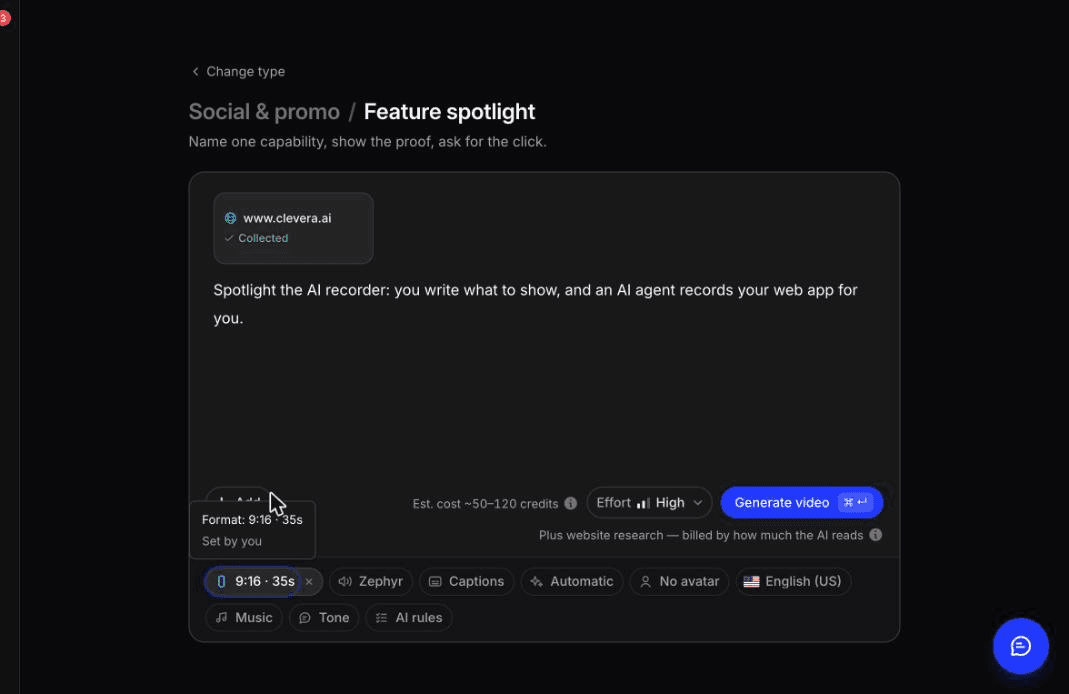
What it's good at. Clevera builds motion graphics from your product, not from a blank canvas. Paste a link and it pulls your product's facts, screenshots, media and logo, or add images, a PDF, footage, or a few sentences of description with nothing attached. For social & promo clips, AI writes and directs the whole video: it builds each scene as motion graphics from your screenshots and logo, records a voiceover where the type has one and picks music and sound effects.
The clip types map to the jobs a SaaS marketer actually has: feature spotlights, hook reels, music & motion clips with no voiceover for muted feeds, feature announcements, launch teasers, mystery teasers, product tours, offer and event promos, customer stories and brand films. Each clip uses a pre-built design system and motion style, and you can change either in the prompt. If a type depends on a fact you didn't give, like the discount in an offer promo, Clevera asks before it generates.
For anything outside those types, Describe what you want in the AI motion graphics generator takes a free-form brief and builds an animated video from it: an animated infographic, an explainer, a promo in a custom format, or animated graphics layered on top of a video you already have.
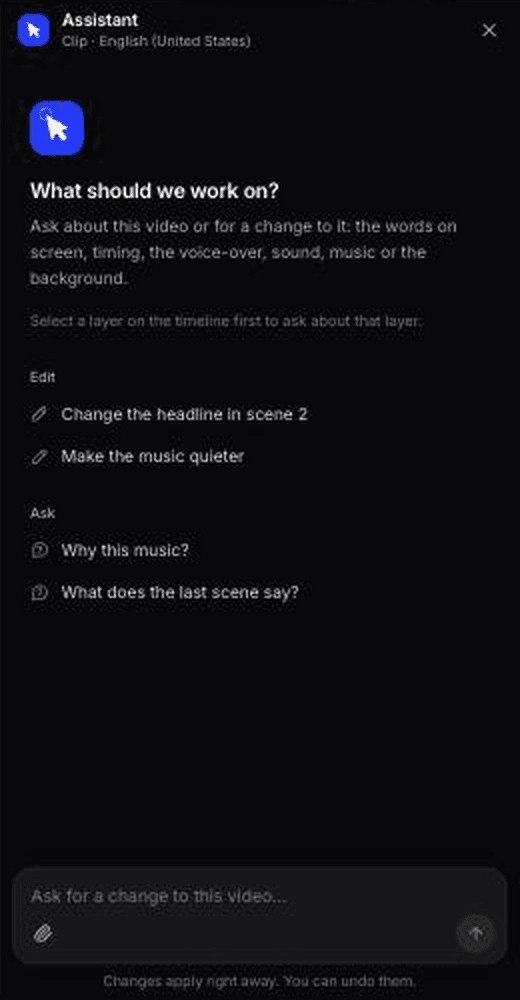
After generation, the clip editor handles changes without keyframes. An AI assistant makes targeted edits from a prompt ("make scene 3 shorter, swap the headline to 'Invoices in 2 clicks'"). The visual treatment comes from the Look you pick before generating (Automatic or one of 7 styles such as Poster Punch or Zine collage, with adjustable colours), elements like highlights, blur, images and animated emoji can be added in the editor, and revision history lets you preview and restore earlier versions. You can also translate into 74 languages, which matters if you launch in more than one market.
Learning curve: low. The skill is writing a clear brief and judging the output.
Export: MP4 in 9:16, 4:5, 1:1, 16:9 and other sizes, set in the Format menu. 1080p with a watermark on Free, up to 2K on Starter, up to 4K on Pro.
Price: Free plan at $0 with 100 credits a month; social & promo clips and AI avatar videos need a paid plan. Starter is $29/month billed yearly or $36 monthly, Pro is $86.80/month billed yearly for 2 creators. Rendering and exports don't use credits. See pricing.
Best for: product marketers who need a steady flow of launch, feature and explainer clips built from their own product screens, without a motion designer in the loop.
Where Clevera is not the right fit. If the job needs precise frame-level control, such as an easing curve tuned to the music or a logo morph timed to the 3rd beat, use a keyframe tool. Clevera doesn't do character animation, and it works inside pre-built design systems and motion styles, so it won't invent a brand-new illustration system for you. It also doesn't document Lottie, ProRes or transparent-background export, so for a website hero animation or an asset an editor will composite later, look at Jitter or Rive below.
For how Clevera fits the rest of a launch, from demos to feature pages, see AI for product marketing teams.
What a brief and a prompt edit cost us in Clevera
In October 2026 we tested both halves of the Clevera workflow on real clips.
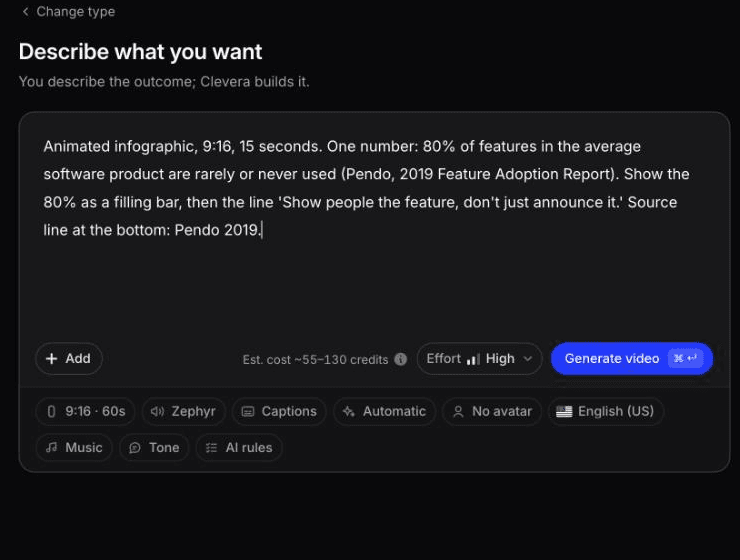
From brief to video. We wrote a one-paragraph Custom brief ("Describe what you want"): a 9:16 animated infographic of one stat, 80% of features rarely or never used (Pendo, 2019), shown as a filling bar with a closing line and a source line. No keyframes, no timeline. About 7 to 8 minutes later we had a 1:00 clip in 6 scenes for 86 credits, with the number, bar and line correct. It wasn't finished: Clevera ignored the 15 seconds we'd written in the brief (length is set in the Format menu), the source line was too small for a phone, and one caption didn't match the on-screen text.
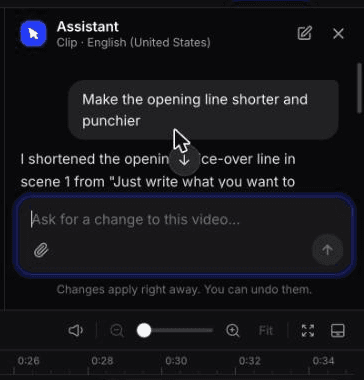
One edit by prompt. On a feature spotlight we'd made from the clevera.ai link, we asked the Assistant to "Make the opening line shorter and punchier." In seconds it changed the voice-over from "Just write what you want to show." to "Just type what you want.", with Undo, for 3 credits plus 1 to re-record the voice-over. It left the on-screen text alone and said so. Revision history keeps both versions.
That's the tradeoff in practice: fast, cheap changes in plain words, with less control over exactly which layer a prompt touches.
Browser motion design tools: real animation, less setup
2. Jitter
What it's good at. Jitter is a motion design tool that runs in the browser and feels familiar if your team designs in Figma. Its pricing page lists Figma import on every plan, 300+ animation templates, animation presets and animated components. You lay out frames, pick presets or set keyframes, and export. Real-time collaboration and comments are included on Free, so a designer and a marketer can work on the same file.
The export list is the standout for marketers who publish to more than one surface. Every plan exports video, GIF and Lottie. Pro adds ProRes and WebM with 1080p at 60fps. Max adds transparent and frame-by-frame export, batch export, 4K at 120fps and Brand Kits.
Learning curve: low to medium. Presets get you a first animation fast; custom timing takes practice.
Export: video, GIF, Lottie on Free (720p, 30fps, watermarked); ProRes and WebM from Pro.
Price: free plan with 3 workspace files. Pro, Max and Ultra are billed per editor per month; check the pricing page for current amounts.
Best for: marketing teams with a Figma-literate designer who need animated social posts, product UI animations and Lottie files for the website.
3. Rive (for interactive motion)
What it's good at. Rive is the odd one out: it's built for animation that reacts. You design in the Rive editor, in the browser or as a macOS or Windows app, then wire animations together with State Machines: an idle state, a hover state and a clicked state, connected by transitions. Rive's runtimes play the file natively on the web and in mobile apps, and Rive lists runtimes for Framer, Webflow and Wix Studio, which covers most marketing sites.
That makes it the right pick for a pricing-page toggle that animates, an interactive hero on the homepage or an onboarding animation inside the product. Rive's own docs say State Machines require designers to "think more like a developer", so budget time.
Learning curve: high. The animation tools are approachable; the interactivity logic is where the hours go.
Export: .riv files for runtimes. Video and image export (H.264, GIF, WebM, PNG and SVG sequences) is on paid plans only.
Price: per the pricing page (yearly billing): Free plays a Rive splash screen on exports; Cadet $9/seat/month for up to 3 seats removes it; Voyager $32/seat/month for up to 25 seats adds libraries and embed URL hosting.
Best for: web and product teams that want motion people can hover over and click, not watch.
Template and video editors: the tools you already have
4. Canva
What it's good at. Your team probably already pays for Canva, and its animation tools go further than most marketers use. Canva's animation help page covers page, element and text animations with Slow, Medium or Fast presets or exact intro and outro durations. "Create an Animation" lets you drag an element along a motion path, and "Show element timing" sets when each element enters. Brand Kits keep logos, colors and fonts consistent across everyone's designs.
Learning curve: low.
Export: MP4 at 480p, 720p, 1080p or 4K, with 4K on desktop only and non-default quality behind an upgrade on Free; GIF with an optional transparent background.
Price: free plan; Pro, Business and Enterprise are paid. Canva's pricing page loads amounts dynamically, so check it directly.
Best for: animated carousels, event graphics and short promos made by anyone on the marketing team, on brand.
The limit: motion is preset-driven. There's no graph editor for easing, and building a clip from your product UI means cropping screenshots and placing them by hand.
5. CapCut
What it's good at. CapCut is a video editor built for social formats, with text templates, effects, transitions and auto captions. The desktop app adds keyframes and graphs for position, scale, rotation and opacity, so you can animate a screenshot sliding into frame or build a manual zoom.
Learning curve: low for templates, medium for keyframes.
Export: per CapCut's export help page, desktop (Windows and macOS) has full 2K and 4K support, the online editor has 4K with conditions and mobile support is limited.
Price: free plan; the pricing page lists Pro with 1,200 monthly AI credits and premium templates, a higher tier and a per-seat team plan. Amounts vary by region and load dynamically.
Best for: short-form social edits where speed and trending formats matter more than a tight brand system.
The tradeoff: template styles lean creator-economy. Keeping 20 clips consistent with your brand is manual work, and you should check commercial-use terms on any template or track before running it in a paid ad.
Pro-but-easier editors: real motion graphics without Adobe
6. DaVinci Resolve (Fusion page)
What it's good at. Resolve is a full editor for Mac, Windows and Linux, and its Fusion page is a node-based compositor with 200+ tools. You can animate 2D and 3D titles down to individual characters, attach graphics to moving footage with the planar tracker (a new screen on a phone, for example) and feed data into graphics with Python or Lua scripts.
The feature that matters most for a marketing team is templates. Select nodes, right-click, choose "Create Macro", expose only the controls an editor should touch, and the lower third or title appears in the Edit page's effects library for any project. One person builds the system; everyone else changes text.
Learning curve: high. Blackmagic argues nodes are easier than layers, but they're a new mental model if you come from slides or Canva.
Export: the Deliver page gives full control over formats and encoding, with a render queue and quick export to YouTube, Vimeo and X.
Price: free download; DaVinci Resolve Studio is $295 one-time.
Best for: marketers who already edit video and want pro-grade titles and tracked graphics for $0.
7. Apple Motion
What it's good at. Motion is Apple's motion graphics app and the gentlest pro option on this list. Behaviors such as Gravity, Throw and Vortex add movement without a single keyframe; when you do need keyframes, there's a curve editor and a freehand curve tool. It ships with 1,900+ Apple-designed royalty-free graphics, including 60 USDZ 3D models, and real-time playback on Apple silicon.
For teams on Final Cut Pro, Motion's Smart Motion Templates publish chosen parameters to Final Cut Pro and can include layouts for multiple aspect ratios, so one branded title works in 16:9 and 9:16.
Learning curve: medium.
Export: QuickTime movie, image sequence, still image and Compressor, per Apple's Motion user guide.
Price: $49.99 one-time on the Mac App Store, or included in Apple Creator Studio at $12.99/month or $129/year after a 1-month free trial.
Best for: Mac-based teams that want reusable branded titles, lower thirds and transitions for Final Cut Pro.
It's Mac only, with no browser version or real-time collaboration, so it suits a single owner of the brand's motion templates rather than a whole team.
Where After Effects still wins
Switching makes sense for most marketing output. Keep After Effects, or a motion designer who uses it, for these jobs:
Frame-level control. Easing tuned to a soundtrack, a logo morph, kinetic type where every word lands on a beat. After Effects' expressions link properties so one control drives many animations, which no template tool matches.
Character animation and illustration-heavy explainers. Rigged characters, hand-drawn transitions and a new illustration style built from scratch are motion design work, whatever the tool.
Rotoscoping and compositing on live footage. Cutting a person out of a shot or tracking text onto a moving object. Resolve's Fusion page covers some of this; most marketing tools don't.
A template system for Premiere teams. If your video team edits in Premiere Pro, After Effects authors the Motion Graphics templates they use, including data-driven charts.
The common setup at software companies: a motion designer builds the brand's hero assets and template system once, and the marketing team produces the weekly volume in a faster tool.
Matching the tool to the job
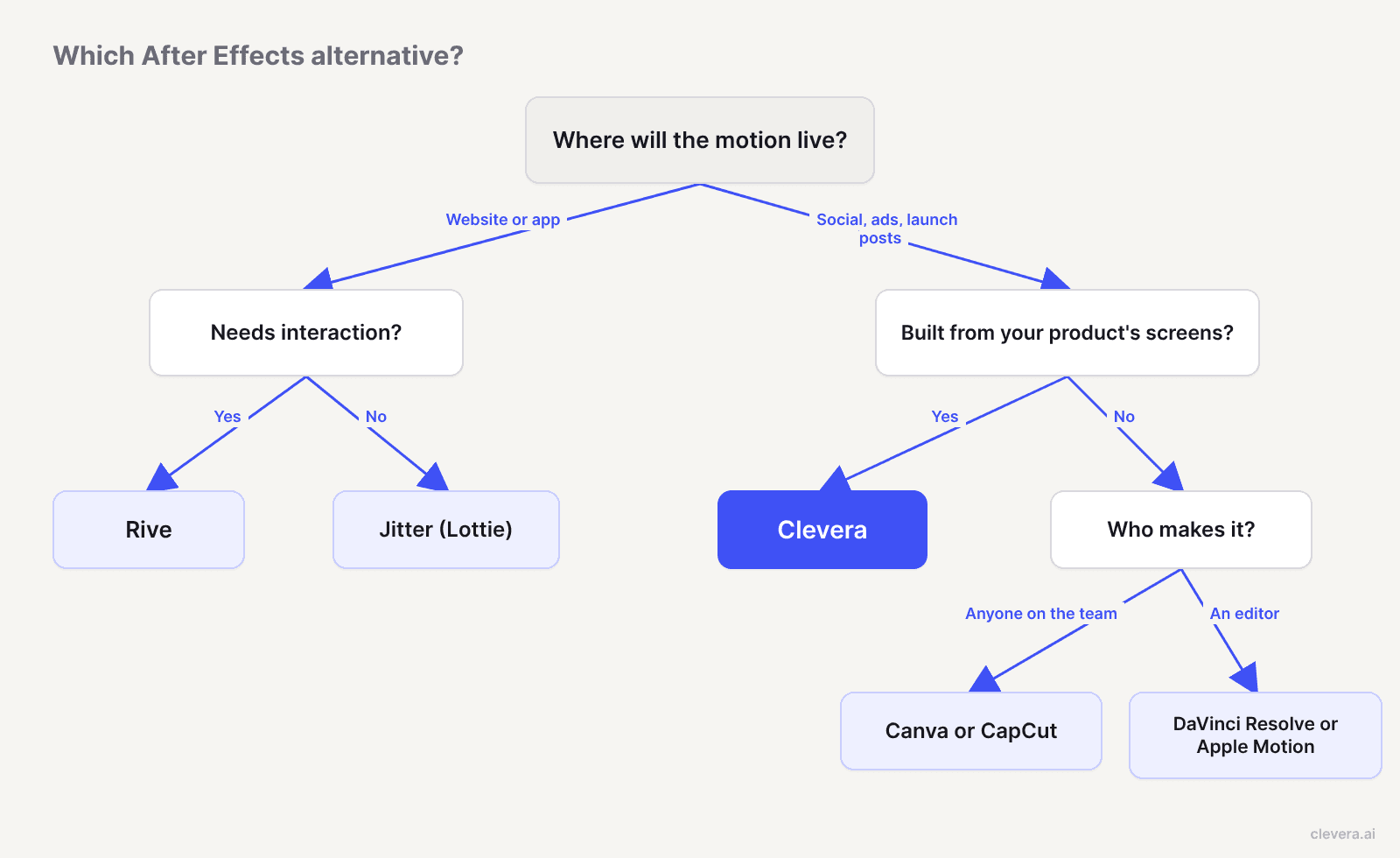
Job | Start with |
|---|---|
Launch teaser or feature spotlight from your product's screens | Clevera |
Animated infographic or explainer from a brief | Clevera (Describe what you want) |
Lottie animation for the website or app | Jitter |
Interactive hero or pricing-page animation | Rive |
Animated social graphic or event promo made by anyone on the team | Canva |
Trend-led short-form edit | CapCut |
Free branded title templates and tracked graphics | DaVinci Resolve |
Branded titles for a Final Cut Pro team | Apple Motion |
Start with the clip you make most often
Look at the last 10 motion assets your team shipped. If most were social and launch clips built around your product, test an AI tool on the next one and keep the keyframe tools for the 1 or 2 hero pieces a quarter. If most were website animations, Jitter or Rive will pay back the learning time. Picking the tool for the job you do every week, not the one you do once a year, is what gets you out of the After Effects queue.