Automate Documentation from Screen Recordings with AI
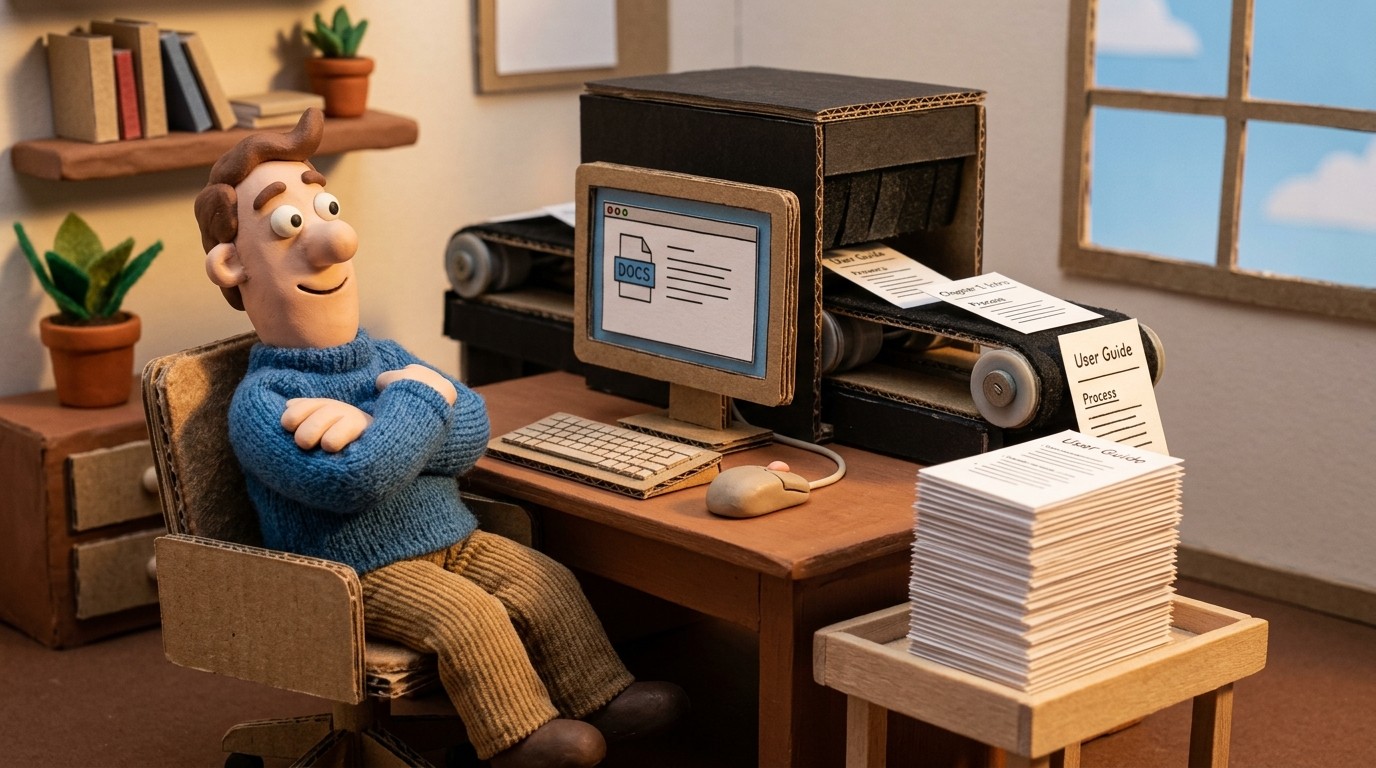
Screen recording is already how most people explain things to colleagues. You share your screen, walk through the process, and the other person gets it instantly. Automating documentation from that same screen recording just means capturing what you were going to show anyway and turning it into a published help article and video that can scale to thousands of users.
Want the product overview first? See how Clevera's AI documentation generator works — screen recording in, narrated video and help article out — before diving into the automation workflow.
Here's how the technology works, what it actually produces, and when it makes sense to use it.
Why screen recording is the right starting point for documentation
Documentation that starts from writing tends to be shallow. You describe the process from memory, miss steps that seem obvious, and end up with an article a user can't follow without asking follow-up questions.
Documentation that starts from a screen recording is different. The recorder captures every click, every navigation, every action in sequence. Nothing is missed because you're doing the thing, not describing it. The AI then has a complete picture of the process and can produce documentation that's accurate, detailed, and context-rich.
This is the core advantage of an AI documentation generator built for screen recordings: the source material is richer than anything written from memory.
If you're comparing tools before choosing a workflow, the best AI product documentation generators for 2026 roundup breaks down the main options by format: video, article, SOP, interactive demo, and developer docs.
For the broader buying decision, see the best help documentation software comparison across creation tools, knowledge base platforms, maintenance workflows, pricing, and G2 signals.
!Screen recording flowing into a generated tutorial video and help article
What the automation produces
When you record your screen with a tool like Clevera and stop the recording, 2 things are generated automatically:
A narrated tutorial video: the AI watches the recording, identifies the meaningful steps, removes mistakes and pauses, writes a voiceover script based on the on-screen context, generates AI narration, and applies visual polish (smart zoom, smooth cursor movement, click highlighting). The output is a professional-looking video that explains the workflow, not just shows it.
A step-by-step help article: the AI generates a structured document with numbered steps, embedded screenshots at the relevant moments, captions, headers, and clear descriptions of each action. It's not a screenshot dump. It's a readable, structured help article that reflects the full context of what was done and why.
Both are generated from the same recording in one processing run.
!AI-generated documentation review workspace with article steps and video timeline editor
How to convert screen recordings into documentation with Clevera
Clevera is a Mac and Windows app that automates the process of turning screen recordings into documentation. Here's what the workflow looks like:
Step 1: Capture or upload your screen recording
Record with the Clevera desktop app (macOS or Windows), capture web workflows with the Clevera Chrome extension, or upload a pre-recorded screen video from Loom, OBS, QuickTime, or elsewhere. Perform the task you want to document at a natural pace. You don't need to narrate while recording. The AI generates the voiceover from the on-screen activity, so you can focus entirely on showing the workflow clearly.
Clean the screen before recording: close irrelevant tabs, log in to the right accounts, and start from the entry point of the workflow you're documenting.
Step 2: Generate the documentation
After you stop recording or finish uploading, Clevera securely sends the captured data to its cloud servers and begins processing. The AI analyzes the recording, removes accidental actions and pauses, writes the narration script, generates the voiceover, produces the video, and simultaneously generates the article.
A few minutes later, both assets appear in your editor.
Step 3: Review
Read the article in Clevera's Notion-like editor. Watch the video in the timeline editor. In most cases, the output is close to publication-ready. You can edit any step description directly, ask the AI to extend or simplify a section, adjust the voice tone, or add callout boxes, code blocks, or tables to the article.
For the video, rewrite any narration line in the timeline and regenerate the audio instantly. You can add custom overlays, blur sensitive content, adjust zoom regions, or drop in your own audio for specific moments.
Step 4: Publish
Export the article directly to your documentation platform: Notion, Confluence, Zendesk, GitHub, HelpScout, Gitbook, Intercom, ClickUp, Readme, Bitbucket, and more. When exported, the video appears as an embedded HTML block at the top of the page, with the written article beneath it. Users get both the walkthrough video and the text they can scan for reference.
The video embed is live after publishing. Future edits you make inside Clevera apply instantly across every place the video is embedded, with no re-exporting required.
!Published documentation page syncing to multiple help center and workspace destinations
Screen recording documentation automation: what it handles well
This approach works best for:
Software how-to documentation: any workflow that happens on a screen is ideal. Configuration steps, feature walkthroughs, data entry processes, admin tasks, anything you can demonstrate by doing.
Help center content: the kind of documentation that answers "how do I do X?" questions. A video and article for each core workflow deflects support tickets and improves self-serve success rates.
Onboarding documentation: showing new users how to complete key tasks early drives adoption. A library of short, focused how-to recordings covers each core workflow comprehensively.
SOPs and internal process documentation: any internal process your team runs repeatedly is worth recording and documenting. The next person who joins doesn't have to ask how it's done.
Knowledge base maintenance: because creation is fast, re-creating documentation when your product updates is practical. Record the updated workflow, generate new content, and replace the old version.
What to do with documentation that's already outdated
One of the less obvious benefits of screen recording documentation automation is what it does for backlogs. Most teams have documentation that's either missing or wrong. Working through that backlog manually can take months.
With automated generation, the rate of documentation creation changes significantly. A process that used to take a full day per article now takes a recording session and a few minutes of review. Backlogs that seemed permanent become manageable over weeks rather than months.
The other side of this is maintenance. Clevera's LiveSync means any updates to published videos reflect immediately across embeds. For narration changes or content additions that don't require new footage, you update in the editor and publish. For UI changes that require a new recording, you re-record and replace just as quickly.
A documented product that stays current is the goal. Screen recording automation is how you get there without a dedicated documentation team.