Voice cloning tool for tutorial videos: how it works in 2026
Building a library of 50 tutorial videos sounds good on paper. Getting a consistent narrator for all of them is the part that doesn't survive contact with real team calendars. People get busy. Recording sessions get rescheduled. And when 10 different people end up narrating different videos, your help center sounds like it was made by 10 different companies.
A voice cloning tool solves this. Capture your voice profile once in a dedicated voice platform like ElevenLabs, then use it across every video you produce, whether that's 10 videos or 500.
What AI voice cloning does
AI voice cloning works by analyzing a sample of a voice and building a model of it. The model captures cadence, tone, pronunciation, and the subtle patterns that make a voice recognizable. Once the model exists, it can generate new narration in that voice from any text, at any time, without the original speaker being present.
For tutorial video production, this matters more than it might seem. Consistency in narration is one of the signals that tells users a product is well-made and trustworthy. A voice that changes every few videos creates a subtle sense of inconsistency, even if nobody could tell you exactly why it feels off.
With AI voice cloning, the same voice narrates everything. Your CS lead can clone their voice for customer-facing tutorials. Your head of training can be the voice of every internal onboarding video, even on days they're not at their desk.
How Clevera works with cloned voices
Clevera includes voiceover selection as part of its AI tutorial maker workflow, but it does not clone voices directly inside Clevera.
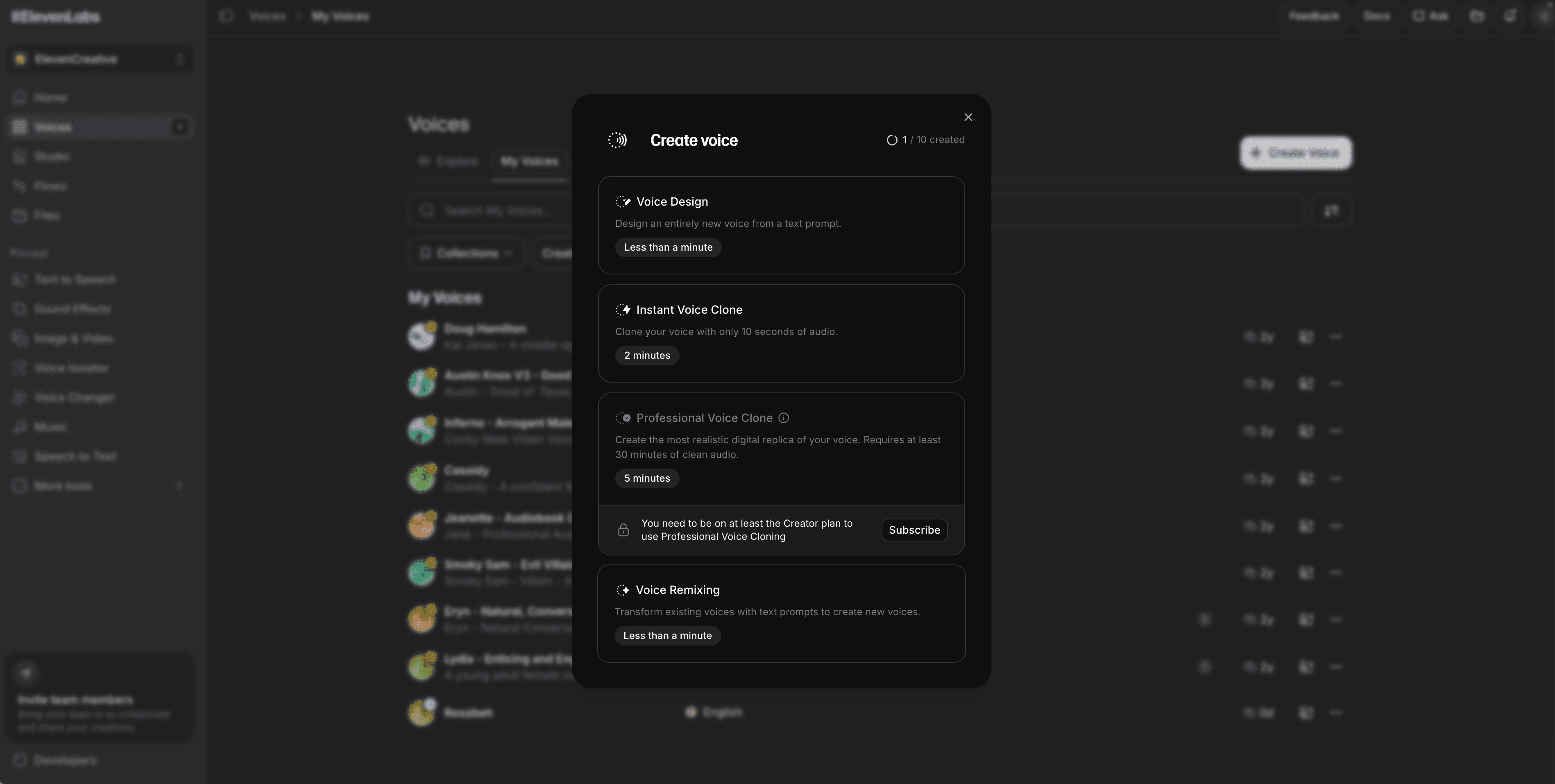
If you want to use a cloned voice, you first create that voice in ElevenLabs and connect your ElevenLabs API key inside Clevera. Once your ElevenLabs account is connected, your cloned voices become available to use in Clevera alongside Clevera's built-in Google TTS voices.
You still go through the same recording flow:
Record your screen with the Clevera desktop app (Mac or Windows)
Let the AI analyze the recording and generate a voiceover script
Choose a voice for narration, either from Clevera's built-in Google TTS voices or from your connected ElevenLabs account
Review the video in the timeline editor and adjust if needed
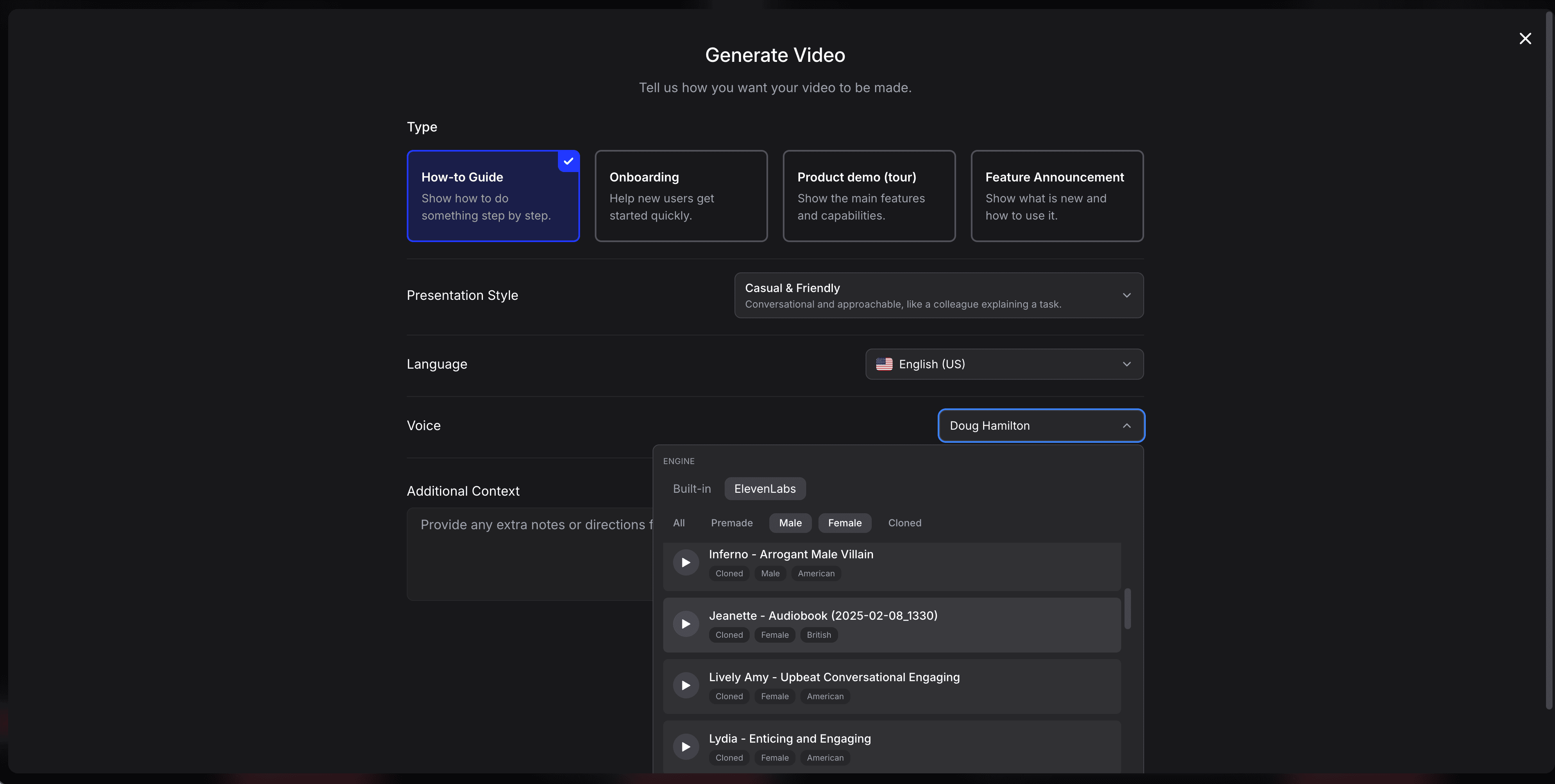
If you're using ElevenLabs, you can select your cloned voice either from the Change Voice option in the editor or during the voice-selection step before generating the video. The selected voice narrates the script with the right timing, synced to the video.
Voice cloning for team-scale content production
The biggest practical benefit of AI voice cloning for SaaS teams isn't individual convenience. It's what it enables at scale.
When any member of your team can record a screen walkthrough and have it narrated in your product's established voice, documentation becomes a shared responsibility rather than a bottleneck. Your PM can document a new feature on ship day. Your CS manager can record a troubleshooting guide when a recurring support issue surfaces. Your onboarding specialist can update a walkthrough when a flow changes.
None of them need to coordinate with a narrator. None of them need to re-record their own voiceover. Once the right ElevenLabs voice is connected in Clevera, the workflow handles consistency.
AI voice cloning vs. standard AI voices
Clevera also offers built-in AI voices, so cloning is optional. Google TTS is built into Clevera by default, and if you'd rather use a cloned or premium voice, you can connect ElevenLabs and choose from the voices in that account.
The practical difference:
Cloned voice via ElevenLabs: sounds like the specific person. Best for brand-specific narration where you want the product to feel personal and consistent.
Built-in Google TTS voice: sounds professional and natural, but not tied to a specific person. Better for companies that haven't established a specific narrator identity, or for teams that want flexibility to switch voices as they scale.
Both options fit into Clevera's full workflow. Both can be translated into 70+ languages using Clevera's multilingual dubbing feature.
Voice dubbing for international content
When you translate a tutorial into another language, the narration translates with it. Clevera's voice dubbing generator rebuilds the narration in the target language using an AI voice that sounds natural in that language.
If you've cloned a voice in ElevenLabs, the translated versions can still use language-appropriate AI voices that preserve the pacing and style of the original narration.
This means you create once in English, and every translated version sounds professional in its target language, without requiring a native speaker to record each one.
What voice cloning software to look for
If you're evaluating voice cloning tools specifically for video content production, here's what actually matters:
Naturalness. Does the cloned voice sound like a real person, or does it have the telltale signs of early-generation synthesis? Listen for unnatural pauses, monotone delivery, and mispronounced proper nouns.
Integration with video editing. A voice platform is far more useful when it connects cleanly to your video production workflow. The best setup lets you bring an external cloned voice into your editor and sync the narration to video automatically.
Script editability. You need to be able to change the narration script and regenerate audio without re-recording the video. Line-level editing with instant audio regeneration is what separates professional tools from demos.
Language support. If you plan to translate content, the underlying voice model needs to support multilingual dubbing.
Clevera checks all of these for teams that want a practical production workflow. You can use the built-in Google TTS voices out of the box, or connect ElevenLabs with your API key and use your cloned voices inside the same tutorial creation flow.
If your team has 20 features to document and limited time for recording, this setup turns that constraint into a workflow. Record. Connect your voice provider. Publish. Keep going.