How to create knowledge base articles from videos automatically
Your team already knows how to do everything in your product. The problem is that knowledge lives in people's heads and in Slack threads, not in your help center. Writing it all down takes time nobody has, so the knowledge base grows slowly, falls out of date, and eventually becomes the place users go to feel frustrated before they file a support ticket.
Converting videos into knowledge base articles flips the script. You show what you know, and the AI documents it.
Choosing a workflow first? Clevera's AI documentation generator produces structured help articles and narrated tutorial videos from the same screen recording — see that overview before building your knowledge base process.
Why video is the fastest path to documentation
When you record a screen walkthrough, you're already performing the documentation process. You're going through each step, in order, in the actual product. Everything an article needs, the sequence of actions, the screenshots, the context, is captured in that recording.
The problem with traditional screen recording tools is that they stop there. They give you a video, and then someone has to watch the video, take screenshots, open a doc, write the steps, match the screenshots to the steps, and format the whole thing. That's an hour of work for a 5-minute recording.
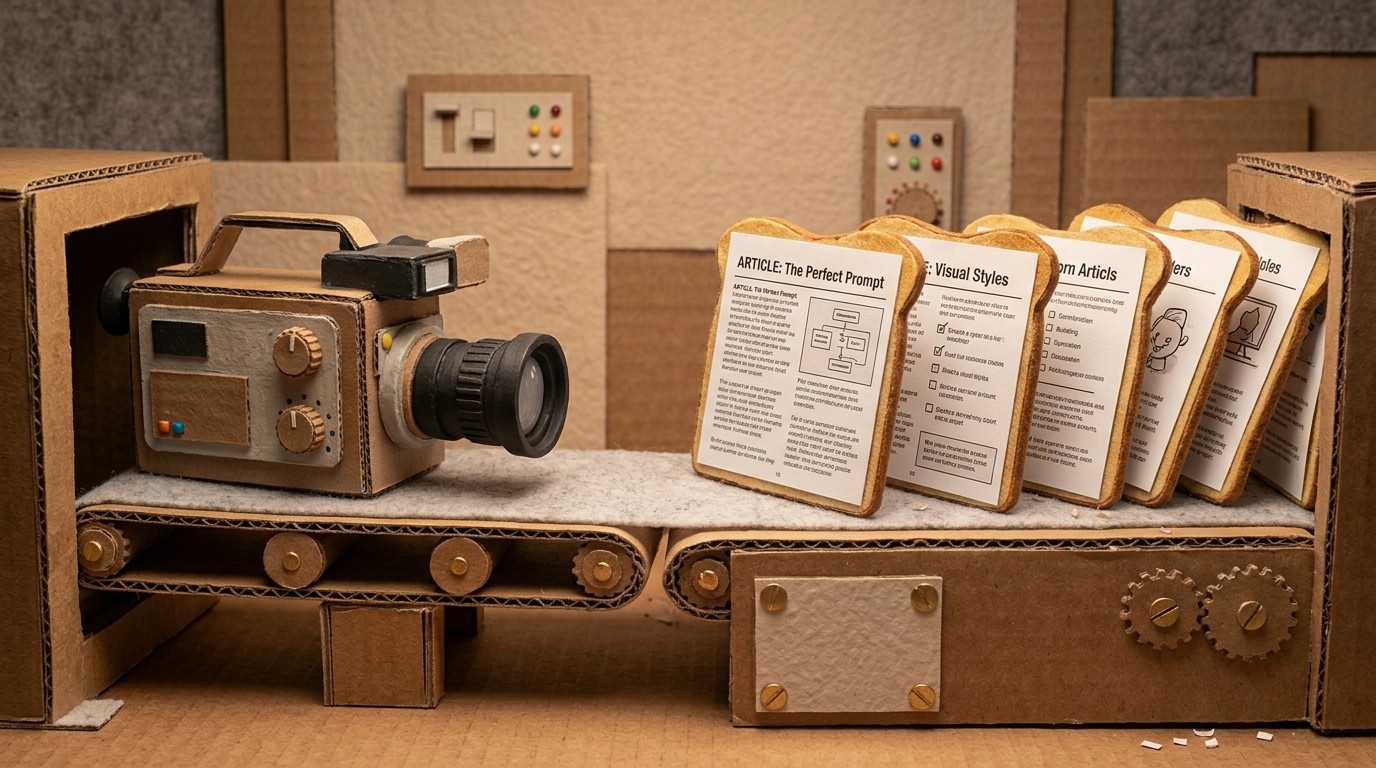
An AI tool that converts that recording to a knowledge base article automatically skips most of that work. The video already contains the structured information. The AI extracts it.
How Clevera turns screen recordings into help articles
Clevera generates a help article from every recording automatically. Here's the full process:
Record your screen with Clevera You can record with the Clevera desktop app (macOS or Windows) for full-OS capture, record in Chrome with the Clevera Chrome extension for web-only workflows, or upload a pre-recorded screen video (silent or with existing audio) from Loom, OBS, QuickTime, or any other tool. Clevera applies the same AI processing to produce a polished, narrated tutorial and structured help article. Walk through the feature, process, or workflow you want to document. You don't need to narrate or plan a script. Just do the thing as you normally would.
AI analyzes and documents the recording After you stop recording, Clevera sends the data to its AI processing pipeline. Multiple agents work in sequence: one identifies the key actions and their context, a writer agent drafts the article, and a reviewer agent checks structure and accuracy. The article that comes out is detailed and structured, not a transcript.
Auto-selected screenshots are placed inline Clevera automatically selects the most important frames from the recording and places them in the article at the relevant steps. Each screenshot gets a caption that describes the action. You don't manually take screenshots or decide which frames to use.
Video and article are linked The tutorial video appears embedded at the top of the article. Readers can watch the full walkthrough or scroll the article for specific steps. Both come from the same recording.
What makes a good knowledge base article from a video
Not all video-to-documentation conversions produce usable articles. The quality depends on a few factors.
Contextual understanding, not transcription. If the AI just transcribes what was said or shown on screen, the article reads like a transcript. A good AI documentation tool interprets what the actions mean. "The user clicked the dropdown menu in the upper right corner" becomes "Open your account settings by clicking the dropdown in the upper right corner."
Proper structure. Steps should be numbered. Related steps should be grouped under meaningful subheadings. Screenshots should appear immediately after the step they illustrate, not dumped at the end.
Accuracy. Every step in the article should match what was actually done on screen. Hallucinated steps or incorrect descriptions undermine trust in the entire article.
Clevera's multi-agent approach addresses all three. The writer agent is trained to produce instructional content, not transcription. The reviewer agent catches structural issues and inaccuracies before the article reaches you.
Editing and publishing the generated article
After Clevera generates the article, you can edit it in a Notion-like block editor. Add a callout box to flag an important note. Reorder a section. Tell the AI to shorten the introduction or rewrite a step in simpler language. Add a table if the process has conditional paths.
For teams that need review before publishing, real-time collaboration lets multiple editors work in the article simultaneously. Comments, edits, and live cursors make the review process fast.
When the article is ready, export it to your knowledge base platform. Clevera exports to Markdown and HTML, with direct integrations to Notion, Confluence, GitHub, HelpScout, Zendesk, Intercom, and more.
Converting existing screen recordings
One question that comes up often: can you use recordings you've already made?
Yes — you can use recordings you already have. Upload screen videos from Loom, OBS, QuickTime, or elsewhere. Clevera analyzes the footage and generates the same narrated video and structured article workflow. For net-new capture, the desktop app and Chrome extension still capture richer interaction context when you need it.
Re-recording in Clevera is optional when upload is enough for your article.
How to scale knowledge base article creation
Once you've established the workflow in Clevera, scaling is mostly about discipline, not production capacity.
Each time a new feature ships, record, upload, or re-record a walkthrough. Each time a support ticket reveals a gap in your documentation, record the answer. Each time a process changes, re-record the relevant section.
Because generating a video and article from a recording takes minutes, not days, the documentation cadence can match the product cadence. The knowledge base grows with the product instead of lagging 3 sprints behind.
For support teams trying to build a self-service content library, the AI documentation generator workflow is the difference between a help center that deflects tickets and one that users give up on. For a broader look at generating help articles at scale, that guide covers the full approach.
The best time to document a feature is the day it ships. The second best time is now.