How to turn a messy screen recording into a clean how-to guide
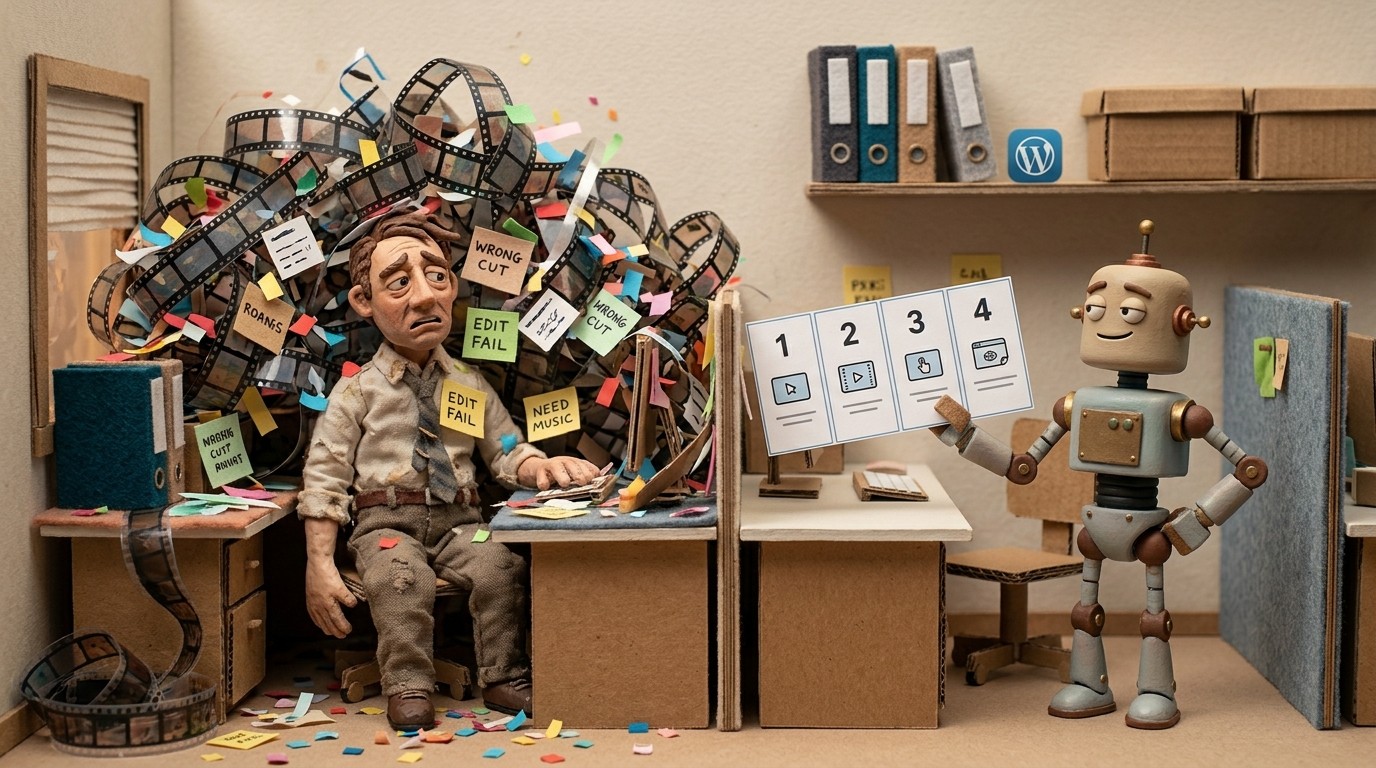
You recorded your screen to show someone how to do something. What you have now is 8 minutes of wandering clicks, accidental detours, and a pace no one will sit through. Cleaning it up by hand means scrubbing timestamps, writing steps from scratch, and formatting everything inside a doc. Most people abandon the recording and start over in a Google Doc.
There's a better approach: an AI documentation generator built for screen recordings can turn raw footage into a structured how-to guide automatically.
Why raw recordings don't work as how-to guides
A screen recording captures what you did, not what someone needs to learn. Real walkthroughs include hesitation, backtracking, tab-switching, and dead time. Even a perfectly executed recording needs real structure before it becomes useful: numbered steps, a title per step, screenshots at the right moments, and a sequence that makes sense to someone who doesn't already know the answer.
Turning a raw recording into that is the part that slows most teams down.
What a clean how-to guide actually needs
Before getting into tools, it helps to know what you're aiming for. A how-to guide that works has 4 elements:
1. Numbered steps that match the sequence of actions 2. A short title per step that tells the reader what they're about to do 3. Screenshots at the key moments — not every frame, just the relevant ones 4. Concise step descriptions that explain the action, not just name it
Getting from raw recording to that structure is where the time goes.
The manual cleanup process
Doing this by hand means watching the full recording once to map out what happened, writing a step description for each meaningful action, capturing or cropping screenshots from the relevant frames, and then formatting everything inside whatever documentation platform you use.
For a 10-minute recording, budget 2 to 3 hours of cleanup work. For a team producing documentation consistently, that adds up fast enough to become a real bottleneck.
How Clevera turns a recording into a structured guide automatically
Clevera is a screen recording tool built specifically for this problem. You record your screen while working through a task, and Clevera's AI takes over from there.
The AI analyzes every on-screen action, groups related actions into logical steps, writes a title and short description for each step, and selects the most relevant screenshots automatically. The output is a structured how-to article with numbered steps, step titles, captions, and embedded screenshots — ready to paste into your docs.
You don't write any of it.
Clevera also removes accidental clicks, pauses, and off-task actions during processing. If you clicked the wrong menu before finding the right one, that gets cleaned up. You don't need to re-record.
A few things worth knowing about how the article generation works:
The AI writes step descriptions that explain the purpose of each action, not just what you clicked. "Select your workspace from the dropdown so Clevera knows where to publish" rather than "Click the dropdown."
Screenshots are selected based on context, not just frequency. You get the frames that show the important state changes.
The finished article uses clean formatting that exports as Markdown or HTML and publishes directly to Notion, Confluence, Zendesk, Intercom, GitHub, Gitbook, and more.
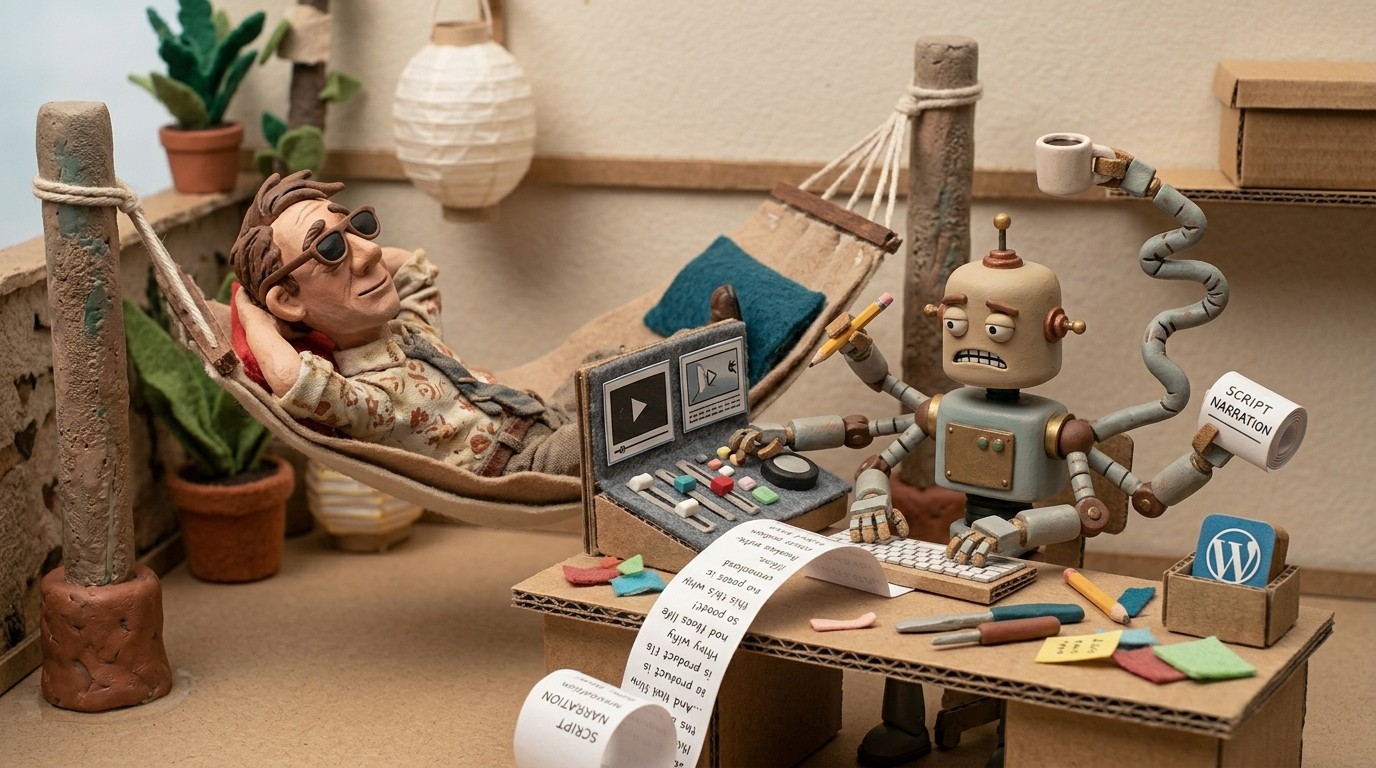
For teams that also need a video version, Clevera generates a narrated tutorial video from the same recording. Record once, get both formats. If you're producing documentation at any volume, an AI documentation generator removes the manual work from the whole pipeline, not just one step.
Tips that make the AI output sharper
The AI handles a lot, but a few habits make the output noticeably cleaner:
Keep each recording to one task. If you're showing how to configure a setting, don't detour into another feature mid-recording. One recording, one guide.
Work at a natural pace. Rushed recordings generate more noise for the AI to filter. You don't need to be slow — just not frantic.
Don't re-record because of mistakes. Wrong clicks and backtracking get removed automatically. Finish the task and let Clevera handle the cleanup.
Name your recording before you start. A clear title ("Set up Slack notifications in Clevera") helps you stay focused on one outcome per session.
What the finished guide looks like
After processing, each major action becomes a numbered step with a title, a 1-2 sentence description, and a screenshot of the relevant screen state. The article is formatted for readability and exports cleanly to whatever platform your users will read it on.
The whole workflow, from recording to published guide, takes minutes. For teams creating product documentation, how-to content, or onboarding materials at any real volume, that's the difference between documentation being current and documentation being outdated the moment a UI changes.