"Best Tutorial Video Maker Tools in 2026
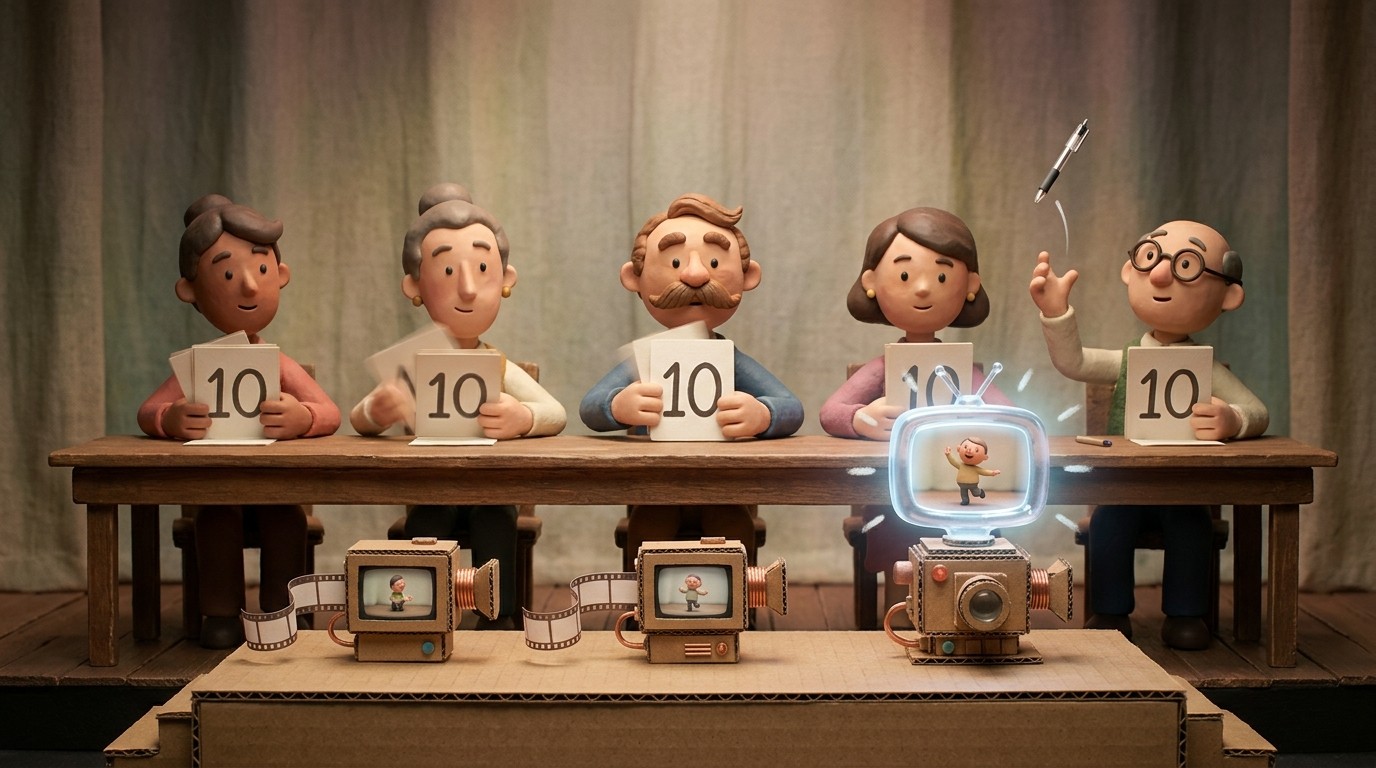
The best tutorial video maker for your team depends on whether you need AI automation, a traditional editor, or quick async recordings — not on which tool has the flashiest marketing page.
Making a tutorial video used to mean booking studio time, scripting every word, recording five takes, then handing it off to an editor who'd return it three days later with the wrong logo color. Modern tutorial video makers can take a raw screen recording and turn it into something polished — AI-trimmed, voiced, and ready to share — in the time it takes to make a coffee.
This guide ranks the top tutorial video maker tools in 2026: what each does well, where it falls short, and who it's built for — so you can stop reading comparison posts and start making videos.
Comparing AI-first SaaS tutorial tools (Clevera, Guidde, Scribe) instead of general editors? See best AI tutorial makers in 2026.
> New to tutorial video creation? Start with our complete guide: What Is an AI Tutorial Maker — and Do You Actually Need One?
What makes a great tutorial video maker?
Before the rankings: here's what separates tools that save you time from ones that just add steps.
Speed to first draft. The best tools get you from recording to shareable video in minutes, not hours. If you're still manually stitching clips together, the tool isn't doing enough.
No editing expertise required. Your product manager shouldn't need to learn Premiere Pro to explain a feature. Look for tools where AI handles the heavy lifting — cuts, transitions, pacing.
AI voice quality. Robotic text-to-speech kills trust. The best AI tutorial video makers use voices that sound like a real person, not a GPS unit from 2009.
Update-ability. Products change. Tutorial videos that require a full re-record every time you update a button label are a liability, not an asset. LiveSync-style functionality — where you update the source and the video updates automatically — is a real differentiator.
Output formats. A video is great. A video and a help article from the same recording is better. If your tool only gives you one output, you're doing double the work somewhere else.
The best tutorial video makers: ranked
1. Clevera — Best AI tutorial video maker for product teams
Best for: SaaS product teams, customer success, support teams who need to ship demos and help content fast
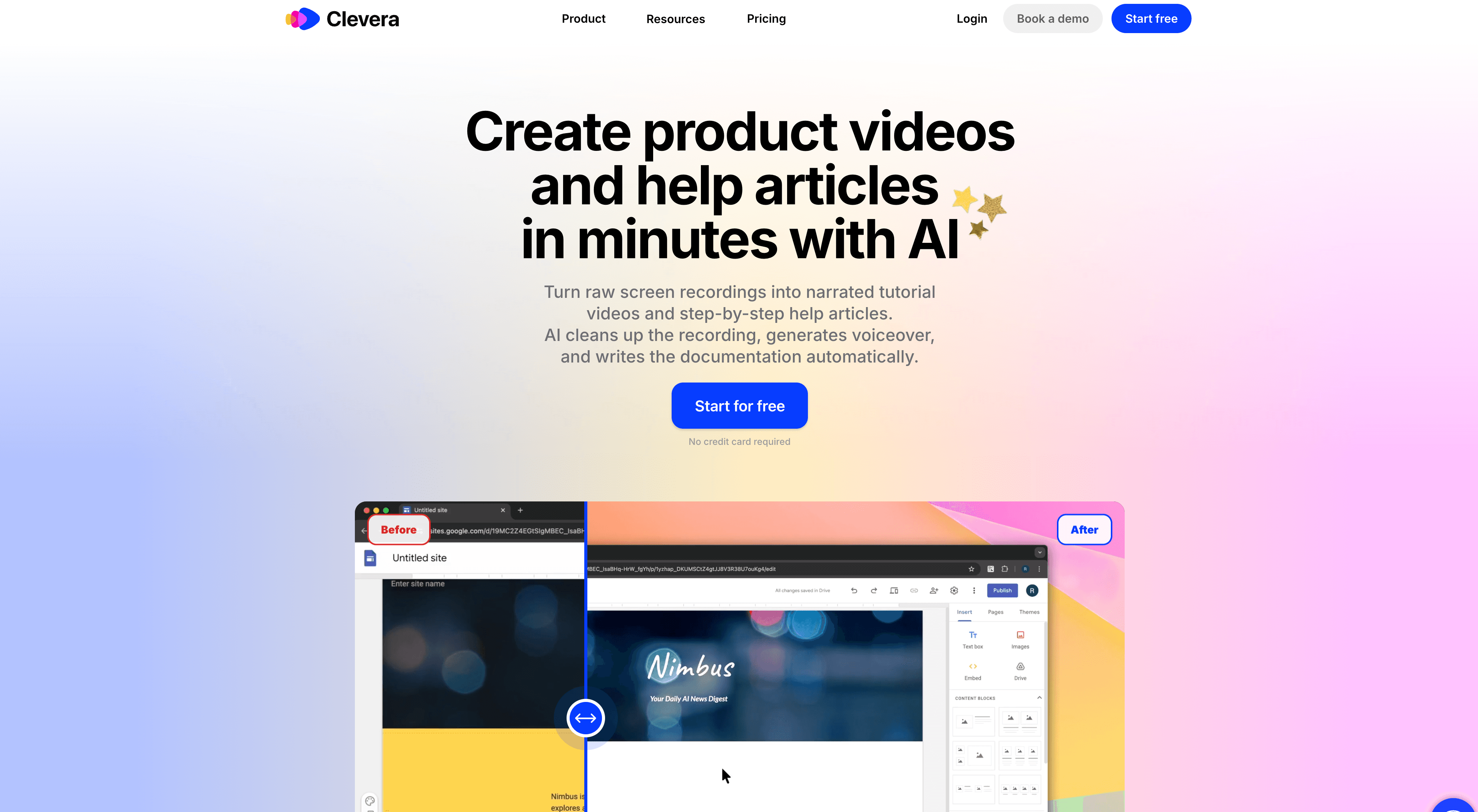
Clevera is purpose-built for the workflow that most SaaS teams are stuck in: someone records their screen, and then spends hours editing, scripting, voicing, and documenting. Clevera collapses that into a single step.
You record your screen. Clevera's AI removes the mistakes, writes and adds a human-like AI voice, formats everything into a polished video, and simultaneously generates a help article from the same recording. One recording. Two outputs. 5–10 minutes, not a full day.
What makes it genuinely different from other tools on this list is LiveSync — if your product changes (a new UI, a renamed button, a redesigned flow), you update the recording once and your video and article update everywhere they're published. No re-exports. No broken links. No version drift.
What it's great at:
Going from raw screen recording to polished tutorial without video editing skills
Generating a help article and a tutorial video from the same source
Keeping content up-to-date as your product evolves
Human-like AI voice that doesn't sound synthetic
Where it's a narrower fit:
It's built for screen-based product tutorials, not general talking-head or marketing videos
Best results come from structured workflows (product demos, onboarding flows, feature tutorials)
Pricing: clevera.ai
2. Loom — Best for quick, async screen recordings
Best for: Teams that need to share quick walkthroughs internally, or anyone already in a Loom workflow
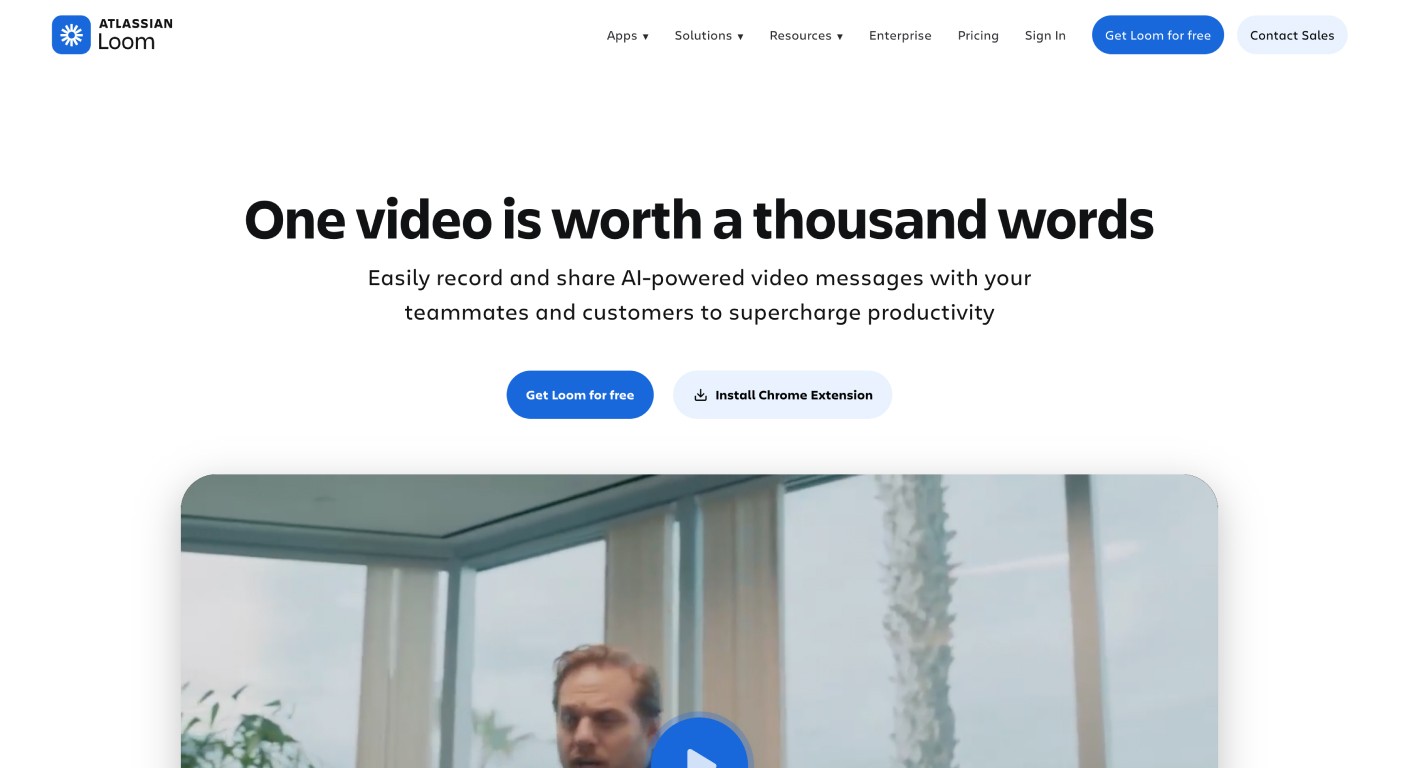
Loom is the go-to for async video communication, and it's fast — click, record, share. It's genuinely good for one-off internal explainers and quick customer replies.
The gap shows up when you need polished output. Loom gives you a raw recording with basic trimming. There's no AI voiceover, no automatic help article, no real production layer. What you record is essentially what you ship.
For internal use, that's fine. For customer-facing tutorials, onboarding flows, or anything that represents your product professionally, Loom often isn't enough on its own.
What it's great at:
Speed — you're recording and sharing in under two minutes
Async collaboration and comment threads on videos
Native integrations with Slack, Notion, and most SaaS tools
Where it falls short:
No AI voice or automated editing
Output looks like a screen recording, not a professional tutorial
No documentation output alongside video
Pricing: Free plan available; Business from $12.50/user/month
3. Camtasia — Best traditional tutorial video editor
Best for: Teams with dedicated video producers, or creators who want full manual control
Camtasia has been the industry standard for desktop tutorial video production for years. It's a full-featured video editor with screen capture built in — you get timeline editing, callouts, zoom effects, transitions, quizzes, and a library of assets.
The tradeoff is the learning curve. Camtasia is genuinely powerful, but using it well takes time to learn. It's not a tool you hand to a product manager on a Tuesday and expect results by Wednesday. If you have a video producer or someone dedicated to this, Camtasia gives them everything they need.
For teams without that resource, it's likely overkill — and the production bottleneck stays in place.
What it's great at:
Precise, professional editing with full control over every element
Built-in screen capture plus advanced post-production
Strong library of templates, callouts, and effects
Where it falls short:
Steep learning curve for non-editors
No AI voice generation or automatic editing
Updates require manual re-editing
Pricing: One-time purchase ~$299 (individual); subscription plans also available
4. Descript — Best for transcript-based video editing
Best for: Creators who are comfortable editing video the way you'd edit a document
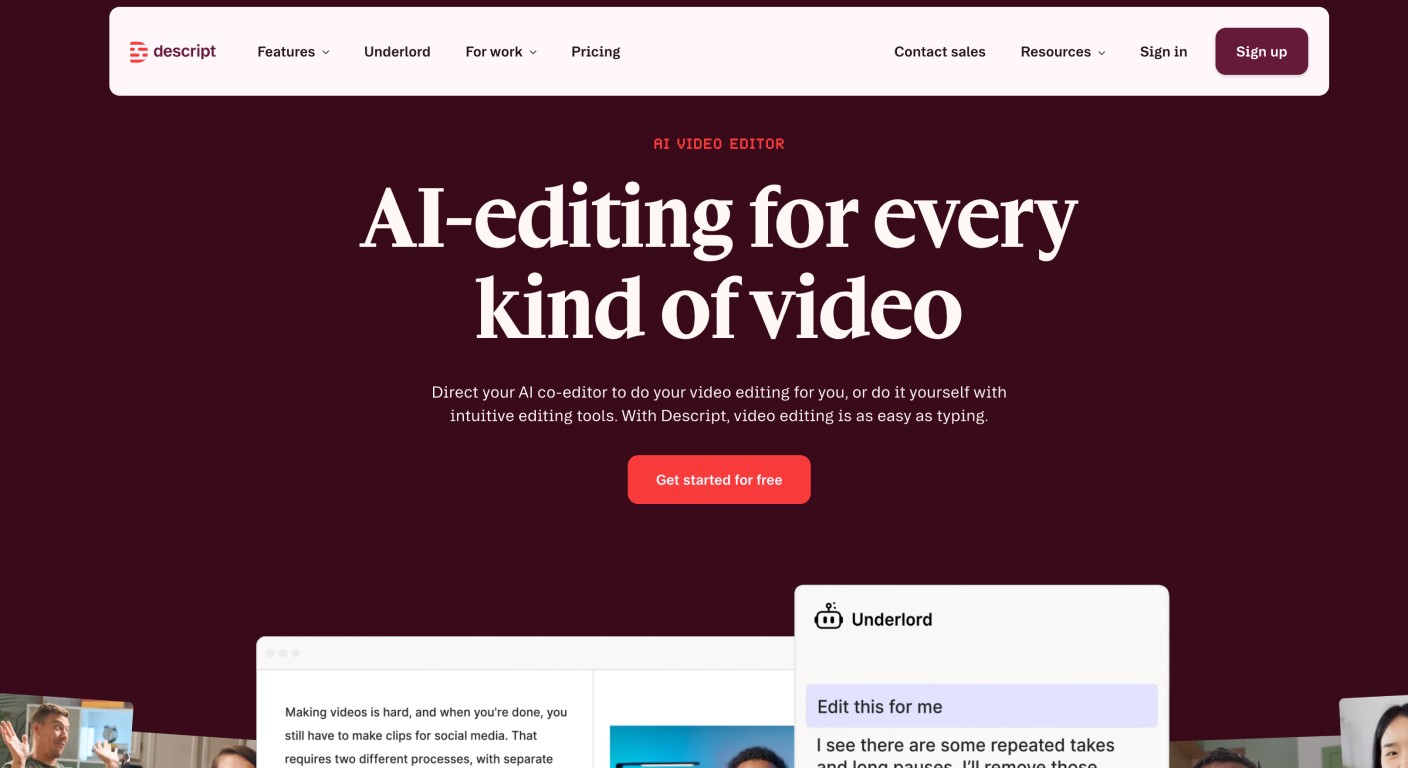
Descript takes a different approach to editing: you edit the transcript, and the video edits itself. Delete a sentence in the text, and it's removed from the video. It's a genuinely clever concept, and it works well for talking-head content and narrated screencasts.
Descript also has an AI voice feature ("Overdub") that lets you fix audio mistakes by typing. That's useful for polish, though it works best for small corrections rather than full narration replacement.
For screen-based product tutorials, it's a reasonable choice if your team is already comfortable with the transcript-editing model. It's less opinionated about outputs than Clevera — you get what you put in, refined.
What it's great at:
Editing video like a document — fast and intuitive for writers
AI voice cloning for correcting audio mistakes
Clean, modern interface
Where it falls short:
No automatic tutorial structure or help article output
Transcript editing is powerful but has a learning curve of its own
Less purpose-built for product tutorials vs. general video editing
Pricing: Free plan available; Creator from $24/month
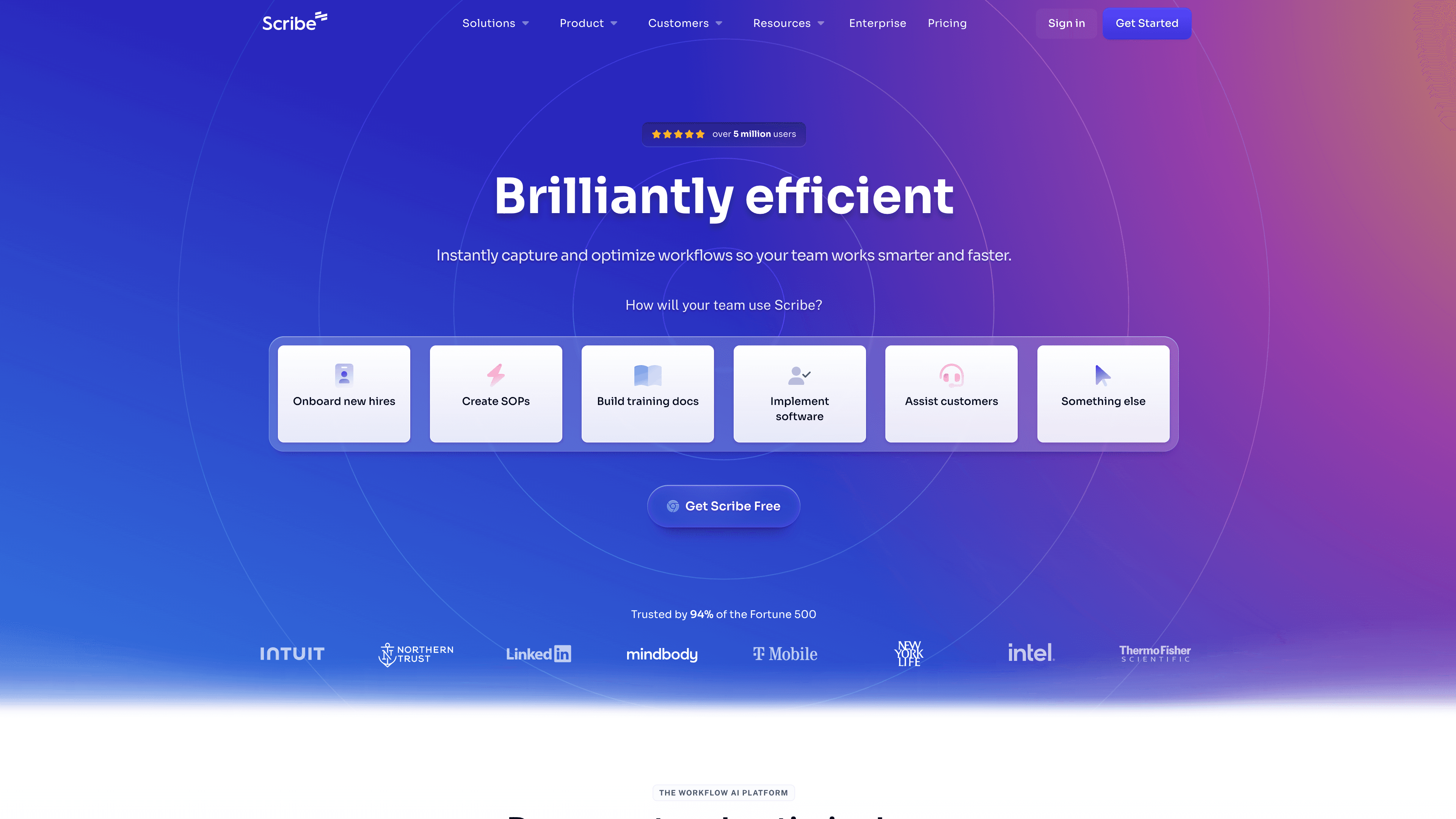
5. Scribe — Best for step-by-step process documentation
Best for: Teams focused on written SOPs and how-to guides more than video
Scribe is technically in this category, though it sits closer to the documentation side of the spectrum than the video side. It records your screen and automatically generates a step-by-step guide with annotated screenshots.
The output is fast and genuinely useful for internal documentation, support playbooks, and knowledge base articles. But if your primary goal is a tutorial video, Scribe isn't the right fit — it creates visual guides, not video content.
Worth knowing about if your team needs both written docs and video, and you're considering splitting the workflow across two tools.
What it's great at:
Instant step-by-step guides from screen recordings
Clean, shareable output that works well in Notion, Confluence, or help centers
Where it falls short:
No video output — it's documentation-focused
Limited narrative or voiceover capability
Pricing: Basic free; Pro from $29/user/month
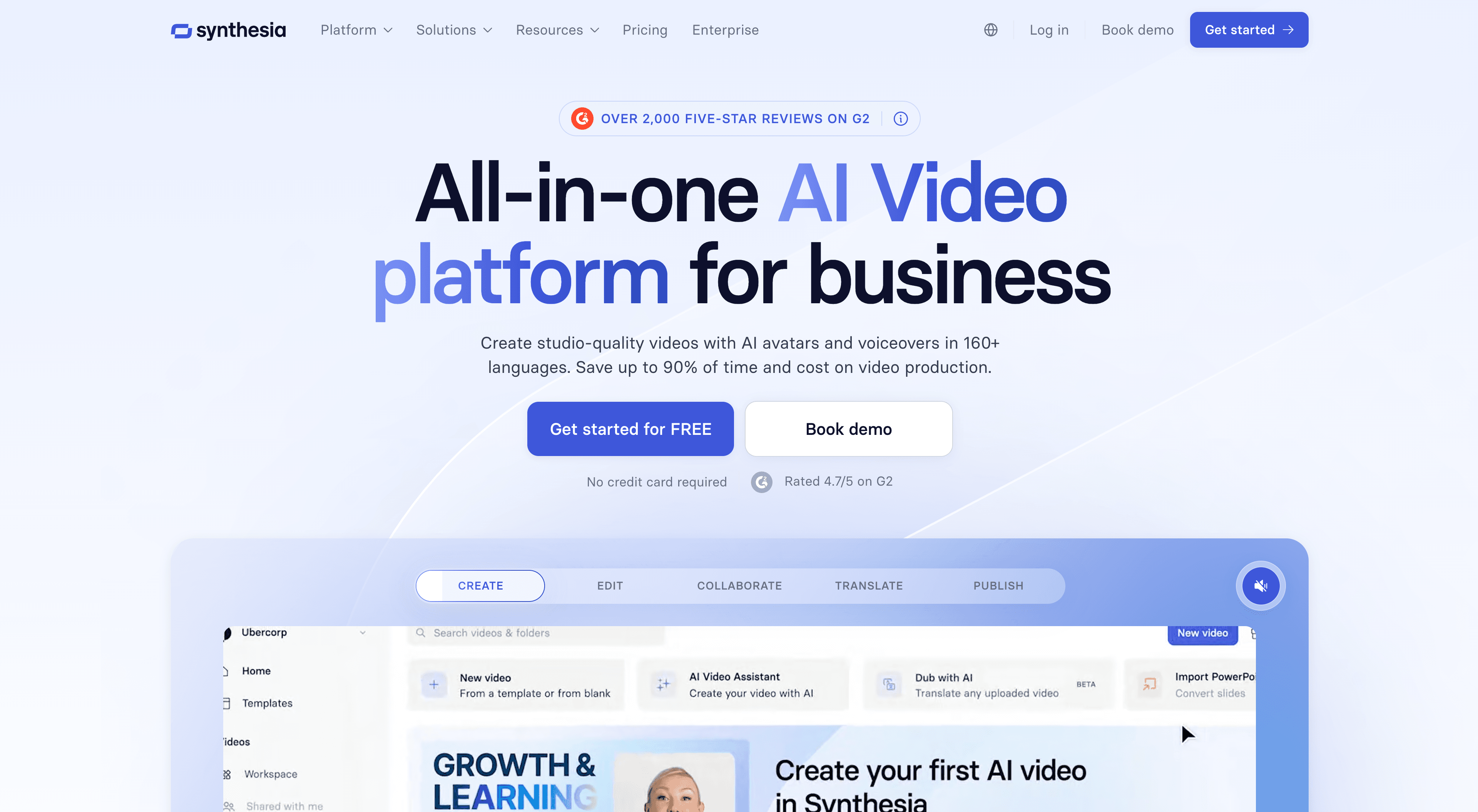
6. Synthesia — Best for AI avatar presenter videos
Best for: Marketing teams or L&D teams creating training content with on-screen presenters
Synthesia takes a completely different approach. Instead of recording your screen, you type a script and choose an AI avatar to "present" it. The result is a polished video with a human-looking presenter, no camera or recording required.
It's impressive for training content, HR videos, and marketing explainers where you want a presenter on screen. It's not the right tool for product tutorials — you can't easily show actual product UI being used in real-time, and the output has a noticeable "AI avatar" feel that can work against credibility for product-specific content.
What it's great at:
No camera, no recording — just a script and a presenter
Clean, consistent output for training and L&D content
120+ languages and avatar options
Where it falls short:
Not designed for screen-based product demos or software tutorials
AI avatars are recognizable as AI — can reduce authenticity for product content
No help article output
Pricing: Starter from $29/month
7. ScreenFlow — Best Mac-native tutorial editor
Best for: Mac users who want a polished editor without Camtasia's price tag
ScreenFlow is a Mac-only screen recording and video editing tool that's been around for years. It's cleaner and more approachable than Camtasia, with a solid set of editing tools, annotations, and export options.
Like Camtasia, it's a traditional video editor — you still do the editing work yourself. No AI voiceover, no automatic structure, no documentation output. But if you're on a Mac and want manual control without paying Camtasia prices, it's a good option.
What it's great at:
Clean Mac-native interface that's easier to pick up than Camtasia
Strong screen recording quality
Good for creators who want hands-on editing control
Where it falls short:
Mac only
No AI features
Requires editing expertise to get polished output
Pricing: One-time ~$169
Quick comparison
Tool | AI Voice | Auto-Editing | Help Article Output | LiveSync Updates | Learning Curve |
|---|---|---|---|---|---|
Clevera | ✅ Human-like | ✅ Full | ✅ Yes | ✅ Yes | Low |
Loom | ❌ | Basic trim | ❌ | ❌ | Very Low |
Camtasia | ❌ | ❌ Manual | ❌ | ❌ | High |
Descript | ✅ Partial | ✅ Partial | ❌ | ❌ | Medium |
Scribe | ❌ | ✅ (docs only) | ✅ Docs only | ❌ | Low |
Synthesia | ✅ Avatar | ✅ Full | ❌ | ❌ | Low |
ScreenFlow | ❌ | ❌ Manual | ❌ | ❌ | Medium |
How to choose the right tool for your team
You need videos fast, with no editing skills on your team → Clevera or Loom. Clevera if the output needs to look professional and live alongside help documentation. Loom if you need quick async recordings and polish isn't the priority.
You have a dedicated video producer → Camtasia or ScreenFlow. These give experienced editors full control. The output quality ceiling is high; the floor is whatever you put in.
You want to edit video the way you edit text → Descript. The transcript-based model is genuinely faster once you've learned it.
You mostly need written docs, not video → Scribe. Don't overbuild if your audience prefers reading.
You're building training or HR content with a presenter → Synthesia. Not built for screen-based product tutorials, but excellent for this use case.
FAQ
What is the best tutorial video maker?
For SaaS product teams that need polished screen-based tutorials without a video editor, Clevera is the strongest tutorial video maker in 2026 — AI narration, auto-editing, and a help article from one recording. Loom fits quick async clips. Camtasia or ScreenFlow fit teams with dedicated editors who want full manual control. Descript works well if you prefer editing video like a document.
How do I make a tutorial video without editing skills?
Record your screen while you walk through the workflow — no live narration required. An AI tutorial video maker like Clevera removes mistakes, writes the script, adds voiceover, and exports a finished video (plus an optional help article). Loom is faster but ships a raw recording. Avoid Camtasia or ScreenFlow unless someone on your team already knows video editing.
The bottom line
Most tutorial video makers were built for creators — not for the product manager who needs to explain a feature by 3pm, or the customer success team that's re-recording the same onboarding video every time the UI changes.
That gap is why Clevera exists. If your team is producing product tutorials, onboarding content, or help documentation, the right question isn't just "what's the best tutorial video software" — it's "which tool actually fits how my team works."
For product and CS teams at SaaS companies, the answer is usually a tool that handles the AI work for you, gives you two outputs from one recording, and keeps everything in sync as your product evolves.
→ See how Clevera turns screen recordings into tutorials and help articles