How to turn a screen recording into a product demo (and which type you actually need)
Learn how to convert a screen recording to a demo — whether that's a narrated video walkthrough or a clickable interactive tour — and pick the right tool for each.
 Roozbeh Firoozmand5 min read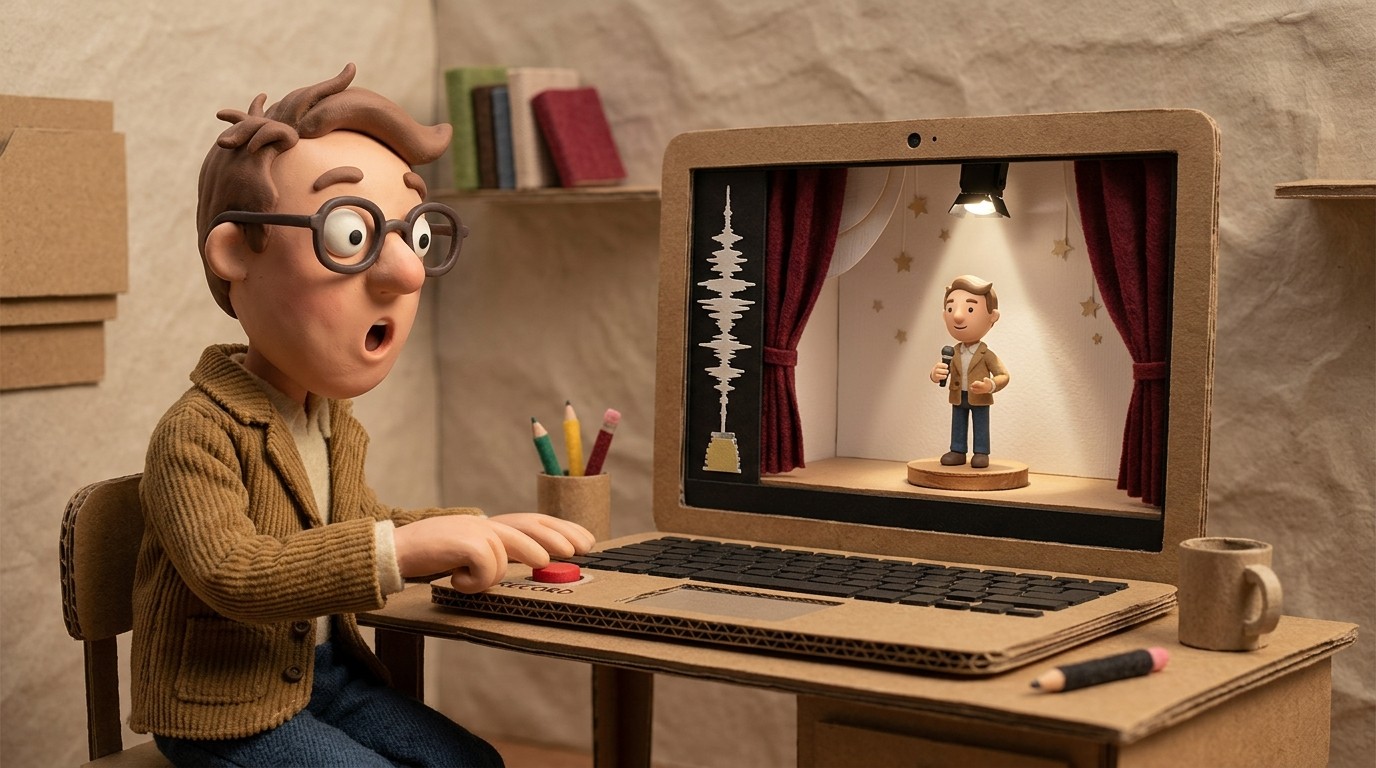
The fastest way to show someone how your product works is to record your screen and send it. But a raw screen recording is rarely the right thing to share with prospects, customers, or new users. It's unpolished, hard to navigate, and doesn't guide the viewer's attention.
What you actually want is a proper product demo — and there are 2 distinct types you can build from a screen recording to interactive demo or narrated video format. Understanding the difference is the first step to building something that actually works.
Two types of demos you can build from a screen recording
Narrated video demos are exactly what they sound like: a clean, edited screen recording with a voiceover that explains what's happening and why it matters. The viewer watches, follows along, and ends up with a clear understanding of the feature or workflow.
Interactive (clickable) demos are HTML captures of your product that let the viewer click through the UI themselves — without accessing the real product. Tools like Arcade, Navattic, and Storylane specialize in these.
Both have legitimate use cases, but they're optimized for different jobs. The mistake most teams make is using one when they need the other.
When to use a narrated video demo
A narrated video demo is the right choice when:
- You're teaching, not selling: For customer onboarding, employee training, help documentation, and how-to walkthroughs, video works better than interactive tours. The viewer needs to understand a workflow, not just explore the UI.
- Your workflow has multiple steps: Multi-step processes are clearer in video. Interactive demos can get confusing when the path branches or requires explanation.
- You need to reach global users: A video can be translated into 70+ languages with AI narration and subtitles. Interactive demos can't be easily localized.
- You need the content to stay current: If your product UI changes, a narrated video can be updated and republished. With LiveSync tools, that update propagates to every place the video is embedded.
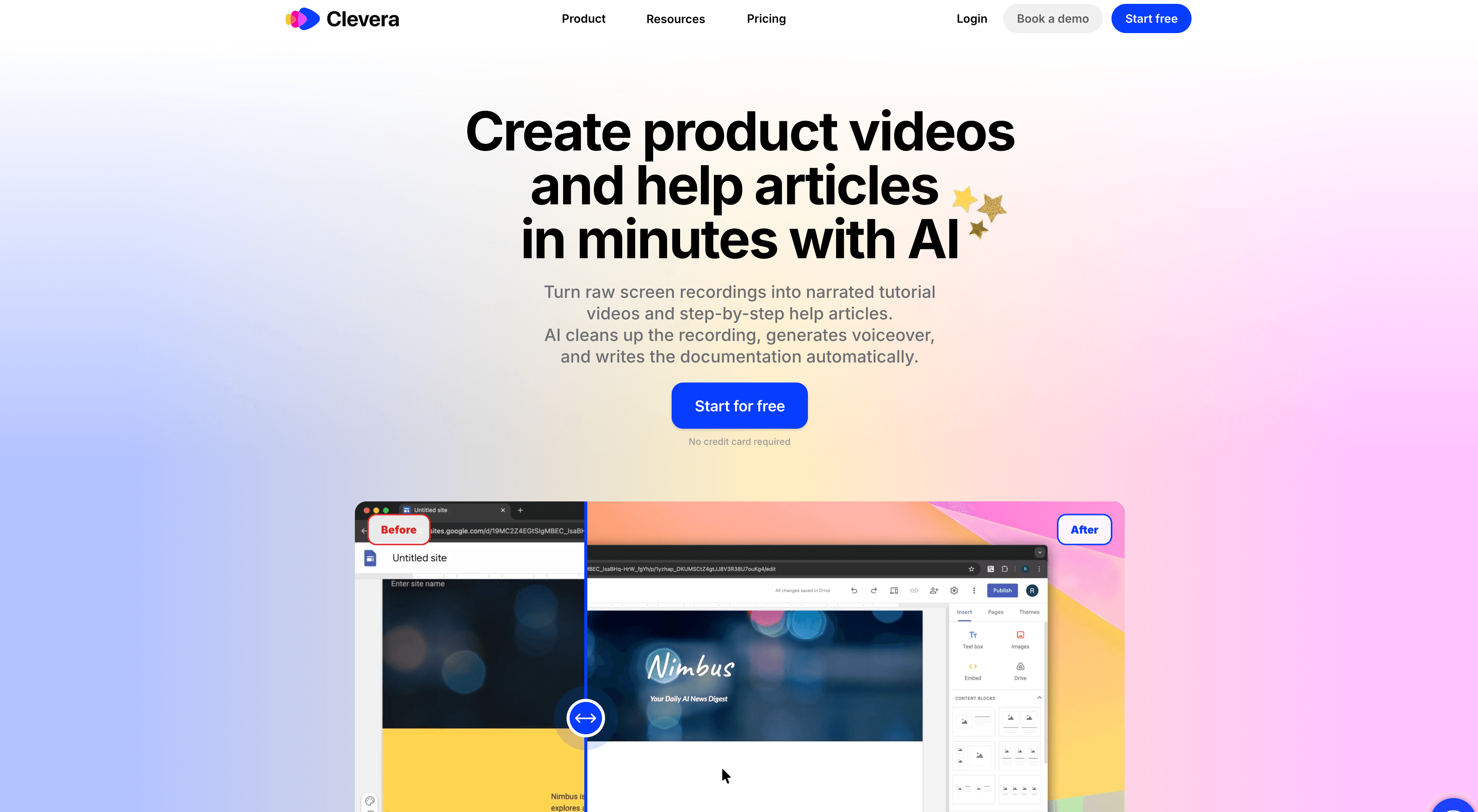
Best tool: Clevera
When to use an interactive demo
An interactive demo is the right choice when:
- You're generating marketing pipeline: Prospects on a landing page want to try your product, not watch a walkthrough. An interactive demo lets them click around without signing up.
- You're equipping a sales team: Sales reps can walk through a personalized, risk-free demo without needing a live product environment.
- You're showing a feature in development: Interactive demos capture your UI without requiring a stable, live product — useful for early-access or beta features.
- You want to gate content in outbound: Sending a clickable demo in a cold email or LinkedIn message is more engaging than a static screenshot or a Loom link.
Best tools: Arcade, Navattic, Storylane
How to convert a screen recording to a demo: narrated video
Here's how to go from raw recording to a polished narrated video demo with Clevera:
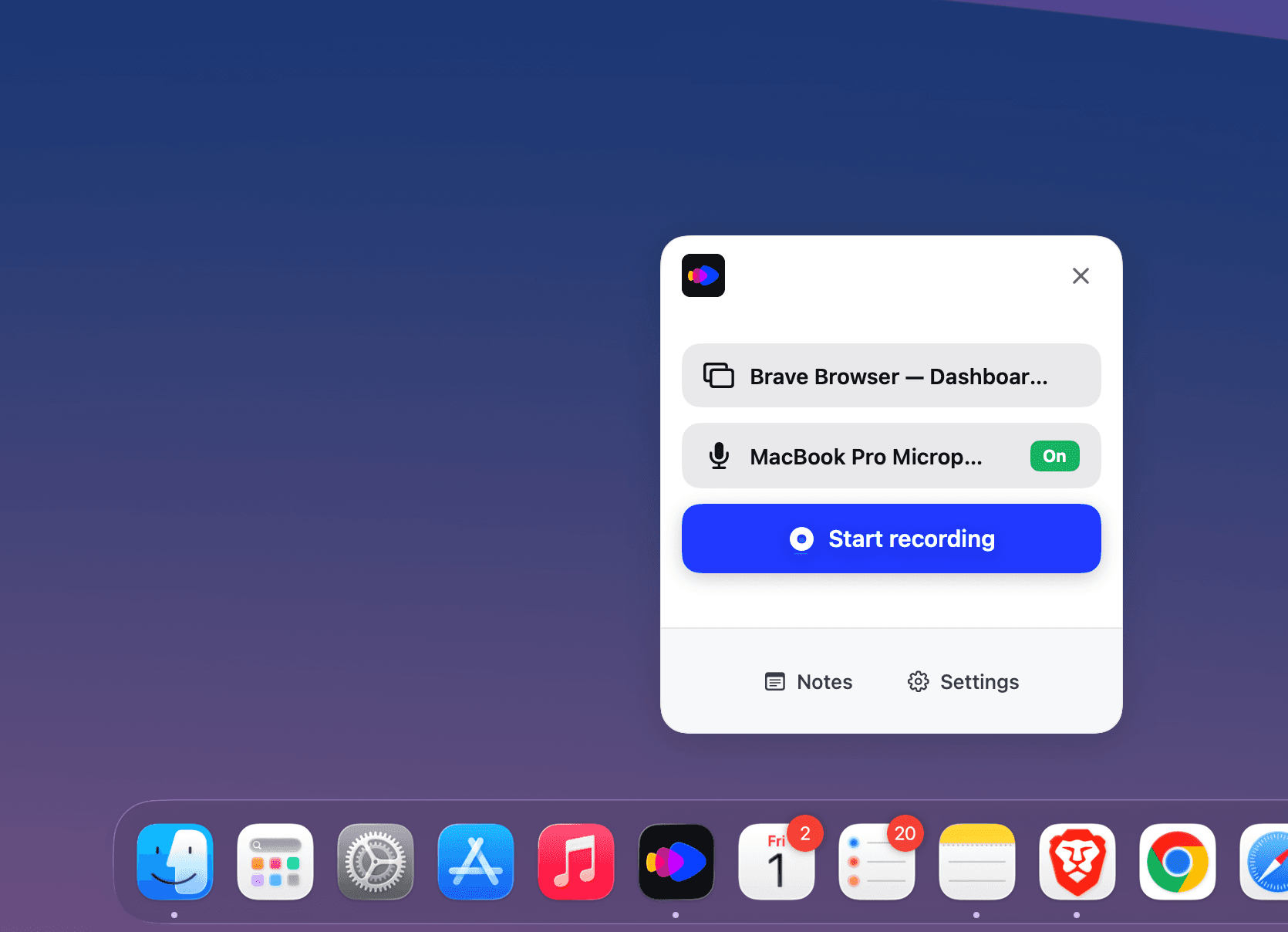
Step 1: Record your screen
Walk through the workflow you want to demonstrate. You don't need to narrate as you record — just move deliberately through each step. Keep it focused: one demo should cover one feature or workflow, not your entire product.
Step 2: Generate AI narration
Upload the recording to Clevera. The AI generates a voiceover script based on what happened on screen. Review and edit the script — adjust any steps that need more context, fix product name pronunciation, and tighten the explanation.
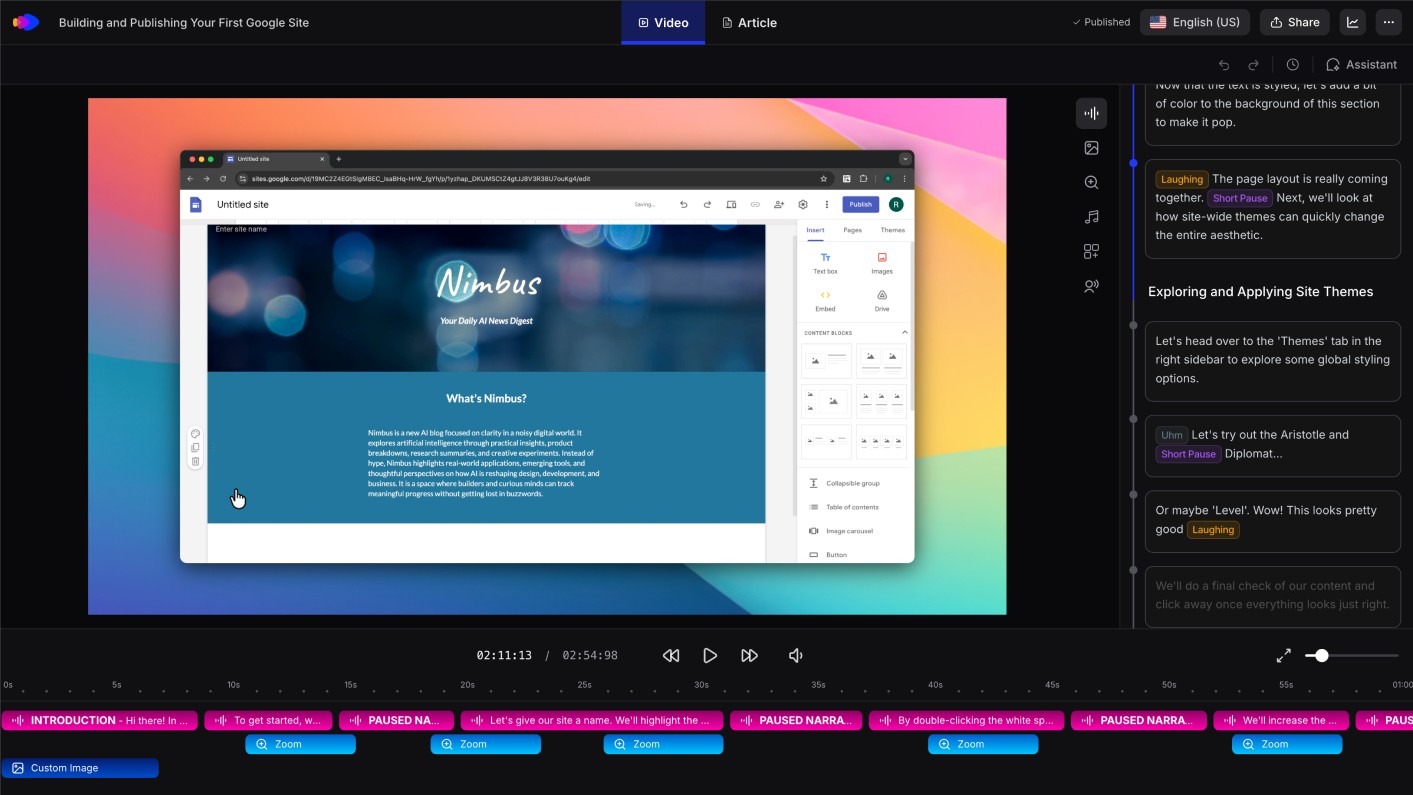
Step 3: Review the auto-edited video
Clevera applies smart zoom to key UI interactions and cursor smoothing to clean up any jittery mouse movement. Review the output and make any timing adjustments.
Step 4: Export and embed
Publish to your help center, documentation, onboarding flow, or landing page. Use Clevera's LiveSync embed so any future updates to the video automatically propagate to every place it's published — no re-linking needed.
Step 5: Translate if needed
If you're serving a global audience, translate the video narration, captions, and any paired help article into your target languages in one click. Each language version is ready to publish immediately.
How to convert a screen recording to an interactive demo
If an interactive (clickable) demo is what you need, the process is different:
Step 1: Use a dedicated capture tool
Tools like Arcade or Navattic capture your product UI as a series of screenshots or HTML captures as you navigate. This is different from a standard screen recording — the tool captures the DOM or screenshots at each step, not video frames.
Step 2: Add hotspots and guidance
After capture, you add click targets, tooltips, and guided prompts to walk the viewer through the demo flow. Most tools have a visual editor for this.
Step 3: Publish or share
Embed on a landing page, share as a link, or send directly. Most interactive demo tools provide embeddable iframes and analytics on viewer engagement.
Note: a raw screen recording (MP4 or similar) can't be converted directly into a clickable interactive demo — the capture has to happen inside the interactive demo tool itself. If you already have a screen recording and want an interactive version, you'll need to re-capture using the appropriate tool.
Which format works harder for you?
Most SaaS teams need both types of demos, but at different stages:
| Use case | Narrated video | Interactive demo |
|---|---|---|
| Customer onboarding | ✓ | — |
| Help documentation | ✓ | — |
| Sales landing pages | — | ✓ |
| Outbound prospecting | — | ✓ |
| Employee training | ✓ | — |
| Multilingual users | ✓ | — |
| Feature walkthroughs | ✓ | ✓ |
| Beta / pre-launch demos | — | ✓ |
For documentation, onboarding, and training — where the goal is comprehension — narrated video demos built with Clevera are more effective. For sales, marketing, and product-led growth motion — where the goal is exploration and pipeline generation — interactive demos are the right tool.
The teams that do this best use Clevera for tutorial content and documentation, and an interactive demo tool for sales and marketing. The two approaches are complementary, not competing.
The most common mistake
The most common mistake teams make when thinking about turning a screen recording into a product demo: assuming one format fits all use cases.
Sending a clickable sales demo to a customer who needs to learn a workflow is confusing. Sending a tutorial video to a prospect on a landing page asking "what does this do?" is too much friction.
Identify who's watching, what they're trying to accomplish, and what outcome you want — then pick the format that matches.